> For the complete documentation index, see [llms.txt](https://docs.monogoto.io/llms.txt). Markdown versions of documentation pages are available by appending `.md` to page URLs; this page is available as [Markdown](https://docs.monogoto.io/getting-started/sim-cards/softsim/nordic-nrf91x.md).
# Nordic nRF91x
Get started with the nRF91x Development Kit
The nRF91x series is a line of cellular IoT solutions that supports LTE Cat-M1, NB-IoT, GNSS, and Bluetooth LE. It provides an affordable, pre-certified platform for evaluating and developing Nordic’s cellular IoT System-in-Package (SiP) devices. In the newer models of the series, support for NTN connectivity is also included.
 ### Quick Navigation
* [Getting Started with the nRF91x](#getting-started)
* [Connect the nRF91x to Monogoto](#connect-the-nrf91x-to-monogoto)
* [Useful Links](#useful-links)
## Getting Started with the nRF91x
### Connect to the nRF91x
Connect the nRF91x to your computer using a micro USB cable**.**
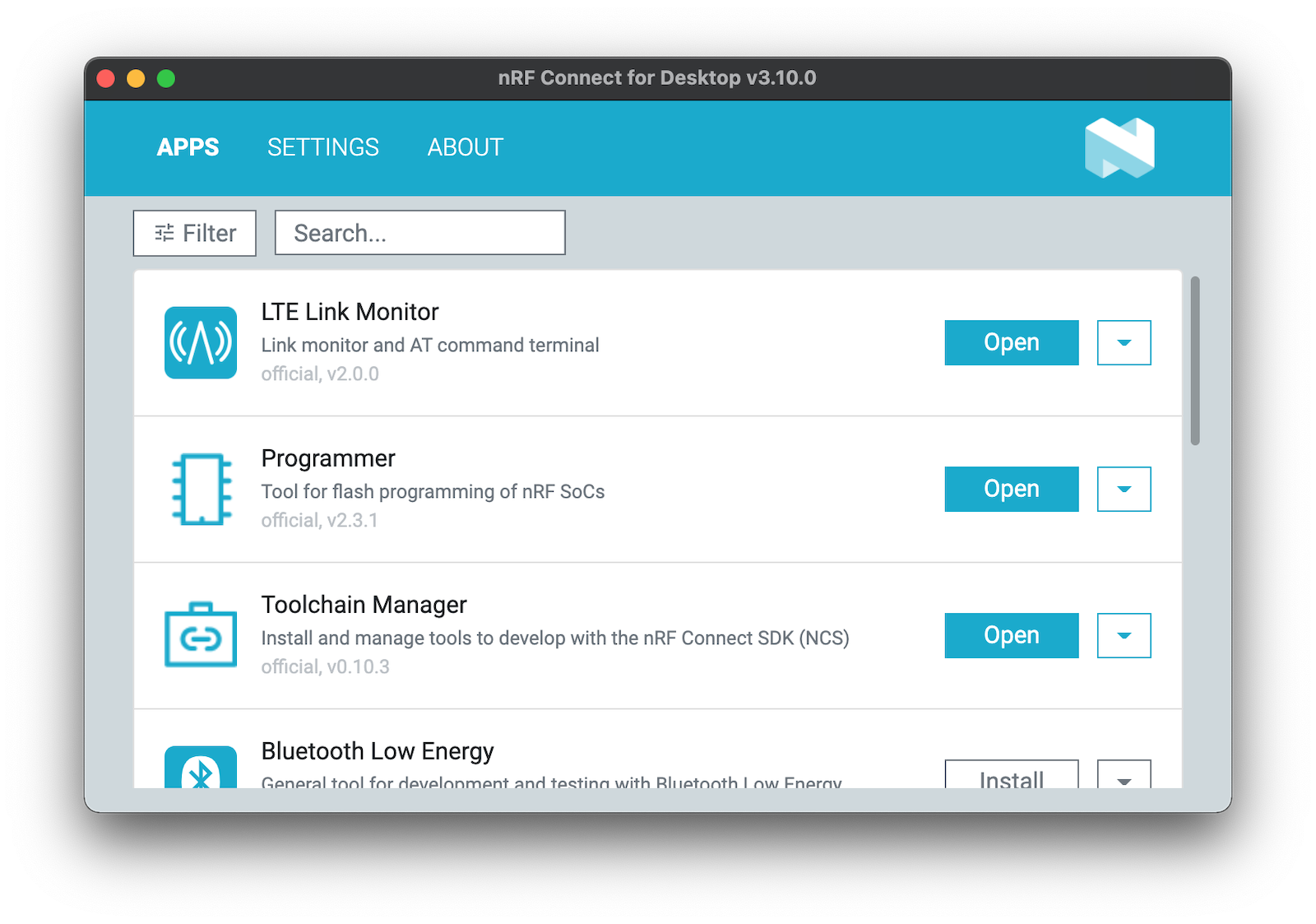
Open the **Programmer** tool from **nFR Connect for Desktop.**

Connect your device by clicking **SELECT DEVICE ↓** at the top-left corner.

## Connect the nRF91x to Monogoto
{% hint style="info" %}
Keep the **nRF91 AT Commands manual** next to you for more details about the commands. [**Click here**](https://docs.nordicsemi.com/bundle/ncs-latest/page/nrfxlib/nrf_modem/doc/at_interface.html) to visit NORDICs AT Commands documentation.
{% endhint %}
Start off by **inserting the Monogoto SIM card**.
Open the **LTE Link Monitor** from **nRF Connect for Desktop.**
After selecting your device via the button **SELECT DEVICE ↓,** the AT command `AT+CFUN?` is sent automatically to the modem which returns: `+CFUN: 0`, indicating that the modem is turned off.

Reset the modem to **factory settings**:
```bash
AT%XFACTORYRESET=0
```
Enable **error reporting**, resulting in more descriptive error codes (optional):
```bash
AT+CMEE=1
```
### SIM initialization selection policy
Check the **SIM initialization selection policy** is currently using:
```
AT%CSUS?
```
Expected response:
`%CSUS:2` The last digit indicates the Active SIM:
`0` indicates **External (SIM card)**
`2` indicates **Internal (SoftSIM)**
**Enable** the SoftSIM card
```
AT%CSUS=2
```
**Activate** the cellular modem:
```bash
AT+CFUN=1
```
Check if the SIM card is attached and is not locked with a PIN, expected response: `+CPIN: READY`:
```bash
AT+CPIN?
```
{% hint style="warning" %}
If you receive an error, the SIM may not be inserted properly or the SIM is protected with a PIN. By default, Monogoto SIMs are not PIN protected.
{% endhint %}
### **Query device information**
Request the modem **hardware version**:
```
AT+CGMM
```
Validate if the nRF91x modem runs the latest firmware:
```bash
AT+CGMR
```
Compare the response with the latest version found on [**NORDICs website**](https://www.nordicsemi.com/Products/nRF9160/Download#infotabs) under **nRF91x SiP modem firmware***.*
### Quick Navigation
* [Getting Started with the nRF91x](#getting-started)
* [Connect the nRF91x to Monogoto](#connect-the-nrf91x-to-monogoto)
* [Useful Links](#useful-links)
## Getting Started with the nRF91x
### Connect to the nRF91x
Connect the nRF91x to your computer using a micro USB cable**.**
Open the **Programmer** tool from **nFR Connect for Desktop.**

Connect your device by clicking **SELECT DEVICE ↓** at the top-left corner.

## Connect the nRF91x to Monogoto
{% hint style="info" %}
Keep the **nRF91 AT Commands manual** next to you for more details about the commands. [**Click here**](https://docs.nordicsemi.com/bundle/ncs-latest/page/nrfxlib/nrf_modem/doc/at_interface.html) to visit NORDICs AT Commands documentation.
{% endhint %}
Start off by **inserting the Monogoto SIM card**.
Open the **LTE Link Monitor** from **nRF Connect for Desktop.**
After selecting your device via the button **SELECT DEVICE ↓,** the AT command `AT+CFUN?` is sent automatically to the modem which returns: `+CFUN: 0`, indicating that the modem is turned off.

Reset the modem to **factory settings**:
```bash
AT%XFACTORYRESET=0
```
Enable **error reporting**, resulting in more descriptive error codes (optional):
```bash
AT+CMEE=1
```
### SIM initialization selection policy
Check the **SIM initialization selection policy** is currently using:
```
AT%CSUS?
```
Expected response:
`%CSUS:2` The last digit indicates the Active SIM:
`0` indicates **External (SIM card)**
`2` indicates **Internal (SoftSIM)**
**Enable** the SoftSIM card
```
AT%CSUS=2
```
**Activate** the cellular modem:
```bash
AT+CFUN=1
```
Check if the SIM card is attached and is not locked with a PIN, expected response: `+CPIN: READY`:
```bash
AT+CPIN?
```
{% hint style="warning" %}
If you receive an error, the SIM may not be inserted properly or the SIM is protected with a PIN. By default, Monogoto SIMs are not PIN protected.
{% endhint %}
### **Query device information**
Request the modem **hardware version**:
```
AT+CGMM
```
Validate if the nRF91x modem runs the latest firmware:
```bash
AT+CGMR
```
Compare the response with the latest version found on [**NORDICs website**](https://www.nordicsemi.com/Products/nRF9160/Download#infotabs) under **nRF91x SiP modem firmware***.*
How to update the nRF91x modem firmware
If you don’t run the latest modem firmware, [**download**](https://www.nordicsemi.com/Products/Development-hardware/nRF9160-DK/Download?lang=en#infotabs) the latest nRF91x **application and modem firmware**. Unzip the file and look for a zipfile which starts with `mfw` (which stands for Modem Firmware).
Open the **Programmer** in **nRF Connect for Desktop**.
 Click in the left menu bar Read
  , followed by Add file
  and select the modem firmware zipfile you just downloaded.
Click Write
and select the modem firmware zipfile you just downloaded.
Click Write  to write the latest application and modem firmware to the nRF91x. Wait for the program to report: "**Completed successfully**".

Request the **IMSI** (International Mobile Subscriber Identity):
```
AT+CIMI
```
Request the **ICCID** (Integrated Circuit Card ID), which is the identification number of the SIM card:
```bash
AT%XICCID
```
### **Network Configuration**
It is possible to let the modem select the network automatically, or to manually define a network to connect with.
#### **Option 1: Automatic Network Selection**
To set the modem to **automatic network selection** enter the command:
```
AT+COPS=0
```
Check the **network and cellular technology the modem** is currently using:
```
AT+COPS?
```
Expected response: `+COPS: 0,2,"",7`. The last digit indicates the cellular technology, `7` means **LTE Cat-M1**
#### Option 2: Manual Network Selection
Start with searching for available networks by entering the below AT Command, or by clicking the button:  ```
AT+COPS=?
```
{% hint style="warning" %}
Be patient, it may take several minutes before the modem responds, you cannot send any other AT Commands in the meantime. You may get an error message which you can ignore `Error: 'AT+COPS=? ' timed out`.
{% endhint %}
The modem responds with the **MCCMNC** codes of the available networks. It also shows the cellular technologies the networks support: `7` indicates **LTE Cat-M1**.
Example response:
```
+COPS: (2,"","","20408",7),(1,"","","20404",7),(1,"","","20416",7)
```
To find the names and MCCMNCs of the networks Monogoto has **roaming agreements** with, review the [**Coverage lists**](/getting-started/global-public-coverage.md).
{% hint style="info" %}
To find the **profile** of your SIM, visit the [**Monogoto Console**](https://console.monogoto.io/), open the page **Things** and select a specific **Thing**. Scroll down to **Mobile Identities** to find your profile in the column **Network Provider Name**.

{% endhint %}
To find the **network operator** and the **cellular technology** the device is currently using, enter:
```
AT+COPS?
```
Expected response: `+COPS: 0,2,"",7`. The last digit indicates the cellular technology LTE Cat-M1.
**Manually set the network and the cellular technology**:
```
AT+COPS=1,2,"XXXXX",7
```
Replace `XXXXX` with the **MCCMNC** code of your operator, for example`"20404"` for Vodafone NL.
#### **Check the radio signal strength and signal quality:**
```bash
AT+CESQ
```
Example response: `+CESQ: 99,99,255,255,15,53`
{% hint style="info" %}
`+CESQ` returns 6 values separated by commas. The last 2 values indicate the **RSRQ** (Reference Signal Received Quality) and **RSRP** (Reference Signal Received Power) respectively. RSRQ is indicated with a value between `0` and `34`, RSRP is with a value between `0` and `97`. Higher values represent better signal quality.
{% endhint %}
#### Read the LTE Cat-M1 band the modem is using:
```
AT%XCBAND
```
Example response: `%XCBAND: 20`
#### Define the cellular band(s) (optional)
It is possible to **lock the modem to one or more specific bands**. This may result in a faster boot cycle as the modem does not need to scan for available bands at startup.
To **find** the available bands the modem support:
```
AT%XCBAND=?
```
Expected response: `%XCBAND: (1,2,3,4,5,8,12,13,18,19,20,25,26,28,66)`
{% hint style="warning" %}
Although the modem may support many different bands, your local network operator may not. Have a look at the [**LTE Cat-M1 overview**](broken://pages/GDSRxI85QWE6Z2lsLeS3) to find the available band(s) in your region.
{% endhint %}
{% hint style="info" %}
The LTE Link Monitor shows most of the network information as well. Example:

{% endhint %}
**Lock the modem to one or multiple bands**
First, deactivate the modem: `AT+CFUN=0`, then run the command:
```
AT%XBANDLOCK=1,""
```
{% hint style="info" %}
Example of **creating the bandmask:**
To lock the modem to band 3 and 8, create a bit array where the 3rd and 8th bit are a 1 (counted from right to left): `10000100`. The AT Command becomes: `AT%XBANDLOCK=1,"10000100"`
{% endhint %}
Reactivate the modem after locking the band: `AT+CFUN=1`
**Test** if the bands are properly set:
```
AT%XBANDLOCK?
```
Expected response: `%XBANDLOCK: "",""`
### Network Activation
**Set the APN to** `go.mono`:
```bash
AT+CGDCONT=1,"IP","go.mono"
```
Validate if the **APN** is properly set:
```
AT+CGDCONT?
```
Expected response:
```
+CGDCONT: 1,"IP","go.mono"
```
**Activate the PDP (packet data protocol) context:**
```
AT+CGACT=1,1
```
**Test** if the PDP context is activated:
```
AT+CGACT?
```
Expected response:
```
+CGACT: 0,1
+CGACT: 1,1
```
#### Validate if your device received an **IP address**:
```bash
AT+CGPADDR
```
Expected response: `+CGPADDR: 1,XX.XXX.XX.XXX`
{% hint style="success" %}
Did you receive an IP address? **Congratulations! 🎉 You successfully connected the nRF9160 to Monogoto.** Have a look at the **Things** logs in the [**Monogoto Console**](https://console.monogoto.io/) to find more details about the established connection.
{% endhint %}
Finally, visualize the network settings and status in the **LTE Link Monitor** with the command:
```bash
AT+CFUN?
```
If all went well, you should see the **Modem**, **UICC**, **LTE** and **PDN** (and optionally **UART**) indicators in the LTE Link Monitor turn **green**. You should also see network information such as the **band**, the **network** the **signal quality** and **IP address**.

## Useful Links
* [nRF91x Getting Started](https://docs.nordicsemi.com/bundle?cluster=true\&exclude_metadata_filter.field=display-type\&exclude_metadata_filter.value=inline\&labelkey=nrf91-series\&labelkey=nrf9131\&labelkey=nrf9151\&labelkey=nrf9161\&labelkey=nrf9160\&labelkey=thingy91\&labelkey=thingy91x\&rpp=10\&sort.field=last_uploaded\&sort.value=desc)
* [nRF91 AT Commands](https://docs.nordicsemi.com/bundle/ncs-latest/page/nrfxlib/nrf_modem/doc/at_interface.html)
* [nRF91 SoftSIM API](https://docs.monogoto.io/developer/api/softsim-nordic)
* [nRF Connect for Desktop](https://www.nordicsemi.com/Products/Development-tools/nRF-Connect-for-desktop/)
```
AT+COPS=?
```
{% hint style="warning" %}
Be patient, it may take several minutes before the modem responds, you cannot send any other AT Commands in the meantime. You may get an error message which you can ignore `Error: 'AT+COPS=? ' timed out`.
{% endhint %}
The modem responds with the **MCCMNC** codes of the available networks. It also shows the cellular technologies the networks support: `7` indicates **LTE Cat-M1**.
Example response:
```
+COPS: (2,"","","20408",7),(1,"","","20404",7),(1,"","","20416",7)
```
To find the names and MCCMNCs of the networks Monogoto has **roaming agreements** with, review the [**Coverage lists**](/getting-started/global-public-coverage.md).
{% hint style="info" %}
To find the **profile** of your SIM, visit the [**Monogoto Console**](https://console.monogoto.io/), open the page **Things** and select a specific **Thing**. Scroll down to **Mobile Identities** to find your profile in the column **Network Provider Name**.

{% endhint %}
To find the **network operator** and the **cellular technology** the device is currently using, enter:
```
AT+COPS?
```
Expected response: `+COPS: 0,2,"",7`. The last digit indicates the cellular technology LTE Cat-M1.
**Manually set the network and the cellular technology**:
```
AT+COPS=1,2,"XXXXX",7
```
Replace `XXXXX` with the **MCCMNC** code of your operator, for example`"20404"` for Vodafone NL.
#### **Check the radio signal strength and signal quality:**
```bash
AT+CESQ
```
Example response: `+CESQ: 99,99,255,255,15,53`
{% hint style="info" %}
`+CESQ` returns 6 values separated by commas. The last 2 values indicate the **RSRQ** (Reference Signal Received Quality) and **RSRP** (Reference Signal Received Power) respectively. RSRQ is indicated with a value between `0` and `34`, RSRP is with a value between `0` and `97`. Higher values represent better signal quality.
{% endhint %}
#### Read the LTE Cat-M1 band the modem is using:
```
AT%XCBAND
```
Example response: `%XCBAND: 20`
#### Define the cellular band(s) (optional)
It is possible to **lock the modem to one or more specific bands**. This may result in a faster boot cycle as the modem does not need to scan for available bands at startup.
To **find** the available bands the modem support:
```
AT%XCBAND=?
```
Expected response: `%XCBAND: (1,2,3,4,5,8,12,13,18,19,20,25,26,28,66)`
{% hint style="warning" %}
Although the modem may support many different bands, your local network operator may not. Have a look at the [**LTE Cat-M1 overview**](broken://pages/GDSRxI85QWE6Z2lsLeS3) to find the available band(s) in your region.
{% endhint %}
{% hint style="info" %}
The LTE Link Monitor shows most of the network information as well. Example:

{% endhint %}
**Lock the modem to one or multiple bands**
First, deactivate the modem: `AT+CFUN=0`, then run the command:
```
AT%XBANDLOCK=1,""
```
{% hint style="info" %}
Example of **creating the bandmask:**
To lock the modem to band 3 and 8, create a bit array where the 3rd and 8th bit are a 1 (counted from right to left): `10000100`. The AT Command becomes: `AT%XBANDLOCK=1,"10000100"`
{% endhint %}
Reactivate the modem after locking the band: `AT+CFUN=1`
**Test** if the bands are properly set:
```
AT%XBANDLOCK?
```
Expected response: `%XBANDLOCK: "",""`
### Network Activation
**Set the APN to** `go.mono`:
```bash
AT+CGDCONT=1,"IP","go.mono"
```
Validate if the **APN** is properly set:
```
AT+CGDCONT?
```
Expected response:
```
+CGDCONT: 1,"IP","go.mono"
```
**Activate the PDP (packet data protocol) context:**
```
AT+CGACT=1,1
```
**Test** if the PDP context is activated:
```
AT+CGACT?
```
Expected response:
```
+CGACT: 0,1
+CGACT: 1,1
```
#### Validate if your device received an **IP address**:
```bash
AT+CGPADDR
```
Expected response: `+CGPADDR: 1,XX.XXX.XX.XXX`
{% hint style="success" %}
Did you receive an IP address? **Congratulations! 🎉 You successfully connected the nRF9160 to Monogoto.** Have a look at the **Things** logs in the [**Monogoto Console**](https://console.monogoto.io/) to find more details about the established connection.
{% endhint %}
Finally, visualize the network settings and status in the **LTE Link Monitor** with the command:
```bash
AT+CFUN?
```
If all went well, you should see the **Modem**, **UICC**, **LTE** and **PDN** (and optionally **UART**) indicators in the LTE Link Monitor turn **green**. You should also see network information such as the **band**, the **network** the **signal quality** and **IP address**.

## Useful Links
* [nRF91x Getting Started](https://docs.nordicsemi.com/bundle?cluster=true\&exclude_metadata_filter.field=display-type\&exclude_metadata_filter.value=inline\&labelkey=nrf91-series\&labelkey=nrf9131\&labelkey=nrf9151\&labelkey=nrf9161\&labelkey=nrf9160\&labelkey=thingy91\&labelkey=thingy91x\&rpp=10\&sort.field=last_uploaded\&sort.value=desc)
* [nRF91 AT Commands](https://docs.nordicsemi.com/bundle/ncs-latest/page/nrfxlib/nrf_modem/doc/at_interface.html)
* [nRF91 SoftSIM API](https://docs.monogoto.io/developer/api/softsim-nordic)
* [nRF Connect for Desktop](https://www.nordicsemi.com/Products/Development-tools/nRF-Connect-for-desktop/)