# SMS Monitoring

## How to Create an Integration for Incoming & Outgoing SMS?

To monitor incoming and outgoing SMS messages, you can set up an integration that sends notifications to your preferred third-party service. Here’s a quick guide on how to create this integration:

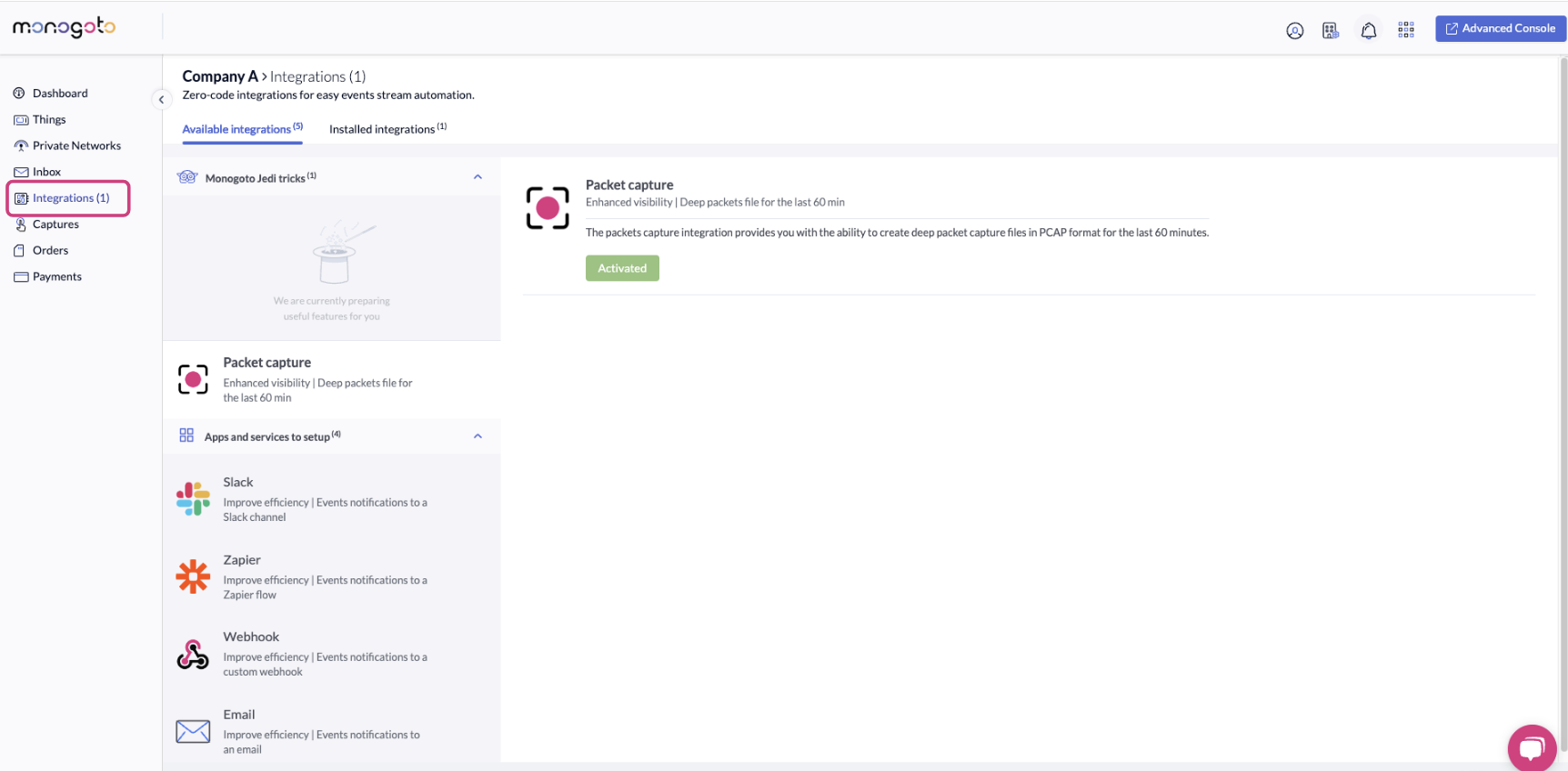
1. Navigate to the *Integration page* in the [Monogoto hub](https://www.hub.monogoto.io).

<figure><img src="https://3922449203-files.gitbook.io/~/files/v0/b/gitbook-x-prod.appspot.com/o/spaces%2F-M0mPxGpottOEfcucXOR%2Fuploads%2FWfNHzIQvsNW57u0Bu7pJ%2Fimage.png?alt=media&#x26;token=ab4446c7-be8d-43be-b461-7edbde4a7598" alt=""><figcaption></figcaption></figure>

2. Select your desired intergation from the options provided. In this example we selected email integration.
3. Click on *Setup,* this will allow you to configure the integration.

<figure><img src="https://3922449203-files.gitbook.io/~/files/v0/b/gitbook-x-prod.appspot.com/o/spaces%2F-M0mPxGpottOEfcucXOR%2Fuploads%2F6yXUFpkluLKzTFvtO3tX%2Fimage.png?alt=media&#x26;token=9f3aa497-3b37-4c1e-8381-6fc5c4c96060" alt=""><figcaption></figcaption></figure>

4. Insert the email address.

<figure><img src="https://3922449203-files.gitbook.io/~/files/v0/b/gitbook-x-prod.appspot.com/o/spaces%2F-M0mPxGpottOEfcucXOR%2Fuploads%2FihlKWgvaeStXbtRvORNm%2Fimage.png?alt=media&#x26;token=2e703d7d-c2f2-4a3a-9692-eef5fa7b9d87" alt=""><figcaption></figcaption></figure>

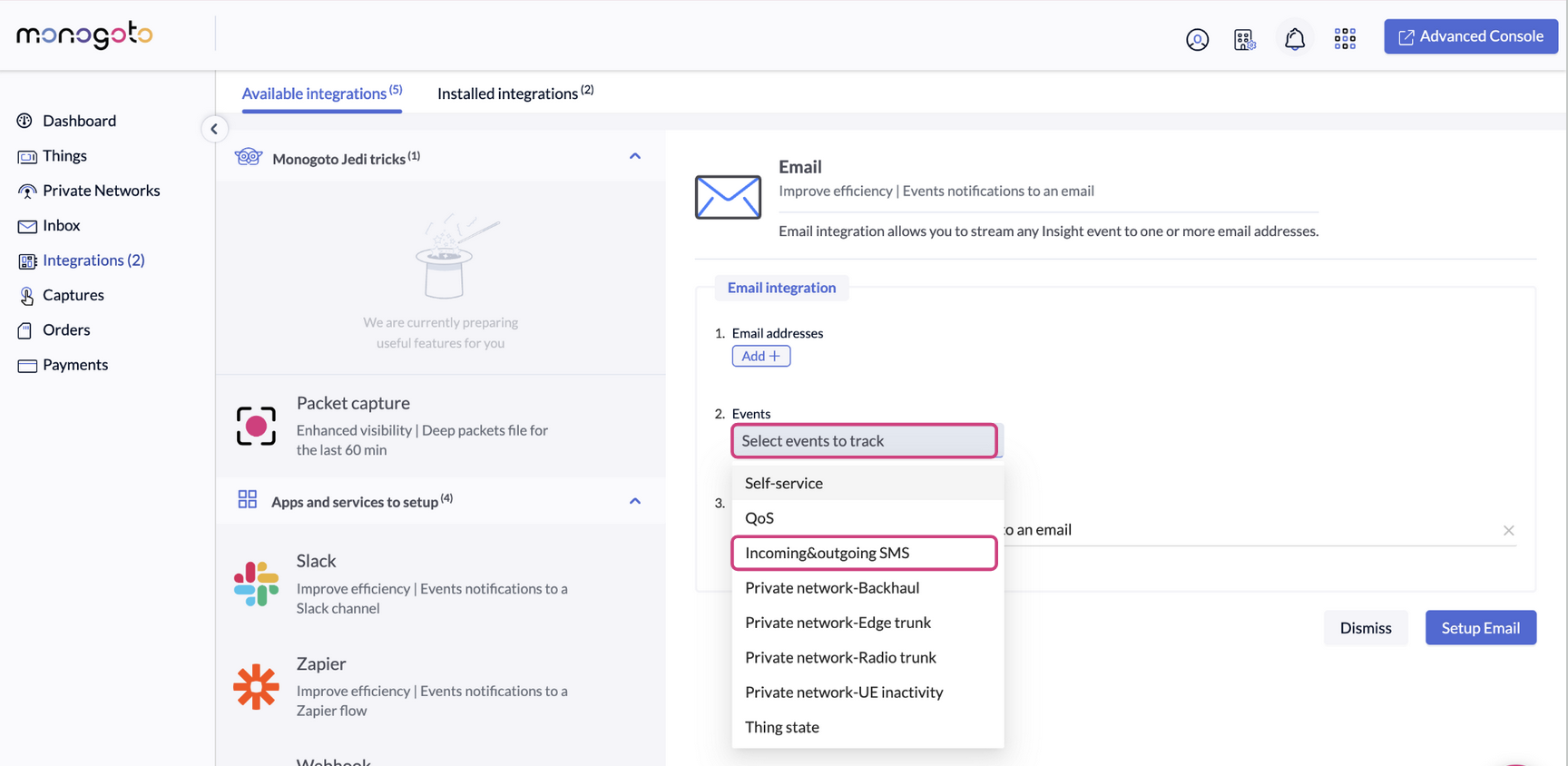
5. Select  “Incoming & Outgoing SMS” insight event.

<figure><img src="https://3922449203-files.gitbook.io/~/files/v0/b/gitbook-x-prod.appspot.com/o/spaces%2F-M0mPxGpottOEfcucXOR%2Fuploads%2Fsaxjd7TU5MwrcvSTcdh9%2Fimage.png?alt=media&#x26;token=4755c1fa-4021-4f87-b27f-ccbdd51ac65d" alt=""><figcaption></figcaption></figure>

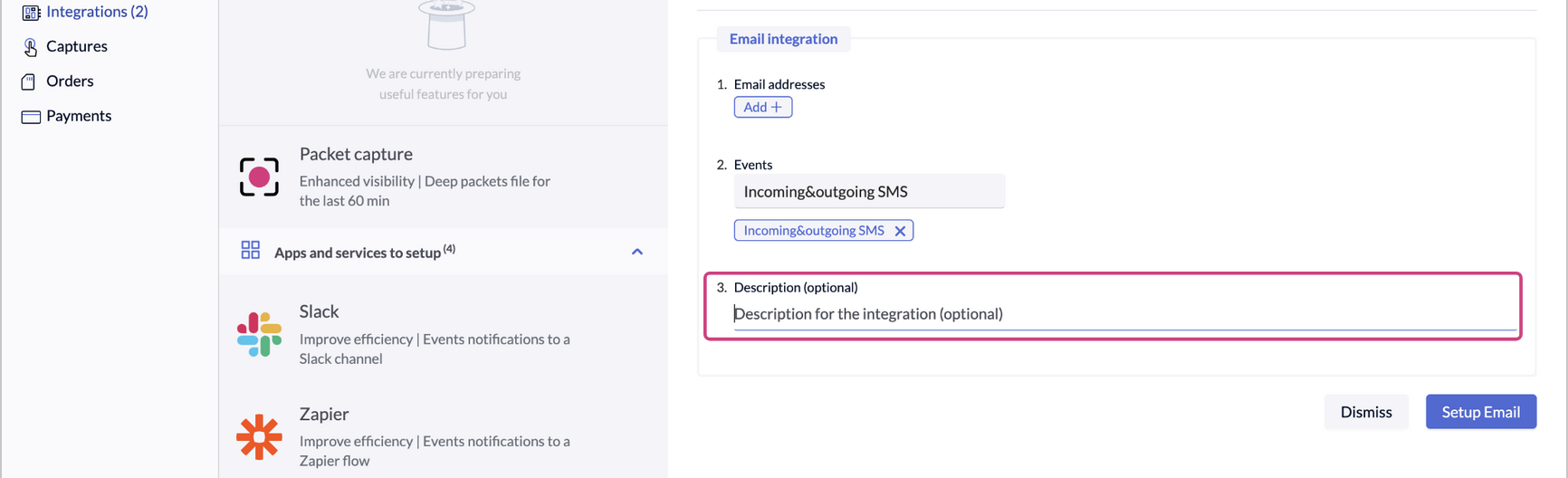
6. Add a description (optional), if you want to clarify its purpose.

<figure><img src="https://3922449203-files.gitbook.io/~/files/v0/b/gitbook-x-prod.appspot.com/o/spaces%2F-M0mPxGpottOEfcucXOR%2Fuploads%2FrgMh8dSgVnZDyTAlCjTV%2Fimage.png?alt=media&#x26;token=0e63902f-8cef-472f-9ee5-8d8f1171b031" alt=""><figcaption></figcaption></figure>

7. Once you've completed all the steps, click on Setup to finalize the integration.

<figure><img src="https://3922449203-files.gitbook.io/~/files/v0/b/gitbook-x-prod.appspot.com/o/spaces%2F-M0mPxGpottOEfcucXOR%2Fuploads%2FpFCS6FkaTKg07VsVouoC%2Fimage.png?alt=media&#x26;token=a73e96b7-db27-45cb-a3dc-77dea70ec36f" alt=""><figcaption></figcaption></figure>

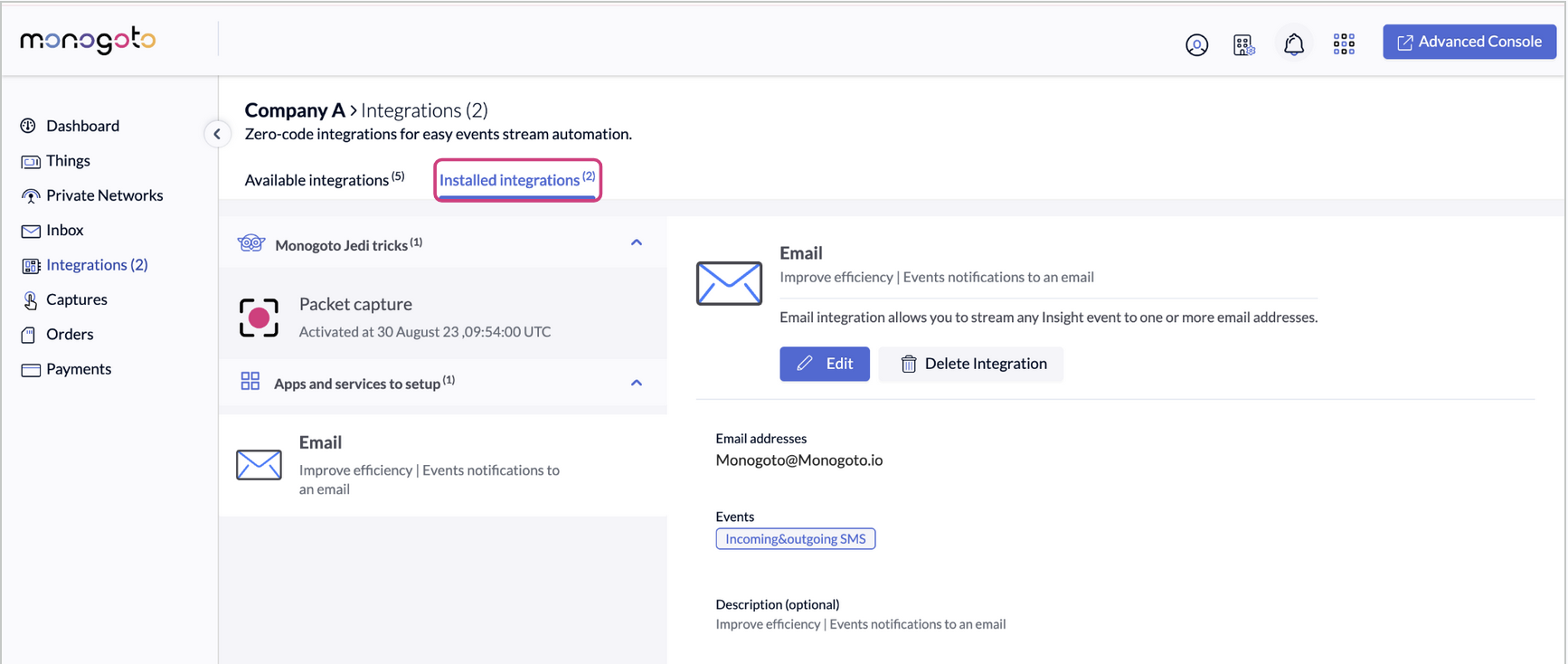
8. After setting it up, your new integration will appear in the Installed Integrations tab.

<figure><img src="https://3922449203-files.gitbook.io/~/files/v0/b/gitbook-x-prod.appspot.com/o/spaces%2F-M0mPxGpottOEfcucXOR%2Fuploads%2Fas2YrtQ5zd6vAxLsaSTC%2Fimage.png?alt=media&#x26;token=61dd8bf9-f8fe-4d9c-8ea8-faa4186d10f5" alt=""><figcaption></figcaption></figure>

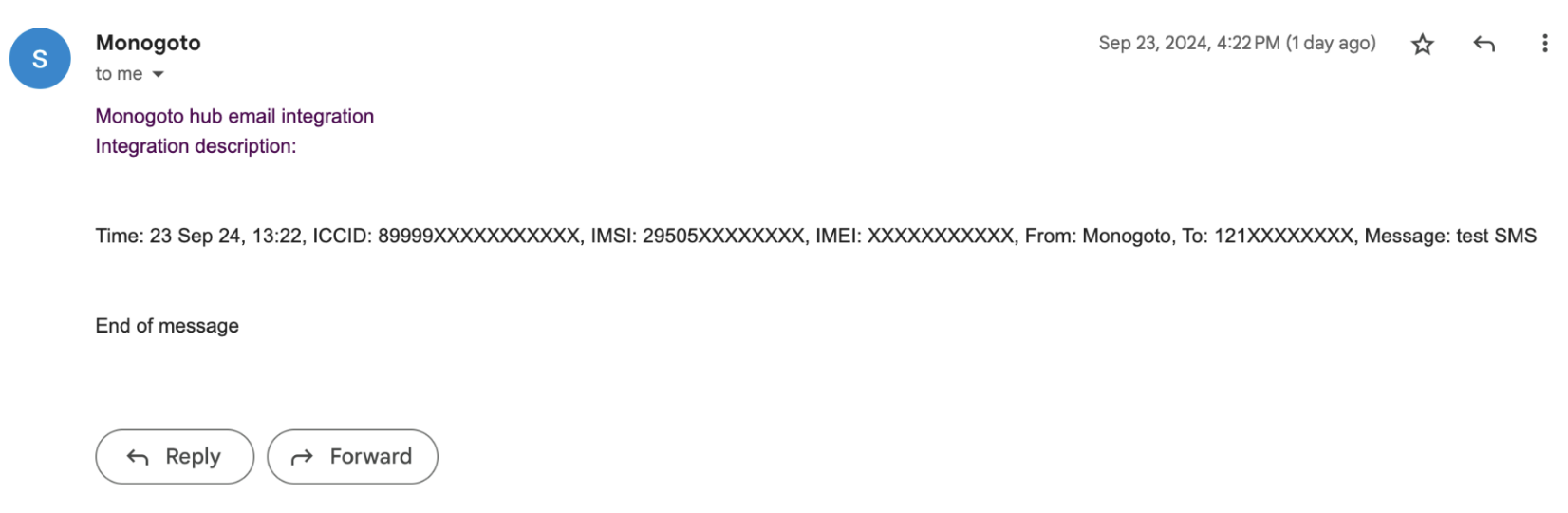
That's all. Now, when an incoming or outgoing SMS events will occur, you will receive it to the account *Inbox page* and to your email.

<figure><img src="https://3922449203-files.gitbook.io/~/files/v0/b/gitbook-x-prod.appspot.com/o/spaces%2F-M0mPxGpottOEfcucXOR%2Fuploads%2FUlWcHU2NwSvmMNXmarA8%2Fimage.png?alt=media&#x26;token=5dc7a6e0-eecc-4729-b40e-589106b8aa6f" alt=""><figcaption></figcaption></figure>

\ <br>