> For the complete documentation index, see [llms.txt](https://docs.monogoto.io/llms.txt). Markdown versions of documentation pages are available by appending `.md` to page URLs; this page is available as [Markdown](https://docs.monogoto.io/ntn-satellite-networks/ntn-certified-devices/ntn-certified-modules/nordic-nrf9151-satellite-ntn-network.md).
# Nordic nRF9151 Satellite NTN Network
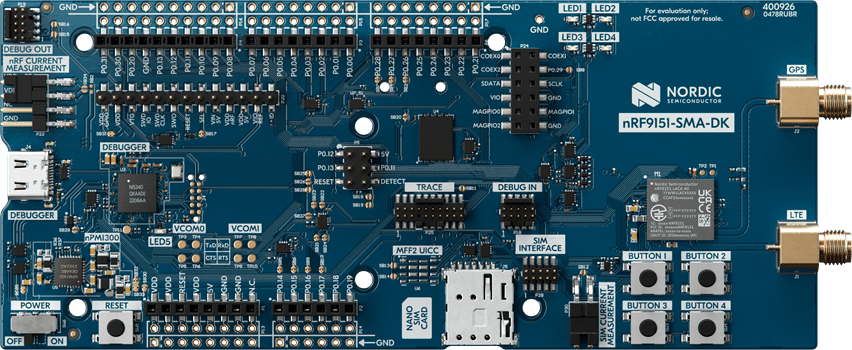
This guide provides the steps to connect the Nordic nRF9151-SMA Development Kit to Skylo satellite Non-Terrestrial Networks (NTN) using a Monogoto SIM.
### Quick Navigation
1. [Set up the nRF9151DK](#set-up-the-nrf9151dk)
2. [Connect the nRF9151 to Skylo](#connect-the-nrf9151-to-skylo)
3. [Test the connection by sending UDP payload](#test-the-connection-by-sending-udp-payload)
4. [Useful Links](#useful-links)
## Set up the nRF9151DK
1. Connect the **USB cable** to the nRF9151DK
2. **Connect the LTE antenna**
3. **Connect the GPS antenna**
4. Insert the **Monogoto SIM**
### Run the latest modem and application firmware
Update the nRF9151DK-SMA with the latest **modem firmware** which supports NTN, and use the **`serial_lte_modem`** application firmware.
How to download and update the nRF modem and application firmware
#### Update modem firmware
1. Download the latest modem firmware on [Nordic's website](https://www.nordicsemi.com/Products/Development-hardware/nRF9151-SMA-DK/Download?#infotabs), under **nRF9151 SiP NTN firmware**.
2. Open [**nRF Connect for Desktop**](https://www.nordicsemi.com/Products/Development-tools/nRF-Connect-for-Desktop) > **Programmer**
3. Upload the `.zip` file (e.g. `mfw_nrf9151-ntn_1.0.0-1.alpha.zip`) to the **Programmer** and select **Write**. *Don't unzip the file.*
#### Update application firmware
1. Download the latest **nRF9151 SMA DK application and modem firmware** `.zip` file on [Nordic's website](https://www.nordicsemi.com/Products/Development-hardware/nRF9151-SMA-DK/Download?#infotabs) (e.g. `nrf9151dk_mfw-2.0.2_sdk-3.1.0`).
2. Unzip the folder
3. Navigate to the directory `img_app_bl`
4. Find the `.hex` file called `nrf9151dk_serial_lte_modem_202X-XX-XX_XXX.hex`
5. Upload the `.hex` file to the **Programmer** and select **Erase & Write**.
{% hint style="info" %}
For more information, see Nordic’s [getting started page](http://nordicsemi.com/start9151smadk).
{% endhint %}
### Open a serial connection with the nRF9151
You can use the **Serial Terminal** from the [**nRF Connect for Desktop**](https://www.nordicsemi.com/Products/Development-tools/nRF-Connect-for-Desktop), or any program of choice (e.g. PuTTY for Windows, or screen/minicom/miniterm for macOS/Linux).
Set the baud rate to `115200` . To test the connection with the nRF9151 modem enter `AT` and expect the answer `OK`.
{% hint style="info" %}
Keep the AT Commands manual next to you for more details about the commands. [Click here](https://docs.nordicsemi.com/bundle/ref_at_commands_nrf91x1/page/REF/at_commands/intro_nrf91x1.html) to download the latest version.
{% endhint %}
### Check SIM Status
**Enable the module**
```bash
AT+CFUN=1
```
**Check SIM status**
```
AT+CPIN?
```
Expected response: `+CPIN: READY`
{% hint style="success" %}
+CPIN: READY means that the SIM is ready and does not require any PIN entry.
{% endhint %}
### Query Device Information
Useful for confirming firmware, hardware and SIM identity.
**Request the firmware version**
```
AT+CGMR
```
Example response: `mfw_nrf9151-ntn_1.0.0-1.alpha`
{% hint style="warning" %}
The minimum required modem firmware is `mfw_nrf9151-ntn_1.0.0-1.alpha`
{% endhint %}
**Request the hardware version**
```
AT%HWVERSION
```
Example response: `%HWVERSION:nRF9151 LACA A1A`
**Request the IMSI**
```
AT+CIMI
```
**Request the ICCID** (Integrated Circuit Card ID), which is the identification number of the SIM
```
AT%XICCID
```
### **Acquire GPS location**
To establish a satellite connection, a location has to be set.
**Put the radio in flight mode**
```
AT+CFUN=4
```
**Enable GNSS**
```
AT%XSYSTEMMODE=0,0,1,0,0
```
**Activate GPS within the nRF module**
```bash
AT+CFUN=31
```
**Start the GNSS scan**
```bash
AT#XGPS=1,0,0,0
```
{% hint style="warning" %}
It can easily take up multiple minutes to establish an initial GNSS fix.
{% endhint %}
Example response:
```bash
#XGPS: 1,1
#XGPS: 52.089769,4.313237,56.617798,14.694924,0.126635,0.000000,"2025-11-24 18:00:31"
```
{% hint style="warning" %}
Save the location as we need it later on.
{% endhint %}
**Shutdown the GPS**
```bash
AT#XGPS=0
```
***
## Connect the nRF9151 to Skylo
**Disable radio**
```
AT+CFUN=0
```
**Enable NTN mode** (NB-IoT over satellite)
```
AT%XSYSTEMMODE=0,0,0,0,1
```
**Lock the modem to one or multiple NTN satellite bands**
```
AT%XBANDLOCK=2,,"23,255,256"
```
{% hint style="info" %}
23 = Canada \
255 = L band Global (US, Taiwan, Australia, New Zealand, Japan)\
256 = S band Europe
{% endhint %}
#### **Set GPS location**
Format:
```
AT%LOCATION=,"","","",,
```
**Set the location** which has just been acquired, e.g.:
```bash
AT%LOCATION=2,"52.08995","4.31301","16",0,0
```
**Validate if the location was successfully set**
```bash
AT%LOCATION?
```
#### Set APN
```
AT+CGDCONT=0,"IP","data.mono"
```
### Subscribe to network status events
CEREG network registration status events
```
AT+CEREG=5
```
Subscribe to error codes from the network
```
AT+CNEC=24
```
Subscribe to connection state changes
```
AT+CSCON=3
```
Enable modem domain event reporting
```
AT%MDMEV=2
```
Enable the radio
```
AT+CFUN=1
```
Example responses:
```
%MDMEV: SEARCH STATUS 1
+CEREG: 2,"3AAE","0021CC6E",14
%MDMEV: PRACH CE-LEVEL 0
+CSCON: 1,7,4
%MDMEV: SEARCH STATUS 2
+CEREG: 5,"3AAE","0021CC6E",14,,,"11100000","00111000"
```
**CEREG State Codes**
Value
Meaning
0
Not registered, not searching
1
Registered (home network)
2
Not registered, searching
3
Registration denied
4
Unknown / out of coverage
5
Registered & roaming
### Radio & Signal Checks
Check the signal quality
```
AT+CESQ
```
Example response: `+CESQ: 99,99,255,255,15,53`
{% hint style="info" %}
`+CESQ` returns 6 values separated by commas. The last 2 values indicate the RSRQ (Reference Signal Received Quality) and RSRP (Reference Signal Received Power) respectively. RSRQ is indicated with a value between 0 and 34 , RSRP with a value be tween 0 and 97. Higher values represent better signal quality. For more details [click here](https://docs.nordicsemi.com/bundle/ref_at_commands_nrf91x1/page/REF/at_commands/mob_termination_ctrl_status/cesq_set.html).
{% endhint %}
**Request network info**
```
AT%XMONITOR
```
Example response:
```
5,"","","90198","3A9D",14,255,"0007DBBD",5,228841,9,19,"","11100000","00111000","11100000"
```
***
## Test the Connection by Sending UDP Payload
To send UDP data, send **three AT commands**:
1. **Create UDP socket**
```
AT#XSOCKET=1,2,0
```
Expected response: `#XSOCKET:0,2,17`
2. **Connect socket**
Replace `` with the ip address of your UDP server
```
AT#XCONNECT="",
```
**Set the IP address** and port, e.g.:
```
AT#XCONNECT="18.199.15.247",1055
```
Expected response: `#XCONNECT:1`
{% hint style="info" %}
You can test the UDP connection with the Ubidots platform which runs a UDP server. [Learn more](https://docs.monogoto.io/developer/cloud-integrations/ubidots).
{% endhint %}
3. **Send UDP data**
```
AT#XSEND="Hello Nordic"
```
Example response: `#XSEND:12`
4. **Close the UDP socket**
```
AT#XSOCKET=0
```
Expected response: `#XSOCKET:0,"closed"`
{% hint style="info" %}
**Great work on connecting the Nordic nRF9151-SMA DK to Monogoto**! Have a look at the Things logs in the [Monogoto Hub](https://hub.monogoto.io/) to find more details about the established connection.
{% endhint %}
### Switch Between NTN and Public Networks
Use the following commands to switch from NTN to public networks:
**Disable radio**
```
AT+CFUN=0
```
#### **Enable public networks**
```
AT%XSYSTEMMODE=1,1,0,0,0
```
**Enable radio**
```
AT+CFUN=1
```
#### Switch Back to Satellite NTN
**Disable radio**
```
AT+CFUN=0
```
**Enable NTN**
```
AT%XSYSTEMMODE=0,0,0,0,1
```
**Enable radio**
```
AT+CFUN=1
```
***
## Useful Links
* [nRF9151 NTN Evaluation Getting Started v1.1](https://files.gitbook.com/v0/b/gitbook-x-prod.appspot.com/o/spaces%2F-M0mPxGpottOEfcucXOR%2Fuploads%2FixsCDC8qCDXVmzsDeF9O%2FNTN%20evaluation%20getting%20started%20v1.1.pdf?alt=media\&token=577311cf-e19e-4e0c-9c7c-59cb1633dd5d)
* [mfw\_nrf9151-ntn AT Commands v0.4](https://files.gitbook.com/v0/b/gitbook-x-prod.appspot.com/o/spaces%2F-M0mPxGpottOEfcucXOR%2Fuploads%2F5bzFMG17YlF3WpnTCW2r%2Fmfw_nrf9151-ntn_at_commands_v0.4.pdf?alt=media\&token=a8208e29-d451-4224-bf69-8e10e54612f9)
* [nRF9151\_SMA\_DK Hardware User Guide v0.9.0](https://files.gitbook.com/v0/b/gitbook-x-prod.appspot.com/o/spaces%2F-M0mPxGpottOEfcucXOR%2Fuploads%2FXICvrGMuxbAuRhcBY1ZD%2FnRF9151_SMA_DK_HW_User_Guide_v0.9.0.pdf?alt=media\&token=76b7dc38-b4a0-4691-80c3-f352b27d467e)
* [nRF9151\_SMA\_DK Antennas](https://files.gitbook.com/v0/b/gitbook-x-prod.appspot.com/o/spaces%2F-M0mPxGpottOEfcucXOR%2Fuploads%2FNN2dJ2PGDB73oMXcnR2Z%2FnRF9151_SMA_DK%20antennas.pdf?alt=media\&token=3c50c2da-b1aa-4c25-8b2b-c0e3587bea64)
* [nRF91 SoftSIM API](https://docs.monogoto.io/developer/api/softsim-nordic)
{% embed url="" %}