> This is part 1 of 5 of the full documentation (pages 1–100 of 430).
> The content is paginated: fetch every part to see all of it.
> Next part: https://docs.monogoto.io/llms-full.txt/1
> Page index: https://docs.monogoto.io/llms.txt

# Welcome

Welcome to Monogoto's online documentation hub! We're excited to support you on your Monogoto journey, whether you're a beginner or seasoned user. Dive into our tutorials, API references, and troubleshooting tips to set up and manage your account. Our goal is to provide you with all the resources you need for a seamless experience with our connectivity services.

<table data-view="cards"><thead><tr><th></th><th></th><th></th><th data-hidden data-card-target data-type="content-ref"></th><th data-hidden data-card-cover data-type="image">Cover image</th></tr></thead><tbody><tr><td><strong>Getting Started</strong> </td><td>Connect your devices.</td><td></td><td><a href="/getting-started">Getting Started</a></td><td><a href="https://3922449203-files.gitbook.io/~/files/v0/b/gitbook-x-prod.appspot.com/o/spaces%2F-M0mPxGpottOEfcucXOR%2Fuploads%2FQ4nohZ2rIiPSyMLpuooT%2Fplanning-traveling-trip-notes-wanderkust.jpg?alt=media&amp;token=9eefeed2-057c-4393-98e5-f51bd67cf1b8">planning-traveling-trip-notes-wanderkust.jpg</a></td></tr><tr><td><strong>MCP</strong></td><td>Connectivity for AI agents</td><td></td><td><a href="/developer/mcp-connectivity-for-ai-agents">MCP - Connectivity for AI agents</a></td><td><a href="https://images.unsplash.com/photo-1770169272345-9636d5ef2681?crop=entropy&#x26;cs=srgb&#x26;fm=jpg&#x26;ixid=M3wxOTcwMjR8MHwxfHNlYXJjaHw5fHxhaXxlbnwwfHx8fDE3OTQwODkzNDl8MA&#x26;ixlib=rb-4.1.0&#x26;q=85">https://images.unsplash.com/photo-1770169272345-9636d5ef2681?crop=entropy&#x26;cs=srgb&#x26;fm=jpg&#x26;ixid=M3wxOTcwMjR8MHwxfHNlYXJjaHw5fHxhaXxlbnwwfHx8fDE3OTQwODkzNDl8MA&#x26;ixlib=rb-4.1.0&#x26;q=85</a></td></tr><tr><td><strong>FAQ</strong></td><td>Get quick answers for your needs.</td><td></td><td><a href="/faq">FAQ</a></td><td><a href="https://3922449203-files.gitbook.io/~/files/v0/b/gitbook-x-prod.appspot.com/o/spaces%2F-M0mPxGpottOEfcucXOR%2Fuploads%2F8OdvwjIm37enrbGtTA6S%2Ftop-view-reparation-laptop-with-notepad.jpg?alt=media&amp;token=1125ab06-8c8d-4591-9027-829f13b9ecfc">top-view-reparation-laptop-with-notepad.jpg</a></td></tr><tr><td><strong>Monogoto Hub</strong></td><td>Manage your account.</td><td></td><td><a href="/hub">Hub</a></td><td><a href="https://3922449203-files.gitbook.io/~/files/v0/b/gitbook-x-prod.appspot.com/o/spaces%2F-M0mPxGpottOEfcucXOR%2Fuploads%2FLbXsvot0yNTl6hBuQC0A%2FThings.png?alt=media&amp;token=6aae9c22-cca4-4db0-abc4-e78923f248ca">Things.png</a></td></tr><tr><td><strong>Advanced Console</strong></td><td>Set up advanced networking and security.</td><td></td><td><a href="/advanced-console">Advanced Console</a></td><td><a href="https://3922449203-files.gitbook.io/~/files/v0/b/gitbook-x-prod.appspot.com/o/spaces%2F-M0mPxGpottOEfcucXOR%2Fuploads%2FShrDAbQV1E7SMOBpZpZG%2Fthings-full-screen.png?alt=media&amp;token=008ea825-68dc-4bf9-846e-2b1d0efa3fa3">things-full-screen.png</a></td></tr><tr><td><strong>Developer</strong></td><td>APIs and Integrations.</td><td></td><td><a href="/developer">Developer</a></td><td><a href="https://3922449203-files.gitbook.io/~/files/v0/b/gitbook-x-prod.appspot.com/o/spaces%2F-M0mPxGpottOEfcucXOR%2Fuploads%2FvU50PeFTV3nCLCR5UOTh%2Fturned-gray-laptop-computer.jpg?alt=media&amp;token=76097b68-fcb4-4956-bf70-04416e37cfa3">turned-gray-laptop-computer.jpg</a></td></tr><tr><td><strong>Private Networks</strong></td><td>Build your own secure network with hybrid private-public connectivity.</td><td></td><td><a href="/private-networks">Private Networks</a></td><td><a href="https://3922449203-files.gitbook.io/~/files/v0/b/gitbook-x-prod.appspot.com/o/spaces%2F-M0mPxGpottOEfcucXOR%2Fuploads%2FbNslOkwZnatCxsdHDd51%2Fpeople-safety-equipment-their-workplace.jpg?alt=media&amp;token=22129ff2-ca52-4a87-a496-455fb5d6cbb2">people-safety-equipment-their-workplace.jpg</a></td></tr><tr><td><strong>Satellite Network (NTN)</strong></td><td>Satellite connectivity using NB-IoT technology.</td><td></td><td><a href="/ntn-satellite-networks">NTN Satellite Networks</a></td><td><a href="https://3922449203-files.gitbook.io/~/files/v0/b/gitbook-x-prod.appspot.com/o/spaces%2F-M0mPxGpottOEfcucXOR%2Fuploads%2FbESADNcld1u733pckoLz%2Fspacecraft-orbiting-planet-earth-global-communications-generated-by-ai.jpg?alt=media&amp;token=eb3291ca-7ff0-495f-81b9-9d2aed3a40e3">spacecraft-orbiting-planet-earth-global-communications-generated-by-ai.jpg</a></td></tr><tr><td><strong>University</strong> </td><td>Additional articles &#x26; guide  about cellular in general.</td><td></td><td><a href="/university">University</a></td><td><a href="https://3922449203-files.gitbook.io/~/files/v0/b/gitbook-x-prod.appspot.com/o/spaces%2F-M0mPxGpottOEfcucXOR%2Fuploads%2FfS92qXcZ0Z3zUtUGneow%2Fstill-life-books-versus-technology.jpg?alt=media&amp;token=51592bf5-2cab-452b-aac8-e580f49fce3a">still-life-books-versus-technology.jpg</a></td></tr></tbody></table>


# Getting Started

The "Getting Started" section serves as an essential resource for new users looking to effectively integrate with Monogoto services. It provides a comprehensive introduction, highlighting key features and functionalities while guiding users through initial setup procedures. By following the practical, step-by-step instructions, users can quickly configure their devices, manage SIM cards, and ensure successful connectivity with Monogoto's network. This foundational section is designed to simplify the onboarding process, empowering users to maximize their use of Monogoto's offerings with ease and confidence.

<table data-view="cards"><thead><tr><th></th><th></th><th></th><th data-hidden data-card-target data-type="content-ref"></th></tr></thead><tbody><tr><td><strong>Quick Start</strong></td><td>Essential steps for fast device activation.</td><td></td><td><a href="/getting-started/initial-configuration">Quick Start</a></td></tr><tr><td><strong>Device Configuration</strong></td><td>Repository of tested devices.</td><td></td><td><a href="/getting-started/general-device-configurations">Device Configurations</a></td></tr><tr><td><strong>SIM Cards</strong></td><td>Any form factor for any device type.</td><td></td><td><a href="/getting-started/sim-cards">Monogoto's IoT SIM</a></td></tr><tr><td><strong>SIM Identities</strong></td><td>Multiple cellular identities in your SIM.</td><td></td><td><a href="/getting-started/cellular-identities">Cellular Identities</a></td></tr><tr><td><strong>Coverage Lists</strong></td><td>Supported mobile networks and radio technologies per identity.</td><td></td><td><a href="/getting-started/global-public-coverage">Global Public Coverage</a></td></tr><tr><td><strong>Community Forum</strong></td><td>Engage with other users, share experiences, and find answers.</td><td></td><td><a href="https://forum.monogoto.io/">https://forum.monogoto.io/</a></td></tr></tbody></table>


# Quick Start

Get started with Monogoto

**Welcome to Monogoto! Your IoT, private LTE and 5G connectivity provider**. Monogoto provides a global access to cellular networks in over 180 countries. It has an intuitive self-service portal to manage your connected devices, and its API-first design allows you to fully integrate Monogoto’s device management functionalities into your platform of choice.

Monogoto has a dedicated support team, ready to assist you in realizing your connected solution. Don’t hesitate to engage with IoT experts on the [**Monogoto Forum**](https://forum.monogoto.io/), or to [**reach out directly**](https://monogoto.io/support/)**.**

![](https://3922449203-files.gitbook.io/~/files/v0/b/gitbook-x-prod.appspot.com/o/spaces%2F-M0mPxGpottOEfcucXOR%2Fuploads%2Ftx26EtmWH6xjQ4mZFBsz%2Fmonogoto-simcard.png?alt=media\&token=654116a6-bda6-40f9-b791-513c94c62846)

## **Getting Started**

In order to start using Monogoto, you will need the following:

* **Monogoto SIM card** \
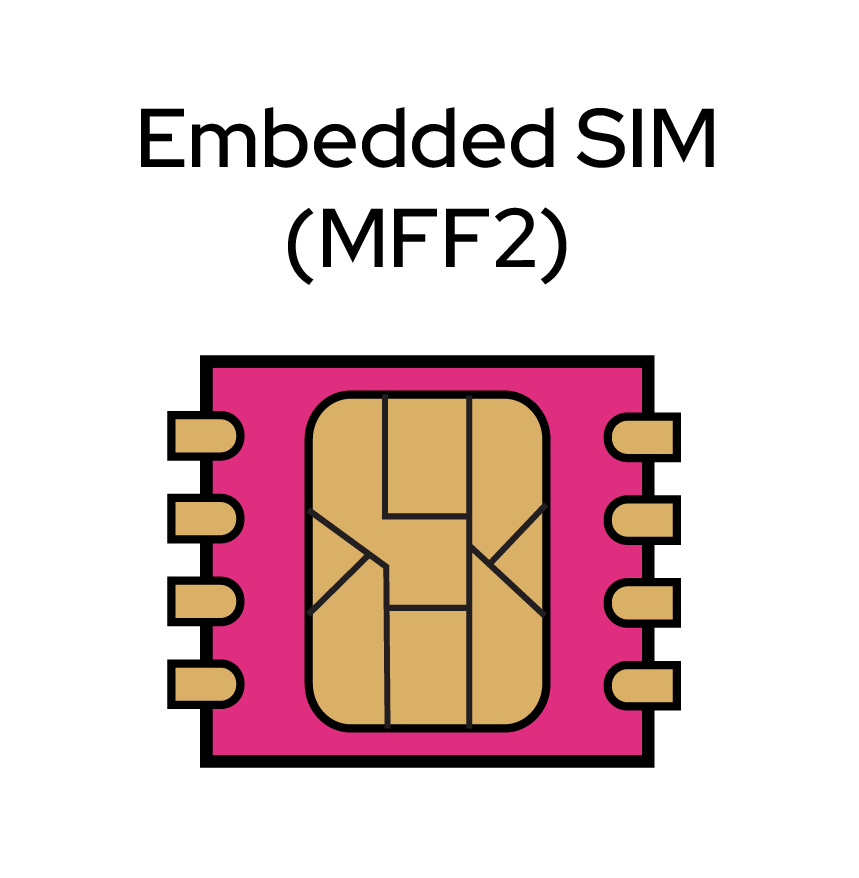
  Monogoto SIMs come in the sizes: 2FF (standard), 3FF (micro), 4FF (nano) and MFF2 (embedded). You can request a free SIM card [**here**](<https://lp.monogoto.io/book-a-demo#demo_form >).
* **Access to the Monogoto Hub** \
  An invite to the Monogoto Hub is sent along with your SIM card. The Hub can be accessed via the link [**hub.monogoto.io**](https://hub.monogoto.io/)
* **Cellular hardware**\
  To connect to Monogoto, hardware containing a cellular modem is needed. This may be a smartphone or tablet, or a hardware development kit such as the **nRF9160 DK**, **Thingy:91**, **Pycom FiPy** or **Waveshare SIM7070G**.&#x20;

## **Access the Monogoto Hub**

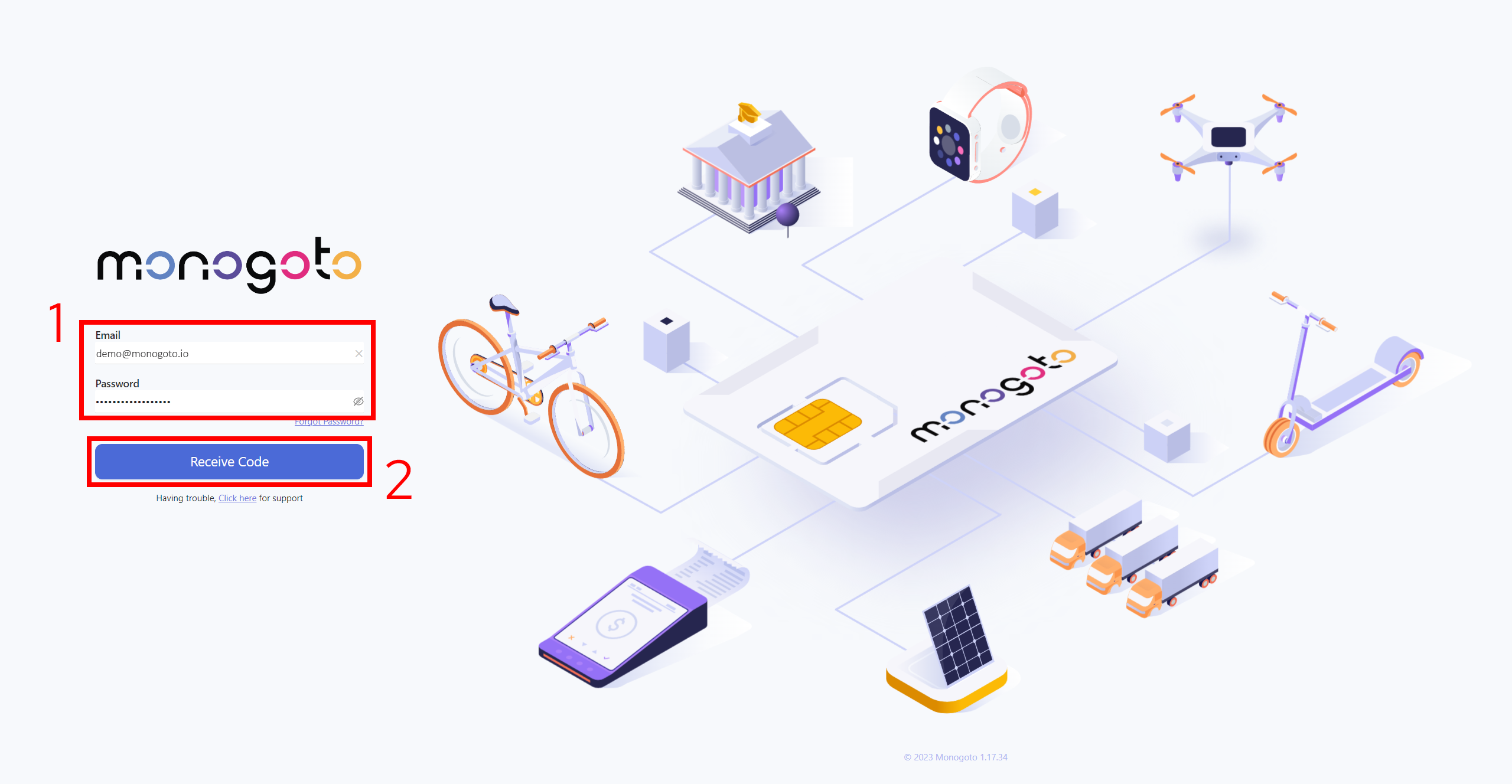
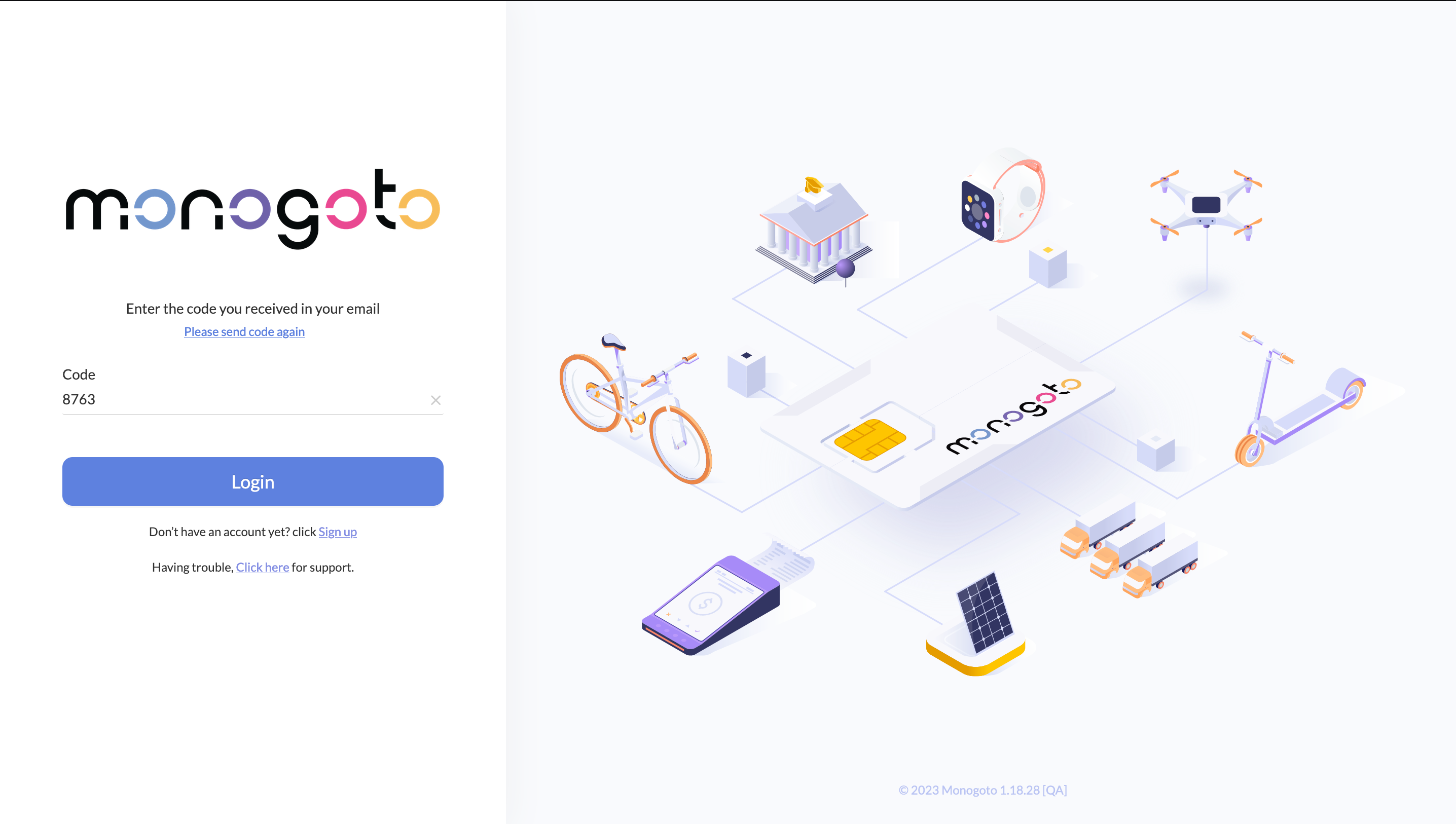
Visit the **Hub** via the link [**hub.monogoto.io**](https://hub.monogoto.io/)

<figure><img src="https://3922449203-files.gitbook.io/~/files/v0/b/gitbook-x-prod.appspot.com/o/spaces%2F-M0mPxGpottOEfcucXOR%2Fuploads%2FuXZ9QtXCCKLMMCzbOgcS%2Fhub.monogoto.png?alt=media&amp;token=39e4950a-a132-44db-9b23-57ae0baae527" alt=""><figcaption></figcaption></figure>

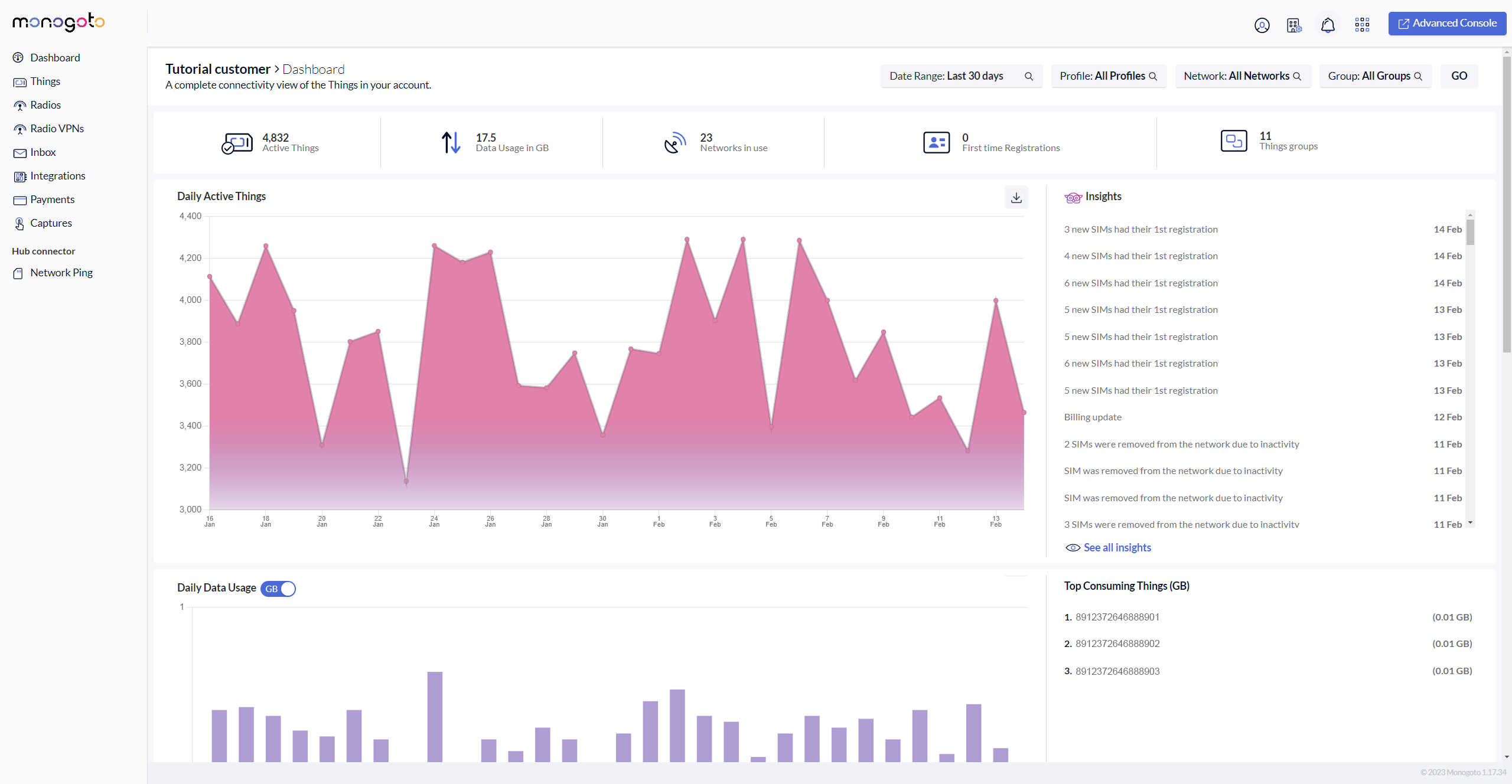
After logging in, you enter the **Monogoto dashboard** in which you find information about your Things (meaning your SIM cards), data usage, networks in use etc.

<figure><img src="https://3922449203-files.gitbook.io/~/files/v0/b/gitbook-x-prod.appspot.com/o/spaces%2F-M0mPxGpottOEfcucXOR%2Fuploads%2FK6turnUbQia8qFcJRuBr%2Fdashboard.png?alt=media&amp;token=2ebab156-f334-4dc8-9ec7-3a22d26e0247" alt=""><figcaption></figcaption></figure>

Detailed information about your SIMs can be found under the **Things** page. When selecting one of your Things you will find more detailed information such as the ICCID, IMEI, active mobile network operator, IP address, event logs and more.

<figure><img src="https://3922449203-files.gitbook.io/~/files/v0/b/gitbook-x-prod.appspot.com/o/spaces%2F-M0mPxGpottOEfcucXOR%2Fuploads%2FecxbDUIwit3cXY06sM43%2Fimage.png?alt=media&amp;token=1e4741c8-429f-49f1-ae56-aa67505f5ad2" alt=""><figcaption></figcaption></figure>

{% hint style="info" %}
Useful link to learn more about Monogoto's device management:

* [**Introduction to the Monogoto Hub**](/hub/intro)
* [**Set up Integrations & Alerts**](/hub/integrations)
* [**Introduction to Advanced Console**](/advanced-console/platform-overview)
* [**Monogoto API**](/developer/api)
  {% endhint %}

## **Device Configuration**&#x20;

Set the device APN to your designated Monogoto APN:

<table><thead><tr><th width="133.5">APN</th><th width="282">Type</th><th>Note</th></tr></thead><tbody><tr><td><mark style="color:$success;"><strong>go.mono</strong></mark></td><td>Default APN for new deployment</td><td>New default APN which connect your devices with Monogoto enhanced network core, delivering a more resilient, distributed, and future-ready topology.</td></tr><tr><td>data.mono</td><td>Legacy APN</td><td>Customers currently using this APN and wishing to switch to the new go.mono APN, please email us at <a href="emailto:support@monogoto.io">support@monogoto.io</a></td></tr></tbody></table>

You can always verify the default APN which is configured in the [Things group](/advanced-console/things-groups), to make sure you configure the correct APN in the device.

{% hint style="info" %}
If you are using a mobile phone, please ensure that <mark style="color:blue;">**data roaming is enabled**</mark>.
{% endhint %}

For IoT modem configurations, head over to the [**Device Configurations**](/getting-started/general-device-configurations/iot-devices) and select one of the modem manufacturers:

![](https://3922449203-files.gitbook.io/~/files/v0/b/gitbook-x-prod.appspot.com/o/spaces%2F-M0mPxGpottOEfcucXOR%2Fuploads%2F9ixbR5k6JSILlTZcy7gl%2FLogo%20visuals.jpg?alt=media\&token=fecd6fc7-6f5d-4b03-99ed-a2cb50f78514)

Or directly go to documentation of popular development kits:

|                                                                                                  Waveshare SIM7070G                                                                                                  |                                                                                                       nRF9160 DK                                                                                                      |                                                                                                         SODAQ SARA                                                                                                         |
| :------------------------------------------------------------------------------------------------------------------------------------------------------------------------------------------------------------------: | :-------------------------------------------------------------------------------------------------------------------------------------------------------------------------------------------------------------------: | :------------------------------------------------------------------------------------------------------------------------------------------------------------------------------------------------------------------------: |
| ![](https://3922449203-files.gitbook.io/~/files/v0/b/gitbook-x-prod.appspot.com/o/spaces%2F-M0mPxGpottOEfcucXOR%2Fuploads%2FaMgygkm3rd1xi2YrsQsJ%2FSIMCom.png?alt=media\&token=6bc9019c-55a5-4aaa-85cb-69dfd8754395) | ![](https://3922449203-files.gitbook.io/~/files/v0/b/gitbook-x-prod.appspot.com/o/spaces%2F-M0mPxGpottOEfcucXOR%2Fuploads%2FIJVYLL9GcaAqSmNv0RyA%2FnRF9160.png?alt=media\&token=334b16b1-7858-47d7-8518-b6e014351fa7) | ![](https://3922449203-files.gitbook.io/~/files/v0/b/gitbook-x-prod.appspot.com/o/spaces%2F-M0mPxGpottOEfcucXOR%2Fuploads%2F8dJLNb4ziBV9QL8uaEf0%2FSODAQ%20SARA.png?alt=media\&token=8f04d121-7326-4e0b-a3f1-8f6ec1ddb233) |
|                                                    [**Learn more**](/getting-started/general-device-configurations/iot-devices/simcom-sim7070g/waveshare-sim7070g)                                                   |                                                                                 [**Learn more**](broken://pages/jT7tJMbj4CKdzpk3cYiO)                                                                                 |                                                                 [**Learn more**](/getting-started/general-device-configurations/iot-devices/u-blox-sara-r4)                                                                |

## Advanced Console

The **Advanced Console** provides fine-grained access control of Network settings, Things, Things Groups, Security settings and roaming. In addition, the console provides detailed insights in each connection through event logs.

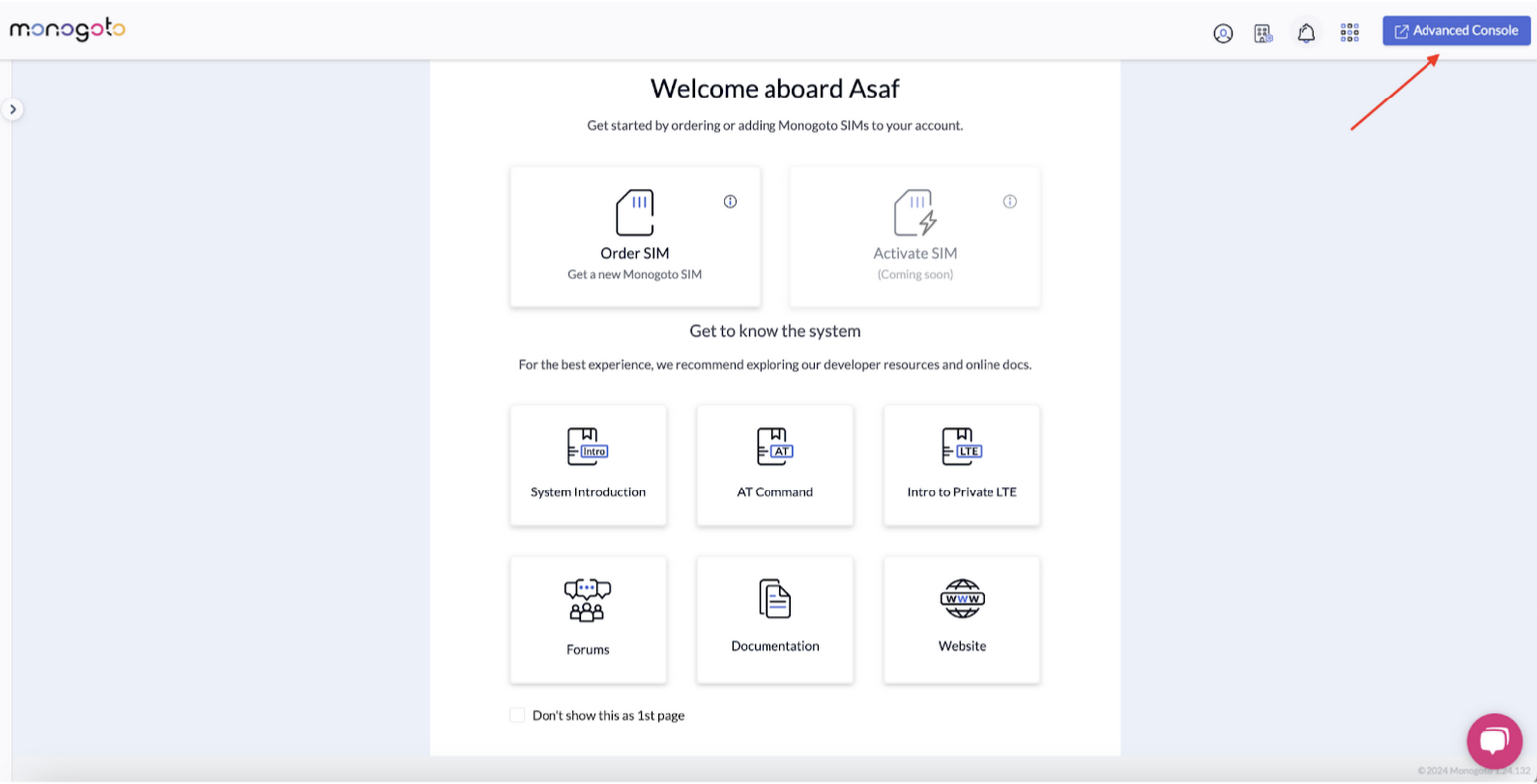
To access the Advanced Console, visit the [**Monogoto Hub**](https://hub.monogoto.io/) and click the button "<mark style="color:blue;">**Advanced Console**</mark>" in the top-right corner:![](https://3922449203-files.gitbook.io/~/files/v0/b/gitbook-x-prod.appspot.com/o/spaces%2F-M0mPxGpottOEfcucXOR%2Fuploads%2FsFi0KhwZgMxMo2jddPZV%2FAdvanced%20Console.png?alt=media\&token=1cfa5e81-03ad-47e2-b6b0-d8031015c16e).

This brings you to the **Advanced Console dashboard** in which you find information about your connections, data usage, API calls, logs etc.

<figure><img src="https://3922449203-files.gitbook.io/~/files/v0/b/gitbook-x-prod.appspot.com/o/spaces%2F-M0mPxGpottOEfcucXOR%2Fuploads%2FBhqQPym6Tw3hk5cpEthk%2Fdashboard%20Advanced%20Console.png?alt=media&amp;token=6c2c7e94-9714-4185-9193-2d8ec75d5d04" alt=""><figcaption><p>Advanced Console Dashboard</p></figcaption></figure>

{% hint style="info" %}
For more information about the console, head over to [**Advanced Console documentation**](/advanced-console/platform-overview).
{% endhint %}

## Supported Countries and Networks&#x20;

In order to see the supported countries and networks, you can visit the [**Advanced Console**](https://console.monogoto.io/).

Follow the below steps:

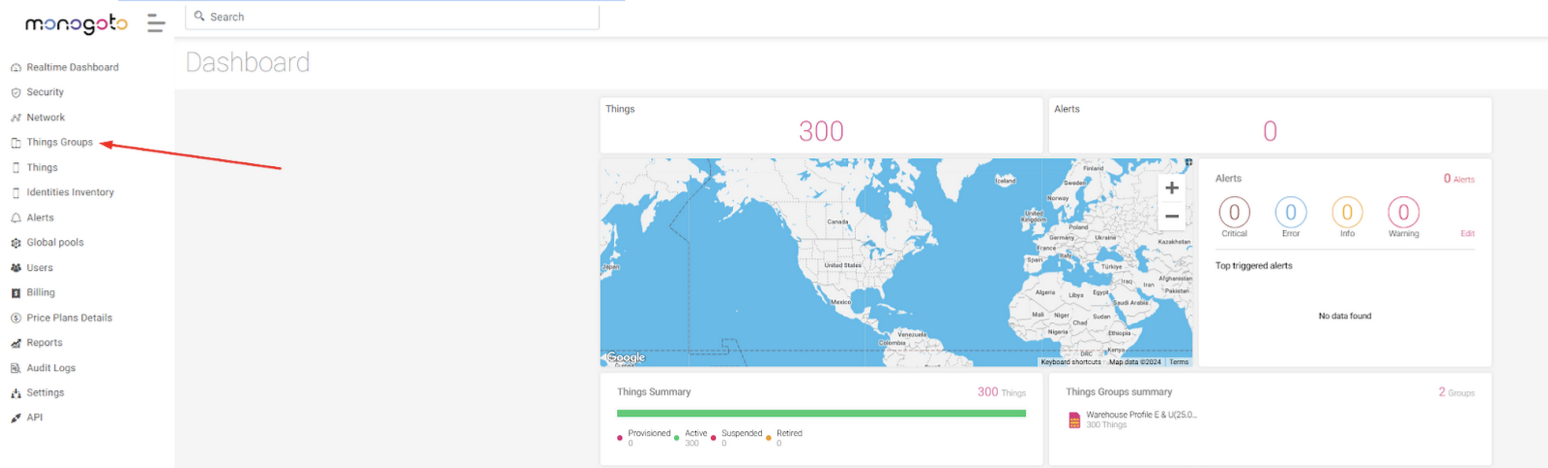
* Click **Things Groups** from the sidebar menu.
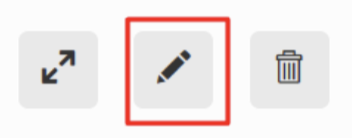
* Select a **Things Group** and click the **Edit** icon to display the Things Group settings.

![Things group](https://3922449203-files.gitbook.io/~/files/v0/b/gitbook-x-prod.appspot.com/o/spaces%2F-M0mPxGpottOEfcucXOR%2Fuploads%2FJcGxeWWByQ4eHAFp4IC1%2F1.PNG?alt=media\&token=0366f7c8-a740-47f9-bac0-40c4b1b626e8)

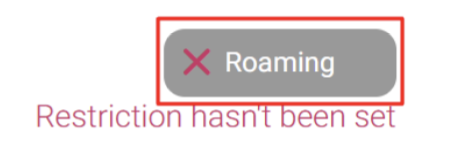
* Click the **Roaming** button

![Things group setting](https://3922449203-files.gitbook.io/~/files/v0/b/gitbook-x-prod.appspot.com/o/spaces%2F-M0mPxGpottOEfcucXOR%2Fuploads%2FuSOgwOK9tog46F910WF7%2F2.PNG?alt=media\&token=2c6f3368-8375-4222-9c3f-10c508c9a937)

{% hint style="info" %}
You may enable or disable networks from the list.&#x20;
{% endhint %}

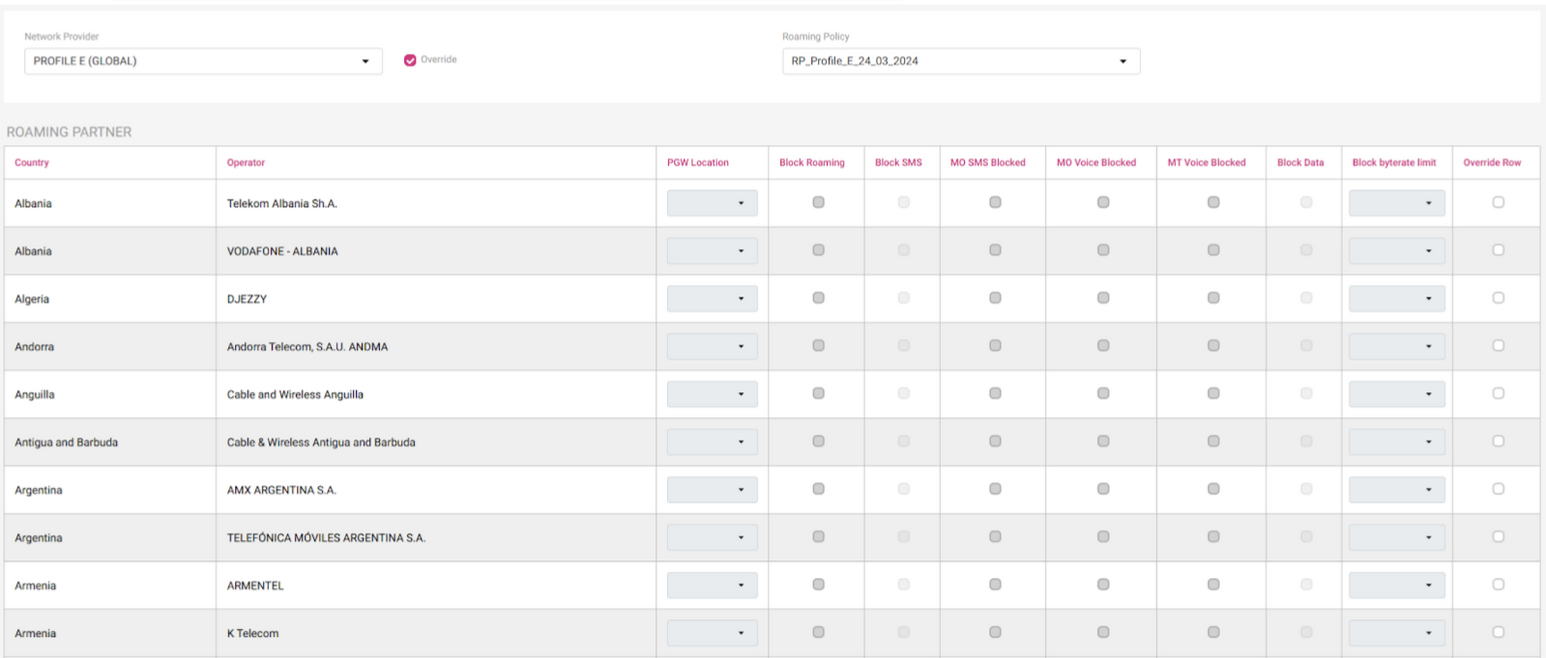
* Check the **Override** option to display the Roaming Policy settings.
* Enable or disable these options for each of the Roaming Partners in the list.
  * Block Roaming
  * Block SMS
  * Data&#x20;
  * Data restriction
  * Block byte-rate Limit
* Click **Save** and **Back** to update the override settings in the system database.

{% hint style="info" %}
The changes will be applied on a group level. Settings can also be changed for a specific SIM. To do so, head over to Things ![](https://3922449203-files.gitbook.io/~/files/v0/b/gitbook-x-prod.appspot.com/o/spaces%2F-M0mPxGpottOEfcucXOR%2Fuploads%2FlqmabtPAswJ2BFiUy0TS%2FScreen%20Shot%202022-02-08%20at%2011.02.53.png?alt=media\&token=a13dbbda-86c4-413c-9205-4968a8c20c36), select your Thing and scroll down to the **Mobile Identities.** Click the gear-icon ![](https://3922449203-files.gitbook.io/~/files/v0/b/gitbook-x-prod.appspot.com/o/spaces%2F-M0mPxGpottOEfcucXOR%2Fuploads%2FKNIuo8gmSSHcwnpO5gmq%2FScreen%20Shot%202022-02-08%20at%2011.06.20.png?alt=media\&token=aeae7d8a-003f-4546-8de8-8e621d7fd469) and select **Roaming Restrictions**.
{% endhint %}

## Technical Support

Monogoto's support team is available for every technical question or issue that you may have. You can contact Monogoto support via:

* [**Monogoto Developer Forum**](https://forum.monogoto.io/)
* Email to <support@monogoto.io>

Looking forward to hearing about your experience with our products!


# Device Configurations

The following chapter contains configurations for devices to successfully use Monogoto SIM cards.

### IoT Modules

Monogoto supports all certified IoT modules and cellular devices. Popular module manufacturers include:

![](https://3922449203-files.gitbook.io/~/files/v0/b/gitbook-x-prod.appspot.com/o/spaces%2F-M0mPxGpottOEfcucXOR%2Fuploads%2F9ixbR5k6JSILlTZcy7gl%2FLogo%20visuals.jpg?alt=media\&token=fecd6fc7-6f5d-4b03-99ed-a2cb50f78514)

<figure><img src="https://3922449203-files.gitbook.io/~/files/v0/b/gitbook-x-prod.appspot.com/o/spaces%2F-M0mPxGpottOEfcucXOR%2Fuploads%2F0opMYFXe0AXmOJjlnGP7%2FMurata-logo.png?alt=media&amp;token=bb4988c6-5b5b-41d1-b059-c7b4f06ecf9a" alt="" width="150"><figcaption></figcaption></figure>

Detailed instructions are also available for several **development kits**, including:&#x20;

* [**NORDIC nRF9160 DK**](/getting-started/general-device-configurations/iot-devices/nordic-nrf9160-dk)
* [**SODAQ SARA R4**](/getting-started/general-device-configurations/iot-devices/u-blox-sara-r4/sodaq-sara-r41xm)
* [**Waveshare SIM7070G RPI Hat**](/getting-started/general-device-configurations/iot-devices/simcom-sim7070g/waveshare-sim7070g)
* [**Quectel EVB kit**](/getting-started/general-device-configurations/iot-devices/quectel-bg95-mx#set-up-umts-and-lte-evb-kit-if-applicable)
* [**Murata LBAD0XX1SC-DM**](https://docs.monogoto.io/getting-started/general-device-configurations/iot-devices/murata-lbad0xx1sc-dm/satellite-ntn-network)

{% content-ref url="/pages/-MPsN\_59KDhMwXSFeNGb" %}
[IoT Modules](/getting-started/general-device-configurations/iot-devices)
{% endcontent-ref %}

### Cellular Devices

For tutorials on connecting specific cellular devices to Monogoto, visit the Cellular Devices section.

{% content-ref url="/pages/-M2DB8Q6g6AbLC6xXlY8" %}
[Cellular Devices](/getting-started/general-device-configurations/cellular-modems)
{% endcontent-ref %}

### iOS and Android devices

Monogoto can also be added to smartphones by inserting a plastic SIM, or by scanning a QR code to configure a smartphone's eSIM.

{% content-ref url="/pages/-MPsNaanjgIuC8HmaZzZ" %}
[iPhone Device](/getting-started/general-device-configurations/iphone)
{% endcontent-ref %}

{% content-ref url="/pages/-MPsNaJIroCPNCpv73vw" %}
[Android Device](/getting-started/general-device-configurations/android)
{% endcontent-ref %}


# Cellular Devices

The following chapter contains tutorials for configuring specific cellular devices to Monogoto.

{% content-ref url="/pages/-MYtzJiRcWQ-X2S-aVY6" %}
[Openwrt EG95](/getting-started/general-device-configurations/cellular-modems/quectel-eg95-openwrt-version)
{% endcontent-ref %}

{% content-ref url="/pages/-MUTpZTS446IwM3Woefj" %}
[ProView 4GPro-W](/getting-started/general-device-configurations/cellular-modems/proview-4gpro-w)
{% endcontent-ref %}

{% content-ref url="/pages/-MUOffUtB3DfXG9Kcp7c" %}
[Teltonika RUT240](/getting-started/general-device-configurations/cellular-modems/teltonika-rut240)
{% endcontent-ref %}

{% content-ref url="/pages/Lhx8yyeelKys2bOOZEJs" %}
[Teltonika FMB920](/getting-started/general-device-configurations/cellular-modems/teltonika-fmb920)
{% endcontent-ref %}

{% content-ref url="/pages/-MWiZ-paDklBDEKKbc73" %}
[Provision-ISR PR-LTE01W](/getting-started/general-device-configurations/cellular-modems/provision-isr-pr-lte01w)
{% endcontent-ref %}

{% content-ref url="/pages/-MWiYwOGz8vnUgtK\_w91" %}
[Sierra Wireless RV50 AirLink](/getting-started/general-device-configurations/cellular-modems/rv50-sierra-wireless-airlink)
{% endcontent-ref %}

{% content-ref url="/pages/-Mf3QxE4gbuJdFgtYnHW" %}
[Smart Cash Register Configuration to Use Cellular SIM as WiFi Backup](/getting-started/general-device-configurations/cellular-modems/smart-cash-register-configuration-to-use-cellular-sim-as-wifi-backup)
{% endcontent-ref %}


# Openwrt EG95

The following guide contains basic configuration for Quectel EG95 (openwrt version) to work with a Monogoto SIM card.

Quectel EG95 (openwrt) modem should require only entered APN in device to work with a Monogoto SIM card.

### To change APN settings, please do the following:

1\.       Login into your modem

2\.      Press on **Edit** button in **4G** row

![](https://3922449203-files.gitbook.io/~/files/v0/b/gitbook-legacy-files/o/assets%2F-M0mPxGpottOEfcucXOR%2F-MYtzF2gKx0S_LrGrq_1%2F-MYu-T9mnd21SvtSxHLV%2Fopenwrt%20configuration%201.png?alt=media\&token=d928dd10-1f80-4390-b9b0-454b7775173e)

3\.       Enter APN and save changes

![](https://3922449203-files.gitbook.io/~/files/v0/b/gitbook-legacy-files/o/assets%2F-M0mPxGpottOEfcucXOR%2F-MYtzF2gKx0S_LrGrq_1%2F-MYu-7Rq-gt0NfHKm4IO%2Fopenwrt%20configuration%202_enter%20APN.png?alt=media\&token=8540e614-8f3f-415a-a4bd-de2ca29d5b8b)

Example showing the go.mono APN used in Quectel EG95 (openwrt version) modem

<figure><img src="https://3922449203-files.gitbook.io/~/files/v0/b/gitbook-x-prod.appspot.com/o/spaces%2F-M0mPxGpottOEfcucXOR%2Fuploads%2FHsLks6uTddoJ88jMSr8r%2Funknown.png?alt=media&amp;token=0e444d4d-0fd9-48c3-9909-90af4c3c422d" alt=""><figcaption></figcaption></figure>

{% hint style="warning" %}
Please note that some devices may not work properly without correct date and time settings. Therefore, make sure that you have good data and time settings.

If your device takes time from NTP server, please use the following servers:

NTP server 1 - **0.de.pool.ntp.org**

NTP server 2 - **1.de.pool.ntp.org**
{% endhint %}


# ProView 4GPro-W

The following guide contains basic configuration for ProView 4GPro-W to work with a Monogoto SIM card.

ProView 4GPro-W modem should require only entered APN in device to work with a Monogoto SIM card.

### **To change APN settings, please do the following:**

1\.       Login into your modem

2\.      Go To **Internet** and then select **Internet Connection**

3\.       Press on **APN settings**&#x20;

![](https://3922449203-files.gitbook.io/~/files/v0/b/gitbook-legacy-files/o/assets%2F-M0mPxGpottOEfcucXOR%2F-MUTpYR2EIqUh5GTqfm6%2F-MUTtSd_rSMD80lWU3i6%2FUSB%20Dongle%20Proview%20model%204GPRO-W___Pic1.png?alt=media\&token=2593e42c-1ced-4f24-901b-bd2d49beb064)

4\.       Enter APN and save changes

![](https://3922449203-files.gitbook.io/~/files/v0/b/gitbook-legacy-files/o/assets%2F-M0mPxGpottOEfcucXOR%2F-MUTpYR2EIqUh5GTqfm6%2F-MUTsHCbvOv4Epcvv9Ey%2FUSB%20Dongle%20Proview%20model%204GPRO-W___Pic2_enter%20APN.png?alt=media\&token=7343c8f3-d771-4fdd-90c0-da5ddc77ef4a)

Example showing the go.mono APN used in ProView 4GPro-W modem

<figure><img src="https://3922449203-files.gitbook.io/~/files/v0/b/gitbook-x-prod.appspot.com/o/spaces%2F-M0mPxGpottOEfcucXOR%2Fuploads%2FQc1MPB2qAzkjLzQ7me42%2Funknown.png?alt=media&amp;token=7cd24b54-ec18-482f-8ca5-0649318ca55b" alt=""><figcaption></figcaption></figure>

{% hint style="warning" %}
Please note that some devices may not work properly without correct date and time settings. Therefore, make sure that you have good data and time settings.

If your device takes time from NTP server, please use the following servers:

NTP server 1 - **0.de.pool.ntp.org**

NTP server 2 - **1.de.pool.ntp.org**
{% endhint %}


# Teltonika RUT240

The following guide contains basic configuration for Teltonika RUT240 to work with a Monogoto SIM card.

Teltonika RUT240 modem should require only entered APN in device to work with a Monogoto SIM card.

### To change APN settings, please do the following:

1\.       Login into your modem

2\.      Go To **General**

3\.       Enter APN and save changes

![](https://3922449203-files.gitbook.io/~/files/v0/b/gitbook-legacy-files/o/assets%2F-M0mPxGpottOEfcucXOR%2F-MUOgfPBOHdoOGmVGY4p%2F-MUOi2wB4WY5-dTvqE2j%2FTeltonika%20router%20RUT240%20general.png?alt=media\&token=f872245b-c103-4168-9d29-cb8d5ebc96b7)

Example showing the go.mono APN used in Teltonika RUT240 modem

<figure><img src="https://3922449203-files.gitbook.io/~/files/v0/b/gitbook-x-prod.appspot.com/o/spaces%2F-M0mPxGpottOEfcucXOR%2Fuploads%2FHh6bANfJcXJ9dHI2oQ5t%2Funknown.png?alt=media&amp;token=1f5d6010-f660-4fc3-8c83-dfa00a06bb8d" alt=""><figcaption></figcaption></figure>

{% hint style="warning" %}
Please note that some devices may not work properly without correct date and time settings. Therefore, make sure that you have good data and time settings.

If your device takes time from NTP server, please use the following servers:

NTP server 1 - **0.de.pool.ntp.org**

NTP server 2 - **1.de.pool.ntp.org**
{% endhint %}

{% hint style="info" %}
If needed, please note that you may find official manufacturer manual for this modem [following this link](https://wiki.teltonika-networks.com/view/RUT240_Mobile#Mobile_Configuration)
{% endhint %}


# Teltonika FMB920

The following guide contains basic configuration for Teltonika FMB920 to work with a Monogoto SIM card.

Teltonika FMB920 requires correct APN and NTP date/time server settings in device in order to work with a Monogoto SIM card.

### To change APN settings, please do the following:

1\.       Login into your modem

2\.      Go To **General**

3\.       Please set **GPRS Context** to **Enable**

![](https://3922449203-files.gitbook.io/~/files/v0/b/gitbook-x-prod.appspot.com/o/spaces%2F-M0mPxGpottOEfcucXOR%2Fuploads%2FB5CPqKlGl27ffV7N5I5d%2FFmb920_gprs-GPRS%20enabled.png?alt=media\&token=03a724c9-b352-40b8-87b5-b6e0dd218b6f)

4\.      Enter APN and save changes

![](https://3922449203-files.gitbook.io/~/files/v0/b/gitbook-x-prod.appspot.com/o/spaces%2F-M0mPxGpottOEfcucXOR%2Fuploads%2FrjLYM1I2FRs8bAhp4P6j%2FFmb920_gprs-enter%20APN.png?alt=media\&token=a94866d9-ea63-4816-996a-19ec68aff975)

Example showing APN data.mono used in Teltonika FMB920 modem

![](https://3922449203-files.gitbook.io/~/files/v0/b/gitbook-x-prod.appspot.com/o/spaces%2F-M0mPxGpottOEfcucXOR%2Fuploads%2FUcqZnA1qIchrN1sv5eY3%2FFmb920_gprs-data.mono.png?alt=media\&token=0bdd23df-72f0-47eb-8490-167212308eaf)

{% hint style="danger" %}
Device date and time settings must be correct in order for device to work properly. Therefore make sure that NTP server settings are correct.
{% endhint %}

### To change NTP date/time serve&#x72;**,** please do the following:

1\.       Login into your modem

2\.      Go To **System**

3\.       Set **Time Synchronization** to the following NTP servers:

NTP Server 1 - **0.de.pool.ntp.org**

NTP Server 2 - **1.de.pool.ntp.org**

![](https://3922449203-files.gitbook.io/~/files/v0/b/gitbook-x-prod.appspot.com/o/spaces%2F-M0mPxGpottOEfcucXOR%2Fuploads%2Fbw6Ifky5BUQGA59h8Axg%2FNTP%20server%20settings.png?alt=media\&token=13eeb749-9f11-4022-8a21-84148344bc20)

4\.       Save changes and Reboot device

{% hint style="info" %}
If needed, please note that you may find official manufacturer manual for this modem [following this link](https://teltonika-gps.com/downloads/en/fmb920/FMB920-Quick-Manual-v1.5.pdf)
{% endhint %}


# InHand IR302

The following guide contains basic configuration for InHand IR302 to work with a Monogoto SIM card.

InHand IR302 is a cost-effective, compact industrial 4G LTE router, equipped with two Ethernet ports, dual SIM holders, and an optional Wi-Fi interface. It provides easy, reliable, and secure connectivity. This industrial cellular router can be used in a wide range of industrial and commercial IoT applications.&#x20;

<figure><img src="https://3922449203-files.gitbook.io/~/files/v0/b/gitbook-x-prod.appspot.com/o/spaces%2F-M0mPxGpottOEfcucXOR%2Fuploads%2FsDajxjCITbuhdmbL31H5%2FinHand%20IR302_A.png?alt=media&amp;token=cfd1785b-66e9-4359-9db1-fa8605a50829" alt=""><figcaption><p>InHand IR302</p></figcaption></figure>

### Prerequisites

* Monogoto SIM
* InHand IR302

## Connect the InHand IR302&#x20;

Start by inserting the Monogoto SIM into the InHand IR302.

<figure><img src="https://3922449203-files.gitbook.io/~/files/v0/b/gitbook-x-prod.appspot.com/o/spaces%2F-M0mPxGpottOEfcucXOR%2Fuploads%2FtHj0ij2UtiSogEALOZdN%2FinHand%20IR302_Setup_A.png?alt=media&amp;token=a856bc8a-058e-4a4b-8405-ce7fbef06a0a" alt=""><figcaption><p>InHand IR302</p></figcaption></figure>

Connect the InHand IR302 to your PC using the WAN/LAN1 Eth port.

<figure><img src="https://3922449203-files.gitbook.io/~/files/v0/b/gitbook-x-prod.appspot.com/o/spaces%2F-M0mPxGpottOEfcucXOR%2Fuploads%2FRldM7MvAvVKJdGkYSQYO%2FinHand%20IR302_Setup.png?alt=media&amp;token=1e0ed6d7-1a72-40ec-a751-180cc79cb653" alt=""><figcaption><p>InHand IR302</p></figcaption></figure>

Open up a browser and visit the URL: [**192.168.2.1**](http://192.168.0.1/)

<figure><img src="https://3922449203-files.gitbook.io/~/files/v0/b/gitbook-x-prod.appspot.com/o/spaces%2F-M0mPxGpottOEfcucXOR%2Fuploads%2FpYl5Aa9b7fqG402ufjCv%2FinHand%20IR302_Login.png?alt=media&amp;token=5b3d1655-8103-4c30-aba1-3779005af1e0" alt=""><figcaption></figcaption></figure>

Enter the user name and password and click Login. The default credentials are:\
Username: **adm** \
Password: **123456**

{% hint style="warning" %}
Make sure to change the password after your first login.
{% endhint %}

## APN Configuration

Open up the **Network** page -> **Cellular** -> **Edit Profiles**.

Configure the APN to: <mark style="color:red;">**`data.mono`**</mark>

<figure><img src="https://3922449203-files.gitbook.io/~/files/v0/b/gitbook-x-prod.appspot.com/o/spaces%2F-M0mPxGpottOEfcucXOR%2Fuploads%2FYW4086N4ckYyisiqXma1%2FinHand%20IR302_APN.png?alt=media&amp;token=a6bedea7-5733-416b-b2c5-0b0e30f8ff4d" alt=""><figcaption></figcaption></figure>

## Review the connection status

Open up the **Status** page -> **Modem** -> **Cellular** to validate the connection with the Monogoto network. If the connection was successfully established, the Register Status reports: **registered, roaming**&#x20;

<figure><img src="https://3922449203-files.gitbook.io/~/files/v0/b/gitbook-x-prod.appspot.com/o/spaces%2F-M0mPxGpottOEfcucXOR%2Fuploads%2FaV81bOh8zYvV3fGBKKno%2FinHand%20IR302_Status.png?alt=media&amp;token=4ea6ab4c-3a87-485b-b43e-08dd40a10b11" alt=""><figcaption></figcaption></figure>

## Useful Links

* [InRouter302\_Specification\_V1.6](https://files.gitbook.com/v0/b/gitbook-x-prod.appspot.com/o/spaces%2F-M0mPxGpottOEfcucXOR%2Fuploads%2FzhnnzLnROjW3Dq7QPV87%2FInRouter302_Prdt_Spec_V1.6_April_2022_InHand_Netwo.pdf?alt=media\&token=5928657b-47b4-4a62-9a28-859138625f03)
* [InRouter302\_User\_Manual](https://files.gitbook.com/v0/b/gitbook-x-prod.appspot.com/o/spaces%2F-M0mPxGpottOEfcucXOR%2Fuploads%2FaZt0ISdOO04XmOEw2Q5W%2Findustrial-router-ir302-product-user-manual.pdf?alt=media\&token=eba4461e-757a-4626-b772-d339fa08f511)
* [InRouter302\_Quick\_Installation](https://files.gitbook.com/v0/b/gitbook-x-prod.appspot.com/o/spaces%2F-M0mPxGpottOEfcucXOR%2Fuploads%2FwBADvvuNxKhU6OgiASj7%2Findustrial-router-ir302-product-quick-guide.pdf?alt=media\&token=99c463ae-e993-45de-b8da-6864cf84e02a)


# Provision-ISR PR-LTE01W

The following guide contains basic configuration for Provision-ISR PR-LTE01W to work with a Monogoto SIM card.

Provision-ISR PR-LTE01W modem should require only entered APN in device to work with a Monogoto SIM card.

### To change APN settings, please do the following:

1\.       Login into your modem

2\.      Go To **Internet** and then select **Internet Connection**

3\.       Press on **PDN1 (Default Bearer)**

![](https://3922449203-files.gitbook.io/~/files/v0/b/gitbook-legacy-files/o/assets%2F-M0mPxGpottOEfcucXOR%2F-MWi6rqrLIsERJt4UKUG%2F-MWiab2BqMkGvTAOF_zY%2Fpic_b_Provision_ISR_model_PR-LTE01W.png?alt=media\&token=6bbfb304-899b-4ed1-9ed7-9a6db6186794)

4\.       Enter APN and save changes

![](https://3922449203-files.gitbook.io/~/files/v0/b/gitbook-legacy-files/o/assets%2F-M0mPxGpottOEfcucXOR%2F-MWi6rqrLIsERJt4UKUG%2F-MWibBaB9hQxwj2Gg8wW%2FAPN_Pic_a_Provision_ISR_model_PR-LTE01W.png?alt=media\&token=8a924b8f-ea1d-49e8-a6e7-22fc20d4a634)

Example showing the go.mono APN used in Provision-ISR PR-LTE01W modem

<figure><img src="https://3922449203-files.gitbook.io/~/files/v0/b/gitbook-x-prod.appspot.com/o/spaces%2F-M0mPxGpottOEfcucXOR%2Fuploads%2Fs6cmE8BNh6dUWoSkSEQR%2Funknown.png?alt=media&amp;token=c42a7706-37cb-4e85-92c4-77a3fa50d02b" alt=""><figcaption></figcaption></figure>

{% hint style="warning" %}
Please note that some devices may not work properly without correct date and time settings. Therefore, make sure that you have good data and time settings.

If your device takes time from NTP server, please use the following servers:

NTP server 1 - **0.de.pool.ntp.org**

NTP server 2 - **1.de.pool.ntp.org**
{% endhint %}


# Sierra Wireless RV50 AirLink

The following guide contains basic configuration for RV50 Sierra Wireless AirLink to work with a Monogoto SIM card.

RV50 Sierra Wireless AirLink modem should require only entered APN in device to work with a Monogoto SIM card.

### To change APN settings, please do the following:

1\.       Login into your modem

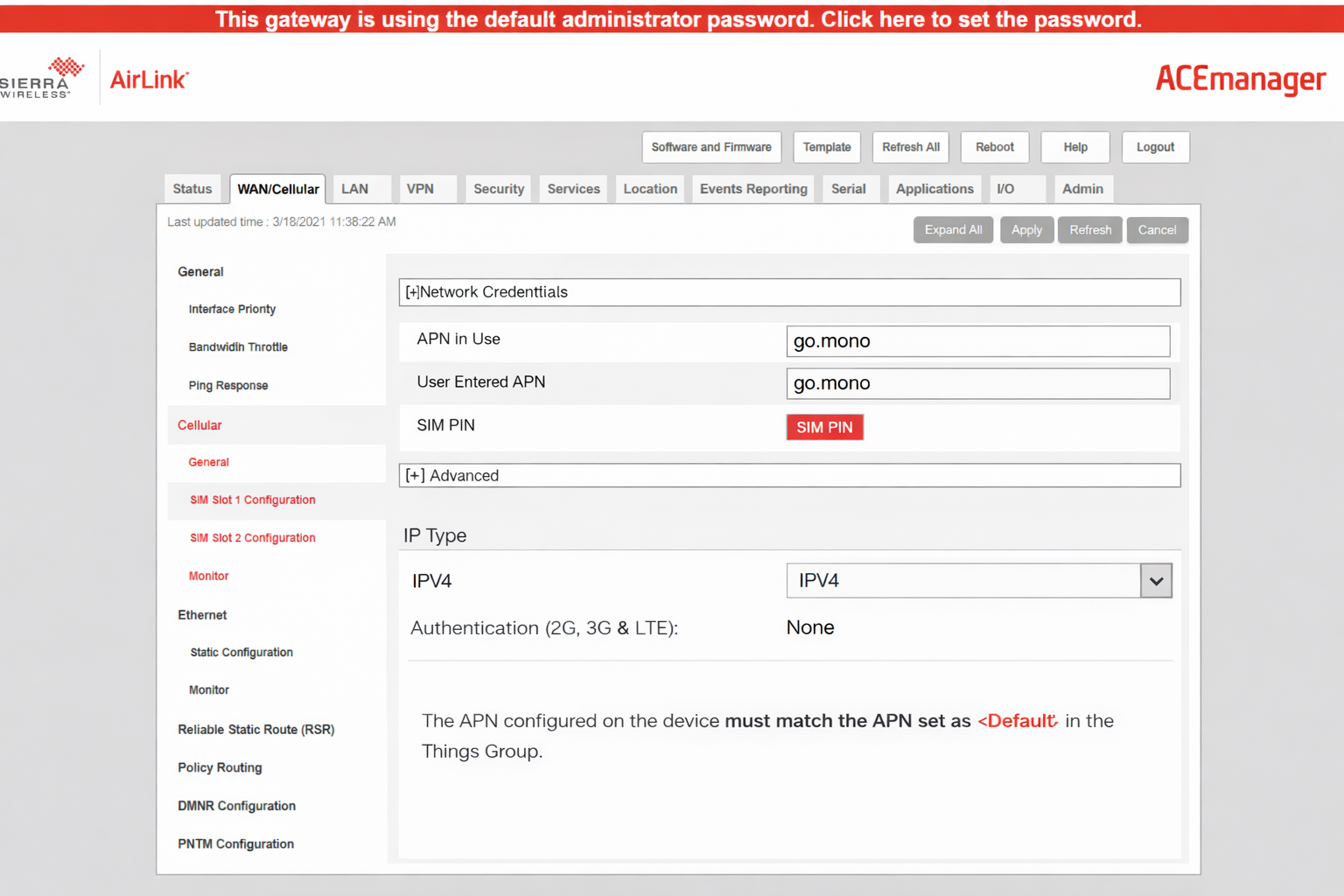
2\.      Go To **WAN/Cellular** and select **Cellular**

![](https://3922449203-files.gitbook.io/~/files/v0/b/gitbook-legacy-files/o/assets%2F-M0mPxGpottOEfcucXOR%2F-MWi6rqrLIsERJt4UKUG%2F-MWieDKeLbyPzkaYJEbe%2FPic_a_Sierra_model_rv50.png?alt=media\&token=dbf77fda-3be5-4698-8c9a-6bfba147bd0b)

3\.       Click on **SIM Slot 1 Configuration** or **SIM Slot 2 Configuration** (depending in which slot you have inserted the SIM card)

![](https://3922449203-files.gitbook.io/~/files/v0/b/gitbook-legacy-files/o/assets%2F-M0mPxGpottOEfcucXOR%2F-MWi6rqrLIsERJt4UKUG%2F-MWiePOQgwHu5p_oQEa2%2FPic_a_Sierra_model_rv50_.png?alt=media\&token=96f59da2-f45a-45fb-a66f-89eaa3f2a7e1)

4\.       Enter APN and save changes

![](https://3922449203-files.gitbook.io/~/files/v0/b/gitbook-legacy-files/o/assets%2F-M0mPxGpottOEfcucXOR%2F-MWi6rqrLIsERJt4UKUG%2F-MWieuie8VRVUdhYYbEU%2FPic_b_Sierra_model_rv50_enter%20APN.png?alt=media\&token=1b479019-b979-44b2-8a23-62370cadb0ff)

Example showing the go.mono APN used in RV50 Sierra Wireless AirLink modem

<figure><img src="https://3922449203-files.gitbook.io/~/files/v0/b/gitbook-x-prod.appspot.com/o/spaces%2F-M0mPxGpottOEfcucXOR%2Fuploads%2F6cv6Bgk4O5f0cV9UHs5Z%2Funknown.png?alt=media&amp;token=3966864f-c0a0-44a9-83c2-8ace7c624c31" alt=""><figcaption></figcaption></figure>

<figure><img src="https://3922449203-files.gitbook.io/~/files/v0/b/gitbook-x-prod.appspot.com/o/spaces%2F-M0mPxGpottOEfcucXOR%2Fuploads%2F2HA7bTuKxn9JveQqu85e%2Funknown.png?alt=media&amp;token=a1aaf647-5ded-43bb-8449-4a9dcab354de" alt=""><figcaption></figcaption></figure>

{% hint style="warning" %}
Please note that some devices may not work properly without correct date and time ettings. Therefore, make sure that you have good data and time settings.

If your device takes time from NTP server, please use the following servers:

NTP server 1 - **0.de.pool.ntp.org**

NTP server 2 - **1.de.pool.ntp.org**
{% endhint %}

{% hint style="info" %}
If needed, please note that you may find official manufacturer manual for this modem [following this link](https://s.campbellsci.com/documents/ca/manuals/rv50_man.pdf)
{% endhint %}


# Smart Cash Register Configuration to Use Cellular SIM as WiFi Backup

The following guide shows example configuration for smart cash register to use cellular SIM as a backup in case WiFi stops working properly.

1\.       Press on **internet settings** in the tool bar.

![](https://3922449203-files.gitbook.io/~/files/v0/b/gitbook-legacy-files/o/assets%2F-M0mPxGpottOEfcucXOR%2F-Mf3Qvxe2AwQZct3Bp1s%2F-Mf3_pvEe9WzSi7Lt-Qo%2F0.png?alt=media\&token=392924a3-196d-470d-b495-2e154a01cb9f)

2\.       Press and hold **Cellular** button for a few seconds.

![](https://3922449203-files.gitbook.io/~/files/v0/b/gitbook-legacy-files/o/assets%2F-M0mPxGpottOEfcucXOR%2F-Mf3Qvxe2AwQZct3Bp1s%2F-Mf3a8rTIBVgAH5oZexu%2F1.png?alt=media\&token=8ca66160-4ded-4898-8b51-c8cc58e463f9)

3\.       You should see **Go to Settings** button appear, please press on this button.

![](https://3922449203-files.gitbook.io/~/files/v0/b/gitbook-legacy-files/o/assets%2F-M0mPxGpottOEfcucXOR%2F-Mf3Qvxe2AwQZct3Bp1s%2F-Mf3aEraO0bEW2QZqqz7%2F2.png?alt=media\&token=3d8511bd-166b-47ec-8593-9f7248589a33)

4\.       When Cellular settings open, please press on **Advanced options**.

![](https://3922449203-files.gitbook.io/~/files/v0/b/gitbook-legacy-files/o/assets%2F-M0mPxGpottOEfcucXOR%2F-Mf3Qvxe2AwQZct3Bp1s%2F-Mf3aYwpczq1CLtXlt8S%2F3.png?alt=media\&token=6232fcc0-4b6d-432d-9205-33a1ffe2ca9e)

5\.       Press on button **Add an APN**.

![](https://3922449203-files.gitbook.io/~/files/v0/b/gitbook-legacy-files/o/assets%2F-M0mPxGpottOEfcucXOR%2F-Mf3Qvxe2AwQZct3Bp1s%2F-Mf3asE_CmDCvdw4T3Fd%2F4.png?alt=media\&token=b0176b1f-29ca-4943-b531-76a687da39bc)

6\.       When the APN configuration window opens, please enter profile name and APN. Below you can see example showing the **go.mono** being used in a device.

<figure><img src="https://3922449203-files.gitbook.io/~/files/v0/b/gitbook-x-prod.appspot.com/o/spaces%2F-M0mPxGpottOEfcucXOR%2Fuploads%2FUmxZYWKdEAuNpOdirI2D%2Funknown.png?alt=media&amp;token=221fbf0f-effb-4220-a2b4-3cfd53471e77" alt=""><figcaption></figcaption></figure>

7\.       After entering APN and profile name, please scroll down and mark **Apply this profile**. This will set this new APN as a default APN in this device.

![](https://3922449203-files.gitbook.io/~/files/v0/b/gitbook-legacy-files/o/assets%2F-M0mPxGpottOEfcucXOR%2F-Mf3Qvxe2AwQZct3Bp1s%2F-Mf3bcoA96x4AfGCM2NF%2F6.png?alt=media\&token=61752f1f-8658-4dc1-aa08-462a82cc61bc)

8\.       To save our APN settings, please press on **Save** button.

![](https://3922449203-files.gitbook.io/~/files/v0/b/gitbook-legacy-files/o/assets%2F-M0mPxGpottOEfcucXOR%2F-Mf3Qvxe2AwQZct3Bp1s%2F-Mf3bmya3SNQChLNiryA%2F7.png?alt=media\&token=f662b029-f87d-4f98-86cf-fde3b3234146)

9\.       After saving APN, please enable data roaming, by selecting **Roam** under **Data roaming options**

![](https://3922449203-files.gitbook.io/~/files/v0/b/gitbook-legacy-files/o/assets%2F-M0mPxGpottOEfcucXOR%2F-Mf3Qvxe2AwQZct3Bp1s%2F-Mf3dgm1IO7tZXAaOQZq%2F8.png?alt=media\&token=8d07eb22-a597-491f-bd28-f2fad3779c27)

10\.       Now to set this cellular data to be used when there are issues with WiFi, please select When Wi-Fi is poor under Use cellular instead of Wi-Fi.

![](https://3922449203-files.gitbook.io/~/files/v0/b/gitbook-legacy-files/o/assets%2F-M0mPxGpottOEfcucXOR%2F-Mf3Qvxe2AwQZct3Bp1s%2F-Mf3dcDmDA4c-KRr_Xe7%2F9.png?alt=media\&token=6c1cb8ad-d135-4c54-a340-e0e924b20472)

11\.       To apply the settings to the device, please click on **Cellular** to disable it and then again click on **Cellular** to enable it.

![](https://3922449203-files.gitbook.io/~/files/v0/b/gitbook-legacy-files/o/assets%2F-M0mPxGpottOEfcucXOR%2F-Mf3Qvxe2AwQZct3Bp1s%2F-Mf3cgHuILcJucbP367F%2F10.png?alt=media\&token=2b561a44-5038-4873-8ce8-942ec05ab2ca)


# Cradlepoint router configuration with Monogoto SIM (NetCloud OS)

### Step 1: Connect to the Router

Plug an Ethernet cable into a LAN port on the Cradlepoint and your computer.

### Step 2: Access the Web Interface

Open a browser and go to[ http://192.168.0.1](http://192.168.0.1).\
You’ll be prompted to log in. Use:

1. Username: admin
2. Password: printed on the label on the back of the router (typically the serial number)

<figure><img src="https://3922449203-files.gitbook.io/~/files/v0/b/gitbook-x-prod.appspot.com/o/spaces%2F-M0mPxGpottOEfcucXOR%2Fuploads%2FYoW38EfOS0kNcXttKIVP%2Fimage.png?alt=media&amp;token=94fe29b2-e914-4817-9f41-1bdf4f3c6500" alt=""><figcaption></figcaption></figure>

### Step 3: Open the Connection Manager

Once logged in, go to Connection Manager and locate the modem associated with your Monogoto SIM card. Select that modem interface and click Edit.

<figure><img src="https://3922449203-files.gitbook.io/~/files/v0/b/gitbook-x-prod.appspot.com/o/spaces%2F-M0mPxGpottOEfcucXOR%2Fuploads%2FudurP9AvRKlmWH1iDoBD%2Fimage.png?alt=media&amp;token=35216ab1-127c-4b68-835d-fb2569cfae31" alt=""><figcaption></figcaption></figure>

### Step 4: Update SIM/APN Settings

* Go to the SIM/APN/Auth tab.
* For Access Point Name (APN), select the first slot and enter:\
  APN: **data.mono**
* Set the IP Type to IP.

<figure><img src="https://3922449203-files.gitbook.io/~/files/v0/b/gitbook-x-prod.appspot.com/o/spaces%2F-M0mPxGpottOEfcucXOR%2Fuploads%2F1wG6EeXeKlaUejcYaCpR%2Fimage.png?alt=media&amp;token=bf93caa8-d954-4d09-9b38-0adc3caa4b09" alt=""><figcaption></figcaption></figure>

### Step 5: Adjust MTU Size

* Go to the General tab.
* Find the MTU setting and make sure it is set below 1400 bytes.

<figure><img src="https://3922449203-files.gitbook.io/~/files/v0/b/gitbook-x-prod.appspot.com/o/spaces%2F-M0mPxGpottOEfcucXOR%2Fuploads%2FG5vdaNE8QzO7bPiPHWfn%2Fimage.png?alt=media&amp;token=b38a4d33-0dc1-4cad-9383-136559a53723" alt=""><figcaption></figcaption></figure>

### Step 6: Save and Apply Changes

Click Save (or Save & Apply) to ensure the settings take effect.


# Nayax Nova 40

The following guide shows example configuration for nova 40 register to use cellular SIM .

1\.       Please go to **Settings**.

<div align="center"><img src="https://3922449203-files.gitbook.io/~/files/v0/b/gitbook-x-prod.appspot.com/o/spaces%2F-M0mPxGpottOEfcucXOR%2Fuploads%2FG7yAxQqfiP2omgsuR4tB%2FNayax_Nova40_A0_0-smaller.png?alt=media&amp;token=107d76f6-85a6-44f7-91cd-a046c3788637" alt=""></div>

2\.       Press on **Network & Internet**.

![](https://3922449203-files.gitbook.io/~/files/v0/b/gitbook-x-prod.appspot.com/o/spaces%2F-M0mPxGpottOEfcucXOR%2Fuploads%2FZZVJNOQN4pPRRhdw7vXQ%2FNayax_Nova40_A1_1-smaller.png?alt=media\&token=75821e93-841d-4653-a897-c92bbc809daf)

3\.       You should see the **Mobile Network** button appear, please press on this button.

![](https://3922449203-files.gitbook.io/~/files/v0/b/gitbook-x-prod.appspot.com/o/spaces%2F-M0mPxGpottOEfcucXOR%2Fuploads%2FFVKi5k9oJx2cDw2PVrui%2FNayax_Nova40_A2_2-smaller.png?alt=media\&token=6c0e2e3c-a0a4-42ba-8e97-b9b1456538ed)

4\.       When the Mobile networks open, please press on **Advanced**.

![](https://3922449203-files.gitbook.io/~/files/v0/b/gitbook-x-prod.appspot.com/o/spaces%2F-M0mPxGpottOEfcucXOR%2Fuploads%2FWJH68H1kC70F429Z4LAm%2FNayax_Nova40_A3_3-smaller.png?alt=media\&token=40be870d-ccdb-48da-a733-a3d679f8db94)

5\.       Press on **Access Point Names**.

![](https://3922449203-files.gitbook.io/~/files/v0/b/gitbook-x-prod.appspot.com/o/spaces%2F-M0mPxGpottOEfcucXOR%2Fuploads%2FFTGWAGRqwNuNVsUlFuLI%2FNayax_Nova40_A4_4-smaller.png?alt=media\&token=adedc6d6-3310-438f-921c-1cc3e1b92e59)

6\.       Give a name to this APN, then enter APN **data.mono** and press on **Save** button.

![](https://3922449203-files.gitbook.io/~/files/v0/b/gitbook-x-prod.appspot.com/o/spaces%2F-M0mPxGpottOEfcucXOR%2Fuploads%2FocF0AoBjwXKVdQKn3GQM%2FNayax_Nova40_A5_5-smaller.png?alt=media\&token=b2534b10-fa9a-425a-b8a3-6ace02847ad2)

7\.       After entering APN and APN name, please scroll down and mark **Apply this profile**. This will set this new APN as a default APN in this device.

![](https://3922449203-files.gitbook.io/~/files/v0/b/gitbook-x-prod.appspot.com/o/spaces%2F-M0mPxGpottOEfcucXOR%2Fuploads%2Fidsc4V6EncfQ8UUY5k3J%2FNayax_Nova40_A6_6-smaller.png?alt=media\&token=2ab2e0e2-c9d5-4d0f-ba5d-fba750cf6acb)


# IoT Modules

In this guide you can find the most important settings for Monogoto SIM card to work properly in your IoT modules

Monogoto supports all certified cellular modems. An overview of the tested and documented modems and development kits can be found in the table below.

<table><thead><tr><th width="306.67028089036603">Manufacturer</th><th width="167.10735086925754">Cellular Modem</th><th>Development Kit</th></tr></thead><tbody><tr><td><img src="https://3922449203-files.gitbook.io/~/files/v0/b/gitbook-x-prod.appspot.com/o/spaces%2F-M0mPxGpottOEfcucXOR%2Fuploads%2FO36Y5cg2landNmSP8ZLh%2FNordic0.5.jpg?alt=media&amp;token=2ffb6bc2-063e-473c-850d-01341e08caea" alt="" data-size="original"></td><td><a href="broken://pages/jT7tJMbj4CKdzpk3cYiO#connect-the-nrf9160-to-monogoto"><strong>nRF9160</strong></a><br><a href="broken://pages/jT7tJMbj4CKdzpk3cYiO#connect-the-nrf9160-to-monogoto"><strong>nRF9151</strong></a><br><a href="broken://pages/jT7tJMbj4CKdzpk3cYiO#connect-the-nrf9160-to-monogoto"><strong>nRF93M1</strong></a></td><td><a href="broken://pages/jT7tJMbj4CKdzpk3cYiO"><strong>nRF9160 Development Kit</strong></a><br><a href="broken://pages/jT7tJMbj4CKdzpk3cYiO"><strong>nRF9151 Development Kit</strong></a><br><a href="broken://pages/jT7tJMbj4CKdzpk3cYiO"><strong>nRF93M1 Development Kit</strong></a></td></tr><tr><td><img src="https://3922449203-files.gitbook.io/~/files/v0/b/gitbook-x-prod.appspot.com/o/spaces%2F-M0mPxGpottOEfcucXOR%2Fuploads%2F0wBGrNL4mU3BN0jw8tlw%2FQuectel0.5.jpg?alt=media&amp;token=4c79f6d4-c3eb-4eb2-8f65-a07888c6eadc" alt=""></td><td><a href="/getting-started/general-device-configurations/iot-devices/quectel-bg96"><strong>Quectel BG96</strong></a><br><a href="/getting-started/general-device-configurations/iot-devices/quectel-bg95-mx"><strong>Quectel BG95</strong></a></td><td><a href="/getting-started/general-device-configurations/iot-devices/quectel-bg95-mx#set-up-umts-and-lte-evb-kit-if-applicable"><strong>Quectel EVB Kit</strong></a></td></tr><tr><td><img src="https://3922449203-files.gitbook.io/~/files/v0/b/gitbook-x-prod.appspot.com/o/spaces%2F-M0mPxGpottOEfcucXOR%2Fuploads%2F9YMm6IHimnra7CXGOZ5m%2FSierra%20Wireless%20logo.jpg?alt=media&amp;token=c3d86392-7392-46e7-9925-d21b61bdf09b" alt=""></td><td><p><a href="https://docs.monogoto.io/getting-started/general-device-configurations/iot-devices/sierra-wireless-wp7607"><strong>WP7607</strong></a></p><p><a href="/getting-started/general-device-configurations/iot-devices/sierra-wireless-wp7610"><strong>WP7610</strong></a> <br><a href="/getting-started/general-device-configurations/iot-devices/sierra-wireless-mc7700"><strong>MC7700</strong></a></p></td><td></td></tr><tr><td><img src="https://3922449203-files.gitbook.io/~/files/v0/b/gitbook-x-prod.appspot.com/o/spaces%2F-M0mPxGpottOEfcucXOR%2Fuploads%2FwbS8BiQiLL2FE81831nv%2FSIMCom0.5.jpg?alt=media&amp;token=f930730e-e805-4595-99ca-2275c2a6c54d" alt=""></td><td><a href="/getting-started/general-device-configurations/iot-devices/simcom-sim7070g/waveshare-sim7070g#connect-the-sim7070g-to-monogoto"><strong>SIM7070X</strong></a><br><a href="/getting-started/general-device-configurations/iot-devices/simcom-sim7600g-h/waveshare-sim7600g-h#connect-the-sim7600g-h-to-monogoto"><strong>SIM7600X</strong></a></td><td><a href="/getting-started/general-device-configurations/iot-devices/simcom-sim7070g/waveshare-sim7070g"><strong>Waveshare SIM7070G RPI Hat</strong></a><br><a href="/getting-started/general-device-configurations/iot-devices/simcom-sim7600g-h/waveshare-sim7600g-h"><strong>Waveshare SIM7600G-H RPI Hat</strong></a></td></tr><tr><td><img src="https://3922449203-files.gitbook.io/~/files/v0/b/gitbook-x-prod.appspot.com/o/spaces%2F-M0mPxGpottOEfcucXOR%2Fuploads%2F0R8GAX3gWbS4fwq5EYS2%2FTelit.jpg?alt=media&amp;token=ecc0448e-3c87-4c98-867c-b35c26f821f2" alt=""></td><td><a href="/getting-started/general-device-configurations/iot-devices/telit-he910"><strong>HE910</strong></a></td><td></td></tr><tr><td><img src="https://3922449203-files.gitbook.io/~/files/v0/b/gitbook-x-prod.appspot.com/o/spaces%2F-M0mPxGpottOEfcucXOR%2Fuploads%2Fuhlv1wh2Q1yFUynOE3U2%2Fu-blox0.5.jpg?alt=media&amp;token=8eeb0aa6-81ff-40e7-a586-780d989664e9" alt=""></td><td><a href="/getting-started/general-device-configurations/iot-devices/u-blox-sara-r4#atcommands"><strong>u-blox SARA R4</strong></a></td><td><a href="/getting-started/general-device-configurations/iot-devices/u-blox-sara-r4"><strong>SODAQ SARA R41X</strong></a></td></tr><tr><td><img src="https://3922449203-files.gitbook.io/~/files/v0/b/gitbook-x-prod.appspot.com/o/spaces%2F-M0mPxGpottOEfcucXOR%2Fuploads%2F0opMYFXe0AXmOJjlnGP7%2FMurata-logo.png?alt=media&amp;token=bb4988c6-5b5b-41d1-b059-c7b4f06ecf9a" alt="" data-size="original"></td><td><a href="/getting-started/general-device-configurations/iot-devices/murata-lbad0xx1sc-dm/satellite-ntn-network"><strong>LBAD0XX1SC-DM</strong></a></td><td><a href="/getting-started/general-device-configurations/iot-devices/murata-lbad0xx1sc-dm/satellite-ntn-network"><strong>LBAD0XX1SC-DM-EVK2</strong></a></td></tr></tbody></table>


# NORDIC nRF9160 DK

Get started with the nRF9160 Development Kit

The nRF9160 DK is a cellular IoT development kit for LTE Cat-M1, NB-IoT, GNSS and Bluetooth LE. It is an affordable, pre-certified single-board development kit for evaluation and development of the [**nRF9160 SiP**](https://www.nordicsemi.com/Products/nRF9160)**.**

![nRF9160 Development Kit](https://3922449203-files.gitbook.io/~/files/v0/b/gitbook-x-prod.appspot.com/o/spaces%2F-M0mPxGpottOEfcucXOR%2Fuploads%2Ffi8wesqrGbKnEypqn3LD%2FnRF59160-DK-nordic.jpg?alt=media\&token=1d69ca6d-0771-4d64-80be-e51171d38564)

### Quick Navigation

* [Getting Started with the nRF9160 DK](#getting-started)
* [Connect the nRF9160 to Monogoto](#connect-the-nrf9160-to-monogoto)
* [Build a tracking application](#build-a-tracking-application)
* [Useful Links](#useful-links)

### Prerequisites

* [NORDIC nRF9160 DK](https://www.nordicsemi.com/Products/Development-hardware/nrf9160-dk)
* [nRF Connect for Desktop](https://www.nordicsemi.com/Products/Development-tools/nRF-Connect-for-desktop/)
* [Account on nRF Cloud](https://nrfcloud.com/)
* [nRF Connect SDK](https://developer.nordicsemi.com/nRF_Connect_SDK/doc/latest/nrf/gs_assistant.html#gs-assistant) for VS Code or SES (Segger Embedded Studio)

## Getting Started with the nRF9160 DK <a href="#getting-started" id="getting-started"></a>

### Connect to the nRF9160

Connect the nRF9160 to your computer using a micro USB cabl&#x65;**.**&#x20;

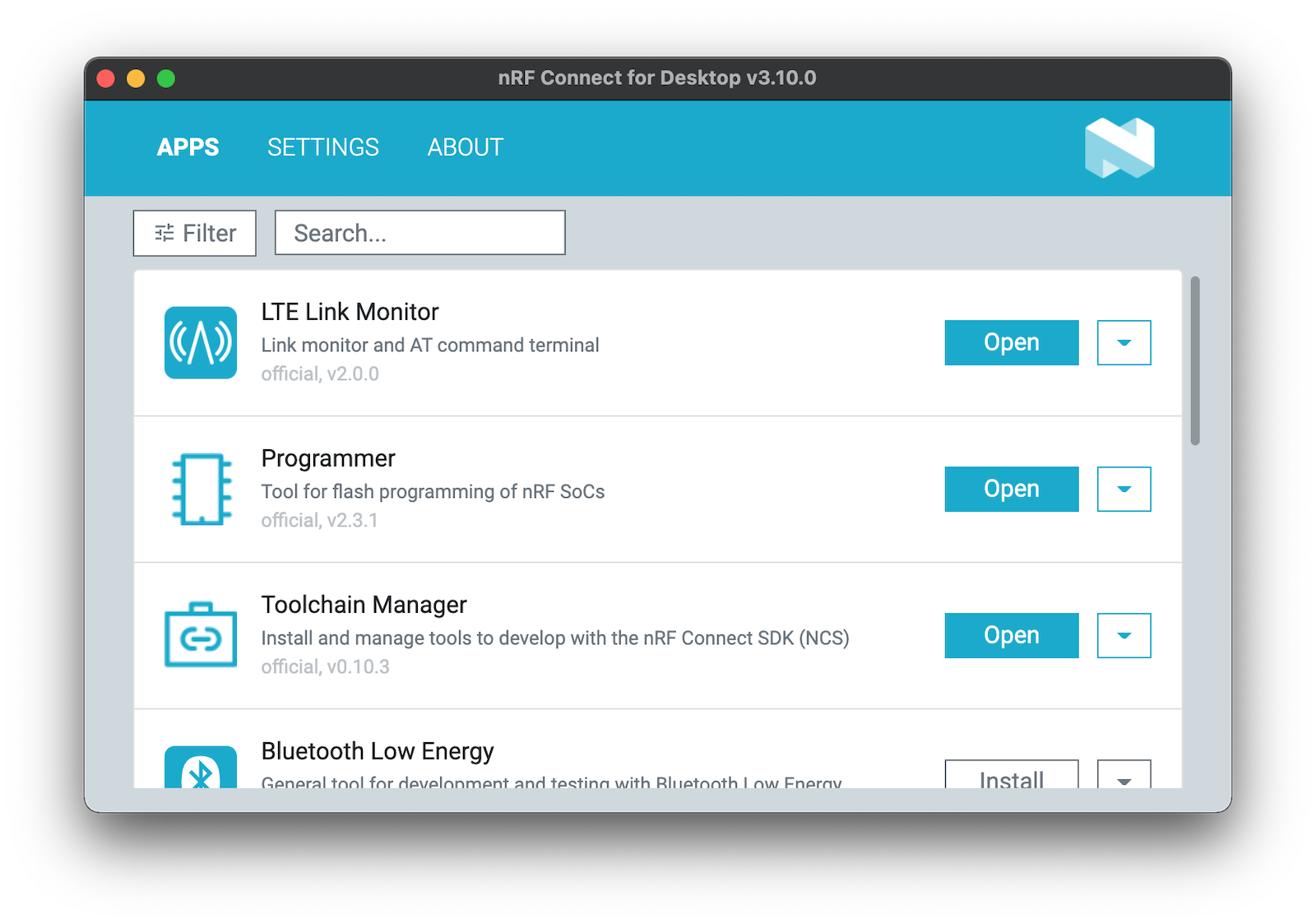
Open the **Programmer** tool from **nFR Connect for Desktop.**&#x20;

![](https://3922449203-files.gitbook.io/~/files/v0/b/gitbook-x-prod.appspot.com/o/spaces%2F-M0mPxGpottOEfcucXOR%2Fuploads%2F6TyqUWvv89mrpITyAMkP%2Fimage.png?alt=media\&token=9ff8515f-5a3b-4193-87b0-7c75b7e11c7f)

Connect your device by clicking **SELECT DEVICE ↓** at the top-left corner.

![](https://3922449203-files.gitbook.io/~/files/v0/b/gitbook-x-prod.appspot.com/o/spaces%2F-M0mPxGpottOEfcucXOR%2Fuploads%2FzBud0ycHXC1XBxJInpRJ%2Fimage.png?alt=media\&token=4cc6867c-fe28-44e4-9b59-7deeb870232e)

### Program the Development Kit with the `at_client` sample

{% hint style="info" %}
For details about the `at_client` sample, [see nRF9160 documentation](https://developer.nordicsemi.com/nRF_Connect_SDK/doc/latest/nrf/samples/nrf9160/at_client/README.html)
{% endhint %}

Open your [**nRF Connect SDK**](https://developer.nordicsemi.com/nRF_Connect_SDK/doc/latest/nrf/gs_assistant.html#gs-assistant) on VS Code or SES. Select the option: **Create a new application from sample** and open the application: `at_client` which can be found in the folder: `samples/nrf9160/`.

![Open at\_client sample in VS Code](https://3922449203-files.gitbook.io/~/files/v0/b/gitbook-x-prod.appspot.com/o/spaces%2F-M0mPxGpottOEfcucXOR%2Fuploads%2FvlPLTq6pRa7KxyyaSuWC%2Fimage.png?alt=media\&token=0364360b-d49c-443d-9c28-7313cac810bf)

**Add Build Configuration** for the board `nrf9160dk_nrf9160_ns`

![Add Build Configuration in VS Code](https://3922449203-files.gitbook.io/~/files/v0/b/gitbook-x-prod.appspot.com/o/spaces%2F-M0mPxGpottOEfcucXOR%2Fuploads%2FcPqIvfKONU9lX2zikWMx%2Fimage.png?alt=media\&token=898eb40e-847b-46bd-8b0a-bb2f37a70405)

Flash the build file to the nRF9160 by clicking **Flash** in the left side menu

![](https://3922449203-files.gitbook.io/~/files/v0/b/gitbook-x-prod.appspot.com/o/spaces%2F-M0mPxGpottOEfcucXOR%2Fuploads%2FoHq7W3IBZmTLCxiT6XvH%2Fimage.png?alt=media\&token=da857f40-c81b-41d6-9fc6-51bca6c7f5e2)

Wait for the status message: "**Programming: Programming complete"**

![](https://3922449203-files.gitbook.io/~/files/v0/b/gitbook-x-prod.appspot.com/o/spaces%2F-M0mPxGpottOEfcucXOR%2Fuploads%2FctKpK3ZQk61u9AQ68YhW%2Fimage.png?alt=media\&token=0ae760b3-4d43-45a1-8a55-400a3acd4b18)

## Connect the nRF9160 to Monogoto

{% hint style="info" %}
Keep the **nRF91 AT Commands manual** next to you for more details about the commands. [**Click here**](https://infocenter.nordicsemi.com/index.jsp?topic=%2Fref_at_commands%2FREF%2Fat_commands%2Fintro.html) to visit NORDICs AT Commands documentation.
{% endhint %}

Start off by **inserting the Monogoto SIM card**.

Open the **LTE Link Monitor** from **nRF Connect for Desktop.**

After selecting your device via the button **SELECT DEVICE ↓,** the AT command `AT+CFUN?` is sent automatically to the modem which returns: `+CFUN: 0`, indicating that the modem is turned off.

![](https://3922449203-files.gitbook.io/~/files/v0/b/gitbook-x-prod.appspot.com/o/spaces%2F-M0mPxGpottOEfcucXOR%2Fuploads%2FKEBHm4QnzJQD8Xl7rPNX%2Fimage.png?alt=media\&token=99a95d4e-5a5e-4716-8990-67d0d17520a0)

Reset the modem to **factory settings**:

```bash
AT%XFACTORYRESET=0
```

Enable **error reporting**, resulting in more descriptive error codes (optional):

```bash
AT+CMEE=1
```

**Activate** the cellular modem:

```bash
AT+CFUN=1
```

Check if the SIM card is attached and is not locked with a PIN, expected response: `+CPIN: READY`:

```bash
AT+CPIN?
```

{% hint style="warning" %}
If you receive an error, the SIM may not be inserted properly or the SIM is protected with a PIN. By default, Monogoto SIMs are not PIN protected.
{% endhint %}

### **Query device information**

Request the modem **hardware version**:

```
AT+CGMM
```

Validate if the nRF9160 modem runs the latest firmware:

```bash
AT+CGMR
```

Compare the response with the latest version found on [**NORDICs website**](https://www.nordicsemi.com/Products/nRF9160/Download#infotabs) under **nRF9160 SiP modem firmware***.*&#x20;

<details>

<summary>How to update the nRF9160 modem firmware</summary>

If you don’t run the latest modem firmware, [**download**](https://www.nordicsemi.com/Products/Development-hardware/nRF9160-DK/Download?lang=en#infotabs) the latest nRF9160 DK **application and modem firmware**. Unzip the file and look for a zipfile which starts with `mfw` (which stands for Modem Firmware).

Open the **Programmer** in **nRF Connect for Desktop**.
<img src="https://3922449203-files.gitbook.io/~/files/v0/b/gitbook-x-prod.appspot.com/o/spaces%2F-M0mPxGpottOEfcucXOR%2Fuploads%2F6TyqUWvv89mrpITyAMkP%2Fimage.png?alt=media&amp;token=9ff8515f-5a3b-4193-87b0-7c75b7e11c7f" alt="nRF Connect for Desktop" data-size="original">

Click in the left menu bar Read <img src="https://3922449203-files.gitbook.io/~/files/v0/b/gitbook-x-prod.appspot.com/o/spaces%2F-M0mPxGpottOEfcucXOR%2Fuploads%2F2gNoWGXLH0z3PJcOFeEb%2Fimage.png?alt=media&amp;token=37b1dbce-043c-4f66-9202-b91910246744" alt="" data-size="line">, followed by Add file <img src="https://3922449203-files.gitbook.io/~/files/v0/b/gitbook-x-prod.appspot.com/o/spaces%2F-M0mPxGpottOEfcucXOR%2Fuploads%2FdiKML5kMjRR1jB839uMw%2Fimage.png?alt=media&amp;token=e5d891dd-e01f-4d70-8065-3f7e39dece3f" alt="" data-size="line"> and select the modem firmware zipfile you just downloaded.&#x20;

Click Write <img src="https://3922449203-files.gitbook.io/~/files/v0/b/gitbook-x-prod.appspot.com/o/spaces%2F-M0mPxGpottOEfcucXOR%2Fuploads%2FI7DG5d2wrWBdtpWcvqGX%2Fimage.png?alt=media&amp;token=2893d296-56f0-4499-93ec-67c760553603" alt="" data-size="line"> to write the latest application and modem firmware to the nRF9160. Wait for the program to report: "**Completed successfully**".

<img src="https://3922449203-files.gitbook.io/~/files/v0/b/gitbook-x-prod.appspot.com/o/spaces%2F-M0mPxGpottOEfcucXOR%2Fuploads%2F0aFkfcpgz45VylUvo2Lt%2Fimage.png?alt=media&amp;token=84ab1557-819a-4835-a188-00102c24d987" alt="LTE Link Monitor" data-size="original">

</details>

Request the **IMSI** (International Mobile Subscriber Identity):

```
AT+CIMI
```

Request the **ICCID** (Integrated Circuit Card ID), which is the identification number of the SIM card:

```bash
AT%XICCID 
```

### **Network Configuration**

It is possible to let the modem select the network automatically, or to manually define a network to connect with.

#### **Option 1: Automatic Network Selection**

To set the modem to **automatic network selection** enter the command:

```
AT+COPS=0
```

Check the **network and cellular technology the modem** is currently using:

```
AT+COPS? 
```

Expected response: `+COPS: 0,2,"<MCCMNC of operator>",7`. The last digit indicates the cellular technology, `7` means **LTE Cat-M1**&#x20;

#### Option 2: Manual Network Selection

Start with searching for available networks by entering the below AT Command, or by clicking the button: <img src="https://3922449203-files.gitbook.io/~/files/v0/b/gitbook-x-prod.appspot.com/o/spaces%2F-M0mPxGpottOEfcucXOR%2Fuploads%2FkIcFrBy2SYycTvOvSey9%2Fimage.png?alt=media&amp;token=4b9181f8-1726-493f-bbd7-f12c2d02f911" alt="" data-size="original">

```
AT+COPS=?
```

{% hint style="warning" %}
Be patient, it may take several minutes before the modem responds, you cannot send any other AT Commands in the meantime. You may get an error message which you can ignore <mark style="color:red;">`Error: 'AT+COPS=? ' timed out`</mark>.
{% endhint %}

The modem responds with the **MCCMNC** codes of the available networks. It also shows the cellular technologies the networks support: `7` indicates **LTE Cat-M1**.

Example response:

```
+COPS: (2,"","","20408",7),(1,"","","20404",7),(1,"","","20416",7)
```

To find the names and MCCMNCs of the networks Monogoto has **roaming agreements** with, review the [**Coverage lists**](/getting-started/global-public-coverage).

{% hint style="info" %}
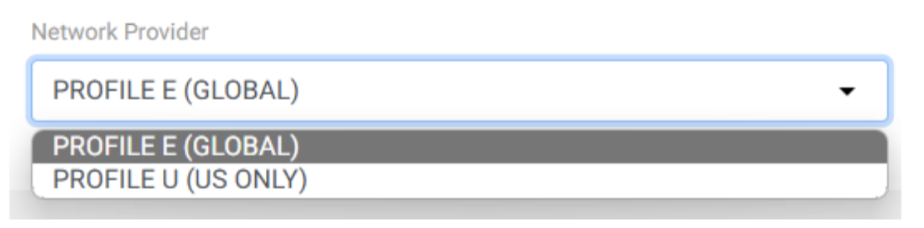
To find the **profile** of your SIM, visit the [**Monogoto Console**](https://console.monogoto.io/), open the page **Things** and select a specific **Thing**. Scroll down to **Mobile Identities** to find your profile in the column **Network Provider Name**.

![](https://3922449203-files.gitbook.io/~/files/v0/b/gitbook-x-prod.appspot.com/o/spaces%2F-M0mPxGpottOEfcucXOR%2Fuploads%2FDBBlfmj2XtYrHZ07kzS9%2Fimage.png?alt=media\&token=1d1db179-eb1c-42ae-b235-0811de892ef4)
{% endhint %}

To find the **network operator** and the **cellular technology** the device is currently using, enter:

```
AT+COPS? 
```

Expected response: `+COPS: 0,2,"<MCCMNC>",7`. The last digit indicates the cellular technology LTE Cat-M1.

**Manually set the network and the cellular technology**:

```
AT+COPS=1,2,"XXXXX",7
```

Replace `XXXXX` with the **MCCMNC** code of your operator, for example`"20404"` for Vodafone NL.

#### **Check the radio signal strength and signal quality:**

```bash
AT+CESQ
```

Example response: `+CESQ: 99,99,255,255,15,53`

{% hint style="info" %}
`+CESQ` returns 6 values separated by commas. The last 2 values indicate the **RSRQ** (Reference Signal Received Quality) and **RSRP** (Reference Signal Received Power) respectively. RSRQ is indicated with a value between `0` and `34`, RSRP is with a value between `0` and `97`. Higher values represent better signal quality.
{% endhint %}

#### Read the LTE Cat-M1 band the modem is using:

```
AT%XCBAND
```

Example response: `%XCBAND: 20`

#### Define the cellular band(s) (optional)

It is possible to **lock the modem to one or more specific bands**. This may result in a faster boot cycle as the modem does not need to scan for available bands at startup.

To **find** the available bands the modem support:

```
AT%XCBAND=?
```

Expected response: `%XCBAND: (1,2,3,4,5,8,12,13,18,19,20,25,26,28,66)`

{% hint style="warning" %}
Although the modem may support many different bands, your local network operator may not. Have a look at the [**LTE Cat-M1 overview**](broken://pages/GDSRxI85QWE6Z2lsLeS3) to find the available band(s) in your region.
{% endhint %}

{% hint style="info" %}
The LTE Link Monitor shows most of the network information as well. Example:&#x20;

![](https://3922449203-files.gitbook.io/~/files/v0/b/gitbook-x-prod.appspot.com/o/spaces%2F-M0mPxGpottOEfcucXOR%2Fuploads%2FL1YepYok32el44ox20dq%2Fimage.png?alt=media\&token=5c5de19e-74b7-4a91-8020-24425b742723)
{% endhint %}

**Lock the modem to one or multiple bands**

First, deactivate the modem: `AT+CFUN=0`,  then run the command:

```
AT%XBANDLOCK=1,"<bandmask>"
```

{% hint style="info" %}
Example of **creating the bandmask:**

To lock the modem to band 3 and 8, create a bit array where the 3rd and 8th bit are a 1 (counted from right to left): `10000100`. The AT Command becomes: `AT%XBANDLOCK=1,"10000100"`
{% endhint %}

Reactivate the modem after locking the band: `AT+CFUN=1`

**Test** if the bands are properly set:

```
AT%XBANDLOCK?
```

Expected response: `%XBANDLOCK: "<bandmask>",""`

### Network Activation

**Set the APN to** `data.mono`:

```bash
AT+CGDCONT=1,"IP","data.mono"
```

Validate if the **APN** is properly set:

```
AT+CGDCONT?
```

Expected response:

```
+CGDCONT: 1,"IP","data.mono"
```

**Activate the PDP (packet data protocol) context:**

```
AT+CGACT=1,1
```

**Test** if the PDP context is activated:

```
AT+CGACT?
```

Expected response:

```
+CGACT: 0,1
+CGACT: 1,1
```

#### Validate if your device received an **IP address**:

```bash
AT+CGPADDR
```

Expected response: `+CGPADDR: 1,XX.XXX.XX.XXX`

{% hint style="success" %}
Did you receive an IP address? **Congratulations! 🎉  You successfully connected the nRF9160 to Monogoto.** Have a look at the **Things** logs in the [**Monogoto Console**](https://console.monogoto.io/) to find more details about the established connection.&#x20;
{% endhint %}

Finally, visualize the network settings and status in the **LTE Link Monitor** with the command:

```bash
AT+CFUN?
```

If all went well, you should see the **Modem**, **UICC**, **LTE** and **PDN** (and optionally **UART**) indicators in the LTE Link Monitor turn <mark style="color:green;">**green**</mark>. You should  also see network information such as the **band**, the **network** the **signal quality** and **IP address**.

![](https://3922449203-files.gitbook.io/~/files/v0/b/gitbook-x-prod.appspot.com/o/spaces%2F-M0mPxGpottOEfcucXOR%2Fuploads%2FZTv06xwGKCGO0Ckt9LmT%2Fimage.png?alt=media\&token=0efab4d2-8238-4aec-8128-386a7646addd)

## Build a tracking application

*After successfully connecting the nRF9160 to Monogoto, start building an IoT asset tracking application where GPS data is visualized in **nRF Cloud**.*

### **Prerequisites**

* Monogoto SIM
* [NORDIC nRF9160 DK](https://www.nordicsemi.com/Products/Development-hardware/nrf9160-dk)
* [Account on nRF Cloud](https://nrfcloud.com/)
* [nRF Connect SDK](https://developer.nordicsemi.com/nRF_Connect_SDK/doc/latest/nrf/gs_assistant.html#gs-assistant) for VS Code or SES (Segger Embedded Studio)

### Add the nRF9160 to nRF Cloud

Login to [**nRF Cloud**](https://nrfcloud.com/)

Connect the nRF9160 DK to nRF Cloud by clicking the **+** sign. Select **LTE Device** and **Skip** the step when asked to activate a SIM card.

The **Device ID** is composed of `nrf-` followed by the **IMEI** which can be found at the back of the device, or by running the AT Command: `AT+CGSN`. Below the IMEI, you should see the **PIN** or **HWID**.

![](https://3922449203-files.gitbook.io/~/files/v0/b/gitbook-x-prod.appspot.com/o/spaces%2F-M0mPxGpottOEfcucXOR%2Fuploads%2FYKN3RQlf2CxTiHwnnkVz%2Fimage.png?alt=media\&token=0719d398-2ed6-4de9-8086-e8c6e094c051)

Open your [**nRF Connect SDK**](https://developer.nordicsemi.com/nRF_Connect_SDK/doc/latest/nrf/gs_assistant.html#gs-assistant) on VS Code or SES. Select the option: **Create a new application from sample** and open the application: `asset_tracker_v2` which can be found in the folder: `nrf/applications/`.

{% hint style="info" %}
For details about the `asset_tracker_v2` sample, [see nRF9160 documentation](https://developer.nordicsemi.com/nRF_Connect_SDK/doc/latest/nrf/applications/asset_tracker_v2/README.html)
{% endhint %}

![Open asset\_tracker\_v2 sample in VS Code](https://3922449203-files.gitbook.io/~/files/v0/b/gitbook-x-prod.appspot.com/o/spaces%2F-M0mPxGpottOEfcucXOR%2Fuploads%2FI8hk9CYMyF0B7u0dP32b%2Fimage.png?alt=media\&token=911bd49b-721f-412b-ac3a-318e4f967f6a)

Add a **Build Configuration** for the Asset Tracker V2 application (this may take several minutes) and **Flash** it to your Development Kit.

![Add Build Configuration in VS Code](https://3922449203-files.gitbook.io/~/files/v0/b/gitbook-x-prod.appspot.com/o/spaces%2F-M0mPxGpottOEfcucXOR%2Fuploads%2FZYBhtL4cRm71FHxLik27%2Fimage.png?alt=media\&token=42bef5c3-cb9a-4984-b70b-fc0b84aa913a)

Place the device outside or close to a window so it can receive GPS signals. Have a look at the **LTE Link Monitor** tool from **nRF Connect for Desktop** to monitor the device.

If the nRF9160 DK successfully connected to Monogoto and got a GPS fix, data will appear in the nRF Cloud. Does your nRF Cloud look something like the below images? **Congratulations! You’ve successfully connected the nRF9160 DK to the nRF Cloud using Monogoto.  🙌**

![](https://3922449203-files.gitbook.io/~/files/v0/b/gitbook-x-prod.appspot.com/o/spaces%2F-M0mPxGpottOEfcucXOR%2Fuploads%2FN0sVPVUYSy7Qr3ww28vK%2Fimage.png?alt=media\&token=bdc73bad-160a-40c6-a9fc-89d41f230681)

## Useful Links

* [nRF9160 DK Getting Started](https://infocenter.nordicsemi.com/index.jsp?topic=%2Fstruct_nrf91%2Fstruct%2Fnrf9160.html)
* [nRF91 AT Commands](https://infocenter.nordicsemi.com/index.jsp?topic=%2Fstruct_nrf91%2Fstruct%2Fnrf91.html)
* [nRF9160: Asset Tracker v2 documentation](nhttps://developer.nordicsemi.com/nRF_Connect_SDK/doc/latest/nrf/applications/asset_tracker_v2/README.html)
* [nRF9160 sample applications](https://developer.nordicsemi.com/nRF_Connect_SDK/doc/latest/nrf/samples/samples_nrf9160.html#)
* [nRF Cloud Documentation](https://docs.nrfcloud.com/)


# NORDIC nRF93M1 DK

Get started with the nRF93M1 Development Kit

The nRF93M1 DK is a development kit for evaluating the nRF93M1 LTE Cat 1 bis module and developing cellular IoT applications.\
The nRF93M1 supports 3GPP Release 14 LTE Cat 1 bis, with peak data rates of up to 10 Mbps downlink and 5 Mbps uplink. Cat 1 bis uses a single receive antenna while maintaining Cat 1 peak data rates, simplifying cellular IoT device design.\
Cat 1 bis operates on standard LTE networks and does not require dedicated LPWA network support, providing broader deployment flexibility across existing LTE coverage.

![nRF93M1 Development Kit](https://3922449203-files.gitbook.io/~/files/v0/b/gitbook-x-prod.appspot.com/o/spaces%2F-M0mPxGpottOEfcucXOR%2Fuploads%2Fw8UszSr2075OPm5olMwu%2FnRF93M1%20DK.png?alt=media\&token=6c10a51e-367b-4bac-a1ee-a964af77c726)

### Quick Navigation

* Getting Started with the nRF93M1 DK
* Connect the nRF93M1 to Monogoto
* Useful Links

### Prerequisites

* [NORDIC nRF93M1 DK](https://www.nordicsemi.com/Products/Development-hardware/nRF93M1-DK?utm_source=chatgpt.com)
* [nRF Connect for Desktop](https://www.nordicsemi.com/Products/Development-tools/nRF-Connect-for-desktop/)
* [Monogoto SIM card](https://monogoto.io/iot-pricing-page/)

## Getting Started with the nRF93M1 DK <a href="#getting-started" id="getting-started"></a>

### Connect to the nRF93M1

Connect the nRF93M1 to your computer using a micro USB cabl&#x65;**.**&#x20;

Open the **Programmer** tool from **nFR Connect for Desktop.**&#x20;

<div data-with-frame="true"><img src="https://3922449203-files.gitbook.io/~/files/v0/b/gitbook-x-prod.appspot.com/o/spaces%2F-M0mPxGpottOEfcucXOR%2Fuploads%2F5r9W9r1lzKMBnfcM2VbK%2Fnrf%20Connect%20List%20nRF93M1%20DK.png?alt=media&amp;token=0a8f5b89-e603-4711-93da-94f66778d24d" alt=""></div>

Connect your device by clicking **SELECT DEVICE ↓** at the top-left corner.

<div data-with-frame="true"><img src="https://3922449203-files.gitbook.io/~/files/v0/b/gitbook-x-prod.appspot.com/o/spaces%2F-M0mPxGpottOEfcucXOR%2Fuploads%2F8swPm4qqtu8ziM7QTDcZ%2Fnrf%20Connect%20select%20nRF93M1%20DK.png?alt=media&amp;token=4dcc8d23-b448-45c8-ad45-eb908f44e569" alt=""></div>

## Connect the nRF93M1 to Monogoto

{% hint style="info" %}
Keep the **nRF93 AT Commands manual** next to you for more details about the commands. [**Click here**](https://infocenter.nordicsemi.com/index.jsp?topic=%2Fref_at_commands%2FREF%2Fat_commands%2Fintro.html) to visit NORDICs AT Commands documentation.
{% endhint %}

Start off by **inserting the Monogoto SIM card**.

Open the **Serial Terminal Link** from **nRF Connect for Desktop.**

After selecting your device via the button **SELECT DEVICE ↓,** the AT command `AT+CFUN?` is sent automatically to the modem which returns: `+CFUN: 0`, indicating that the modem is turned off.

<div data-with-frame="true"><img src="https://3922449203-files.gitbook.io/~/files/v0/b/gitbook-x-prod.appspot.com/o/spaces%2F-M0mPxGpottOEfcucXOR%2Fuploads%2FIBrDbegzknmNHZsMoJcJ%2Fnrf%20Connect%20Atcommad%20nRF93M1%20DK.png?alt=media&amp;token=d9e5f3c5-00f3-4fdb-99ca-b0d0692ea9a9" alt=""></div>

Enable **error reporting**, resulting in more descriptive error codes (optional):

```bash
AT+CMEE=1
```

**Activate** the cellular modem:

```bash
AT+CFUN=1
```

Check if the SIM card is attached and is not locked with a PIN, expected response: `+CPIN: READY`:

```bash
AT+CPIN?
```

{% hint style="warning" %}
If you receive an error, the SIM may not be inserted properly or the SIM is protected with a PIN. By default, Monogoto SIMs are not PIN protected.
{% endhint %}

### **Query device information**

Request the modem **hardware version**:

```
AT+CGMM
```

Validate if the nRF93M1 modem runs the latest firmware:

```bash
AT+CGMR
```

Compare the response with the latest version found on Nordic's[ **website**](https://www.nordicsemi.com/Products/nRF9160/Download#infotabs) under **nRF93M1 modem firmware***.*&#x20;

Request the **IMSI** (International Mobile Subscriber Identity):

```
AT+CIMI
```

Request the **ICCID** (Integrated Circuit Card ID), which is the identification number of the SIM card:

```bash
AT%XICCID 
```

### **Network Configuration**

It is possible to let the modem select the network automatically, or to manually define a network to connect with.

#### **Option 1: Automatic Network Selection**

To set the modem to **automatic network selection** enter the command:

```
AT+COPS=0
```

Check the **network and cellular technology the modem** is currently using:

```
AT+COPS? 
```

Expected response: `+COPS: 0,2,"<MCCMNC of operator>",7`. The last digit indicates the cellular technology, `7` means **LTE**&#x20;

#### Option 2: Manual Network Selection

Start with searching for available networks by entering the below AT Command

```
AT+COPS=?
```

{% hint style="warning" %}
Be patient, it may take several minutes before the modem responds, you cannot send any other AT Commands in the meantime. You may get an error message which you can ignore <mark style="color:red;">`Error: 'AT+COPS=? ' timed out`</mark>.
{% endhint %}

The modem responds with the **MCCMNC** codes of the available networks. It also shows the cellular technologies the networks support: `7` indicates **LTE**.

Example response:

```
+COPS: (2,"","","20408",7),(1,"","","20404",7),(1,"","","20416",7)
```

To find the names and MCCMNCs of the networks Monogoto has **roaming agreements** with, review the [**Coverage lists**](https://monogoto.io/iot-pricing-page/).

{% hint style="info" %}
To find the **profile** of your SIM, visit the [**Monogoto Hub**](https://hub.monogoto.io/), open the page **Things** and select a specific **Thing**. Scroll down to **Active Identity Details** to find your profile.

![](https://3922449203-files.gitbook.io/~/files/v0/b/gitbook-x-prod.appspot.com/o/spaces%2F-M0mPxGpottOEfcucXOR%2Fuploads%2FtE1UYqximEGza3XmMuVI%2FActive%20Identity%20Details_Profile.png?alt=media\&token=1fc748eb-d716-4125-bda0-05b350d6eb6b)
{% endhint %}

To find the **network operator** and the **cellular technology** the device is currently using, enter:

```
AT+COPS? 
```

Expected response: `+COPS: 0,2,"<MCCMNC>",7`. The last digit indicates the cellular technology: LTE.

**Manually set the network and the cellular technology**:

```
AT+COPS=1,2,"XXXXX",7
```

Replace `XXXXX` with the **MCCMNC** code of your operator, for example`"20404"` for Vodafone NL.

#### **Check the radio signal strength and signal quality:**

```bash
AT+CESQ
```

Example response: `+CESQ: 99,99,255,255,15,53`

{% hint style="info" %}
`+CESQ` returns 6 values separated by commas. The last 2 values indicate the **RSRQ** (Reference Signal Received Quality) and **RSRP** (Reference Signal Received Power) respectively. RSRQ is indicated with a value between `0` and `34`, RSRP is with a value between `0` and `97`. Higher values represent better signal quality.
{% endhint %}

### Network Activation

**Set the APN to** `go.mono`:

```bash
AT+CGDCONT=1,"IP","go.mono"
```

Validate if the **APN** is properly set:

```
AT+CGDCONT?
```

Expected response:

```
+CGDCONT: 1,"IP","go.mono"
```

**Activate the PDP (packet data protocol) context:**

```
AT+CGACT=1,1
```

**Test** if the PDP context is activated:

```
AT+CGACT?
```

Expected response:

```
+CGACT: 1,1
```

#### Validate if your device received an **IP address**:

```bash
AT+CGPADDR 
```

Expected response: `+CGPADDR: 1,XX.XXX.XX.XXX`

### Test the connection by sending a PING

A PING test can be performed to test if the modem has an active data connection with a mobile network.

{% hint style="warning" %}
When cellular modems are idle for a long period of time, cell towers might drop the data connection to save resources. Sending regular PINGs is a good method for testing the data connection, as well as for keeping the connection alive because the operator registers your device as being actively used.
{% endhint %}

**Send 5 PINGs** to the IP address `8.8.8.8`:

```
AT+QPING=1,"8.8.8.8",5
```

Example response:

```
+QPING: 0,8.8.8.8,35,217,114
+QPING: 0,8.8.8.8,35,129,114
+QPING: 0,8.8.8.8,35,130,114
+QPING: 0,4,4,0,129,217,151
```

{% hint style="success" %}
Did you receive an IP address? **Congratulations! 🎉  You successfully connected the nRF93M1 to Monogoto.** Have a look at the **Things** logs in the [**Monogoto Console**](https://console.monogoto.io/) to find more details about the established connection.&#x20;
{% endhint %}

## Useful Links

* [nRF93M1 DK](https://www.nordicsemi.com/Products/Development-hardware/nRF93M1-DK?utm_source=chatgpt.com)
* [Developing with nRF93M1](https://nrfconnectdocs.nordicsemi.com/ncs/latest/nrf/app_dev/device_guides/nrf93m1/index.html?utm_source=chatgpt.com)
* [nRF93M1 AT Command Interface](https://nrfconnectdocs.nordicsemi.com/ncs/latest/nrf/app_dev/device_guides/nrf93m1/nrf93m1_at_commands.html?utm_source=chatgpt.com)


# Quectel BG95-MX

Set up the Quectel BG95 cellular modem

The **Quectel BG95-M** series support LTE Cat M1 technology. The M3 and M5 also come with GSM/EDGE support. This tutorial highlights the [Quectel BG95-M3](https://www.quectel.com/product/lpwa-bg95-m3) which supports LTE Cat M1, NB-IoT2 and EGPRS and is compliant with 3GPP release 14.

![](https://3922449203-files.gitbook.io/~/files/v0/b/gitbook-x-prod.appspot.com/o/spaces%2F-M0mPxGpottOEfcucXOR%2Fuploads%2F56sqfiLnKjTMZV1iKeUC%2Fimage.png?alt=media\&token=e9d70d26-e305-471f-a109-fa58c4550d92)

### Prerequisites

* Monogoto SIM
* [BG95-M3](https://www.quectel.com/product/lpwa-bg95-m3)
* [UMTS & LTE EVB Kit](https://www.quectel.com/product/umts-lte-evb-kit)

### Quick Navigation

* [Set up UMTS & LTE EVB Kit (if applicable)](#set-up-umts-and-lte-evb-kit)
* [Connect BG95 to Monogoto](#connect-the-bg95-m3-to-monogoto)
* [Sending a PING](#test-the-connection-by-sending-a-ping)
* [Useful Links](#useful-links)

## Set up UMTS & LTE EVB Kit (if applicable)

![Quectel EVB kit with BG95-M3 modem](https://3922449203-files.gitbook.io/~/files/v0/b/gitbook-x-prod.appspot.com/o/spaces%2F-M0mPxGpottOEfcucXOR%2Fuploads%2FRLkmrI2iRIDbqcEvMprV%2FQuectel%20EVB.jpg?alt=media\&token=ee6da3ec-3dc8-40de-96ae-7d75b47c1b34)

#### Set up the EVB Kit

* Connect the **Quectel BG95-M3 modem** to the EVB kit.&#x20;
* **Connect the LTE antenna** and (optionally) GPS antenna
* Insert the **Monogoto SIM**

#### **Connect you PC to the EVB Kit**

Use the USB to UART converter cable to connect your computer to the **COM1 MAIN** port of the EVB Kit

{% hint style="info" %}
When using Windows, install the driver using the disk or USB stick provided by Quectel.
{% endhint %}

Connect to the EVB kit using a **terminal program**. You can use PuTTY for Windows, or screen, minicom or miniterm for Mac or Linux.

**Power the EVB Kit** using the USB to micro USB cable and switch the **POWER** button to **ON**. The **POWER LED** will turn on <mark style="color:red;">**RED**</mark>.&#x20;

Press and hold the **PWRKEY** button for 1 second, the **STATUS** light will light up on <mark style="color:green;">**GREEN**</mark>, the **NET\_STA** LED will start blinking <mark style="color:blue;">**BLUE**</mark>.

Once the modem has started, it will report:

```
RDY
APP RDY
```

Enter `AT`, if the connection with the BG95 modem has been established, the board will answer with `OK`.

## Connect the BG95 to Monogoto

{% hint style="info" %}
Keep the **AT Commands manual** next to you for more details about the commands. [**Click** ](https://www.quectel.com/wp-content/uploads/2021/03/Quectel_BG95BG77BG600L_Series_QCFG_AT_Commands_Manual_V2.0-1.pdf)**here** to download the latest version.
{% endhint %}

#### **Reset the modem** to its default configuration:

Reset non-volatile memory:

```
AT+QPRTPARA=1 
```

Restore factory settings:

```
AT+QPRTPARA=3
```

Reboot module:

```bash
AT+CFUN=1,1
```

**Set the error reporting to** **verbose**, resulting in more descriptive error messages (optional):

```bash
AT+CMEE=2
```

Check the **status of the SIM card**. The correct response should be: `+CPIN: READY`

```
AT+CPIN?
```

{% hint style="warning" %}
If you receive an error, the SIM may not be inserted properly or the SIM is protected with a PIN. By default, Monogoto SIMs are not PIN protected.
{% endhint %}

### Query device information

Request the **product type, hardware** and **firmware** **version**:

```bash
ATI
```

Request the **IMSI** (International Mobile Subscriber Identity):

```
AT+CIMI
```

Request the **ICCID** (Integrated Circuit Card ID), which is the identification number of the SIM card

```bash
AT+CCID
```

### Network Configuration

It is possible to let the modem select the network automatically, or to manually define a network to connect with.

#### **Option 1: Automatic Network Selection**

To set the modem to **automatic network selection** enter the command:

```bash
AT+COPS=0
```

Check the **network and cellular technology the modem** is currently using:

```
AT+COPS? 
```

Expected response: `+COPS: 0,0,"<name of operator>",X`. The last digit indicates the cellular technology:\
`0` indicates **GSM**\
`8` indicates **LTE Cat-M1** (also referred to as eMTC)\
`9` indicates **NB-IoT**

#### Option 2: Manual Network Selection

Start with searching for available networks:

```
AT+COPS=?
```

{% hint style="warning" %}
It may take several minutes before the modem responds.&#x20;
{% endhint %}

The modem responds with the **names** and the **MCCMNC** codes of the available networks. It also shows the cellular technologies the networks support:&#x20;

```
+COPS: (1,"vodafone NL","voda NL","20404",8),(1,"NL KPN","NL KPN","20408",0),(1,"vodafone NL","voda NL","20404",9),(1,"T-Mobile NL","TMO NL","20416",0),(1,"NL KPN","NL KPN","20408",8),(1,"vodafone NL","voda NL","20404",0),(1,"T-Mobile NL","TMO NL","20416",8),(1,"T-Mobile NL","TMO NL","20416",9),,(0,1,2,3,4),(0,1,2)

OK
```

To find which of the networks Monogoto has **roaming agreements** with, review the [**Coverage lists**](/getting-started/global-public-coverage).

{% hint style="info" %}
To find the **profile** of your SIM, visit the [**Monogoto Console**](https://console.monogoto.io/), open the page **Things** ![](https://3922449203-files.gitbook.io/~/files/v0/b/gitbook-x-prod.appspot.com/o/spaces%2F-M0mPxGpottOEfcucXOR%2Fuploads%2FfH8DCNlIW5R2VRiHwMG5%2FThings.png?alt=media\&token=2a63b922-cb41-4271-803e-ba9eab36566d) and select a specific **Thing**. Scroll down to **Mobile Identities** to find your profile in the column **Network Provider Name**.

![](https://3922449203-files.gitbook.io/~/files/v0/b/gitbook-x-prod.appspot.com/o/spaces%2F-M0mPxGpottOEfcucXOR%2Fuploads%2FddQeceTZxjtQYFPAHe95%2Fimage.png?alt=media\&token=4a3f1cbf-3922-48f9-af5d-2e292bd76b72)
{% endhint %}

Check the **network and cellular technology** the modem is currently using:

```
AT+COPS? 
```

Expected response: `+COPS: 0,0,"<name of operator>",X`. The last digit indicates the cellular technology.

**Manually set the network and the cellular technology**:

```
AT+COPS=1,2,"XXXXX",8
```

Replace `XXXXX` with the **MCCMNC** code of your operator, for example`"20404"` for Vodafone NL. Use `8` for **LTE Cat-M1**.

**Check the radio signal strength and signal quality:**

```bash
AT+CSQ
```

{% hint style="info" %}
`+CSQ` returns 2 values separated by a comma. The first value represents the **signal strength** and provides a value between 0 and 31; higher numbers indicate better signal strength. The second value represents the **signal quality** indicated by a value between 0 and 7. If `AT+CSQ` returns `99,99`, the signal is undetectable or unknown.
{% endhint %}

#### Define the cellular band(s) (optional)

It is possible to **lock the modem to one or more specific bands**. This may result in a faster boot cycle as the modem does not need to scan for available bands at startup.

{% hint style="info" %}
Supported LTE-M bands for the BG95-M1, -M2, -M3, -M5 and -MF are: `1 2 3 4 5 8 12 13 18 19 20 25 26 27 28 66 85`

The BG95-M4 supports in addition to the bands mentioned above: `31 72 73`
{% endhint %}

{% hint style="warning" %}
Although the modem may support many different bands, your local network operator may not. Have a look at the [**LTE Cat-M1 overview**](broken://pages/GDSRxI85QWE6Z2lsLeS3) to find the available band(s) in your region.
{% endhint %}

To lock the modem to a specific band, a hexadecimal value representing the band needs to be sent to the modem. To **lock the modem to LTE-M band 20**, send:&#x20;

```
AT+QCFG="band",0,0x80000,0
```

{% hint style="info" %}
For information about setting specific LTE bands, see [**QCFG AT Commands Manual**](<https://www.quectel.com/wp-content/uploads/2021/03/Quectel_BG95BG77BG600L_Series_QCFG_AT_Commands_Manual_V2.0-1.pdf >), chapter **3.1.1.4**.
{% endhint %}

To test if the band(s) is properly set, enter the command:&#x20;

```
AT+QCFG="band"
```

Example response: `+QCFG: "band",0xf,0x80000,0x10004200000000090e189f`\
The first hex number represents the GSM bands, followed by the LTE-M bands and NB-IoT bands.

#### Query Network information

To information about the technology used, the network provider and cellular band, enter:

```
AT+QNWINFO
```

Example response: `+QNWINFO: "eMTC","20408","LTE BAND 20",6400`.&#x20;

#### Configure Radio Access Technology (RAT)

Configure the modem to only use LTE Cat-M1, not NB-IoT:

```
AT+QCFG="iotopmode",0,1
```

The last variable: `1`, instructs the modem to process the command immediately. When using: `0`, the takes effect after a reboot.&#x20;

Specify the modem search sequence starting with **LTE Cat-M1** (indicated with `02`) followed by **GSM** (indicated with `01`) and **NB-IoT** (`03`):&#x20;

```
AT+QCFG="nwscanseq",020103,1
```

### Network Activation

**Set the APN to** `data.mono`:

```json
AT+CGDCONT=1,"IP","data.mono"
```

Validate if the **APN** is set correctly:

```
AT+CGDCONT?
```

Expected response: `+CGDCONT: 1,"IP","data.mono","0.0.0.0",0,0,0,0,0,0`

**Activate the PDP (packet data protocol) context**:

```
AT+CGACT=1,1
```

**Test** if the PDP context is activated:

```
AT+CGACT?
```

Expected response: `+CGACT: 1,1`

#### Validate if your device received an **IP address**:

```bash
AT+CGPADDR
```

Expected response: `+CGPADDR: 1,XX.XXX.XX.XXX`

{% hint style="success" %}
Do you see an IP address? **Congratulations! You’ve successfully connected the Quectel modem to Monogoto 🎉**
{% endhint %}

## Test the connection by sending a PING

A PING test can be performed to test if the modem has an active data connection with a mobile network.

{% hint style="warning" %}
When cellular modems are idle for a long period of time, cell towers might drop the data connection to save resources. Sending regular PINGs is a good method for testing the data connection, as well as for keeping the connection alive because the operator registers your device as being actively used.
{% endhint %}

**Send 5 PINGs** to IP address `8.8.8.8`:

```
AT+QPING=1,"8.8.8.8",5
```

Example response:

```
+QPING: 0,"8.8.8.8",32,543,255
+QPING: 0,"8.8.8.8",32,396,255
+QPING: 0,"8.8.8.8",32,262,255
+QPING: 0,"8.8.8.8",32,299,255
+QPING: 0,4,4,0,262,543,375
```

## Test the connection by sending a UDP payload&#x20;

A UDP payload test when the modem has an active data connection.

**Send UDP Payload** to the IP address `220.180.239.212`:

```
AT+QIOPEN=1,0,"TCP","220.180.239.212",8305,0,0
```

&#x20;response:

```
OK
+QIOPEN: 0,0
```

**Send UDP Socket**

```
  AT+QISEND=0,8        //Send 8 bytes
> 01234567            //8 Bytes of Data
```

&#x20;response:

```
SEND OK
+QIURC: "recv",0
```

**Close UDP Socket**

```
AT+QICLOSE=0
```

&#x20;response:

```
OK
+QIURC: "pdpdeact",1
```

{% hint style="success" %}
**Great work on connecting the Quectel BG95 to Monogoto!** Have a look at the **Things** logs in the [**Monogoto Console**](https://console.monogoto.io/) to find more details about the established connection.
{% endhint %}

## **Troubleshooting**&#x20;

#### **Network reactivation**

When cellular modems are idle for a long period of time, cell towers might drop the data connection to save resources.&#x20;

To test if the modes still have an active session, the command `AT+CSQ` can be sent. If no value or the value `99` is returned, the device lost its session with the cell tower and the modem needs to be re-initialized. This can be done by rebooting the modem using the command `AT+CFUN=1,1`

## Useful Links

* [Quectel BG95-M3 product page](https://www.quectel.com/product/lpwa-bg95-m3)
* [BG95 AT Commands Manual](https://www.quectel.com/wp-content/uploads/2021/03/Quectel_BG95BG77BG600L_Series_QCFG_AT_Commands_Manual_V2.0-1.pdf)
* [BG95 AT Commands Manual](https://www.quectel.com/wp-content/uploads/2021/03/Quectel_BG95BG77BG600L_Series_AT_Commands_Manual_V2.0-3.pdf) (Quectel specific commands)
* [BG95-M3 specifications](https://www.quectel.com/wp-content/uploads/pdfupload/Quectel_BG95_Series_LPWA_Specification_V1.5.pdf)
* [UMTS & LTE EVB User Guide](https://www.quectel.com/wp-content/uploads/pdfupload/Quectel_UMTS%20&%20LTE_EVB_User_Guide_V2.1.pdf)


# Quectel BG96

The following guide contains AT commands guides for cellular modem Quectel BG96 working with Monogoto SIM card

The [**Quectel BG96**](https://www.quectel.com/product/lpwa-bg96-cat-m1-nb1-egprs) series support LTE Cat M1, NB-IoT and EGPRS.

![](https://3922449203-files.gitbook.io/~/files/v0/b/gitbook-x-prod.appspot.com/o/spaces%2F-M0mPxGpottOEfcucXOR%2Fuploads%2F2tNkGc7uNoodgt7wyIXa%2Fimage.png?alt=media\&token=98ccaf0c-7890-47c3-850a-299ae6c9d7f3)

### Prerequisites

* Monogoto SIM
* [BG96](https://www.quectel.com/product/lpwa-bg96-cat-m1-nb1-egprs)

### Quick Navigation

* [Connect BG96 to Monogoto](#connect-the-bg96-to-monogoto)
* [Test the connection by sending a PING](#test-the-connection-by-sending-a-ping)
* [Useful Links](#useful-links)

## Connect the BG96 to Monogoto

{% hint style="info" %}
Keep the **AT Commands manual** next to you for more details about the commands. [**Click here**](https://www.quectel.com/product/lpwa-bg96-cat-m1-nb1-egprs) to download the latest version, scroll down to **Documentation and Resources** to find the AT Commands Manual.
{% endhint %}

#### **Reset the modem** to its default configuration:

Reset non-volatile memory:

```
AT+QPRTPARA=1 
```

Restore factory settings:

```
AT+QPRTPARA=3
```

Reboot module:

```bash
AT+CFUN=1,1
```

**Set the error reporting to verbose**, resulting in more descriptive error messages (optional):

```bash
AT+CMEE=2
```

Check the **status of the SIM card**. The correct response should be: `+CPIN: READY`

```
AT+CPIN?
```

{% hint style="warning" %}
If you receive an error, the SIM may not be inserted properly or the SIM is protected with a PIN. By default, Monogoto SIMs are not PIN protected.
{% endhint %}

### Query device information

Request the **product type, hardware** and **firmware** **version**:

```bash
ATI
```

Request the **IMSI** (International Mobile Subscriber Identity):

```
AT+CIMI
```

Request the **ICCID** (Integrated Circuit Card ID), which is the identification number of the SIM card

```bash
AT+QCCID
```

### Network Configuration

It is possible to let the modem select the network automatically, or to manually define a network to connect with.

#### **Option 1: Automatic Network Selection**

To set the modem to **automatic network selection** enter the command:

```bash
AT+COPS=0
```

Check the **network and cellular technology the modem** is currently using:

```
AT+COPS? 
```

Expected response: `+COPS: 0,0,"<name of operator>",X`. The last digit indicates the cellular technology:\
`0` indicates **GSM**\
`8` indicates **LTE Cat-M1**\
`9` indicates **NB-IoT**

#### Option 2: Manual Network Selection

Start with searching for available networks:

```
AT+COPS=?
```

{% hint style="warning" %}
It may take several minutes before the modem responds.&#x20;
{% endhint %}

The modem responds with the **names** and the **MCCMNC** codes of the available networks. It also shows the cellular technologies the networks support:&#x20;

```
+COPS: (1,"vodafone NL","voda NL","20404",8),(1,"NL KPN","NL KPN","20408",0),(1,"vodafone NL","voda NL","20404",9),(1,"T-Mobile NL","TMO NL","20416",0),(1,"NL KPN","NL KPN","20408",8),(1,"vodafone NL","voda NL","20404",0),(1,"T-Mobile NL","TMO NL","20416",8),(1,"T-Mobile NL","TMO NL","20416",9),,(0,1,2,3,4),(0,1,2)

OK
```

To find which of the networks Monogoto has **roaming agreements** with, review the [**Coverage lists**](/getting-started/global-public-coverage).

{% hint style="info" %}
To find the **profile** of your SIM, visit the [**Monogoto Console**](https://console.monogoto.io/), open the page **Things** ![](https://3922449203-files.gitbook.io/~/files/v0/b/gitbook-x-prod.appspot.com/o/spaces%2F-M0mPxGpottOEfcucXOR%2Fuploads%2FfH8DCNlIW5R2VRiHwMG5%2FThings.png?alt=media\&token=2a63b922-cb41-4271-803e-ba9eab36566d) and select a specific **Thing**. Scroll down to **Mobile Identities** to find your profile in the column **Network Provider Name**.

![](https://3922449203-files.gitbook.io/~/files/v0/b/gitbook-x-prod.appspot.com/o/spaces%2F-M0mPxGpottOEfcucXOR%2Fuploads%2FddQeceTZxjtQYFPAHe95%2Fimage.png?alt=media\&token=4a3f1cbf-3922-48f9-af5d-2e292bd76b72)
{% endhint %}

Check the **network and cellular technology** the modem is currently using:

```
AT+COPS? 
```

Expected response: `+COPS: 0,0,"<name of operator>",X`. The last digit indicates the cellular technology.

**Manually set the network and the cellular technology**:

```
AT+COPS=1,2,"XXXXX",8
```

Replace `XXXXX` with the **MCCMNC** code of your operator, for example`"20404"` for Vodafone NL. Use `8` for LTE Cat-M1.

**Check the radio signal strength and signal quality:**

```bash
AT+CSQ
```

{% hint style="info" %}
`+CSQ` returns 2 values separated by a comma. The first value represents the **signal strength** and provides a value between 0 and 31; higher numbers indicate better signal strength. The second value represents the **signal quality** indicated by a value between 0 and 7. If `AT+CSQ` returns `99,99`, the signal is undetectable or unknown.
{% endhint %}

#### Define the cellular band(s) (optional)

It is possible to **lock the modem to one or more specific bands**. This may result in a faster boot cycle as the modem does not need to scan for available bands at startup.

{% hint style="info" %}
Supported LTE-M bands for the BG96 are: `1 2 3 4 5 8 12 13 18 19 20 25 26 28 39`
{% endhint %}

{% hint style="warning" %}
Although the modem may support many different bands, your local network operator may not. Have a look at the [**LTE Cat-M1 overview**](broken://pages/GDSRxI85QWE6Z2lsLeS3) to find the available band(s) in your region.
{% endhint %}

To lock the modem to a specific band, a hexadecimal value representing the band needs to be sent to the modem. To **lock the modem to LTE-M band 20**, send:&#x20;

```
AT+QCFG="band",0,0x80000,0
```

{% hint style="info" %}
For information about setting specific LTE bands, see **Quectel BG96 AT Commands Manual**, chapter **4.2.5.**
{% endhint %}

To test if the band(s) is properly set, enter the command:&#x20;

```
AT+QCFG="band"
```

Example response: `+QCFG: "band",0xf,0x80000,0x10004200000000090e189f`\
The first hex number represents the GSM bands, followed by the LTE-M bands and NB-IoT bands.

#### Query Network information

To information about the technology used, the network provider and cellular band, enter:

```
AT+QNWINFO
```

Example response: `+QNWINFO: "eMTC","20408","LTE BAND 20",6400`.&#x20;

### Network Activation

**Set the APN to** `data.mono`:

```json
AT+CGDCONT=1,"IP","data.mono"
```

Validate if the **APN** is set correctly:

```
AT+CGDCONT?
```

Expected response: `+CGDCONT: 1,"IP","data.mono","0.0.0.0",0,0,0,0,0,0`

**Activate the PDP (packet data protocol) context**:

```
AT+CGACT=1,1
```

**Test** if the PDP context is activated:

```
AT+CGACT?
```

Expected response: `+CGACT: 1,1`

#### Setup roaming

{% hint style="info" %}
Note that in older versions of the BG96 firmware this should be called after every de-registration of the unit. Fixed in version R02A07.16 of the BG96.
{% endhint %}

```
AT+QCFG="roamservice",2,1
```

#### Validate if your device received an **IP address**:

```bash
AT+CGPADDR
```

Expected response: `+CGPADDR: 1,XX.XXX.XX.XXX`

{% hint style="success" %}
Do you see an IP address? **Congratulations! You’ve successfully connected the Quectel modem to Monogoto 🎉**
{% endhint %}

## Test the connection by sending a PING

A PING test can be performed to test if the modem has an active data connection with a mobile network.

{% hint style="warning" %}
When cellular modems are idle for a long period of time, cell towers might drop the data connection to save resources. Sending regular PINGs is a good method for testing the data connection, as well as for keeping the connection alive because the operator registers your device as being actively used.
{% endhint %}

**Send 5 PINGs** to IP address `8.8.8.8`:

```
AT+QPING=1,"8.8.8.8",5
```

Example response:

```
+QPING: 0,"8.8.8.8",32,543,255
+QPING: 0,"8.8.8.8",32,396,255
+QPING: 0,"8.8.8.8",32,262,255
+QPING: 0,"8.8.8.8",32,299,255
+QPING: 0,4,4,0,262,543,375
```

{% hint style="success" %}
**Great work on connecting the Quectel BG96 to Monogoto!** Have a look at the **Things** logs in the [**Monogoto Console**](https://console.monogoto.io/) to find more details about the established connection.
{% endhint %}

## Useful Links

* [Quectel BG96 product page](https://www.quectel.com/product/lpwa-bg96-cat-m1-nb1-egprs)
* [BG96 AT Commands Manual](https://www.quectel.com/product/lpwa-bg96-cat-m1-nb1-egprs) (scroll down to Documentation and Resources)
* [UMTS & LTE EVB User Guide](https://www.quectel.com/wp-content/uploads/pdfupload/Quectel_UMTS%20&%20LTE_EVB_User_Guide_V2.1.pdf)

&#x20;


# Quectel BG950S-GL

The Quectel BG950S-GL module supports LTE Cat M1 and Cat NB2 technologies with integrated GNSS, offering ultra-low power consumption. It complies with 3GPP Release 14 standards, making it ideal for power-sensitive and location-aware IoT applications.

<img src="https://3922449203-files.gitbook.io/~/files/v0/b/gitbook-x-prod.appspot.com/o/spaces%2F-M0mPxGpottOEfcucXOR%2Fuploads%2F2oZbJn2KzeLGGGTBciND%2FBG950s-GL_Module.png?alt=media&amp;token=1f28b54d-d1cd-4da7-aff6-832000913e37" alt="" width="408">

### Prerequisites

* Monogoto SIM
* BG950S-GL

### Quick Navigation

* [Set up EVB Kit ](#set-up-umts-and-lte-evb-kit)
* [Useful Links](#useful-links)

## Set up EVB Kit

![Quectel BG950S-GL modem](https://3922449203-files.gitbook.io/~/files/v0/b/gitbook-x-prod.appspot.com/o/spaces%2F-M0mPxGpottOEfcucXOR%2Fuploads%2FNaAXluIHqbAWfMQH6D9M%2FBG950S-GL.png?alt=media\&token=5f6cd27a-ba5d-4440-b70b-c8002a6843f6)

#### Set up the EVB Kit

* **Connect the LTE antenna**
* Insert the **Monogoto SIM**

#### **Connect your PC to the EVB Kit**

Use the USB to UART converter cable to connect your computer to the **COM1 MAIN** port of the EVB Kit

{% hint style="info" %}
When using Windows, [install the driver](https://files.gitbook.com/v0/b/gitbook-x-prod.appspot.com/o/spaces%2F-M0mPxGpottOEfcucXOR%2Fuploads%2FDiNf9oe2RoYtpFrVIA8L%2FUSBMSER.zip?alt=media\&token=18d8a2f5-8e8e-47d2-a553-ddc9fe7653cd) using the disk or USB stick provided by Quectel.
{% endhint %}

Connect to the EVB kit (WCH USB-Serial **Ch** **A**) using a **terminal program**. You can use PuTTY for Windows, or screen, minicom, or miniterm for Mac or Linux.

Once the modem has started, it will report:

```
RDY
APP RDY
```

Enter `AT`, if the connection with the BG950S-GL modem has been established, the board will answer with `OK`.

## Connect the BG950S-GL to Monogoto

{% hint style="info" %}
Keep the **AT Commands manual** next to you for more details about the commands. [**Click** ](https://files.gitbook.com/v0/b/gitbook-x-prod.appspot.com/o/spaces%2F-M0mPxGpottOEfcucXOR%2Fuploads%2FmlGFvvryFqAlm4FB39qt%2FQuectel_BG95BG77BG600L_Series_QCFG_AT_Commands_Manual_V2.0.pdf?alt=media\&token=15dabb47-b5b0-4cfa-ad4a-11cecc9f9211)**here** to download the latest version.
{% endhint %}

#### **Reset the modem** to its default configuration:

Restore factory settings:

```
AT&F1
```

**Set the error reporting to** **verbose**, resulting in more descriptive error messages (optional):

```bash
AT+CEREG=2
```

Check the **status of the SIM card**. The correct response should be: `+CPIN: READY`

```
AT+CPIN?
```

{% hint style="warning" %}
If you receive an error, the SIM may not be inserted properly or the SIM is protected with a PIN. By default, Monogoto SIMs are not PIN protected.
{% endhint %}

### Query device information

Request the **product type, hardware,** and **firmware** **version**:

<pre class="language-bash"><code class="lang-bash"><strong>AT+QGMR
</strong></code></pre>

Example response:  BG950SGLAAR02A01\_01.001.01.001

Request the **IMSI** (International Mobile Subscriber Identity):

```
AT+CIMI
```

Request the **ICCID** (Integrated Circuit Card ID), which is the identification number of the SIM card

```bash
AT%CCID
```

### Network Configuration

It is possible to let the modem select the network automatically, or to manually define a network to connect with.

#### **Option 1: Automatic Network Selection**

To set the modem to **automatic network selection,** enter the command:

```bash
AT+COPS=0
```

Check the **network and cellular technology the modem** is currently using:

```
AT+COPS? 
```

Expected response: `+COPS: 0,0,"<name of operator>",X`. The last digit indicates the cellular technology:\
`7` indicates **LTE Cat-M1**\
`8` indicates **NB-IoT**

#### Option 2: Manual Network Selection

Start with searching for available networks:

```
AT+COPS=?
```

{% hint style="warning" %}
It may take several minutes before the modem responds.&#x20;
{% endhint %}

The modem responds with the **names** and the **MCCMNC** codes of the available networks. It also shows the cellular technologies the networks support:&#x20;

```
+COPS: (1,"vodafone NL","voda NL","20404",8),(1,"NL KPN","NL KPN","20408",0),(1,"vodafone NL","voda NL","20404",9),(1,"T-Mobile NL","TMO NL","20416",0),(1,"NL KPN","NL KPN","20408",8),(1,"vodafone NL","voda NL","20404",0),(1,"T-Mobile NL","TMO NL","20416",8),(1,"T-Mobile NL","TMO NL","20416",9),,(0,1,2,3,4),(0,1,2)

```

**Manually set the network and the cellular technology**:

```
AT+COPS=1,2,"XXXXX",7
```

Replace `XXXXX` with the **MCCMNC** code of your operator, for example`"20404"` for Vodafone NL. Use `7` for **LTE Cat-M1**.

### Network Activation

**Set the APN to** `data.mono`:

```json
AT+CGDCONT=1,"IP","data.mono"
```

Validate if the **APN** is set correctly:

```
AT+CGDCONT?
```

Expected response: `+CGDCONT: 1,"IP","data.mono","10.X.X.X",0,0,0,0,0,0`&#x20;

**Activate the PDP (packet data protocol) context**:

```
AT+CGACT=1,1
```

**Test** if the PDP context is activated:

```
AT+CGACT?
```

Expected response: `+CGACT: 1,1`

#### Query the signal measurement <a href="#query-the-signal-measurement" id="query-the-signal-measurement"></a>

request a specific network measurement, such as signal strength, noise levels, or other metrics:

```
AT%MEAS="8"
```

Example response: `%MEAS:Signal Quality:RSRP=-90,RSRQ= -19,SINR= -11,RSSI= -65`&#x20;

**Reports the information of serving cells**

```bash
AT+QENG="servingcell"
```

Example response:&#x20;

+QENG: "servingcell","NOCONN","eMTC","FDD",425,02,3,394,1400,3,5,5,322,-92,-19,-62,-10,38

**Check the radio signal strength and signal quality:**

```bash
AT+CSQ
```

{% hint style="info" %}
`+CSQ` returns 2 values separated by a comma. The first value represents the **signal strength** and provides a value between 0 and 31; higher numbers indicate better signal strength. The second value represents the **signal quality** indicated by a value between 0 and 7. If `AT+CSQ` returns `99,99`, the signal is undetectable or unknown.
{% endhint %}

#### Validate if your device received an **IP address**:

```bash
AT+CGPADDR
```

Expected response: `+CGPADDR: 1,XX.XXX.XX.XXX`

{% hint style="success" %}
Do you see an IP address? **Congratulations! You’ve successfully connected the Quectel modem to Monogoto 🎉**
{% endhint %}

## Test the connection by sending a PING

A PING test can be performed to test if the modem has an active data connection with a mobile network.

{% hint style="warning" %}
When cellular modems are idle for a long period of time, cell towers might drop the data connection to save resources. Sending regular PINGs is a good method for testing the data connection, as well as for keeping the connection alive because the operator registers your device as being actively used.
{% endhint %}

**Send 5 PINGs** to the IP address `8.8.8.8`:

```
AT%PINGCMD=0,"8.8.8.8",5
```

Example response:

```
%PINGCMD:1,"8.8.8.8",698,116
%PINGCMD:2,"8.8.8.8",232,116
%PINGCMD:3,"8.8.8.8",616,116
%PINGCMD:4,"8.8.8.8",220,116
%PINGCMD:5,"8.8.8.8",206,116
```

## Test the connection by sending a UDP payload&#x20;

A UDP payload test when the modem has an active data connection with a Satellite.

**Send UDP Payload** to the IP address `18.199.15.247`

```
AT%SOCKETCMD="ALLOCATE",1,"UDP","OPEN","18.199.15.247",1055
```

response:

```
%SOCKETCMD:1
OK
```

**Set and Active UDP Socket**

```
AT%SOCKETCMD="SETOPT",1,36000,1
AT%SOCKETCMD="ACTIVATE",1
```

response:

```
OK
```

**Send UDP Socket**

```
AT%SOCKETDATA="SEND",1,13,"48656C6C6F2C20776F726C6421"
```

response:

```
%SOCKETDATA:1,13
```

**info UDP Socket**

```
AT%SOCKETCMD="INFO",1
```

response:

```
%SOCKETCMD:"ACTIVATED","UDP","10.22.243.30","34.192.142.126",12345,7
OK
```

**Close UDP Socket**

```
AT%SOCKETCMD="DELETE",1
```

response:

```
OK
```

## Useful Links

* [Quectel BG950S-GL product page](https://www.quectel.com/product/lpwa-bg950s-gl-cat-m1-nb2/)
* [BG950S-GL\_User\_Guide\_V1.0](https://files.gitbook.com/v0/b/gitbook-x-prod.appspot.com/o/spaces%2F-M0mPxGpottOEfcucXOR%2Fuploads%2FmCytM70V2sdHz0p55jeH%2Fquectel_bg950s-gl_user_guide_v1-0.pdf?alt=media\&token=e27e2f51-1d9a-42c4-98e4-0cd01da09571)


# Murata LBAD0XX1SC-DM

The following guide contains AT commands guides for cellular modem Murata LBAD0XX1SC-DM working with Monogoto SIM card

[**Murata LBAD0XX1SC-DM**](https://www.murata.com/en-us/products/connectivitymodule/lpwa/overview/lineup/type-1sc) The Type 1SC module is the world’s smallest Cat. M1/NB-IoT module with global certification. It supports GPS/GNSS, OpenMCU, and Integrated SIMS.

<figure><img src="https://3922449203-files.gitbook.io/~/files/v0/b/gitbook-x-prod.appspot.com/o/spaces%2F-M0mPxGpottOEfcucXOR%2Fuploads%2FYkVTnEzihOB4v6qv4VxI%2FMurata%20LBAD0XX1SC-DM.png?alt=media&amp;token=59730d4b-c51f-455b-a6df-4cac4e5ca371" alt=""><figcaption><p>Murata LBAD0XX1SC-DM</p></figcaption></figure>

### Prerequisites

* Monogoto SIM
* [LBAD0XX1SC-DM](https://www.murata.com/en-us/products/connectivitymodule/lpwa/overview/lineup/type-1sc)

### Quick Navigation

* [Test the connection by sending a PING](#test-the-connection-by-sending-a-ping)
* [Useful Links](#useful-links)

## Connect the LBAD0XX1SC to Monogoto

{% hint style="info" %}
Keep the **AT Commands manual** next to you for more details about the commands. [**Click here**](https://www.murata.com/en-us/products/connectivitymodule/lpwa/overview/lineup/type-1sc) to download the latest version, and scroll down to **Documentation and Resources** to find the AT Commands Manual.
{% endhint %}

**Define the Cat-M1**

```
at%ratimgsel=1
```

#### **Reset the Module**:

Reset non-volatile memory:

Reboot module:

```bash
ATZ
```

**Set the error reporting to verbose**, resulting in more descriptive error messages (optional):

```bash
AT+CMEE=2
```

Check the **status of the SIM card**. The correct response should be: `+CPIN: READY`

```
AT+CPIN?
```

{% hint style="warning" %}
If you receive an error, the SIM may not be inserted properly or the SIM is protected with a PIN. By default, Monogoto SIMs are not PIN-protected.
{% endhint %}

### Query device information

Request the **product type, hardware,** and **firmware** **version**:

```bash
ATI
```

Request the **IMSI** (International Mobile Subscriber Identity):

```
AT+CIMI
```

### Network Configuration

It is possible to let the modem select the network automatically, or to manually define a network to connect with.

#### **Option 1: Automatic Network Selection**

To set the modem to **automatic network selection** enter the command:

```bash
AT+COPS=0
```

Check the **network and cellular technology the modem** is currently using:

```
AT+COPS? 
```

Expected response: `+COPS: 0,0,"<name of operator>",X`. The last digit indicates the cellular technology:\
7 indicates **LTE Cat-M1**\
8 indicates **NB-IoT**

#### Option 2: Manual Network Selection

Start with searching for available networks:

```
AT+COPS=?
```

{% hint style="warning" %}
It may take several minutes before the modem responds.&#x20;
{% endhint %}

The modem responds with the **names** and the **MCCMNC** codes of the available networks. It also shows the cellular technologies the networks support:&#x20;

```
+COPS: (1,"vodafone NL","voda NL","20404",8),(1,"NL KPN","NL KPN","20408",0),(1,"vodafone NL","voda NL","20404",9),(1,"T-Mobile NL","TMO NL","20416",0),(1,"NL KPN","NL KPN","20408",8),(1,"vodafone NL","voda NL","20404",0),(1,"T-Mobile NL","TMO NL","20416",8),(1,"T-Mobile NL","TMO NL","20416",9),,(0,1,2,3,4),(0,1,2)

OK
```

To find which of the networks Monogoto has **roaming agreements** with, review the [**Coverage lists**](/getting-started/global-public-coverage).

{% hint style="info" %}
To find the **profile** of your SIM, visit the [**Monogoto Console**](https://console.monogoto.io/), open the page **Things** ![](https://3922449203-files.gitbook.io/~/files/v0/b/gitbook-x-prod.appspot.com/o/spaces%2F-M0mPxGpottOEfcucXOR%2Fuploads%2FfH8DCNlIW5R2VRiHwMG5%2FThings.png?alt=media\&token=2a63b922-cb41-4271-803e-ba9eab36566d) and select a specific **Thing**. Scroll down to **Mobile Identities** to find your profile in the column **Network Provider Name**.

![](https://3922449203-files.gitbook.io/~/files/v0/b/gitbook-x-prod.appspot.com/o/spaces%2F-M0mPxGpottOEfcucXOR%2Fuploads%2FddQeceTZxjtQYFPAHe95%2Fimage.png?alt=media\&token=4a3f1cbf-3922-48f9-af5d-2e292bd76b72)
{% endhint %}

Check the **network and cellular technology** the modem is currently using:

```
AT+COPS? 
```

Expected response: `+COPS: 0,0,"<name of operator>",X`. The last digit indicates the cellular technology.

**Manually set the network and the cellular technology**:

```
AT+COPS=1,2,"XXXXX",7
```

Replace `XXXXX` with the **MCCMNC** code of your operator, for example`"20404"` for Vodafone NL. Use `7` for LTE Cat-M1.

**Check the radio signal strength and signal quality:**

```bash
AT+CSQ
```

{% hint style="info" %}
`+CSQ` returns 2 values separated by a comma. The first value represents the **signal strength** and provides a value between 0 and 31; higher numbers indicate better signal strength. The second value represents the **signal quality** indicated by a value between 0 and 7. If `AT+CSQ` returns `99,99`, the signal is undetectable or unknown.
{% endhint %}

#### Define the cellular band(s) (optional)

It is possible to **lock the modem to one or more specific bands**. This may result in a faster boot cycle as the modem does not need to scan for available bands at startup.

{% hint style="info" %}
Support LTE Band: Low Bands 5,8,12,13,14 (CAT M1 Only),17,18,19,20,26,28&#x20;

Mid Bands 1,2,3,4,25
{% endhint %}

{% hint style="warning" %}
Although the modem may support many different bands, your local network operator may not. Have a look at the [**LTE Cat-M1 overview**](broken://pages/GDSRxI85QWE6Z2lsLeS3) to find the available band(s) in your region.
{% endhint %}

To lock the modem to a specific band, a hexadecimal value representing the band needs to be sent to the modem. To **lock the modem to LTE-M band 5**, send:&#x20;

```
AT%SETCFG="BAND","5"
```

{% hint style="info" %}
For information about setting specific LTE bands, see **Murata LBAD0XX1SC-DM** &#x20;

**AT Commands Manual**, chapter **4.2.5.**
{% endhint %}

To test if the band(s) is properly set, enter the command:&#x20;

```
AT%GETCFG="BAND"
```

Example response: Bands: 1 ,2 ,3 ,4 ,5 ,8 ,12 ,13 ,14 ,17 ,18 ,19 ,20 ,25 ,26 ,28\
They represent the LTE-M bands and NB-IoT bands.

#### Query Network information

To information about the technology used, the network provider, and the cellular band, enter:

```
AT+QNWINFO
```

Example response: `+QNWINFO: "eMTC","20408","LTE BAND 20",6400`.&#x20;

### Network Activation

**Set the APN to** `data.mono`:

```json
AT+CGDCONT=1,"IP","data.mono"
```

Validate if the **APN** is set correctly:

```
AT+CGDCONT?
```

Expected response: `+CGDCONT: 1,"IP","data.mono","0.0.0.0",0,0,0,0,0,0`

**Activate the PDP (packet data protocol) context**:

```
AT+CGACT=1,1
```

**Test** if the PDP context is activated:

```
AT+CGACT?
```

Expected response: `+CGACT: 1,1`

#### Validate if your device received an **IP address**:

```bash
AT+CGPADDR
```

Expected response: `+CGPADDR: 1,XX.XXX.XX.XXX`

{% hint style="info" %}
Do you see an IP address? **Congratulations! You’ve successfully connected the Murata LBAD0XX1SC-DM modem to Monogoto 🎉**
{% endhint %}

## Test the connection by sending a PING

A PING test can be performed to test if the modem has an active data connection with a mobile network.

{% hint style="warning" %}
When cellular modems are idle for a long period of time, cell towers might drop the data connection to save resources. Sending regular PINGs is a good method for testing the data connection, as well as for keeping the connection alive because the operator registers your device as being actively used.
{% endhint %}

**Send 5 PINGs** to the IP address `8.8.8.8`:

```
AT%PINGCMD=0,"8.8.8.8",5
```

Example response:

```
+QPING: 0,"8.8.8.8",32,543,255
+QPING: 0,"8.8.8.8",32,396,255
+QPING: 0,"8.8.8.8",32,262,255
+QPING: 0,"8.8.8.8",32,299,255
+QPING: 0,4,4,0,262,543,375
```

{% hint style="success" %}
**Great work on connecting the Murata LBAD0XX1SC-DM to Monogoto!** Have a look at the **Things** logs in the [**Monogoto Console**](https://console.monogoto.io/) to find more details about the established connection.
{% endhint %}

## Useful Links

* [QLBAD0XX1SC-DM product page](https://www.murata.com/en-us/products/connectivitymodule/lpwa/overview/lineup/type-1sc#anchor-3)
* [QLBADXX1SC-DM Quick Start Guide](https://3922449203-files.gitbook.io/~/files/v0/b/gitbook-x-prod.appspot.com/o/spaces%2F-M0mPxGpottOEfcucXOR%2Fuploads%2FIQSItX6iyZ35t7a1wnVf%2FLPWA%20Type%201SC%20Quick%20start%20guide_Ver3%201.pdf?alt=media\&token=f8493020-a0a8-4e34-afb8-246540645017)
* [QLBADXX1SC-DM DataSheet](https://wireless.murata.com/pub/RFM/data/lbad0xx1sc.pdf)


# Satellite NTN Network

The guide provided below contains AT command instructions for the Murata LBAD0XX1SC-DM module designed to work with Skylo Satellite IoT for Non-Terrestrial Networks (NTN).

[**Murata LBAD0XX1SC-DM**](https://www.murata.com/en-us/products/connectivitymodule/lpwa/overview/lineup/type-1sc) The Type 1SC module is the world’s smallest Cat. M1/NB-IoT module with global certification. It supports GPS/GNSS, OpenMCU, and Integrated SIMS.

## Set up Murata Kit (LBAD0XX1SC-DM-EVK2)

<img src="https://3922449203-files.gitbook.io/~/files/v0/b/gitbook-x-prod.appspot.com/o/spaces%2F-M0mPxGpottOEfcucXOR%2Fuploads%2FsdbGp2xXJqGltGlIuFRl%2FMurata.jpeg?alt=media&amp;token=88973f41-7b9b-4499-a592-68d31fe247ef" alt="" width="539">

## Set up the EVK Kit

* Connect the **UBC Cable** to the EVK kit.&#x20;
* **Connect the LTE antenna**&#x20;
* Insert the **Monogoto SIM**

#### **Connect your PC to the EVK Kit**

Use the USB to connect your computer to the **AT CMD** port of the EVK Kit

{% hint style="info" %}
When using Windows, install the driver using the disk or USB stick provided by Murata.
{% endhint %}

Connect to the EVK kit using a **terminal program**. You can use PuTTY for Windows, or Screen, minicom, or Miniterm for Mac or Linux.

Set the baud rate to **115200** Enter **`AT`**, if the connection with the LBAD0XX1SC-DM modem has been established, the board will answer with `OK`.

## Connect the LBAD0XX1SC to Skylo

{% hint style="info" %}
Keep the **AT Commands manual** next to you for more details about the commands. [**Click here**](https://www.murata.com/en-us/products/connectivitymodule/lpwa/overview/lineup/type-1sc) to download the latest version, and scroll down to **Documentation and Resources** to find the AT Commands Manual.
{% endhint %}

#### **Reboot the Module**:

```bash
ATZ
```

Check the **status of the SIM card**. The correct response should be: `+CPIN: READY`

```
AT+CPIN?
```

{% hint style="success" %}
+CPIN: READY means that the SIM is ready for use and does not require any PIN entry.
{% endhint %}

### Executing Commands by Version

Execute various commands based on the software version you are using. Make sure to execute the commands that correspond to your version.

**Query device information**

Request the **product type, hardware,** and **firmware** **version**:

```bash
ATI
```

{% hint style="warning" %}
Example response:

Revision: RK\_03\_02\_01\_00\_34531\_001

Revision: RK\_03\_02\_01\_00\_40041\_001
{% endhint %}

Request the **IMSI** (International Mobile Subscriber Identity):

```
AT+CIMI
```

Request the **ICCID** (Integrated Circuit Card ID), which is the identification number of the iSIM&#x20;

```
AT%CCID
```

Check the **SIM initialization selection policy** is currently using:

```
AT%GETCFG="SIM_INIT_SELECT_POLICY"
```

Expected response:

`SIM_INIT_SELECT_POLICY:5`. The last digit indicates the Active SIM:\
0 indicates **External (SIM card)**\
5 indicates **Internal (iSIM)**

&#x20;**Enable** the External SIM card

```
AT%SETCFG="SIM_INIT_SELECT_POLICY","0"
```

#### **Reboot the Module**:

```bash
ATZ
```

### **Set the NTN Parameter** (enter the commands)

Revision: RK\_03\_02\_01\_00\_34531\_001

```bash
AT%SETACFG="radiom.config.multi_rat_enable","true"    
AT%SETACFG="radiom.config.preferred_rat_list","none"  
AT%SETACFG="radiom.config.auto_preference_mode","none"
AT%SETACFG="ntn.conf.gnss_in_use","egnss"
AT%GETACFG="ntn.conf.gnss_in_use"
AT%SETACFG="modem_apps.Mode.AutoConnectMode","true"
```

Revision: RK\_03\_02\_01\_00\_40041\_001

```bash
AT%SETACFG="radiom.config.multi_rat_enable","true"    
AT%SETACFG="radiom.config.preferred_rat_list","none"  
AT%SETACFG="radiom.config.auto_preference_mode","none"
AT%GETACFG="ntn.conf.gnss_in_use"
AT%SETACFG="modem_apps.Mode.AutoConnectMode","true"
AT%NTNCFG="POS","MANUAL","1" 
```

#### Define the NB-IoT NTN &#x20;

```
AT%RATIMGSEL=2
AT%RATACT="NBNTN",1
```

**Lock the modem to a specific region/band**

```
AT%SETCFG="BAND","255"
```

{% hint style="info" %}
Although the modem may support many different NTN bands,&#x20;

23 = Canada

255 = L band Global (Taiwan, Australia, New Zealand, Japan)&#x20;

256 = S band Europe
{% endhint %}

**Reset** in order for the parameters to take effect

```bash
ATZ
```

### Network Activation

**Disable** **radio**

```bash
AT+CFUN=0
```

**Set GPS location**

Revision: RK\_03\_02\_01\_00\_34531\_001

```bash
AT%NTNCFG="FIX",LATITUDE,LONGITUDE,40,0 
```

Revision: RK\_03\_02\_01\_00\_40041\_001

```
AT%NTNEV="POSREQ",1
AT%NTNCFG="POS","STAT","LATITUDE","LONGITUDE","160" 
```

{% hint style="info" %}
example&#x20;

AT%NTNCFG="FIX",33.998737,-84.095023,40,0   //RK\_03\_02\_01\_00\_34531\_001

AT%NTNCFG="POS","STAT","33.998737","-84.095023","160" //RK\_03\_02\_01\_00\_40041\_001
{% endhint %}

**Set the APN to** `data.mono`:

```json
AT+CGDCONT=1,"IP","DATA.MONO"
```

**Enable SIB31** reception notification:

```bash
AT%NOTIFYEV="SIB31",1
```

&#x20;**Report** notification about Timing Advance calculation:

Revision: RK\_03\_02\_01\_00\_34531\_001

```bash
AT%TADJEV=1
```

Revision: RK\_03\_02\_01\_00\_40041\_001

```
AT%NTNEV="TA",1 
```

**Enable RRC** State notification:

```
AT%NOTIFYEV="RRCSTATE",1
```

**Send registration status**

```
AT+CEREG=2
```

**Enable** **radio**

```
AT+CFUN=1
```

Example response:

Revision: RK\_03\_02\_01\_00\_34531\_001

```
%NOTIFYEV: "SIB31",....   
%TADJEVU: "TA",...       
%TADJEVU: "TAC",...     
+CEREG: 5,"07ED",....  
```

Revision: RK\_03\_02\_01\_00\_40041\_001

```
%NOTIFYEV: "SIB31",....
%NTNEVU: "TA","RACH"...
%NTNEVU: "TA","TAC"....
%NOTIFYEV: "RRCSTATE",...
+CEREG: 5,"07D4",....
```

## Test the connection by sending a UDP payload&#x20;

{% hint style="warning" %}
When using Non-Terrestrial Networks, data can only be sent using UDP.
{% endhint %}

In order to send data using UDP, 4 AT Commands needs to be sent:

1. **Create UDP socket**
2. **Activate socket**
3. **Send UDP data**
4. **Close UDP Socket**

### **1. Create UDP socket**&#x20;

```
AT%SOCKETCMD="ALLOCATE",1,"UDP","OPEN","<ip address>",<port> 
```

Example message: <mark style="color:red;">`AT%SOCKETCMD="ALLOCATE",1,"UDP","OPEN","34.192.142.126",12345`</mark>

Example response: <mark style="color:red;">`%SOCKETCMD:1`</mark>

### **2. Activate Socket**&#x20;

```
AT%SOCKETCMD="ACTIVATE",1
```

Example response: <mark style="color:red;">`%SOCKETCMD:1`</mark>

### **3. Send UDP data**&#x20;

```
AT%SOCKETDATA="SEND",1,<length>,"<data>"
```

Example message: <mark style="color:red;">`AT%SOCKETDATA="SEND",1,13,"48656C6C6F2C20776F726C6421"`</mark>

Example response: <mark style="color:red;">`%SOCKETDATA:1,13`</mark>

{% hint style="warning" %}
Make sure to exactly count the number of characters you send, or you will receive an error.
{% endhint %}

{% hint style="danger" %}
It' s not possible to send text to the module, instead we need to send hexadecimal values. Convert possible text string to hexadecimal numbers using a program like [rapidtables](https://www.rapidtables.com/convert/number/ascii-to-hex.html).
{% endhint %}

{% hint style="info" %}
It may take up to 10 seconds for the message to be fully processed.&#x20;
{% endhint %}

**Request info UDP Socket**

```
AT%SOCKETCMD="INFO",1
```

Example response: <mark style="color:red;">`%SOCKETCMD:"ACTIVATED","UDP","10.22.243.30","34.192.142.126",12345,7`</mark>

### **4. Close UDP socket**

End your UDP session by closing the UDP socket.

```
AT%SOCKETCMD="DELETE",1
```

Expected response: <mark style="color:red;">`OK`</mark>

## Test UDP Payload with Ubidots

To quickly test if UDP messages are successfully sent, you can use a platform like **Ubidots**.

Learn more in our Ubidots guide:  [Ubidots](/developer/cloud-integrations/ubidots)

{% hint style="success" %}
**Great work on connecting the Murata LBAD0XX1SC-DM to Monogoto!** Have a look at the **Things** logs in the [**Monogoto Console**](https://console.monogoto.io/) to find more details about the established connection.
{% endhint %}

## Useful Links

* [QLBAD0XX1SC-DM product page](https://www.murata.com/en-us/products/connectivitymodule/lpwa/overview/lineup/type-1sc#anchor-3)
* [QLBADXX1SC-DM Quick Start Guide](https://3922449203-files.gitbook.io/~/files/v0/b/gitbook-x-prod.appspot.com/o/spaces%2F-M0mPxGpottOEfcucXOR%2Fuploads%2FIQSItX6iyZ35t7a1wnVf%2FLPWA%20Type%201SC%20Quick%20start%20guide_Ver3%201.pdf?alt=media\&token=f8493020-a0a8-4e34-afb8-246540645017)
* [QLBADXX1SC-DM DataSheet](https://wireless.murata.com/pub/RFM/data/lbad0xx1sc.pdf)

{% embed url="<https://www.youtube.com/watch?v=y2b6glGETY0>" %}


# Sierra Wireless WP7607

Get started with the Sierra Wireless WP7607

The Sierra Wireless WP7607 is a mini PCIE modem designed for industrial M2M and mobile computing solutions. It supports GSM, GPRS, EDGE, UMTS, HSDPA, HSPA+, LTE  Category Cat-4 with 3G  and 2G fallback

* **4G**/LTE bands 1, 3, 7, 8, 20  and 28
* **3G** bands: 1, 8
* **2G** bands: E-GSM 900, DCS 1800

<figure><img src="https://3922449203-files.gitbook.io/~/files/v0/b/gitbook-x-prod.appspot.com/o/spaces%2F-M0mPxGpottOEfcucXOR%2Fuploads%2FsUad4kM3ERxnAJ8cQpIl%2FWP7607.png?alt=media&amp;token=dc9e1d0f-a80b-4e72-8f8a-a32867b123e5" alt=""><figcaption></figcaption></figure>

### Prerequisites

* Monogoto SIM
* Sierra Wireless WP7607 mini PCIE
* An adapter to connect to the WP7607, possibly a USB dongle or AirPrime MC Series Dev Kit

### Quick Navigation

* [Getting Started](#getting-started)
* [Connect the WP7607 to Monogoto](#connect-the-mc7700-to-monogoto)
* [Useful Links](#useful-links)

## Getting Started

Start by connecting the **LTE antenna**

Add the **Monogoto SIM**

**Power up** the LTE modem

**Connect your computer to the modem**\
You may use a terminal program on your PC to configure the WP7607. You can use PuTTY for Windows, or screen, minicom, or coolterm / miniterm for Mac or Linux.

{% hint style="info" %}
**For Windows users.** You need to install a driver to start using the WP7607. You can download the driver [**here**](https://source.sierrawireless.com/resources/airprime/software/airprime_wpx5xx_wp76xx_wp77xx_at_command_reference/#sthash.iz8dE3dv.dpbs).
{% endhint %}

## Connect the WP7607 to Monogoto

{% hint style="info" %}
Keep the **AT Commands manual** next to you for more details about the commands. [**Click here**](https://source.sierrawireless.com/resources/airprime/minicard/2130617_ac_ap_umts_supported_at_command_reference/) to download the latest version.
{% endhint %}

**Reset the modem** to its default configuration:

```bash
AT+CFUN=1,1
```

Set the error reporting to **verbose**, resulting in more descriptive error messages (optional):

```bash
AT+CMEE=2
```

Check the status of the SIM card. The correct response should be: `+CPIN: READY`

```
AT+CPIN?
```

{% hint style="warning" %}
If you receive an error, the SIM may not be inserted properly or the SIM is protected with a PIN. By default, Monogoto SIMs are not PIN-protected.
{% endhint %}

### Query device information

Request the **product type, hardware,** and **firmware** **version**:

```bash
ATI
```

Request the **IMSI** (International Mobile Subscriber Identity):

```
AT+CIMI
```

Request the **ICCID** (Integrated Circuit Card ID), which is the identification number of the SIM card

```bash
AT+ICCID
```

### Network Configuration

It is possible to let the modem select the network automatically or to manually define a network to connect with.

#### **Option 1: Automatic Network Selection**

To set the modem to **automatic network selection** enter the command:

```bash
AT+COPS=0
```

Check the **network and cellular technology the modem** is currently using:

```
AT+COPS? 
```

Expected response: `+COPS: 0,0,"<name of operator>",X`. The last digit indicates the cellular technology:

`0` indicates **2G**\
`2` indicates **3G**\
`7` indicates **4G**

#### Option 2: Manual Network Selection

Start with searching for available networks:&#x20;

```
AT+COPS=?
```

{% hint style="warning" %}
It may take several minutes before the modem responds.&#x20;
{% endhint %}

The modem responds with the **names** and the **MCCMNC** codes of the available networks. It also shows the cellular technologies the networks support:&#x20;

```
+COPS: (1,"T-Mobile NL","TMO NL","20416",0),(1,"NL KPN","NL KPN","20408",0),(1,"vodafone NL","voda NL","20404",0),(2,"NL KPN","NL KPN","20408",7),(1,"vodafone NL","voda NL","20404",7),(1,"T-Mobile NL","TMO NL","20416",7),,(0,1,2,3,4),(0,)

OK
```

To find which of the networks Monogoto has **roaming agreements** with, review the [**Coverage lists**](/getting-started/global-public-coverage).

{% hint style="info" %}
To find the **profile** of your SIM, visit the [**Monogoto Console**](https://console.monogoto.io/), open the page **Things** ![](https://3922449203-files.gitbook.io/~/files/v0/b/gitbook-x-prod.appspot.com/o/spaces%2F-M0mPxGpottOEfcucXOR%2Fuploads%2FfH8DCNlIW5R2VRiHwMG5%2FThings.png?alt=media\&token=2a63b922-cb41-4271-803e-ba9eab36566d) and select a specific **Thing**. Scroll down to **Mobile Identities** to find your profile in the column **Network Provider Name**.

![](https://3922449203-files.gitbook.io/~/files/v0/b/gitbook-x-prod.appspot.com/o/spaces%2F-M0mPxGpottOEfcucXOR%2Fuploads%2FddQeceTZxjtQYFPAHe95%2Fimage.png?alt=media\&token=4a3f1cbf-3922-48f9-af5d-2e292bd76b72)
{% endhint %}

Check the **network and cellular technology** the modem is currently using:

```
AT+COPS? 
```

Expected response: `+COPS: 0,0,"<name of operator>",X`. The last digit indicates the cellular technology.

**Manually set the network and the cellular technology**:

```
AT+COPS=1,2,"XXXXX",7
```

Replace `XXXXX` with the **MCCMNC** code of your operator, for example`"20404"` for Vodafone NL. Use `7` for LTE. It is possible to leave the value for setting the cellular technology out, allowing the modem to select the RAT by itself.

**Check the radio signal strength and signal quality:**

```bash
AT+CSQ
```

{% hint style="info" %}
`+CSQ` returns 2 values separated by a comma. The first value represents the **signal strength** and provides a value between 0 and 31; higher numbers indicate better signal strength. The second value represents the **signal quality** indicated by a value between 0 and 7. If `AT+CSQ` returns `99,99`, the signal is undetectable or unknown.
{% endhint %}

#### Define the cellular band(s) (optional)

It is possible to **lock the modem to specific bands for specific technologies**. This may result in a faster boot cycle as the modem does not need to scan for available bands at startup.

To read the available options, enter:

```
AT!BAND=?
```

Expected response:

```
Index, Name,        GW Band Mask     L Band Mask 1    L Band Mask 2    TDS Band Mask 
00, All bands     0002000000400180 00000000080800C5 0000000000000000 0000000000000000
01, Europe 3G     0002000000400000 0000000000000000 0000000000000000 0000000000000000
03, Europe 2G     0000000000000180 0000000000000000 0000000000000000 0000000000000000
05, GSM ALL       0000000000000180 0000000000000000 0000000000000000 0000000000000000
06, Europe        0002000000400180 00000000000800C5 0000000000000000 0000000000000000
07, North America 0000000000000000 0000000000000040 0000000000000000 0000000000000000
08, WCDMA ALL     0002000000400000 0000000000000000 0000000000000000 0000000000000000
09, LTE ALL       0000000000000000 00000000080800C5 0000000000000000 0000000000000000

                                   0000000008000000 - B28
                                   0000000000080000 - B20
                                   0000000000000080 - B8
                                   0000000000000040 - B7
                                   0000000000000004 - B3
                                   0000000000000001 - B1
                  0002000000000000 - B8  (900)
                  0000000000400000 - B1 (2100)
                  0000000000000100 -     G900E
                  0000000000000080 -     G1800            
```

To lock the modem to European bands, enter:

```
AT!BAND=06
```

#### Query Network information

Return the operational status, including the Radio Access Technology (RAT) and the band used:

```
AT!GSTATUS?
```

Example response:

```
!GSTATUS:
Current Time:  1037             Temperature: 30
Modem Mitigate Level: 0         ModemProc Mitigate Level: 0
Reset Counter: 1                Mode:        ONLINE
System mode:   LTE              PS state:    Attached
LTE band:      B8               LTE bw:      5 MHz
LTE Rx chan:   3625             LTE Tx chan: 21625
LTE CA state:  INACTIVE
EMM state:     Registered       Normal Service
RRC state:     RRC Idle
IMS reg state: No Srv           IMS mode:    Normal

PCC RxM RSSI:  -76              RSRP (dBm):  -101
PCC RxD RSSI:  -100             RSRP (dBm):  -135
Tx Power:      0                TAC:         0200 (512)
RSRQ (dB):     -10              Cell ID:     0C502101 (206577921)
SINR (dB):      1.0
```

### Network Activation

**Set the APN to** `data.mono`:

```json
AT+CGDCONT=1,"IP","data.mono"
```

Validate if the **APN** is set correctly:

```
AT+CGDCONT?
```

Expected response: `+CGDCONT: 1,"IP","data.mono","0.0.0.0",0,0,0,0,0,0`

**Activate the PDP (packet data protocol) context**:

```
AT+CGACT=1,1
```

**Test** if the PDP context is activated:

```
AT+CGACT?
```

Expected response: `+CGACT: 1,1`

#### Validate if your device received an **IP address**:

```bash
AT+CGPADDR
```

Expected response: `+CGPADDR: 1,XX.XXX.XX.XXX`

{% hint style="success" %}
Do you see an IP address? **Congratulations! You’ve successfully connected the Sierra Wireless modem to Monogoto 🎉**&#x20;

Have a look at the **Things** logs in the [**Monogoto Console**](https://console.monogoto.io/) to find more details about the established connection.
{% endhint %}

## Useful Links

* [AT Commands Manual](https://source.sierrawireless.com/resources/airprime/software/airprime_wpx5xx_wp76xx_wp77xx_at_command_reference/#sthash.iz8dE3dv.dpbs)
* [WP7610 Product Page](https://source.sierrawireless.com/devices/mc-series/mc-wp7607/#sthash.YNPUWTF9.dpbs)
* [Download Windows driver](https://source.sierrawireless.com/resources/airprime/software/airprime-mc-series-windows-drivers-qmi-build-4431/)


# Sierra Wireless WP7610

Get started with the Sierra Wireless WP7610

The Sierra Wireless WP7610 is a mini PCIE modem designed for industrial M2M and mobile computing solutions. It supports UMTS, HSDPA, HSPA+, LTE  Category Cat-4 with 3G fallback

* **4G**/LTE bands 2, 4, 5, 12, 13, 14, 17 and 66
* **3G** bands: 2, 4, 5

<figure><img src="https://3922449203-files.gitbook.io/~/files/v0/b/gitbook-x-prod.appspot.com/o/spaces%2F-M0mPxGpottOEfcucXOR%2Fuploads%2FIv6CfHZ0THWZO2l1qiik%2F7610_B.jpg?alt=media&amp;token=41dd95da-aba1-40a1-b715-13fd0c2a6758" alt=""><figcaption></figcaption></figure>

### Prerequisites

* Monogoto SIM
* Sierra Wireless WP7610 mini PCIE
* An adapter to connect to the WP7610, possibly a USB dongle or AirPrime MC Series Dev Kit

### Quick Navigation

* [Getting Started](#getting-started)
* [Connect the WP7610 to Monogoto](#connect-the-mc7700-to-monogoto)
* [Useful Links](#useful-links)

## Getting Started

Start by connecting the **LTE antenna**

Add the **Monogoto SIM**

**Power up** the LTE modem

**Connect your computer to the modem**\
You may use a terminal program on your PC to configure the WP7610. You can use PuTTY for Windows, or screen, minicom, or coolterm / miniterm for Mac or Linux.

{% hint style="info" %}
**For Windows users.** You need to install a driver to start using the WP7610. You can download the driver [**here**](https://source.sierrawireless.com/resources/airprime/software/airprime_wpx5xx_wp76xx_wp77xx_at_command_reference/#sthash.iz8dE3dv.dpbs).
{% endhint %}

## Connect the WP7610 to Monogoto

{% hint style="info" %}
Keep the **AT Commands manual** next to you for more details about the commands. [**Click here**](https://source.sierrawireless.com/resources/airprime/minicard/2130617_ac_ap_umts_supported_at_command_reference/) to download the latest version.
{% endhint %}

**Reset the modem** to its default configuration:

```bash
AT+CFUN=1,1
```

Set the error reporting to **verbose**, resulting in more descriptive error messages (optional):

```bash
AT+CMEE=2
```

Check the status of the SIM card. The correct response should be: `+CPIN: READY`

```
AT+CPIN?
```

{% hint style="warning" %}
If you receive an error, the SIM may not be inserted properly or the SIM is protected with a PIN. By default, Monogoto SIMs are not PIN-protected.
{% endhint %}

### Query device information

Request the **product type, hardware,** and **firmware** **version**:

```bash
ATI
```

Request the **IMSI** (International Mobile Subscriber Identity):

```
AT+CIMI
```

Request the **ICCID** (Integrated Circuit Card ID), which is the identification number of the SIM card

```bash
AT+ICCID
```

### Network Configuration

It is possible to let the modem select the network automatically or to manually define a network to connect with.

#### **Option 1: Automatic Network Selection**

To set the modem to **automatic network selection** enter the command:

```bash
AT+COPS=0
```

Check the **network and cellular technology the modem** is currently using:

```
AT+COPS? 
```

Expected response: `+COPS: 0,0,"<name of operator>",X`. The last digit indicates the cellular technology:\
`2` indicates **3G**\
`7` indicates **4G**

#### Option 2: Manual Network Selection

Start with searching for available networks:&#x20;

```
AT+COPS=?
```

{% hint style="warning" %}
It may take several minutes before the modem responds.&#x20;
{% endhint %}

The modem responds with the **names** and the **MCCMNC** codes of the available networks. It also shows the cellular technologies the networks support:&#x20;

```
+COPS: (1,"T-Mobile NL","TMO NL","20416",0),(1,"NL KPN","NL KPN","20408",0),(1,"vodafone NL","voda NL","20404",0),(2,"NL KPN","NL KPN","20408",7),(1,"vodafone NL","voda NL","20404",7),(1,"T-Mobile NL","TMO NL","20416",7),,(0,1,2,3,4),(0,)

OK
```

To find which of the networks Monogoto has **roaming agreements** with, review the [**Coverage lists**](/getting-started/global-public-coverage).

{% hint style="info" %}
To find the **profile** of your SIM, visit the [**Monogoto Console**](https://console.monogoto.io/), open the page **Things** ![](https://3922449203-files.gitbook.io/~/files/v0/b/gitbook-x-prod.appspot.com/o/spaces%2F-M0mPxGpottOEfcucXOR%2Fuploads%2FfH8DCNlIW5R2VRiHwMG5%2FThings.png?alt=media\&token=2a63b922-cb41-4271-803e-ba9eab36566d) and select a specific **Thing**. Scroll down to **Mobile Identities** to find your profile in the column **Network Provider Name**.

![](https://3922449203-files.gitbook.io/~/files/v0/b/gitbook-x-prod.appspot.com/o/spaces%2F-M0mPxGpottOEfcucXOR%2Fuploads%2FddQeceTZxjtQYFPAHe95%2Fimage.png?alt=media\&token=4a3f1cbf-3922-48f9-af5d-2e292bd76b72)
{% endhint %}

Check the **network and cellular technology** the modem is currently using:

```
AT+COPS? 
```

Expected response: `+COPS: 0,0,"<name of operator>",X`. The last digit indicates the cellular technology.

**Manually set the network and the cellular technology**:

```
AT+COPS=1,2,"XXXXX",7
```

Replace `XXXXX` with the **MCCMNC** code of your operator, for example`"20404"` for Vodafone NL. Use `7` for LTE. It is possible to leave the value for setting the cellular technology out, allowing the modem to select the RAT by itself.

**Check the radio signal strength and signal quality:**

```bash
AT+CSQ
```

{% hint style="info" %}
`+CSQ` returns 2 values separated by a comma. The first value represents the **signal strength** and provides a value between 0 and 31; higher numbers indicate better signal strength. The second value represents the **signal quality** indicated by a value between 0 and 7. If `AT+CSQ` returns `99,99`, the signal is undetectable or unknown.
{% endhint %}

#### Define the cellular band(s) (optional)

It is possible to **lock the modem to specific bands for specific technologies**. This may result in a faster boot cycle as the modem does not need to scan for available bands at startup.

To read the available options, enter:

```
AT!BAND=?
```

Expected response:

```
Index, Name
00, All bands                     
01, Europe 3G                     
02, North America 3G              
03, Europe 2G                     
04, North America 2G              
05, GSM ALL                       
06, Europe                        
07, North America                 
08, WCDMA ALL                     
09, LTE ALL                       
```

To lock the modem to European bands, enter:

```
AT!BAND=06
```

#### Query Network information

Return the operational status, including the Radio Access Technology (RAT) and the band used:

```
AT!GSTATUS?
```

Example response:

```
!GSTATUS: 
Current Time:  2224             Temperature: 25
Bootup Time:   1236             Mode:        ONLINE         
System mode:   LTE              PS state:    Attached     
LTE band:      B1               LTE bw:      20 MHz  
LTE Rx chan:   500              LTE Tx chan: 65535
EMM state:     Registered       Normal Service 
EMM connection:RRC Idle       

RSSI (dBm):    -66
RSRP (dBm):    -96              TAC:         F48B (62603)
RSRQ (dB):     -11              Cell ID:     0028E72B (2680619)
SINR (dB):      9.6
```

### Network Activation

**Set the APN to** `data.mono`:

```json
AT+CGDCONT=1,"IP","data.mono"
```

Validate if the **APN** is set correctly:

```
AT+CGDCONT?
```

Expected response: `+CGDCONT: 1,"IP","data.mono","0.0.0.0",0,0,0,0,0,0`

**Activate the PDP (packet data protocol) context**:

```
AT+CGACT=1,1
```

**Test** if the PDP context is activated:

```
AT+CGACT?
```

Expected response: `+CGACT: 1,1`

#### Validate if your device received an **IP address**:

```bash
AT+CGPADDR
```

Expected response: `+CGPADDR: 1,XX.XXX.XX.XXX`

{% hint style="success" %}
Do you see an IP address? **Congratulations! You’ve successfully connected the Sierra Wireless modem to Monogoto 🎉**&#x20;

Have a look at the **Things** logs in the [**Monogoto Console**](https://console.monogoto.io/) to find more details about the established connection.
{% endhint %}

## Useful Links

* [AT Commands Manual](https://source.sierrawireless.com/resources/airprime/software/airprime_wpx5xx_wp76xx_wp77xx_at_command_reference/#sthash.iz8dE3dv.dpbs)
* [WP7610 Product Page](https://source.sierrawireless.com/devices/mc-series/mc-wp7610/#sthash.fgrmcB8g.dpbs)
* [Download Windows driver](https://source.sierrawireless.com/resources/airprime/software/airprime-mc-series-windows-drivers-qmi-build-4431/)


# Sierra Wireless MC7700

Get started with the Sierra Wireless MC7700

The Sierra Wireless MC7700 is a mini PCIE modem designed for industrial M2M and mobile computing solutions. It supports LTE, DC-HSPA+, HSPA+, EDGE, GPRS, and GSM networks. It supports:

* **4G**/LTE bands `1`, `4` and `17`
* **3G** bands: `1`, `2`, `5`, `6`
* **2G** bands: `850`, `900`, `1800` and `1900`

![MC7700 PCIE modem](https://3922449203-files.gitbook.io/~/files/v0/b/gitbook-x-prod.appspot.com/o/spaces%2F-M0mPxGpottOEfcucXOR%2Fuploads%2FSCyWPam7FyVevJk6R6p2%2FMC7700.jpeg?alt=media\&token=e6071c9e-1216-43d8-b6ec-64dc73fc3c72)

### Prerequisites

* Monogoto SIM
* Sierra Wireless MC7700 mini PCIE
* Adapter to connect to the MC7700, possibly a USB dongle or AirPrime MC Series Dev Kit

### Quick Navigation

* [Getting Started](#getting-started)
* [Connect the MC7700 to Monogoto](#connect-the-mc7700-to-monogoto)
* [Useful Links](#useful-links)

## Getting Started

Start by connecting the **LTE antenna**

Add the **Monogoto SIM**

**Power up** the LTE modem

**Connect your computer to the modem**\
You may use a terminal program on your PC to configure the MC7700. You can use PuTTY for Windows, or screen, minicom or coolterm / miniterm for Mac or Linux.

{% hint style="info" %}
**For Windows users.** You need to install a driver to start using the MC7700. You can download the driver [**here**](https://source.sierrawireless.com/resources/airprime/software/airprime-mc-series-windows-drivers-qmi-build-4431/).
{% endhint %}

## Connect the MC7700 to Monogoto

{% hint style="info" %}
Keep the **AT Commands manual** next to you for more details about the commands. [**Click here**](https://source.sierrawireless.com/resources/airprime/minicard/2130617_ac_ap_umts_supported_at_command_reference/) to download the latest version.
{% endhint %}

**Reset the modem** to its default configuration:

```bash
AT+CFUN=1,1
```

Set the error reporting to **verbose**, resulting in more descriptive error messages (optional):

```bash
AT+CMEE=2
```

Check the status of the SIM card. The correct response should be: `+CPIN: READY`

```
AT+CPIN?
```

{% hint style="warning" %}
If you receive an error, the SIM may not be inserted properly or the SIM is protected with a PIN. By default, Monogoto SIMs are not PIN protected.
{% endhint %}

### Query device information

Request the **product type, hardware** and **firmware** **version**:

```bash
ATI
```

Request the **IMSI** (International Mobile Subscriber Identity):

```
AT+CIMI
```

Request the **ICCID** (Integrated Circuit Card ID), which is the identification number of the SIM card

```bash
AT+ICCID
```

### Network Configuration

It is possible to let the modem select the network automatically, or to manually define a network to connect with.

#### **Option 1: Automatic Network Selection**

To set the modem to **automatic network selection** enter the command:

```bash
AT+COPS=0
```

Check the **network and cellular technology the modem** is currently using:

```
AT+COPS? 
```

Expected response: `+COPS: 0,0,"<name of operator>",X`. The last digit indicates the cellular technology:\
`0` indicates **2G**\
`2` indicates **3G**\
`7` indicates **4G**

#### Option 2: Manual Network Selection

Start with searching for available networks:&#x20;

```
AT+COPS=?
```

{% hint style="warning" %}
It may take several minutes before the modem responds.&#x20;
{% endhint %}

The modem responds with the **names** and the **MCCMNC** codes of the available networks. It also shows the cellular technologies the networks support:&#x20;

```
+COPS: (1,"T-Mobile NL","TMO NL","20416",0),(1,"NL KPN","NL KPN","20408",0),(1,"vodafone NL","voda NL","20404",0),(2,"NL KPN","NL KPN","20408",7),(1,"vodafone NL","voda NL","20404",7),(1,"T-Mobile NL","TMO NL","20416",7),,(0,1,2,3,4),(0,)

OK
```

To find which of the networks Monogoto has **roaming agreements** with, review the [**Coverage lists**](/getting-started/global-public-coverage).

{% hint style="info" %}
To find the **profile** of your SIM, visit the [**Monogoto Console**](https://console.monogoto.io/), open the page **Things** ![](https://3922449203-files.gitbook.io/~/files/v0/b/gitbook-x-prod.appspot.com/o/spaces%2F-M0mPxGpottOEfcucXOR%2Fuploads%2FfH8DCNlIW5R2VRiHwMG5%2FThings.png?alt=media\&token=2a63b922-cb41-4271-803e-ba9eab36566d) and select a specific **Thing**. Scroll down to **Mobile Identities** to find your profile in the column **Network Provider Name**.

![](https://3922449203-files.gitbook.io/~/files/v0/b/gitbook-x-prod.appspot.com/o/spaces%2F-M0mPxGpottOEfcucXOR%2Fuploads%2FddQeceTZxjtQYFPAHe95%2Fimage.png?alt=media\&token=4a3f1cbf-3922-48f9-af5d-2e292bd76b72)
{% endhint %}

Check the **network and cellular technology** the modem is currently using:

```
AT+COPS? 
```

Expected response: `+COPS: 0,0,"<name of operator>",X`. The last digit indicates the cellular technology.

**Manually set the network and the cellular technology**:

```
AT+COPS=1,2,"XXXXX",7
```

Replace `XXXXX` with the **MCCMNC** code of your operator, for example`"20404"` for Vodafone NL. Use `7` for LTE. It is possible to leave the value for setting the cellular technology out, allowing the modem to select the RAT by itself.

**Check the radio signal strength and signal quality:**

```bash
AT+CSQ
```

{% hint style="info" %}
`+CSQ` returns 2 values separated by a comma. The first value represents the **signal strength** and provides a value between 0 and 31; higher numbers indicate better signal strength. The second value represents the **signal quality** indicated by a value between 0 and 7. If `AT+CSQ` returns `99,99`, the signal is undetectable or unknown.
{% endhint %}

#### Define the cellular band(s) (optional)

It is possible to **lock the modem to specific bands for specific technologies**. This may result in a faster boot cycle as the modem does not need to scan for available bands at startup.

To read the available options, enter:

```
AT!BAND=?
```

Expected response:

```
Index, Name
00, All bands                     
01, Europe 3G                     
02, North America 3G              
03, Europe 2G                     
04, North America 2G              
05, GSM ALL                       
06, Europe                        
07, North America                 
08, WCDMA ALL                     
09, LTE ALL                       
```

To lock the modem to European bands, enter:

```
AT!BAND=06
```

#### Query Network information

Return the operational status, including the Radio Access Technology (RAT) and band used:

```
AT!GSTATUS?
```

Example response:

```
!GSTATUS: 
Current Time:  2224             Temperature: 25
Bootup Time:   1236             Mode:        ONLINE         
System mode:   LTE              PS state:    Attached     
LTE band:      B1               LTE bw:      20 MHz  
LTE Rx chan:   500              LTE Tx chan: 65535
EMM state:     Registered       Normal Service 
EMM connection:RRC Idle       

RSSI (dBm):    -66
RSRP (dBm):    -96              TAC:         F48B (62603)
RSRQ (dB):     -11              Cell ID:     0028E72B (2680619)
SINR (dB):      9.6
```

### Network Activation

**Set the APN to** `data.mono`:

```json
AT+CGDCONT=1,"IP","data.mono"
```

Validate if the **APN** is set correctly:

```
AT+CGDCONT?
```

Expected response: `+CGDCONT: 1,"IP","data.mono","0.0.0.0",0,0,0,0,0,0`

**Activate the PDP (packet data protocol) context**:

```
AT+CGACT=1,1
```

**Test** if the PDP context is activated:

```
AT+CGACT?
```

Expected response: `+CGACT: 1,1`

#### Validate if your device received an **IP address**:

```bash
AT+CGPADDR
```

Expected response: `+CGPADDR: 1,XX.XXX.XX.XXX`

{% hint style="success" %}
Do you see an IP address? **Congratulations! You’ve successfully connected the Sierra Wireless modem to Monogoto 🎉**&#x20;

Have a look at the **Things** logs in the [**Monogoto Console**](https://console.monogoto.io/) to find more details about the established connection.
{% endhint %}

## Useful Links

* [AT Commands Manual](https://source.sierrawireless.com/resources/airprime/minicard/2130617_ac_ap_umts_supported_at_command_reference/)
* [Extended AT Commands Manual](https://source.sierrawireless.com/resources/airprime/minicard/2130616_ap_mcsl_umts_lte_extended_at_command_ref/)
* [MC7700 Product Page](https://source.sierrawireless.com/devices/mc-series/mc7700/)
* [Download Windows driver](https://source.sierrawireless.com/resources/airprime/software/airprime-mc-series-windows-drivers-qmi-build-4431/)


# SIMCom SIM7070G

The [**SIMCom SIM7070G**](https://www.simcom.com/product/SIM7070G.html) modem has global support for LTE Cat-M1, NB-IoT, GPRS and EDGE, as well as GNSS positioning.

![](https://3922449203-files.gitbook.io/~/files/v0/b/gitbook-x-prod.appspot.com/o/spaces%2F-M0mPxGpottOEfcucXOR%2Fuploads%2FykJgKeXgzyeh3ziR1hwD%2Fimage.png?alt=media\&token=b0532ffe-8b95-4dc1-9f11-deb732a95620)

### Quick Navigation

* [Connect the SIM7070G to Monogoto](#connect-the-sim7070g-to-monogoto)
* [Test the connection by sending a PING](#test-the-connection-by-sending-a-ping)
* [Useful Links](#useful-links)
* [Getting Started with the Waveshare SIM7070G](/getting-started/general-device-configurations/iot-devices/simcom-sim7070g/waveshare-sim7070g)

### Prerequisites

* Monogoto SIM
* SIM7070G modem

## Connect the SIM7070G to Monogoto

{% hint style="info" %}
When connecting to the SIMCom modem, keep the **AT Commands manual** next to you to look up details about commands. To download the latest version, visit the [**SIMCom website**](https://www.simcom.com/product/SIM7070G.html) and scroll down to the section **File Download**.
{% endhint %}

**Reset the modem** to its default configuration:

```bash
AT+CFUN=1,1
```

Set the error reporting to **verbose**, resulting in more descriptive error messages (optional):

```bash
AT+CMEE=2
```

Check if the SIM card is attached and is not locked with a PIN, expected response: `+CPIN: READY`:

```bash
AT+CPIN?
```

{% hint style="warning" %}
If you receive an error, the SIM may not be inserted properly or the SIM is protected with a PIN. By default, Monogoto SIMs are not PIN protected.
{% endhint %}

### Query device information

Request the **product type** number:

```bash
ATI
```

Request the modem **hardware version**:

```
AT+CGMM
```

Request the modem **firmware version**:

```bash
AT+CGMR
```

Request the **IMSI** (International Mobile Subscriber Identity):

```
AT+CIMI
```

Request the **ICCID** (Integrated Circuit Card ID), which is the identification number of the SIM card

```bash
AT+CCID
```

### Network Configuration

It is possible to let the modem select the network automatically, or to manually define a network to connect with.

#### **Option 1: Automatic Network Selection**

To set the modem to **automatic network selection** enter the command:

```bash
AT+COPS=0
```

Check the **network and cellular technology the modem** is currently using:

```
AT+COPS? 
```

Expected response: `+COPS: 0,0,"<name of operator>",X`. The last digit indicates the cellular technology:\
`0` indicates **GSM**\
`1` indicates **GSM compact**,\
`3` indicates **GSM EGPRS**\
`7` indicates **LTE Cat-M1** \
`9` indicates **NB-IoT**

#### Option 2: Manual Network Selection

Start with searching for available networks:

```
AT+COPS=?
```

{% hint style="warning" %}
It may take several minutes before the modem responds.&#x20;
{% endhint %}

The modem responds with the names and the **MCCMNC** codes of the available networks. It also shows the cellular technologies the networks support:&#x20;

Example response:&#x20;

```
+COPS: (1,"NL KPN","NL KPN","20408",0),(2,"NL KPN","NL KPN","20408",7),(1,"vodafone NL","voda NL","20404",7),(1,"T-Mobile NL","TMO NL","20416",7),(1,"T-Mobile NL","TMO NL","20416",0),(1,"vodafone NL","voda NL","20404",0),,(0,1,2,3,4),(0,1,2)  
```

To find which of the networks Monogoto has **roaming agreements** with, review the [**Coverage lists**](/getting-started/global-public-coverage).

{% hint style="info" %}
To find the **profile** of your SIM, visit the [**Monogoto Console**](https://console.monogoto.io/), open the page **Things** ![](https://3922449203-files.gitbook.io/~/files/v0/b/gitbook-x-prod.appspot.com/o/spaces%2F-M0mPxGpottOEfcucXOR%2Fuploads%2FfH8DCNlIW5R2VRiHwMG5%2FThings.png?alt=media\&token=2a63b922-cb41-4271-803e-ba9eab36566d) and select a specific **Thing**. Scroll down to **Mobile Identities** to find your profile in the column **Network Provider Name**.

![](https://3922449203-files.gitbook.io/~/files/v0/b/gitbook-x-prod.appspot.com/o/spaces%2F-M0mPxGpottOEfcucXOR%2Fuploads%2FddQeceTZxjtQYFPAHe95%2Fimage.png?alt=media\&token=4a3f1cbf-3922-48f9-af5d-2e292bd76b72)
{% endhint %}

Check the **network and cellular technology** the modem is currently using:

```
AT+COPS? 
```

Expected response: `+COPS: 0,0,"<name of operator>",X`. The last digit indicates the cellular technology.

**Manually set the network and the cellular technology**:

```
AT+COPS=1,2,"XXXXX",7
```

Replace `XXXXX` with the **MCCMNC** code of your operator, for example`"20404"` for Vodafone NL. Use `7` for **LTE Cat-M1**.

**Check the radio signal strength and signal quality:**

```bash
AT+CSQ
```

{% hint style="info" %}
`+CSQ` returns 2 values separated by a comma. The first value represents the **signal strength** and provides a value between 0 and 31; higher numbers indicate better signal strength. The second value represents the **signal quality** indicated by a value between 0 and 7. If `AT+CSQ` returns `99,99`, the signal is undetectable or unknown.
{% endhint %}

#### Define the cellular band(s) (optional)

It is possible to **lock the modem to one or more specific bands**. This may result in a faster boot cycle as the modem does not need to scan for available bands at startup.

To **find** the available bands the modem support:

```
AT+CBANDCFG=?
```

Expected response:&#x20;

```
+CBANDCFG: (CAT-M,NB-IOT),(1,2,3,4,5,8,12,13,14,18,19,20,25,26,27,28,66,71,85)  
```

{% hint style="warning" %}
Although the modem may support many different bands, your local network operator may not. Have a look at the [**LTE Cat-M1 overview**](broken://pages/GDSRxI85QWE6Z2lsLeS3) to find the available band(s) in your region.
{% endhint %}

To **lock** the modem to a specific band: \
Replace `<band>` with your band of choice

```
AT+CBANDCFG="CAT-M",<band>
```

**Test** if the band is properly set:

```
AT+CBANDCFG?
```

Expected response: `+CBANDCFG: "CAT-M",<band>`

### Network Activation

**Set the APN to** `data.mono`:

```
AT+CGDCONT=1,"IP","data.mono"
```

To **test** if the APN is set correctly, enter:

```
AT+CGDCONT?
```

Expected response: `+CGDCONT: 1,"IP","data.mono","0.0.0.0",0,0,0`

**Activate the PDP (packet data protocol) context:**

```
AT+CGACT=1,1
```

**Test** if the PDP context is activated:

```
AT+CGACT?
```

Expected response: `+CGACT: 1,1`

To **test** what cellular technology and what band the modem is using request the UE (User Equipment) System Information:

```
AT+CPSI?
```

The first variable shows the cellular technology, `BANDXX` specifies the band. Example response:&#x20;

```
+CPSI: LTE CAT-M1,Online,204-08,0xF48B,2680589,331,EUTRAN-BAND20,6400,3,3,-10,-5
```

#### Validate if your device received an **IP address**:

```bash
AT+CGPADDR
```

Expected response: `+CGPADDR: 1,XX.XXX.XX.XXX`

{% hint style="success" %}
Do you see an IP address? **Congratulations!** 🎉 **You’ve successfully connected the SIM7070G to Monogoto.**
{% endhint %}

## Test the connection by sending a PING

A PING test can be performed to test if the modem has an active data connection with a mobile network.

{% hint style="warning" %}
When cellular modems are idle for a long period of time, cell towers might drop the data connection to save resources. Sending regular PINGs is a good method for testing the data connection, as well as for keeping the connection alive because the operator registers your device as being actively used.
{% endhint %}

**Activate a data connection** for PDP index `0`**:**

```
AT+CNACT=0,1
```

Expected response: `+APP PDP: 0,ACTIVE`

**Select the PDP index** `0` for the PING test:

```
AT+SNPDPID=0
```

Expected response: `OK`

**Send 5 PINGs** to IP address `8.8.8.8`  with a timeout of 20 seconds.

```
AT+SNPING4="8.8.8.8",5,1,20000
```

If the connection is active, you will see 5 PINGs with a number representing the response time in milliseconds. Example response:

```
+SNPING4: 1,8.8.8.8,104
+SNPING4: 2,8.8.8.8,93
+SNPING4: 3,8.8.8.8,145
+SNPING4: 4,8.8.8.8,75
+SNPING4: 5,8.8.8.8,157
```

**Deactivate the PDP index** after completing the PING test.

```
AT+CNACT=0,0
```

Expected response: `+APP PDP: 0,DEACTIVE`

{% hint style="success" %}
**Great work on connecting the SIM7070G to Monogoto!** Have a look at the **Things** logs in the [**Monogoto Console**](https://console.monogoto.io/) to find more details about the established connection.
{% endhint %}

## Useful Links

* [Waveshare SIM7070G shop](https://www.waveshare.com/sim7070g-cat-m-nb-iot-gprs-hat.htm)
* [Waveshare wiki](https://www.waveshare.com/wiki/SIM7070G_Cat-M/NB-IoT/GPRS_HAT)
* [SIMCom SIM7070G product page](https://www.simcom.com/product/SIM7070G.html)
* [SIMCom AT Commands](<https://www.simcom.com/product/SIM7070G.html >)\
  *Scroll down to the section **File Download** to find the latest version*


# Waveshare SIM7070G

Low Power Cellular IoT Communication HAT for Raspberry Pi

The Waveshare [SIM7070G](https://www.simcom.com/product/SIM7070G.html) HAT for Raspberry Pi has global support for LTE Cat-M1, NB-IoT, GPRS and EDGE, as well as GNSS positioning. It can be easily attached to the 40 GPIO pins of the Raspberry Pi as well as to microcontrollers such as the Arduino or STM32.

![Waveshare SIM7070G HAT for Raspberry Pi. Img source: waveshare.com](https://3922449203-files.gitbook.io/~/files/v0/b/gitbook-x-prod.appspot.com/o/spaces%2F-M0mPxGpottOEfcucXOR%2Fuploads%2FQJSnx2rTuJvtb2KQvpYZ%2FSIM7070G.jpeg?alt=media\&token=64103471-664b-4ced-8a58-34b7f2ffa7a6)

### Quick Navigation

* [Getting Started with the Waveshare SIM7070G](#getting-started-with-the-waveshare-sim7070g)
* [Connect the SIM7070G to Monogoto](/getting-started/general-device-configurations/iot-devices/simcom-sim7070g)
* [Test the connection by sending a PING](#test-the-connection-by-sending-a-ping)
* [Useful Links](#useful-links)

### Prerequisites

* Monogoto SIM
* [Waveshare SIM7070G HAT](https://www.waveshare.com/sim7070g-cat-m-nb-iot-gprs-hat.htm)
* Raspberry Pi 2, 3, 4 or Zero

## Getting Started with the Waveshare SIM7070G

Insert the **Monogoto SIM card** at the bottom of the Waveshare HAT.

![Bottom of the Waveshare SIM7070G HAT, showing the SIM card slot and 40 female pins. Img source: waveshare.com](https://3922449203-files.gitbook.io/~/files/v0/b/gitbook-x-prod.appspot.com/o/spaces%2F-M0mPxGpottOEfcucXOR%2Fuploads%2Fs1vmjM4KDQllpm27c1sT%2Fsim7070g-sim-slot.jpeg?alt=media\&token=23dd647a-ebef-452b-bfad-ddb96ec9ab00)

{% hint style="info" %}
This guide explains how to connect the Waveshare HAT to the Raspberry Pit. It is also possible to **connect your Windows, MaxOS or Linux machine to the Waveshare HAT directly** allowing you to configure the SIM7070G modem without the need for a Raspberry Pi.&#x20;

To do so, connect your computer to the micro USB port of the Waveshsare HAT and connect to the modem using PuTTY (Windows), minicom, screen or miniterm (Linux/MacOS). When using Windows, [**this driver**](https://www.waveshare.com/w/upload/2/2f/SIM7070_SIM7080_WIN7_WIN10_USB_Driver_V1.00.rar) is required.&#x20;
{% endhint %}

Connect the **LTE** and **GNSS antennas** and add the Waveshare HAT to a Raspberry Pi using the 40 GPIO pins.

![Waveshare SIM7070G with connected LTE and GNSS antennas, attached to the Raspberry Pi. Img source: waveshare.com](https://3922449203-files.gitbook.io/~/files/v0/b/gitbook-x-prod.appspot.com/o/spaces%2F-M0mPxGpottOEfcucXOR%2Fuploads%2FWmBYzp8Zy9yPB76dGBra%2FSIM7070G-rpi.jpeg?alt=media\&token=0c2a66c1-d286-40cb-a6da-21fc3c10669c)

Power the Raspberry Pi and connect to it using SSH, or by connecting a keyboard and mouse.

Click and hold the **PWRKEY** for about 1 second, until the **NET** LED starts blinking <mark style="color:red;">**red**</mark>.

Enable the **hardware serial**, allowing the Raspberry Pi to communicate with the Waveshare HAT. To do so, open the **Raspberry Pi Software Configuration Tool** by entering the following command in your terminal:

```bash
sudo raspi-config
```

Select: **3 Interface Options** > **P6 Serial Port**

![](https://3922449203-files.gitbook.io/~/files/v0/b/gitbook-x-prod.appspot.com/o/spaces%2F-M0mPxGpottOEfcucXOR%2Fuploads%2FOzPssAM1jWlAFLjuxnD5%2Fraspi-config1-small.png?alt=media\&token=46079f0b-16c4-4f47-9ca5-f9d8c4ee807e) ![](https://3922449203-files.gitbook.io/~/files/v0/b/gitbook-x-prod.appspot.com/o/spaces%2F-M0mPxGpottOEfcucXOR%2Fuploads%2FV4c7GFNt6WAr4dX70ez8%2Fraspi-config2-small.png?alt=media\&token=d5a448fc-d7e1-42b7-b2d4-c0bfbd84eabc)

Answer **\<No>** to “Would you like a login shell to be accessible over serial?”

Answer **\<YES>** to “Would you like the serial port hardware to be enabled?”

![](https://3922449203-files.gitbook.io/~/files/v0/b/gitbook-x-prod.appspot.com/o/spaces%2F-M0mPxGpottOEfcucXOR%2Fuploads%2F4CP8zNGEoTLo2OB0Y5cK%2Fraspi-config3.png?alt=media\&token=a13ad0f0-ba45-444c-9d84-a34908024970) ![](https://3922449203-files.gitbook.io/~/files/v0/b/gitbook-x-prod.appspot.com/o/spaces%2F-M0mPxGpottOEfcucXOR%2Fuploads%2FPieasunNFf4aQYcwqmmo%2Fraspi-config4.png?alt=media\&token=d664b5cd-473f-4c08-8f3c-c3e2a580a978)

Install **minicom** to be used as the tool to interface with the SIM7070G modem:

```bash
sudo apt-get install minicom 
```

{% hint style="info" %}
Alternatives to **minicom** for Linux or MacOS are **miniterm** or **screen**, feel free to use your application of choice. When using Windows to connect to the Raspberry Pi, you can use **PuTTY**
{% endhint %}

**Connect with the modem** via port `ttyS0` using minicom:

```
minicom -D /dev/ttyS0
```

Enter `AT`, if the modem responds with `OK` you successfully connected to the SIM7070G modem.

![](https://3922449203-files.gitbook.io/~/files/v0/b/gitbook-x-prod.appspot.com/o/spaces%2F-M0mPxGpottOEfcucXOR%2Fuploads%2Fmxd0fmRq2vZjHSiBB26b%2Fminicom-AT.png?alt=media\&token=f682b9b6-228e-48c1-9ab5-018da7f23b20)

{% hint style="warning" %}
In case you don’t manage to open the ttyS0 connection or don't receive an `OK`:

* Try rebooting the Raspberry Pi and try again
* Double check if the **NET** LED is blinking <mark style="color:red;">**red**</mark>. If not, click and hold the **PWRKEY** button for 1 second
* Be patient, it may take some time before the modem responds
  {% endhint %}

## Connect the SIM7070G to Monogoto

Visit the [SIMCom SIM7070G](/getting-started/general-device-configurations/iot-devices/simcom-sim7070g) documentation for a detailed guide on connecting the modem to Monogoto.

{% content-ref url="/pages/vrg84t8BS5TsbElXW5fA" %}
[SIMCom SIM7070G](/getting-started/general-device-configurations/iot-devices/simcom-sim7070g)
{% endcontent-ref %}

## Test the connection by sending a PING

A PING test can be performed to test if the modem has an active data connection with a mobile network.

**Activate a data connection** for PDP index `0`**:**

```
AT+CNACT=0,1
```

Expected response: `+APP PDP: 0,ACTIVE`

**Select the PDP index** `0` for the PING test:

```
AT+SNPDPID=0
```

Expected response: `OK`

**Send 5 PINGs** to IP address `8.8.8.8`  with a timeout of 20 seconds.

```
AT+SNPING4="8.8.8.8",5,1,20000
```

If the connection is active, you will see 5 PINGs with a number representing the response time in milliseconds. Example response:

```
+SNPING4: 1,8.8.8.8,104
+SNPING4: 2,8.8.8.8,93
+SNPING4: 3,8.8.8.8,145
+SNPING4: 4,8.8.8.8,75
+SNPING4: 5,8.8.8.8,157
```

**Deactivate the PDP index** after completing the PING test.

```
AT+CNACT=0,0
```

Expected response: `+APP PDP: 0,DEACTIVE`

{% hint style="success" %}
**Great work on connecting the SIM7070G to Monogoto!** Have a look at the **Things** logs in the [**Monogoto Console**](https://console.monogoto.io/) to find more details about the established connection.
{% endhint %}

## Useful Links

* [Waveshare SIM7070G shop](https://www.waveshare.com/sim7070g-cat-m-nb-iot-gprs-hat.htm)
* [Waveshare wiki](https://www.waveshare.com/wiki/SIM7070G_Cat-M/NB-IoT/GPRS_HAT)
* [SIMCom SIM7070G product page](https://www.simcom.com/product/SIM7070G.html)
* [SIMCom AT Commands](<https://www.simcom.com/product/SIM7070G.html >)\
  *Scroll down to the section **File Download** to find the latest version*


# SIMCom SIM7600G-H

The [**SIMCom** **SIM7600G-H**](https://www.simcom.com/product/SIM7600G-H.html) is a global LTE Cat-4 modem which can transfer data up to 150Mbps.

![](https://3922449203-files.gitbook.io/~/files/v0/b/gitbook-x-prod.appspot.com/o/spaces%2F-M0mPxGpottOEfcucXOR%2Fuploads%2FXlmqbK1PGjLnCjDRFB7f%2F7600g-h.png?alt=media\&token=55de09fd-d4fa-441d-8afa-3633f985879d)

### Quick Navigation

* [Connect the SIM7600G-H to Monogoto](#connect-the-sim7600x-to-monogoto)
* [Test the connection by sending a PING](#test-the-connection-by-sending-a-ping)
* [Useful Links](#useful-links)
* [Get Started with the Waveshare SIM7600G-H](/getting-started/general-device-configurations/iot-devices/simcom-sim7600g-h/waveshare-sim7600g-h)

### Prerequisites

* Monogoto SIM
* SIMCom SIM7600G-H

## Connect the SIM7600G-H to Monogoto

{% hint style="info" %}
Keep the **AT Commands manual** next to you to look up details about AT Commands. To download the latest version, visit the [**SIMCom website**](https://www.simcom.com/product/SIM7600X.html), scroll down to the section **File Download** and search for a file called: `SIM7500_SIM7600 Series_AT Command Manual`.
{% endhint %}

**Reset the modem** to its default configuration:

```bash
AT+CFUN=1,1
```

Set the error reporting to **verbose**, resulting in more descriptive error messages (optional):

```bash
AT+CMEE=2
```

Check if the SIM card is attached and is not locked with a PIN, expected response: `+CPIN: READY`:

```bash
AT+CPIN?
```

{% hint style="warning" %}
If you receive an error, the SIM may not be inserted properly or the SIM is protected with a PIN. By default, Monogoto SIMs are not PIN protected.
{% endhint %}

### Query device information

Request the **product type** number:

```bash
ATI
```

Request the modem **hardware version**:

```
AT+CGMM
```

Request the modem **firmware version**:

```bash
AT+CGMR
```

Request the **IMSI** (International Mobile Subscriber Identity):

```
AT+CIMI
```

Request the **ICCID** (Integrated Circuit Card ID), which is the identification number of the SIM card

```bash
AT+CCID
```

### Network Configuration

It is possible to let the modem select the network automatically, or to manually define a network to connect with.

#### **Option 1: Automatic Network Selection**

To set the modem to **automatic network selection** enter the command:

```bash
AT+COPS=0
```

Check the **network and cellular technology the modem** is currently using:

```
AT+COPS? 
```

Expected response: `+COPS: 0,0,"<name of operator>",X`. The last digit indicates the cellular technology:\
`0` indicates **GSM**\
`1` indicates **GSM Compact**\
`2` indicates **UTRAN**\
`7` indicates **EUTRAN** (LTE)\
`8` indicates **CDMA/HDR**

#### Option 2: Manual Network Selection

Start with searching for available networks:

```
AT+COPS=?
```

{% hint style="warning" %}
It may take several minutes before the modem responds.&#x20;
{% endhint %}

The modem responds with the names and the **MCCMNC** codes of the available networks. It also shows the cellular technologies the networks support:&#x20;

Example response:&#x20;

```
+COPS: (1,"NL KPN","NL KPN","20408",0),(2,"NL KPN","NL KPN","20408",7),(1,"vodafone NL","voda NL","20404",7),(1,"T-Mobile NL","TMO NL","20416",7),(1,"T-Mobile NL","TMO NL","20416",0),(1,"vodafone NL","voda NL","20404",0),,(0,1,2,3,4),(0,1,2)  
```

To find which of the networks Monogoto has **roaming agreements** with, review the [**Coverage lists**](/getting-started/global-public-coverage).

{% hint style="info" %}
To find the **profile** of your SIM, visit the [**Monogoto Console**](https://console.monogoto.io/), open the page **Things** ![](https://3922449203-files.gitbook.io/~/files/v0/b/gitbook-x-prod.appspot.com/o/spaces%2F-M0mPxGpottOEfcucXOR%2Fuploads%2FfH8DCNlIW5R2VRiHwMG5%2FThings.png?alt=media\&token=2a63b922-cb41-4271-803e-ba9eab36566d) and select a specific **Thing**. Scroll down to **Mobile Identities** to find your profile in the column **Network Provider Name**.

![](https://3922449203-files.gitbook.io/~/files/v0/b/gitbook-x-prod.appspot.com/o/spaces%2F-M0mPxGpottOEfcucXOR%2Fuploads%2FddQeceTZxjtQYFPAHe95%2Fimage.png?alt=media\&token=4a3f1cbf-3922-48f9-af5d-2e292bd76b72)
{% endhint %}

Check the **network and cellular technology** the modem is currently using:

```
AT+COPS? 
```

Expected response: `+COPS: 0,0,"<name of operator>",X`. The last digit indicates the cellular technology.

**Manually set the network and the cellular technology**:

```
AT+COPS=1,2,"XXXXX",7
```

Replace `XXXXX` with the **MCCMNC** code of your operator, for example`"20404"` for Vodafone NL. Use `7` for LTE.

**Check the radio signal strength and signal quality:**

```bash
AT+CSQ
```

{% hint style="info" %}
`+CSQ` returns 2 values separated by a comma. The first value represents the **signal strength** and provides a value between 0 and 31; higher numbers indicate better signal strength. The second value represents the **signal quality** indicated by a value between 0 and 7. If `AT+CSQ` returns `99,99`, the signal is undetectable or unknown.
{% endhint %}

### Network Activation

**Set the APN to** `data.mono`:

```
AT+CGDCONT=1,"IP","data.mono"
```

To **test** if the APN is set correctly, enter:

```
AT+CGDCONT?
```

Expected response: `+CGDCONT: 1,"IP","data.mono","0.0.0.0",0,0,0`

**Activate the PDP (packet data protocol) context:**

```
AT+CGACT=1,1
```

**Test** if the PDP context is activated:

```
AT+CGACT?
```

Expected response: `+CGACT: 1,1`

**To test what cellular technology and what band the modem is using** request the UE (User Equipment) System Information:

```
AT+CPSI?
```

The first variable shows the cellular technology, `BANDX` specifies the band. \
Example response:&#x20;

```
+CPSI: LTE,Online,425-01,0x4F57,5977615,8,EUTRAN-BAND7,3050,5,5,-200,-1070,-634,4
```

#### Validate if your device received an **IP address**:

```bash
AT+CGPADDR
```

Expected response: `+CGPADDR: 1,XX.XXX.XX.XXX`

{% hint style="success" %}
Do you see an IP address? **Congratulations!** 🎉 **You’ve successfully connected the SIM7070G to Monogoto.**
{% endhint %}

## Test the connection by sending a PING

A PING test can be performed to test if the modem has an active data connection with a mobile network.

{% hint style="warning" %}
When cellular modems are idle for a long period of time, cell towers might drop the data connection to save resources. Sending regular PINGs is a good method for testing the data connection, as well as for keeping the connection alive because the operator registers your device as being actively used.
{% endhint %}

**Send 5 PINGs** to IP address `8.8.8.8`  with a timeout of 20 seconds.

```
AT+CPING="8.8.8.8",1,5,64,1000,20000,255
```

If the connection is active, you will see 5 PINGs with a number representing the response time in milliseconds. Example response:

```
+CPING: 1,8.8.8.8,64,104,255
+CPING: 1,8.8.8.8,64,93,255
+CPING: 1,8.8.8.8,64,145,255
+CPING: 1,8.8.8.8,64,75,255
+CPING: 1,8.8.8.8,64,157,255
```

{% hint style="success" %}
**Great work on connecting the SIM7600G-H to Monogoto!** Have a look at the **Things** logs in the [**Monogoto Console**](https://console.monogoto.io/) to find more details about the established connection.
{% endhint %}

## Useful Links

* [SIMCom AT Commands](https://www.simcom.com/product/SIM7600X.html)\
  *Scroll down to the section **File Download** to find the latest version named: `SIM7500_SIM7600 Series_AT Command Manual`*
* [SIMCom SIM7600G-H product page](https://www.simcom.com/product/SIM7600G-H.html)
* [SIMCom SIM7600X product page](https://www.simcom.com/product/SIM7600X.html)


# Waveshare SIM7600G-H

Raspberry Pi Hat with the LTE Cat 4 modem: SIM7600G-H

The Waveshare **SIM7600G-H** development kit has global support for LTE Cat-4 up to 150Mbps data transfer and can be easily attached to the Raspberry Pi 2, 3, 4 or Zero.

![Waveshare SIM7600G-H. Img source: waveshare.com](https://3922449203-files.gitbook.io/~/files/v0/b/gitbook-x-prod.appspot.com/o/spaces%2F-M0mPxGpottOEfcucXOR%2Fuploads%2F0ujolbw6EUO3O5uSlr5D%2FSIM7600G-H-4G-HAT-B-details-size.jpg?alt=media\&token=bf89a480-fb64-4680-a235-ade6a955c3a2)

### Quick Navigation

* [Get Started with the Waveshare SIM7600G-H](#getting-started-with-the-waveshare-sim7070g)
* [Connect the SIM7600G-H to Monogoto](#connect-the-sim7600g-h-to-monogoto)
* [Test the connection by sending a PING](#test-the-connection-by-sending-a-ping)
* [Useful Links](#useful-links)

### Prerequisites

* Monogoto SIM
* [Waveshare SIM7600G-H](https://www.waveshare.com/sim7600g-h-4g-hat-b.htm)
* Raspberry Pi 2, 3, 4 or Zero

## Get Started with the Waveshare SIM7600G-H <a href="#getting-started-with-the-waveshare-sim7070g" id="getting-started-with-the-waveshare-sim7070g"></a>

Insert the **Monogoto SIM card** at the bottom of the Waveshare HAT.

![Bottom of the Waveshare SIM7600G-H Hat. Img source: waveshare.com](https://3922449203-files.gitbook.io/~/files/v0/b/gitbook-x-prod.appspot.com/o/spaces%2F-M0mPxGpottOEfcucXOR%2Fuploads%2FGdElcpzhetVUzBCeFNGB%2Fsim7600g-h-4g-hat-b-4.jpeg?alt=media\&token=af77167a-2cf4-4b2b-9870-f49d8429d6d3)

{% hint style="info" %}
This guide explains how to connect the Waveshare HAT to the Raspberry Pit. It is also possible to **connect your Windows, MaxOS or Linux machine to the Waveshare HAT directly** allowing you to configure the SIM7600G-H modem without the need for a Raspberry Pi.&#x20;

To do so, connect your computer to the micro USB port of the Waveshsare HAT and connect to the modem using PuTTY (Windows), minicom, screen or miniterm (Linux/MacOS). When using Windows, [**this driver**](https://www.waveshare.com/w/upload/1/12/SIM7600X-Driver.7z) is required.&#x20;
{% endhint %}

Connect the **LTE** and **GNSS antennas** and add the Waveshare HAT to a Raspberry Pi. When using a Raspberry Pi Zero, the board should be connected right away with the help of the pogo pins. When using a Raspberry Pi 2, 3 or 4 you need to connect to the devices using a USB cable.

![Waveshare attached to the Raspberry Pi Zero](https://3922449203-files.gitbook.io/~/files/v0/b/gitbook-x-prod.appspot.com/o/spaces%2F-M0mPxGpottOEfcucXOR%2Fuploads%2FVEmudYfbSj7Tp07reapW%2Fsim7600g-h-4g-hat-b-5.jpeg?alt=media\&token=e1c89289-184c-464a-8ab1-d9c4a5c1f34d) ![Waveshare attached to the Raspberry Pi using USB cable](https://3922449203-files.gitbook.io/~/files/v0/b/gitbook-x-prod.appspot.com/o/spaces%2F-M0mPxGpottOEfcucXOR%2Fuploads%2FqFziMbn9nJBL4l2jY4gV%2FSIM7600G-H-4G-HAT-B-details-3-RPI4.jpg?alt=media\&token=747a2a0b-b756-4fad-860a-ddf270650b65)

Power the Raspberry Pi and connect to it using SSH, or by connecting a keyboard and mouse.&#x20;

The **PWR** LED of the Waveshare HAT lights up <mark style="color:green;">**green**</mark>, the **NET** LED starts blinking <mark style="color:red;">**red**</mark>.

Enable the **hardware serial**, allowing the Raspberry Pi to communicate with the Waveshare HAT. To do so, open the **Raspberry Pi Software Configuration Tool** by entering the following command in your terminal:

```bash
sudo raspi-config
```

Select: **3 Interface Options** > **P6 Serial Port**

![](https://3922449203-files.gitbook.io/~/files/v0/b/gitbook-x-prod.appspot.com/o/spaces%2F-M0mPxGpottOEfcucXOR%2Fuploads%2FOzPssAM1jWlAFLjuxnD5%2Fraspi-config1-small.png?alt=media\&token=46079f0b-16c4-4f47-9ca5-f9d8c4ee807e) ![](https://3922449203-files.gitbook.io/~/files/v0/b/gitbook-x-prod.appspot.com/o/spaces%2F-M0mPxGpottOEfcucXOR%2Fuploads%2FV4c7GFNt6WAr4dX70ez8%2Fraspi-config2-small.png?alt=media\&token=d5a448fc-d7e1-42b7-b2d4-c0bfbd84eabc)

Answer **\<No>** to “Would you like a login shell to be accessible over serial?”

Answer **\<YES>** to “Would you like the serial port hardware to be enabled?”

![](https://3922449203-files.gitbook.io/~/files/v0/b/gitbook-x-prod.appspot.com/o/spaces%2F-M0mPxGpottOEfcucXOR%2Fuploads%2F4CP8zNGEoTLo2OB0Y5cK%2Fraspi-config3.png?alt=media\&token=a13ad0f0-ba45-444c-9d84-a34908024970) ![](https://3922449203-files.gitbook.io/~/files/v0/b/gitbook-x-prod.appspot.com/o/spaces%2F-M0mPxGpottOEfcucXOR%2Fuploads%2FPieasunNFf4aQYcwqmmo%2Fraspi-config4.png?alt=media\&token=d664b5cd-473f-4c08-8f3c-c3e2a580a978)

Install **minicom** to be used as the tool to interface with the SIM7070G modem:

```bash
sudo apt-get install minicom 
```

{% hint style="info" %}
Alternatives to **minicom** for Linux or MacOS are **miniterm** or **screen**, feel free to use your application of choice. When using Windows to connect to the Raspberry Pi, you can use **PuTTY**
{% endhint %}

**Connect with the modem** via port `ttyS0` using minicom:

```
minicom -D /dev/ttyS0
```

Enter `AT`, if the modem responds with `OK` you successfully connected to the SIM7070G modem.

![](https://3922449203-files.gitbook.io/~/files/v0/b/gitbook-x-prod.appspot.com/o/spaces%2F-M0mPxGpottOEfcucXOR%2Fuploads%2Fmxd0fmRq2vZjHSiBB26b%2Fminicom-AT.png?alt=media\&token=f682b9b6-228e-48c1-9ab5-018da7f23b20)

{% hint style="warning" %}
In case you don’t manage to open the ttyS0 connection or don't receive an `OK`:

* Try rebooting the Raspberry Pi and try again
* Try connecting to the SIMCom modem using USB port: <mark style="color:red;">`ttyUSB2`</mark>
* Double check if the **NET** LED is blinking <mark style="color:red;">**red**</mark>. If not, the modem did not boot up
* Be patient, it may take some time before the modem responds
  {% endhint %}

## Connect the SIM7600G-H to Monogoto

Visit the SIMCom SIM7600G-H documentation for a detailed guide on connecting the modem to Monogoto.

{% content-ref url="/pages/ljUkRKh4QoITb7ISOyKI" %}
[SIMCom SIM7600G-H](/getting-started/general-device-configurations/iot-devices/simcom-sim7600g-h)
{% endcontent-ref %}

## Test the connection by sending a PING

A PING test can be performed to test if the modem has an active data connection with a mobile network.

**Send 5 PINGs** to IP address `8.8.8.8`  with a timeout of 20 seconds.

```
AT+CPING="8.8.8.8",1,5,64,1000,20000,255
```

If the connection is active, you will see 5 PINGs with a number representing the response time in milliseconds. Example response:

```
+CPING: 1,8.8.8.8,64,104,255
+CPING: 1,8.8.8.8,64,93,255
+CPING: 1,8.8.8.8,64,145,255
+CPING: 1,8.8.8.8,64,75,255
+CPING: 1,8.8.8.8,64,157,255
```

{% hint style="success" %}
**Great work on connecting the SIM7600G-H to Monogoto!** Have a look at the **Things** logs in the [**Monogoto Console**](https://console.monogoto.io/) to find more details about the established connection.
{% endhint %}

## Useful Links

* [Waveshare SIM7600G-H shop](https://www.waveshare.com/sim7600g-h-4g-hat-b.htm)
* [Waveshare wiki](https://www.waveshare.com/wiki/SIM7600G-H_4G_HAT_\(B\))
* [SIMCom AT Commands](https://www.simcom.com/product/SIM7600X.html)\
  *Scroll down to the section **File Download** to find the latest version named: `SIM7500_SIM7600 Series_AT Command Manual`*
* [SIMCom SIM7600G-H product page](https://www.simcom.com/product/SIM7600G-H.html)


# Telit HE910

Connect the Telit HE910 to Monogoto

The [**Telit HE910**](https://www.telit.com/devices/he910-series/) is a compact cellular modem, supporting 3G/UMTS and includes GSM/GPRS fallback.&#x20;

![](https://3922449203-files.gitbook.io/~/files/v0/b/gitbook-x-prod.appspot.com/o/spaces%2F-M0mPxGpottOEfcucXOR%2Fuploads%2FYazy9ZNEp2bca9y3rXvS%2Fimage.png?alt=media\&token=333a01ef-5c5c-41d6-8beb-9d6ccb274ca1)

### Prerequisites

* Monogoto SIM
* [Telit HE910](https://www.telit.com/devices/he910-series/) of HE910-GL

### Quick Navigation

* [Connect the Telit HE910 to Monogoto](#connect-the-mc7700-to-monogoto)
* [Network Activation](#network-activation)
* [Test the connection by sending a PING](#test-the-connection-by-sending-a-ping)
* [Useful Links](#useful-links)

## Connect the HE910 to Monogoto

{% hint style="info" %}
**For Windows users.** You need to install a driver to start using the Telit HE910. You can download the driver [**here**](https://www.telit.com/he910-download-zone/) (after signing up to Telit's website).
{% endhint %}

{% hint style="info" %}
Keep the **AT Commands manual** next to you for more details about the commands. Click the PDF below to download the latest version.
{% endhint %}

{% file src="/files/ooPFCFOkC2KG1lONBGS8" %}

**Connect to the modem**, enter the command: `AT` and wait for the response: `OK`

**Reset the modem** to its default configuration:

```bash
AT+CFUN=1,1
```

Set the error reporting to **verbose**, resulting in more descriptive error messages (optional):

```bash
AT+CMEE=2
```

Check the status of the SIM card. The correct response should be: `+CPIN: READY`

```
AT+CPIN?
```

{% hint style="warning" %}
If you receive an error, the SIM may not be inserted properly or the SIM is protected with a PIN. By default, Monogoto SIMs are not PIN protected.
{% endhint %}

### Query device information

Request the modem **hardware version**:

```
AT+CGMM
```

Request the modem **firmware version**:

```bash
AT+CGMR
```

Request the **IMSI** (International Mobile Subscriber Identity):

```
AT+CIMI
```

Request the **ICCID** (Integrated Circuit Card ID), which is the identification number of the SIM card

```bash
AT+CCID
```

### Network Configuration

It is possible to let the modem select the network automatically, or to manually define a network to connect with.

#### **Option 1: Automatic Network Selection**

To set the modem to **automatic network selection** enter the command:

```bash
AT+COPS=0
```

Check the **network and cellular technology the modem** is currently using:

```
AT+COPS? 
```

Expected response: `+COPS: 0,0,"<name of operator>",X`. The last digit indicates the cellular technology:\
`0` indicates **2G/GSM**\
`2` indicates **3G/UTRAN**

#### Option 2: Manual Network Selection

Start with searching for available networks:&#x20;

```
AT+COPS=?
```

{% hint style="warning" %}
It may take several minutes before the modem responds.&#x20;
{% endhint %}

The modem responds with the **names** and the **MCCMNC** codes of the available networks. It also shows the cellular technologies the networks support:&#x20;

```
+COPS: (1,"T-Mobile NL","TMO NL","20416",0),(1,"NL KPN","NL KPN","20408",0),(1,"vodafone NL","voda NL","20404",0),(2,"NL KPN","NL KPN","20408",2),(1,"vodafone NL","voda NL","20404",2),(1,"T-Mobile NL","TMO NL","20416",2),,(0,1,2,3,4),(0,)

OK
```

To find which of the networks Monogoto has **roaming agreements** with, review the [**Coverage lists**](/getting-started/global-public-coverage).

{% hint style="info" %}
To find the **profile** of your SIM, visit the [**Monogoto Console**](https://console.monogoto.io/), open the page **Things** ![](https://3922449203-files.gitbook.io/~/files/v0/b/gitbook-x-prod.appspot.com/o/spaces%2F-M0mPxGpottOEfcucXOR%2Fuploads%2FfH8DCNlIW5R2VRiHwMG5%2FThings.png?alt=media\&token=2a63b922-cb41-4271-803e-ba9eab36566d) and select a specific **Thing**. Scroll down to **Mobile Identities** to find your profile in the column **Network Provider Name**.

![](https://3922449203-files.gitbook.io/~/files/v0/b/gitbook-x-prod.appspot.com/o/spaces%2F-M0mPxGpottOEfcucXOR%2Fuploads%2FddQeceTZxjtQYFPAHe95%2Fimage.png?alt=media\&token=4a3f1cbf-3922-48f9-af5d-2e292bd76b72)
{% endhint %}

Check the **network and cellular technology** the modem is currently using:

```
AT+COPS? 
```

Expected response: `+COPS: 0,0,"<name of operator>",X`. The last digit indicates the cellular technology.

**Manually set the network and the cellular technology**:

```
AT+COPS=1,2,"XXXXX",2
```

Replace `XXXXX` with the **MCCMNC** code of your operator, for example`"20404"` for Vodafone NL. Use `2` for UTRAN. It is possible to leave the value for setting the cellular technology out, allowing the modem to select the RAT by itself.

**Check the radio signal strength and signal quality:**

```bash
AT+CSQ
```

{% hint style="info" %}
`+CSQ` returns 2 values separated by a comma. The first value represents the **signal strength** and provides a value between 0 and 31; a higher number indicates better signal strength. The second value represents the **signal quality** indicated by a value between 0 and 7, a lower value indicates better signal quality . If `AT+CSQ` returns `99,99`, the signal is undetectable or unknown.
{% endhint %}

#### Define the cellular band(s) (optional)

It is possible to **lock the modem to specific bands for specific technologies**. This may result in a faster boot cycle as the modem does not need to scan for available bands at startup.

{% hint style="info" %}
For details about the available bands, have a look at the [**AT Commands**](https://files.gitbook.com/v0/b/gitbook-x-prod.appspot.com/o/spaces%2F-M0mPxGpottOEfcucXOR%2Fuploads%2F0MAVnyAG8SzZGjeUAmgx%2Ftelit_3g_modules_at_commands_reference_guide_r13.pdf?alt=media\&token=5495fd9f-618d-4a92-a740-4ff43badc8d5) section **3.4.31**.&#x20;
{% endhint %}

To lock the modem a specific band, enter:&#x20;

```
AT#BND=<GSM_band>,<UMTS_band>
```

To test if the band was properly set, enter:

```
AT#BND?
```

### Network Activation

**Set the APN to** `data.mono`:

```json
AT+CGDCONT=1,"IP","data.mono"
```

Validate if the **APN** is set correctly:

```
AT+CGDCONT?
```

Expected response: `+CGDCONT: 1,"IP","data.mono","0.0.0.0",0,0,0,0,0,0`

**Activate the PDP (packet data protocol) context**:

```
AT+CGACT=1,1
```

**Test** if the PDP context is activated:

```
AT+CGACT?
```

Expected response: `+CGACT: 1,1`

#### Validate if your device received an **IP address**:

```bash
AT+CGPADDR=
```

Expected response: `+CGPADDR: 1,XX.XXX.XX.XXX`

{% hint style="success" %}
Do you see an IP address? **Congratulations! You’ve successfully connected the Telit modem to Monogoto 🎉**&#x20;

Have a look at the **Things** logs in the [**Monogoto Console**](https://console.monogoto.io/) to find more details about the established connection.
{% endhint %}

## Test the connection by sending a PING

A PING test can be performed to test if the modem has an active data connection with a mobile network.

{% hint style="warning" %}
When cellular modems are idle for a long period of time, cell towers might drop the data connection to save resources. Sending regular PINGs is a good method for testing the data connection, as well as for keeping the connection alive because the operator registers your device as being actively used.
{% endhint %}

**Activate a data connection** for PDP index `1`**:**

```
AT#SGACT=1,1
```

Expected response: `#SGACT: 10.140.xx.xxx`

**Send 5 PINGs** to IP address `8.8.8.8`.

```
AT#PING="8.8.8.8",5
```

If the connection is active, you will see 5 PINGs with a number representing the response time in milliseconds. Example response:

```
#PING: 01,"8.8.8.8",19,50
#PING: 02,"8.8.8.8",2,50
#PING: 03,"8.8.8.8",3,50
#PING: 04,"8.8.8.8",2,50
#PING: 05,"8.8.8.8",1,50
```

**Deactivate the PDP context** after completing the PING test.

```
AT#SGACT=1,0
```

Expected response: `OK`

{% hint style="success" %}
**Great work on connecting the Telit HE910 to Monogoto!** Have a look at the **Things** logs in the [**Monogoto Console**](https://console.monogoto.io/) to find more details about the established connection.
{% endhint %}

## Useful Links

* [AT Commands Manual](https://files.gitbook.com/v0/b/gitbook-x-prod.appspot.com/o/spaces%2F-M0mPxGpottOEfcucXOR%2Fuploads%2F0MAVnyAG8SzZGjeUAmgx%2Ftelit_3g_modules_at_commands_reference_guide_r13.pdf?alt=media\&token=5495fd9f-618d-4a92-a740-4ff43badc8d5)
* [Telit HE910 Product Page](https://www.telit.com/devices/he910-series/)
* [Download Windows driver](https://www.telit.com/he910-download-zone/)


# Thales Cinterion TX62

The [**Cinterion® TX62**](https://www.thalesgroup.com/en/markets/digital-identity-and-security/iot/iot-connectivity/products/iot-products/tx62) Wireless IoT Module supports global frequencies of LTE Cat M-1 and NB-IoT (Cat NB1 and Cat NB2).

![](https://3922449203-files.gitbook.io/~/files/v0/b/gitbook-x-prod.appspot.com/o/spaces%2F-M0mPxGpottOEfcucXOR%2Fuploads%2FPhQOW12fJz51Pj81Q9RL%2Fimage.png?alt=media\&token=f4ed8635-b05b-49a2-b47e-70183da1242a)

### Prerequisites

* Monogoto SIM
* [Cinterion TX62](https://www.thalesgroup.com/en/markets/digital-identity-and-security/iot/iot-connectivity/products/iot-products/tx62)
* Access to Monogoto [Hub](https://hub.monogoto.io/) or [Console](https://console.monogoto.io/)

### Quick Navigation

* [Connect the Cinterion TX62 to Monogoto](#connect-the-cinterion-tx62-to-monogoto)
* [Sending a PING](#sending-a-ping)
* [Useful Links](#useful-links)
* [Getting started with the Arduino Portenta CAT.M1/NBIOT shield](broken://pages/cUhfqX2KxCT1IecGrwLZ)

## Connect the Cinterion TX62 to Monogoto

{% hint style="info" %}
When connecting to the Cinterion modem, keep the **AT Commands manual** next to you to look up details about commands. To download the latest version, [**click here**](https://m2m-communication.gemalto.com/Thales-TX62-ATC).
{% endhint %}

**Reset the modem** to its factory default configuration:

```bash
AT&F
```

Set the error reporting to **verbose**, resulting in more descriptive error messages (optional):

```bash
AT+CMEE=2
```

Check if the SIM card is attached and is not locked with a PIN, expected response: `+CPIN: READY`:

```bash
AT+CPIN?
```

{% hint style="warning" %}
If you receive an error, the SIM may not be inserted properly or the SIM is protected with a PIN. By default, Monogoto SIMs are not PIN protected.
{% endhint %}

### Query device information

Request the **product type** number:

```bash
ATI
```

Expected response: `Cinterion TX62-W REVISION 01.001`

Request the **IMSI** (International Mobile Subscriber Identity):

```
AT+CIMI
```

Request the **ICCID** (Integrated Circuit Card ID), which is the identification number of the SIM card

```bash
AT^SCID
```

### Network Configuration

It is possible to let the modem select the network automatically, or to manually define a network to connect with.

#### **Option 1: Automatic Network Selection**

To set the modem to **automatic network selection** enter the command:

```bash
AT+COPS=0
```

Check the **network and cellular technology the modem** is currently using:

```
AT+COPS? 
```

Expected response: `+COPS: 0,0,"<name of operator>",X`. The last digit indicates the cellular technology:\
`7` indicates **LTE Cat-M1** \
`9` indicates **NB-IoT**

#### Option 2: Manual Network Selection

Start with searching for available networks:

```
AT+COPS=?
```

{% hint style="warning" %}
It may take several minutes before the modem responds.&#x20;
{% endhint %}

The modem responds with the names and the **MCCMNC** codes of the available networks. It also shows the cellular technologies the networks support:&#x20;

Example response:&#x20;

```
+COPS: (2,"NL KPN","NL KPN","20408",7),(1,"T-Mobile NL","TMO NL","20416",7),(1,"vodafone NL","voda NL","20404",9),,(0,1,2,3,4),(0,1,2)
```

To find which of the networks Monogoto has **roaming agreements** with, review the [**Coverage lists**](/getting-started/global-public-coverage).

{% hint style="info" %}
To find the **profile** of your SIM, visit the [**Monogoto Console**](https://console.monogoto.io/), open the page **Things** ![](https://3922449203-files.gitbook.io/~/files/v0/b/gitbook-x-prod.appspot.com/o/spaces%2F-M0mPxGpottOEfcucXOR%2Fuploads%2FfH8DCNlIW5R2VRiHwMG5%2FThings.png?alt=media\&token=2a63b922-cb41-4271-803e-ba9eab36566d) and select a specific **Thing**. Scroll down to **Mobile Identities** to find your profile in the column **Network Provider Name**.

![](https://3922449203-files.gitbook.io/~/files/v0/b/gitbook-x-prod.appspot.com/o/spaces%2F-M0mPxGpottOEfcucXOR%2Fuploads%2FddQeceTZxjtQYFPAHe95%2Fimage.png?alt=media\&token=4a3f1cbf-3922-48f9-af5d-2e292bd76b72)
{% endhint %}

Check the **network and cellular technology** the modem is currently using:

```
AT+COPS? 
```

Expected response: `+COPS: 0,0,"<name of operator>",X`. The last digit indicates the cellular technology.

**Manually set the network and the cellular technology**:

```
AT+COPS=1,2,"XXXXX",7
```

Replace `XXXXX` with the **MCCMNC** code of your operator, for example`"20404"` for Vodafone NL. Use `7` for **LTE Cat-M1**.

**Check the radio signal strength and signal quality:**

```bash
AT+CSQ
```

{% hint style="info" %}
`+CSQ` returns 2 values separated by a comma. The first value represents the **signal strength** and provides a value between 0 and 31; higher numbers indicate better signal strength. The second value represents the **signal quality** indicated by a value between 0 and 7. If `AT+CSQ` returns `99,99`, the signal is undetectable or unknown.
{% endhint %}

#### Selection of Radio Access Technology (RAT)

The `AT^SXRAT` command specifies the Radio Access Technologies to be used for network selection and registration.

To set a preferred technology, use:

```
AT^SXRAT=<RAT>,<RAT_pref>
```

Replace `<RAT>` with:\
`7` for **LTE-M**\
`8` for **NB-IoT**\
`10`  for **LTE-M and NB-IoT**

Replace `<RAT_pref>` to define an preferred radio technology (optional):\
`7` for **LTE-M**\
`8` for **NB-IoT**

*Example:*\
To enable both LTE-M and NB-IoT, and use LTE-M as the preferred RAT, use:

```
AT^SXRAT=10,7
```

**Test** if the RAT selection is properly set:

```
AT^SXRAT?
```

#### Define the cellular band(s) (optional)

It is possible to **lock the modem to one or more specific bands**. This may result in a faster boot cycle as the modem does not need to scan for available bands at startup.

To **find** the bands the modem has currently enabled for CatM, use:

```
AT^SCFG="Radio/Band/CatM"
```

Expected response:&#x20;

```
AT^SCFG="Radio/Band/CatM",0f0e189f,10000200000000
```

*`0f0e189f,10000200000000` indicates that all available bands are enabled.*&#x20;

To **find** the bands the modem has currently enabled for NB-IoT, use:

```
AT^SCFG="Radio/Band/CatNB"
```

{% hint style="warning" %}
Although the modem may support many a variety of bands, your local network operator may not. Have a look at the [**LTE Cat-M1 overview**](broken://pages/GDSRxI85QWE6Z2lsLeS3) to find the available band(s) in your region.
{% endhint %}

To **lock** the modem to a specific CatM band: \
*Replace `<band>` with your band of choice. E.g. `80000` represents band 20.*

```
AT^SCFG="Radio/Band/CatM",<band>
```

To **lock** the modem to a specific NB-IoT band:&#x20;

```
AT^SCFG="Radio/Band/CatNB",<band>
```

{% hint style="info" %}
To find out more details about **what** **values represent what bands**, visit the [**Cinterion AT Commands Manual**](https://m2m-communication.gemalto.com/Thales-TX62-ATC), section 2.11, page 63-65
{% endhint %}

**Test** if the Cat-M1 band is properly set:

```
AT^SCFG="Radio/Band/CatM"
```

Example response: `^SCFG: "Radio/Band/CatM","0f0e189f","0010000200000000"`

To test the NB-IoT band, use:

```
AT^SCFG="Radio/Band/CatNB"
```

## Network Activation

**Set the APN to** `data.mono`:

```json
AT+CGDCONT=1,"IP","data.mono"
```

Validate if the **APN** is set correctly:

```
AT+CGDCONT?
```

Expected response: `+CGDCONT: 1,"IP","data.mono","0.0.0.0",0,0,0,0,0,0`

**Activate the PDP (packet data protocol) context**:

```
AT+CGACT=1,1
```

**Test** if the PDP context is activated:

```
AT+CGACT?
```

Expected response: `+CGACT: 1,1`

To **test** what cellular technology and what band the modem is using, request the **network information** from the serving cell:

```
AT^SMONI
```

Example response:&#x20;

```
^SMONI: Cat.M1,6400,20,-,FDD,204,08,7919,028E70D,331,40,-86,-11,NOCONN,12
```

The first variable `Cat.M1` indicates the cellular technology used. The third variable `20` indicates the current frequency band.&#x20;

#### Validate if your device received an **IP address**:

```bash
AT+CGPADDR
```

Expected response: `+CGPADDR: 1,XX.XXX.XX.XXX`

{% hint style="success" %}
Do you see an IP address? **Congratulations! You’ve successfully connected the Cinterion TX62 modem to Monogoto 🎉**
{% endhint %}

## Sending a PING

A PING test can be performed to test if the modem has an active data connection with a mobile network.

{% hint style="warning" %}
When cellular modems are idle for a long period of time, cell towers might drop the data connection to save resources. Sending regular PINGs is a good method for testing the data connection, as well as for keeping the connection alive because the operator registers your device as being actively used.
{% endhint %}

Start by **activating the Internet service connection** for PDP context 1:

```
AT^SICA=1,1
```

To use PDP context 1 to send 5 PINGs to IP address `8.8.8.8` with a timeout of 5000 milliseconds, use:

```
AT^SISX=Ping,1,"8.8.8.8",5,5000
```

If the connection is active, you will see 5 PINGs with a number representing the response time in milliseconds. Example response:

```
^SISX: "Ping",1,1,"8.8.8.8",306
^SISX: "Ping",1,1,"8.8.8.8",151
^SISX: "Ping",1,1,"8.8.8.8",176
^SISX: "Ping",1,1,"8.8.8.8",142
^SISX: "Ping",1,1,"8.8.8.8",85
```

{% hint style="success" %}
**Great work on connecting the Cinterion TX62 to Monogoto!** Have a look at the **Things** logs in the [**Monogoto Console**](https://console.monogoto.io/) to find more details about the established connection.
{% endhint %}

## Useful Links

* [Cinterion Product page](https://www.thalesgroup.com/en/markets/digital-identity-and-security/iot/iot-connectivity/products/iot-products/tx62)
* [Cinterion AT Commands](https://m2m-communication.gemalto.com/Thales-TX62-ATC)


# u-blox SARA R4

Configure the u-blox SARA modem to Monogoto

The [**u-blox SARA R4 series**](https://www.u-blox.com/en/product/sara-r4-series) supports LTE-M, NB-IoT and EGPRS. When using the SODAQ SARA development kit, you can jump to the tutorial [**here**](/getting-started/general-device-configurations/iot-devices/u-blox-sara-r4/sodaq-sara-r41xm).

![](https://3922449203-files.gitbook.io/~/files/v0/b/gitbook-x-prod.appspot.com/o/spaces%2F-M0mPxGpottOEfcucXOR%2Fuploads%2FxX108cRHrtE9NcIqAtJt%2FSARA-R4-top-bottom.png?alt=media\&token=49452392-d240-41c8-a339-4abb9cda5a63)

### Quick Navigation

* [Connect the u-blox SARA to Monogoto](#ublox-connect)
* [Network Activation](#network-activation)
* [Useful Links](#useful-links)
* [Getting stared with SODAQ SARA R41XM](/getting-started/general-device-configurations/iot-devices/u-blox-sara-r4/sodaq-sara-r41xm)&#x20;

### Prerequisites

* Monogoto SIM
* u-blox SARA R4XX cellular modem

## **Connect the u-blox SARA to Monogoto** <a href="#ublox-connect" id="ublox-connect"></a>

{% hint style="info" %}
Keep the **AT Commands manual** next to you for more details about the commands. [**Click here**](https://www.u-blox.com/sites/default/files/SARA-R4_ATCommands_UBX-17003787.pdf) to download the latest version.
{% endhint %}

**Reset the modem** to its default configuration:

```bash
AT+CFUN=1,1
```

Set the error reporting to **verbose**, resulting in more descriptive error messages (optional):

```bash
AT+CMEE=2
```

Check the status of the SIM card. The correct response should be: `+CPIN: READY`

```
AT+CPIN?
```

{% hint style="warning" %}
If you receive an error, the SIM may not be inserted properly or the SIM is protected with a PIN. By default, Monogoto SIMs are not PIN protected.
{% endhint %}

### Query device information

Request generic device information:

```bash
ATI
```

The response includes information about the manufacturer, modem model, firmware revision, SVN (Software Version Number) and IMEI. Example response:

```bash
Manufacturer: u-blox
Model: SARA-R412M-02B
Revision: M0.12.00 [Jan 01 2030 12:00:00]
SVN: 07
IMEI: XXXXXXXXXXXXXXX

OK
```

Request the **modem firmware version**:

```
ATI9
```

This command returns the modem firmware as well as the application firmware, e.g. `M0.12.00,A.02.19`. Validate if you have the latest firmware running by going to the [**u-blox website**](https://www.u-blox.com/en/product/sara-r4-series#tab-documentation-resources) and scrolling down to the section **Product Change Note**. Find the document which relates to your specific modem model.

Request the **IMSI** (International Mobile Subscriber Identity):

```
AT+CIMI
```

Request the **ICCID** (Integrated Circuit Card ID), which is the identification number of the SIM card:

```
AT+CCID
```

## Network Configuration

It is possible to let the modem select the mobile network automatically, or to manually define a network to connect with.

#### Option 1: Automatic network selection

To set the modem to **automatic network selection** enter:

```bash
AT+COPS=0
```

Check the **network and cellular technology** the modem is currently using:

```
AT+COPS? 
```

Expected response: `+COPS: 0,0,"<name of operator>",X`. The last digit indicates the cellular technology:

`0`: indicates **GSM**\
`3`: indicates **GSM/GPRS with EDGE availability** \
`7`: indicates **LTE-M**\
`9`: indicates **NB-IoT**

{% hint style="warning" %}
The modem needs some time to search and select a network. If the modem responds with `+COPS: 0` wait for a minute and try again.
{% endhint %}

#### Option 2: Manual Network Selection

Start by searching for available networks:

```
AT+COPS=?
```

{% hint style="warning" %}
It may take several minutes before the modem responds.&#x20;
{% endhint %}

The modem responds with the names and the **MCCMNC** codes of the available networks. It also shows the cellular technologies the networks support:&#x20;

Example response:&#x20;

```
+COPS: (2,"vodafone NL","vodafone","20404",7),(1,"NL KPN","NL KPN","20408",7),(1,"NL KPN","NL KPN","20408",0),(1,"vodafone NL","voda NL","20404",0),(1,"T-Mobile NL","TMO NL","20416",0),(1,"T-Mobile NL","TMO NL","20416",7),,(0,1,2,3,4),(0,1,2)
```

To find which of the networks Monogoto has **roaming agreements** with, review the [**Coverage lists**](/getting-started/global-public-coverage).

{% hint style="info" %}
To find the **profile** of your SIM, visit the [**Monogoto Console**](https://console.monogoto.io/), open the page **Things** ![](https://3922449203-files.gitbook.io/~/files/v0/b/gitbook-x-prod.appspot.com/o/spaces%2F-M0mPxGpottOEfcucXOR%2Fuploads%2FrUsJDo4CsOjlbBvefKOA%2FThings.png?alt=media\&token=e87764f3-9ec2-4f38-b253-01e4f289b2b9) and select a specific **Thing**. Scroll down to **Mobile Identities** to find your profile in the column **Network Provider Name**.

![](https://3922449203-files.gitbook.io/~/files/v0/b/gitbook-x-prod.appspot.com/o/spaces%2F-M0mPxGpottOEfcucXOR%2Fuploads%2FKwVrEY2DZvsKG17i6Mkr%2Fimage.png?alt=media\&token=717f2af1-bda1-4452-92bf-a22ab5d11628)
{% endhint %}

Check the **network and cellular technology** the modem is currently using:

```
AT+COPS? 
```

Expected response: `+COPS: 0,0,"<name of operator>",X`. The last digit indicates the cellular technology.

**Manually set the network and the cellular technology**:

```
AT+COPS=1,2,"XXXXX",7
```

Replace `XXXXX` with the **MCCMNC** code of your operator, for example`"20404"` for Vodafone NL. Use `7` for **LTE Cat-M1**.

#### **Check the radio signal strength and signal quality:**

```bash
AT+CSQ
```

{% hint style="info" %}
`+CSQ` returns 2 values separated by a comma. The first value represents the **signal strength** and provides a value between 0 and 31; higher numbers indicate better signal strength. The second value represents the **signal quality** indicated by a value between 0 and 7. If `AT+CSQ` returns `99,99`, the signal is undetectable or unknown.
{% endhint %}

#### Define the cellular band(s) (optional)

It is possible to **lock the modem to one or more specific bands**. This may result in a faster boot cycle as the modem does not need to scan for available bands at startup.

{% hint style="info" %}
Supported LTE-M bands u-blox R412M: `2, 3, 4, 5, 8, 12, 13, 20, 26, 28`

Supported LTE-M bands u-blox R410M: `1, 2, 3, 4, 5, 8, 12, 13, 18, 19, 20, 25, 26, 28`
{% endhint %}

{% hint style="warning" %}
Although the modem may support many different bands, your local network operator may not. Have a look at the [**LTE Cat-M1 overview**](broken://pages/GDSRxI85QWE6Z2lsLeS3) to find the available band(s) in your region.
{% endhint %}

To lock the modem to a specific band, a bandmask needs to be sent to the modem indicating which band(s) should be enabled. This can be done using the following command:

```
AT+UBANDMASK=0,<bandmask>
```

{% hint style="info" %}
Example of creating the **bandmask**:

To lock the modem to band 3 and 8, create an array or bits where bit 3 and 8 are a `1` (counted from right to left): `10000100`

When [converting](https://www.rapidtables.com/convert/number/binary-to-decimal.html?x=10000100) the binary number to decimals, you get the number: `132`. This is your bandmask.
{% endhint %}

To test if the band(s) is properly set, enter the command:&#x20;

```
AT+UBANDMASK?
```

Example response: `+UBANDMASK: 0,524420,1,524420`&#x20;

{% hint style="info" %}
`0` represents LTE Cat-M1 followed by the bandmask indicating the bands. `1` represents NB-IoT. [Convert](https://www.rapidtables.com/convert/number/decimal-to-binary.html) the decimal number to binary number to find out which bands the modem is locked to. `524420` as a binary number is: `10000000000010000100`, indicating that the band is locked to band 3, 8 and 20 (count the bits from right to left).
{% endhint %}

## Network Activation

**Set the APN to** `data.mono`:

```json
AT+CGDCONT=1,"IP","data.mono"
```

Validate if the **APN** is set correctly:

```
AT+CGDCONT?
```

Expected response: `+CGDCONT: 1,"IP","data.mono","0.0.0.0",0,0,0,0,0,0`

**Activate the PDP (packet data protocol) context**:

```
AT+CGACT=1,1
```

**Test** if the PDP context is activated:

```
AT+CGACT?
```

Expected response: `+CGACT: 1,1`

Reboot the modem to activate the settings:

```json
AT+CFUN=15
```

To **test** what cellular technology and what band the modem is using, request the **network environment information**:&#x20;

{% hint style="warning" %}
This command is **not supported by all** **modem versions**. To find your modem version, enter `ATI` and look and the line `Revision`

NOT supported by R412M version `L0.0.00.00.05.06`, `L0.0.00.00.05.08` and `L0.0.00.00.05.11`

NOT supported by R412M version `M0.09.00`, `M0.10.00` and `M0.11.01`
{% endhint %}

```
AT+UCGED=2
```

Followed by the command:

```
AT+UCGED?
```

Example response:&#x20;

```
+UCGED:2
6,204,4,6300,20,10,10,546b,235,-89,-11,129,-1,3,255,64,"D2EAE081"
```

The first variable shows the cellular technology used: `2` indicates **2G**, `6` indicates **LTE Cat-M1**, `7` indicates **NB-IoT**. When you see `5` , run the command `AT+UCGED=2` again and retry.\
The fifth variable indicates the **band**, in the example you see the modem using band `20`.&#x20;

#### Validate if your device received an **IP address**:

```bash
AT+CGPADDR
```

Expected response: `+CGPADDR: 1,XX.XXX.XX.XXX`

{% hint style="success" %}
Do you see an IP address? **Congratulations! You’ve successfully connected the u-blox modem to Monogoto 🎉**
{% endhint %}

### **Visit the Monogoto Console to inspect the device logs**

Visit the [**Monogoto Console**](https://console.monogoto.io/) and click on **Things**. Select the Thing you are working on. Scroll down to the **Events** section to validate if the device established a connection. You should see something like: `Success authenticate_pdp_context`

{% hint style="info" %}
To find the **ICCID** of the SIM card, enter the command `AT+CCID`&#x20;
{% endhint %}

## Useful Links

* [u-blox AT commands](https://www.u-blox.com/sites/default/files/SARA-R4_ATCommands_UBX-17003787.pdf)
* [u-blox Product page](https://www.u-blox.com/en/product/sara-r4-series)
* [SODAQ SARA R41X Getting Started](/getting-started/general-device-configurations/iot-devices/u-blox-sara-r4/sodaq-sara-r41xm)&#x20;


# SODAQ SARA R41XM

Get started with the SODAQ SARA R41XM

Get started with the SODAQ SARA R410M/R412M SFF or AFF, an Arduino-based development board with an embedded u-blox SARA R41X LTE-M, NB-IoT and GPRS modem. The device comes with an integrated GPS, Accelerometer and Magnetometer.

![](https://3922449203-files.gitbook.io/~/files/v0/b/gitbook-x-prod.appspot.com/o/spaces%2F-M0mPxGpottOEfcucXOR%2Fuploads%2FR7i0KGKvKhSxeXQaN4Hi%2FSODAQ%20SARA%20%26%20Monogoto.jpg?alt=media\&token=9cce1cb4-a4e4-4404-9c3f-4d9f5c2a989b)

### Quick Navigation

* [Getting Started with the SODAQ SARA](broken://pages/-MX28ThUrgFW2Vi28h3r)
* [Connect the u-blox to Monogoto](/getting-started/general-device-configurations/iot-devices/u-blox-sara-r4)
* [Build an end-to-end tracking application](#trackingapplication)
* [Useful links](#useful-link)

### Prerequisites

* Monogoto SIM
* [SODAQ SARA R412M](https://shop.sodaq.com/sodaq-sara-aff-r412m.html) / [R410M](#prerequisites)
* [Arduino IDE](https://www.arduino.cc/en/software)

## **Getting Started with the SODAQ SARA** <a href="#gettingstarted" id="gettingstarted"></a>

### **Install SODAQ SARA board manager**

Open up the Arduino IDE and select ***Arduino*****&#x20;>&#x20;*****Preferences*** from the menu bar. Paste the following URL in the field next to **Additional Boards Manager URLs**:

`http://downloads.sodaq.net/package_sodaq_samd_index.json`

![](https://3922449203-files.gitbook.io/~/files/v0/b/gitbook-x-prod.appspot.com/o/spaces%2F-M0mPxGpottOEfcucXOR%2Fuploads%2FxIEwoPtpeM7WMuF6A8Xf%2FAdditional%20Boards%20Manager.png?alt=media\&token=76e1528c-ffc4-401d-b97f-3b79e43c5e48)

Go to ***Tools > Board > Board Manager***, search for **SODAQ SAMD** and install the latest version.

![](https://3922449203-files.gitbook.io/~/files/v0/b/gitbook-x-prod.appspot.com/o/spaces%2F-M0mPxGpottOEfcucXOR%2Fuploads%2FR8Hn5GsNnQI5g2RsbGLd%2Fboard%20manager.png?alt=media\&token=ce719776-0ce0-477e-b3ff-4ebc4f76c246)

### **Upload Passthrough sketch**

*The Passthrough sketch allows you to send AT commands to the u-blox modem.*

![Arduino SARA AFF](https://3922449203-files.gitbook.io/~/files/v0/b/gitbook-x-prod.appspot.com/o/spaces%2F-M0mPxGpottOEfcucXOR%2Fuploads%2FnovjywwE02JxwWm8wsjr%2FSODAQ%20SARA%20info.jpg?alt=media\&token=4ddbc44c-3b72-41e3-87f5-052a53c12cf7) ![Arduino SARA SFF](https://3922449203-files.gitbook.io/~/files/v0/b/gitbook-x-prod.appspot.com/o/spaces%2F-M0mPxGpottOEfcucXOR%2Fuploads%2Fwqs0B4XKKyRzCRcmlHQE%2FSODAQ%20SFF.jpg?alt=media\&token=69ff8b38-df69-420f-ada7-3c741c52856b)

Start by connecting the **LTE antenna**

Add the **Monogoto SIM**

Connect the **battery**

Connect the SODAQ SARA to your computer using the **micro USB port next to the SIM card slot**, an LED will light up <mark style="color:yellow;">**yellow**</mark>.

{% hint style="warning" %}
Make sure to connect the USB cable to the micro USB port next to the SIM card slot. When connecting the cable to the second USB port it is not possible to upload the Arduino sketch. &#x20;
{% endhint %}

Select the right board in the Arduino IDE via ***Tools > Board > SODAQ SAMD Boards > SODAQ SARA AFF/SFF***

Select the right port via ***Tools > Port***

<details>

<summary>SODAQ SARA <mark style="color:red;">AFF</mark> passthrough Arduino Sketch:</summary>

```arduino
// Passthrough Arduino sketch
// Source: https://learn.sodaq.com/Boards/Sara_AFF/Examples/passthrough/

#include <Arduino.h>

#define R4XX // Comment out when you use the u-blox R2XX module

#if defined(ARDUINO_SODAQ_SARA)
#define DEBUG_STREAM SerialUSB
#define MODEM_STREAM Serial1
#define powerPin SARA_ENABLE
#define enablePin SARA_TX_ENABLE

#else
#error "Please select the SODAQ SARA as your board via Tools > Board:"
#endif

#if defined(R4XX)
unsigned long baud = 115200;  //start at 115200 allow the USB port to change the Baudrate
#else
unsigned long baud = 9600;  //start at 9600 allow the USB port to change the Baudrate
#endif

void setup()
{
#ifdef powerPin
  // Turn the nb-iot module on
  pinMode(powerPin, OUTPUT);
  digitalWrite(powerPin, HIGH);
#endif

#ifdef enablePin
  // Set state to active
  pinMode(enablePin, OUTPUT);
  digitalWrite(enablePin, HIGH);
#endif // enablePin

#if defined(R4XX)
    pinMode(SARA_R4XX_TOGGLE, OUTPUT);
    digitalWrite(SARA_R4XX_TOGGLE, LOW);
    delay(2000);
    pinMode(SARA_R4XX_TOGGLE, INPUT);
#endif

  // Start communication
  DEBUG_STREAM.begin(baud);
  MODEM_STREAM.begin(baud);
}

// Forward every message to the other serial
void loop()
{
  while (DEBUG_STREAM.available())
  {
    MODEM_STREAM.write(DEBUG_STREAM.read());
  }

  while (MODEM_STREAM.available())
  {
    DEBUG_STREAM.write(MODEM_STREAM.read());
  }

  // check if the USB virtual serial wants a new baud rate
  // This will be used by the UEUpdater to flash new software
  if (DEBUG_STREAM.baud() != baud) {
    baud = DEBUG_STREAM.baud();
    MODEM_STREAM.begin(baud);
  }
}
```

</details>

<details>

<summary>SODAQ SARA <mark style="color:red;">SFF</mark> passthrough Arduino Sketch:</summary>

```
// Passthrough Arduino sketch
// Source: https://learn.sodaq.com/Boards/Sara_SFF/examples/passthrough/

#include <Arduino.h>

#define R4XX // Comment out when you use the u-blox R3XX or R2XX module
//#define N3XX // Uncomment when you use the ublox N3XX module

#define DEBUG_STREAM SerialUSB
#define MODEM_STREAM Serial1

#if defined(R4XX)
unsigned long baud = 115200;  //start at 115200 allow the USB port to change the Baudrate
#elif defined(N3XX)
unsigned long baud = 57600;  //start at 57600 allow the USB port to change the Baudrate
#else
unsigned long baud = 9600;  //start at 9600 allow the USB port to change the Baudrate
#endif

void setup()
{
  // Turn the power to the SARA module on.
  // we have a powerswitch on board to switch the power to the SARA on/of when needed
  // in most applications we keep the power on all the time  
  pinMode(SARA_ENABLE, OUTPUT);  
  digitalWrite(SARA_ENABLE, HIGH);

#if defined(R4XX) || defined(N3XX)
    // Turn the nb-iot module on
    // The R4XX module has an on/off pin. You can toggle this pin or keep it low to
    // switch on the module
    pinMode(SARA_R4XX_TOGGLE, OUTPUT);
    digitalWrite(SARA_R4XX_TOGGLE, LOW);
    delay(2000);
    pinMode(SARA_R4XX_TOGGLE, INPUT);
#endif

  // Start communication
  DEBUG_STREAM.begin(baud);
  MODEM_STREAM.begin(baud);
}

// Forward every message to the other serial
void loop()
{
  while (DEBUG_STREAM.available())
  {
    MODEM_STREAM.write(DEBUG_STREAM.read());
  }

  while (MODEM_STREAM.available())
  {
    DEBUG_STREAM.write(MODEM_STREAM.read());
  }

  // check if the USB virtual serial wants a new baud rate
  // This will be used by the UEUpdater to flash new software
  if (DEBUG_STREAM.baud() != baud) {
    baud = DEBUG_STREAM.baud();
    MODEM_STREAM.begin(baud);
  }
}

```

</details>

### **Establish a connection with the u-blox modem**

**Open up the Serial Monitor** from the Arduino IDE by clicking the Serial Monitor-button in the top right corner.

![](https://3922449203-files.gitbook.io/~/files/v0/b/gitbook-x-prod.appspot.com/o/spaces%2F-M0mPxGpottOEfcucXOR%2Fuploads%2FPQjsyHIULl10LJCwBfq4%2FSerial%20Monitor.png?alt=media\&token=8d013a1e-1142-456e-980e-0a202e343e10)

Set the baud rate to **115200** and enter `AT` in the Serial Monitor. If the connection with the u-blox modem has been established, the board will answer with `OK`.

![](https://3922449203-files.gitbook.io/~/files/v0/b/gitbook-x-prod.appspot.com/o/spaces%2F-M0mPxGpottOEfcucXOR%2Fuploads%2FV6s6KVVyaais3T7zV1Cq%2Fat%20-%20OK.png?alt=media\&token=b9effb72-ea3b-48ab-8d1b-908441f29013)

{% hint style="warning" %}
If you don’t see <mark style="color:red;">`OK`</mark> click the reset button on the SODAQ SARA and try again.
{% endhint %}

Next up, disable PSM (Power Saving Mode) and eDRX (Extended Discontinuous Reception). When these features are enabled the modeqm goes to sleep automatically and stops responding to AT Commands.

Disable PSM:

```arduino
AT+CPSMS=0
```

Disable eDRX:

```arduino
AT+CEDRXS=0
```

Disable Power saving control:

```arduino
AT+UPSV=0
```

![](https://3922449203-files.gitbook.io/~/files/v0/b/gitbook-x-prod.appspot.com/o/spaces%2F-M0mPxGpottOEfcucXOR%2Fuploads%2FsBaHPfHERan5S9VuAMfO%2Fdisable%20power%20saving.png?alt=media\&token=3dbe0b99-22c5-4390-81fb-a94870996c77)

## **Connect the u-blox modem to Monogoto** <a href="#ublox-connect" id="ublox-connect"></a>

Visit the u-blox SARA R4 documentation for a detailed guide on connecting the modem to Monogoto.

{% content-ref url="/pages/bRqUmja9zuYKPpN5Q4t7" %}
[u-blox SARA R4](/getting-started/general-device-configurations/iot-devices/u-blox-sara-r4)
{% endcontent-ref %}

## Build an end-to-end tracking application <a href="#trackingapplication" id="trackingapplication"></a>

Guard your valuable assets, get notified if any assets move without your consent and keep track of their real-time GPS location.\
*Source:* [*AllThingsTalk*](https://www.allthingstalk.com/faq/guard-and-track-your-assets-with-the-lte-m-rdk)

### **Prerequisites**

* Monogoto SIM
* [SODAQ SARA R412M](https://shop.sodaq.com/sodaq-sara-aff-r412m.html) / [R410M](https://shop.sodaq.com/sodaq-sara-aff-r410m.html)
* [Arduino IDE](https://www.arduino.cc/en/software)
* [Account on AllThingsTalk](https://www.allthingstalk.com/)

### Install the AllThingsTalk Arduino library

Open your Arduino IDE and install the `AllThingsTalk LTE-M SDK` library via ***Sketch > Include library > Manage Libraries***.

![](https://3922449203-files.gitbook.io/~/files/v0/b/gitbook-x-prod.appspot.com/o/spaces%2F-M0mPxGpottOEfcucXOR%2Fuploads%2FpmgprZH0ta8nR7IIrzj4%2FATT%20SDK.png?alt=media\&token=958d1045-9e7c-4c9d-809b-0d62cf636d39)

Open the sketch `GuardAndTrackAssets`: ***File > Examples > AllThingsTalk LTE-M SDK > SDK Examples > GuardAndTrackAssets***

### Register your device in AllThingsTalk Maker

Create a [free account on AllThingsTalk](https://www.allthingstalk.com/)

Visit to the [AllThingsTalk Maker portal](https://maker.allthingstalk.com/)

![AllThingsTalk Maker](https://3922449203-files.gitbook.io/~/files/v0/b/gitbook-x-prod.appspot.com/o/spaces%2F-M0mPxGpottOEfcucXOR%2Fuploads%2FSwYD6QS6LyENx3b90la6%2FATT%20maker.png?alt=media\&token=2b3d7738-7a20-4dbd-b90e-69b48d8ce683)

Click the **CONNECT A DEVICE** button and select the **LTE-M Rapid Development Kit**. **Skip** the step for selecting a NB-IoT/LTE-M network provider.

Click on **Settings** and **Authentication** to find your **Device ID** and **Device Token**.&#x20;

![](https://3922449203-files.gitbook.io/~/files/v0/b/gitbook-x-prod.appspot.com/o/spaces%2F-M0mPxGpottOEfcucXOR%2Fuploads%2FR5y0T4tf6BQkR69jXiKQ%2FAuthentication.png?alt=media\&token=3b1295b2-8028-4059-9b6d-d9218d77d524)

In your Arduino sketch click the tab `keys.h`. Add the authentication credentials and update the APN settings to `data.mono`.

![](https://3922449203-files.gitbook.io/~/files/v0/b/gitbook-x-prod.appspot.com/o/spaces%2F-M0mPxGpottOEfcucXOR%2Fuploads%2FeMrc6FRtxEdAVYsikklQ%2FATT-arduino-keys.png?alt=media\&token=f7a4fbe0-c412-442d-8fce-423670af722e)

Upload the sketch to the SODAQ SARA and wait for the onboard LED to turn <mark style="color:green;">**green**</mark>.

> Did the LED turn green? Congratulations! The device is connected to both Monogoto and AllThingsTalk 🙌

### Start tracking your assets

Place your device outside or next to a window so it can receive GPS signals.

Go back to the **AllThingsTalk Maker**, select your asset and click on the actuator **Lock**, scroll down to the section **State** and enter.

```json
{
    "value": "false"
}
```

![](https://3922449203-files.gitbook.io/~/files/v0/b/gitbook-x-prod.appspot.com/o/spaces%2F-M0mPxGpottOEfcucXOR%2Fuploads%2Fq2uSF2qyt4pW69S7hf1p%2FState-false.png?alt=media\&token=848b103f-be4e-4a17-a640-1019119a2275)

Next up, click on the **Lock** actuator again, scroll down to the section **Command** and ente&#x72;**:**

```json
{
    "value": "true"
}
```

When shaking the device, an alert is triggered and the device starts sending GPS data regularly. Visit the **Debug** tab to see the GPS data appear.

![](https://3922449203-files.gitbook.io/~/files/v0/b/gitbook-x-prod.appspot.com/o/spaces%2F-M0mPxGpottOEfcucXOR%2Fuploads%2FECZP3XfVr1sJB5m3wzIR%2Fdata-att.png?alt=media\&token=5d868e44-7ae9-44c9-aeb5-0f583e0da4cc)

> Great work! 👏  You managed to build an end-to-end LTE-M application. You can now start playing around with [widgets](https://www.allthingstalk.com/faq/creating-a-pinboard) to visualize your GPS data in AllThingsTalk or to create [rules](https://www.allthingstalk.com/faq/get-started-with-rules) to trigger actions based on sensor data.

## Useful Link

* [AllThingsTalk documentation](https://www.allthingstalk.com/faq/guard-and-track-your-assets-with-the-lte-m-rdk)
* [u-blox AT commands](https://www.u-blox.com/sites/default/files/SARA-R4_ATCommands_UBX-17003787.pdf)
* [u-blox Product page](https://www.u-blox.com/en/product/sara-r4-series)
* [SODAQ Documentation](https://learn.sodaq.com/Boards/Sara_AFF/)&#x20;
* [SODAQ Shop](https://shop.sodaq.com/sodaq-sara-aff-r412m.html)


# iPhone Device

In this guide you can find the most important settings for Monogoto SIM card to work properly in your iPhone

Please note that iOS user interface usually changes in subtle ways with every release, so the exact location of these settings may be a bit different depending on your iPhone iOS version, but this guide should provide the general information on where you may find these settings.

### APN Settings

Monogoto SIM cards require your phone to have correct APN settings in order to allow usage of the mobile data. Please note that before configuring APN in your device, we advise you to double check what APNs are available for usage in your Monogoto portal.

To check what APNs are available for your usage, please follow these steps:&#x20;

1\.      [Login into Monogoto portal using your user account](https://console.monogoto.io/#/login)

2\.      Go to **Network** section

3\.      Check what APNs you have available in the list.

![](https://3922449203-files.gitbook.io/~/files/v0/b/gitbook-x-prod.appspot.com/o/spaces%2F-M0mPxGpottOEfcucXOR%2Fuploads%2FR1IHTkQqPDGDjtS5Tvry%2F1.PNG?alt=media\&token=34ae67ea-2274-415d-9333-1508d9c12267)

4\.      We advise you to use APN that has icon<img src="https://3922449203-files.gitbook.io/~/files/v0/b/gitbook-legacy-files/o/assets%2F-M0mPxGpottOEfcucXOR%2F-MPsNLXEsQ-Dbfr7tgzW%2F-MPsjBdOURihD-h4jOxx%2FApply%20settings.PNG?alt=media&amp;token=b41a8bd6-c049-4d65-b78b-dc7c3f5dce2c" alt="" data-size="original">(Apply Settings) in column **Settings status**. In this example the APN we advise you to use is **data.mono**&#x20;

![](https://3922449203-files.gitbook.io/~/files/v0/b/gitbook-x-prod.appspot.com/o/spaces%2F-M0mPxGpottOEfcucXOR%2Fuploads%2Fa8EZ9q3iu1QcV1B9s0p2%2F2.PNG?alt=media\&token=db1ad607-bb9d-4aad-9a20-3104d92bf9c7)

{% hint style="info" %}
Please note that the APN you want to use in your device must be assigned in Thing Group settings
{% endhint %}

To check APN settings in your mobile device please follow these instructions:

1\.      Open **Settings**

2\.      Go to **Cellular**

![](https://3922449203-files.gitbook.io/~/files/v0/b/gitbook-legacy-files/o/assets%2F-M0mPxGpottOEfcucXOR%2F-MPsNLXEsQ-Dbfr7tgzW%2F-MPsYf3yFyF_f7M2cie1%2FIphone%20GotoCellular_smaller.png?alt=media\&token=be420cbe-eec2-427e-9641-0e1d00b39586)

3\.      Open **Cellular Data Network**

![](https://3922449203-files.gitbook.io/~/files/v0/b/gitbook-legacy-files/o/assets%2F-M0mPxGpottOEfcucXOR%2F-MPsNLXEsQ-Dbfr7tgzW%2F-MPsbdq8935Ic-V1GaCj%2FIphone%20Enable%20Cellular%20Data_smaller.png?alt=media\&token=3f1912d1-85e9-446e-9da8-a11d05d76422)

4\.      Make sure you have correct **APN** (in this example APN is **data.mono**)

![](https://3922449203-files.gitbook.io/~/files/v0/b/gitbook-legacy-files/o/assets%2F-M0mPxGpottOEfcucXOR%2F-MPsNLXEsQ-Dbfr7tgzW%2F-MPsdMBldhFpRdzB8jGK%2FIphone%20Enable%20APN_smaller.png?alt=media\&token=f08a7381-b6fe-4cc7-a5d2-7a4293e578e8)

5\.      For your device to fully apply APN settings, please restart the device.

{% hint style="info" %}
Please note that based on your used language in your phone, the location of APN settings may change.

* If your phone’s language setting is English (US/Canada), then go to **Settings > Cellular > Cellular Data Network**.
* If your phone’s language setting is English (UK), then go to **Settings > Mobile Data > Mobile Data Network**.
  {% endhint %}

###

### Data Roaming Settings

Monogoto SIM cards are global roaming SIM card that can be used all around the world, therefore for data to work, you must enable Data Roaming in your mobile phone settings.

To enable data Roaming in your mobile device please follow these instructions:

1\.      Open **Settings**

2\.      Go to **Cellular**

![](https://3922449203-files.gitbook.io/~/files/v0/b/gitbook-legacy-files/o/assets%2F-M0mPxGpottOEfcucXOR%2F-MPsNLXEsQ-Dbfr7tgzW%2F-MPsYf3yFyF_f7M2cie1%2FIphone%20GotoCellular_smaller.png?alt=media\&token=be420cbe-eec2-427e-9641-0e1d00b39586)

3\.      Press on **Cellular Data Options**

![](https://3922449203-files.gitbook.io/~/files/v0/b/gitbook-legacy-files/o/assets%2F-M0mPxGpottOEfcucXOR%2F-MPsNLXEsQ-Dbfr7tgzW%2F-MPsYID8Mk2sj1hUaRDU%2FIphone%20Enable%20Cellular%20Data_smaller.png?alt=media\&token=b1adbc93-2627-4174-9a6d-909dd486d4cc)

4\.      Make sure you have **Data Roaming** enabled (green = enabled)

![](https://3922449203-files.gitbook.io/~/files/v0/b/gitbook-legacy-files/o/assets%2F-M0mPxGpottOEfcucXOR%2F-MPsNLXEsQ-Dbfr7tgzW%2F-MPsXmgwD2u1ZFTTYoup%2FIphone%20Enable%20Data%20Roaming_smaller.png?alt=media\&token=1bd1138d-04f5-428c-b97e-fef515d09597)

###

### Mobile Data Settings

Monogoto SIM cards are using local network roaming to provide our customers with mobile data for their needs. Therefore in order to get access to Monogoto SIM cards mobile data, you have to make sure you have cellular data enabled in your mobile phone settings.

To enable mobile data in your mobile device please follow these instructions:

1\.      Open **Settings**

2\.      Go to **Cellular**

![](https://3922449203-files.gitbook.io/~/files/v0/b/gitbook-legacy-files/o/assets%2F-M0mPxGpottOEfcucXOR%2F-MPsNLXEsQ-Dbfr7tgzW%2F-MPsYf3yFyF_f7M2cie1%2FIphone%20GotoCellular_smaller.png?alt=media\&token=be420cbe-eec2-427e-9641-0e1d00b39586)

3\.      Make sure you have **Cellular Data** enabled (green = enabled)

![](https://3922449203-files.gitbook.io/~/files/v0/b/gitbook-legacy-files/o/assets%2F-M0mPxGpottOEfcucXOR%2F-MPsNLXEsQ-Dbfr7tgzW%2F-MPsZpKmdW5jNBHGfFsx%2FIphone%20Enable%20Cellular%20Data_smaller.png?alt=media\&token=1776fc01-444d-440c-878d-a61d3be6f10b)


# Android Device

In this guide you can find the most important settings for Monogoto SIM card to work properly in your Android device

Please note that there are multiple various and custom Android OS, therefore there may be subtle changes with each Android OS and each device model, but this guide should provide the general information on where you may find these settings.

### APN Settings

Monogoto SIM cards require your device to have correct APN settings in order to allow usage of the mobile data. Please note that before configuring APN in your device, we advise you to double check what APNs are available for usage in your Monogoto portal.

To check what APNs are available for your usage, please follow these steps:&#x20;

1\.      [Login into Monogoto portal using your user account](https://console.monogoto.io/#/login)

2\.      Go to **Network** section

3\.      Check what APNs you have available in the list.

![](https://3922449203-files.gitbook.io/~/files/v0/b/gitbook-x-prod.appspot.com/o/spaces%2F-M0mPxGpottOEfcucXOR%2Fuploads%2FR1IHTkQqPDGDjtS5Tvry%2F1.PNG?alt=media\&token=34ae67ea-2274-415d-9333-1508d9c12267)

4\.      We advise you to use APN that has icon<img src="https://3922449203-files.gitbook.io/~/files/v0/b/gitbook-legacy-files/o/assets%2F-M0mPxGpottOEfcucXOR%2F-MPsNLXEsQ-Dbfr7tgzW%2F-MPsjBdOURihD-h4jOxx%2FApply%20settings.PNG?alt=media&amp;token=b41a8bd6-c049-4d65-b78b-dc7c3f5dce2c" alt="" data-size="original">(Apply Settings) in column **Settings status**. In this example the APN we advise you to use is **data.mono**&#x20;

![](https://3922449203-files.gitbook.io/~/files/v0/b/gitbook-x-prod.appspot.com/o/spaces%2F-M0mPxGpottOEfcucXOR%2Fuploads%2Fa8EZ9q3iu1QcV1B9s0p2%2F2.PNG?alt=media\&token=db1ad607-bb9d-4aad-9a20-3104d92bf9c7)

{% hint style="info" %}
Please note that the APN you want to use in your device must be assigned in Thing Group settings
{% endhint %}

To check APN settings in your device please follow these instructions:

1\.      Open **Settings**

2\.      Go to **SIM cards & mobile networks**

![](https://3922449203-files.gitbook.io/~/files/v0/b/gitbook-legacy-files/o/assets%2F-M0mPxGpottOEfcucXOR%2F-MPtFwdRKKkwBbRIzBkB%2F-MPtJKHlHsvS1-I09iqx%2FSettings_smaller.png?alt=media\&token=01d50519-2088-4041-8c4c-8762305567a0)

3\.      Select mongoto SIM card

![](https://3922449203-files.gitbook.io/~/files/v0/b/gitbook-legacy-files/o/assets%2F-M0mPxGpottOEfcucXOR%2F-MPtFwdRKKkwBbRIzBkB%2F-MPtJgNJkdLjEr0jSO9a%2FSIM%20cards%20and%20mobile%20networks_select%20SIM.png?alt=media\&token=7c326216-1db3-4fd7-811d-02640a9ab24f)

4\.      Open **Access point names**

![](https://3922449203-files.gitbook.io/~/files/v0/b/gitbook-legacy-files/o/assets%2F-M0mPxGpottOEfcucXOR%2F-MPtFwdRKKkwBbRIzBkB%2F-MPtKBouW6ENKUkkOcKC%2FSIM%20card%20settings_APN_smaller.png?alt=media\&token=a4ca9422-fd62-49b4-97d3-4963edd1188b)

5\.      Check if in the list of APNs you have required **APN** selected (in this example APN we need to have is **data.mono**)

![](https://3922449203-files.gitbook.io/~/files/v0/b/gitbook-legacy-files/o/assets%2F-M0mPxGpottOEfcucXOR%2F-MPtFwdRKKkwBbRIzBkB%2F-MPtKoiEDTcEUNFFXG_q%2FAPN%20settings_smaller.png?alt=media\&token=eccb27c9-f569-4d74-a5e2-019f37aece26)

6\.      If you do not have the required **APN**, please add it (all you need to do is give name and enter APN).

![](https://3922449203-files.gitbook.io/~/files/v0/b/gitbook-legacy-files/o/assets%2F-M0mPxGpottOEfcucXOR%2F-MPtFwdRKKkwBbRIzBkB%2F-MPtL0BW4vQ5XecHhNfH%2Fadd%20APN_smaller.png?alt=media\&token=23a04aa0-33fc-4a0c-b36d-47a928aa8bf0)

7\.      For your device to fully apply APN settings, please restart the device.

### Data Roaming Settings

Monogoto SIM cards are global roaming SIM card that can be used all around the world, therefore for data to work, you must enable Data Roaming in your device settings.

To enable data Roaming in your device please follow these instructions:

1\.      Open **Settings**

2\.      Go to **SIM cards & mobile networks**

![](https://3922449203-files.gitbook.io/~/files/v0/b/gitbook-legacy-files/o/assets%2F-M0mPxGpottOEfcucXOR%2F-MPtFwdRKKkwBbRIzBkB%2F-MPtJKHlHsvS1-I09iqx%2FSettings_smaller.png?alt=media\&token=01d50519-2088-4041-8c4c-8762305567a0)

3\.      Open **Data roaming**

![](https://3922449203-files.gitbook.io/~/files/v0/b/gitbook-legacy-files/o/assets%2F-M0mPxGpottOEfcucXOR%2F-MPtFwdRKKkwBbRIzBkB%2F-MPtLgTKELyrUFMDRqDd%2FSIM%20cards%20and%20mobile%20networks_roaming_smaller.png?alt=media\&token=4edd7586-99f6-47b4-8600-eeab4a8dc40e)

4\.      Select to **Always** allow data roaming

![](https://3922449203-files.gitbook.io/~/files/v0/b/gitbook-legacy-files/o/assets%2F-M0mPxGpottOEfcucXOR%2F-MPtFwdRKKkwBbRIzBkB%2F-MPtM4_B9qPLwOZ7pCqC%2FData%20ROaming_smaller.png?alt=media\&token=081acd03-08dd-4b9d-959f-9ebb925b4b68)

### Mobile Data Settings

Monogoto SIM cards are using local network roaming to provide our customers with mobile data for their needs. Therefore in order to get access to Monogoto SIM cards mobile data, you have to make sure you have mobile data enabled in your device settings.

To enable mobile data in your device please follow these instructions:

1\.      Open **Settings**

2\.      Go to **SIM cards & mobile networks**

![](https://3922449203-files.gitbook.io/~/files/v0/b/gitbook-legacy-files/o/assets%2F-M0mPxGpottOEfcucXOR%2F-MPtFwdRKKkwBbRIzBkB%2F-MPtJKHlHsvS1-I09iqx%2FSettings_smaller.png?alt=media\&token=01d50519-2088-4041-8c4c-8762305567a0)

3\.      Make sure you have **Mobile data** enabled (glowing = enabled)

![](https://3922449203-files.gitbook.io/~/files/v0/b/gitbook-legacy-files/o/assets%2F-M0mPxGpottOEfcucXOR%2F-MPtMGcWBlVkDQ2huPn_%2F-MPtMkZ2CLrca3GvyWGD%2FSIM%20cards%20and%20mobile%20networks_dataenabled_smaller.png?alt=media\&token=4eb55595-b8e3-420a-b0cf-c502b2cc79c0)

### Enabled SIM card

Many devices allow the SIM card to be disabled for usage, so in case if you want to use Monogoto SIM card, please make sure that you have enabled the possibility for the SIM to be used in your Android device.

1\.      Open **Settings**

2\.      Go to **SIM cards & mobile networks**

![](https://3922449203-files.gitbook.io/~/files/v0/b/gitbook-legacy-files/o/assets%2F-M0mPxGpottOEfcucXOR%2F-MPtFwdRKKkwBbRIzBkB%2F-MPtJKHlHsvS1-I09iqx%2FSettings_smaller.png?alt=media\&token=01d50519-2088-4041-8c4c-8762305567a0)

3\.      Select mongoto SIM card

![](https://3922449203-files.gitbook.io/~/files/v0/b/gitbook-legacy-files/o/assets%2F-M0mPxGpottOEfcucXOR%2F-MPtFwdRKKkwBbRIzBkB%2F-MPtJgNJkdLjEr0jSO9a%2FSIM%20cards%20and%20mobile%20networks_select%20SIM.png?alt=media\&token=7c326216-1db3-4fd7-811d-02640a9ab24f)

4\.      Make sure you have Monogoto SIM card enabled (glowing = enabled)

![](https://3922449203-files.gitbook.io/~/files/v0/b/gitbook-legacy-files/o/assets%2F-M0mPxGpottOEfcucXOR%2F-MPtN9-NzZsWM34d2pzo%2F-MPtNr-LseYpXpC4cRXa%2FSIM%20card%20settings_enabledSIM_smaller.png?alt=media\&token=bcc7a33b-4a73-41c2-a590-2ded0b36a9d2)

###

### Double SIM card Devices

Some devices have the ability to have multiple SIM cards, so in case you have inserted Monogoto SIM card into device that already has a SIM card, please make sure you have selected Monogoto SIM card to be used for the mobile data.

To select Monogoto SIM card for data in your device, please follow these instructions:

1\.      Open **Settings**

2\.      Go to **SIM cards & mobile networks**

![](https://3922449203-files.gitbook.io/~/files/v0/b/gitbook-legacy-files/o/assets%2F-M0mPxGpottOEfcucXOR%2F-MPtFwdRKKkwBbRIzBkB%2F-MPtJKHlHsvS1-I09iqx%2FSettings_smaller.png?alt=media\&token=01d50519-2088-4041-8c4c-8762305567a0)

3\.      Make sure you have Monogoto SIM card selected for mobile data usage

![](https://3922449203-files.gitbook.io/~/files/v0/b/gitbook-legacy-files/o/assets%2F-M0mPxGpottOEfcucXOR%2F-MPtN9-NzZsWM34d2pzo%2F-MPtOTg6O6ooE9PKnetn%2FSIM%20cards%20and%20mobile%20networks_doubleSIM_smaller.png?alt=media\&token=0d0c450c-8cc0-424e-810c-c2001e34de4b)


# Raspberry Pi

Adding cellular connectivity to your Raspberry Pi 3 or 4

Adding cellular connectivity to your Raspberry Pi can be done in a few simple steps.

<figure><img src="https://3922449203-files.gitbook.io/~/files/v0/b/gitbook-x-prod.appspot.com/o/spaces%2F-M0mPxGpottOEfcucXOR%2Fuploads%2Fi5JhFaSHI3mknBeIdw9V%2FIMG_0780.jpeg?alt=media&amp;token=7a1ccfcb-557f-4354-870f-548620a50f6e" alt=""><figcaption></figcaption></figure>

### Quick Navigation

* [Getting Started](#getting-started)
* [Create a new connection interface](#create-a-new-connection-interface)
* [Check the default IP route](#check-the-default-ip-route)
* [Send a Ping](#test-the-connection-by-sending-a-ping)

### Prerequisites

* Monogoto SIM
* Raspberry Pi 3 or 4
* USB adapter with mini PCIe and SIM slot ([example](https://www.amazon.com/dp/B07YY5967K))
* Mini PCIE cellular modem, for example:
  * *Sierra Wireless MC7700 (LTE)*
  * *Telit ME910C1-WW mini PCle (LTE-M & NB-IoT)*
  * *Quectel EC25 mini PCle (LTE)*

## Getting Started

Access the Raspberry Pi by connecting a screen and keyboard (recommended) or connect over SSH.

### Install required packages

Open the terminal and validate if the **NetworkManager** and **ModemManager** are installed.

```bash
NetworkManager -V
ModemManager -V
```

{% hint style="info" %}
Make sure that the Raspberry Pi runs **NetworkManager version 1.3** or higher and **ModemManager version 1.14** or higher. If this is not the case, update or install the NetworkManager and ModemManager using the command:

```bash
sudo apt install network-manager modemmanager
```

{% endhint %}

In addition, install the **libqmi-utils** and **udhcpc** packages.

```bash
sudo apt install libqmi-utils udhcpc
```

### Connect the modem to the Raspberry Pi

Add the mini PCle cellular modem to the USB adapter

Add the Monogoto SIM to the USB adapter

Connect the cellular PCle card to the Raspberry Pi, using the USB port

<figure><img src="https://3922449203-files.gitbook.io/~/files/v0/b/gitbook-x-prod.appspot.com/o/spaces%2F-M0mPxGpottOEfcucXOR%2Fuploads%2Fm9picyiJmBgN5pp9uGrO%2FIMG_0795.jpeg?alt=media&amp;token=d4f91935-aa75-473f-b384-fd28264be5f4" alt=""><figcaption></figcaption></figure>

Open the CLI (Command Line Interface) and see of the USB with cellular modem gets detected:

```bash
lsusb
```

Example response:

```bash
Bus 001 Device 004: ID 1199:68a2 Sierra Wireless, Inc. MC7700
```

The cellular modem requires the driver <mark style="color:red;">`qmi_wwan`</mark>, to verify if the driver is compatible with the modem, enter <mark style="color:red;">`lsusb -t`</mark>:

```bash
lsusb -t

|__ Port 2: Dev 4, If 8, Class=Vendor Specific Class, Driver=qmi_wwan, 480M
```

Check what USB port the cellular modem is connected to.

```bash
dmesg | grep tty
```

Example response:

```bash
[    6.728605] usb 1-1.2: Qualcomm USB modem converter now attached to ttyUSB0
[    6.823516] usb 1-1.2: Qualcomm USB modem converter now attached to ttyUSB1
[    6.868118] usb 1-1.2: Qualcomm USB modem converter now attached to ttyUSB2
```

### **Start** and **enable** the NetworkManager:

Start and enable the NetworkManager, when doing so you will be asked to fill out your root password.

```bash
systemctl start NetworkManager
```

```bash
systemctl enable NetworkManager
```

{% hint style="warning" %}
After enabling the NetworkManager, the Wifi connection of your Raspberry Pi breaks.

To activate your Wifi again, enter:

```bash
nmcli device wifi connect "<SSID>" password "<PASSWORD>"
```

Expected response:

```
Device 'wlan0' successfully activated
```

{% endhint %}

## Create a new connection interface

Create a new connection with name <mark style="color:red;">`monogoto`</mark> and set the **APN** to  <mark style="color:red;">`data.mono`</mark>:

```bash
nmcli c add type gsm ifname '*' con-name monogoto apn data.mono connection.autoconnect yes
```

Expected response:

```bash
Connection `monogoto` (...) successfully added.
```

To test if the connection was successfully added, a new file with the name <mark style="color:red;">`monogoto.nmconnection`</mark> is created and added to the directory <mark style="color:red;">`system-connections`</mark>

```bash
ls /etc/NetworkManager/system-connections
```

When opening this file (using <mark style="color:red;">`sudo vi`</mark>) it should show something like:

```vim
[connection]
id=monogoto
uuid=XXXXX
type=gsm
permissions=
autoconnect=true

[gsm]
apn=data.mono

[ipv4]
dns-search=
method=auto

[ipv6]
addr-gen-mode=stable-privacy
dns-search=
method=auto
```

### Start the connection

Manually start the connection using the command:

```bash
nmcli c up monogoto
```

Expected response:

```bash
Connection successfully activated (D-Bus active path: /org/freedesktop/NetworkManager/ActiveConnection/0)
```

### Validate the connection

The connection with name <mark style="color:red;">`monogoto`</mark> should be linked to the device called <mark style="color:red;">`cdc-wdm0`</mark>. If the connection is active, everything is displayed in <mark style="color:green;">**green**</mark>.

```bash
nmcli c
```

Expected response:

```bash
NAME         UUID         TYPE      DEVICE      
monogoto     .....        gsm       cdc-wdm0
wifi-name    .....        wifi      wlan0
```

#### Activate the device

Enter the following command to activate the <mark style="color:green;">**`cdc-wdm0`**</mark> device:

```
sudo nmcli device connect cdc-wdm0
```

Expected response:

```
Device 'cdc-wdm0' successfully activat
```

#### View connection details

List the connected modems:

```bash
mmcli -L
```

Expected response:

```bash
/org/freedesktop/ModemManager1/Modem/0 […]
```

#### Request information about the connected modem.&#x20;

Replace <mark style="color:red;">`0`</mark> with the value you found when running <mark style="color:red;">`mmcli -L`</mark>

```bash
mmcli -m 0
```

Example response:

```bash
...
  --------------------------------
  Status   |       unlock retries: sim-pin (3), sim-puk (10), sim-pin2 (3), sim-puk2 (10)
           |                state: connected
           |          power state: on
           |          access tech: lte
           |       signal quality: 86% (recent)
  ...
```

**Check if the cellular interface is added**, and if an IP address was derived. Look for the interface with name <mark style="color:red;">`wwan0`</mark>

```bash
ifconfig
```

Expected response:

```bash
wwan0: flags=4305<UP,POINTOPOINT,RUNNING,NOARP,MULTICAST>  mtu 1500
        inet 10.XXX.XXX.XX  netmask 255.255.255.252  destination 10.XXX.XXX.XX
        unspec 00-00-00-00-00-00-00-00-00-00-00-00-00-00-00-00  txqueuelen 1000  (UNSPEC)
        RX packets 7  bytes 1050 (1.0 KiB)
        RX errors 0  dropped 0  overruns 0  frame 0
        TX packets 52  bytes 8118 (7.9 KiB)
        TX errors 0  dropped 0 overruns 0  carrier 0  collisions 0
```

{% hint style="warning" %}
If no <mark style="color:red;">`wwan0`</mark> interface is visible, disconnect the USB with PCIe and reboot the Raspberry Pi. Connect the USB dongle again after the Raspberry Pi has fully booted.
{% endhint %}

## Check the default **IP route**:

```bash
ip route
```

Expected response:

```bash
default via 10.xxx.xxx.xx dev wlan0 proto static metric 600
default via 10.xxx.xxx.xx dev wwan0 proto static metric 700
```

{% hint style="info" %}
The **lower** the metric number, the **higher** the priority of the connection. In the above example, the <mark style="color:red;">`wlan0`</mark> (wifi) interface has a higher priority than the <mark style="color:red;">`wwan0`</mark> (cellular) interface.&#x20;
{% endhint %}

**Change priority of the connections** (optional)

To change the priorities of the connections, the metric numbers needs to be adapted. To do so, go to the directory: <mark style="color:red;">`/etc/NetworkManager/system-connections`</mark>

Open the file (using <mark style="color:red;">`sudo vi`</mark>) <mark style="color:red;">`monogoto.nmconnection`</mark>

Add the line <mark style="color:red;">`route-metric=200`</mark> under the section <mark style="color:red;">`[ipv4]`</mark>. The file becomes:

```vim
[connection]
id=monogoto
uuid=.........
type=gsm
permissions=
autoconnect=true

[gsm]
apn=data.mono

[ipv4]
dns-search=
method=auto
route-metric=200

[ipv6]
addr-gen-mode=stable-privacy
dns-search=
method=auto
```

Restart the NetworkManager

```bash
systemctl restart NetworkManager
```

Validate the connectivity priorities by entering:

```bash
ip route
```

Expected response:

```
default via 10.xxx.xxx.xx dev wwan0 proto static metric 200
default via 10.xxx.xxx.xx dev wlan0 proto static metric 600
```

## Test the connection by sending a PING

Ping IP address <mark style="color:red;">`8.8.8.8`</mark> to validate the data connection:

{% hint style="info" %}
When multiple connections are up and running, specify the use of the <mark style="color:red;">`wwan0`</mark> interface through: <mark style="color:red;">`ping -I wwan0 8.8.8.8`</mark>
{% endhint %}

{% hint style="info" %}
Optionally, you can disable other interfaces (for example the <mark style="color:red;">`wlan0`</mark>) using the command: <mark style="color:red;">`ip link set dev wlan0 down`</mark>
{% endhint %}

```bash
ping 8.8.8.8
```

Example response:

```bash
PING 8.8.8.8 (8.8.8.8): 56(84) bytes of data
64 bytes from 8.8.8.8: icmp_seq=1 ttl=112 time=72.3 ms
64 bytes from 8.8.8.8: icmp_seq=2 ttl=112 time=70.8 ms
64 bytes from 8.8.8.8: icmp_seq=3 ttl=112 time=82.9 ms
64 bytes from 8.8.8.8: icmp_seq=4 ttl=112 time=78.7 ms
```

{% hint style="warning" %}
If no <mark style="color:red;">`wwan0`</mark> interface is visible, or the pings result in errors, disconnect the USB with PCIe and reboot the Raspberry Pi. Connect the USB dongle again after the Raspberry Pi has fully booted.
{% endhint %}

{% hint style="info" %}
To find NetworkManager logs, enter: <mark style="color:red;">`systemctl status NetworkManager`</mark>
{% endhint %}

{% hint style="success" %}
**Did you manage to connect your Raspberry Pi to Monogoto? Great work!** Have a look at the **Things** logs in the [**Monogoto Hub**](https://hub.monogoto.io/) to find more details about the established connection.
{% endhint %}


# VoLTE Devices

<figure><img src="https://3922449203-files.gitbook.io/~/files/v0/b/gitbook-x-prod.appspot.com/o/spaces%2F-M0mPxGpottOEfcucXOR%2Fuploads%2FnWFmqb8D3mBZRkgjpXwY%2FVolte%20Devices.png?alt=media&amp;token=b97d4169-56e3-48f6-af39-906f591c560b" alt=""><figcaption></figcaption></figure>

### Description

VoLTE enables compatible IoT devices to make and receive voice calls over LTE networks while continuing to use LTE for data connectivity.\
It provides a modern alternative to legacy circuit-switched voice technologies for voice-enabled IoT applications.\
Availability depends on the device, modem firmware, SIM profile, and the mobile network available in the deployment region.

### What is VoLTE?

VoLTE, or **Voice over LTE**, is a technology that enables voice calls to be carried over an LTE network using the IP Multimedia Subsystem (IMS).

Unlike traditional cellular voice services that rely on circuit-switched networks, VoLTE uses the LTE packet network for voice communication.

A device registering successfully on an LTE network does not necessarily mean that VoLTE is available. To use VoLTE, the device must also successfully register with the IMS network and meet the required device and network configuration.

#### Features

* Native voice calling over supported LTE networks
* Voice and data connectivity over LTE
* Suitable for voice-enabled IoT applications
* Reduced dependency on legacy circuit-switched voice technologies
* Support for compatible VoLTE-capable devices and modem firmware

#### Requirements

To use VoLTE with Monogoto, make sure the following requirements are met:

| Requirement             | Description                                                                       |
| ----------------------- | --------------------------------------------------------------------------------- |
| **VoLTE-capable modem** | The modem or cellular module must support VoLTE.                                  |
| **Compatible firmware** | The installed modem firmware must include and enable VoLTE functionality.         |
| **SIM profile**         | The SIM profile must be enabled for voice services.                               |
| **IMS support**         | The device must support IMS registration and the required IMS configuration.      |
| **Network support**     | VoLTE must be supported by the mobile network available in the deployment region. |

### VoLTE Network Flow

The following diagram illustrates the high-level VoLTE connectivity flow:

**IoT Device → LTE Access → Core Network → IMS / VoLTE → Voice Endpoint**

<figure><img src="https://3922449203-files.gitbook.io/~/files/v0/b/gitbook-x-prod.appspot.com/o/spaces%2F-M0mPxGpottOEfcucXOR%2Fuploads%2FvlPGqspxFSTimLIYCBKr%2FVoLTE%20for%20IoT%20Connectivity%20Flow.png?alt=media&amp;token=698fcfc8-3f99-4014-8df7-b2aecb92eaba" alt=""><figcaption></figcaption></figure>

After connecting to the LTE network, the device must successfully register with the IMS network before VoLTE services can be used.

### Supported Devices

VoLTE configuration may vary depending on the modem manufacturer, model, and firmware version.

<table data-view="cards"><thead><tr><th>Manufacturer</th><th>Model</th><th>VoLTE Support</th><th data-hidden data-card-cover data-type="image">Cover image</th></tr></thead><tbody><tr><td>SIMCom</td><td>SIM8230G</td><td>Supported</td><td><a href="https://3922449203-files.gitbook.io/~/files/v0/b/gitbook-x-prod.appspot.com/o/spaces%2F-M0mPxGpottOEfcucXOR%2Fuploads%2F0ypIoEw4hjPCfsrdo79N%2Fimage.png?alt=media&amp;token=841b6796-6b97-487d-88b0-e3fdaf88924f">image.png</a></td></tr><tr><td>Quectel</td><td>RM520N-GL</td><td>Supported</td><td><a href="https://3922449203-files.gitbook.io/~/files/v0/b/gitbook-x-prod.appspot.com/o/spaces%2F-M0mPxGpottOEfcucXOR%2Fuploads%2Fk49OqD2tQBtykhc6HGL4%2FQuectel.jpg?alt=media&amp;token=6a7a8ba8-9b8f-4bc7-a0f5-5e1c959030b7">Quectel.jpg</a></td></tr><tr><td>Telit</td><td>LE910C4-NF</td><td>Supported</td><td><a href="https://3922449203-files.gitbook.io/~/files/v0/b/gitbook-x-prod.appspot.com/o/spaces%2F-M0mPxGpottOEfcucXOR%2Fuploads%2FRTCF0Kb9mqBW9gT3B6G1%2FTelit.jpg?alt=media&amp;token=b98dd963-8e0a-4579-a503-9c9919fc7272">Telit.jpg</a></td></tr></tbody></table>

#### Important Considerations

{% hint style="warning" %}
VoLTE availability varies by mobile network and deployment region.

Before deploying a voice-enabled IoT solution, verify that VoLTE is supported by the serving network and that the device, modem firmware, and SIM profile are compatible with the required VoLTE service.
{% endhint %}


# SIMCom SIM8230G

VoLTE

The SIMCOM SIM8230G-M2 is based on 3GPP Release 17 and supports VoLTE over LTE, 5G SA, VoNR, and LTE Cat 4 fallback. With reduced bandwidth and lower complexity, it is well suited for IoT and industrial applications. This guide explains how to configure the module for VoLTE operation, including the required modem settings.

<img src="https://3922449203-files.gitbook.io/~/files/v0/b/gitbook-x-prod.appspot.com/o/spaces%2F-M0mPxGpottOEfcucXOR%2Fuploads%2FTsYtfFtm5xPlDUWW7Jbd%2FSIM8230G%205G%20RedCap.png?alt=media&amp;token=ffca06fc-dc49-475f-a743-697c2e73752c" alt="SIM8230G-M2" width="372">

### Quick Navigation

* [Connect the SIMCom ](#connect-the-lm960-to-monogoto)[SIM230G-M2 to Monogoto](#connect-the-lm960-to-monogoto)
* [Network Configuration](#network-configuration)
* [Network Activation](#network-activation)
* [Useful Links](#useful-links)

### Prerequisites

* &#x20;Monogoto SIM with VoLTE-enabled profile
* SIMCom SIM8230G-M2 cellular modem
* A serving mobile network that supports VoLTE and IMS registration

## Connect the SIM8230G-M2 to Monogoto

{% hint style="info" %}
When connecting to the SIM8230G-M2 modem, keep the [**AT Commands manual** ](https://files.gitbook.com/v0/b/gitbook-x-prod.appspot.com/o/spaces%2F-M0mPxGpottOEfcucXOR%2Fuploads%2FOWHKEm71IpiHAIq0tEFD%2FSIM8230%20Series_AT%20Command%20Manual_V1.00.pdf?alt=media\&token=f730b7c4-9536-49b0-9213-6f8663ef200c)next to you to look up details about commands.
{% endhint %}

**Connect to the modem**, enter the command: `AT` and wait for the response: `OK`

{% hint style="info" %}
When using Windows, [install the driver ](https://files.gitbook.com/v0/b/gitbook-x-prod.appspot.com/o/spaces%2F-M0mPxGpottOEfcucXOR%2Fuploads%2FrcHDAtVOltljQTaaJlNz%2FSIM8230%205G%20RedCap%20Windows%20drivers.zip?alt=media\&token=656e715b-2980-47c4-9e77-98c761c0afb1)using the disk or USB stick provided by SIMCom.
{% endhint %}

Restart the modem:

```bash
AT+CFUN=1,1
```

Set the error reporting to **verbose**, resulting in more descriptive error messages (optional):

```bash
AT+CMEE=2
```

Check that the SIM card is detected and is not locked with a PIN, expected response: `+CPIN: READY`:

```bash
AT+CPIN?
```

{% hint style="warning" %}
If you receive an error, the SIM may not be inserted properly or the SIM is protected with a PIN. By default, Monogoto SIMs are not PIN protected.
{% endhint %}

### Query device information

Request the modem **hardware version**:

```
AT+CGMM
```

Request the modem **firmware version**:

```bash
AT+CGMR
```

Example response:

```
+CGMR: 2310B02X35M22A-M2
```

Request the **IMSI** (International Mobile Subscriber Identity):

```
AT+CIMI
```

Request the **ICCID** (Integrated Circuit Card ID), which is the identification number of the SIM card.

```bash
AT+CICCID
```

### **Network mode preference**

Manually set the preferred network mode:

* `AT+CNMP=38` → Sets the module to LTE-only mode.

To verify the configured network mode, enter:

```
AT+CNMP?
```

Expected response: `+CNMP:38`&#x20;

### Verify that the module is connected to LTE

To verify the current network system mode, enter:

```
AT+CNSMOD?
```

Expected response: `+CNSMOD:0,8`&#x20;

### Verify LTE network registration

To verify the LTE network registration status, enter:

```
AT+CEREG?
```

#### CEREG State Change Report Codes

The table below provides an overview of the possible values for AT+CEREG? state change reports, indicating the module's network registration status.

<table><thead><tr><th width="87">Value</th><th>Description</th></tr></thead><tbody><tr><td><strong>0</strong></td><td>Not registered, and the module is not searching for a network.</td></tr><tr><td><strong>1</strong></td><td>Registered to the home network.</td></tr><tr><td><strong>2</strong></td><td>Not registered, but the module is attempting to attach or searching for a network.</td></tr><tr><td><strong>3</strong></td><td>Registration denied by the network.</td></tr><tr><td><strong>4</strong></td><td>Unknown (for example, out of coverage) </td></tr><tr><td><strong>5</strong></td><td>Registered and roaming.</td></tr></tbody></table>

### Network Activation

**Set the APN to** `data.mono`:

```
AT+CGDCONT=1,"IP","data.mono"
```

**Set the VoLTE APN to** `ims`:

```
AT+CGDCONT=2,"IP","ims"
```

To verify that the APNs are configured correctly

```
AT+CGDCONT?
```

Expected response:&#x20;

`+CGDCONT: 1,"IP","data.mono","0.0.0.0",0,0,0`

`+CGDCONT: 2,"IP","ims","0.0.0.0",0,0,0`

**Activate the required PDP contexts:**

```
AT+CGACT=1,1
AT+CGACT=1,2
```

Verify that the PDP contexts are activated:

```
AT+CGACT?
```

Expected response:&#x20;

`+CGACT: 1,1`

`+CGACT: 2,1`

#### Request Serving Cell Information

```
AT+CPSI?
```

Example response:

```
+CPSI: LTE,Online,425-03,0x18BB,1146385,18,EUTRAN-BAND7,3250,5,5,-128,-929,-603,0
```

* `EUTRAN-BAND7` indicates that the modem is connected to LTE Band 7

#### Verify that the device received an IP address:

```bash
AT+CGPADDR
```

Expected response: `+CGPADDR: 1,10.XXX.XX.XXX`

#### Place a VoLTE call

```
ATD<number>;
```

Expected response:&#x20;

`VOICE CALL:BEGIN`

**Verify the active call**

```
AT+CLCC
```

**End the call**

```
AT+CHUP
```

### Test the connection by sending a PING <a href="#test-the-connection-by-sending-a-ping" id="test-the-connection-by-sending-a-ping"></a>

A PING test can be performed to test if the modem has an active data connection with a mobile network.

When cellular modems are idle for a long period of time, cell towers might drop the data connection to save resources. Sending regular PINGs is a good method for testing the data connection, as well as for keeping the connection alive because the operator registers your device as being actively used.

Send 4 PINGs to `www.google.com`:

```
AT+CPING="www.google.com",1,4,64,1000,10000,255
```

Example response:

```
+CPING: 1,142.250.75.164,64,23,255
+CPING: 1,142.250.75.164,64,27,255
+CPING: 1,142.250.75.164,64,17,255
+CPING: 1,142.250.75.164,64,16,255
```

{% hint style="success" %}
Did you receive successful PING responses? **Congratulations!** 🎉 **You’ve successfully connected the SIM8230G-M2 modem to Monogoto.** \
Have a look at the **Things** logs in the [**Monogoto Console**](https://console.monogoto.io/) to find more details about the established connection.
{% endhint %}

## Useful Links

* [SIM8230G-M2 AT Commands](https://files.gitbook.com/v0/b/gitbook-x-prod.appspot.com/o/spaces%2F-M0mPxGpottOEfcucXOR%2Fuploads%2FOWHKEm71IpiHAIq0tEFD%2FSIM8230%20Series_AT%20Command%20Manual_V1.00.pdf?alt=media\&token=f730b7c4-9536-49b0-9213-6f8663ef200c)
* [SIMCom product page](https://www.simcom.com/product/SIM8230G-M2.html)
* [SIM8230G-M2 User Guidelines Manual](https://files.gitbook.com/v0/b/gitbook-x-prod.appspot.com/o/spaces%2F-M0mPxGpottOEfcucXOR%2Fuploads%2FIVvcMo2KqmC96IQyYMsO%2FSIM8230-M2-EVB_User_Guidelines_Manual_V1.00_EVB_Version_V1.01.pdf?alt=media\&token=4266f317-9437-4a61-8acb-b6c8891e0b81)
* [SIM8230G-M2 Product Description](https://files.gitbook.com/v0/b/gitbook-x-prod.appspot.com/o/spaces%2F-M0mPxGpottOEfcucXOR%2Fuploads%2F65BArx5KvWbBQH5Xpgph%2FSIM8230G-M2_SPEC_20240829.pdf?alt=media\&token=52460c9e-e7e7-4d31-abc8-6564ebd1290e)


# Physical AI

Connectivity

<figure><img src="https://3922449203-files.gitbook.io/~/files/v0/b/gitbook-x-prod.appspot.com/o/spaces%2F-M0mPxGpottOEfcucXOR%2Fuploads%2FagczqbDkZKWT9TzzwxFT%2FPHYSICAL%20AI.png?alt=media&amp;token=00b34c3f-394a-4ec0-839f-6b1bff349e9b" alt=""><figcaption></figcaption></figure>

### Overview

Artificial Intelligence is rapidly moving beyond cloud-based applications into the physical world. Today’s AI systems are embedded in real-world devices such as robots, autonomous vehicles, industrial machines, and smart infrastructure.

These systems, often referred to as **Physical AI** or **Edge AI**, do not operate in isolation. They require reliable, continuous connectivity to function effectively at scale.

Connectivity is no longer an optional layer it is a **core component of the system architecture**.

### What is Physical AI?

Physical AI refers to systems where AI models are deployed on devices that interact with the real world.

Examples include:

* Autonomous robots
* Smart cameras
* Industrial IoT systems
* Connected vehicles
* Remote monitoring devices

Unlike traditional AI applications, these systems must:

* Operate in dynamic environments
* Make real-time decisions
* Maintain constant communication with backend systems

### The Missing Layer: Connectivity

While much of the industry focuses on:

* AI models
* GPUs and compute power
* Edge processing

A critical layer is often overlooked:

👉 **Connectivity 👈**

Without reliable connectivity:

* Devices cannot send telemetry
* Remote management is not possible
* AI models cannot be updated
* Systems cannot be monitored or controlled

As a result, many deployments fail when moving from **lab environments to real-world production**.

### Why Wi-Fi is Not Enough

Congestion under density

Wi-Fi relies on contention-based access (CSMA/CA), where devices compete for airtime. As density increases, collisions and retransmissions cause latency spikes and instability.

Real-world performance: Wi-Fi vs Private 5G

This behavior directly translates into measurable performance degradation:

<table data-header-hidden><thead><tr><th valign="top"></th><th valign="top"></th><th valign="top"></th></tr></thead><tbody><tr><td valign="top">Metric</td><td valign="top">Wi-Fi</td><td valign="top">Private 5G</td></tr><tr><td valign="top">Average latency</td><td valign="top">96.3 ms</td><td valign="top">18.5 ms</td></tr><tr><td valign="top">Maximum latency (tail)</td><td valign="top"><mark style="color:red;">975 ms</mark></td><td valign="top"><mark style="color:green;">80 ms</mark></td></tr><tr><td valign="top">Packet loss</td><td valign="top"><mark style="color:red;">~30%</mark></td><td valign="top"><mark style="color:green;">&#x3C;1%</mark></td></tr><tr><td valign="top">Efficiency impact</td><td valign="top"><mark style="color:$warning;">30%+ loss from roaming</mark></td><td valign="top"><mark style="color:green;">50% improvement</mark></td></tr></tbody></table>

<mark style="color:$info;">These differences are not incremental they fundamentally change system behavior at scale.</mark>

Wi-Fi is commonly used in early-stage deployments and testing environments. However, it introduces significant limitations in real-world scenarios:

* Limited coverage
* Poor mobility support
* Unreliable connections in outdoor environments
* Infrastructure dependency

> Wi-Fi covers a building. Physical AI operates in the real world.

For production deployments, connectivity must support:

* Mobility
* Wide-area coverage
* High reliability

### Cellular Connectivity as a Foundation

Cellular connectivity provides the foundation required for Physical AI systems:

* Global coverage
* Seamless mobility
* Reliable connectivity
* Secure communication

With cellular, devices can:

* Stay connected across locations
* Maintain persistent communication
* Operate independently of local infrastructure

### Hybrid Connectivity Architecture

The Combined Approach: Wi-Fi + Cellular

<table data-header-hidden data-search="false"><thead><tr><th valign="top"></th><th width="189.846435546875" valign="top"></th><th valign="top"></th></tr></thead><tbody><tr><td valign="top">Use Case</td><td valign="top">Best Fit</td><td valign="top">Why</td></tr><tr><td valign="top">Safety heartbeats, fleet coordination</td><td valign="top">Cellular</td><td valign="top">Zero tolerance for packet loss or latency spikes</td></tr><tr><td valign="top">Teleoperation (human takes over)</td><td valign="top">Cellular</td><td valign="top">Guaranteed uplink via network slicing</td></tr><tr><td valign="top">Outdoor, yard, cross-building ops</td><td valign="top">Cellular</td><td valign="top">Coverage beyond facility walls</td></tr><tr><td valign="top">Large warehouses with mobility</td><td valign="top">Cellular</td><td valign="top">Seamless handover, no AP congestion cliffs</td></tr><tr><td valign="top">Multi-site or global fleet management</td><td valign="top">Cellular</td><td valign="top">One SIM, global identity, seamless roaming</td></tr><tr><td valign="top">Vehicles, construction, agriculture</td><td valign="top">Cellular + Satellite</td><td valign="top">Wide-area and remote — no Wi-Fi available</td></tr><tr><td valign="top">Surgical / medical robotics</td><td valign="top">Cellular</td><td valign="top">Interference-free dedicated spectrum, SLA guarantees</td></tr><tr><td valign="top">Bulk data offload while docked</td><td valign="top">Wi-Fi</td><td valign="top">High throughput, low cost, stationary</td></tr><tr><td valign="top">Model &#x26; firmware updates at base</td><td valign="top">Wi-Fi</td><td valign="top">Large downloads, non-time-critical</td></tr><tr><td valign="top">Pilot / POC (few machines, single site)</td><td valign="top">Wi-Fi</td><td valign="top">Fastest path to validation</td></tr></tbody></table>

Modern AI systems require a **hybrid connectivity approach**, combining multiple technologies:

* Wi-Fi (local environments)
* Cellular (wide-area connectivity)
* Satellite (remote and fallback scenarios)

This approach ensures:

* Redundancy
* Resilience
* Continuous operation

### From Prototype to Production

One of the biggest challenges in AI deployments is transitioning from **proof-of-concept (PoC)** to **production**.

Many systems work in controlled environments but fail in real-world conditions due to:

* Connectivity gaps
* Network instability
* Lack of remote management capabilities

Designing connectivity as part of the system from the beginning is essential for successful deployment.

### Enabling Physical AI with Monogoto

Monogoto provides the connectivity layer required to support Physical AI systems at scale.

Using Monogoto, devices can:

* [x] &#x20;Connect globally via cellular networks
* [x] Seamlessly switch between public and private networks
* [x] Enable remote provisioning and management
* [x] Maintain reliable communication across environments

Typical implementation includes:

* [x] Provisioning connectivity SIM profiles
* [x] Configuring network access, policies, and routing
* [x] Enabling device connectivity across public and private networks
* [x] Monitoring, managing, and controlling devices via APIs and platform tools

### Practical Considerations

When designing connectivity for Physical AI systems, consider:

* Network availability in deployment regions
* Mobility requirements
* Power consumption constraints
* Data usage and latency
* Security and authentication

Connectivity should be treated as a **first-class design parameter**, not an afterthought.

#### Development Kits Supporting Cellular Modems <a href="#cellular-modems-supporting-softsim" id="cellular-modems-supporting-softsim"></a>

Monogoto supports all certified cellular modems. The table below provides an overview of the tested and documented modems and development kits.

<table data-header-hidden><thead><tr><th></th><th width="196.6051025390625"></th><th></th><th></th></tr></thead><tbody><tr><td>Physical AI</td><td>Cellular Modem</td><td>Chipset</td><td>Technology</td></tr><tr><td>​​<img src="https://3922449203-files.gitbook.io/~/files/v0/b/gitbook-x-prod.appspot.com/o/spaces%2F-M0mPxGpottOEfcucXOR%2Fuploads%2FRdnjJyu8tHB1m3mBg8vR%2FNvidia_logo.png?alt=media&amp;token=0d3208d6-d5fe-4176-8bdb-d5ac48d27f4a" alt=""></td><td><a href="/getting-started/general-device-configurations/physical-ai/nvidia-jetson-orin-nano/quectel-bg95-m3-and-nvidia-jetson">Quectel BG95-M3</a><br><a href="/getting-started/general-device-configurations/physical-ai/nvidia-jetson-orin-nano/quectel-eg25-g-and-nvidia-jetson">Quectel EG25-G</a><br><a href="/getting-started/general-device-configurations/physical-ai/nvidia-jetson-orin-nano/simcom-sim7600g-h-and-nvidia-jetson">SIMCom SIM7600G-H</a>​<br><a href="/getting-started/general-device-configurations/physical-ai/nvidia-jetson-orin-nano/simcom-sim8230g-and-nvidia-jetson">SIMCom SIM8230G</a><br><a href="/getting-started/general-device-configurations/physical-ai/nvidia-jetson-orin-nano/askey-ndq2300-and-nvidia-jetson">Askey NDQ2300</a>       Quectel RM520N-GL </td><td>Qualcomm</td><td>LTE Cat-M1 / NB-IoT<br>LTE Cat-4<br>LTE Cat-4<br>5G RedCap<br>5G NR Sub-6GHz  4G LTE</td></tr></tbody></table>

### Summary

Physical AI systems rely on more than just compute and models.

They require:

* Reliable connectivity
* Scalable network architecture
* Continuous communication

🔘 Connectivity is the layer that enables AI systems to operate in the real world.


# NVIDIA Jetson Orin Nano

Developer Kit

The **NVIDIA Jetson Orin Nano Developer Kit** is a compact edge AI platform designed for computer vision, robotics, and intelligent IoT applications. When integrated with Monogoto connectivity, it can operate over public cellular networks, **private LTE/5G** networks, and **satellite IoT** services, depending on the connected modem and supported technology.

![](https://3922449203-files.gitbook.io/~/files/v0/b/gitbook-x-prod.appspot.com/o/spaces%2F-M0mPxGpottOEfcucXOR%2Fuploads%2FgZLrdRRA3vYT2qDqKWAa%2FJetson%20Orin%20Nano_Modules.png?alt=media\&token=caa2800d-dc8e-48e5-8d8f-f557e94fbbd3)

### Prerequisites

* Jetson Orin Nano Super Developer Kit
* M.2 to USB Adapter
* LTE/5G Module
* Monogoto Cellular SIM

## **Hardware Connection Instructions**

![](https://3922449203-files.gitbook.io/~/files/v0/b/gitbook-x-prod.appspot.com/o/spaces%2F-M0mPxGpottOEfcucXOR%2Fuploads%2FL2pjkVQMzrqEwHpu47KA%2Fjetson-orin_pin.png?alt=media\&token=0c9a93d1-e70d-4402-a2a9-dba71acb9d92)

#### Open the Terminal

Connect a monitor, keyboard, and mouse to the NVIDIA Jetson Orin Nano.

After the Ubuntu desktop loads, open the **Terminal** application from the desktop or application menu.

All commands in the following steps should be executed in this terminal

#### **Identify the Modem Serial Port**

```bash
ls /dev/ttyUSB*
```

#### Connect to the Modem

```bash
sudo minicom -D /dev/ttyUSB3 -b 115200
```

<figure><img src="https://3922449203-files.gitbook.io/~/files/v0/b/gitbook-x-prod.appspot.com/o/spaces%2F-M0mPxGpottOEfcucXOR%2Fuploads%2FylVDcEdFBDLbEChOoloe%2FJetson%20Orin%20Nano_Serial.png?alt=media&amp;token=40c305b4-8068-40ec-91b5-3ec7650a7757" alt=""><figcaption></figcaption></figure>

## Connect the EG25 to Monogoto

Request the **product type, hardware** and **firmware** **version**:

```bash
ATI
```

Request the **IMSI** (International Mobile Subscriber Identity):

```
AT+CIMI
```

Request the **ICCID** (Integrated Circuit Card ID), which is the identification number of the SIM card

```bash
AT+CCID
```

### Network Configuration

It is possible to let the modem select the network automatically, or to manually define a network to connect with.

#### **Option 1: Automatic Network Selection**

To set the modem to **automatic network selection** enter the command:

```bash
AT+COPS=0
```

Check the **network and cellular technology the modem** is currently using:

```
AT+COPS? 
```

Expected response: `+COPS: 0,0,"<name of operator>",X`. The last digit indicates the cellular technology:\
`0` indicates **GSM**\
`2` indicates **3G**\
`7` indicates **LTE**

#### Option 2: Manual Network Selection

Start with searching for available networks:

```
AT+COPS=?
```

{% hint style="warning" %}
It may take several minutes before the modem responds.&#x20;
{% endhint %}

The modem responds with the **names** and the **MCCMNC** codes of the available networks. It also shows the cellular technologies the networks support:&#x20;

```
+COPS: (1,"vodafone NL","voda NL","20404",8),(1,"NL KPN","NL KPN","20408",0),(1,"vodafone NL","voda NL","20404",9),(1,"T-Mobile NL","TMO NL","20416",0),(1,"NL KPN","NL KPN","20408",8),(1,"vodafone NL","voda NL","20404",0),(1,"T-Mobile NL","TMO NL","20416",8),(1,"T-Mobile NL","TMO NL","20416",9),,(0,1,2,3,4),(0,1,2)

OK
```

To find which of the networks Monogoto has **roaming agreements** with, review the [**Coverage lists**](/getting-started/global-public-coverage).

{% hint style="info" %}
To find the **profile** of your SIM, visit the [**Monogoto Console**](https://console.monogoto.io/), open the page **Things** ![](https://3922449203-files.gitbook.io/~/files/v0/b/gitbook-x-prod.appspot.com/o/spaces%2F-M0mPxGpottOEfcucXOR%2Fuploads%2FfH8DCNlIW5R2VRiHwMG5%2FThings.png?alt=media\&token=2a63b922-cb41-4271-803e-ba9eab36566d) and select a specific **Thing**. Scroll down to **Mobile Identities** to find your profile in the column **Network Provider Name**.

![](https://3922449203-files.gitbook.io/~/files/v0/b/gitbook-x-prod.appspot.com/o/spaces%2F-M0mPxGpottOEfcucXOR%2Fuploads%2FddQeceTZxjtQYFPAHe95%2Fimage.png?alt=media\&token=4a3f1cbf-3922-48f9-af5d-2e292bd76b72)
{% endhint %}

Check the **network and cellular technology** the modem is currently using:

```
AT+COPS? 
```

Expected response: `+COPS: 0,0,"<name of operator>",X`. The last digit indicates the cellular technology.

**Manually set the network and the cellular technology**:

```
AT+COPS=1,2,"XXXXX",7
```

Replace `XXXXX` with the **MCCMNC** code of your operator, for example`"20404"` for Vodafone NL. Use `7` for **LTE**.

**Check the radio signal strength and signal quality:**

```bash
AT+CSQ
```

{% hint style="info" %}
`+CSQ` returns 2 values separated by a comma. The first value represents the **signal strength** and provides a value between 0 and 31; higher numbers indicate better signal strength. The second value represents the **signal quality** indicated by a value between 0 and 7. If `AT+CSQ` returns `99,99`, the signal is undetectable or unknown.
{% endhint %}

#### Query Network information

This command returns the Radio Access Technology (RAT), MCCMNC operator code, and LTE band currently in use.

```
AT+QNWINFO
```

Example response: `+QNWINFO: "FDD LTE","20408","LTE BAND 3",1800`.&#x20;

### Network Activation

**Set the APN to** `data.mono`:

```json
AT+CGDCONT=1,"IP","data.mono"
```

Validate if the **APN** is set correctly:

```
AT+CGDCONT?
```

Expected response: `+CGDCONT: 1,"IP","data.mono","0.0.0.0",0,0,0,0,0,0`

**Activate the PDP (packet data protocol) context**:

```
AT+CGACT=1,1
```

**Test** if the PDP context is activated:

```
AT+CGACT?
```

Expected response: `+CGACT: 1,1`

#### Validate if your device received an **IP address**:

```bash
AT+CGPADDR
```

Expected response: `+CGPADDR: 1,XX.XXX.XX.XXX`

{% hint style="success" %}
Do you see an IP address? **Congratulations! You’ve successfully connected the Quectel modem to Monogoto 🎉**
{% endhint %}

## Test the connection by sending a PING

A PING test can be performed to test if the modem has an active data connection with a mobile network.

{% hint style="warning" %}
When cellular modems are idle for a long period of time, cell towers might drop the data connection to save resources. Sending regular PINGs is a good method for testing the data connection, as well as for keeping the connection alive because the operator registers your device as being actively used.
{% endhint %}

**Send 3 PINGs** to IP address `8.8.8.8`:

```
AT+QPING=1,"8.8.8.8",3
```

Example response:

```
+QPING: 0,"8.8.8.8",32,543,255
+QPING: 0,"8.8.8.8",32,396,255
+QPING: 0,"8.8.8.8",32,262,255
```

## Useful Links

* [Jetson Orin Nano developer kit - Datasheet](https://files.gitbook.com/v0/b/gitbook-x-prod.appspot.com/o/spaces%2F-M0mPxGpottOEfcucXOR%2Fuploads%2FJxwP3yW1y6aoPFvOZ1rP%2Fjetson-orin-datasheet-nano-developer-kit.pdf?alt=media\&token=48d59983-aa39-424d-b697-ee8312362e91)
* [Jetson Orin Nano Developer Kit - User Guide](https://docs.nvidia.com/jetson/orin-nano-devkit/user-guide/latest/quick_start.html)
* [Jetson Orin Nano Developer Kit - Developer Guide](https://docs.nvidia.com/jetson/archives/r34.1/DeveloperGuide/index.html)
* [JetPack SDK Downloads and Notes](https://developer.nvidia.com/embedded/jetpack/downloads)
* [Jetson Orin Nano Super Developer Kit](https://www.nvidia.com/en-us/autonomous-machines/embedded-systems/jetson-orin/nano-super-developer-kit/)
* [Adapter designed for Jetson Orin Nano](https://www.waveshare.com/product/sim8202g-m2-5g-for-jetson-nano.htm#none;)


# Quectel EG25-G & NVIDIA Jetson

Developer Kit

Connect the **Quectel EG25-G** to the NVIDIA Jetson Orin Nano using a Monogoto SIM and the Monogoto Connectivity SDK. The modem is automatically detected and can be configured as either the primary or backup WAN connection.

![](https://3922449203-files.gitbook.io/~/files/v0/b/gitbook-x-prod.appspot.com/o/spaces%2F-M0mPxGpottOEfcucXOR%2Fuploads%2F64bJ9LajR9p2JlxrVVz8%2FJetson%20Orin%20Nano_Kit.png?alt=media\&token=d5730240-ed3b-4c33-823f-d45be97f5e1f)

### Prerequisites

* NVIDIA Jetson Orin Nano Super Developer Kit
* Mini PCIe-to-USB adapter
* Quectel EG25-G LTE module
* Monogoto cellular SIM
* LTE antenna

### Access the Jetson

Connect a monitor, keyboard, and mouse to the NVIDIA Jetson Orin Nano.

After the Ubuntu desktop loads, open the Terminal application from the desktop

<figure><img src="https://3922449203-files.gitbook.io/~/files/v0/b/gitbook-x-prod.appspot.com/o/spaces%2F-M0mPxGpottOEfcucXOR%2Fuploads%2FXM54M3cUuGE4MypHOK3i%2FJetson%20Orin%20Nano_Terminal.png?alt=media&amp;token=105f7c47-a3c9-4e92-a748-434778b4d61c" alt=""><figcaption></figcaption></figure>

### Remote access using SSH

Alternatively, connect to the Jetson remotely from a computer on the same local network

```bash
ssh <user>@<JETSON_IP>         # e.g. ssh jetson@192.168.10.x
```

### Install the Monogoto Connectivity SDK

Run the following command on the Jetson:

```bash
curl -fsSL https://gitlab.com/monogoto-labs/jetson-sdk/-/raw/main/jetson_tool.sh | sudo bash
```

### Verify the SDK Installation

The installation enables the dashboard and connectivity monitoring services. Run the following command to verify the SDK installation and view the available network interfaces:

```bash
sudo monogoto-connect status
```

### Connect the EG25-G USB Adapter

* [ ] Insert the Monogoto SIM into the adapter.
* [ ] Install the Quectel EG25-G module in the Mini PCIe-to-USB adapter.
* [ ] Connect the LTE antenna.
* [ ] Connect the USB adapter to the NVIDIA Jetson.

### Configure the Cellular Connection

Replace `<APN>` with the APN assigned to the SIM’s Things Group in the Monogoto Hub.

Run the following command the first time you connect a new physical module

```bash
sudo monogoto-connect up --apn data.mono
```

### Open the dashboard

From a computer connected to the same local network, open

```bash
http://<JETSON_IP>:8181
```

<figure><img src="https://3922449203-files.gitbook.io/~/files/v0/b/gitbook-x-prod.appspot.com/o/spaces%2F-M0mPxGpottOEfcucXOR%2Fuploads%2FzJYUjh7fsNJjaHeCqIEo%2Fjetson%20Connectivity%20Quectel%20EG25-G.png?alt=media&amp;token=6e0b0319-25c1-4fdf-b1f8-d9de4fa188f5" alt=""><figcaption></figcaption></figure>

## Useful Links

* [Jetson Orin Nano developer kit - Datasheet](https://files.gitbook.com/v0/b/gitbook-x-prod.appspot.com/o/spaces%2F-M0mPxGpottOEfcucXOR%2Fuploads%2FJxwP3yW1y6aoPFvOZ1rP%2Fjetson-orin-datasheet-nano-developer-kit.pdf?alt=media\&token=48d59983-aa39-424d-b697-ee8312362e91)
* [Jetson Orin Nano Developer Kit - User Guide](https://docs.nvidia.com/jetson/orin-nano-devkit/user-guide/latest/quick_start.html)
* [Jetson Orin Nano Developer Kit - Developer Guide](https://docs.nvidia.com/jetson/archives/r34.1/DeveloperGuide/index.html)
* [JetPack SDK Downloads and Notes](https://developer.nvidia.com/embedded/jetpack/downloads)
* [Jetson Orin Nano Super Developer Kit](https://www.nvidia.com/en-us/autonomous-machines/embedded-systems/jetson-orin/nano-super-developer-kit/)
* [Adapter designed for Jetson Orin Nano](https://www.waveshare.com/product/sim8202g-m2-5g-for-jetson-nano.htm#none;)


# Quectel BG95-M3 & NVIDIA Jetson

Developer Kit

Connect the **Quectel BG95-M3** to the NVIDIA Jetson Orin Nano using a Monogoto SIM and the Monogoto Connectivity SDK. The modem is automatically detected and can be configured as either the primary or backup WAN connection.

![](https://3922449203-files.gitbook.io/~/files/v0/b/gitbook-x-prod.appspot.com/o/spaces%2F-M0mPxGpottOEfcucXOR%2Fuploads%2F64bJ9LajR9p2JlxrVVz8%2FJetson%20Orin%20Nano_Kit.png?alt=media\&token=d5730240-ed3b-4c33-823f-d45be97f5e1f)

### Prerequisites

* NVIDIA Jetson Orin Nano Super Developer Kit
* Mini PCIe-to-USB adapter
* Quectel BG95-M3 LPW module
* Monogoto cellular SIM
* LTE antenna

### Access the Jetson

Connect a monitor, keyboard, and mouse to the NVIDIA Jetson Orin Nano.

After the Ubuntu desktop loads, open the Terminal application from the desktop

<figure><img src="https://3922449203-files.gitbook.io/~/files/v0/b/gitbook-x-prod.appspot.com/o/spaces%2F-M0mPxGpottOEfcucXOR%2Fuploads%2FXM54M3cUuGE4MypHOK3i%2FJetson%20Orin%20Nano_Terminal.png?alt=media&amp;token=105f7c47-a3c9-4e92-a748-434778b4d61c" alt=""><figcaption></figcaption></figure>

### Remote access using SSH

Alternatively, connect to the Jetson remotely from a computer on the same local network

```bash
ssh <user>@<JETSON_IP>         # e.g. ssh jetson@192.168.10.x
```

### Install the Monogoto Connectivity SDK

Run the following command on the Jetson:

```bash
curl -fsSL https://gitlab.com/monogoto-labs/jetson-sdk/-/raw/main/jetson_tool.sh | sudo bash
```

### Verify the SDK Installation

The installation enables the dashboard and connectivity monitoring services. Run the following command to verify the SDK installation and view the available network interfaces:

```bash
sudo monogoto-connect status
```

### Connect the **BG95-M3** USB Adapter

* [ ] Insert the Monogoto SIM into the adapter.
* [ ] Install the Quectel BG95-M3 module in the Mini PCIe-to-USB adapter.
* [ ] Connect the LTE antenna.
* [ ] Connect the USB adapter to the NVIDIA Jetson.

### Configure the Cellular Connection

Replace `<APN>` with the APN assigned to the SIM’s Things Group in the Monogoto Hub.

Run the following command the first time you connect a new physical module

```bash
sudo monogoto-connect up --apn data.mono
```

### Open the dashboard

From a computer connected to the same local network, open

```bash
http://<JETSON_IP>:8181
```

<figure><img src="https://3922449203-files.gitbook.io/~/files/v0/b/gitbook-x-prod.appspot.com/o/spaces%2F-M0mPxGpottOEfcucXOR%2Fuploads%2Fk4c4onpGqvpX705zI4Z3%2Fjetson%20Connectivity%20Quectel%20BG95-M3.png?alt=media&amp;token=4be2821c-dc15-48c5-94a1-01e2e746ec77" alt=""><figcaption></figcaption></figure>

## Useful Links

* [Jetson Orin Nano developer kit - Datasheet](https://files.gitbook.com/v0/b/gitbook-x-prod.appspot.com/o/spaces%2F-M0mPxGpottOEfcucXOR%2Fuploads%2FJxwP3yW1y6aoPFvOZ1rP%2Fjetson-orin-datasheet-nano-developer-kit.pdf?alt=media\&token=48d59983-aa39-424d-b697-ee8312362e91)
* [Jetson Orin Nano Developer Kit - User Guide](https://docs.nvidia.com/jetson/orin-nano-devkit/user-guide/latest/quick_start.html)
* [Jetson Orin Nano Developer Kit - Developer Guide](https://docs.nvidia.com/jetson/archives/r34.1/DeveloperGuide/index.html)
* [JetPack SDK Downloads and Notes](https://developer.nvidia.com/embedded/jetpack/downloads)
* [Jetson Orin Nano Super Developer Kit](https://www.nvidia.com/en-us/autonomous-machines/embedded-systems/jetson-orin/nano-super-developer-kit/)
* [Adapter designed for Jetson Orin Nano](https://www.waveshare.com/product/sim8202g-m2-5g-for-jetson-nano.htm#none;)


# SIMCom SIM8230G & NVIDIA Jetson

Developer Kit

Connect the **SIMCom SIM8230G** to the NVIDIA Jetson Orin Nano using a Monogoto SIM and the Monogoto Connectivity SDK. The modem is automatically detected and can be configured as either the primary or backup WAN connection.

![](https://3922449203-files.gitbook.io/~/files/v0/b/gitbook-x-prod.appspot.com/o/spaces%2F-M0mPxGpottOEfcucXOR%2Fuploads%2F64bJ9LajR9p2JlxrVVz8%2FJetson%20Orin%20Nano_Kit.png?alt=media\&token=d5730240-ed3b-4c33-823f-d45be97f5e1f)

### Prerequisites

* NVIDIA Jetson Orin Nano Super Developer Kit
* M.2-to-USB adapter
* SIMCom SIM8230G RedCap module
* Monogoto cellular SIM
* LTE/5G antenna

### Access the Jetson

Connect a monitor, keyboard, and mouse to the NVIDIA Jetson Orin Nano.

After the Ubuntu desktop loads, open the Terminal application from the desktop

<figure><img src="https://3922449203-files.gitbook.io/~/files/v0/b/gitbook-x-prod.appspot.com/o/spaces%2F-M0mPxGpottOEfcucXOR%2Fuploads%2FXM54M3cUuGE4MypHOK3i%2FJetson%20Orin%20Nano_Terminal.png?alt=media&amp;token=105f7c47-a3c9-4e92-a748-434778b4d61c" alt=""><figcaption></figcaption></figure>

### Remote access using SSH

Alternatively, connect to the Jetson remotely from a computer on the same local network

```bash
ssh <user>@<JETSON_IP>         # e.g. ssh jetson@192.168.10.x
```

### Install the Monogoto Connectivity SDK

Run the following command on the Jetson:

```bash
curl -fsSL https://gitlab.com/monogoto-labs/jetson-sdk/-/raw/main/jetson_tool.sh | sudo bash
```

### Verify the SDK Installation

The installation enables the dashboard and connectivity monitoring services. Run the following command to verify the SDK installation and view the available network interfaces:

```bash
sudo monogoto-connect status
```

### Connect the SIM8230G USB Adapter

* [ ] Insert the Monogoto SIM into the adapter.
* [ ] Install the SIMCom SIM8230G RedCap module in the M.2-to-USB adapter.
* [ ] Connect the LTE/5G antenna.
* [ ] Connect the USB adapter to the NVIDIA Jetson.

### Configure the Cellular Connection

Replace `<APN>` with the APN assigned to the SIM’s Things Group in the Monogoto Hub.

Run the following command the first time you connect a new physical module

```bash
sudo monogoto-connect up --apn data.mono
```

### Open the dashboard

From a computer connected to the same local network, open

```bash
http://<JETSON_IP>:8181
```

<figure><img src="https://3922449203-files.gitbook.io/~/files/v0/b/gitbook-x-prod.appspot.com/o/spaces%2F-M0mPxGpottOEfcucXOR%2Fuploads%2FCBf6kMlElpoAMjROxwDB%2Fjetson%20Connectivity%20SIMCom%20SIM8230G.png?alt=media&amp;token=66c80ab7-6d72-40cc-88e1-d38072bf2f14" alt=""><figcaption></figcaption></figure>

## Useful Links

* [Jetson Orin Nano developer kit - Datasheet](https://files.gitbook.com/v0/b/gitbook-x-prod.appspot.com/o/spaces%2F-M0mPxGpottOEfcucXOR%2Fuploads%2FJxwP3yW1y6aoPFvOZ1rP%2Fjetson-orin-datasheet-nano-developer-kit.pdf?alt=media\&token=48d59983-aa39-424d-b697-ee8312362e91)
* [Jetson Orin Nano Developer Kit - User Guide](https://docs.nvidia.com/jetson/orin-nano-devkit/user-guide/latest/quick_start.html)
* [Jetson Orin Nano Developer Kit - Developer Guide](https://docs.nvidia.com/jetson/archives/r34.1/DeveloperGuide/index.html)
* [JetPack SDK Downloads and Notes](https://developer.nvidia.com/embedded/jetpack/downloads)
* [Jetson Orin Nano Super Developer Kit](https://www.nvidia.com/en-us/autonomous-machines/embedded-systems/jetson-orin/nano-super-developer-kit/)
* [Adapter designed for Jetson Orin Nano](https://www.waveshare.com/product/sim8202g-m2-5g-for-jetson-nano.htm#none;)


# SIMCom SIM7600G-H & NVIDIA Jetson

Developer Kit

Connect the **SIMCom SIM7600G-H** to the NVIDIA Jetson Orin Nano using a Monogoto SIM and the Monogoto Connectivity SDK. The modem is automatically detected and can be configured as either the primary or backup WAN connection.

![](https://3922449203-files.gitbook.io/~/files/v0/b/gitbook-x-prod.appspot.com/o/spaces%2F-M0mPxGpottOEfcucXOR%2Fuploads%2F64bJ9LajR9p2JlxrVVz8%2FJetson%20Orin%20Nano_Kit.png?alt=media\&token=d5730240-ed3b-4c33-823f-d45be97f5e1f)

### Prerequisites

* NVIDIA Jetson Orin Nano Super Developer Kit
* Mini PCIe-to-USB adapter
* SIMCom SIM7600G-H LTE module
* Monogoto cellular SIM
* LTE antenna

### Access the Jetson

Connect a monitor, keyboard, and mouse to the NVIDIA Jetson Orin Nano.

After the Ubuntu desktop loads, open the Terminal application from the desktop

<figure><img src="https://3922449203-files.gitbook.io/~/files/v0/b/gitbook-x-prod.appspot.com/o/spaces%2F-M0mPxGpottOEfcucXOR%2Fuploads%2FXM54M3cUuGE4MypHOK3i%2FJetson%20Orin%20Nano_Terminal.png?alt=media&amp;token=105f7c47-a3c9-4e92-a748-434778b4d61c" alt=""><figcaption></figcaption></figure>

### Remote access using SSH

Alternatively, connect to the Jetson remotely from a computer on the same local network

```bash
ssh <user>@<JETSON_IP>         # e.g. ssh jetson@192.168.10.x
```

### Install the Monogoto Connectivity SDK

Run the following command on the Jetson:

```bash
curl -fsSL https://gitlab.com/monogoto-labs/jetson-sdk/-/raw/main/jetson_tool.sh | sudo bash
```

### Verify the SDK Installation

The installation enables the dashboard and connectivity monitoring services. Run the following command to verify the SDK installation and view the available network interfaces:

```bash
sudo monogoto-connect status
```

### Connect the **SIM7600G-H**  USB Adapter

* [ ] Insert the Monogoto SIM into the adapter.
* [ ] Install the SIMCom SIM7600G-H module in the Mini PCIe-to-USB adapter.
* [ ] Connect the LTE antenna.
* [ ] Connect the USB adapter to the NVIDIA Jetson.

### Configure the Cellular Connection

Replace `<APN>` with the APN assigned to the SIM’s Things Group in the Monogoto Hub.

Run the following command the first time you connect a new physical module

```bash
sudo monogoto-connect up --apn data.mono
```

### Open the dashboard

From a computer connected to the same local network, open

```bash
http://<JETSON_IP>:8181
```

<figure><img src="https://3922449203-files.gitbook.io/~/files/v0/b/gitbook-x-prod.appspot.com/o/spaces%2F-M0mPxGpottOEfcucXOR%2Fuploads%2Fw36IGpgvFM0Z17qd7mzk%2Fjetson%20Connectivity%20SIMCom%20SIM7600G-H.png?alt=media&amp;token=aff467e1-ef2f-4e36-8f67-2676bfbb749a" alt=""><figcaption></figcaption></figure>

## Useful Links

* [Jetson Orin Nano developer kit - Datasheet](https://files.gitbook.com/v0/b/gitbook-x-prod.appspot.com/o/spaces%2F-M0mPxGpottOEfcucXOR%2Fuploads%2FJxwP3yW1y6aoPFvOZ1rP%2Fjetson-orin-datasheet-nano-developer-kit.pdf?alt=media\&token=48d59983-aa39-424d-b697-ee8312362e91)
* [Jetson Orin Nano Developer Kit - User Guide](https://docs.nvidia.com/jetson/orin-nano-devkit/user-guide/latest/quick_start.html)
* [Jetson Orin Nano Developer Kit - Developer Guide](https://docs.nvidia.com/jetson/archives/r34.1/DeveloperGuide/index.html)
* [JetPack SDK Downloads and Notes](https://developer.nvidia.com/embedded/jetpack/downloads)
* [Jetson Orin Nano Super Developer Kit](https://www.nvidia.com/en-us/autonomous-machines/embedded-systems/jetson-orin/nano-super-developer-kit/)
* [Adapter designed for Jetson Orin Nano](https://www.waveshare.com/product/sim8202g-m2-5g-for-jetson-nano.htm#none;)


# Askey NDQ2300 & NVIDIA Jetson

Developer Kit

Connect the **Askey 5G USB Dongle NDQ2300** to the NVIDIA Jetson Orin Nano using a Monogoto SIM. The NDQ2300 supports 5G NR Sub-6 GHz and 4G LTE connectivity across both public and **private networks.**

![](https://3922449203-files.gitbook.io/~/files/v0/b/gitbook-x-prod.appspot.com/o/spaces%2F-M0mPxGpottOEfcucXOR%2Fuploads%2F7DxbCDliLE5sWP3Id8fR%2FNVIDIA%20Jetson_Askey.png?alt=media\&token=5dc39b6c-7191-4144-8cf7-b21f0c3bec3e)

### Prerequisites

* NVIDIA Jetson Orin Nano Super Developer Kit
* Askey 5G USB Dongle NDQ2300
* Monogoto cellular SIM
* USB Type-C Power & Data Cables

### Access the Jetson

Connect a monitor, keyboard, and mouse to the NVIDIA Jetson Orin Nano.

After the Ubuntu desktop loads, open the Terminal application from the desktop

<figure><img src="https://3922449203-files.gitbook.io/~/files/v0/b/gitbook-x-prod.appspot.com/o/spaces%2F-M0mPxGpottOEfcucXOR%2Fuploads%2FXM54M3cUuGE4MypHOK3i%2FJetson%20Orin%20Nano_Terminal.png?alt=media&amp;token=105f7c47-a3c9-4e92-a748-434778b4d61c" alt=""><figcaption></figcaption></figure>

### Remote access using SSH

Alternatively, connect to the Jetson remotely from a computer on the same local network

```bash
ssh <user>@<JETSON_IP>         # e.g. ssh jetson@192.168.10.x
```

### Install the Monogoto Connectivity SDK

Run the following command on the Jetson:

```bash
curl -fsSL https://gitlab.com/monogoto-labs/jetson-sdk/-/raw/main/jetson_tool.sh | sudo bash
```

### Verify the SDK Installation

The installation enables the dashboard and connectivity monitoring services. Run the following command to verify the SDK installation and view the available network interfaces:

```bash
sudo monogoto-connect status
```

### Connect the A**skey 5G USB Dongle** **NDQ2300**

* [ ] Insert the Monogoto SIM into the Askey 5G USB Dongle NDQ2300.
* [ ] Connect the USB Type-C data cable to the device and to the NVIDIA Jetson Orin Nano.
* [ ] Connect the USB Type-C power cable to the device and plug the other end into a power source.

### Configure the Cellular Connection

Connect to the Askey 5G USB Dongle NDQ2300 interface to configure the APN.&#x20;

{% embed url="<https://docs.monogoto.io/private-networks/cpe-and-ue/askey-ndq2300-usb-dongle>" %}

Run the following command the first time you connect a new Askey 5G USB Dongle NDQ2300

```bash
sudo monogoto-connect up
```

### Open the dashboard

From a computer connected to the same local network, open

```bash
http://<JETSON_IP>:8181
```

<figure><img src="https://3922449203-files.gitbook.io/~/files/v0/b/gitbook-x-prod.appspot.com/o/spaces%2F-M0mPxGpottOEfcucXOR%2Fuploads%2FvaCCwzMv5C3VCaR0nmqj%2Fjetson%20Connectivity%20Askey%20NDQ2300.png?alt=media&amp;token=3c4532d3-0926-43f1-b71a-4d7d3c9b16fe" alt=""><figcaption></figcaption></figure>

## Useful Links

* [Jetson Orin Nano developer kit - Datasheet](https://files.gitbook.com/v0/b/gitbook-x-prod.appspot.com/o/spaces%2F-M0mPxGpottOEfcucXOR%2Fuploads%2FJxwP3yW1y6aoPFvOZ1rP%2Fjetson-orin-datasheet-nano-developer-kit.pdf?alt=media\&token=48d59983-aa39-424d-b697-ee8312362e91)
* [Jetson Orin Nano Developer Kit - User Guide](https://docs.nvidia.com/jetson/orin-nano-devkit/user-guide/latest/quick_start.html)
* [Jetson Orin Nano Developer Kit - Developer Guide](https://docs.nvidia.com/jetson/archives/r34.1/DeveloperGuide/index.html)
* [JetPack SDK Downloads and Notes](https://developer.nvidia.com/embedded/jetpack/downloads)
* [Jetson Orin Nano Super Developer Kit](https://www.nvidia.com/en-us/autonomous-machines/embedded-systems/jetson-orin/nano-super-developer-kit/)
* [Adapter designed for Jetson Orin Nano](https://www.waveshare.com/product/sim8202g-m2-5g-for-jetson-nano.htm#none;)
* [Askey NDQ2300 Quick Start Guide](https://files.gitbook.com/v0/b/gitbook-x-prod.appspot.com/o/spaces%2F-M0mPxGpottOEfcucXOR%2Fuploads%2FUwZbK4x9GP88XrOiRCHR%2FAskey_NDQ2300_USB_Dongle_Quick%20Start%20Guide.pdf?alt=media\&token=b09abcb4-474d-4305-baef-708b7c611dbb)
* [Askey NDQ2300 Specification](https://files.gitbook.com/v0/b/gitbook-x-prod.appspot.com/o/spaces%2F-M0mPxGpottOEfcucXOR%2Fuploads%2FGgCMqPhhKCZsE6KtyjGi%2FAskey_NDQ2300_USB_Dongle_Specification.pdf?alt=media\&token=466e7387-ac3e-43d4-9e7b-9059cab671a2)


# Arduino Portenta C33

The **Portenta C33**, paired with the **Portenta Mid Carrier** and **Pro 4G Module**, is an official Arduino development kit that delivers high-performance cellular connectivity for professional IoT and embedded applications. Leveraging LTE Cat 4 for fast and reliable 4G communications, this kit offers seamless integration with the Arduino ecosystem, secure cloud connectivity, and hardware expansion through the Mid Carrier interface. It is ideal for industrial automation, edge computing, and remote monitoring, combining flexibility, ease of development, and robust performance.

![](https://3922449203-files.gitbook.io/~/files/v0/b/gitbook-x-prod.appspot.com/o/spaces%2F-M0mPxGpottOEfcucXOR%2Fuploads%2FJfwSvhGqRl1Wko15amS1%2FportentaMIDcarrier_x8_4g_animated.gif?alt=media\&token=9f145282-4702-4a16-bb6b-0365eeb30ed2)

### Prerequisites

* [Portenta C33 board](https://docs.arduino.cc/hardware/portenta-c33/)
* [Portenta Mid Carrier](https://d37-fH04.eu1.hs-sales-engage.com/Ctc/5G+23284/d37-fH04/Jll2-6qcW7Y8-PT6lZ3pBW71zlWv4FlM2HW8YfDBs8jNbltW1xJG3k73CgwDW5HlSHJ3ByZVXW4Gj-Sf8TxcZpVyNQXS1JgmGbW4Gr_4b3KyqtHW4FkDc92lZ3SWN8_-SWWRKvm4W1dZq6f6QLHf0W2mG0C-7Tct8DW3tj6pK38QbclW5QjCxQ7LFV_wW6b8hjj1RNRKSW6b3Phv4Wj8NWW1RcghR222B1JW5wFq1B54Zj8KW1Z-y6K2xtZnQW2t-XvL11zXKgW5CKTHY11VMdwW6G1S055zxnZ3W4F039P27bsxrN3418Rs23CTwW5CxsDV6dt-kMN2zCMKznP4mXW3GCM2n4X0Zw4f6Rzgw604)&#x20;
* [Pro 4G Module](https://d37-fH04.eu1.hs-sales-engage.com/Ctc/5G+23284/d37-fH04/Jl22-6qcW7lCdLW6lZ3kVN6fkF7knSrynW7rBj0j7FWj0qW1rLZrw2j7nHQV3KyPZ219vrsW3QtFJj5yzqb_W7LVkNS37z3kwW5XdTX-3YDHlXVSVHSZ27cKNsW4PPQC67g-F2xW7JxR7r8Q4rQ3W2s2FTV1lk_ZHW381Rz04N71dTW26JvYR8ZhRkLW333np450r1hpW28rVFY953qD4V4T7DP1XhRlLW6kXLsl2PldHxW2gkyzP1jtfxgF5Nxw9Q5THyW8hqRdz5R9bSrN1mlB26TM2gVW6zk_Mn98-lNgW586nQm4RC881W4m1JF52T1MS6f5PpD7P04)
* Monogoto Cellular SIM
* [Arduino IDE (Version 2.3.6 or later)](https://www.arduino.cc/en/software/)
* [Arduino Cellular library](https://docs.arduino.cc/libraries/arduino_cellular/)
* [ModemTerminal Arduino sketch files](https://files.gitbook.com/v0/b/gitbook-x-prod.appspot.com/o/spaces%2F-M0mPxGpottOEfcucXOR%2Fuploads%2FNcNc99J3g7BuQPxvbCId%2FModemTerminal.zip?alt=media\&token=098b4fab-0bce-4920-8473-e90fcab15885)

## **Hardware Connection Instructions**

![](https://3922449203-files.gitbook.io/~/files/v0/b/gitbook-x-prod.appspot.com/o/spaces%2F-M0mPxGpottOEfcucXOR%2Fuploads%2Fe5L7jinQykCXmUPpXNLH%2FArduino%20Portenta%20C33_Device.png?alt=media\&token=15c2c6ef-d350-41d4-8f35-47006a280028)

* Ensure proper wiring between **Serial1 (J17)** and **mini PCIe Breakout (J16)** as per Arduino’s pin mapping:
  * J17 RX → J16 CK\_N
  * J17 TX → J16 CK\_P
  * J17 RTS → J16 RX\_N
  * J17 CTS → J16 RX\_P
  * J17 mPCIE\_GPIO\_RST → J16 mPCIE\_RST
* Connect the **Portenta C33** to the Portenta Mid Carrier kit.&#x20;
* Connect the **Quectel EG25 module** to the Portenta Mid Carrier kit.&#x20;
* Connect the **LTE (Main) antenna** and the **GPS antenna** to the Quectel EG25 module
* Power the board via USB-C.

#### **Connect your PC to the** Portenta Mid Carrier EVB&#x20;

Use the [USB-C to USB cable ](https://store.arduino.cc/products/usb-cable2in1-type-c)to connect your computer to the **Portenta C33** port in the EVB

<figure><img src="https://3922449203-files.gitbook.io/~/files/v0/b/gitbook-x-prod.appspot.com/o/spaces%2F-M0mPxGpottOEfcucXOR%2Fuploads%2FJDRWda6h6NIdDroZ4TQn%2FArduino%20Portenta%20C33_Select.png?alt=media&amp;token=87788d51-c365-481e-9f09-5d191d9d8982" alt=""><figcaption></figcaption></figure>

{% hint style="info" %}
Bring Your Projects to Life with [Arduino IDE 2.3.6 Software](https://www.arduino.cc/en/software/)&#x20;
{% endhint %}

Run the Arduino IDE 2.3.6 to open the Serial Monitor.

<figure><img src="https://3922449203-files.gitbook.io/~/files/v0/b/gitbook-x-prod.appspot.com/o/spaces%2F-M0mPxGpottOEfcucXOR%2Fuploads%2FNhEaudvmQRk5qHGbjQ2Y%2FArduino%20Portenta%20C33_Serial%20Monitor.png?alt=media&amp;token=bd0aced5-bbe5-4a87-9535-2c221977c763" alt=""><figcaption></figcaption></figure>

{% hint style="info" %}
Install the [Cellular library ](https://docs.arduino.cc/libraries/arduino_cellular/)toolkit with [Sketch ModemTerminal files](https://files.gitbook.com/v0/b/gitbook-x-prod.appspot.com/o/spaces%2F-M0mPxGpottOEfcucXOR%2Fuploads%2FNcNc99J3g7BuQPxvbCId%2FModemTerminal.zip?alt=media\&token=098b4fab-0bce-4920-8473-e90fcab15885)
{% endhint %}

## Connect the EG25 to Monogoto

Request the **product type, hardware** and **firmware** **version**:

```bash
ATI
```

Request the **IMSI** (International Mobile Subscriber Identity):

```
AT+CIMI
```

Request the **ICCID** (Integrated Circuit Card ID), which is the identification number of the SIM card

```bash
AT+CCID
```

### Network Configuration

It is possible to let the modem select the network automatically, or to manually define a network to connect with.

#### **Option 1: Automatic Network Selection**

To set the modem to **automatic network selection** enter the command:

```bash
AT+COPS=0
```

Check the **network and cellular technology the modem** is currently using:

```
AT+COPS? 
```

Expected response: `+COPS: 0,0,"<name of operator>",X`. The last digit indicates the cellular technology:\
`0` indicates **GSM**\
`2` indicates **3G**\
`7` indicates **LTE**

#### Option 2: Manual Network Selection

Start with searching for available networks:

```
AT+COPS=?
```

{% hint style="warning" %}
It may take several minutes before the modem responds.&#x20;
{% endhint %}

The modem responds with the **names** and the **MCCMNC** codes of the available networks. It also shows the cellular technologies the networks support:&#x20;

```
+COPS: (1,"vodafone NL","voda NL","20404",8),(1,"NL KPN","NL KPN","20408",0),(1,"vodafone NL","voda NL","20404",9),(1,"T-Mobile NL","TMO NL","20416",0),(1,"NL KPN","NL KPN","20408",8),(1,"vodafone NL","voda NL","20404",0),(1,"T-Mobile NL","TMO NL","20416",8),(1,"T-Mobile NL","TMO NL","20416",9),,(0,1,2,3,4),(0,1,2)

OK
```

To find which of the networks Monogoto has **roaming agreements** with, review the [**Coverage lists**](/getting-started/global-public-coverage).

{% hint style="info" %}
To find the **profile** of your SIM, visit the [**Monogoto Console**](https://console.monogoto.io/), open the page **Things** ![](https://3922449203-files.gitbook.io/~/files/v0/b/gitbook-x-prod.appspot.com/o/spaces%2F-M0mPxGpottOEfcucXOR%2Fuploads%2FfH8DCNlIW5R2VRiHwMG5%2FThings.png?alt=media\&token=2a63b922-cb41-4271-803e-ba9eab36566d) and select a specific **Thing**. Scroll down to **Mobile Identities** to find your profile in the column **Network Provider Name**.

![](https://3922449203-files.gitbook.io/~/files/v0/b/gitbook-x-prod.appspot.com/o/spaces%2F-M0mPxGpottOEfcucXOR%2Fuploads%2FddQeceTZxjtQYFPAHe95%2Fimage.png?alt=media\&token=4a3f1cbf-3922-48f9-af5d-2e292bd76b72)
{% endhint %}

Check the **network and cellular technology** the modem is currently using:

```
AT+COPS? 
```

Expected response: `+COPS: 0,0,"<name of operator>",X`. The last digit indicates the cellular technology.

**Manually set the network and the cellular technology**:

```
AT+COPS=1,2,"XXXXX",7
```

Replace `XXXXX` with the **MCCMNC** code of your operator, for example`"20404"` for Vodafone NL. Use `7` for **LTE**.

**Check the radio signal strength and signal quality:**

```bash
AT+CSQ
```

{% hint style="info" %}
`+CSQ` returns 2 values separated by a comma. The first value represents the **signal strength** and provides a value between 0 and 31; higher numbers indicate better signal strength. The second value represents the **signal quality** indicated by a value between 0 and 7. If `AT+CSQ` returns `99,99`, the signal is undetectable or unknown.
{% endhint %}

#### Query Network information

This command returns the Radio Access Technology (RAT), MCCMNC operator code, and LTE band currently in use.

```
AT+QNWINFO
```

Example response: `+QNWINFO: "FDD LTE","20408","LTE BAND 3",1800`.&#x20;

### Network Activation

**Set the APN to** `data.mono`:

```json
AT+CGDCONT=1,"IP","data.mono"
```

Validate if the **APN** is set correctly:

```
AT+CGDCONT?
```

Expected response: `+CGDCONT: 1,"IP","data.mono","0.0.0.0",0,0,0,0,0,0`

**Activate the PDP (packet data protocol) context**:

```
AT+CGACT=1,1
```

**Test** if the PDP context is activated:

```
AT+CGACT?
```

Expected response: `+CGACT: 1,1`

#### Validate if your device received an **IP address**:

```bash
AT+CGPADDR
```

Expected response: `+CGPADDR: 1,XX.XXX.XX.XXX`

{% hint style="success" %}
Do you see an IP address? **Congratulations! You’ve successfully connected the Quectel modem to Monogoto 🎉**
{% endhint %}

## Test the connection by sending a PING

A PING test can be performed to test if the modem has an active data connection with a mobile network.

{% hint style="warning" %}
When cellular modems are idle for a long period of time, cell towers might drop the data connection to save resources. Sending regular PINGs is a good method for testing the data connection, as well as for keeping the connection alive because the operator registers your device as being actively used.
{% endhint %}

**Send 3 PINGs** to IP address `8.8.8.8`:

```
AT+QPING=1,"8.8.8.8",3
```

Example response:

```
+QPING: 0,"8.8.8.8",32,543,255
+QPING: 0,"8.8.8.8",32,396,255
+QPING: 0,"8.8.8.8",32,262,255
```

## Useful Links

* [Portenta Mid Carrier User Manual](https://docs.arduino.cc/tutorials/portenta-mid-carrier/user-manual/#first-use-of-your-portenta-mid-carrier)
* [Portenta Mid Carrier](https://d37-fH04.eu1.hs-sales-engage.com/Ctc/5G+23284/d37-fH04/Jll2-6qcW7Y8-PT6lZ3pBW71zlWv4FlM2HW8YfDBs8jNbltW1xJG3k73CgwDW5HlSHJ3ByZVXW4Gj-Sf8TxcZpVyNQXS1JgmGbW4Gr_4b3KyqtHW4FkDc92lZ3SWN8_-SWWRKvm4W1dZq6f6QLHf0W2mG0C-7Tct8DW3tj6pK38QbclW5QjCxQ7LFV_wW6b8hjj1RNRKSW6b3Phv4Wj8NWW1RcghR222B1JW5wFq1B54Zj8KW1Z-y6K2xtZnQW2t-XvL11zXKgW5CKTHY11VMdwW6G1S055zxnZ3W4F039P27bsxrN3418Rs23CTwW5CxsDV6dt-kMN2zCMKznP4mXW3GCM2n4X0Zw4f6Rzgw604)&#x20;
* [Portenta C33](https://docs.arduino.cc/hardware/portenta-c33/)
* [Pro 4G Module](https://d37-fH04.eu1.hs-sales-engage.com/Ctc/5G+23284/d37-fH04/Jl22-6qcW7lCdLW6lZ3kVN6fkF7knSrynW7rBj0j7FWj0qW1rLZrw2j7nHQV3KyPZ219vrsW3QtFJj5yzqb_W7LVkNS37z3kwW5XdTX-3YDHlXVSVHSZ27cKNsW4PPQC67g-F2xW7JxR7r8Q4rQ3W2s2FTV1lk_ZHW381Rz04N71dTW26JvYR8ZhRkLW333np450r1hpW28rVFY953qD4V4T7DP1XhRlLW6kXLsl2PldHxW2gkyzP1jtfxgF5Nxw9Q5THyW8hqRdz5R9bSrN1mlB26TM2gVW6zk_Mn98-lNgW586nQm4RC881W4m1JF52T1MS6f5PpD7P04)


# Arduino Portenta H7

The **Portenta H7**, paired with the **Portenta Cat. M1/NB IoT GNSS Shield** is a high-performance Arduino development platform designed for advanced IoT and embedded applications requiring low-power, wide-area cellular connectivity. Supporting LTE Cat-M1 and NB-IoT, it ensures reliable long-range communications while maintaining energy efficiency, making it ideal for battery-powered or remote deployments. The integrated GNSS functionality provides precise location tracking, while seamless compatibility with the Arduino ecosystem enables rapid prototyping and secure cloud integration. This kit is well-suited for smart city infrastructure, asset tracking, environmental monitoring, and other mission-critical use cases that demand robust performance, versatility, and global connectivity.

![](https://3922449203-files.gitbook.io/~/files/v0/b/gitbook-x-prod.appspot.com/o/spaces%2F-M0mPxGpottOEfcucXOR%2Fuploads%2FnsBBmKgAIL6LE7w9yr4m%2FArduino%20Portenta%20H7.png?alt=media\&token=e5aa4af6-5f15-4357-a730-e793bd853995)

### Prerequisites

* [Portenta H7 board](https://docs.arduino.cc/hardware/portenta-c33/)
* [Portenta Cat. M1/NB IoT GNSS Shield](https://docs.arduino.cc/hardware/portenta-cat-m1-nb-iot-gnss-shield/#tutorials)
* Monogoto Cellular SIM
* [Arduino IDE (Version 2.3.6 or later)](https://www.arduino.cc/en/software/)
* [Arduino Cellular library](https://docs.arduino.cc/libraries/arduino_cellular/)
* [ModemTerminal Arduino sketch files](https://files.gitbook.com/v0/b/gitbook-x-prod.appspot.com/o/spaces%2F-M0mPxGpottOEfcucXOR%2Fuploads%2FHbjZZGe0NXzMfv7MEx9c%2FGSMSerialPassthrough.zip?alt=media\&token=205d9476-a6bc-4819-b467-9ffe1eca3533)

## **Hardware Connection Instructions**

![](https://3922449203-files.gitbook.io/~/files/v0/b/gitbook-x-prod.appspot.com/o/spaces%2F-M0mPxGpottOEfcucXOR%2Fuploads%2Fl9NYCc8ALqITaxvt3cvo%2FArduino%20Portenta%20H7AndCatM1.png?alt=media\&token=061bba36-ad9e-4196-9a94-7db0f78bd866)

* Connect the **Portenta Cat. M1/NB IoT GNSS Shield** to the Portenta H7.&#x20;
* Connect the **LTE (RF OUT) antenna** and the **GPS antenna** to the Portenta Cat. M1/NB IoT GNSS Shield
* Power the board via USB-C.

#### **Connect your PC to the** Portenta H7&#x20;

Use the [USB-C to USB cable ](https://store.arduino.cc/products/usb-cable2in1-type-c)to connect your computer to the  **Portenta H7** port.

<figure><img src="https://3922449203-files.gitbook.io/~/files/v0/b/gitbook-x-prod.appspot.com/o/spaces%2F-M0mPxGpottOEfcucXOR%2Fuploads%2FPdPfr4SaSvPKsDaOws9Y%2FArduino%20Portenta%20H7_Select.png?alt=media&amp;token=c439ecbf-992d-41c3-aaa4-5622da3852bb" alt=""><figcaption></figcaption></figure>

{% hint style="info" %}
Bring Your Projects to Life with [Arduino IDE 2.3.6 Software](https://www.arduino.cc/en/software/)&#x20;
{% endhint %}

Run the Arduino IDE 2.3.6 to open the Serial Monitor.

<figure><img src="https://3922449203-files.gitbook.io/~/files/v0/b/gitbook-x-prod.appspot.com/o/spaces%2F-M0mPxGpottOEfcucXOR%2Fuploads%2FhVACQZtK6LADiCWAAVDw%2FArduino%20Portenta%20H7_Serial%20Monitor.png?alt=media&amp;token=76f214b3-5b61-46e4-9ca4-e980ab16b358" alt=""><figcaption></figcaption></figure>

{% hint style="info" %}
Install the [Cellular library ](https://docs.arduino.cc/libraries/arduino_cellular/)toolkit with [Sketch ModemTerminal files](https://files.gitbook.com/v0/b/gitbook-x-prod.appspot.com/o/spaces%2F-M0mPxGpottOEfcucXOR%2Fuploads%2FHbjZZGe0NXzMfv7MEx9c%2FGSMSerialPassthrough.zip?alt=media\&token=205d9476-a6bc-4819-b467-9ffe1eca3533)
{% endhint %}

## Connect the Telit Cinterion TX62-W to Monogoto

Request the **product type, hardware** and **firmware** **version**:

```bash
ATI
```

Request the **IMSI** (International Mobile Subscriber Identity):

```
AT+CIMI
```

Request the **ICCID** (Integrated Circuit Card ID), which is the identification number of the SIM card

```bash
AT^SCID
```

### Network Configuration

It is possible to let the modem select the network automatically, or to manually define a network to connect with.

#### **Option 1: Automatic Network Selection**

To set the modem to **automatic network selection** enter the command:

```bash
AT+COPS=0
```

Check the **network and cellular technology the modem** is currently using:

```
AT+COPS? 
```

Expected response: `+COPS: 0,0,"<name of operator>",X`. The last digit indicates the cellular technology:\
`7` indicates **Cat.M1**\
`9` indicates **Cat.NB1**

#### Option 2: Manual Network Selection

Start with searching for available networks:

```
AT+COPS=?
```

{% hint style="warning" %}
It may take several minutes before the modem responds.&#x20;
{% endhint %}

The modem responds with the **names** and the **MCCMNC** codes of the available networks. It also shows the cellular technologies the networks support:&#x20;

```
+COPS: (1,"vodafone NL","voda NL","20404",8),(1,"NL KPN","NL KPN","20408",0),(1,"vodafone NL","voda NL","20404",9),(1,"T-Mobile NL","TMO NL","20416",0),(1,"NL KPN","NL KPN","20408",8),(1,"vodafone NL","voda NL","20404",0),(1,"T-Mobile NL","TMO NL","20416",8),(1,"T-Mobile NL","TMO NL","20416",9),,(0,1,2,3,4),(0,1,2)

OK
```

To find which of the networks Monogoto has **roaming agreements** with, review the [**Coverage lists**](/getting-started/global-public-coverage).

{% hint style="info" %}
To find the **profile** of your SIM, visit the [**Monogoto Console**](https://console.monogoto.io/), open the page **Things** ![](https://3922449203-files.gitbook.io/~/files/v0/b/gitbook-x-prod.appspot.com/o/spaces%2F-M0mPxGpottOEfcucXOR%2Fuploads%2FfH8DCNlIW5R2VRiHwMG5%2FThings.png?alt=media\&token=2a63b922-cb41-4271-803e-ba9eab36566d) and select a specific **Thing**. Scroll down to **Mobile Identities** to find your profile in the column **Network Provider Name**.

![](https://3922449203-files.gitbook.io/~/files/v0/b/gitbook-x-prod.appspot.com/o/spaces%2F-M0mPxGpottOEfcucXOR%2Fuploads%2FddQeceTZxjtQYFPAHe95%2Fimage.png?alt=media\&token=4a3f1cbf-3922-48f9-af5d-2e292bd76b72)
{% endhint %}

Check the **network and cellular technology** the modem is currently using:

```
AT+COPS? 
```

Expected response: `+COPS: 0,0,"<name of operator>",X`. The last digit indicates the cellular technology.

**Manually set the network and the cellular technology**:

```
AT+COPS=1,2,"XXXXX",7
```

Replace `XXXXX` with the **MCCMNC** code of your operator, for example`"20404"` for Vodafone NL. Use `7` for **Cat.M1**.

**Check the radio signal strength and signal quality:**

```bash
AT+CSQ
```

{% hint style="info" %}
`+CSQ` returns 2 values separated by a comma. The first value represents the **signal strength** and provides a value between 0 and 31; higher numbers indicate better signal strength. The second value represents the **signal quality** indicated by a value between 0 and 7. If `AT+CSQ` returns `99,99`, the signal is undetectable or unknown.
{% endhint %}

#### Query Network information

This command returns the Radio Access Technology (RAT), MCCMNC operator code, and LTE band currently in use.

```
AT^SMONI
```

Example response: `^SMONI: Cat.M1,9260,28,-,FDD,204,04,18BB,010A20C,330,42,-82,-13,NOCONN,3`&#x20;

### Network Activation

**Set the APN to** `data.mono`:

```json
AT+CGDCONT=1,"IP","data.mono"
```

Validate if the **APN** is set correctly:

```
AT+CGDCONT?
```

Expected response: `+CGDCONT: 1,"IP","data.mono","0.0.0.0",0,0,0,0,0,0`

**Activate the PDP (packet data protocol) context**:

```
AT^SICA=1,1
```

**Test** if the PDP context is activated:

```
AT^SICA?
```

Expected response: `^SICA: 1,1`

#### Validate if your device received an **IP address**:

```bash
AT+CGPADDR
```

Expected response: `+CGPADDR: 1,XX.XXX.XX.XXX`

{% hint style="success" %}
Do you see an IP address? **Congratulations! You’ve successfully connected the Telit modem to Monogoto 🎉**
{% endhint %}

## Test the connection by sending a PING

A PING test can be performed to test if the modem has an active data connection with a mobile network.

{% hint style="warning" %}
When cellular modems are idle for a long period of time, cell towers might drop the data connection to save resources. Sending regular PINGs is a good method for testing the data connection, as well as for keeping the connection alive because the operator registers your device as being actively used.
{% endhint %}

**Send 2 PINGs** to IP address `8.8.8.8`:

```
AT^SISX="Ping",1,"8.8.8.8",2
```

Example response:

```
^SISX: "Ping",1,1,"8.8.8.8",186
^SISX: "Ping",1,1,"8.8.8.8",151
^SISX: "Ping",2,1,2,2,0,0
^SISX: "Ping",3,1,151,186,168
```

## Useful Links

* [Portenta H7 board](https://docs.arduino.cc/hardware/portenta-c33/)
* [Portenta Cat. M1/NB IoT GNSS Shield](https://docs.arduino.cc/hardware/portenta-cat-m1-nb-iot-gnss-shield/#tutorials)
* [Telit Cinterion TX62-W AT Command Manual](https://files.gitbook.com/v0/b/gitbook-x-prod.appspot.com/o/spaces%2F-M0mPxGpottOEfcucXOR%2Fuploads%2FTpbqvEhHtZAeYkpGFQ3c%2FTC_TX62-W_AT_Command_Set_User_Guide_01.200_r0.pdf?alt=media\&token=66ad69c4-030c-46da-948d-6720ef343243)


# Device Management


# DNS

Monogoto now provides an optional DNS feature that lets you choose where and how your device resolves domain names. This capability gives you better performance, greater visibility into traffic, and enhanced security controls - all natively from your Monogoto connectivity.

You can configure DNS under Device Configuration, right after selecting or defining your APN. Devices can either inherit DNS settings from the APN or override them manually with Monogoto’s DNS addresses.

### Why DNS Matters in IoT

Every time your device connects to a cloud service, API endpoint, or update server, it first performs a DNS lookup. DNS resolution directly affects:

* [x] Latency
* [x] Reliability
* [x] Security
* [x] Traffic routing behavior
* [x] Visibility into application patterns

Optimizing DNS is often one of the simplest ways to improve performance and gain deeper operational insight into your IoT deployment.

### DNS Configuration Options

You can choose between two methods:

#### <mark style="color:orange;">Use DNS from the APN (Default)</mark>

The device automatically receives DNS via the APN it uses.\
This is the standard approach for most deployments and requires no additional configuration.

#### <mark style="color:orange;">Manually Configure DNS</mark>

You may override the default DNS and configure the device to use Monogoto’s DNS resolvers.\
Two DNS options will be available:

* EU DNS resolver - optimal for devices operating in or near Europe
* US DNS resolver - optimal for devices operating in or near North America

Using a geographically closer resolver reduces lookup latency and improves performance when connecting to cloud platforms like Google Cloud, AWS, Azure, etc.

(DNS IP addresses will be added here once finalized.)

### Key Benefits of Monogoto DNS

#### <mark style="color:orange;">Lower Latency and Faster DNS Resolution</mark>

Choosing the right DNS region (EU or US) helps shorten the network path to the DNS servers.\
This results in:

* Quicker name resolution
* Faster transaction setup
* Reduced round-trip time when accessing services like Google DNS
* More predictable performance for latency-sensitive IoT applications

#### <mark style="color:orange;">Reduced Risk of Unintended DNS Blocking</mark>

Public DNS providers may occasionally throttle or block requests coming from networks where certain devices behave badly or produce noisy traffic.

By using Monogoto’s DNS:

* You avoid being grouped with unrelated “bad actors”
* Your DNS traffic is isolated and trusted
* Devices experience fewer unexpected DNS errors

This is especially important for large fleets where even small DNS disruptions can impact thousands of devices.

#### <mark style="color:orange;">Full Visibility Into URL-Level Traffic</mark>

When using Monogoto DNS, you gain powerful application-layer insights:

* What URLs your devices are accessing
* How much traffic is being sent to each destination
* Frequency and patterns of DNS queries
* Failures or anomalies in resolution

This helps with:

* Debugging
* Cloud API monitoring
* Detecting misconfigured devices
* Observing application behavior over time

For example, if your load balancer or CDN edge begins returning an incorrect IP address, you will see the failure immediately through DNS logs.

#### <mark style="color:orange;">URL Filtering (DNS Firewall)</mark>

Monogoto DNS includes built-in URL filtering capabilities, enabling you to define:

* Allow lists - only approved domains are reachable
* Block lists - prevent access to unwanted or risky domains

This acts as a simple but effective firewall layer and helps enforce:

* Device compliance
* Security policies
* Tenant segmentation
* Protection from malware or unintended domains

For many IoT devices, DNS filtering is a lightweight and highly effective way to control outbound communication behavior.

### When Should You Use Monogoto DNS?

Monogoto DNS is recommended when:

* You want lower latency for DNS lookups
* You need URL-level visibility for debugging or analytics
* You want enforceable security controls for outbound traffic
* You operate globally and want consistent performance
* You want to avoid unpredictable blocking from public DNS services

This feature is especially useful for:

* Telematics & fleet devices
* Smart meters & sensors
* Security & surveillance systems
* Industrial and automotive deployments
* Any IoT device relying on stable cloud endpoints

### How to Configure DNS in the IoT Device

1. Go to Device Configuration
2. Select or create your APN
3. Choose DNS Source:
4. From APN
5. Manual Configuration
6. If selecting manual configuration, enter the DNS addresses:
7. EU DNS (IPv4)
8. US DNS (IPv4)\
   (DNS IP addresses will be added here once finalized.)
9. Save the configuration and allow the device to reconnect.

Once active, DNS logs and URL analytics will appear in your monitoring tools.


# Monogoto's IoT SIM

Monogoto's SIM cards are available in various form factors to suit diverse customer requirements. Whether you need the traditional 2FF (Mini SIM), 3FF (Micro SIM), 4FF (Nano SIM), or even an embedded SIM (eSIM), eSIM with QR code or iSIM for modern devices, Monogoto ensures seamless connectivity across all devices. This flexibility allows users to choose the appropriate size and type of SIM for their specific devices, promoting effortless integration and enhanced user experience.

<figure><img src="https://3922449203-files.gitbook.io/~/files/v0/b/gitbook-x-prod.appspot.com/o/spaces%2F-M0mPxGpottOEfcucXOR%2Fuploads%2FIkBN7eCvLFCOZFnVzoTS%2FSim%20info.png?alt=media&amp;token=24549a08-ee1f-457f-b086-af1361afb293" alt=""><figcaption></figcaption></figure>

<table data-view="cards"><thead><tr><th></th><th data-hidden data-card-target data-type="content-ref"></th></tr></thead><tbody><tr><td><strong>Regular SIM</strong> </td><td><a href="/getting-started/sim-cards/regular-sim">Regular SIM</a></td></tr><tr><td><strong>Embedded SIM</strong></td><td><a href="/getting-started/sim-cards/embedded-sims/embedded-sim-mff2">Embedded SIM (MFF2)</a></td></tr><tr><td><strong>eSIM</strong></td><td><a href="/getting-started/sim-cards/esim">eSIM</a></td></tr><tr><td><strong>iSIM</strong> </td><td><a href="/getting-started/sim-cards/isim">iSIM</a></td></tr><tr><td><strong>SGP.32</strong> </td><td><a href="/getting-started/sim-cards/sgp.32">SGP.32</a></td></tr><tr><td><strong>MTK</strong> </td><td><a href="/getting-started/monogotos-sim-tool-kit-mtk">Monogoto's SIM Tool Kit (MTK)</a></td></tr><tr><td><strong>SoftSIM</strong> </td><td><a href="/getting-started/sim-cards/softsim">SoftSIM</a></td></tr><tr><td><strong>nuSIM</strong> </td><td><a href="/getting-started/sim-cards/nusim">nuSIM</a></td></tr></tbody></table>

<table data-view="cards"><thead><tr><th></th><th data-hidden data-card-cover data-type="image">Cover image</th></tr></thead><tbody><tr><td><a href="https://youtu.be/b6wcBDi6LNc?si=VIvq41-h4Tqvf-bv">SIM Type</a></td><td data-object-fit="contain"><a href="https://3922449203-files.gitbook.io/~/files/v0/b/gitbook-x-prod.appspot.com/o/spaces%2F-M0mPxGpottOEfcucXOR%2Fuploads%2FqMY8IbtEoJElRYIa0p7F%2FSIM%20Type.png?alt=media&amp;token=d090f981-25b7-4bf9-9329-7d688cbad312">SIM Type.png</a></td></tr></tbody></table>


# Regular SIM

This section describes Monogoto SIM cards and its features

<div align="left"><figure><img src="https://3922449203-files.gitbook.io/~/files/v0/b/gitbook-x-prod.appspot.com/o/spaces%2F-M0mPxGpottOEfcucXOR%2Fuploads%2FsJF5VZKv03c5QV4NQpWV%2FRegular.png?alt=media&amp;token=f2e8d683-dc6c-43b9-ae9d-220eb532bc0b" alt="" width="563"><figcaption></figcaption></figure></div>

## Description

Monogoto SIM cards provide you with cellular connectivity, which is the perfect choice of wireless technology to connect your Internet of Things (IoT) devices, especially if those devices move between cities and countries or are deployed in remote environments. We offer flexible pricing, which you can check out by [<mark style="color:blue;">following this link</mark>](https://monogoto.io/iot-pricing-page/).

## Features

* Management of your SIM cards via a cloud-based self-service platform.
* Guaranteed SIM compatibility with any IoT device or smartphone with support for 2FF, 3FF and 4FF form factors.
* Support of [Monogoto Toolkit (MTK)](/getting-started/monogotos-sim-tool-kit-mtk). This is a feature to manage multiple IMSI profiles for enhanced connectivity and roaming optimization for a SIM.
* Monogoto secure IoT SIM works on 550+ cellular networks in 180 countries offering all network technologies. You can check our coverage by [following this link](/getting-started/identity-b-coverage).
* With the use of API, integrate 3rd party cloud applications and automate processes across your organization.
* Cloud-based private network with hybrid local-breakout. Radio and CPE agnostic solution supports CBRS and any band.

## Technical Specifications

| Form Factor                    | 2FF/3FF/4FF           |
| ------------------------------ | --------------------- |
| Supported network technologies | 2G/3G/4G/LTE-M/NB-iot |
| Operating temperatures         | -40°C to 105°C        |
| Expected lifetime              | 15 years at 85°C      |
| Read/Write Cycles              | 500 000               |
| Voltage Range                  | 1.62V - 5.5V          |

More information about the Monogoto SIMs can be found by downloading the below-mentioned file and inspecting information about industrial SIM.

{% file src="/files/H1ZiPHCjilPyQiRhHBsC" %}

### SIM card form factor adjustability

Monogoto SIM cards have an adjustable form factor that can be changed to fit any device that accepts a SIM card (2FF, 3FF and 4FF).

<table data-header-hidden><thead><tr><th width="141"></th><th></th><th></th><th></th></tr></thead><tbody><tr><td></td><td><img src="https://3922449203-files.gitbook.io/~/files/v0/b/gitbook-x-prod.appspot.com/o/spaces%2F-M0mPxGpottOEfcucXOR%2Fuploads%2FVpLTtcHLjgrwhEq8EeBm%2FFF2_vertical.png?alt=media&amp;token=09873c15-3edd-4a23-a43f-9b4cf996658f" alt=""></td><td><img src="https://3922449203-files.gitbook.io/~/files/v0/b/gitbook-x-prod.appspot.com/o/spaces%2F-M0mPxGpottOEfcucXOR%2Fuploads%2FRrSjQ9Q2XRl4LWpYlNvF%2FFF3_vertical.png?alt=media&amp;token=41db1670-4b50-4c6f-81ab-9fc3530cf47f" alt=""></td><td><img src="https://3922449203-files.gitbook.io/~/files/v0/b/gitbook-x-prod.appspot.com/o/spaces%2F-M0mPxGpottOEfcucXOR%2Fuploads%2FQt2JkmovdiBW3cEHWP6F%2FFF4_vertical.png?alt=media&amp;token=2faec37e-57e4-4d2c-8e2d-70a9a4df6eae" alt=""></td></tr><tr><td>Form Factor</td><td>2FF Mini SIM</td><td>3FF Micro SIM</td><td>4FF Mano SIM</td></tr><tr><td>Size (mm)</td><td>25 x 15 x 0.76</td><td>15 x 12 x 0.76</td><td>12.3 x 8.8 x 0.67</td></tr></tbody></table>

## What is ICCID and where to find it?

ICCID stands for Integrated Circuit Card ID. This is a globally unique identification number for the SIM card itself. ICCID number consists of 19 or 20 digits and is printed on the back of the SIM card. You can read more about this in our published article [<mark style="color:blue;">following this link</mark>](https://monogoto.io/2022/07/18/what-is-an-iccid-number-the-complete-iot-sim-card-dictionary/).

### Checking physical SIM card

ICCID on Monogoto SIM cards can be seen on the SIM card itself and also on the plastic below the barcode.

<figure><img src="https://3922449203-files.gitbook.io/~/files/v0/b/gitbook-x-prod.appspot.com/o/spaces%2F-M0mPxGpottOEfcucXOR%2Fuploads%2FVTYN8n9p4LC6QxqaLSnr%2FAdjustable%20Monogoto%20SIM-ICCID.png?alt=media&amp;token=72fe1107-7944-4450-8db7-0983a5d9fc16" alt=""><figcaption></figcaption></figure>

### Using AT commands

If your device supports the use of AT commands, then you can also check the ICCID by using an AT command.

| Device Manufacturer  | AT Command |
| -------------------- | ---------- |
| U-blox               | AT+CCID    |
| SIMCom               | AT+CCID    |
| Nordic Semiconductor | AT%XICCID  |
| Telit                | AT#CCID    |
| Quectel              | AT+QCCID   |
| Cinterion            | AT+CCID    |
| Murata               | AT%CCID    |

{% hint style="info" %}
Please note that these mentioned AT Commands may differ based on the used device model, even when using the same device manufacturer, so it is always a good idea to check the device manual to see what exact command you should use.
{% endhint %}


# Embedded SIMs

<figure><img src="https://3922449203-files.gitbook.io/~/files/v0/b/gitbook-x-prod.appspot.com/o/spaces%2F-M0mPxGpottOEfcucXOR%2Fuploads%2Fop0nyV7aelbGgFdORKVw%2FEmbedded_MFF4_MFF2.png?alt=media&amp;token=faaa7e8a-ce70-4a49-bfc6-f9409841b352" alt=""><figcaption></figcaption></figure>

### Description

An embedded SIM (eUICC) is a SIM that is soldered directly onto the device's circuit board instead of being inserted as a removable card. There is no tray and no socket, which removes mechanical points of failure, resists dust and vibration, and lets the SIM be sealed inside the device for its full lifetime. The same Monogoto connectivity, coverage and platform features apply across every embedded form factor, what changes between them is the physical package and footprint.

Embedded SIMs are the right choice for IoT devices that ship in volume, operate in harsh environments, or move between cities and countries.&#x20;

### Choosing a form factor

We offer embedded SIMs in two soldered form factors.&#x20;

They are functionally identical the decision is driven by the space available on your board.

|                        | MFF2                           | MFF4                                                    |
| ---------------------- | ------------------------------ | ------------------------------------------------------- |
| Package                | VQFN-8-4                       | USON-8-6                                                |
| Size (mm)              | 6 x 5                          | 2 x 2                                                   |
| Footprint              | \~30 mm²                       | \~4 mm² (≈87% smaller)                                  |
| Pins                   | 8 (no-leads)                   | 8 (no-leads)                                            |
| Network technologies   | 2G/3G/4G/LTE-M/NB-iot          | 2G/3G/4G/LTE-M/NB-iot                                   |
| Operating temperatures | -40°C to 105°C                 | -40°C to 105°C                                          |
| Best for               | General IoT, modules, gateways | Space-constrained devices: wearables, trackers, e-bikes |

In short, choose **MFF2** as the established, widely supported default, or **MFF4** when board space is at a premium and you need the smallest possible discrete SIM.


# Embedded SIM (MFF2)

This section describes embedded Monogoto SIM and its features

<div align="left"><figure><img src="https://3922449203-files.gitbook.io/~/files/v0/b/gitbook-x-prod.appspot.com/o/spaces%2F-M0mPxGpottOEfcucXOR%2Fuploads%2FX9OgwjztRk1DuiTVJ15s%2FEmbedded.png?alt=media&amp;token=df2bd2a1-c3b7-4299-8a41-134db580e856" alt="" width="188"><figcaption></figcaption></figure></div>

## Description

Monogoto embedded MFF2 SIMs provide you with cellular connectivity, which is the perfect choice of wireless technology to connect your Internet of Things (IoT) devices, especially if those devices move between cities and countries or are deployed in remote environments. We offer flexible pricing which you can check out by [<mark style="color:blue;">following this link</mark>](https://monogoto.io/iot-pricing-page/).

## Features

* Management of your embedded SIM via a cloud-based self-service platform.
* Support of [Monogoto Toolkit (MTK)](/getting-started/monogotos-sim-tool-kit-mtk). This is a feature to manage multiple IMSI profiles for enhanced connectivity and roaming optimization for a SIM.
* Monogoto secure IoT SIM works on 550+ cellular networks in 180 countries offering all network technologies. You can check our coverage by [following this link](/getting-started/identity-b-coverage).
* With the use of API, integrate 3rd party cloud applications and automate processes across your organization.
* Cloud-based private network with hybrid local-breakout. Radio and CPE agnostic solution supports CBRS and any band.

## Technical Specifications

| Form Factor                    | MFF2                  |
| ------------------------------ | --------------------- |
| Pin configuration              | DFN8                  |
| Size (mm)                      | 6 x 5 x 0.75          |
| Supported network technologies | 2G/3G/4G/LTE-M/NB-iot |
| Operating temperatures         | -40°C to 105°C        |
| Expected lifetime              | 15 years at 85°C      |
| Read/Write Cycles              | 500 000               |

More information about the embedded SIMs can be found by downloading the below-mentioned file and inspecting information about industrial embedded SIM.

{% file src="/files/0PiNmOxaYRCCUiM5Bvte" %}

## Embedded MFF2 SIM in functions

<figure><img src="https://3922449203-files.gitbook.io/~/files/v0/b/gitbook-x-prod.appspot.com/o/spaces%2F-M0mPxGpottOEfcucXOR%2Fuploads%2FEifTRUGNEfYYElfl0Bbl%2FEmbedded%20SIM_pins%20layout.png?alt=media&amp;token=bcb33e16-8552-493b-a707-4b300da5d4e8" alt=""><figcaption></figcaption></figure>

| Color                                                                                                                                                                                                                | Pin function                 |
| -------------------------------------------------------------------------------------------------------------------------------------------------------------------------------------------------------------------- | ---------------------------- |
| ![](https://3922449203-files.gitbook.io/~/files/v0/b/gitbook-x-prod.appspot.com/o/spaces%2F-M0mPxGpottOEfcucXOR%2Fuploads%2F6ehCuZXkZV6vt9ItK1aV%2Fblue.png?alt=media\&token=a55aea81-e119-40c2-949b-8000507bad56)   | Ground                       |
| ![](https://3922449203-files.gitbook.io/~/files/v0/b/gitbook-x-prod.appspot.com/o/spaces%2F-M0mPxGpottOEfcucXOR%2Fuploads%2FyaNXunFnUq6NsIygUmDs%2Forange.png?alt=media\&token=7594d429-b2c0-444b-807b-c38762e56718) | Input/output (serial data)   |
| ![](https://3922449203-files.gitbook.io/~/files/v0/b/gitbook-x-prod.appspot.com/o/spaces%2F-M0mPxGpottOEfcucXOR%2Fuploads%2FWSg0ofqAKKx8z6Mh5olR%2Fred.png?alt=media\&token=46286568-e6b7-4c68-8fd4-31583c9662e2)    | Clock (external clock input) |
| ![](https://3922449203-files.gitbook.io/~/files/v0/b/gitbook-x-prod.appspot.com/o/spaces%2F-M0mPxGpottOEfcucXOR%2Fuploads%2FFPQpE4bOHeq2OXCNo7MZ%2Fpurple.png?alt=media\&token=15c544a0-3ceb-4bbb-a145-8b210f2a8eab) | Reset (system reset input)   |
| ![](https://3922449203-files.gitbook.io/~/files/v0/b/gitbook-x-prod.appspot.com/o/spaces%2F-M0mPxGpottOEfcucXOR%2Fuploads%2Fb57qZ7FBvoHIWqTXZrG8%2Fgreen.png?alt=media\&token=e5594d76-8989-4329-a414-2cc2a064b879)  | Power input                  |
| ![](https://3922449203-files.gitbook.io/~/files/v0/b/gitbook-x-prod.appspot.com/o/spaces%2F-M0mPxGpottOEfcucXOR%2Fuploads%2FOXzPGzSWauL50zsrdzGP%2Fblack.png?alt=media\&token=192076aa-6dc5-4477-8c4f-679413344be6)  | Not connected                |

## Embedded SIM Testing

For those who use Monogoto's MFF2 embedded SIMs we have created an the following tutorial, explaining how to test that the embedded SIM is working.

Below you can download a file with instructions on how to test embedded SIMs.

{% file src="/files/5BG57GZCrTDKM0K13l58" %}

## MFF2 packaging

<figure><img src="https://3922449203-files.gitbook.io/~/files/v0/b/gitbook-x-prod.appspot.com/o/spaces%2F-M0mPxGpottOEfcucXOR%2Fuploads%2F2xPeSv3YnR5JlQ2DpWVP%2Fimage.png?alt=media&amp;token=f61e8a40-f34a-405d-95f0-f1fc47a10541" alt=""><figcaption></figcaption></figure>

## What is ICCID and where to find it?

ICCID stands for Integrated Circuit Card ID. This is a globally unique identification number for the SIM itself. ICCID number consists of 19 or 20 digits and is printed on the back of the embedded SIM. You can read more about this in our published article [<mark style="color:blue;">following this link</mark>](https://monogoto.io/2022/07/18/what-is-an-iccid-number-the-complete-iot-sim-card-dictionary/).

### Checking physical embedded SIM

ICCID on Embedded Monogoto SIM can be found on the embedded SIM chip itself.

<figure><img src="https://3922449203-files.gitbook.io/~/files/v0/b/gitbook-x-prod.appspot.com/o/spaces%2F-M0mPxGpottOEfcucXOR%2Fuploads%2F6v1vhk2SLQKmAUX7gY63%2FeSIM-2.png?alt=media&amp;token=519c6062-64d1-4f65-b105-9f9c921a52a2" alt=""><figcaption></figcaption></figure>

### Using AT commands

If your device supports the use of AT commands, then you can also check the ICCID by using an AT command.

| Device Manufacturer  | AT Command |
| -------------------- | ---------- |
| U-blox               | AT+CCID    |
| SIMCom               | AT+CCID    |
| Nordic Semiconductor | AT%XICCID  |
| Telit                | AT#CCID    |
| Quectel              | AT+QCCID   |
| Cinterion            | AT+CCID    |
| Murata               | AT%CCID    |

{% hint style="info" %}
Please note that the mentioned AT Commands may differ based on the used device model, even when using the same device manufacturer, so it is always a good idea to check the device manual to see what exact command you should use.
{% endhint %}


# Embedded SIM (MFF4)

<div align="left"><figure><img src="https://3922449203-files.gitbook.io/~/files/v0/b/gitbook-x-prod.appspot.com/o/spaces%2F-M0mPxGpottOEfcucXOR%2Fuploads%2FguVumJYoHuLrZ9VFb7xo%2FMFF4vsMFF2.png?alt=media&amp;token=c24f5219-5094-46a2-a6d3-f33ea6f8948f" alt="" width="563"><figcaption></figcaption></figure></div>

## Description

**MFF4 embedded** SIMs deliver the same global cellular connectivity as MFF2 in an ultra-compact, soldered package. At just 2 × 2 mm, MFF4 is the smallest discrete eUICC form factor available, freeing up valuable PCB space for sensors, batteries and radios. It is the perfect choice for size-constrained IoT devices such as wearables, asset trackers, e-bikes and compact gateways, including devices that move between cities and countries or are deployed in remote environments. We offer flexible pricing which you can check out by [<mark style="color:blue;">following this link</mark>](https://monogoto.io/iot-pricing-page/).

## Features

* Management of your embedded SIM via a cloud-based self-service platform.
* Support of [Monogoto Toolkit (MTK)](/getting-started/monogotos-sim-tool-kit-mtk). This is a feature to manage multiple IMSI profiles for enhanced connectivity and roaming optimization for a SIM.
* Monogoto secure IoT SIM works on 550+ cellular networks in 180 countries offering all network technologies. You can check our coverage by [following this link](/getting-started/identity-b-coverage).
* With the use of API, integrate 3rd party cloud applications and automate processes across your organization.
* Cloud-based private network with hybrid local-breakout. Radio and CPE agnostic solution supports CBRS and any band.

## Technical Specifications

Technical Specifications

| Form Factor                    | MFF4                                                  |
| ------------------------------ | ----------------------------------------------------- |
| Pin configuration              | [USON8](https://www.infineon.com/package/PG-USON-8-6) |
| Size (mm)                      | 2 x 2 x 0.55                                          |
| Supported network technologies | 2G/3G/4G/LTE-M/NB-iot                                 |
| Operating temperatures         | -40°C to 105°C                                        |
| Expected lifetime              | 15 years at 85°C                                      |
| Read/Write Cycles              | 500 000                                               |

More information about the embedded SIMs can be found by downloading the below-mentioned file and inspecting information about industrial embedded SIM.

{% file src="/files/UJb01MrCPd94oaO07c66" %}

### Embedded MFF4 SIM in functions

<figure><img src="https://3922449203-files.gitbook.io/~/files/v0/b/gitbook-x-prod.appspot.com/o/spaces%2F-M0mPxGpottOEfcucXOR%2Fuploads%2Fj9n3o3OXfCkbyeNm7ThY%2FMFF4_USON8.png?alt=media&amp;token=76639f4b-c686-4e33-8079-c79e461f1c38" alt=""><figcaption></figcaption></figure>

## MFF4 packaging

MFF4 uses the 8-pin no-leads USON-8-6 package (2 × 2 mm). Full mechanical drawings and package dimensions are available on the manufacturer's page: [Infineon PG-USON-8-6](https://www.infineon.com/package/PG-USON-8-6).

<figure><img src="https://3922449203-files.gitbook.io/~/files/v0/b/gitbook-x-prod.appspot.com/o/spaces%2F-M0mPxGpottOEfcucXOR%2Fuploads%2FFc8X1UrcJkuVyPbU07ET%2Fmff4-packaging.png?alt=media&amp;token=498405be-c9e8-450f-98be-0d6fea2862ca" alt=""><figcaption></figcaption></figure>

## What is ICCID and where to find it?

ICCID stands for Integrated Circuit Card ID. This is a globally unique identification number for the SIM itself. ICCID number consists of 19 or 20 digits and is printed on the back of the embedded SIM. You can read more about this in our published article [<mark style="color:blue;">following this link</mark>](https://monogoto.io/2022/07/18/what-is-an-iccid-number-the-complete-iot-sim-card-dictionary/).

### Checking physical embedded SIM

ICCID on Embedded Monogoto SIM can be found on the embedded SIM chip itself.

<figure><img src="https://3922449203-files.gitbook.io/~/files/v0/b/gitbook-x-prod.appspot.com/o/spaces%2F-M0mPxGpottOEfcucXOR%2Fuploads%2F6v1vhk2SLQKmAUX7gY63%2FeSIM-2.png?alt=media&amp;token=519c6062-64d1-4f65-b105-9f9c921a52a2" alt=""><figcaption></figcaption></figure>

### Using AT commands

If your device supports the use of AT commands, then you can also check the ICCID by using an AT command.

| Device Manufacturer  | AT Command |
| -------------------- | ---------- |
| U-blox               | AT+CCID    |
| SIMCom               | AT+CCID    |
| Nordic Semiconductor | AT%XICCID  |
| Telit                | AT#CCID    |
| Quectel              | AT+QCCID   |
| Cinterion            | AT+CCID    |
| Murata               | AT%CCID    |

{% hint style="info" %}
Please note that the mentioned AT Commands may differ based on the used device model, even when using the same device manufacturer, so it is always a good idea to check the device manual to see what exact command you should use.
{% endhint %}


# eSIM

This section describes Monogoto eSIM and its features

<figure><img src="https://3922449203-files.gitbook.io/~/files/v0/b/gitbook-x-prod.appspot.com/o/spaces%2F-M0mPxGpottOEfcucXOR%2Fuploads%2FcGZA67oh8OnCFfrl78fm%2Fimage.png?alt=media&amp;token=38bd5364-2d35-4726-b061-ed976083a477" alt=""><figcaption></figcaption></figure>

## Description

Monogoto eSIMs provide you with cellular connectivity, which is the perfect choice of wireless technology to connect your Internet of Things (IoT) devices, especially if those devices move between cities and countries or are deployed in remote environments. We offer flexible pricing, which you can check out by [<mark style="color:blue;">following this link</mark>](https://monogoto.io/iot-pricing-page/).

## Features

* Management of your eSIM via a cloud-based self-service platform.
* Support of [Monogoto Toolkit (MTK)](/getting-started/monogotos-sim-tool-kit-mtk). This is a feature to manage multiple IMSI profiles for enhanced connectivity and roaming optimization for a SIM (for large eSIM orders quantity).
* Guaranteed eSIM compatibility with devices supporting eSIM activation via QR code or SM-DP+ address.
* Monogoto secure IoT SIM works on 550+ cellular networks in 180 countries offering all network technologies. You can check our coverage by[ following this link.](https://monogoto.io/iot-pricing-page/)
* With the use of API, integrate 3rd party cloud applications and automate processes across your organization.
* Cloud-based private network with hybrid local-breakout. Radio and CPE agnostic solution supports CBRS and any band.

## eSIM activation

{% hint style="danger" %}
Make sure that your device supports eSIM functionality, since not all devices have support for eSIMs.

Before trying to activate eSIM check if your device does not have a carrier lock.

The below-provided examples for eSIM activation are general, so make sure to check your device manual, in order to get the exact instructions.
{% endhint %}

#### Required Device Settings After eSIM Activation <a href="#docs-internal-guid-e83b45e2-7fff-93d0-7d8a-a869b108bc6d" id="docs-internal-guid-e83b45e2-7fff-93d0-7d8a-a869b108bc6d"></a>

Set the device APN to your designated Monogoto APN:

<table><thead><tr><th width="133.5">APN</th><th width="282">Type</th><th>Note</th></tr></thead><tbody><tr><td><mark style="color:$success;"><strong>go.mono</strong></mark></td><td>Default APN for new deployment</td><td>New default APN which connect your devices with Monogoto enhanced network core, delivering a more resilient, distributed, and future-ready topology.</td></tr><tr><td>data.mono</td><td>Legacy APN</td><td>Customers currently using this APN and wishing to switch to the new go.mono APN, please email us at <a href="emailto:support@monogoto.io">support@monogoto.io</a></td></tr></tbody></table>

You can always verify the default APN which is configured in the [Things group](/advanced-console/things-groups), to make sure you configure the correct APN in the device.

{% hint style="info" %}
Data Roaming - <mark style="color:blue;">**Enable data roaming**</mark> - Some devices may not display this option. If unavailable, consult the device manual or vendor documentation.
{% endhint %}

### Scanning QR code to activate eSIM

1. Go to your device settings.
2. Search for something like **SIM settings** or **Cellular data**.
3. Select **add eSIM**.
4. Select the option to scan the eSIM QR code.
5. Scan with your device QR code that you have received from the Monogoto team.

<figure><img src="https://3922449203-files.gitbook.io/~/files/v0/b/gitbook-x-prod.appspot.com/o/spaces%2F-M0mPxGpottOEfcucXOR%2Fuploads%2FpVM1LreWAd1IMEL1lu7D%2FeSIM.png?alt=media&amp;token=356413d9-7166-4947-920b-a97714d7c956" alt=""><figcaption></figcaption></figure>

6. If asked for a confirmation code, please enter the code that you have received from the Monogoto team.
7. If asked, assign a name for your added eSIM.

### eSIM Activation via SM-DP+ address

1. Go to your device settings.
2. Search for something like **SIM settings** or **Cellular data**.
3. Select **add eSIM**.
4. Select the option to enter eSIM details manually.
5. Enter the eSIM information (**SM-DP+ address**, **Activation Code** and **Confirmation Code**) that you have received from Monogoto team.&#x20;
6. If asked, assign a name for your added eSIM.

## What is ICCID and where to find it?

ICCID stands for Integrated Circuit Card ID. This is a globally unique identification number for the SIM itself. ICCID number consists of 19 or 20 digits. You can read more about this in our published article [<mark style="color:blue;">following this link</mark>](https://monogoto.io/2022/07/18/what-is-an-iccid-number-the-complete-iot-sim-card-dictionary/).

### Checking ICCID of eSIM in your used device

1. Go to your device settings.
2. Search for something like **About** or **General information**.
3. Scroll down and you should see your eSIM information including the ICCID number.

{% hint style="info" %}
The above-provided example is general, so make sure to check your device manual, in order to get the exact instructions.
{% endhint %}

### Checking ICCID of eSIM in iPhone

1. Please open **Settings** in your iPhone.
2. Select **General**.
3. Select **About**.
4. Scroll down to the very bottom and you should see your eSIM information

<figure><img src="https://3922449203-files.gitbook.io/~/files/v0/b/gitbook-x-prod.appspot.com/o/spaces%2F-M0mPxGpottOEfcucXOR%2Fuploads%2FQsEJbkcnaQxFc6ofZcVk%2F3.png?alt=media&amp;token=965be5a4-a767-421d-aeeb-8e4d730f35f2" alt=""><figcaption></figcaption></figure>

{% hint style="info" %}
Please note that there may be some differences depending on the iOS version.
{% endhint %}

### Checking ICCID of eSIM in Android phone

1. Please open **Settings** in your Android phone.
2. Next please go to **About phone**.
3. Then select **All specs**.
4. Select **Status**.
5. Select **Monogoto eSIM**.
6. Check the eSIM information

<figure><img src="https://3922449203-files.gitbook.io/~/files/v0/b/gitbook-x-prod.appspot.com/o/spaces%2F-M0mPxGpottOEfcucXOR%2Fuploads%2FShyqDTPkdUl0PDCvlhF9%2FAndroid.png?alt=media&amp;token=e795c0d1-bbb9-4145-92fe-9848a591c5db" alt=""><figcaption></figcaption></figure>

{% hint style="info" %}
Please note that there may be some differences depending on the used phone model and Android version.
{% endhint %}


# SoftSIM

Software SIM

<figure><img src="https://3922449203-files.gitbook.io/~/files/v0/b/gitbook-x-prod.appspot.com/o/spaces%2F-M0mPxGpottOEfcucXOR%2Fuploads%2FQx5p1UKW07KePll0omJe%2FSoftSIM.png?alt=media&amp;token=3c5274ba-5437-4705-94cb-0c225c270b10" alt=""><figcaption></figcaption></figure>

### Description

Monogoto SoftSIM provides cellular connectivity without requiring a physical SIM card, making it an ideal wireless solution for lightweight or space-constrained IoT devices. It is particularly suitable for remote provisioning, large-scale production, and scenarios where simplifying logistics and hardware integration is essential. We offer flexible pricing, which you can check out by [<mark style="color:blue;">following this link</mark>](https://monogoto.io/iot-pricing-page/).

### What is SoftSIM?

SoftSIM (Software SIM) is a virtual SIM solution that enables cellular connectivity without the need for a physical SIM card or embedded UICC hardware. Instead, SIM credentials (such as IMSI and authentication keys) are securely downloaded and stored within the device's non-volatile memory either during manufacturing or over proprietary interfaces.

### Features

* Manage SoftSIM profiles through Monogoto's cloud-based self-service platform.
* Simplifies device design by eliminating the need for a physical SIM slot or embedded SIM chip.
* Enables remote provisioning of SIM credentials during manufacturing or via secure proprietary interfaces..
* Integrates easily with third-party cloud services through Monogoto's robust API.
* Monogoto secure IoT SIM works on 550+ cellular networks in 180 countries, offering all network technologies. You can check our coverage by [following this link](/getting-started/identity-b-coverage).
* Cloud-based private network with hybrid local-breakout. Radio and CPE agnostic solution supports CBRS and any band.

### Technical Specifications

* **Profile Storage**: SIM credentials are stored securely in the device's non-volatile memory (e.g., flash). Some implementations may use secure storage such as TPM or Secure Enclave, depending on the device architecture.
* **Hardware Requirements:** SoftSIM relies on the device's baseband or host processor to emulate SIM functionality. No dedicated SIM slot or UICC chip is required, reducing component count and device complexity.
* **Power Efficiency**: SoftSIM is optimized for power efficiency to minimize energy consumption and extend battery life in battery-powered devices.

### Cellular Modems Supporting SoftSIM

Monogoto supports all certified cellular modems. The table below provides an overview of the tested and documented modems and development kits.

<table><thead><tr><th width="198.67028089036603">Manufacturer</th><th width="168.91485423415085">Cellular Modem</th><th width="198.6146240234375">Chipset</th><th>Technology</th></tr></thead><tbody><tr><td><img src="https://3922449203-files.gitbook.io/~/files/v0/b/gitbook-x-prod.appspot.com/o/spaces%2F-M0mPxGpottOEfcucXOR%2Fuploads%2FwbS8BiQiLL2FE81831nv%2FSIMCom0.5.jpg?alt=media&amp;token=f930730e-e805-4595-99ca-2275c2a6c54d" alt="" data-size="original"></td><td><a href="/getting-started/sim-cards/softsim/simcom-a7672">A7672</a></td><td>ASR1603</td><td>LTE Cat 1</td></tr><tr><td><img src="https://3922449203-files.gitbook.io/~/files/v0/b/gitbook-x-prod.appspot.com/o/spaces%2F-M0mPxGpottOEfcucXOR%2Fuploads%2FO36Y5cg2landNmSP8ZLh%2FNordic0.5.jpg?alt=media&amp;token=2ffb6bc2-063e-473c-850d-01341e08caea" alt="" data-size="original"></td><td>nRF91x</td><td>System-on-Chip (SoC)</td><td>LTE-M, NB-IoT, NTN</td></tr><tr><td><img src="https://3922449203-files.gitbook.io/~/files/v0/b/gitbook-x-prod.appspot.com/o/spaces%2F-M0mPxGpottOEfcucXOR%2Fuploads%2FzG8d66iAFJHmqlJCCAlU%2FQuectell.png?alt=media&amp;token=366662ca-2466-4424-b8c3-f59c34999b7d" alt=""></td><td>BG770S / BG950S</td><td>ALT1350</td><td>LTE-M, NB-IoT</td></tr></tbody></table>

{% embed url="<https://youtu.be/0nFRRhndoGs?si=89YciSVRDvqQCnXS>" %}


# SIMCom A7672

The SIMCom A7672 series is an LTE Cat 1 module designed for IoT applications, offering reliable connectivity, optional GNSS, and support for VoLTE and SoftSIM.\
It complies with 3GPP Release 13 and is suitable for use cases requiring medium data rates and wide coverage.

<figure><img src="https://3922449203-files.gitbook.io/~/files/v0/b/gitbook-x-prod.appspot.com/o/spaces%2F-M0mPxGpottOEfcucXOR%2Fuploads%2FEKc0Sq22IHaTROCVVMJh%2FSim7672x.jpg?alt=media&amp;token=b0a90034-e26f-447c-b03c-6b27b14ab996" alt=""><figcaption><p>SIMCom A7672</p></figcaption></figure>

### Integrating Monogoto SoftSIM with the SIMCom A7672 Series

Monogoto SoftSIM is a virtual SIM technology designed to simplify connectivity for modern IoT deployments. With no need for a physical SIM card, SoftSIM reduces hardware complexity and improves flexibility in production and logistics.

When used with the SIMCom A7672 series, the SoftSIM is integrated directly into the module’s firmware. Upon boot, it is detected as an internal SIM, ready for immediate activation over Monogoto’s global cellular network.

For devices equipped with a SIM card tray, Monogoto SoftSIM supports seamless switching between the virtual SIM and a physical SIM, offering maximum adaptability for development, testing, and deployment across varied use cases.

## Getting Started with SoftSIM on SIMCom A7672

\
This quick-start guide walks you through the setup of a SIMCom A7672 cellular module to work with Monogoto’s SoftSIM technology

### Prerequisites

**Module Compatibility and Firmware Requirements**\
To enable and operate the Monogoto SoftSIM on the SIMCom A7672 Series, ensure that the module is running firmware that supports SoftSIM functionality.

**SoftSIM Profile Credentials File**\
A valid SoftSIM profile key file from Monogoto is required to activate and use the SoftSIM profile on the module.\
The key file consists of the following components: ICCID, IMSI, OPC, and KI.

{% hint style="warning" %}
Keep the **AT Commands VSIM manual** next to you for more details about the commands. Click [**here**](https://files.gitbook.com/v0/b/gitbook-x-prod.appspot.com/o/spaces%2F-M0mPxGpottOEfcucXOR%2Fuploads%2FOlB4GM3y022PpDRpJIxr%2FA76XX%20%20Series_VSIM_Application%20Note_V1.00.pdf?alt=media\&token=37d437c3-4cc0-4971-aa76-dbce9859b246) to download the latest version.
{% endhint %}

#### **Connect your PC to the EVB Kit**

Use the USB to UART converter cable to connect your computer to the **Module COM port**

{% hint style="warning" %}
When using Windows, [install the driver ](https://files.gitbook.com/v0/b/gitbook-x-prod.appspot.com/o/spaces%2F-M0mPxGpottOEfcucXOR%2Fuploads%2FmBjvFGhhgi5KJXaFwKdM%2FWindows%20USB%20driver_V1.02.zip?alt=media\&token=2964242e-e28d-45f8-aaca-53ed8200787b)using the disk or USB stick provided by SimCOM.
{% endhint %}

Connect to the EVB kit (HS USB-**AT Port**) using a **terminal program**. You can use PuTTY for Windows, or screen, minicom, or miniterm for Mac or Linux.

Once the modem has started, it will report:

```
RDY
APP RDY
```

Enter `AT`If the connection with the A7672 modem has been established, the board will answer with `OK`.

## Connect the A7672 to Monogoto

### Query device information

Request the **product type, hardware,** and **firmware** **version**:

```
AT+CGMR
```

Example response:  A156B01A7672M6\_Monogoto

{% hint style="warning" %}
Click [**here**](https://files.gitbook.com/v0/b/gitbook-x-prod.appspot.com/o/spaces%2F-M0mPxGpottOEfcucXOR%2Fuploads%2FRPN5jydK3XzBLFk6rzV7%2FSimCom%20Vsim.zip?alt=media\&token=be872d34-31b5-49c3-b74a-b76f24b8269b) to download the Monogoto **firmware** version to support Soft SIM. The PN is S2-10B7F-Z33HW\..
{% endhint %}

### Provisioning & Enabling SoftSIM

Enter factory mode:

```
AT*PROD=1
```

Config ICCID, IMSI, OPC, KI for SoftSIM:

```
AT*AVSIM=ICCID,IMSI,OPC,KI
```

{% hint style="danger" %}
A valid SoftSIM profile key file from Monogoto is required to activate and use the SoftSIM profile on the module.
{% endhint %}

Request the ICCID, IMSI, OPC, KI for SoftSIM:

```
AT*AVSIM?
```

Request software reset:

```
AT+CRESET
```

Select the SoftSIM:

```
AT*SELECTVSIM=1
```

Check the **SIM initialization selection policy** that is currently in use:

```
AT*SELECTVSIM?
```

Expected response: **\*SELECTVSIM: 1,0**. The last digit indicates the Active SIM:\
0,1 indicates **External (SIM card)**\
1,0 indicates **Internal (SoftSIM)**

Request the **IMSI** (International Mobile Subscriber Identity):

```
AT+CIMI
```

Request the **ICCID** (Integrated Circuit Card ID), which is the identification number of the SoftSIM

```bash
AT%CCID
```

### Network Configuration

To set the modem to **automatic network selection,** enter the command:

```
AT+COPS=0
```

**Set the APN to** `go.mono`:

```json
AT+CGDCONT=1,"IP","go.mono"
```

To **test** if the APN is set correctly, enter:

```
AT+CGDCONT?
```

Expected response: +CGDCONT: 1,"IP","data.mono.mnc007.mcc240.gprs","10.116.194.81",0,0,,,,

**Activate the PDP (packet data protocol) context:**

```
AT+CGACT=1,1
```

**Test** if the PDP context is activated:

```
AT+CGACT?
```

Expected response: `+CGACT: 1,1`

**Request Serving Cell Information**

```
AT+CPSI?
```

Example response:

```
+CPSI: LTE,Online,425-03,0x18BB,1146385,18,EUTRAN-BAND7,3250,5,5,8,26,33,2
```

**Send registration status**

```
AT+CEREG=2
```

**Check the current network registration status**

```
AT+CEREG?
```

**Validate if your device received an IP address:**

```
AT+CGPADDR
```

Expected response: `+CGPADDR: 1,10.XXX.XX.XXX`

#### Test the connection by sending a PING <a href="#test-the-connection-by-sending-a-ping" id="test-the-connection-by-sending-a-ping"></a>

A PING test can be performed to test if the modem has an active data connection with a mobile network.

When cellular modems are idle for a long period of time, cell towers might drop the data connection to save resources. Sending regular PINGs is a good method for testing the data connection, as well as for keeping the connection alive because the operator registers your device as being actively used.

**Send 4 PINGs** to the IP address `Google`:

```
at+cping="www.google.com",1,4,64,1000,10000,255
```

Example response:

```
+CPING: 1,142.250.75.164,64,23,255
+CPING: 1,142.250.75.164,64,27,255
+CPING: 1,142.250.75.164,64,17,255
+CPING: 1,142.250.75.164,64,16,255
```

{% hint style="success" %}
Do you see an IP address? **Congratulations!** 🎉 **You’ve successfully connected the SIMCom A7672 modem to Monogoto.** Have a look at the **Things** logs in the [**Monogoto Console**](https://console.monogoto.io/) to find more details about the established connection.
{% endhint %}

## Useful Links

* [A7672 AT Commands](https://files.gitbook.com/v0/b/gitbook-x-prod.appspot.com/o/spaces%2F-M0mPxGpottOEfcucXOR%2Fuploads%2FOlB4GM3y022PpDRpJIxr%2FA76XX%20%20Series_VSIM_Application%20Note_V1.00.pdf?alt=media\&token=37d437c3-4cc0-4971-aa76-dbce9859b246)
* [A7672 Product Description](https://files.gitbook.com/v0/b/gitbook-x-prod.appspot.com/o/spaces%2F-M0mPxGpottOEfcucXOR%2Fuploads%2Fz3EHqxX6HoyRATEWp5Xq%2FA7672%20Product%20Description.pdf?alt=media\&token=5d22c03b-7ad8-455d-a743-1f8cefb2644d)
* [A7672 AT Commands Monogoto](https://files.gitbook.com/v0/b/gitbook-x-prod.appspot.com/o/spaces%2F-M0mPxGpottOEfcucXOR%2Fuploads%2FmNjDgbEd0cMsQTTgYoL4%2FA76XX%20Series_Monogoto_SOFTSIM_Application%20Note_V1.00_draft.pdf?alt=media\&token=a8746c9c-4c7e-402c-a2ee-9299437f57b4)


# Nordic nRF91x

Get started with the nRF91x Development Kit

The nRF91x series is a line of cellular IoT solutions that supports LTE Cat-M1, NB-IoT, GNSS, and Bluetooth LE. It provides an affordable, pre-certified platform for evaluating and developing Nordic’s cellular IoT System-in-Package (SiP) devices. In the newer models of the series, support for NTN connectivity is also included.

<img src="https://3922449203-files.gitbook.io/~/files/v0/b/gitbook-x-prod.appspot.com/o/spaces%2F-M0mPxGpottOEfcucXOR%2Fuploads%2FJPzOUkuvnAm3DoPxEgsR%2FNordic_nRF91x.png?alt=media&amp;token=7927aa30-41e6-4782-b38e-9b1b1a3d9be7" alt="nRF91x series" width="375">

### Quick Navigation

* [Getting Started with the nRF91x](#getting-started)
* [Connect the nRF91x to Monogoto](#connect-the-nrf91x-to-monogoto)
* [Useful Links](#useful-links)

## Getting Started with the nRF91x <a href="#getting-started" id="getting-started"></a>

### Connect to the nRF91x

Connect the nRF91x to your computer using a micro USB cabl&#x65;**.**&#x20;

Open the **Programmer** tool from **nFR Connect for Desktop.**&#x20;

![](https://3922449203-files.gitbook.io/~/files/v0/b/gitbook-x-prod.appspot.com/o/spaces%2F-M0mPxGpottOEfcucXOR%2Fuploads%2F6TyqUWvv89mrpITyAMkP%2Fimage.png?alt=media\&token=9ff8515f-5a3b-4193-87b0-7c75b7e11c7f)

Connect your device by clicking **SELECT DEVICE ↓** at the top-left corner.

![](https://3922449203-files.gitbook.io/~/files/v0/b/gitbook-x-prod.appspot.com/o/spaces%2F-M0mPxGpottOEfcucXOR%2Fuploads%2FzBud0ycHXC1XBxJInpRJ%2Fimage.png?alt=media\&token=4cc6867c-fe28-44e4-9b59-7deeb870232e)

## Connect the nRF91x to Monogoto

{% hint style="info" %}
Keep the **nRF91 AT Commands manual** next to you for more details about the commands. [**Click here**](https://docs.nordicsemi.com/bundle/ncs-latest/page/nrfxlib/nrf_modem/doc/at_interface.html) to visit NORDICs AT Commands documentation.
{% endhint %}

Start off by **inserting the Monogoto SIM card**.

Open the **LTE Link Monitor** from **nRF Connect for Desktop.**

After selecting your device via the button **SELECT DEVICE ↓,** the AT command `AT+CFUN?` is sent automatically to the modem which returns: `+CFUN: 0`, indicating that the modem is turned off.

![](https://3922449203-files.gitbook.io/~/files/v0/b/gitbook-x-prod.appspot.com/o/spaces%2F-M0mPxGpottOEfcucXOR%2Fuploads%2FKEBHm4QnzJQD8Xl7rPNX%2Fimage.png?alt=media\&token=99a95d4e-5a5e-4716-8990-67d0d17520a0)

Reset the modem to **factory settings**:

```bash
AT%XFACTORYRESET=0
```

Enable **error reporting**, resulting in more descriptive error codes (optional):

```bash
AT+CMEE=1
```

### SIM initialization selection policy

Check the **SIM initialization selection policy** is currently using:

```
AT%CSUS?
```

Expected response:

`%CSUS:2` The last digit indicates the Active SIM:&#x20;

`0` indicates **External (SIM card)**&#x20;

`2` indicates **Internal (SoftSIM)**

**Enable** the SoftSIM card

```
AT%CSUS=2
```

**Activate** the cellular modem:

```bash
AT+CFUN=1
```

Check if the SIM card is attached and is not locked with a PIN, expected response: `+CPIN: READY`:

```bash
AT+CPIN?
```

{% hint style="warning" %}
If you receive an error, the SIM may not be inserted properly or the SIM is protected with a PIN. By default, Monogoto SIMs are not PIN protected.
{% endhint %}

### **Query device information**

Request the modem **hardware version**:

```
AT+CGMM
```

Validate if the nRF91x modem runs the latest firmware:

```bash
AT+CGMR
```

Compare the response with the latest version found on [**NORDICs website**](https://www.nordicsemi.com/Products/nRF9160/Download#infotabs) under **nRF91x SiP modem firmware***.*&#x20;

<details>

<summary>How to update the nRF91x modem firmware</summary>

If you don’t run the latest modem firmware, [**download**](https://www.nordicsemi.com/Products/Development-hardware/nRF9160-DK/Download?lang=en#infotabs) the latest nRF91x **application and modem firmware**. Unzip the file and look for a zipfile which starts with `mfw` (which stands for Modem Firmware).

Open the **Programmer** in **nRF Connect for Desktop**.

<img src="https://3922449203-files.gitbook.io/~/files/v0/b/gitbook-x-prod.appspot.com/o/spaces%2F-M0mPxGpottOEfcucXOR%2Fuploads%2F6TyqUWvv89mrpITyAMkP%2Fimage.png?alt=media&amp;token=9ff8515f-5a3b-4193-87b0-7c75b7e11c7f" alt="nRF Connect for Desktop" data-size="original">

Click in the left menu bar Read <img src="https://3922449203-files.gitbook.io/~/files/v0/b/gitbook-x-prod.appspot.com/o/spaces%2F-M0mPxGpottOEfcucXOR%2Fuploads%2F2gNoWGXLH0z3PJcOFeEb%2Fimage.png?alt=media&amp;token=37b1dbce-043c-4f66-9202-b91910246744" alt="" data-size="line">, followed by Add file <img src="https://3922449203-files.gitbook.io/~/files/v0/b/gitbook-x-prod.appspot.com/o/spaces%2F-M0mPxGpottOEfcucXOR%2Fuploads%2FdiKML5kMjRR1jB839uMw%2Fimage.png?alt=media&amp;token=e5d891dd-e01f-4d70-8065-3f7e39dece3f" alt="" data-size="line"> and select the modem firmware zipfile you just downloaded.&#x20;

Click Write <img src="https://3922449203-files.gitbook.io/~/files/v0/b/gitbook-x-prod.appspot.com/o/spaces%2F-M0mPxGpottOEfcucXOR%2Fuploads%2FI7DG5d2wrWBdtpWcvqGX%2Fimage.png?alt=media&amp;token=2893d296-56f0-4499-93ec-67c760553603" alt="" data-size="line"> to write the latest application and modem firmware to the nRF91x. Wait for the program to report: "**Completed successfully**".

<img src="https://3922449203-files.gitbook.io/~/files/v0/b/gitbook-x-prod.appspot.com/o/spaces%2F-M0mPxGpottOEfcucXOR%2Fuploads%2F0aFkfcpgz45VylUvo2Lt%2Fimage.png?alt=media&amp;token=84ab1557-819a-4835-a188-00102c24d987" alt="LTE Link Monitor" data-size="original">

</details>

Request the **IMSI** (International Mobile Subscriber Identity):

```
AT+CIMI
```

Request the **ICCID** (Integrated Circuit Card ID), which is the identification number of the SIM card:

```bash
AT%XICCID 
```

### **Network Configuration**

It is possible to let the modem select the network automatically, or to manually define a network to connect with.

#### **Option 1: Automatic Network Selection**

To set the modem to **automatic network selection** enter the command:

```
AT+COPS=0
```

Check the **network and cellular technology the modem** is currently using:

```
AT+COPS? 
```

Expected response: `+COPS: 0,2,"<MCCMNC of operator>",7`. The last digit indicates the cellular technology, `7` means **LTE Cat-M1**&#x20;

#### Option 2: Manual Network Selection

Start with searching for available networks by entering the below AT Command, or by clicking the button: <img src="https://3922449203-files.gitbook.io/~/files/v0/b/gitbook-x-prod.appspot.com/o/spaces%2F-M0mPxGpottOEfcucXOR%2Fuploads%2FkIcFrBy2SYycTvOvSey9%2Fimage.png?alt=media&amp;token=4b9181f8-1726-493f-bbd7-f12c2d02f911" alt="" data-size="original">

```
AT+COPS=?
```

{% hint style="warning" %}
Be patient, it may take several minutes before the modem responds, you cannot send any other AT Commands in the meantime. You may get an error message which you can ignore <mark style="color:red;">`Error: 'AT+COPS=? ' timed out`</mark>.
{% endhint %}

The modem responds with the **MCCMNC** codes of the available networks. It also shows the cellular technologies the networks support: `7` indicates **LTE Cat-M1**.

Example response:

```
+COPS: (2,"","","20408",7),(1,"","","20404",7),(1,"","","20416",7)
```

To find the names and MCCMNCs of the networks Monogoto has **roaming agreements** with, review the [**Coverage lists**](/getting-started/global-public-coverage).

{% hint style="info" %}
To find the **profile** of your SIM, visit the [**Monogoto Console**](https://console.monogoto.io/), open the page **Things** and select a specific **Thing**. Scroll down to **Mobile Identities** to find your profile in the column **Network Provider Name**.

![](https://3922449203-files.gitbook.io/~/files/v0/b/gitbook-x-prod.appspot.com/o/spaces%2F-M0mPxGpottOEfcucXOR%2Fuploads%2FDBBlfmj2XtYrHZ07kzS9%2Fimage.png?alt=media\&token=1d1db179-eb1c-42ae-b235-0811de892ef4)
{% endhint %}

To find the **network operator** and the **cellular technology** the device is currently using, enter:

```
AT+COPS? 
```

Expected response: `+COPS: 0,2,"<MCCMNC>",7`. The last digit indicates the cellular technology LTE Cat-M1.

**Manually set the network and the cellular technology**:

```
AT+COPS=1,2,"XXXXX",7
```

Replace `XXXXX` with the **MCCMNC** code of your operator, for example`"20404"` for Vodafone NL.

#### **Check the radio signal strength and signal quality:**

```bash
AT+CESQ
```

Example response: `+CESQ: 99,99,255,255,15,53`

{% hint style="info" %}
`+CESQ` returns 6 values separated by commas. The last 2 values indicate the **RSRQ** (Reference Signal Received Quality) and **RSRP** (Reference Signal Received Power) respectively. RSRQ is indicated with a value between `0` and `34`, RSRP is with a value between `0` and `97`. Higher values represent better signal quality.
{% endhint %}

#### Read the LTE Cat-M1 band the modem is using:

```
AT%XCBAND
```

Example response: `%XCBAND: 20`

#### Define the cellular band(s) (optional)

It is possible to **lock the modem to one or more specific bands**. This may result in a faster boot cycle as the modem does not need to scan for available bands at startup.

To **find** the available bands the modem support:

```
AT%XCBAND=?
```

Expected response: `%XCBAND: (1,2,3,4,5,8,12,13,18,19,20,25,26,28,66)`

{% hint style="warning" %}
Although the modem may support many different bands, your local network operator may not. Have a look at the [**LTE Cat-M1 overview**](broken://pages/GDSRxI85QWE6Z2lsLeS3) to find the available band(s) in your region.
{% endhint %}

{% hint style="info" %}
The LTE Link Monitor shows most of the network information as well. Example:&#x20;

![](https://3922449203-files.gitbook.io/~/files/v0/b/gitbook-x-prod.appspot.com/o/spaces%2F-M0mPxGpottOEfcucXOR%2Fuploads%2FL1YepYok32el44ox20dq%2Fimage.png?alt=media\&token=5c5de19e-74b7-4a91-8020-24425b742723)
{% endhint %}

**Lock the modem to one or multiple bands**

First, deactivate the modem: `AT+CFUN=0`,  then run the command:

```
AT%XBANDLOCK=1,"<bandmask>"
```

{% hint style="info" %}
Example of **creating the bandmask:**

To lock the modem to band 3 and 8, create a bit array where the 3rd and 8th bit are a 1 (counted from right to left): `10000100`. The AT Command becomes: `AT%XBANDLOCK=1,"10000100"`
{% endhint %}

Reactivate the modem after locking the band: `AT+CFUN=1`

**Test** if the bands are properly set:

```
AT%XBANDLOCK?
```

Expected response: `%XBANDLOCK: "<bandmask>",""`

### Network Activation

**Set the APN to** `go.mono`:

```bash
AT+CGDCONT=1,"IP","go.mono"
```

Validate if the **APN** is properly set:

```
AT+CGDCONT?
```

Expected response:

```
+CGDCONT: 1,"IP","go.mono"
```

**Activate the PDP (packet data protocol) context:**

```
AT+CGACT=1,1
```

**Test** if the PDP context is activated:

```
AT+CGACT?
```

Expected response:

```
+CGACT: 0,1
+CGACT: 1,1
```

#### Validate if your device received an **IP address**:

```bash
AT+CGPADDR
```

Expected response: `+CGPADDR: 1,XX.XXX.XX.XXX`

{% hint style="success" %}
Did you receive an IP address? **Congratulations! 🎉  You successfully connected the nRF9160 to Monogoto.** Have a look at the **Things** logs in the [**Monogoto Console**](https://console.monogoto.io/) to find more details about the established connection.&#x20;
{% endhint %}

Finally, visualize the network settings and status in the **LTE Link Monitor** with the command:

```bash
AT+CFUN?
```

If all went well, you should see the **Modem**, **UICC**, **LTE** and **PDN** (and optionally **UART**) indicators in the LTE Link Monitor turn <mark style="color:green;">**green**</mark>. You should  also see network information such as the **band**, the **network** the **signal quality** and **IP address**.

![](https://3922449203-files.gitbook.io/~/files/v0/b/gitbook-x-prod.appspot.com/o/spaces%2F-M0mPxGpottOEfcucXOR%2Fuploads%2FZTv06xwGKCGO0Ckt9LmT%2Fimage.png?alt=media\&token=0efab4d2-8238-4aec-8128-386a7646addd)

## Useful Links

* [nRF91x Getting Started](https://docs.nordicsemi.com/bundle?cluster=true\&exclude_metadata_filter.field=display-type\&exclude_metadata_filter.value=inline\&labelkey=nrf91-series\&labelkey=nrf9131\&labelkey=nrf9151\&labelkey=nrf9161\&labelkey=nrf9160\&labelkey=thingy91\&labelkey=thingy91x\&rpp=10\&sort.field=last_uploaded\&sort.value=desc)
* [nRF91 AT Commands](https://docs.nordicsemi.com/bundle/ncs-latest/page/nrfxlib/nrf_modem/doc/at_interface.html)
* [nRF91 SoftSIM API](https://docs.monogoto.io/developer/api/softsim-nordic)
* [nRF Connect for Desktop](https://www.nordicsemi.com/Products/Development-tools/nRF-Connect-for-desktop/)


# iSIM

Integrated SIM

<figure><img src="https://3922449203-files.gitbook.io/~/files/v0/b/gitbook-x-prod.appspot.com/o/spaces%2F-M0mPxGpottOEfcucXOR%2Fuploads%2Fd36Fy6hi9JhY5ag9q4K4%2FiSIM%20Kigen.png?alt=media&amp;token=3ae664d6-24c8-46c2-9fa4-83119eb4dd1d" alt=""><figcaption></figcaption></figure>

### Description

Monogoto iSIM provide you with cellular connectivity which is the perfect choice of wireless technology to connect your Internet of Things (IoT) devices, especially if those devices move between cities and countries or are deployed in remote environments. We offer flexible pricing which you can check out by [<mark style="color:blue;">following this link</mark>](https://monogoto.io/iot-pricing-page/).

### What is iSIM?

iSIM, or Integrated SIM, is a new standard of SIM cards that are directly embedded into the device's chipset or processor. Unlike traditional SIM cards, which require physical insertion into a device, iSIM is added to the device directly and does not require a separate physical card.

### Features

* Management of your iSIM via a cloud-based self-service platform.
* iSIM allows for the use of embedded SIM cards directly within devices, leading to reduced size and weight of devices.
* Support of [Monogoto Toolkit (MTK)](/getting-started/monogotos-sim-tool-kit-mtk). This is a feature to manage multiple IMSI profiles for enhanced connectivity and roaming optimization for a SIM.
* iSIM can be remotely managed and provisioned with profiles over-the-air (OTA), facilitating easier operations, management, and maintenance.
* Monogoto secure IoT SIM works on 550+ cellular networks in 180 countries offering all network technologies. You can check our coverage by [following this link](/getting-started/identity-b-coverage).
* With the use of API integrate 3rd party cloud applications and automate processes across your organization.
* Cloud-based private network with hybrid local-breakout. Radio and CPE agnostic solution supports CBRS and any band.

### Technical Specifications

* **Storage Capacity**: iSIM can store subscriber identity information, network credentials, and authentication keys securely within the device's hardware.
* **Security Features**: iSIM incorporate robust security measures such as two-factor authentication, encryption algorithms, and access controls to protect sensitive data.
* **Power Efficiency**: iSIM are optimized for power efficiency to minimize energy consumption and extend battery life in battery-powered devices.

### Cellular Modems Supporting iSIM

Monogoto supports all certified cellular modems. The table below provides an overview of the tested and documented modems and development kits.

<table><thead><tr><th width="198.67028089036603">Manufacturer</th><th width="168.91485423415085">Cellular Modem</th><th width="140">Chipset</th><th>Technology</th></tr></thead><tbody><tr><td><img src="https://3922449203-files.gitbook.io/~/files/v0/b/gitbook-x-prod.appspot.com/o/spaces%2F-M0mPxGpottOEfcucXOR%2Fuploads%2F0opMYFXe0AXmOJjlnGP7%2FMurata-logo.png?alt=media&amp;token=bb4988c6-5b5b-41d1-b059-c7b4f06ecf9a" alt="" data-size="original"></td><td><a href="https://www.murata.com/en-us/products/connectivitymodule/lpwa/overview/lineup/type-1sc#anchor-3"><strong>LBAD0XX1SC-DM</strong></a></td><td><a href="https://files.gitbook.com/v0/b/gitbook-x-prod.appspot.com/o/spaces%2F-M0mPxGpottOEfcucXOR%2Fuploads%2FEsntGdHdHT8VduQita4S%2FSonly%20Altair%20ALT1250-Product-Brief.pdf?alt=media&#x26;token=a37f84ad-3378-47f7-8d44-fa095235e72b">ALT1250</a></td><td>LTE-M, NB-IoT, NTN</td></tr><tr><td><img src="https://3922449203-files.gitbook.io/~/files/v0/b/gitbook-x-prod.appspot.com/o/spaces%2F-M0mPxGpottOEfcucXOR%2Fuploads%2F0wBGrNL4mU3BN0jw8tlw%2FQuectel0.5.jpg?alt=media&amp;token=4c79f6d4-c3eb-4eb2-8f65-a07888c6eadc" alt="" data-size="original"></td><td><a href="https://www.quectel.com/product/bg770a-sn-satellite-communication-module/"><strong>BG770A-SN</strong></a></td><td><a href="https://files.gitbook.com/v0/b/gitbook-x-prod.appspot.com/o/spaces%2F-M0mPxGpottOEfcucXOR%2Fuploads%2FEsntGdHdHT8VduQita4S%2FSonly%20Altair%20ALT1250-Product-Brief.pdf?alt=media&#x26;token=a37f84ad-3378-47f7-8d44-fa095235e72b">ALT1250</a></td><td>LTE-M, NB-IoT, NTN</td></tr><tr><td><img src="https://3922449203-files.gitbook.io/~/files/v0/b/gitbook-x-prod.appspot.com/o/spaces%2F-M0mPxGpottOEfcucXOR%2Fuploads%2F9YMm6IHimnra7CXGOZ5m%2FSierra%20Wireless%20logo.jpg?alt=media&amp;token=c3d86392-7392-46e7-9925-d21b61bdf09b" alt=""></td><td><a href="https://www.sierrawireless.com/iot-modules/lpwa-modules/hl7810/"><strong>HL7810</strong></a></td><td><a href="https://files.gitbook.com/v0/b/gitbook-x-prod.appspot.com/o/spaces%2F-M0mPxGpottOEfcucXOR%2Fuploads%2FEsntGdHdHT8VduQita4S%2FSonly%20Altair%20ALT1250-Product-Brief.pdf?alt=media&#x26;token=a37f84ad-3378-47f7-8d44-fa095235e72b">ALT1250</a></td><td>LTE-M, NB-IoT, NTN</td></tr><tr><td><img src="https://3922449203-files.gitbook.io/~/files/v0/b/gitbook-x-prod.appspot.com/o/spaces%2F-M0mPxGpottOEfcucXOR%2Fuploads%2F9YMm6IHimnra7CXGOZ5m%2FSierra%20Wireless%20logo.jpg?alt=media&amp;token=c3d86392-7392-46e7-9925-d21b61bdf09b" alt=""></td><td><a href="https://www.sierrawireless.com/iot-modules/lpwa-modules/hl7812"><strong>HL7812</strong></a></td><td><a href="https://files.gitbook.com/v0/b/gitbook-x-prod.appspot.com/o/spaces%2F-M0mPxGpottOEfcucXOR%2Fuploads%2FEsntGdHdHT8VduQita4S%2FSonly%20Altair%20ALT1250-Product-Brief.pdf?alt=media&#x26;token=a37f84ad-3378-47f7-8d44-fa095235e72b">ALT1250</a></td><td>LTE-M, NB-IoT, 2G, NTN</td></tr></tbody></table>

{% embed url="<https://youtu.be/Q30aYq0MhYM?si=fe66l-Z-C9bUppJN>" %}


# Murata LBAD0XX1SC

[**Murata LBAD0XX1SC-DM**](https://www.murata.com/en-us/products/connectivitymodule/lpwa/overview/lineup/type-1sc) The Type 1SC module is the world’s smallest Cat. M1/NB-IoT module with global certification. It supports GPS/GNSS, OpenMCU, and Integrated SIMS.

<figure><img src="https://3922449203-files.gitbook.io/~/files/v0/b/gitbook-x-prod.appspot.com/o/spaces%2F-M0mPxGpottOEfcucXOR%2Fuploads%2FC89CGl5w5LjeLhrXHOOf%2FiSIM(6).png?alt=media&amp;token=5c658ad4-def8-4bf1-9c57-261e1a062c15" alt=""><figcaption></figcaption></figure>

### Prerequisites

* Monogoto iSIM profile
* [LBAD0XX1SC-DM](https://www.murata.com/en-us/products/connectivitymodule/lpwa/overview/lineup/type-1sc)

### Quick Navigation

* [Test the connection by sending a PING](#test-the-connection-by-sending-a-ping)
* [Useful Links](#useful-links)

## Connect the LBAD0XX1SC to Monogoto

{% hint style="info" %}
Keep the **AT Commands manual** next to you for more details about the commands. [**Click here**](https://www.murata.com/en-us/products/connectivitymodule/lpwa/overview/lineup/type-1sc) to download the latest version, and scroll down to **Documentation and Resources** to find the AT Commands Manual.
{% endhint %}

#### **Reset the Module**:

Reset non-volatile memory:

Reboot module:

```bash
ATZ
```

**Set the error reporting to verbose**, resulting in more descriptive error messages (optional):

```bash
AT+CMEE=2
```

Check the **status of the SIM card**. The correct response should be: `+CPIN: READY`

```
AT+CPIN?
```

{% hint style="warning" %}
+CPIN: READY means that the iSIM is ready for use and does not require any PIN entry.
{% endhint %}

### Query device information

Request the **product type, hardware,** and **firmware** **version**:

```bash
ATI
```

Request the **IMSI** (International Mobile Subscriber Identity):

```
AT+CIMI
```

Request the **ICCID** (Integrated Circuit Card ID), which is the identification number of the iSIM&#x20;

```
AT%CCID
```

Check the **SIM initialization selection policy** is currently using:

```
AT%GETCFG="SIM_INIT_SELECT_POLICY"
```

Expected response: `SIM_INIT_SELECT_POLICY:5`. The last digit indicates the Active SIM:\
0 indicates **External (SIM card)**\
5 indicates **Internal (iSIM)**

### Network Configuration

It is possible to let the modem select the network automatically or to manually define a network to connect with.

#### **Option 1: Automatic Network Selection**

To set the modem to **automatic network selection** enter the command:

```bash
AT+COPS=0
```

Check the **network and cellular technology the modem** is currently using:

```
AT+COPS? 
```

Expected response: `+COPS: 0,0,"<name of operator>",X`. The last digit indicates the cellular technology:\
7 indicates **LTE Cat-M1**\
8 indicates **NB-IoT**

#### Option 2: Manual Network Selection

Start with searching for available networks:

```
AT+COPS=?
```

{% hint style="warning" %}
It may take several minutes before the modem responds.&#x20;
{% endhint %}

The modem responds with the **names** and the **MCCMNC** codes of the available networks. It also shows the cellular technologies the networks support:&#x20;

```
+COPS: (1,"vodafone NL","voda NL","20404",8),(1,"NL KPN","NL KPN","20408",0),(1,"vodafone NL","voda NL","20404",9),(1,"T-Mobile NL","TMO NL","20416",0),(1,"NL KPN","NL KPN","20408",8),(1,"vodafone NL","voda NL","20404",0),(1,"T-Mobile NL","TMO NL","20416",8),(1,"T-Mobile NL","TMO NL","20416",9),,(0,1,2,3,4),(0,1,2)

OK
```

To find which of the networks Monogoto has **roaming agreements** with, review the [**Coverage lists**](/getting-started/global-public-coverage).

{% hint style="info" %}
To find the **profile** of your iSIM, visit the [**Monogoto Console**](https://console.monogoto.io/), open the page **Things** ![](https://3922449203-files.gitbook.io/~/files/v0/b/gitbook-x-prod.appspot.com/o/spaces%2F-M0mPxGpottOEfcucXOR%2Fuploads%2FfH8DCNlIW5R2VRiHwMG5%2FThings.png?alt=media\&token=2a63b922-cb41-4271-803e-ba9eab36566d) and select a specific **Thing**. Scroll down to **Mobile Identities** to find your profile in the column **Network Provider Name**.

![](https://3922449203-files.gitbook.io/~/files/v0/b/gitbook-x-prod.appspot.com/o/spaces%2F-M0mPxGpottOEfcucXOR%2Fuploads%2FddQeceTZxjtQYFPAHe95%2Fimage.png?alt=media\&token=4a3f1cbf-3922-48f9-af5d-2e292bd76b72)
{% endhint %}

Check the **network and cellular technology** the modem is currently using:

```
AT+COPS? 
```

Expected response: `+COPS: 0,0,"<name of operator>",X`. The last digit indicates the cellular technology.

**Manually set the network and the cellular technology**:

```
AT+COPS=1,2,"XXXXX",7
```

Replace `XXXXX` with the **MCCMNC** code of your operator, for example`"20404"` for Vodafone NL. Use `7` for LTE Cat-M1.

**Check the radio signal strength and signal quality:**

```bash
AT+CSQ
```

{% hint style="info" %}
`+CSQ` returns 2 values separated by a comma. The first value represents the **signal strength** and provides a value between 0 and 31; higher numbers indicate better signal strength. The second value represents the **signal quality** indicated by a value between 0 and 7. If `AT+CSQ` returns `99,99`, the signal is undetectable or unknown.
{% endhint %}

#### Define the cellular band(s) (optional)

It is possible to **lock the modem to one or more specific bands**. This may result in a faster boot cycle as the modem does not need to scan for available bands at startup.

{% hint style="info" %}
Support LTE Band: Low Bands 5,8,12,13,14 (CAT M1 Only),17,18,19,20,26,28&#x20;

Mid Bands 1,2,3,4,25
{% endhint %}

{% hint style="warning" %}
Although the modem may support many different bands, your local network operator may not. Have a look at the [**LTE Cat-M1 overview**](broken://pages/GDSRxI85QWE6Z2lsLeS3) to find the available band(s) in your region.
{% endhint %}

To lock the modem to a specific band, a hexadecimal value representing the band needs to be sent to the modem. To **lock the modem to LTE-M band 5**, send:&#x20;

```
AT%SETCFG="BAND","5"
```

{% hint style="info" %}
For information about setting specific LTE bands, see **Murata LBAD0XX1SC-DM** &#x20;

**AT Commands Manual**, chapter **4.2.5.**
{% endhint %}

To test if the band(s) is properly set, enter the command:&#x20;

```
AT%GETCFG="BAND"
```

Example response: Bands: 1 ,2 ,3 ,4 ,5 ,8 ,12 ,13 ,14 ,17 ,18 ,19 ,20 ,25 ,26 ,28\
They represent the LTE-M bands and NB-IoT bands.

#### Query the signal measurement on a cellular network

To information about the technology used, the network provider, and the cellular band, enter:

```
AT%MEAS="8"
```

Example response: `%MEAS:Signal Quality:RSRP= -115,RSRQ= -15,SINR= -3,RSSI= -120.`&#x20;

### Network Activation

**Set the APN to** `go.mono`:

```json
AT+CGDCONT=1,"IP","go.mono"
```

Validate if the **APN** is set correctly:

```
AT+CGDCONT?
```

Expected response: `+CGDCONT: 1,"IP","go.mono","0.0.0.0",0,0,0,0,0,0`

**Activate the PDP (packet data protocol) context**:

```
AT+CGACT=1,1
```

**Test** if the PDP context is activated:

```
AT+CGACT?
```

Expected response: `+CGACT: 1,1`

#### Validate if your device received an **IP address**:

```bash
AT+CGPADDR
```

Expected response: `+CGPADDR: 1,XX.XXX.XX.XXX`

{% hint style="info" %}
Do you see an IP address? **Congratulations! You’ve successfully connected the Murata LBAD0XX1SC-DM modem to Monogoto 🎉**
{% endhint %}

## Test the connection by sending a PING

A PING test can be performed to test if the modem has an active data connection with a mobile network.

{% hint style="warning" %}
When cellular modems are idle for a long period of time, cell towers might drop the data connection to save resources. Sending regular PINGs is a good method for testing the data connection, as well as for keeping the connection alive because the operator registers your device as being actively used.
{% endhint %}

**Send 5 PINGs** to the IP address `8.8.8.8`:

```
AT%PINGCMD=0,"8.8.8.8",5
```

Example response:

```
+QPING: 0,"8.8.8.8",32,543,255
+QPING: 0,"8.8.8.8",32,396,255
+QPING: 0,"8.8.8.8",32,262,255
+QPING: 0,"8.8.8.8",32,299,255
+QPING: 0,4,4,0,262,543,375
```

{% hint style="success" %}
**Great work on connecting the Murata LBAD0XX1SC-DM to Monogoto!** Have a look at the **Things** logs in the [**Monogoto Console**](https://console.monogoto.io/) to find more details about the established connection.
{% endhint %}

## Useful Links

* [QLBAD0XX1SC-DM product page](https://www.murata.com/en-us/products/connectivitymodule/lpwa/overview/lineup/type-1sc#anchor-3)
* [QLBADXX1SC-DM Quick Start Guide](https://3922449203-files.gitbook.io/~/files/v0/b/gitbook-x-prod.appspot.com/o/spaces%2F-M0mPxGpottOEfcucXOR%2Fuploads%2FIQSItX6iyZ35t7a1wnVf%2FLPWA%20Type%201SC%20Quick%20start%20guide_Ver3%201.pdf?alt=media\&token=f8493020-a0a8-4e34-afb8-246540645017)
* [QLBADXX1SC-DM DataSheet](https://wireless.murata.com/pub/RFM/data/lbad0xx1sc.pdf)


# Quectel BG770A-SN

The Quectel BG770A-SN series supports IoT-NTN (satellite), LTE Cat M1/Cat NB2, and EGPRS, offering ultra-low power consumption. It complies with 3GPP Release 17 standards, ensuring optimal performance for advanced IoT applications.

<figure><img src="https://3922449203-files.gitbook.io/~/files/v0/b/gitbook-x-prod.appspot.com/o/spaces%2F-M0mPxGpottOEfcucXOR%2Fuploads%2FvaAkCxnOuiJLpk3mACg4%2FiSIM(4).png?alt=media&amp;token=c3710a00-7b50-4540-a821-446d969bb520" alt=""><figcaption></figcaption></figure>

### Prerequisites

* Monogoto iSIM profile
* &#x20;[BG770A-SN](https://www.quectel.com/product/bg770a-sn-satellite-communication-module/)

### Quick Navigation

* [Set up EVB Kit ](#set-up-umts-and-lte-evb-kit)
* [Useful Links](#useful-links)

## Set up EVB Kit

![Quectel BG770A-SN modem](https://3922449203-files.gitbook.io/~/files/v0/b/gitbook-x-prod.appspot.com/o/spaces%2F-M0mPxGpottOEfcucXOR%2Fuploads%2F8SpyJdJ5i021KPGJ074o%2FBG770kit.jpg?alt=media\&token=8edbe4da-747a-4219-b46b-9a88c0bc918f)

#### Set up the EVB Kit

* **Connect the LTE antenna** and <mark style="color:green;">**GPS antenna**</mark>

#### **Connect your PC to the EVB Kit**

Use the USB to UART converter cable to connect your computer to the **COM1 MAIN** port of the EVB Kit

{% hint style="info" %}
When using Windows, [install the driver](https://files.gitbook.com/v0/b/gitbook-x-prod.appspot.com/o/spaces%2F-M0mPxGpottOEfcucXOR%2Fuploads%2FDiNf9oe2RoYtpFrVIA8L%2FUSBMSER.zip?alt=media\&token=18d8a2f5-8e8e-47d2-a553-ddc9fe7653cd) using the disk or USB stick provided by Quectel.
{% endhint %}

Connect to the EVB kit (WCH USB-Serial **Ch** **A**) using a **terminal program**. You can use PuTTY for Windows, or screen, minicom, or miniterm for Mac or Linux.

Once the modem has started, it will report:

```
RDY
APP RDY
```

Enter `AT`, if the connection with the BG770A-SN modem has been established, the board will answer with `OK`.

## Connect the BG770A-SN to Monogoto

{% hint style="info" %}
Keep the **AT Commands manual** next to you for more details about the commands. [**Click** ](https://www.quectel.com/wp-content/uploads/2021/03/Quectel_BG95BG77BG600L_Series_QCFG_AT_Commands_Manual_V2.0-1.pdf)**here** to download the latest version.
{% endhint %}

#### **Reset the modem** to its default configuration:

Restore factory settings:

```
AT&F1
```

**Set the error reporting to** **verbose**, resulting in more descriptive error messages (optional):

```bash
AT+CEREG=2
```

### Query device information

Request the **product type, hardware,** and **firmware** **version**:

<pre class="language-bash"><code class="lang-bash"><strong>AT+QGMR
</strong></code></pre>

Example response:  BG770ASNAAR02A01\_01.202.01.202

Request the **IMSI** (International Mobile Subscriber Identity):

```
AT+CIMI
```

Request the **ICCID** (Integrated Circuit Card ID), which is the identification number of the iSIM

```bash
AT%CCID
```

Check the **SIM initialization selection policy** is currently using:

```
AT%GETCFG="SIM_INIT_SELECT_POLICY"
```

Expected response: `SIM_INIT_SELECT_POLICY:5`. The last digit indicates the Active SIM:\
0 indicates **External (SIM card)**\
5 indicates **Internal (iSIM)**

### Network Configuration

It is possible to let the modem select the network automatically.

**Set the APN to** `go.mono`:

```json
AT+CGDCONT=1,"IP","go.mono"
```

**automatically select modem**&#x20;

The modem can be configured to automatically select the most appropriate band or region without manual intervention.

```
at+qcfg="band",0x0,0x0,0x0,0x7
```

{% hint style="info" %}
Although the modem may support many different NTN bands,

Band 23 = Canada

band 255 = L band Global (Taiwan, Australia, New Zealand, Japan)

band 256 = S band Europe
{% endhint %}

**Enable GNSS**

```
AT+QCFG="ntn/pos","ignss",1   
```

**Reboot module**

```bash
AT+CFUN=1,1
```

**Disable** **radio**

```
AT+CFUN=0
```

#### Configure Radio Access Technology (RAT)

Configure the modem to only use NB-IoT NTN not LTE Cat-M1:

```
AT+QCFG="iotopmode",3,1
```

**Enable TA and SIB notifications**

```
AT+QCFG="ntn/ev","ta",1
AT+QCFG="ntn/ev","sib",1
```

**Send registration status**

```
AT+CEREG=2
```

**Enable** **radio**

```
AT+CFUN=1
```

Wait for a response::

```
+QCFG="ntn/ev","SIB31"
+QCFG="ntn/ev","TA","RACH",495,4982,190181
+QCFG="ntn/ev","TA","TAC",1,148,190360
+CEREG: 5,"07ED","002C480D",9
```

**Check the current network registration status**

```
AT+CEREG?
```

#### Query the signal measurement <a href="#query-the-signal-measurement" id="query-the-signal-measurement"></a>

request a specific network measurement, such as signal strength, noise levels, or other metrics:

```
AT%MEAS="8"
```

Example response: `%MEAS:Signal Quality:RSRP= -115,RSRQ= -15,SINR= -3,RSSI= -120.`

**Reports the information of serving cells**

```bash
AT+QENG="servingcell"
```

Example response:&#x20;

+QENG: "servingcell","NOCONN","eMTC","FDD",901,98,2C480D,29,7699,255,1,1,7ED,-122,-8,-114,5,0

**Check the radio signal strength and signal quality:**

```bash
AT+CSQ
```

{% hint style="info" %}
`+CSQ` returns 2 values separated by a comma. The first value represents the **signal strength** and provides a value between 0 and 31; higher numbers indicate better signal strength. The second value represents the **signal quality** indicated by a value between 0 and 7. If `AT+CSQ` returns `99,99`, the signal is undetectable or unknown.
{% endhint %}

#### Validate if your device received an **IP address**:

```bash
AT+CGPADDR
```

Expected response: `+CGPADDR: 1,XX.XXX.XX.XXX`

{% hint style="success" %}
Do you see an IP address? **Congratulations! You’ve successfully connected the Quectel modem to Monogoto 🎉**
{% endhint %}

## Test the connection by sending a UDP payload&#x20;

A UDP payload test when the modem has an active data connection with a Satellite.

**Send UDP Payload** to the IP address `34.192.142.126`:

```
AT%SOCKETCMD="ALLOCATE",1,"UDP","OPEN","34.192.142.126",7,12345
```

response:

```
%SOCKETCMD:1
OK
```

**Set and Active UDP Socket**

```
AT%SOCKETCMD="SETOPT",1,36000,1
AT%SOCKETCMD="ACTIVATE",1
```

response:

```
OK
```

**Send UDP Socket**

```
AT%SOCKETDATA="SEND",1,13,"48656C6C6F2C20776F726C6421"
```

response:

```
%SOCKETDATA:1,13
OK
%SOCKETEV:1,1
```

**info UDP Socket**

```
AT%SOCKETCMD="INFO",1
```

response:

```
%SOCKETCMD:"ACTIVATED","UDP","10.22.243.30","34.192.142.126",12345,7
OK
```

**Close UDP Socket**

```
AT%SOCKETCMD="DELETE",1
```

response:

```
OK
```

## Test the connection by sending a PING

A PING test can be performed to test if the modem has an active data connection with a mobile network.

{% hint style="warning" %}
When cellular modems are idle for a long period of time, cell towers might drop the data connection to save resources. Sending regular PINGs is a good method for testing the data connection, as well as for keeping the connection alive because the operator registers your device as being actively used.
{% endhint %}

**Send 5 PINGs** to IP address `8.8.8.8`:

```
AT+QPING=1,"8.8.8.8",5
```

Example response:

```
+QPING: 0,"8.8.8.8",32,543,255
+QPING: 0,"8.8.8.8",32,396,255
+QPING: 0,"8.8.8.8",32,262,255
+QPING: 0,"8.8.8.8",32,299,255
+QPING: 0,4,4,0,262,543,375
```

## Transition Between Satellite Network and Public Network <a href="#transition-between-satellite-network-and-public-network" id="transition-between-satellite-network-and-public-network"></a>

When transitioning between satellite and public networks using the Murata Kit use the following commands:

**Command for Switching to Public Network:**

```
AT+QCFG="iotopmode",0
```

This command activates the CAT-M mode for public networks, allowing the device to switch from satellite connectivity to a cellular public network.

**Command for Switching Back to Satellite Network**

```
AT+QCFG="iotopmode",3
```

This command activates the NBNTN mode, returning the device to satellite network connectivity.

## Useful Links

* [Quectel BG770A-SN product page](https://www.quectel.com/product/bg770a-sn-satellite-communication-module/#summary)
* [BG77xA-GL\_TE-B\_User\_Guide\_V1.1](https://files.gitbook.com/v0/b/gitbook-x-prod.appspot.com/o/spaces%2F-M0mPxGpottOEfcucXOR%2Fuploads%2FKe7pzn2wZo0pf0wfsUzy%2FQuectel_BG77xA-GL_TE-B_User_Guide_V1.1.pdf?alt=media\&token=5c2ff9fe-c133-4568-9773-e805ee7e346c)


# Sierra Wireless HL7810/HL7812

This guide covers AT commands for the Sierra Wireless HL7810 and HL7812 modules for use with Skylo NTN Network. The HL7812 additionally supports 2G fallback for enhanced connectivity options.

<figure><img src="https://3922449203-files.gitbook.io/~/files/v0/b/gitbook-x-prod.appspot.com/o/spaces%2F-M0mPxGpottOEfcucXOR%2Fuploads%2FQXHzIgf7LOa8Jcxq636D%2FiSIM(8).png?alt=media&amp;token=baa9ba93-bc12-4af6-bddc-fd2796141f5b" alt=""><figcaption></figcaption></figure>

## Set up Sierra Wireless HL7810 and HL7812

## Quick Navigation

* [Set up the EVK Kit](#set-up-the-evk-kit)
* [Connect to Skylo](#connect-the-hl7810-and-hl7812-to-skylo)
* [Test the connection by sending UDP payload](#test-the-connection-by-sending-udp-payload)
* [Useful Links](#useful-links)

## Set up the EVK Kit

* Connect the **USB Cable** to the EVK kit as shown on the photo above
* **Connect the LTE antenna** as shown on the photo above
* **Connect the GPS antenna** as shown on the photo above
* Insert the **Monogoto SIM**

#### **Connect your PC to the EVK Kit**

Use the USB to connect your computer to the **AT CMD** port of the EVK Kit

{% hint style="info" %}
When using Windows, install the driver using the disk or USB stick provided by Sierra Wireless.
{% endhint %}

Connect to the EVK kit using a **terminal program**. You can use PuTTY for Windows, or Screen, minicom, or Miniterm for Mac or Linux.

Set the baud rate to **115200** Enter **`AT`**, if the connection with the HL7810 and HL7812 modem has been established, the board will answer with `OK`.

## Connect the HL7810 and HL7812 to Skylo

#### **Reset the modem** to its default configuration:

Restore factory settings:

```
AT+NVBU=1
```

Example response:

```
OK
..
+NVBU_IND: 1,0,0,0,"00/00/00,00:00:00-0","HL78xx.5.4.12.1.RK_03_02_00_00_24271_001.20221102" 
```

#### **Reboot the Module**:

```bash
AT+CFUN=1,1
```

Check the **status of the SIM card**. The correct response should be: `+CPIN: READY`

```
AT+CPIN?
```

{% hint style="success" %}
+CPIN: READY means that the SIM is ready for use and does not require any PIN entry.
{% endhint %}

### Executing Commands by Version

Execute various commands based on the software version you are using. Make sure to execute the commands that correspond to your version.

**Query device information**

Request the **product type, hardware,** and **firmware** **version**:

```bash
AT+CGMR
```

{% hint style="warning" %}
Example response:

HL7812.5.7.3.0&#x20;
{% endhint %}

Request the **IMSI** (International Mobile Subscriber Identity):

```
AT+CIMI
```

Request the **ICCID** (Integrated Circuit Card ID), which is the identification number of the iSIM&#x20;

```
AT%CCID
```

Check the **SIM initialization selection policy** is currently using:

```
AT+KSIMSEL?
```

Expected response: `+KSIMSEL8,,1` The first digit indicates the Active SIM:\
0 indicates **External (SIM card)**\
8 indicates **Internal (iSIM)**

**Set the error reporting to verbose**, resulting in more descriptive error messages (optional):

```bash
AT+CMEE=1
```

### **Set the NTN Parameter** (enter the commands)

**airplane mode the radio**

```bash
AT+CFUN=4
```

**Enable iGNSS**

```
AT+GNSSSTART=0
```

it is crucial to wait until a valid GPS location is acquired before continuing operations. This ensures that the device is properly connected to the satellite network and can function accurately within its coverage. example response

{% hint style="success" %}
OK

+GNSSEV: 0,1

+GNSSEV: 1,1

+GNSSEV: 3,0

**+GNSSEV: 3,3**
{% endhint %}

**Status iGNSS**

<pre><code><strong>AT+GNSSLOC?
</strong></code></pre>

<details>

<summary>Example response: </summary>

```
+GNSSLOC:
Latitude: 31 Deg 44 Min 32.57 Sec N
Longitude: 34 Deg 59 Min 25.32 Sec E
GpsTime: 2025 6 22 14:25:14
FixType: 3D
HEPE: 8.20 m
Altitude: 268.700 m
AltUnc: 10.2 m
Direction: 
HorSpeed: 
VerSpeed:
```

</details>

**Stop iGNSS**

```
AT+GNSSSTOP
```

**Set the APN to** `go.mono`:

```json
AT+CGDCONT=1,"IP","go.mono"
```

#### Define the NB-IoT NTN &#x20;

<pre><code><strong>AT+KSRAT=3
</strong></code></pre>

**Lock the modem to a specific region/band**

```
--Multi bands 23,255,256--
AT+KBNDCFG=3,C000000000000000000000000000000000000000000000000000000000400000
Band 23  = AT+KBNDCFG=3,0000000000000000000000000000000000000000000000000000000000400000
Band 255 = AT+KBNDCFG=3,4000000000000000000000000000000000000000000000000000000000000000
Band 256 = AT+KBNDCFG=3,8000000000000000000000000000000000000000000000000000000000000000
```

{% hint style="info" %}
Although the modem may support many different NTN bands,&#x20;

23 = Canada

255 = L band Global (United States, Taiwan, Australia, New Zealand, Japan)&#x20;

256 = S band Europe
{% endhint %}

**Lock the modem to a GNSS mode to Internal GNSS Mode**

<pre><code><strong>AT%NTNCFG="POS","IGNSS","0"
</strong></code></pre>

#### **Reboot the Module**:

```bash
AT+CFUN=1,1
```

**Disable  the radio**

```bash
AT+CFUN=0
```

**Report** notification about Timing Advance calculation:

**Send registration status**

```
AT+CEREG=2
AT+KSREP=1
AT%NOTIFYEV="all",1
```

**Enable** **radio**

```
AT+CFUN=1
```

<details>

<summary>Example response: </summary>

```
OK
%NOTIFYEV:"EMMSTATE",4
+CEREG: 2
%NOTIFYEV:"SIMSTATE",3
+KSUP: 0
%NOTIFYEV: "SIB1"
%NOTIFYEV: "SIB2"
%NOTIFYEV: "SIB31"
%NOTIFYEV: "SIB1"
%NOTIFYEV: "SIB2"
%NOTIFYEV:"RRCSTATE",0
+CEREG: 0
%NOTIFYEV:"EMMSTATE",2
%NOTIFYEV:"ROAM",1
%NOTIFYEV:"EMMSTATE",9
+CEREG: 2
%NOTIFYEV: "SIB2"
%NOTIFYEV: "SIB31"
%NOTIFYEV:"RRCSTATE",1
%NOTIFYEV:"EMMSTATE",8
+CEREG: 2
%NOTIFYEV:"CSPS",0
%NOTIFYEV:"EMMSTATE",12
+CEREG: 5,"3A9D","0007DBBD",9
```

</details>

#### CEREG State Change Report Codes

The table below provides an overview of the possible values for CEREG state change reports, indicating the module's network registration status.

<table><thead><tr><th width="87">Value</th><th>Description</th></tr></thead><tbody><tr><td><strong>0</strong></td><td>Not registered, and the module is not searching for a network.</td></tr><tr><td><strong>1</strong></td><td>Registered to the home network.</td></tr><tr><td><strong>2</strong></td><td>Not registered, but the module is attempting to attach or searching for a network.</td></tr><tr><td><strong>3</strong></td><td>Registration denied by the network.</td></tr><tr><td><strong>4</strong></td><td>Unknown (for example, out of coverage) </td></tr><tr><td><strong>5</strong></td><td>Registered and roaming.</td></tr></tbody></table>

### Query the signal measurement&#x20;

request a specific network measurement, such as signal strength, noise levels, or other metrics:

```
AT%MEAS="8"
```

Example response: `%MEAS:Signal Quality:RSRP= -115,RSRQ= -15,SINR= -3,RSSI= -120.`&#x20;

## Test the connection by sending UDP payload&#x20;

{% hint style="warning" %}
When using Non-Terrestrial Networks, data can only be sent using UDP.
{% endhint %}

In order to send data using UDP, 4 AT Commands needs to be sent:

1. **Create UDP socket**
2. **Activate socket**
3. **Send UDP data**
4. **Close UDP Socket**

### **1. Create UDP socket**&#x20;

AT%SOCKETCMD="ALLOCATE",1,"UDP","OPEN","\<ip address>",\<port>

```
AT%SOCKETCMD="ALLOCATE",1,"UDP","OPEN","18.199.15.247",1055
```

Example response: <mark style="color:red;">`%SOCKETCMD:1`</mark>

### **2. Activate Socket**&#x20;

<pre><code><strong>AT%SOCKETCMD="ACTIVATE",1
</strong></code></pre>

Example response: <mark style="color:red;">`%SOCKETCMD:1`</mark>

### **3. Send UDP data**&#x20;

AT%SOCKETDATA="SEND",1,\<length>,"\<data>"

```
AT%SOCKETDATA="SEND",1,13,"48656C6C6F2C20776F726C6421"
```

Example response: <mark style="color:red;">`%SOCKETDATA:1,13`</mark>

{% hint style="warning" %}
Make sure to exactly count the number of characters you send, or you will receive an error.
{% endhint %}

**Request info UDP Socket**

```
AT%SOCKETCMD="INFO",1
```

Example response: <mark style="color:red;">`%SOCKETCMD:"ACTIVATED","UDP","10.22.243.30","18.199.15.247",12345,7`</mark>

### **4. Close UDP socket**

End your UDP session by closing the UDP socket.

```
AT%SOCKETCMD="DELETE",1
```

Expected response: <mark style="color:red;">`OK`</mark>

## Transition Between Satellite Network and Public Network

When transitioning between satellite and public networks using the Sierra Wireless Kit use the following commands:

#### Command for Switching to Public Network:&#x20;

```
AT+KSRAT=0
```

This command activates the CAT-M mode for public networks, allowing the device to switch from satellite connectivity to a cellular public network.

#### Command for Switching Back to Satellite Network &#x20;

```
AT+KSRAT=3
```

This command activates the NBNTN mode, returning the device to satellite network connectivity.

{% hint style="success" %}
**Great work on connecting the Sierra Wireless HL7810/HL7812 to Monogoto!** Have a look at the **Things** logs in the [**Monogoto Console**](https://console.monogoto.io/) to find more details about the established connection.
{% endhint %}

## Useful Links

* [Sierra Wireless HL78XX product page](https://www.sierrawireless.com/iot-modules/lpwa-modules/)
* [Sierra Wireless HL78XX Product Technical Specification](https://files.gitbook.com/v0/b/gitbook-x-prod.appspot.com/o/spaces%2F-M0mPxGpottOEfcucXOR%2Fuploads%2Fha3x6v64u23Y5f5IG1if%2F41114133%20HL781x%20Product%20Technical%20Specification%20r15.pdf?alt=media\&token=c8a8aad7-b447-4460-b59f-5dd3cca329ae)
* [Sierra Wireless HL78XX AT Command Reference](https://files.gitbook.com/v0/b/gitbook-x-prod.appspot.com/o/spaces%2F-M0mPxGpottOEfcucXOR%2Fuploads%2F3s96EwIoyWfbMSpyfjvU%2F41111821%20HL78xx%20AT%20Command%20Reference%20r24.pdf?alt=media\&token=4d38ebab-e864-48be-815b-5f9a96cd1347)


# nuSIM

Integrated SIM

<figure><img src="https://3922449203-files.gitbook.io/~/files/v0/b/gitbook-x-prod.appspot.com/o/spaces%2F-M0mPxGpottOEfcucXOR%2Fuploads%2FHCVQ1JsnYcHjYQyXfoFr%2FnuSIM_vertikal_tagline_rgb_k.png?alt=media&amp;token=b40703eb-5111-408e-9271-2e02c8d0f01f" alt="" width="375"><figcaption></figcaption></figure>

### Description

nuSIM is a software-based iSIM solution from Nordic Semiconductor for the nRF91 Series, replacing the need for a physical SIM card and socket. It reduces device size, simplifies manufacturing, and enhances the robustness of cellular IoT designs.\
We offer flexible pricing, which you can check out by [<mark style="color:blue;">following this link</mark>](https://monogoto.io/iot-pricing-page/).

### What is nuSIM?

nuSIM is an open iSIM standard where SIM data is encrypted and managed within a secure area of the device. It operates as a dedicated software component inside the Arm TrustZone® of the nRF91 processor, enabling fully digital provisioning of SIM profiles during manufacturing.

### Features

* Completely eliminates external SIM hardware, reducing BOM cost and saving PCB space.
* Improved environmental robustness by removing the physical SIM socket.
* Secure digital provisioning process during device manufacturing.
* Lower power consumption compared to traditional SIM solutions.
* Full integration with Nordic nRF9151 and nRF9160 through the nRF Connect SDK.
* Security certification by TÜV Nord.

### Technical Specifications

* Based on the [Redtea Mobile](https://www.redteamobile.com/about-us-overview/#) nuSIM Integration Library within the nRF Connect SDK, with Monogoto profile.
* SIM profile is securely loaded during device manufacturing.
* Credential storage and authentication handled in the secure modem domain.
* Supports LTE-M, NB-IoT, and satellite communication (Satellite/NTN).
* Compatible with Nordic Semiconductor nRF9151 and nRF9160 modules.

### Cellular Modems Supporting nuSIM

Monogoto supports all certified cellular modems. The table below provides an overview of the tested and documented modems and development kits.

<table><thead><tr><th width="198.67028089036603">Manufacturer</th><th width="168.91485423415085">Cellular Modem</th><th width="198.6146240234375">Chipset</th><th>Technology</th></tr></thead><tbody><tr><td><img src="https://3922449203-files.gitbook.io/~/files/v0/b/gitbook-x-prod.appspot.com/o/spaces%2F-M0mPxGpottOEfcucXOR%2Fuploads%2FO36Y5cg2landNmSP8ZLh%2FNordic0.5.jpg?alt=media&amp;token=2ffb6bc2-063e-473c-850d-01341e08caea" alt="" data-size="original"></td><td>nRF91x</td><td>System-on-Chip (SoC)</td><td>LTE-M, NB-IoT, NTN</td></tr></tbody></table>


# SGP.32

### Introduction

SGP.32 is the latest standard defining the Remote SIM Provisioning (RSP) process for IoT devices, published by the GSMA in mid-2024. Embedded SIMs (eSIMs) – which are soldered directly onto devices – are becoming increasingly popular. While eSIMs improve durability and security, they remove the ability to physically swap SIMs. To address this limitation, a digital process was developed to update the SIM's "profile," allowing it to connect to different mobile networks over time.

Unlike consumer eSIMs, which are managed through user-friendly interfaces like QR codes or SMS verification, IoT devices face different challenges. They are often deployed in remote locations and operate under constraints such as minimal bandwidth, limited memory, and low power availability. The SGP.32 specification addresses these challenges by introducing three key components: the **IoT Profile Assistant (IPA),** the **eSIM IoT Remote Manager (eIM),** and the **Subscription Manager Data Preparation Plus (SM-DP+)**. Let’s discuss them one by one.

<figure><img src="https://3922449203-files.gitbook.io/~/files/v0/b/gitbook-x-prod.appspot.com/o/spaces%2F-M0mPxGpottOEfcucXOR%2Fuploads%2FrTVETNvLDb63vKjF5nKy%2FSGP32%20update.jpg?alt=media&amp;token=d6ec06c9-45e8-44cd-a6e0-8f8023badc0a" alt="" width="563"><figcaption></figcaption></figure>

#### **IoT Profile Assistant (IPA):**

The IoT Profile Assistant is a software component that runs on the IoT device. When integrated directly into the SIM, it is referred to as **IPAe** (IPA embedded on the eUICC). Alternatively, when it resides on the device (typically within the cellular module) it is called **IPAd** (device-based IPA). The IPA acts as a local agent, communicating with one or more eIM instances to manage profiles.

#### **eSIM IoT Remote Manager (eIM):**

The eIM is a cloud-based service that interacts with IPAs to manage SIM profiles. It interfaces with backend systems responsible for SIM provisioning and can instruct the IPA to enable, disable, delete, or download profiles.

**Subscription Manager Data Preparation Plus (SM-DP+)**

The SM-DP+ is a cloud-based service which stores, encrypts, and delivers SIM profiles. Once requested by the eIM, the IPA downloads a new SIM profile from the SM-DP+ and provisions it to the eUICC.


# Kigen Pulse

This tutorial explain the process of adding a new identity to a SIM as defined by the SGP.32 specifications.

### Quick Navigation

* [Connect your cellular module to Monogoto](#connect-the-murata-type1sc-module-to-monogoto)
* [Validate the SIM identity in Kigen Pulse](#validate-the-sim-identity-in-kigen-pulse)
* [Update the SIM’s profile](#update-the-sims-profile)
* [Video demo](#video-demo)

{% hint style="success" %}
Kickstart your SGP.32 journey with the Monogoto [**SGP.32 Ready Kit**](https://monogoto.io/labs/sgp-32-ready-kit/). Order the kit and receive the Murata development kit, the required SIMs and access to all platforms.
{% endhint %}

### Pre-requisites

* A development kit with embedded cellular module\
  *For example Murata's* [*LBAD0XX1SC-DM-EVK2*](https://www.murata.com/en-eu/products/connectivitymodule/cat-m1/support) *or Nordic's* [*Thingy:91*](https://www.nordicsemi.com/Products/Development-hardware/Nordic-Thingy-91)
* Access to the **Kigen Pulse platform** which can be requested [here](https://kigen.com/products/eim/)&#x20;
* A (plastic) SIM with Kigen’s latest [SIM OS](https://kigen.com/products/sim-os/) that supports IPAe
* A new SIM identity, including its activation code \*
* Access to the [Monogoto Hub](https://hub.monogoto.io/)

{% hint style="info" %}
\* From the Monogoto Hub you can directly order a new SIM by going to the menu item "Orders": <img src="https://3922449203-files.gitbook.io/~/files/v0/b/gitbook-x-prod.appspot.com/o/spaces%2F-M0mPxGpottOEfcucXOR%2Fuploads%2FRCs6vAKLSyxC1BPfpw41%2Forders.png?alt=media&amp;token=e4ef752c-f318-42ba-80e1-b51e37f09e15" alt="" data-size="line">. Make sure to order a Embedded SIM (MFF2).
{% endhint %}

{% hint style="info" %}
Need help getting access to any platform, SIM or development kit? Reach out to <support@monogoto.io>
{% endhint %}

### Connect your cellular module to Monogoto

1. Start off by **inserting the plastic SIM card** from Kige&#x6E;**.**
2. Establish a connection with a mobile network. \
   \
   *Have a look at* [*our configuration guides*](https://docs.monogoto.io/getting-started/general-device-configurations/iot-devices) *for popular cellular modules for detailed instructions.*<br>
3. Check the IMSI and ICCID using AT Commands:

```bash
AT+CIMI
295050950080000

OK

AT%CCID
%CCID: 89999257300100800000

OK
```

4. Set the network selection to **automatic**:

```
AT+COPS=0
```

5. Set the APN to `data.mono`

```
AT+CGDCONT=1,"IP","data.mono"
```

6. Validate if the device has an active connection by looking for a confirmation **device event log** in the [Monogoto Hub](https://hub.monogoto.io/).

```
SUCCESS HSS ULA for Thing name = "ICCID 89999257300100800000" IMSI "295050950080000". MNO "VODAFONE LIBERTEL B.V."
```

### Validate the SIM identity in Kigen Pulse

1. **Access the** [**Kigen Pulse platform**](https://pulse.sandbox.kigen.com/)<br>

   <figure><img src="https://3922449203-files.gitbook.io/~/files/v0/b/gitbook-x-prod.appspot.com/o/spaces%2F-M0mPxGpottOEfcucXOR%2Fuploads%2FynpgFtSCaI6WyxrcTnTv%2F1.%20Kigen.png?alt=media&amp;token=07260801-8979-4f09-806b-428becdd32e4" alt=""><figcaption><p>Kigen Pulse dashboard</p></figcaption></figure>

{% hint style="info" %}
Access to the Kigen Pulse platform can be requested [from Kigen](https://kigen.com/products/eim/).
{% endhint %}

2. **Match the EID in Kigen Pulse with the number printed on your SIM** \
   \
   Navigate to **eSIM IoT** > **eSIMs** \
   \
   Locate the EID number that matches the number printed on the SIM your received. Select your EID to open its configuration page.<br>

   <figure><img src="https://3922449203-files.gitbook.io/~/files/v0/b/gitbook-x-prod.appspot.com/o/spaces%2F-M0mPxGpottOEfcucXOR%2Fuploads%2FnHqb6Dsw2XK7UWqaeMJw%2F1.1%20Kigen%20EID.png?alt=media&amp;token=0bc9e64e-906b-4b08-927d-66b5243ccbfb" alt=""><figcaption></figcaption></figure>
3. **Validate if the device is connected to Kigen.**\
   \
   Within the **EIS information** section, locate the ICCID marked as <mark style="background-color:green;">`ENABLED`</mark>.<br>

   <figure><img src="https://3922449203-files.gitbook.io/~/files/v0/b/gitbook-x-prod.appspot.com/o/spaces%2F-M0mPxGpottOEfcucXOR%2Fuploads%2FGuoHkUqp8Ui78WzTzSYq%2F2.%20Kigen%20EIS.png?alt=media&amp;token=677869d1-0178-4f10-ae8e-0e460891c5dc" alt=""><figcaption></figcaption></figure>

{% hint style="info" %}
The cellular module periodically checks the Kigen Pulse platform for pending tasks, such as ENABLE, DISABLE, DELETE or DOWNLOAD a profile.
{% endhint %}

3. **Request Profile Info**\
   \
   Go to the **IoT Device Single Operations** section and select **Get Profile Info List**.<br>

   <figure><img src="https://3922449203-files.gitbook.io/~/files/v0/b/gitbook-x-prod.appspot.com/o/spaces%2F-M0mPxGpottOEfcucXOR%2Fuploads%2FS5y2LvXkYKeUY6z9rdgo%2F3.%20Profile%20info%20list.png?alt=media&amp;token=0d9644bb-b8c9-4176-abc1-572cdb6ae3f2" alt=""><figcaption></figcaption></figure>

   Scroll to the **Acknowledged Operations** section and wait for the response, which lists available and enabled profiles.\ <br>

   <figure><img src="https://3922449203-files.gitbook.io/~/files/v0/b/gitbook-x-prod.appspot.com/o/spaces%2F-M0mPxGpottOEfcucXOR%2Fuploads%2FvYwsy6Wi05bqHC9T0SBc%2F4.%20Kigen-get-profile-list.png?alt=media&amp;token=098c3983-b057-4cf5-8665-79c82878ebc4" alt=""><figcaption></figcaption></figure>

### Update the SIM’s profile

In order to update the profile of the SIM, you need an activation code of a profile, enabling your IoT device to download the new profile.

{% hint style="info" %}
When using a SIM Profiles from Kigen, visit **Consumer > Profiles**.\
\
Select a Profile which has the state: <mark style="background-color:blue;">**RELEASED**</mark>.\
\
Find the Activation Code in the right bottom corner. Copy the code after <mark style="color:red;">`LPA:`</mark>, starting with <mark style="color:red;">`1$`</mark>\
\
![](https://3922449203-files.gitbook.io/~/files/v0/b/gitbook-x-prod.appspot.com/o/spaces%2F-M0mPxGpottOEfcucXOR%2Fuploads%2FY58nxnytd3xhgxAcy75J%2F5.%20Kigen-consumer-profile%20NEW-boxed%20SMALL.png?alt=media\&token=5a8520ef-6abb-48e6-87ae-21f7b9507d9b)<br>
{% endhint %}

1. Navigate to **eSIM IoT > eSIMs** and select your **EID**.

2. Select "**Download Profile** **via** **Activation Code"**.

   <figure><img src="https://3922449203-files.gitbook.io/~/files/v0/b/gitbook-x-prod.appspot.com/o/spaces%2F-M0mPxGpottOEfcucXOR%2Fuploads%2F3lzLKnOLUNCSx7DA81CC%2F6.%20Download%20Profile.png?alt=media&amp;token=a8cf507d-20c7-4ccf-ad19-07eef517eb6b" alt=""><figcaption></figcaption></figure>

3. Paste the **Activation Code** and click **Confirm**.\
   \
   The activation code will like start with: <mark style="color:red;">`1$`</mark>

   <figure><img src="https://3922449203-files.gitbook.io/~/files/v0/b/gitbook-x-prod.appspot.com/o/spaces%2F-M0mPxGpottOEfcucXOR%2Fuploads%2FdbUOa5AvFl1ziE5NHczA%2F7.%20paste%20activation%20code.png?alt=media&amp;token=dc08ee7d-8f36-40ca-a0fe-73cf0f7c6c93" alt=""><figcaption></figcaption></figure>

4. Wait for the acknowledgement of the **EIM Download Profile** operation. This may take several minutes.<br>

   <figure><img src="https://3922449203-files.gitbook.io/~/files/v0/b/gitbook-x-prod.appspot.com/o/spaces%2F-M0mPxGpottOEfcucXOR%2Fuploads%2FhAqna38fmPmVAFXzBUis%2F8.%20Kigen-profile%20downloaded%20ACK.png?alt=media&amp;token=e736a2cd-c732-4df2-a328-099c40ab8d93" alt=""><figcaption></figcaption></figure>

5. Once the EIM profile is successfully downloaded onto the device, enable the profile by selecting “**Enable Profile**”.<br>

   <figure><img src="https://3922449203-files.gitbook.io/~/files/v0/b/gitbook-x-prod.appspot.com/o/spaces%2F-M0mPxGpottOEfcucXOR%2Fuploads%2FdcXKpza8TZeVRLFrMFku%2F9.%20Enable%20profile.png?alt=media&amp;token=45858116-8bbc-43f0-9ef9-55518ab854a3" alt=""><figcaption></figcaption></figure>

6. Select the profile you want to enable.<br>

   <figure><img src="https://3922449203-files.gitbook.io/~/files/v0/b/gitbook-x-prod.appspot.com/o/spaces%2F-M0mPxGpottOEfcucXOR%2Fuploads%2Fo0MS3aAfXBAwkZBpNs7I%2F10.%20Enable%20new%20profile%20NEW.png?alt=media&amp;token=b0b9eb75-43bb-4e84-bf84-30f1051a97fc" alt=""><figcaption></figcaption></figure>

7. Validate the new SIM profile.\
   \
   Wait for the **EIM-Enable-Profile** acknowledgement.<br>

   <figure><img src="https://3922449203-files.gitbook.io/~/files/v0/b/gitbook-x-prod.appspot.com/o/spaces%2F-M0mPxGpottOEfcucXOR%2Fuploads%2FR98qUVKUPZeyWRaEcYen%2F11.%20profile%20enabled.png?alt=media&amp;token=12198bba-904f-412f-ba2b-49c41405e9a3" alt=""><figcaption></figcaption></figure>

   Once acknowledged, run the AT Commands on your device to request the IMSI and UICC of the SIM. If the SIM was enabled successfully, you will see the new IMSI and ICCID.\
   \
   The same IMSI and ICCID are also visible in the Monogoto Hub.

```bash
AT+CIMI
295050950000000
OK

AT%CCID
%CCID: 8999925700000072035
OK
```

{% hint style="success" %}
Do you see the new IMSI and ICCID? Congratulations! You've successfully updated the profile of your SIM using the SGP.32 specifications. 🎉
{% endhint %}

### Video demo

{% embed url="<https://www.youtube.com/watch?v=5XKzITklfgA>" %}


# How to Order SGP.32 Kit?

This guide explains how to order our SGP.32 IoT kit.

<figure><img src="https://3922449203-files.gitbook.io/~/files/v0/b/gitbook-x-prod.appspot.com/o/spaces%2F-M0mPxGpottOEfcucXOR%2Fuploads%2FURtrDgJeciRFnaUMVvED%2Fimage.png?alt=media&amp;token=13c445fd-9f86-4969-b441-d1a74a76fbeb" alt="" width="563"><figcaption></figcaption></figure>

The kit combines the [Murata EVK](/ntn-satellite-networks/ntn-certified-devices/ntn-certified-modules/murata-alt1250-satellite-ntn-network) and Monogoto SGP.32 SIM to provide:

* Global connectivity using hybrid cellular and satellite services.
* Support for low-powered technologies such as CAT-M and NB-IoT over a non-terrestrial network (NTN).
* 3GPP R17 supports NB-IoT over NTN.
* SGP.32 SIM cards compatible with 2FF, 3FF, 4FF, and MFF2 form factors.

{% hint style="info" %}
The kit includes free 50KB NTN and 50MB public data plan.
{% endhint %}

## Getting Started

1. **Sign Up**: Begin by [signing up](/hub/intro/signup) for our service through the [Monogoto hub](https://hub.monogoto.io/#/registration).
2. **Log In**: After logging in, click the "Order SIM" button on the welcome page.

<figure><img src="https://3922449203-files.gitbook.io/~/files/v0/b/gitbook-x-prod.appspot.com/o/spaces%2F-M0mPxGpottOEfcucXOR%2Fuploads%2FCLvWEJGnXtyrKnOQMmXy%2Fimage.png?alt=media&amp;token=91330001-a3c5-486c-b1a4-f7853769267d" alt=""><figcaption></figcaption></figure>

3. **Select the Deal**: Scroll through the deal carousel and select the "SGP.32 IoT Extension Kit."

<figure><img src="https://3922449203-files.gitbook.io/~/files/v0/b/gitbook-x-prod.appspot.com/o/spaces%2F-M0mPxGpottOEfcucXOR%2Fuploads%2FKOCxHNHhBNq0oyrpdTNP%2Fimage.png?alt=media&amp;token=e7e88504-b462-4dee-97ce-358f1b6c6b8a" alt=""><figcaption></figcaption></figure>

4. **Choose SGP.32 SIM Quantity**: Scroll down, choose the number of SGP.32 SIMs (up to 1 with the Monogoto NTN kit coupon), and click "Next."

<figure><img src="https://3922449203-files.gitbook.io/~/files/v0/b/gitbook-x-prod.appspot.com/o/spaces%2F-M0mPxGpottOEfcucXOR%2Fuploads%2Fez7sbOWtNusKvzLM8paK%2Fimage.png?alt=media&amp;token=9fabb5b4-86cd-4f43-abd5-29aa31f15192" alt=""><figcaption></figcaption></figure>

5. **Review Details**: Review the deal details and click "Next."

<figure><img src="https://3922449203-files.gitbook.io/~/files/v0/b/gitbook-x-prod.appspot.com/o/spaces%2F-M0mPxGpottOEfcucXOR%2Fuploads%2FwdXQ991O9dDIubVduYxH%2Fimage.png?alt=media&amp;token=bb5e1df9-5c1c-4f44-abbb-67305fc3026c" alt=""><figcaption></figcaption></figure>

6. **Enter Shipping and Billing Details**: Fill in your shipping and billing information, then click "Next."

<figure><img src="https://3922449203-files.gitbook.io/~/files/v0/b/gitbook-x-prod.appspot.com/o/spaces%2F-M0mPxGpottOEfcucXOR%2Fuploads%2Fo3yLnwdK5R1IYpo4x0t1%2Fimage.png?alt=media&amp;token=7b46be63-c89a-4be7-abeb-cc4da3302961" alt=""><figcaption></figcaption></figure>

7. **Proceed to Checkout**: Wait for the checkout page to fully load. If you have a Monogoto coupon code, redeem it now. Otherwise, proceed to the next step.

<figure><img src="https://3922449203-files.gitbook.io/~/files/v0/b/gitbook-x-prod.appspot.com/o/spaces%2F-M0mPxGpottOEfcucXOR%2Fuploads%2FOWJD7xp9jCKRNTzSZDD6%2Fimage.png?alt=media&amp;token=0b482c87-af6b-4c41-99f0-386a78fbe493" alt=""><figcaption></figcaption></figure>

8. If you have a Monogoto coupon code, make sure to redeem it, If not proceed to step 9.

{% hint style="info" %}
**Important**: To use the coupon, you must sign up with a valid company email; otherwise, the order will not be processed.
{% endhint %}

<figure><img src="https://3922449203-files.gitbook.io/~/files/v0/b/gitbook-x-prod.appspot.com/o/spaces%2F-M0mPxGpottOEfcucXOR%2Fuploads%2FyVOkEPVTJnAGboEGpEn4%2Fimage.png?alt=media&amp;token=af980e6d-dc2e-420b-a1bd-adc4c4001dc6" alt=""><figcaption></figcaption></figure>

9. **Payment Method**: Add your credit card for future billing (mandatory).
10. **Place Order**: Agree to the terms and click "Place Order."

### Final Steps

Once your order is confirmed, we will notify you with shipping details, including the tracking number.

For any questions, feel free to contact [Monogoto support](/hub/faq/how-to-open-a-support-ticket).


# Monogoto's SIM Tool Kit (MTK)

The Monogoto Tool Kit (MTK) is a proprietary SIM application developed by Monogoto, embedded in Monogoto SIM cards. This toolkit offers additional functionalities for managing multiple cellular identities, thereby enhancing connectivity resiliency and ensuring optimal connectivity performance.

## Automatic Mobile Identity Change Timers <a href="#docs-internal-guid-cd487b07-7fff-194e-617d-17a35838d505" id="docs-internal-guid-cd487b07-7fff-194e-617d-17a35838d505"></a>

The MTK uses two types of timers responsible for automatic mobile identity changes to ensure the best connectivity:

* Cycle Timer
* Switchback Timer

Let's discuss each timer in detail:

## **Cycle Timer**

To illustrate, consider a Monogoto SIM card with two mobile identities: Identity U (US only - primary) and identity E (global - secondary). When the SIM card comes online, it will attempt to connect to a network using the primary identity. If the device cannot connect to any supported network by the time the cycle timer threshold is reached, the SIM applet (MTK) switches to the secondary identity to establish a network connection. If the device still cannot connect to any network within the new cycle timer threshold, it will switch identities again. This process continues until the device successfully connects to a network.

## **Switchback Timer**

Consider a Monogoto SIM card with two mobile identities: Profile U and Profile E, with one as the primary or default identity. When a device is connected to a network using the secondary identity, once the switchback timer threshold is reached, the SIM applet (MTK) will switch the mobile identity back to the primary one.

***

These timers ensure that the device always has the best possible connectivity by dynamically switching between mobile identities based on network conditions. The timers can be adjusted by Monogoto support using an OTA campaign.

## How to check the MTK timers & mobile identities?

1. Log in to[ hub.monogoto.io](https://hub.monogoto.io)
2. Click on *<mark style="color:blue;">Things</mark>* in the sidebar menu
3. Select the specific Thing you want to check
4. Look for the timer section for timer-related information
5. Look for identity details section for identities related information

<figure><img src="https://lh7-us.googleusercontent.com/docsz/AD_4nXe8g6pcqzDLasUVTPCBHRceP1kvdGgtKDcKjALTymooNgOGsC_fNEfzWyxeFQtw12GKp99epjaW-k0a8D74_zZkJTSMFxQ6XfqTh2sBLGytyZSF5ldLYohZoWf8HnDkf7gA30yWUwOyXs-jytSfMuXf4TQ?key=RNiYo4O8qdLrX97W3M8qoA" alt=""><figcaption></figcaption></figure>

## How to check if your SIM has MTK installed?

1. Log in to[ hub.monogoto.io](https://hub.monogoto.io)
2. Click on *<mark style="color:blue;">Things</mark>* in the sidebar menu
3. Select the specific Thing you want to check
4. Look for the MTK indication at the status bar of the page (Green indication=MTK installed)

<figure><img src="https://lh7-us.googleusercontent.com/docsz/AD_4nXcJbFCd_oPAyF5Zh-PEy2HbD7H66gQLafY4CIUtMNVcxIKNG6jYNQx7bG9p-0PkU-YPyVM4t_aBGVglzwQYfIZ5fFRCCROU61HyU6fD1Le-mkdYh8bQQh3AExCq1IcQ79YrkU4dirIKwXH4nifuOO9uzBcL?key=RNiYo4O8qdLrX97W3M8qoA" alt=""><figcaption></figcaption></figure>

## Good to Know&#x20;

Even if the Thing doesn’t have an MTK installed, the SIM identity can be modified per request. During orders fulfillment, Monogoto team optimizes the SIM identities based on the SIM operational location (test and production).


# Cellular Identities

## Introduction

​​Monogoto SIMs can manage multiple cellular identities via its proprietary [Monogoto Toolkit (MTK)](/getting-started/monogotos-sim-tool-kit-mtk). Each identity has a unique roaming policy, allowing the SIM to connect to any network specified by that policy. From global to country-specific identities, this multi-identity solution is designed to ensure maximum connectivity resiliency.

## What Are Mobile Identities?

Mobile identities in Monogoto refer to IMSI (International Mobile Subscriber Identity), which is a unique identifier used to represent a SIM within a mobile network. This identifier is crucial for authenticating and registering SIMs on the network, ensuring they can access mobile services.

Each IMSI in Monogoto is linked to a specific identity. These identities determine the coverage and service capabilities available to the SIM. These identities are mapped to different [coverage lists](#coverage-lists), ensuring that users have access to mobile networks in various regions and countries.

### Example of Identity Functionality: Profile E

Consider Profile E in the Czech Republic. A SIM with this identity can connect to Vodafone, O2, and T-Mobile. If the device is connected to Vodafone but in a poor coverage area, the profile allows the SIM to connect to the available operator within the area. This principle applies to all other profiles in the listed countries.

## Local Breakout <a href="#docs-internal-guid-dcbbb75d-7fff-7d3f-254a-e60f190a4e5c" id="docs-internal-guid-dcbbb75d-7fff-7d3f-254a-e60f190a4e5c"></a>

Local breakout allows the data session to be processed and routed locally to reduce latency and enhance network efficiency, enabling quicker response times and improved performance.

In Monogoto, we have three local breakouts:

* North America (US), serving Profile U.
* Europe (DEU), serving Profiles B and E.
* Middle East (IL), serving Profile C.

## Benefits of Mobile Identities in Monogoto

Global Connectivity: Monogoto ensures that users can access mobile networks worldwide by allocating the right identities to the SIM.

Reliable Service: The association of profiles with coverage lists guarantees reliable and consistent mobile connectivity.

Flexibility: Different profiles cater to various connectivity needs, allowing users to choose the profile that best fits their requirements.

## How to check the supported networks of my plan?

Log in to your Monogoto account via [hub.monogoto.io](https://hub.monogoto.io/)

1. Click on the "Advance Console" button on the top right.2

<figure><img src="https://3922449203-files.gitbook.io/~/files/v0/b/gitbook-x-prod.appspot.com/o/spaces%2F-M0mPxGpottOEfcucXOR%2Fuploads%2FNnJIYW0msNmWzrD5Osp2%2Fimage.png?alt=media&amp;token=6f4e577b-e6d7-4027-b764-c3e5600f5a53" alt=""><figcaption></figcaption></figure>

2. Select the "Things Group" tab.

<figure><img src="https://3922449203-files.gitbook.io/~/files/v0/b/gitbook-x-prod.appspot.com/o/spaces%2F-M0mPxGpottOEfcucXOR%2Fuploads%2FCM3FEKFy2trftYorSAho%2Fimage.png?alt=media&amp;token=1de393fd-fcf6-4de4-bf5b-05ca30514475" alt=""><figcaption></figcaption></figure>

3. Click on the "Edit" button of any Things group.

<figure><img src="https://3922449203-files.gitbook.io/~/files/v0/b/gitbook-x-prod.appspot.com/o/spaces%2F-M0mPxGpottOEfcucXOR%2Fuploads%2F0y75XT2XBsHh0c7l9Bki%2Fimage.png?alt=media&amp;token=23c9e1db-5700-42bc-a34a-230ee0720ac8" alt="" width="88"><figcaption></figcaption></figure>

4. Click on the "Roaming" button.

<figure><img src="https://3922449203-files.gitbook.io/~/files/v0/b/gitbook-x-prod.appspot.com/o/spaces%2F-M0mPxGpottOEfcucXOR%2Fuploads%2F0cXoU3nelNiNUVfdT86n%2Fimage.png?alt=media&amp;token=0c2e3f7c-2927-45b0-94ad-9f7f1c79614e" alt="" width="118"><figcaption></figcaption></figure>

5. Select the desired profile, e.g., Profile E.

<figure><img src="https://3922449203-files.gitbook.io/~/files/v0/b/gitbook-x-prod.appspot.com/o/spaces%2F-M0mPxGpottOEfcucXOR%2Fuploads%2FGB2TjipCkSTE9FFStJGe%2Fimage.png?alt=media&amp;token=0a702002-3f1e-42ef-897e-fecefb541c7c" alt="" width="375"><figcaption></figcaption></figure>

6. View the profile roaming list of mobile networks.

<figure><img src="https://3922449203-files.gitbook.io/~/files/v0/b/gitbook-x-prod.appspot.com/o/spaces%2F-M0mPxGpottOEfcucXOR%2Fuploads%2FzQym49IpGWAbzLApDFqx%2Fimage.png?alt=media&amp;token=b1d3cd6a-104b-4ebf-bb9a-fdcd02591ea4" alt=""><figcaption></figcaption></figure>

## Conclusion <a href="#docs-internal-guid-dfb6b5ff-7fff-a415-1495-36d58de35b4e" id="docs-internal-guid-dfb6b5ff-7fff-a415-1495-36d58de35b4e"></a>

The Monogoto SIM can hold multiple mobile Identities, providing a robust solution for global mobile connectivity. By leveraging specific profiles with detailed coverage lists, Monogoto ensures that users can access reliable and extensive mobile services, no matter where they are.

For detailed coverage information, users can refer to the [Monogoto Coverage List](https://docs.monogoto.io/getting-started/coverage-lists) to understand each profile's capabilities.

The Monogoto SIM can hold multiple mobile identities, providing a robust solution for global mobile connectivity. By leveraging specific profiles with detailed coverage lists, Monogoto ensures that users can access reliable and extensive mobile services, no matter where they are.


# Global Public Coverage

Monogoto offers a comprehensive coverage list associated with each SIM identity, ensuring seamless connectivity across various regions. Each SIM card profiles are meticulously mapped to its respective coverage capabilities, allowing users to enjoy consistent and reliable network access tailored to their specific needs. This personalized approach helps to optimize connection performance and enhances the overall user experience, providing a versatile solution for diverse connectivity requirements.

Monogoto provides global connectivity across 500+ networks. Use the table below to search network coverage by SIM identity, country or technology.

{% file src="/files/HSj1rF0WqQdp2EmL8wdU" %}

{% hint style="info" %}
Technologies symbol meaning:

✓    Supported 2G, 3G, 4G, 5G connectivity is available on this network.

✓✓ Verified LP-WAN connectivity on our network for the listed identities.

✓?  LP-WAN connectivity which launched by the mobile network operator based on external sources. The technology has been deployed by the carrier but has not been verified on our network yet.
{% endhint %}

<table><thead><tr><th width="158.6953125">Country</th><th width="193.27734375">Network</th><th>TADIG</th><th width="59.5555419921875">Identity</th><th width="75.13671875">2G</th><th width="74.4921875">3G</th><th width="75.44921875">4G</th><th width="75.08984375">5G</th><th width="91.53125">LTE-M</th><th width="95.24609375">NB-IoT</th></tr></thead><tbody><tr><td>Afghanistan</td><td>MTN</td><td>AFGAR</td><td>B</td><td>✓</td><td>-</td><td>-</td><td>-</td><td>-</td><td>-</td></tr><tr><td>Afghanistan</td><td>MTN</td><td>AFGAR</td><td>O</td><td>✓</td><td>-</td><td>-</td><td>-</td><td>-</td><td>-</td></tr><tr><td>Afghanistan</td><td>AFW</td><td>AFGAW</td><td>B</td><td>✓</td><td>✓</td><td>✓</td><td>-</td><td>-</td><td>-</td></tr><tr><td>Afghanistan</td><td>AFW</td><td>AFGAW</td><td>E</td><td>✓</td><td>✓</td><td>✓</td><td>-</td><td>-</td><td>-</td></tr><tr><td>Afghanistan</td><td>AFW</td><td>AFGAW</td><td>O</td><td>✓</td><td>✓</td><td>✓</td><td>-</td><td>-</td><td>-</td></tr><tr><td>Afghanistan</td><td>Etisalat</td><td>AFGEA</td><td>O</td><td>✓</td><td>✓</td><td>-</td><td>-</td><td>-</td><td>-</td></tr><tr><td>Afghanistan</td><td>Roshan</td><td>AFGTD</td><td>B</td><td>✓</td><td>-</td><td>✓</td><td>-</td><td>-</td><td>-</td></tr><tr><td>Afghanistan</td><td>Roshan</td><td>AFGTD</td><td>O</td><td>✓</td><td>-</td><td>✓</td><td>-</td><td>-</td><td>-</td></tr><tr><td>Albania</td><td>AMC</td><td>ALBAM</td><td>B</td><td>✓</td><td>✓</td><td>✓</td><td>✓</td><td>-</td><td>-</td></tr><tr><td>Albania</td><td>AMC</td><td>ALBAM</td><td>E</td><td>✓</td><td>✓</td><td>✓</td><td>✓</td><td>-</td><td>-</td></tr><tr><td>Albania</td><td>AMC</td><td>ALBAM</td><td>O</td><td>✓</td><td>✓</td><td>✓</td><td>✓</td><td>-</td><td>-</td></tr><tr><td>Albania</td><td>Eagle Mobile</td><td>ALBEM</td><td>B</td><td>✓</td><td>✓</td><td>✓</td><td>-</td><td>-</td><td>-</td></tr><tr><td>Albania</td><td>Eagle Mobile</td><td>ALBEM</td><td>O</td><td>✓</td><td>✓</td><td>✓</td><td>-</td><td>-</td><td>-</td></tr><tr><td>Albania</td><td>Vodafone Albania</td><td>ALBVF</td><td>B</td><td>✓</td><td>✓</td><td>✓</td><td>✓</td><td>✓✓</td><td>✓✓</td></tr><tr><td>Albania</td><td>Vodafone Albania</td><td>ALBVF</td><td>O</td><td>✓</td><td>✓</td><td>✓</td><td>✓</td><td>-</td><td>✓✓</td></tr><tr><td>Albania</td><td>Vodafone Albania</td><td>ALBVF</td><td>K</td><td>✓</td><td>✓</td><td>✓</td><td>✓</td><td>-</td><td>✓✓</td></tr><tr><td>Albania</td><td>Vodafone Albania</td><td>ALBVF</td><td>E</td><td>✓</td><td>✓</td><td>✓</td><td>✓</td><td>✓✓</td><td>✓✓</td></tr><tr><td>Algeria</td><td>ATM Mobilis</td><td>DZAA1</td><td>B</td><td>✓</td><td>✓</td><td>✓</td><td>-</td><td>-</td><td>-</td></tr><tr><td>Algeria</td><td>ATM Mobilis</td><td>DZAA1</td><td>O</td><td>✓</td><td>✓</td><td>✓</td><td>-</td><td>-</td><td>-</td></tr><tr><td>Algeria</td><td>ATM Mobilis</td><td>DZAA1</td><td>K</td><td>✓</td><td>✓</td><td>✓</td><td>-</td><td>-</td><td>-</td></tr><tr><td>Algeria</td><td>Djezzy</td><td>DZAOT</td><td>B</td><td>✓</td><td>✓</td><td>✓</td><td>-</td><td>-</td><td>-</td></tr><tr><td>Algeria</td><td>Djezzy</td><td>DZAOT</td><td>O</td><td>✓</td><td>✓</td><td>✓</td><td>-</td><td>-</td><td>-</td></tr><tr><td>Algeria</td><td>Djezzy</td><td>DZAOT</td><td>E</td><td>✓</td><td>✓</td><td>✓</td><td>-</td><td>-</td><td>-</td></tr><tr><td>Algeria</td><td>Wataniya Telecom Ooredoo</td><td>DZAWT</td><td>B</td><td>✓</td><td>✓</td><td>✓</td><td>-</td><td>-</td><td>-</td></tr><tr><td>Algeria</td><td>Wataniya Telecom Ooredoo</td><td>DZAWT</td><td>E</td><td>✓</td><td>✓</td><td>✓</td><td>-</td><td>-</td><td>-</td></tr><tr><td>Algeria</td><td>Wataniya Telecom Ooredoo</td><td>DZAWT</td><td>O</td><td>✓</td><td>✓</td><td>✓</td><td>-</td><td>-</td><td>-</td></tr><tr><td>Andorra</td><td>Mobiland</td><td>ANDMA</td><td>B</td><td>✓</td><td>✓</td><td>✓</td><td>✓</td><td>-</td><td>✓✓</td></tr><tr><td>Andorra</td><td>Mobiland</td><td>ANDMA</td><td>E</td><td>✓</td><td>✓</td><td>✓</td><td>✓</td><td>-</td><td>✓✓</td></tr><tr><td>Andorra</td><td>Mobiland</td><td>ANDMA</td><td>O</td><td>✓</td><td>✓</td><td>✓</td><td>✓</td><td>-</td><td>✓?</td></tr><tr><td>Angola</td><td>UNITEL</td><td>AGOUT</td><td>O</td><td>✓</td><td>✓</td><td>-</td><td>-</td><td>-</td><td>-</td></tr><tr><td>Anguilla</td><td>Cable &#x26; Wireless</td><td>AIACW</td><td>E</td><td>✓</td><td>✓</td><td>✓</td><td>-</td><td>-</td><td>-</td></tr><tr><td>Anguilla</td><td>Cable &#x26; Wireless</td><td>AIACW</td><td>B</td><td>✓</td><td>✓</td><td>✓</td><td>-</td><td>-</td><td>-</td></tr><tr><td>Anguilla</td><td>Cable &#x26; Wireless</td><td>AIACW</td><td>K</td><td>✓</td><td>✓</td><td>✓</td><td>-</td><td>-</td><td>-</td></tr><tr><td>Anguilla</td><td>Cable &#x26; Wireless</td><td>AIACW</td><td>O</td><td>✓</td><td>✓</td><td>✓</td><td>-</td><td>-</td><td>-</td></tr><tr><td>Antigua and Barbuda</td><td>APUA</td><td>ATG03</td><td>O</td><td>✓</td><td>✓</td><td>✓</td><td>-</td><td>-</td><td>-</td></tr><tr><td>Antigua and Barbuda</td><td>Cable &#x26; Wireless</td><td>ATGCW</td><td>E</td><td>✓</td><td>✓</td><td>✓</td><td>-</td><td>-</td><td>-</td></tr><tr><td>Antigua and Barbuda</td><td>Cable &#x26; Wireless</td><td>ATGCW</td><td>B</td><td>✓</td><td>✓</td><td>✓</td><td>-</td><td>-</td><td>-</td></tr><tr><td>Antigua and Barbuda</td><td>Cable &#x26; Wireless</td><td>ATGCW</td><td>K</td><td>✓</td><td>✓</td><td>✓</td><td>-</td><td>-</td><td>-</td></tr><tr><td>Antigua and Barbuda</td><td>Cable &#x26; Wireless</td><td>ATGCW</td><td>O</td><td>✓</td><td>✓</td><td>✓</td><td>-</td><td>-</td><td>-</td></tr><tr><td>Argentina</td><td>Claro</td><td>ARGCM</td><td>B</td><td>✓</td><td>✓</td><td>✓</td><td>-</td><td>✓✓</td><td>-</td></tr><tr><td>Argentina</td><td>Claro</td><td>ARGCM</td><td>K</td><td>✓</td><td>✓</td><td>✓</td><td>-</td><td>✓?</td><td>-</td></tr><tr><td>Argentina</td><td>Claro</td><td>ARGCM</td><td>E</td><td>✓</td><td>✓</td><td>✓</td><td>-</td><td>✓✓</td><td>-</td></tr><tr><td>Argentina</td><td>TMA</td><td>ARGTM</td><td>B</td><td>✓</td><td>✓</td><td>✓</td><td>-</td><td>✓✓</td><td>-</td></tr><tr><td>Argentina</td><td>TMA</td><td>ARGTM</td><td>E</td><td>✓</td><td>✓</td><td>✓</td><td>-</td><td>✓✓</td><td>-</td></tr><tr><td>Argentina</td><td>TMA</td><td>ARGTM</td><td>K</td><td>✓</td><td>✓</td><td>✓</td><td>-</td><td>✓?</td><td>-</td></tr><tr><td>Argentina</td><td>TMA</td><td>ARGTM</td><td>O</td><td>✓</td><td>✓</td><td>✓</td><td>-</td><td>✓?</td><td>-</td></tr><tr><td>Argentina</td><td>Personal</td><td>ARGTP</td><td>B</td><td>✓</td><td>✓</td><td>✓</td><td>✓</td><td>✓✓</td><td>-</td></tr><tr><td>Argentina</td><td>Personal</td><td>ARGTP</td><td>O</td><td>✓</td><td>✓</td><td>✓</td><td>✓</td><td>-</td><td>-</td></tr><tr><td>Argentina</td><td>Personal</td><td>ARGTP</td><td>K</td><td>✓</td><td>✓</td><td>✓</td><td>✓</td><td>-</td><td>-</td></tr><tr><td>Armenia</td><td>ArmenTel</td><td>ARM01</td><td>K</td><td>✓</td><td>✓</td><td>✓</td><td>-</td><td>-</td><td>-</td></tr><tr><td>Armenia</td><td>ArmenTel</td><td>ARM01</td><td>O</td><td>✓</td><td>✓</td><td>✓</td><td>-</td><td>-</td><td>-</td></tr><tr><td>Armenia</td><td>ArmenTel</td><td>ARM01</td><td>E</td><td>✓</td><td>✓</td><td>✓</td><td>-</td><td>-</td><td>-</td></tr><tr><td>Armenia</td><td>Vivacell</td><td>ARM05</td><td>O</td><td>✓</td><td>✓</td><td>✓</td><td>-</td><td>-</td><td>-</td></tr><tr><td>Armenia</td><td>Vivacell</td><td>ARM05</td><td>B</td><td>✓</td><td>✓</td><td>✓</td><td>-</td><td>-</td><td>-</td></tr><tr><td>Armenia</td><td>Vivacell</td><td>ARM05</td><td>E</td><td>✓</td><td>✓</td><td>✓</td><td>-</td><td>-</td><td>-</td></tr><tr><td>Armenia</td><td>UCOM (Orange)</td><td>ARMOR</td><td>O</td><td>✓</td><td>✓</td><td>✓</td><td>-</td><td>-</td><td>-</td></tr><tr><td>Armenia</td><td>UCOM (Orange)</td><td>ARMOR</td><td>B</td><td>✓</td><td>✓</td><td>✓</td><td>-</td><td>-</td><td>-</td></tr><tr><td>Aruba</td><td>Setar</td><td>ABWSE</td><td>B</td><td>✓</td><td>✓</td><td>✓</td><td>-</td><td>✓✓</td><td>-</td></tr><tr><td>Aruba</td><td>Setar</td><td>ABWSE</td><td>K</td><td>✓</td><td>✓</td><td>✓</td><td>-</td><td>-</td><td>-</td></tr><tr><td>Aruba</td><td>Setar</td><td>ABWSE</td><td>O</td><td>✓</td><td>✓</td><td>✓</td><td>-</td><td>-</td><td>-</td></tr><tr><td>Australia</td><td>Optus</td><td>AUSOP</td><td>B</td><td>✓</td><td>✓</td><td>✓</td><td>✓</td><td>-</td><td>-</td></tr><tr><td>Australia</td><td>Optus</td><td>AUSOP</td><td>E</td><td>✓</td><td>✓</td><td>✓</td><td>✓</td><td>-</td><td>-</td></tr><tr><td>Australia</td><td>Optus</td><td>AUSOP</td><td>K</td><td>✓</td><td>✓</td><td>✓</td><td>✓</td><td>-</td><td>-</td></tr><tr><td>Australia</td><td>Optus</td><td>AUSOP</td><td>O</td><td>✓</td><td>✓</td><td>✓</td><td>✓</td><td>-</td><td>-</td></tr><tr><td>Australia</td><td>Telstra MobileNet</td><td>AUSTA</td><td>K</td><td>✓</td><td>✓</td><td>✓</td><td>✓</td><td>✓?</td><td>-</td></tr><tr><td>Australia</td><td>Telstra MobileNet</td><td>AUSTA</td><td>O</td><td>✓</td><td>✓</td><td>✓</td><td>✓</td><td>✓✓</td><td>-</td></tr><tr><td>Australia</td><td>Vodafone</td><td>AUSVF</td><td>B</td><td>✓</td><td>-</td><td>✓</td><td>-</td><td>-</td><td>-</td></tr><tr><td>Australia</td><td>Vodafone</td><td>AUSVF</td><td>O</td><td>✓</td><td>-</td><td>✓</td><td>-</td><td>-</td><td>✓✓</td></tr><tr><td>Australia</td><td>Vodafone</td><td>AUSVF</td><td>E</td><td>✓</td><td>-</td><td>✓</td><td>-</td><td>-</td><td>-</td></tr><tr><td>Austria</td><td>Hutchison Drei Austria</td><td>AUTCA</td><td>B</td><td>✓</td><td>✓</td><td>✓</td><td>✓</td><td>-</td><td>-</td></tr><tr><td>Austria</td><td>Hutchison Drei Austria</td><td>AUTCA</td><td>E</td><td>✓</td><td>✓</td><td>✓</td><td>✓</td><td>-</td><td>-</td></tr><tr><td>Austria</td><td>Hutchison Drei Austria</td><td>AUTCA</td><td>O</td><td>✓</td><td>✓</td><td>✓</td><td>✓</td><td>-</td><td>-</td></tr><tr><td>Austria</td><td>T-Mobile</td><td>AUTMM</td><td>K</td><td>✓</td><td>✓</td><td>✓</td><td>✓</td><td>✓?</td><td>✓?</td></tr><tr><td>Austria</td><td>T-Mobile</td><td>AUTMM</td><td>E</td><td>✓</td><td>✓</td><td>✓</td><td>✓</td><td>✓✓</td><td>✓✓</td></tr><tr><td>Austria</td><td>T-Mobile</td><td>AUTMM</td><td>O</td><td>✓</td><td>✓</td><td>✓</td><td>✓</td><td>✓?</td><td>✓?</td></tr><tr><td>Austria</td><td>A1</td><td>AUTPT</td><td>B</td><td>✓</td><td>✓</td><td>✓</td><td>✓</td><td>✓✓</td><td>✓✓</td></tr><tr><td>Austria</td><td>A1</td><td>AUTPT</td><td>E</td><td>✓</td><td>✓</td><td>✓</td><td>✓</td><td>✓✓</td><td>✓✓</td></tr><tr><td>Austria</td><td>A1</td><td>AUTPT</td><td>O</td><td>✓</td><td>✓</td><td>✓</td><td>✓</td><td>✓?</td><td>✓?</td></tr><tr><td>Azerbaijan</td><td>Azercell</td><td>AZEAC</td><td>B</td><td>✓</td><td>✓</td><td>✓</td><td>-</td><td>-</td><td>-</td></tr><tr><td>Azerbaijan</td><td>Azercell</td><td>AZEAC</td><td>E</td><td>✓</td><td>✓</td><td>✓</td><td>-</td><td>-</td><td>-</td></tr><tr><td>Azerbaijan</td><td>Azercell</td><td>AZEAC</td><td>O</td><td>✓</td><td>✓</td><td>✓</td><td>-</td><td>-</td><td>-</td></tr><tr><td>Azerbaijan</td><td>Bakcell GSM 2000</td><td>AZEBC</td><td>B</td><td>✓</td><td>✓</td><td>✓</td><td>✓</td><td>-</td><td>-</td></tr><tr><td>Azerbaijan</td><td>Bakcell GSM 2000</td><td>AZEBC</td><td>E</td><td>✓</td><td>✓</td><td>✓</td><td>✓</td><td>-</td><td>-</td></tr><tr><td>Azerbaijan</td><td>Bakcell GSM 2000</td><td>AZEBC</td><td>O</td><td>✓</td><td>✓</td><td>✓</td><td>✓</td><td>-</td><td>-</td></tr><tr><td>Bahamas</td><td>BTC The Bahamas Telecom Company</td><td>BHSBH</td><td>B</td><td>✓</td><td>✓</td><td>✓</td><td>-</td><td>-</td><td>-</td></tr><tr><td>Bahamas</td><td>BTC The Bahamas Telecom Company</td><td>BHSBH</td><td>E</td><td>✓</td><td>✓</td><td>✓</td><td>-</td><td>-</td><td>-</td></tr><tr><td>Bahamas</td><td>BTC The Bahamas Telecom Company</td><td>BHSBH</td><td>K</td><td>✓</td><td>✓</td><td>✓</td><td>-</td><td>-</td><td>-</td></tr><tr><td>Bahamas</td><td>BTC The Bahamas Telecom Company</td><td>BHSBH</td><td>O</td><td>✓</td><td>✓</td><td>✓</td><td>-</td><td>-</td><td>-</td></tr><tr><td>Bahamas</td><td>NewCo</td><td>BHSNC</td><td>B</td><td>✓</td><td>✓</td><td>✓</td><td>-</td><td>-</td><td>-</td></tr><tr><td>Bahamas</td><td>NewCo</td><td>BHSNC</td><td>K</td><td>✓</td><td>✓</td><td>✓</td><td>-</td><td>-</td><td>-</td></tr><tr><td>Bahamas</td><td>NewCo</td><td>BHSNC</td><td>E</td><td>✓</td><td>✓</td><td>✓</td><td>-</td><td>-</td><td>-</td></tr><tr><td>Bahamas</td><td>NewCo</td><td>BHSNC</td><td>O</td><td>✓</td><td>✓</td><td>✓</td><td>-</td><td>-</td><td>-</td></tr><tr><td>Bahrain</td><td>BHR Mobile Plus</td><td>BHRBT</td><td>B</td><td>✓</td><td>✓</td><td>✓</td><td>✓</td><td>-</td><td>-</td></tr><tr><td>Bahrain</td><td>BHR Mobile Plus</td><td>BHRBT</td><td>O</td><td>✓</td><td>✓</td><td>✓</td><td>✓</td><td>-</td><td>-</td></tr><tr><td>Bahrain</td><td>BHR Mobile Plus</td><td>BHRBT</td><td>E</td><td>✓</td><td>✓</td><td>✓</td><td>✓</td><td>-</td><td>-</td></tr><tr><td>Bahrain</td><td>zain BH</td><td>BHRMV</td><td>B</td><td>✓</td><td>✓</td><td>✓</td><td>✓</td><td>✓✓</td><td>-</td></tr><tr><td>Bahrain</td><td>zain BH</td><td>BHRMV</td><td>O</td><td>✓</td><td>✓</td><td>✓</td><td>✓</td><td>-</td><td>-</td></tr><tr><td>Bahrain</td><td>zain BH</td><td>BHRMV</td><td>E</td><td>✓</td><td>✓</td><td>✓</td><td>✓</td><td>-</td><td>-</td></tr><tr><td>Bahrain</td><td>VIVA Bahrain</td><td>BHRST</td><td>B</td><td>✓</td><td>✓</td><td>✓</td><td>✓</td><td>-</td><td>-</td></tr><tr><td>Bahrain</td><td>VIVA Bahrain</td><td>BHRST</td><td>O</td><td>✓</td><td>✓</td><td>✓</td><td>✓</td><td>-</td><td>-</td></tr><tr><td>Bahrain</td><td>VIVA Bahrain</td><td>BHRST</td><td>E</td><td>✓</td><td>✓</td><td>✓</td><td>✓</td><td>-</td><td>-</td></tr><tr><td>Bangladesh</td><td>Robi</td><td>BGDAK</td><td>B</td><td>✓</td><td>✓</td><td>-</td><td>-</td><td>-</td><td>-</td></tr><tr><td>Bangladesh</td><td>Robi</td><td>BGDAK</td><td>O</td><td>✓</td><td>✓</td><td>-</td><td>-</td><td>-</td><td>-</td></tr><tr><td>Bangladesh</td><td>Banglalink</td><td>BGDBL</td><td>B</td><td>-</td><td>-</td><td>-</td><td>-</td><td>-</td><td>-</td></tr><tr><td>Bangladesh</td><td>GrameenPhone</td><td>BGDGP</td><td>B</td><td>✓</td><td>✓</td><td>✓</td><td>-</td><td>-</td><td>-</td></tr><tr><td>Bangladesh</td><td>GrameenPhone</td><td>BGDGP</td><td>O</td><td>✓</td><td>✓</td><td>✓</td><td>-</td><td>-</td><td>-</td></tr><tr><td>Bangladesh</td><td>GrameenPhone</td><td>BGDGP</td><td>E</td><td>✓</td><td>✓</td><td>✓</td><td>-</td><td>-</td><td>-</td></tr><tr><td>Bangladesh</td><td>Airtel (Bangladesh)</td><td>BGDWT</td><td>B</td><td>✓</td><td>✓</td><td>-</td><td>-</td><td>-</td><td>-</td></tr><tr><td>Bangladesh</td><td>Airtel (Bangladesh)</td><td>BGDWT</td><td>O</td><td>✓</td><td>✓</td><td>-</td><td>-</td><td>-</td><td>-</td></tr><tr><td>Barbados</td><td>Cable &#x26; Wireless</td><td>BRBCW</td><td>E</td><td>✓</td><td>✓</td><td>✓</td><td>-</td><td>-</td><td>-</td></tr><tr><td>Barbados</td><td>Cable &#x26; Wireless</td><td>BRBCW</td><td>B</td><td>✓</td><td>✓</td><td>✓</td><td>-</td><td>-</td><td>-</td></tr><tr><td>Barbados</td><td>Cable &#x26; Wireless</td><td>BRBCW</td><td>K</td><td>✓</td><td>✓</td><td>✓</td><td>-</td><td>-</td><td>-</td></tr><tr><td>Barbados</td><td>Cable &#x26; Wireless</td><td>BRBCW</td><td>O</td><td>✓</td><td>✓</td><td>✓</td><td>-</td><td>-</td><td>-</td></tr><tr><td>Belarus</td><td>MTS</td><td>BLR02</td><td>O</td><td>✓</td><td>✓</td><td>✓</td><td>-</td><td>-</td><td>-</td></tr><tr><td>Belarus</td><td>MTS</td><td>BLR02</td><td>B</td><td>✓</td><td>✓</td><td>✓</td><td>-</td><td>-</td><td>✓✓</td></tr><tr><td>Belarus</td><td>BEST</td><td>BLRBT</td><td>B</td><td>-</td><td>-</td><td>-</td><td>-</td><td>-</td><td>-</td></tr><tr><td>Belarus</td><td>VELCOM</td><td>BLRMD</td><td>B</td><td>✓</td><td>✓</td><td>✓</td><td>-</td><td>-</td><td>-</td></tr><tr><td>Belarus</td><td>VELCOM</td><td>BLRMD</td><td>O</td><td>✓</td><td>✓</td><td>✓</td><td>-</td><td>-</td><td>-</td></tr><tr><td>Belarus</td><td>VELCOM</td><td>BLRMD</td><td>E</td><td>✓</td><td>✓</td><td>✓</td><td>-</td><td>-</td><td>-</td></tr><tr><td>Belgium</td><td>Base</td><td>BELKO</td><td>K</td><td>✓</td><td>✓</td><td>✓</td><td>✓</td><td>✓?</td><td>✓?</td></tr><tr><td>Belgium</td><td>Base</td><td>BELKO</td><td>E</td><td>✓</td><td>✓</td><td>✓</td><td>✓</td><td>✓✓</td><td>✓✓</td></tr><tr><td>Belgium</td><td>Base</td><td>BELKO</td><td>B</td><td>✓</td><td>✓</td><td>✓</td><td>✓</td><td>✓✓</td><td>✓✓</td></tr><tr><td>Belgium</td><td>Base</td><td>BELKO</td><td>O</td><td>✓</td><td>✓</td><td>✓</td><td>✓</td><td>✓?</td><td>✓?</td></tr><tr><td>Belgium</td><td>Mobistar</td><td>BELMO</td><td>B</td><td>✓</td><td>✓</td><td>✓</td><td>✓</td><td>✓✓</td><td>✓✓</td></tr><tr><td>Belgium</td><td>Mobistar</td><td>BELMO</td><td>E</td><td>✓</td><td>✓</td><td>✓</td><td>✓</td><td>✓✓</td><td>✓✓</td></tr><tr><td>Belgium</td><td>Mobistar</td><td>BELMO</td><td>O</td><td>✓</td><td>✓</td><td>✓</td><td>✓</td><td>✓?</td><td>✓?</td></tr><tr><td>Belgium</td><td>Proximus</td><td>BELTB</td><td>K</td><td>✓</td><td>✓</td><td>✓</td><td>✓</td><td>✓?</td><td>✓?</td></tr><tr><td>Belgium</td><td>Proximus</td><td>BELTB</td><td>E</td><td>✓</td><td>✓</td><td>✓</td><td>✓</td><td>✓✓</td><td>✓✓</td></tr><tr><td>Belgium</td><td>Proximus</td><td>BELTB</td><td>B</td><td>✓</td><td>✓</td><td>✓</td><td>✓</td><td>✓✓</td><td>✓✓</td></tr><tr><td>Belgium</td><td>Proximus</td><td>BELTB</td><td>O</td><td>✓</td><td>✓</td><td>✓</td><td>✓</td><td>✓?</td><td>✓?</td></tr><tr><td>Belize</td><td>Belize Telecom Ltd.</td><td>BLZ67</td><td>E</td><td>✓</td><td>✓</td><td>-</td><td>-</td><td>-</td><td>-</td></tr><tr><td>Belize</td><td>Belize Telecom Ltd.</td><td>BLZ67</td><td>O</td><td>✓</td><td>✓</td><td>-</td><td>-</td><td>-</td><td>-</td></tr><tr><td>Belize</td><td>Speednet</td><td>BLZSC</td><td>B</td><td>-</td><td>-</td><td>-</td><td>-</td><td>-</td><td>-</td></tr><tr><td>Benin</td><td>Etisalat Benin S.A</td><td>BEN02</td><td>O</td><td>✓</td><td>-</td><td>-</td><td>-</td><td>-</td><td>-</td></tr><tr><td>Benin</td><td>MTN</td><td>BENSP</td><td>B</td><td>✓</td><td>✓</td><td>✓</td><td>-</td><td>-</td><td>-</td></tr><tr><td>Benin</td><td>MTN</td><td>BENSP</td><td>E</td><td>✓</td><td>✓</td><td>✓</td><td>-</td><td>-</td><td>-</td></tr><tr><td>Bermuda</td><td>Bermuda Digital</td><td>BMUBD</td><td>O</td><td>✓</td><td>✓</td><td>✓</td><td>-</td><td>-</td><td>-</td></tr><tr><td>Bermuda</td><td>Bermuda Digital (M3 Wireless)</td><td>BMUNI</td><td>O</td><td>✓</td><td>-</td><td>-</td><td>-</td><td>-</td><td>-</td></tr><tr><td>Bolivia</td><td>NuevaTel</td><td>BOLNT</td><td>B</td><td>✓</td><td>✓</td><td>✓</td><td>-</td><td>-</td><td>-</td></tr><tr><td>Bolivia</td><td>NuevaTel</td><td>BOLNT</td><td>E</td><td>✓</td><td>✓</td><td>✓</td><td>-</td><td>-</td><td>-</td></tr><tr><td>Bolivia</td><td>NuevaTel</td><td>BOLNT</td><td>K</td><td>✓</td><td>✓</td><td>✓</td><td>-</td><td>-</td><td>-</td></tr><tr><td>Bolivia</td><td>NuevaTel</td><td>BOLNT</td><td>O</td><td>✓</td><td>✓</td><td>✓</td><td>-</td><td>-</td><td>-</td></tr><tr><td>Bolivia</td><td>Telecel</td><td>BOLTE</td><td>B</td><td>✓</td><td>✓</td><td>✓</td><td>-</td><td>-</td><td>-</td></tr><tr><td>Bolivia</td><td>Telecel</td><td>BOLTE</td><td>O</td><td>✓</td><td>✓</td><td>✓</td><td>-</td><td>-</td><td>-</td></tr><tr><td>Bonaire</td><td>Digicel Curacao and Bonaire</td><td>ANTCT</td><td>B</td><td>✓</td><td>✓</td><td>✓</td><td>-</td><td>-</td><td>-</td></tr><tr><td>Bonaire</td><td>Digicel Curacao and Bonaire</td><td>ANTCT</td><td>E</td><td>✓</td><td>✓</td><td>✓</td><td>-</td><td>-</td><td>-</td></tr><tr><td>Bonaire</td><td>Digicel Curacao and Bonaire</td><td>ANTCT</td><td>K</td><td>✓</td><td>✓</td><td>✓</td><td>-</td><td>-</td><td>-</td></tr><tr><td>Bonaire</td><td>Digicel Curacao and Bonaire</td><td>ANTCT</td><td>O</td><td>✓</td><td>✓</td><td>✓</td><td>-</td><td>-</td><td>-</td></tr><tr><td>Bosnia and Herzegovina</td><td>HT Eronet</td><td>BIHER</td><td>K</td><td>✓</td><td>✓</td><td>✓</td><td>-</td><td>-</td><td>-</td></tr><tr><td>Bosnia and Herzegovina</td><td>HT Eronet</td><td>BIHER</td><td>E</td><td>✓</td><td>✓</td><td>✓</td><td>-</td><td>-</td><td>-</td></tr><tr><td>Bosnia and Herzegovina</td><td>HT Eronet</td><td>BIHER</td><td>O</td><td>✓</td><td>✓</td><td>✓</td><td>-</td><td>-</td><td>-</td></tr><tr><td>Bosnia and Herzegovina</td><td>m:tel</td><td>BIHMS</td><td>B</td><td>✓</td><td>-</td><td>✓</td><td>-</td><td>-</td><td>-</td></tr><tr><td>Bosnia and Herzegovina</td><td>m:tel</td><td>BIHMS</td><td>E</td><td>✓</td><td>-</td><td>✓</td><td>-</td><td>-</td><td>-</td></tr><tr><td>Bosnia and Herzegovina</td><td>BIH</td><td>BIHPT</td><td>B</td><td>✓</td><td>✓</td><td>✓</td><td>-</td><td>-</td><td>-</td></tr><tr><td>Bosnia and Herzegovina</td><td>BIH</td><td>BIHPT</td><td>K</td><td>✓</td><td>✓</td><td>✓</td><td>-</td><td>-</td><td>-</td></tr><tr><td>Bosnia and Herzegovina</td><td>BIH</td><td>BIHPT</td><td>O</td><td>✓</td><td>✓</td><td>✓</td><td>-</td><td>-</td><td>-</td></tr><tr><td>Bosnia and Herzegovina</td><td>BIH</td><td>BIHPT</td><td>E</td><td>✓</td><td>✓</td><td>✓</td><td>-</td><td>-</td><td>-</td></tr><tr><td>Botswana</td><td>beMobile</td><td>BWABC</td><td>B</td><td>✓</td><td>✓</td><td>✓</td><td>-</td><td>-</td><td>-</td></tr><tr><td>Botswana</td><td>beMobile</td><td>BWABC</td><td>O</td><td>✓</td><td>✓</td><td>✓</td><td>-</td><td>-</td><td>-</td></tr><tr><td>Botswana</td><td>Mascom Wireless</td><td>BWAGA</td><td>B</td><td>✓</td><td>✓</td><td>-</td><td>-</td><td>-</td><td>-</td></tr><tr><td>Botswana</td><td>Mascom Wireless</td><td>BWAGA</td><td>O</td><td>✓</td><td>✓</td><td>-</td><td>-</td><td>-</td><td>-</td></tr><tr><td>Botswana</td><td>Mascom Wireless</td><td>BWAGA</td><td>E</td><td>✓</td><td>✓</td><td>-</td><td>-</td><td>-</td><td>-</td></tr><tr><td>Brazil</td><td>Claro</td><td>BRACL</td><td>E</td><td>✓</td><td>✓</td><td>✓</td><td>✓</td><td>✓✓</td><td>✓✓</td></tr><tr><td>Brazil</td><td>Tim Brazil</td><td>BRACS</td><td>O</td><td>✓</td><td>✓</td><td>✓</td><td>✓</td><td>-</td><td>-</td></tr><tr><td>Brazil</td><td>Tim Brazil</td><td>BRACS</td><td>E</td><td>✓</td><td>✓</td><td>✓</td><td>✓</td><td>-</td><td>-</td></tr><tr><td>Brazil</td><td>Tim Brazil</td><td>BRARN</td><td>O</td><td>✓</td><td>✓</td><td>✓</td><td>✓</td><td>-</td><td>-</td></tr><tr><td>Brazil</td><td>Tim Brazil</td><td>BRARN</td><td>E</td><td>✓</td><td>✓</td><td>✓</td><td>✓</td><td>-</td><td>-</td></tr><tr><td>Brazil</td><td>Tim Brazil</td><td>BRASP</td><td>O</td><td>✓</td><td>✓</td><td>✓</td><td>✓</td><td>-</td><td>-</td></tr><tr><td>Brazil</td><td>Tim Brazil</td><td>BRASP</td><td>E</td><td>✓</td><td>✓</td><td>✓</td><td>✓</td><td>-</td><td>-</td></tr><tr><td>Brazil</td><td>VIVO</td><td>BRATC</td><td>E</td><td>✓</td><td>✓</td><td>✓</td><td>✓</td><td>✓?</td><td>-</td></tr><tr><td>Brazil</td><td>VIVO</td><td>BRATC</td><td>O</td><td>✓</td><td>✓</td><td>✓</td><td>✓</td><td>✓?</td><td>-</td></tr><tr><td>Brazil</td><td>VIVO</td><td>BRAV1</td><td>E</td><td>✓</td><td>✓</td><td>✓</td><td>✓</td><td>✓✓</td><td>-</td></tr><tr><td>Brazil</td><td>VIVO</td><td>BRAV1</td><td>O</td><td>✓</td><td>✓</td><td>✓</td><td>✓</td><td>✓?</td><td>-</td></tr><tr><td>Brazil</td><td>VIVO</td><td>BRAV2</td><td>E</td><td>✓</td><td>✓</td><td>✓</td><td>✓</td><td>✓✓</td><td>-</td></tr><tr><td>Brazil</td><td>VIVO</td><td>BRAV2</td><td>O</td><td>✓</td><td>✓</td><td>✓</td><td>✓</td><td>✓?</td><td>-</td></tr><tr><td>Brazil</td><td>VIVO</td><td>BRAV3</td><td>E</td><td>✓</td><td>✓</td><td>✓</td><td>✓</td><td>✓✓</td><td>-</td></tr><tr><td>Brazil</td><td>VIVO</td><td>BRAV3</td><td>O</td><td>✓</td><td>✓</td><td>✓</td><td>✓</td><td>✓?</td><td>-</td></tr><tr><td>British Virgin Islands</td><td>CCT Global Communications</td><td>VGBCC</td><td>B</td><td>✓</td><td>✓</td><td>✓</td><td>-</td><td>-</td><td>-</td></tr><tr><td>British Virgin Islands</td><td>CCT Global Communications</td><td>VGBCC</td><td>O</td><td>✓</td><td>✓</td><td>✓</td><td>-</td><td>-</td><td>-</td></tr><tr><td>British Virgin Islands</td><td>Cable &#x26; Wireless</td><td>VGBCW</td><td>E</td><td>✓</td><td>✓</td><td>✓</td><td>-</td><td>-</td><td>-</td></tr><tr><td>British Virgin Islands</td><td>Cable &#x26; Wireless</td><td>VGBCW</td><td>B</td><td>✓</td><td>✓</td><td>✓</td><td>-</td><td>-</td><td>-</td></tr><tr><td>British Virgin Islands</td><td>Cable &#x26; Wireless</td><td>VGBCW</td><td>K</td><td>✓</td><td>✓</td><td>✓</td><td>-</td><td>-</td><td>-</td></tr><tr><td>British Virgin Islands</td><td>Cable &#x26; Wireless</td><td>VGBCW</td><td>O</td><td>✓</td><td>✓</td><td>✓</td><td>-</td><td>-</td><td>-</td></tr><tr><td>British Virgin Islands</td><td>Digicel British Virgin Islands</td><td>VGBDC</td><td>B</td><td>✓</td><td>✓</td><td>✓</td><td>-</td><td>-</td><td>-</td></tr><tr><td>British Virgin Islands</td><td>Digicel British Virgin Islands</td><td>VGBDC</td><td>E</td><td>✓</td><td>✓</td><td>✓</td><td>-</td><td>-</td><td>-</td></tr><tr><td>British Virgin Islands</td><td>Digicel British Virgin Islands</td><td>VGBDC</td><td>O</td><td>✓</td><td>✓</td><td>✓</td><td>-</td><td>-</td><td>-</td></tr><tr><td>Brunei Darussalam</td><td>DSTCom</td><td>BRNDS</td><td>E</td><td>✓</td><td>✓</td><td>✓</td><td>✓</td><td>-</td><td>-</td></tr><tr><td>Brunei Darussalam</td><td>DSTCom</td><td>BRNDS</td><td>B</td><td>✓</td><td>✓</td><td>✓</td><td>✓</td><td>-</td><td>-</td></tr><tr><td>Brunei Darussalam</td><td>DSTCom</td><td>BRNDS</td><td>O</td><td>✓</td><td>✓</td><td>✓</td><td>✓</td><td>-</td><td>-</td></tr><tr><td>Bulgaria</td><td>M-Tel Gsm</td><td>BGR01</td><td>K</td><td>✓</td><td>✓</td><td>✓</td><td>✓</td><td>-</td><td>-</td></tr><tr><td>Bulgaria</td><td>M-Tel Gsm</td><td>BGR01</td><td>B</td><td>✓</td><td>✓</td><td>✓</td><td>✓</td><td>-</td><td>✓✓</td></tr><tr><td>Bulgaria</td><td>M-Tel Gsm</td><td>BGR01</td><td>E</td><td>✓</td><td>✓</td><td>✓</td><td>✓</td><td>-</td><td>-</td></tr><tr><td>Bulgaria</td><td>M-Tel Gsm</td><td>BGR01</td><td>O</td><td>✓</td><td>✓</td><td>✓</td><td>✓</td><td>-</td><td>-</td></tr><tr><td>Bulgaria</td><td>Globul</td><td>BGRCM</td><td>E</td><td>✓</td><td>✓</td><td>✓</td><td>✓</td><td>✓?</td><td>-</td></tr><tr><td>Bulgaria</td><td>Globul</td><td>BGRCM</td><td>B</td><td>✓</td><td>✓</td><td>✓</td><td>✓</td><td>✓✓</td><td>-</td></tr><tr><td>Bulgaria</td><td>Globul</td><td>BGRCM</td><td>O</td><td>✓</td><td>✓</td><td>✓</td><td>✓</td><td>✓?</td><td>-</td></tr><tr><td>Bulgaria</td><td>Vivacom</td><td>BGRVA</td><td>E</td><td>✓</td><td>✓</td><td>✓</td><td>✓</td><td>-</td><td>-</td></tr><tr><td>Bulgaria</td><td>Vivacom</td><td>BGRVA</td><td>B</td><td>✓</td><td>✓</td><td>✓</td><td>✓</td><td>-</td><td>-</td></tr><tr><td>Bulgaria</td><td>Vivacom</td><td>BGRVA</td><td>O</td><td>✓</td><td>✓</td><td>✓</td><td>✓</td><td>-</td><td>-</td></tr><tr><td>Burkina Faso</td><td>Orange</td><td>BFACT</td><td>E</td><td>✓</td><td>✓</td><td>-</td><td>-</td><td>✓✓</td><td>-</td></tr><tr><td>Burundi</td><td>Smart</td><td>BDIL1</td><td>B</td><td>-</td><td>-</td><td>-</td><td>-</td><td>-</td><td>-</td></tr><tr><td>Burundi</td><td>U-COM</td><td>BDITL</td><td>B</td><td>-</td><td>-</td><td>-</td><td>-</td><td>-</td><td>-</td></tr><tr><td>Burundi</td><td>Viettel Burundi (Lumitel)</td><td>BDIVG</td><td>O</td><td>✓</td><td>✓</td><td>-</td><td>-</td><td>-</td><td>-</td></tr><tr><td>Burundi</td><td>Viettel Burundi (Lumitel)</td><td>BDIVG</td><td>E</td><td>✓</td><td>✓</td><td>-</td><td>-</td><td>-</td><td>-</td></tr><tr><td>Burundi</td><td>Viettel Burundi (Lumitel)</td><td>BDIVT</td><td>O</td><td>-</td><td>✓</td><td>-</td><td>-</td><td>-</td><td>-</td></tr><tr><td>Cambodia</td><td>Cellcard</td><td>KHMGM</td><td>B</td><td>-</td><td>-</td><td>-</td><td>-</td><td>-</td><td>-</td></tr><tr><td>Cambodia</td><td>Smart Axiata Co Ltd</td><td>KHMSM</td><td>B</td><td>✓</td><td>✓</td><td>✓</td><td>-</td><td>-</td><td>-</td></tr><tr><td>Cambodia</td><td>Smart Axiata Co Ltd</td><td>KHMSM</td><td>E</td><td>✓</td><td>✓</td><td>✓</td><td>-</td><td>-</td><td>-</td></tr><tr><td>Cambodia</td><td>Smart Axiata Co Ltd</td><td>KHMSM</td><td>O</td><td>✓</td><td>✓</td><td>✓</td><td>-</td><td>-</td><td>-</td></tr><tr><td>Cambodia</td><td>Viettel Cambodia</td><td>KHMST</td><td>O</td><td>✓</td><td>-</td><td>-</td><td>-</td><td>-</td><td>-</td></tr><tr><td>Cambodia</td><td>Metfone</td><td>KHMVC</td><td>B</td><td>✓</td><td>✓</td><td>✓</td><td>-</td><td>-</td><td>-</td></tr><tr><td>Cambodia</td><td>Metfone</td><td>KHMVC</td><td>E</td><td>✓</td><td>✓</td><td>✓</td><td>-</td><td>-</td><td>-</td></tr><tr><td>Cambodia</td><td>Metfone</td><td>KHMVC</td><td>O</td><td>✓</td><td>✓</td><td>✓</td><td>-</td><td>-</td><td>-</td></tr><tr><td>Cameroon</td><td>MTN</td><td>CMRMT</td><td>B</td><td>✓</td><td>✓</td><td>✓</td><td>-</td><td>-</td><td>-</td></tr><tr><td>Cameroon</td><td>MTN</td><td>CMRMT</td><td>O</td><td>✓</td><td>✓</td><td>✓</td><td>-</td><td>-</td><td>-</td></tr><tr><td>Cameroon</td><td>MTN</td><td>CMRMT</td><td>E</td><td>✓</td><td>✓</td><td>✓</td><td>-</td><td>-</td><td>-</td></tr><tr><td>Canada</td><td>Bell Mobility inc.</td><td>CANBM</td><td>B</td><td>✓</td><td>✓</td><td>✓</td><td>✓</td><td>✓✓</td><td>-</td></tr><tr><td>Canada</td><td>Bell Mobility inc.</td><td>CANBM</td><td>K</td><td>✓</td><td>✓</td><td>✓</td><td>✓</td><td>✓?</td><td>-</td></tr><tr><td>Canada</td><td>Bell Mobility inc.</td><td>CANBM</td><td>O</td><td>✓</td><td>✓</td><td>✓</td><td>✓</td><td>✓✓</td><td>-</td></tr><tr><td>Canada</td><td>Rogers Wireless Inc</td><td>CANRW</td><td>B</td><td>✓</td><td>✓</td><td>✓</td><td>✓</td><td>✓✓</td><td>✓✓</td></tr><tr><td>Canada</td><td>Rogers Wireless Inc</td><td>CANRW</td><td>E</td><td>✓</td><td>✓</td><td>✓</td><td>✓</td><td>✓✓</td><td>✓✓</td></tr><tr><td>Canada</td><td>Rogers Wireless Inc</td><td>CANRW</td><td>K</td><td>✓</td><td>✓</td><td>✓</td><td>✓</td><td>✓?</td><td>✓✓</td></tr><tr><td>Canada</td><td>Rogers Wireless Inc</td><td>CANRW</td><td>O</td><td>✓</td><td>✓</td><td>✓</td><td>✓</td><td>✓✓</td><td>✓✓</td></tr><tr><td>Canada</td><td>Canada - SaskTel</td><td>CANST</td><td>E</td><td>✓</td><td>✓</td><td>✓</td><td>✓</td><td>✓✓</td><td>-</td></tr><tr><td>Canada</td><td>TELUS</td><td>CANTS</td><td>B</td><td>✓</td><td>✓</td><td>✓</td><td>✓</td><td>✓✓</td><td>-</td></tr><tr><td>Canada</td><td>TELUS</td><td>CANTS</td><td>K</td><td>✓</td><td>✓</td><td>✓</td><td>✓</td><td>✓?</td><td>-</td></tr><tr><td>Canada</td><td>TELUS</td><td>CANTS</td><td>E</td><td>✓</td><td>✓</td><td>✓</td><td>✓</td><td>✓✓</td><td>-</td></tr><tr><td>Canada</td><td>TELUS</td><td>CANTS</td><td>O</td><td>✓</td><td>✓</td><td>✓</td><td>✓</td><td>✓✓</td><td>-</td></tr><tr><td>Canada</td><td>Videotron</td><td>CANVT</td><td>B</td><td>✓</td><td>✓</td><td>✓</td><td>-</td><td>✓?</td><td>-</td></tr><tr><td>Canada</td><td>Videotron</td><td>CANVT</td><td>O</td><td>✓</td><td>✓</td><td>✓</td><td>-</td><td>✓✓</td><td>-</td></tr><tr><td>Canada</td><td>Videotron</td><td>CANVT</td><td>E</td><td>✓</td><td>✓</td><td>✓</td><td>-</td><td>✓✓</td><td>-</td></tr><tr><td>Canada</td><td>Videotron</td><td>CANVT</td><td>K</td><td>✓</td><td>✓</td><td>✓</td><td>-</td><td>✓?</td><td>-</td></tr><tr><td>Cape Verde</td><td>CVMovel</td><td>CPVCV</td><td>B</td><td>✓</td><td>✓</td><td>✓</td><td>-</td><td>-</td><td>-</td></tr><tr><td>Cape Verde</td><td>CVMovel</td><td>CPVCV</td><td>E</td><td>✓</td><td>✓</td><td>✓</td><td>-</td><td>-</td><td>-</td></tr><tr><td>Cape Verde</td><td>CVMovel</td><td>CPVCV</td><td>O</td><td>✓</td><td>✓</td><td>✓</td><td>-</td><td>-</td><td>-</td></tr><tr><td>Cape Verde</td><td>Unitel T+</td><td>CPVTM</td><td>O</td><td>✓</td><td>✓</td><td>✓</td><td>-</td><td>-</td><td>-</td></tr><tr><td>Cape Verde</td><td>Unitel T+</td><td>CPVTM</td><td>E</td><td>✓</td><td>✓</td><td>✓</td><td>-</td><td>-</td><td>-</td></tr><tr><td>Cayman Islands</td><td>Cable &#x26; Wireless</td><td>CYMCW</td><td>E</td><td>✓</td><td>✓</td><td>✓</td><td>-</td><td>✓✓</td><td>-</td></tr><tr><td>Cayman Islands</td><td>Cable &#x26; Wireless</td><td>CYMCW</td><td>B</td><td>✓</td><td>✓</td><td>✓</td><td>-</td><td>✓✓</td><td>-</td></tr><tr><td>Cayman Islands</td><td>Cable &#x26; Wireless</td><td>CYMCW</td><td>K</td><td>✓</td><td>✓</td><td>✓</td><td>-</td><td>-</td><td>-</td></tr><tr><td>Cayman Islands</td><td>Cable &#x26; Wireless</td><td>CYMCW</td><td>O</td><td>✓</td><td>✓</td><td>✓</td><td>-</td><td>-</td><td>-</td></tr><tr><td>Chad</td><td>Airtel</td><td>TCDCT</td><td>B</td><td>✓</td><td>✓</td><td>✓</td><td>-</td><td>-</td><td>-</td></tr><tr><td>Chad</td><td>Airtel</td><td>TCDCT</td><td>O</td><td>✓</td><td>✓</td><td>✓</td><td>-</td><td>-</td><td>-</td></tr><tr><td>Chad</td><td>Airtel</td><td>TCDCT</td><td>E</td><td>✓</td><td>✓</td><td>✓</td><td>-</td><td>-</td><td>-</td></tr><tr><td>Chad</td><td>Tigo</td><td>TCDML</td><td>B</td><td>✓</td><td>-</td><td>-</td><td>-</td><td>-</td><td>-</td></tr><tr><td>Chile</td><td>Entel PCS</td><td>CHLMV</td><td>B</td><td>✓</td><td>✓</td><td>✓</td><td>-</td><td>✓✓</td><td>✓✓</td></tr><tr><td>Chile</td><td>Entel PCS</td><td>CHLMV</td><td>K</td><td>✓</td><td>✓</td><td>✓</td><td>-</td><td>-</td><td>✓?</td></tr><tr><td>Chile</td><td>Entel PCS</td><td>CHLMV</td><td>E</td><td>✓</td><td>✓</td><td>✓</td><td>-</td><td>-</td><td>✓✓</td></tr><tr><td>Chile</td><td>Entel PCS</td><td>CHLMV</td><td>O</td><td>✓</td><td>✓</td><td>✓</td><td>-</td><td>-</td><td>✓?</td></tr><tr><td>Chile</td><td>Claro</td><td>CHLSM</td><td>B</td><td>✓</td><td>✓</td><td>✓</td><td>-</td><td>✓✓</td><td>✓✓</td></tr><tr><td>Chile</td><td>Claro</td><td>CHLSM</td><td>K</td><td>✓</td><td>✓</td><td>✓</td><td>-</td><td>-</td><td>✓?</td></tr><tr><td>Chile</td><td>Claro</td><td>CHLSM</td><td>E</td><td>✓</td><td>✓</td><td>✓</td><td>-</td><td>-</td><td>✓✓</td></tr><tr><td>Chile</td><td>Telefonica</td><td>CHLTM</td><td>B</td><td>✓</td><td>✓</td><td>✓</td><td>-</td><td>-</td><td>-</td></tr><tr><td>Chile</td><td>Telefonica</td><td>CHLTM</td><td>E</td><td>✓</td><td>✓</td><td>✓</td><td>-</td><td>✓✓</td><td>-</td></tr><tr><td>Chile</td><td>Telefonica</td><td>CHLTM</td><td>K</td><td>✓</td><td>✓</td><td>✓</td><td>-</td><td>-</td><td>✓✓</td></tr><tr><td>Chile</td><td>Telefonica</td><td>CHLTM</td><td>O</td><td>✓</td><td>✓</td><td>✓</td><td>-</td><td>-</td><td>✓✓</td></tr><tr><td>China</td><td>China Mobile</td><td></td><td>O</td><td>✓</td><td>✓</td><td>✓</td><td>✓</td><td>-</td><td>✓?</td></tr><tr><td>China</td><td>China Mobile</td><td></td><td>K</td><td>✓</td><td>✓</td><td>✓</td><td>✓</td><td>-</td><td>✓?</td></tr><tr><td>China</td><td>China Unicom</td><td>CHNCU</td><td>B</td><td>✓</td><td>✓</td><td>✓</td><td>✓</td><td>-</td><td>-</td></tr><tr><td>China</td><td>China Unicom</td><td>CHNCU</td><td>K</td><td>✓</td><td>✓</td><td>✓</td><td>✓</td><td>-</td><td>-</td></tr><tr><td>China</td><td>China Unicom</td><td>CHNCU</td><td>O</td><td>✓</td><td>✓</td><td>✓</td><td>✓</td><td>-</td><td>-</td></tr><tr><td>China</td><td>China Unicom</td><td>CHNCU</td><td>E</td><td>✓</td><td>✓</td><td>✓</td><td>✓</td><td>-</td><td>-</td></tr><tr><td>Colombia</td><td>Claro</td><td>COLCM</td><td>B</td><td>✓</td><td>✓</td><td>✓</td><td>-</td><td>-</td><td>-</td></tr><tr><td>Colombia</td><td>Claro</td><td>COLCM</td><td>E</td><td>✓</td><td>✓</td><td>✓</td><td>-</td><td>-</td><td>-</td></tr><tr><td>Colombia</td><td>Claro</td><td>COLCM</td><td>O</td><td>✓</td><td>✓</td><td>✓</td><td>-</td><td>-</td><td>-</td></tr><tr><td>Colombia</td><td>OLA/Tigo</td><td>COLCO</td><td>B</td><td>✓</td><td>✓</td><td>✓</td><td>✓</td><td>✓✓</td><td>-</td></tr><tr><td>Colombia</td><td>OLA/Tigo</td><td>COLCO</td><td>E</td><td>✓</td><td>✓</td><td>✓</td><td>✓</td><td>-</td><td>-</td></tr><tr><td>Colombia</td><td>OLA/Tigo</td><td>COLCO</td><td>O</td><td>✓</td><td>✓</td><td>✓</td><td>✓</td><td>✓✓</td><td>-</td></tr><tr><td>Colombia</td><td>Columbia Telecomunications S.A. ESP</td><td>COLTM</td><td>B</td><td>✓</td><td>✓</td><td>✓</td><td>✓</td><td>✓✓</td><td>-</td></tr><tr><td>Colombia</td><td>Columbia Telecomunications S.A. ESP</td><td>COLTM</td><td>E</td><td>✓</td><td>✓</td><td>✓</td><td>✓</td><td>✓✓</td><td>-</td></tr><tr><td>Colombia</td><td>Columbia Telecomunications S.A. ESP</td><td>COLTM</td><td>O</td><td>✓</td><td>✓</td><td>✓</td><td>✓</td><td>✓✓</td><td>-</td></tr><tr><td>Colombia</td><td>Columbia Telecomunications S.A. ESP</td><td>COLTM</td><td>K</td><td>✓</td><td>✓</td><td>✓</td><td>✓</td><td>✓?</td><td>-</td></tr><tr><td>Congo</td><td>Warid Congo</td><td>COGWC</td><td>O</td><td>✓</td><td>-</td><td>-</td><td>-</td><td>-</td><td>-</td></tr><tr><td>Congo Democratic Rep of</td><td>Celtel Congo DRC</td><td>CODCT</td><td>B</td><td>✓</td><td>✓</td><td>✓</td><td>-</td><td>-</td><td>-</td></tr><tr><td>Congo Democratic Rep of</td><td>Celtel Congo DRC</td><td>CODCT</td><td>O</td><td>✓</td><td>✓</td><td>✓</td><td>-</td><td>-</td><td>-</td></tr><tr><td>Congo Democratic Rep of</td><td>Celtel Congo DRC</td><td>CODCT</td><td>E</td><td>✓</td><td>✓</td><td>✓</td><td>-</td><td>-</td><td>-</td></tr><tr><td>Congo Democratic Rep of</td><td>Vodacom Congo</td><td>CODVC</td><td>B</td><td>✓</td><td>✓</td><td>✓</td><td>-</td><td>-</td><td>-</td></tr><tr><td>Congo Democratic Rep of</td><td>Vodacom Congo</td><td>CODVC</td><td>O</td><td>✓</td><td>✓</td><td>✓</td><td>-</td><td>-</td><td>-</td></tr><tr><td>Congo Democratic Rep of</td><td>Vodacom Congo</td><td>CODVC</td><td>E</td><td>✓</td><td>✓</td><td>✓</td><td>-</td><td>-</td><td>-</td></tr><tr><td>Congo Rep of</td><td>Airtel Congo</td><td>COGCT</td><td>B</td><td>✓</td><td>✓</td><td>✓</td><td>-</td><td>-</td><td>-</td></tr><tr><td>Congo Rep of</td><td>Airtel Congo</td><td>COGCT</td><td>O</td><td>✓</td><td>✓</td><td>✓</td><td>-</td><td>-</td><td>-</td></tr><tr><td>Congo Rep of</td><td>Airtel Congo</td><td>COGCT</td><td>E</td><td>✓</td><td>✓</td><td>✓</td><td>-</td><td>-</td><td>-</td></tr><tr><td>Congo Rep of</td><td>MTN</td><td>COGLB</td><td>B</td><td>-</td><td>-</td><td>-</td><td>-</td><td>-</td><td>-</td></tr><tr><td>Congo Rep of</td><td>MTN</td><td>COGLB</td><td>E</td><td>-</td><td>-</td><td>-</td><td>-</td><td>-</td><td>-</td></tr><tr><td>Congo, Democratic Republic of the</td><td>Africell RDC</td><td>CODAC</td><td>E</td><td>✓</td><td>✓</td><td>✓</td><td>-</td><td>-</td><td>-</td></tr><tr><td>Congo, Democratic Republic of the</td><td>Africell RDC</td><td>CODAC</td><td>O</td><td>✓</td><td>✓</td><td>✓</td><td>-</td><td>-</td><td>-</td></tr><tr><td>Costa Rica</td><td>CLARO Costa Rica</td><td>CRICL</td><td>B</td><td>✓</td><td>✓</td><td>✓</td><td>-</td><td>✓✓</td><td>-</td></tr><tr><td>Costa Rica</td><td>CLARO Costa Rica</td><td>CRICL</td><td>E</td><td>✓</td><td>✓</td><td>✓</td><td>-</td><td>✓✓</td><td>-</td></tr><tr><td>Costa Rica</td><td>CLARO Costa Rica</td><td>CRICL</td><td>O</td><td>✓</td><td>✓</td><td>✓</td><td>-</td><td>✓?</td><td>-</td></tr><tr><td>Costa Rica</td><td>I.C.E.</td><td>CRICR</td><td>K</td><td>✓</td><td>✓</td><td>✓</td><td>-</td><td>-</td><td>-</td></tr><tr><td>Costa Rica</td><td>I.C.E.</td><td>CRICR</td><td>B</td><td>✓</td><td>✓</td><td>✓</td><td>-</td><td>-</td><td>-</td></tr><tr><td>Costa Rica</td><td>I.C.E.</td><td>CRICR</td><td>E</td><td>✓</td><td>✓</td><td>✓</td><td>-</td><td>-</td><td>-</td></tr><tr><td>Costa Rica</td><td>I.C.E.</td><td>CRICR</td><td>O</td><td>✓</td><td>✓</td><td>✓</td><td>-</td><td>-</td><td>-</td></tr><tr><td>Costa Rica</td><td>Telefonica</td><td>CRITC</td><td>B</td><td>✓</td><td>✓</td><td>✓</td><td>-</td><td>✓✓</td><td>-</td></tr><tr><td>Costa Rica</td><td>Telefonica</td><td>CRITC</td><td>E</td><td>✓</td><td>✓</td><td>✓</td><td>-</td><td>✓✓</td><td>-</td></tr><tr><td>Costa Rica</td><td>Telefonica</td><td>CRITC</td><td>O</td><td>✓</td><td>✓</td><td>✓</td><td>-</td><td>✓?</td><td>-</td></tr><tr><td>Costa Rica</td><td>Telefonica</td><td>CRITC</td><td>K</td><td>✓</td><td>✓</td><td>✓</td><td>-</td><td>✓?</td><td>-</td></tr><tr><td>Cote d'Ivoire</td><td>Moov CI</td><td>CIV02</td><td>O</td><td>✓</td><td>-</td><td>-</td><td>-</td><td>-</td><td>-</td></tr><tr><td>Cote d'Ivoire</td><td>MTN</td><td>CIVTL</td><td>B</td><td>✓</td><td>✓</td><td>✓</td><td>-</td><td>-</td><td>-</td></tr><tr><td>Cote d'Ivoire</td><td>MTN</td><td>CIVTL</td><td>O</td><td>✓</td><td>✓</td><td>✓</td><td>-</td><td>-</td><td>-</td></tr><tr><td>Croatia</td><td>T-Mobile Croatia</td><td>HRVCN</td><td>E</td><td>✓</td><td>✓</td><td>✓</td><td>✓</td><td>✓✓</td><td>✓✓</td></tr><tr><td>Croatia</td><td>T-Mobile Croatia</td><td>HRVCN</td><td>O</td><td>✓</td><td>✓</td><td>✓</td><td>✓</td><td>-</td><td>✓?</td></tr><tr><td>Croatia</td><td>Tele2</td><td>HRVT2</td><td>E</td><td>✓</td><td>✓</td><td>✓</td><td>✓</td><td>-</td><td>-</td></tr><tr><td>Croatia</td><td>Tele2</td><td>HRVT2</td><td>B</td><td>✓</td><td>✓</td><td>✓</td><td>✓</td><td>-</td><td>-</td></tr><tr><td>Croatia</td><td>Tele2</td><td>HRVT2</td><td>O</td><td>✓</td><td>✓</td><td>✓</td><td>✓</td><td>-</td><td>-</td></tr><tr><td>Croatia</td><td>VIPnet</td><td>HRVVI</td><td>B</td><td>✓</td><td>✓</td><td>✓</td><td>✓</td><td>✓✓</td><td>✓✓</td></tr><tr><td>Croatia</td><td>VIPnet</td><td>HRVVI</td><td>E</td><td>✓</td><td>✓</td><td>✓</td><td>✓</td><td>✓✓</td><td>✓✓</td></tr><tr><td>Croatia</td><td>VIPnet</td><td>HRVVI</td><td>O</td><td>✓</td><td>✓</td><td>✓</td><td>✓</td><td>-</td><td>✓?</td></tr><tr><td>Curacao</td><td>UTS</td><td>ANTUT</td><td>B</td><td>✓</td><td>✓</td><td>-</td><td>-</td><td>-</td><td>-</td></tr><tr><td>Curacao</td><td>UTS</td><td>ANTUT</td><td>O</td><td>✓</td><td>✓</td><td>-</td><td>-</td><td>-</td><td>-</td></tr><tr><td>Cyprus</td><td>CytaMobile</td><td>CYPCT</td><td>B</td><td>✓</td><td>✓</td><td>✓</td><td>✓</td><td>✓✓</td><td>✓✓</td></tr><tr><td>Cyprus</td><td>CytaMobile</td><td>CYPCT</td><td>E</td><td>✓</td><td>✓</td><td>✓</td><td>✓</td><td>-</td><td>✓✓</td></tr><tr><td>Cyprus</td><td>CytaMobile</td><td>CYPCT</td><td>O</td><td>✓</td><td>✓</td><td>✓</td><td>✓</td><td>-</td><td>✓✓</td></tr><tr><td>Cyprus</td><td>PrimeTel</td><td>CYPPT</td><td>E</td><td>✓</td><td>✓</td><td>✓</td><td>-</td><td>-</td><td>-</td></tr><tr><td>Cyprus</td><td>PrimeTel</td><td>CYPPT</td><td>B</td><td>✓</td><td>✓</td><td>✓</td><td>-</td><td>-</td><td>-</td></tr><tr><td>Cyprus</td><td>PrimeTel</td><td>CYPPT</td><td>O</td><td>✓</td><td>✓</td><td>✓</td><td>-</td><td>-</td><td>-</td></tr><tr><td>Cyprus</td><td>MTN</td><td>CYPSC</td><td>B</td><td>✓</td><td>✓</td><td>✓</td><td>✓</td><td>-</td><td>-</td></tr><tr><td>Cyprus</td><td>MTN</td><td>CYPSC</td><td>E</td><td>✓</td><td>✓</td><td>✓</td><td>✓</td><td>-</td><td>-</td></tr><tr><td>Cyprus</td><td>MTN</td><td>CYPSC</td><td>O</td><td>✓</td><td>✓</td><td>✓</td><td>✓</td><td>-</td><td>-</td></tr><tr><td>Czech Republic</td><td>Vodafone</td><td>CZECM</td><td>K</td><td>✓</td><td>✓</td><td>✓</td><td>✓</td><td>✓?</td><td>✓?</td></tr><tr><td>Czech Republic</td><td>Vodafone</td><td>CZECM</td><td>B</td><td>✓</td><td>✓</td><td>✓</td><td>✓</td><td>✓✓</td><td>✓✓</td></tr><tr><td>Czech Republic</td><td>Vodafone</td><td>CZECM</td><td>E</td><td>✓</td><td>✓</td><td>✓</td><td>✓</td><td>✓✓</td><td>✓?</td></tr><tr><td>Czech Republic</td><td>Vodafone</td><td>CZECM</td><td>O</td><td>✓</td><td>✓</td><td>✓</td><td>✓</td><td>✓?</td><td>✓?</td></tr><tr><td>Czech Republic</td><td>O2</td><td>CZEET</td><td>K</td><td>✓</td><td>✓</td><td>✓</td><td>✓</td><td>✓?</td><td>-</td></tr><tr><td>Czech Republic</td><td>O2</td><td>CZEET</td><td>E</td><td>✓</td><td>✓</td><td>✓</td><td>✓</td><td>✓✓</td><td>-</td></tr><tr><td>Czech Republic</td><td>O2</td><td>CZEET</td><td>B</td><td>✓</td><td>✓</td><td>✓</td><td>✓</td><td>✓✓</td><td>-</td></tr><tr><td>Czech Republic</td><td>O2</td><td>CZEET</td><td>O</td><td>✓</td><td>✓</td><td>✓</td><td>✓</td><td>✓?</td><td>-</td></tr><tr><td>Czech Republic</td><td>T-Mobile</td><td>CZERM</td><td>K</td><td>✓</td><td>✓</td><td>✓</td><td>✓</td><td>✓?</td><td>-</td></tr><tr><td>Czech Republic</td><td>T-Mobile</td><td>CZERM</td><td>E</td><td>✓</td><td>✓</td><td>✓</td><td>✓</td><td>✓✓</td><td>-</td></tr><tr><td>Czech Republic</td><td>T-Mobile</td><td>CZERM</td><td>O</td><td>✓</td><td>✓</td><td>✓</td><td>✓</td><td>✓?</td><td>-</td></tr><tr><td>Denmark</td><td>Telenor A/S</td><td>DNKDM</td><td>K</td><td>✓</td><td>✓</td><td>✓</td><td>✓</td><td>✓?</td><td>✓✓</td></tr><tr><td>Denmark</td><td>Telenor A/S</td><td>DNKDM</td><td>B</td><td>✓</td><td>✓</td><td>✓</td><td>✓</td><td>✓✓</td><td>✓✓</td></tr><tr><td>Denmark</td><td>Telenor A/S</td><td>DNKDM</td><td>E</td><td>✓</td><td>✓</td><td>✓</td><td>✓</td><td>✓✓</td><td>✓?</td></tr><tr><td>Denmark</td><td>Telenor A/S</td><td>DNKDM</td><td>O</td><td>✓</td><td>✓</td><td>✓</td><td>✓</td><td>✓?</td><td>✓?</td></tr><tr><td>Denmark</td><td>Hi3G Access AB 2</td><td>DNKHU</td><td>K</td><td>✓</td><td>✓</td><td>✓</td><td>✓</td><td>✓?</td><td>-</td></tr><tr><td>Denmark</td><td>Hi3G Access AB 2</td><td>DNKHU</td><td>B</td><td>✓</td><td>✓</td><td>✓</td><td>✓</td><td>✓✓</td><td>-</td></tr><tr><td>Denmark</td><td>Hi3G Access AB 2</td><td>DNKHU</td><td>E</td><td>✓</td><td>✓</td><td>✓</td><td>✓</td><td>✓✓</td><td>-</td></tr><tr><td>Denmark</td><td>Hi3G Access AB 2</td><td>DNKHU</td><td>O</td><td>✓</td><td>✓</td><td>✓</td><td>✓</td><td>✓?</td><td>-</td></tr><tr><td>Denmark</td><td>Telia Mobile</td><td>DNKIA</td><td>K</td><td>✓</td><td>✓</td><td>✓</td><td>✓</td><td>✓?</td><td>-</td></tr><tr><td>Denmark</td><td>Telia Mobile</td><td>DNKIA</td><td>B</td><td>✓</td><td>✓</td><td>✓</td><td>✓</td><td>✓✓</td><td>-</td></tr><tr><td>Denmark</td><td>Telia Mobile</td><td>DNKIA</td><td>E</td><td>✓</td><td>✓</td><td>✓</td><td>✓</td><td>✓✓</td><td>-</td></tr><tr><td>Denmark</td><td>Telia Mobile</td><td>DNKIA</td><td>O</td><td>✓</td><td>✓</td><td>✓</td><td>✓</td><td>✓?</td><td>-</td></tr><tr><td>Denmark</td><td>TDK-Mobil</td><td>DNKTD</td><td>E</td><td>✓</td><td>✓</td><td>✓</td><td>✓</td><td>✓✓</td><td>✓✓</td></tr><tr><td>Denmark</td><td>TDK-Mobil</td><td>DNKTD</td><td>B</td><td>✓</td><td>✓</td><td>✓</td><td>✓</td><td>✓✓</td><td>✓✓</td></tr><tr><td>Denmark</td><td>TDK-Mobil</td><td>DNKTD</td><td>O</td><td>✓</td><td>✓</td><td>✓</td><td>✓</td><td>✓?</td><td>✓?</td></tr><tr><td>Dominica</td><td>Cable &#x26; Wireless</td><td>DMACW</td><td>E</td><td>✓</td><td>✓</td><td>✓</td><td>-</td><td>-</td><td>-</td></tr><tr><td>Dominica</td><td>Cable &#x26; Wireless</td><td>DMACW</td><td>B</td><td>✓</td><td>✓</td><td>✓</td><td>-</td><td>-</td><td>-</td></tr><tr><td>Dominica</td><td>Cable &#x26; Wireless</td><td>DMACW</td><td>K</td><td>✓</td><td>✓</td><td>✓</td><td>-</td><td>-</td><td>-</td></tr><tr><td>Dominica</td><td>Cable &#x26; Wireless</td><td>DMACW</td><td>O</td><td>✓</td><td>✓</td><td>✓</td><td>-</td><td>-</td><td>-</td></tr><tr><td>Dominican Republic</td><td>Orange</td><td>DOM01</td><td>B</td><td>✓</td><td>✓</td><td>✓</td><td>✓</td><td>✓✓</td><td>-</td></tr><tr><td>Dominican Republic</td><td>Orange</td><td>DOM01</td><td>E</td><td>✓</td><td>✓</td><td>✓</td><td>✓</td><td>-</td><td>-</td></tr><tr><td>Dominican Republic</td><td>Orange</td><td>DOM01</td><td>K</td><td>✓</td><td>✓</td><td>✓</td><td>✓</td><td>-</td><td>-</td></tr><tr><td>Dominican Republic</td><td>Orange</td><td>DOM01</td><td>O</td><td>✓</td><td>✓</td><td>✓</td><td>✓</td><td>-</td><td>-</td></tr><tr><td>Dominican Republic</td><td>Trilogy Dominicana S.A.</td><td>DOMAC</td><td>B</td><td>✓</td><td>✓</td><td>✓</td><td>-</td><td>-</td><td>-</td></tr><tr><td>Dominican Republic</td><td>Trilogy Dominicana S.A.</td><td>DOMAC</td><td>K</td><td>✓</td><td>✓</td><td>✓</td><td>-</td><td>-</td><td>-</td></tr><tr><td>Dominican Republic</td><td>Trilogy Dominicana S.A.</td><td>DOMAC</td><td>O</td><td>✓</td><td>✓</td><td>✓</td><td>-</td><td>-</td><td>-</td></tr><tr><td>Dominican Republic</td><td>Claro Dominicana</td><td>DOMCL</td><td>B</td><td>✓</td><td>✓</td><td>✓</td><td>-</td><td>✓✓</td><td>-</td></tr><tr><td>Dominican Republic</td><td>Claro Dominicana</td><td>DOMCL</td><td>E</td><td>✓</td><td>✓</td><td>✓</td><td>-</td><td>✓✓</td><td>-</td></tr><tr><td>Dominican Republic</td><td>Claro Dominicana</td><td>DOMCL</td><td>K</td><td>✓</td><td>✓</td><td>✓</td><td>-</td><td>-</td><td>-</td></tr><tr><td>Dominican Republic</td><td>Claro Dominicana</td><td>DOMCL</td><td>O</td><td>✓</td><td>✓</td><td>✓</td><td>-</td><td>-</td><td>-</td></tr><tr><td>Ecuador</td><td>Telefonica</td><td>ECUOT</td><td>B</td><td>✓</td><td>✓</td><td>✓</td><td>-</td><td>✓✓</td><td>-</td></tr><tr><td>Ecuador</td><td>Telefonica</td><td>ECUOT</td><td>E</td><td>✓</td><td>✓</td><td>✓</td><td>-</td><td>✓✓</td><td>-</td></tr><tr><td>Ecuador</td><td>Telefonica</td><td>ECUOT</td><td>K</td><td>✓</td><td>✓</td><td>✓</td><td>-</td><td>✓?</td><td>-</td></tr><tr><td>Ecuador</td><td>Telefonica</td><td>ECUOT</td><td>O</td><td>✓</td><td>✓</td><td>✓</td><td>-</td><td>✓✓</td><td>-</td></tr><tr><td>Ecuador</td><td>Claro</td><td>ECUPG</td><td>B</td><td>✓</td><td>✓</td><td>✓</td><td>-</td><td>-</td><td>-</td></tr><tr><td>Ecuador</td><td>Claro</td><td>ECUPG</td><td>E</td><td>✓</td><td>✓</td><td>✓</td><td>-</td><td>✓✓</td><td>-</td></tr><tr><td>Egypt</td><td>Orange Egypt</td><td>EGYAR</td><td>K</td><td>✓</td><td>✓</td><td>✓</td><td>✓</td><td>-</td><td>-</td></tr><tr><td>Egypt</td><td>Orange Egypt</td><td>EGYAR</td><td>E</td><td>✓</td><td>✓</td><td>✓</td><td>✓</td><td>-</td><td>-</td></tr><tr><td>Egypt</td><td>Orange Egypt</td><td>EGYAR</td><td>O</td><td>✓</td><td>✓</td><td>✓</td><td>✓</td><td>-</td><td>-</td></tr><tr><td>Egypt</td><td>Etisalat</td><td>EGYEM</td><td>B</td><td>✓</td><td>✓</td><td>✓</td><td>✓</td><td>-</td><td>-</td></tr><tr><td>Egypt</td><td>Etisalat</td><td>EGYEM</td><td>K</td><td>✓</td><td>✓</td><td>✓</td><td>✓</td><td>-</td><td>-</td></tr><tr><td>Egypt</td><td>Etisalat</td><td>EGYEM</td><td>E</td><td>✓</td><td>✓</td><td>✓</td><td>✓</td><td>-</td><td>-</td></tr><tr><td>Egypt</td><td>Etisalat</td><td>EGYEM</td><td>O</td><td>✓</td><td>✓</td><td>✓</td><td>✓</td><td>-</td><td>-</td></tr><tr><td>Egypt</td><td>Vodafone Egypt</td><td>EGYMS</td><td>B</td><td>✓</td><td>✓</td><td>✓</td><td>-</td><td>-</td><td>-</td></tr><tr><td>Egypt</td><td>Vodafone Egypt</td><td>EGYMS</td><td>O</td><td>✓</td><td>✓</td><td>✓</td><td>-</td><td>-</td><td>-</td></tr><tr><td>Egypt</td><td>Vodafone Egypt</td><td>EGYMS</td><td>E</td><td>✓</td><td>✓</td><td>✓</td><td>-</td><td>-</td><td>-</td></tr><tr><td>El Salvador</td><td>Digicel</td><td>SLVDC</td><td>B</td><td>✓</td><td>✓</td><td>✓</td><td>-</td><td>-</td><td>-</td></tr><tr><td>El Salvador</td><td>Digicel</td><td>SLVDC</td><td>E</td><td>✓</td><td>✓</td><td>✓</td><td>-</td><td>-</td><td>-</td></tr><tr><td>El Salvador</td><td>Telemovil (Millicom)</td><td>SLVTM</td><td>B</td><td>✓</td><td>✓</td><td>-</td><td>-</td><td>-</td><td>-</td></tr><tr><td>El Salvador</td><td>Telemovil (Millicom)</td><td>SLVTM</td><td>E</td><td>✓</td><td>✓</td><td>-</td><td>-</td><td>-</td><td>-</td></tr><tr><td>El Salvador</td><td>Telemovil (Millicom)</td><td>SLVTM</td><td>O</td><td>✓</td><td>✓</td><td>-</td><td>-</td><td>-</td><td>-</td></tr><tr><td>El Salvador</td><td>Claro</td><td>SLVTP</td><td>K</td><td>✓</td><td>✓</td><td>✓</td><td>-</td><td>✓?</td><td>-</td></tr><tr><td>El Salvador</td><td>Claro</td><td>SLVTP</td><td>B</td><td>✓</td><td>✓</td><td>✓</td><td>-</td><td>✓?</td><td>-</td></tr><tr><td>El Salvador</td><td>Claro</td><td>SLVTP</td><td>E</td><td>✓</td><td>✓</td><td>✓</td><td>-</td><td>✓✓</td><td>-</td></tr><tr><td>El Salvador</td><td>Claro</td><td>SLVTP</td><td>O</td><td>✓</td><td>✓</td><td>✓</td><td>-</td><td>✓?</td><td>-</td></tr><tr><td>El Salvador</td><td>Telefonica Moviles El Salvador</td><td>SLVTS</td><td>E</td><td>✓</td><td>✓</td><td>✓</td><td>-</td><td>-</td><td>-</td></tr><tr><td>El Salvador</td><td>Telefonica Moviles El Salvador</td><td>SLVTS</td><td>K</td><td>✓</td><td>✓</td><td>✓</td><td>-</td><td>-</td><td>-</td></tr><tr><td>El Salvador</td><td>Telefonica Moviles El Salvador</td><td>SLVTS</td><td>O</td><td>✓</td><td>✓</td><td>✓</td><td>-</td><td>-</td><td>-</td></tr><tr><td>Equatorial Guinea</td><td>Orange GQ</td><td>GNQ01</td><td>O</td><td>✓</td><td>-</td><td>-</td><td>-</td><td>-</td><td>-</td></tr><tr><td>Equatorial Guinea</td><td>Green Com S.A</td><td>GNQHT</td><td>B</td><td>✓</td><td>✓</td><td>-</td><td>-</td><td>-</td><td>-</td></tr><tr><td>Estonia</td><td>Telia</td><td>ESTEM</td><td>B</td><td>✓</td><td>✓</td><td>✓</td><td>✓</td><td>✓✓</td><td>-</td></tr><tr><td>Estonia</td><td>Telia</td><td>ESTEM</td><td>E</td><td>✓</td><td>✓</td><td>✓</td><td>✓</td><td>✓✓</td><td>-</td></tr><tr><td>Estonia</td><td>Telia</td><td>ESTEM</td><td>O</td><td>✓</td><td>✓</td><td>✓</td><td>✓</td><td>✓?</td><td>-</td></tr><tr><td>Estonia</td><td>Tele2 Eesti AS</td><td>ESTRB</td><td>K</td><td>✓</td><td>✓</td><td>✓</td><td>✓</td><td>-</td><td>-</td></tr><tr><td>Estonia</td><td>Tele2 Eesti AS</td><td>ESTRB</td><td>B</td><td>✓</td><td>✓</td><td>✓</td><td>✓</td><td>-</td><td>✓✓</td></tr><tr><td>Estonia</td><td>Tele2 Eesti AS</td><td>ESTRB</td><td>E</td><td>✓</td><td>✓</td><td>✓</td><td>✓</td><td>-</td><td>-</td></tr><tr><td>Estonia</td><td>Tele2 Eesti AS</td><td>ESTRB</td><td>O</td><td>✓</td><td>✓</td><td>✓</td><td>✓</td><td>-</td><td>-</td></tr><tr><td>Estonia</td><td>Elisa Eesti</td><td>ESTRE</td><td>E</td><td>✓</td><td>-</td><td>✓</td><td>✓</td><td>✓✓</td><td>✓✓</td></tr><tr><td>Estonia</td><td>Elisa Eesti</td><td>ESTRE</td><td>B</td><td>✓</td><td>-</td><td>✓</td><td>✓</td><td>✓✓</td><td>✓✓</td></tr><tr><td>Eswatini</td><td>MTN</td><td>SWZMN</td><td>O</td><td>✓</td><td>✓</td><td>-</td><td>-</td><td>-</td><td>-</td></tr><tr><td>Eswatini</td><td>MTN</td><td>SWZMN</td><td>E</td><td>✓</td><td>✓</td><td>-</td><td>-</td><td>-</td><td>-</td></tr><tr><td>Ethiopia</td><td>Safaricom Telecommunications Ethiopia PLC</td><td>ETH02</td><td>B</td><td>✓</td><td>✓</td><td>-</td><td>-</td><td>-</td><td>-</td></tr><tr><td>Ethiopia</td><td>Safaricom Telecommunications Ethiopia PLC</td><td>ETH02</td><td>O</td><td>✓</td><td>✓</td><td>-</td><td>-</td><td>-</td><td>-</td></tr><tr><td>Falkland Islands (Malvinas)</td><td>Cable &#x26; Wireless South Atl.</td><td>FLKCW</td><td>O</td><td>✓</td><td>✓</td><td>✓</td><td>-</td><td>-</td><td>-</td></tr><tr><td>Faroe Islands</td><td>Faroese Telecom</td><td>FROFT</td><td>B</td><td>✓</td><td>✓</td><td>✓</td><td>✓</td><td>✓✓</td><td>-</td></tr><tr><td>Faroe Islands</td><td>Faroese Telecom</td><td>FROFT</td><td>E</td><td>✓</td><td>✓</td><td>✓</td><td>✓</td><td>✓?</td><td>-</td></tr><tr><td>Faroe Islands</td><td>Faroese Telecom</td><td>FROFT</td><td>O</td><td>✓</td><td>✓</td><td>✓</td><td>✓</td><td>✓?</td><td>-</td></tr><tr><td>Faroe Islands</td><td>Kall Vodafone</td><td>FROKA</td><td>B</td><td>✓</td><td>✓</td><td>✓</td><td>-</td><td>✓✓</td><td>-</td></tr><tr><td>Faroe Islands</td><td>Kall Vodafone</td><td>FROKA</td><td>E</td><td>✓</td><td>✓</td><td>✓</td><td>-</td><td>✓✓</td><td>-</td></tr><tr><td>Fiji</td><td>Digicel Fiji and Nauru</td><td>FJIDP</td><td>B</td><td>✓</td><td>✓</td><td>✓</td><td>-</td><td>-</td><td>-</td></tr><tr><td>Fiji</td><td>Digicel Fiji and Nauru</td><td>FJIDP</td><td>O</td><td>✓</td><td>✓</td><td>✓</td><td>-</td><td>-</td><td>-</td></tr><tr><td>Fiji</td><td>Vodafone Fiji</td><td>FJIVF</td><td>O</td><td>✓</td><td>✓</td><td>✓</td><td>-</td><td>-</td><td>-</td></tr><tr><td>Fiji</td><td>Vodafone Fiji</td><td>FJIVF</td><td>E</td><td>✓</td><td>✓</td><td>✓</td><td>-</td><td>-</td><td>-</td></tr><tr><td>Finland</td><td>DNA</td><td>FIN2G</td><td>B</td><td>✓</td><td>✓</td><td>✓</td><td>✓</td><td>✓✓</td><td>✓✓</td></tr><tr><td>Finland</td><td>DNA</td><td>FIN2G</td><td>E</td><td>✓</td><td>✓</td><td>✓</td><td>✓</td><td>✓✓</td><td>✓✓</td></tr><tr><td>Finland</td><td>DNA</td><td>FIN2G</td><td>O</td><td>✓</td><td>✓</td><td>✓</td><td>✓</td><td>✓?</td><td>✓?</td></tr><tr><td>Finland</td><td>GSM Aland</td><td>FINAM</td><td>B</td><td>✓</td><td>✓</td><td>-</td><td>-</td><td>-</td><td>-</td></tr><tr><td>Finland</td><td>GSM Aland</td><td>FINAM</td><td>E</td><td>✓</td><td>✓</td><td>-</td><td>-</td><td>-</td><td>-</td></tr><tr><td>Finland</td><td>Elisa</td><td>FINRL</td><td>E</td><td>✓</td><td>-</td><td>✓</td><td>✓</td><td>✓✓</td><td>✓✓</td></tr><tr><td>Finland</td><td>Elisa</td><td>FINRL</td><td>B</td><td>✓</td><td>-</td><td>✓</td><td>✓</td><td>✓✓</td><td>✓✓</td></tr><tr><td>Finland</td><td>Sonera</td><td>FINTF</td><td>B</td><td>✓</td><td>✓</td><td>✓</td><td>✓</td><td>✓✓</td><td>-</td></tr><tr><td>Finland</td><td>Sonera</td><td>FINTF</td><td>E</td><td>✓</td><td>✓</td><td>✓</td><td>✓</td><td>✓✓</td><td>-</td></tr><tr><td>Finland</td><td>Sonera</td><td>FINTF</td><td>O</td><td>✓</td><td>✓</td><td>✓</td><td>✓</td><td>✓?</td><td>-</td></tr><tr><td>France</td><td>Orange</td><td>FRAF1</td><td>K</td><td>✓</td><td>✓</td><td>✓</td><td>✓</td><td>✓?</td><td>-</td></tr><tr><td>France</td><td>Orange</td><td>FRAF1</td><td>B</td><td>✓</td><td>✓</td><td>✓</td><td>✓</td><td>✓✓</td><td>-</td></tr><tr><td>France</td><td>Orange</td><td>FRAF1</td><td>E</td><td>✓</td><td>✓</td><td>✓</td><td>✓</td><td>✓✓</td><td>-</td></tr><tr><td>France</td><td>Orange</td><td>FRAF1</td><td>O</td><td>✓</td><td>✓</td><td>✓</td><td>✓</td><td>✓?</td><td>-</td></tr><tr><td>France</td><td>SFR</td><td>FRAF2</td><td>K</td><td>✓</td><td>✓</td><td>✓</td><td>✓</td><td>✓?</td><td>-</td></tr><tr><td>France</td><td>SFR</td><td>FRAF2</td><td>B</td><td>✓</td><td>✓</td><td>✓</td><td>✓</td><td>✓✓</td><td>-</td></tr><tr><td>France</td><td>SFR</td><td>FRAF2</td><td>E</td><td>✓</td><td>✓</td><td>✓</td><td>✓</td><td>✓✓</td><td>-</td></tr><tr><td>France</td><td>SFR</td><td>FRAF2</td><td>O</td><td>✓</td><td>✓</td><td>✓</td><td>✓</td><td>✓?</td><td>-</td></tr><tr><td>France</td><td>Bouygues Telecom</td><td>FRAF3</td><td>K</td><td>✓</td><td>✓</td><td>✓</td><td>✓</td><td>✓?</td><td>-</td></tr><tr><td>France</td><td>Bouygues Telecom</td><td>FRAF3</td><td>B</td><td>✓</td><td>✓</td><td>✓</td><td>✓</td><td>✓✓</td><td>✓✓</td></tr><tr><td>France</td><td>Bouygues Telecom</td><td>FRAF3</td><td>E</td><td>✓</td><td>✓</td><td>✓</td><td>✓</td><td>✓✓</td><td>-</td></tr><tr><td>France</td><td>Bouygues Telecom</td><td>FRAF3</td><td>O</td><td>✓</td><td>✓</td><td>✓</td><td>✓</td><td>✓?</td><td>-</td></tr><tr><td>France</td><td>Free Mobile</td><td>FRAFM</td><td>B</td><td>✓</td><td>✓</td><td>✓</td><td>✓</td><td>✓✓</td><td>-</td></tr><tr><td>France</td><td>Free Mobile</td><td>FRAFM</td><td>E</td><td>✓</td><td>✓</td><td>✓</td><td>✓</td><td>✓✓</td><td>-</td></tr><tr><td>France</td><td>Free Mobile</td><td>FRAFM</td><td>O</td><td>✓</td><td>✓</td><td>✓</td><td>✓</td><td>-</td><td>-</td></tr><tr><td>French Polynesia</td><td>Pacific Mobile Telecom</td><td>PYFVF</td><td>B</td><td>✓</td><td>✓</td><td>✓</td><td>✓</td><td>-</td><td>-</td></tr><tr><td>French Polynesia</td><td>Pacific Mobile Telecom</td><td>PYFVF</td><td>O</td><td>✓</td><td>✓</td><td>✓</td><td>✓</td><td>-</td><td>-</td></tr><tr><td>Gabon</td><td>Gabon Telecom</td><td>GAB01</td><td>B</td><td>-</td><td>-</td><td>-</td><td>-</td><td>-</td><td>-</td></tr><tr><td>Gabon</td><td>Airtel (Zain)</td><td>GABCT</td><td>B</td><td>✓</td><td>✓</td><td>✓</td><td>-</td><td>-</td><td>-</td></tr><tr><td>Gabon</td><td>Airtel (Zain)</td><td>GABCT</td><td>O</td><td>✓</td><td>✓</td><td>✓</td><td>-</td><td>-</td><td>-</td></tr><tr><td>Gabon</td><td>Airtel (Zain)</td><td>GABCT</td><td>E</td><td>✓</td><td>✓</td><td>✓</td><td>-</td><td>-</td><td>-</td></tr><tr><td>Gambia</td><td>Africell (Gambia) Ltd</td><td>GMBAC</td><td>B</td><td>✓</td><td>✓</td><td>✓</td><td>✓</td><td>-</td><td>-</td></tr><tr><td>Gambia</td><td>Africell (Gambia) Ltd</td><td>GMBAC</td><td>E</td><td>✓</td><td>✓</td><td>✓</td><td>✓</td><td>-</td><td>-</td></tr><tr><td>Gambia</td><td>Africell (Gambia) Ltd</td><td>GMBAC</td><td>O</td><td>✓</td><td>✓</td><td>✓</td><td>✓</td><td>-</td><td>-</td></tr><tr><td>Gambia</td><td>Qcell</td><td>GMBQC</td><td>O</td><td>✓</td><td>✓</td><td>✓</td><td>-</td><td>-</td><td>-</td></tr><tr><td>Georgia</td><td>GeoCell</td><td>GEOGC</td><td>B</td><td>✓</td><td>✓</td><td>✓</td><td>✓</td><td>-</td><td>-</td></tr><tr><td>Georgia</td><td>GeoCell</td><td>GEOGC</td><td>O</td><td>✓</td><td>✓</td><td>✓</td><td>✓</td><td>-</td><td>-</td></tr><tr><td>Georgia</td><td>GeoCell</td><td>GEOGC</td><td>E</td><td>✓</td><td>✓</td><td>✓</td><td>✓</td><td>-</td><td>-</td></tr><tr><td>Georgia</td><td>Magti GSM</td><td>GEOMA</td><td>B</td><td>✓</td><td>✓</td><td>✓</td><td>-</td><td>-</td><td>-</td></tr><tr><td>Georgia</td><td>Magti GSM</td><td>GEOMA</td><td>O</td><td>✓</td><td>✓</td><td>✓</td><td>-</td><td>-</td><td>-</td></tr><tr><td>Georgia</td><td>Magti GSM</td><td>GEOMA</td><td>E</td><td>✓</td><td>✓</td><td>✓</td><td>-</td><td>-</td><td>-</td></tr><tr><td>Georgia</td><td>Beeline</td><td>GEOMT</td><td>B</td><td>✓</td><td>✓</td><td>✓</td><td>-</td><td>-</td><td>-</td></tr><tr><td>Georgia</td><td>Beeline</td><td>GEOMT</td><td>E</td><td>✓</td><td>✓</td><td>✓</td><td>-</td><td>-</td><td>-</td></tr><tr><td>Georgia</td><td>Beeline</td><td>GEOMT</td><td>O</td><td>✓</td><td>✓</td><td>✓</td><td>-</td><td>-</td><td>-</td></tr><tr><td>Germany</td><td>Telekom Deutschland</td><td>DEUD1</td><td>E</td><td>✓</td><td>✓</td><td>✓</td><td>✓</td><td>✓✓</td><td>✓✓</td></tr><tr><td>Germany</td><td>Telekom Deutschland</td><td>DEUD1</td><td>O</td><td>✓</td><td>✓</td><td>✓</td><td>✓</td><td>✓✓</td><td>✓?</td></tr><tr><td>Germany</td><td>Vodafone Germany</td><td>DEUD2</td><td>K</td><td>✓</td><td>✓</td><td>✓</td><td>✓</td><td>✓?</td><td>✓?</td></tr><tr><td>Germany</td><td>Vodafone Germany</td><td>DEUD2</td><td>B</td><td>✓</td><td>✓</td><td>✓</td><td>✓</td><td>✓✓</td><td>✓✓</td></tr><tr><td>Germany</td><td>Vodafone Germany</td><td>DEUD2</td><td>E</td><td>✓</td><td>✓</td><td>✓</td><td>✓</td><td>✓✓</td><td>✓✓</td></tr><tr><td>Germany</td><td>Vodafone Germany</td><td>DEUD2</td><td>O</td><td>✓</td><td>✓</td><td>✓</td><td>✓</td><td>✓?</td><td>✓?</td></tr><tr><td>Germany</td><td>E plus</td><td>DEUE1</td><td>K</td><td>✓</td><td>✓</td><td>-</td><td>-</td><td>-</td><td>-</td></tr><tr><td>Germany</td><td>E plus</td><td>DEUE1</td><td>B</td><td>✓</td><td>✓</td><td>-</td><td>-</td><td>-</td><td>-</td></tr><tr><td>Germany</td><td>E plus</td><td>DEUE1</td><td>O</td><td>✓</td><td>✓</td><td>-</td><td>-</td><td>-</td><td>-</td></tr><tr><td>Germany</td><td>O2</td><td>DEUE2</td><td>K</td><td>✓</td><td>✓</td><td>✓</td><td>✓</td><td>✓?</td><td>✓?</td></tr><tr><td>Germany</td><td>O2</td><td>DEUE2</td><td>B</td><td>✓</td><td>✓</td><td>✓</td><td>✓</td><td>✓✓</td><td>✓✓</td></tr><tr><td>Germany</td><td>O2</td><td>DEUE2</td><td>E</td><td>✓</td><td>✓</td><td>✓</td><td>✓</td><td>✓✓</td><td>✓✓</td></tr><tr><td>Germany</td><td>O2</td><td>DEUE2</td><td>O</td><td>✓</td><td>✓</td><td>✓</td><td>✓</td><td>✓?</td><td>✓?</td></tr><tr><td>Ghana</td><td>Vodafone Ghana</td><td>GHAGT</td><td>B</td><td>✓</td><td>✓</td><td>✓</td><td>-</td><td>-</td><td>-</td></tr><tr><td>Ghana</td><td>Vodafone Ghana</td><td>GHAGT</td><td>O</td><td>✓</td><td>✓</td><td>✓</td><td>-</td><td>-</td><td>-</td></tr><tr><td>Ghana</td><td>Vodafone Ghana</td><td>GHAGT</td><td>K</td><td>✓</td><td>✓</td><td>✓</td><td>-</td><td>-</td><td>-</td></tr><tr><td>Ghana</td><td>Vodafone Ghana</td><td>GHAGT</td><td>E</td><td>✓</td><td>✓</td><td>✓</td><td>-</td><td>-</td><td>-</td></tr><tr><td>Ghana</td><td>Mobitel</td><td>GHAMT</td><td>B</td><td>✓</td><td>✓</td><td>-</td><td>-</td><td>-</td><td>-</td></tr><tr><td>Ghana</td><td>Mobitel</td><td>GHAMT</td><td>O</td><td>✓</td><td>✓</td><td>-</td><td>-</td><td>-</td><td>-</td></tr><tr><td>Ghana</td><td>MTN</td><td>GHASC</td><td>B</td><td>✓</td><td>✓</td><td>✓</td><td>-</td><td>-</td><td>-</td></tr><tr><td>Ghana</td><td>MTN</td><td>GHASC</td><td>O</td><td>✓</td><td>✓</td><td>✓</td><td>-</td><td>-</td><td>-</td></tr><tr><td>Ghana</td><td>MTN</td><td>GHASC</td><td>E</td><td>✓</td><td>✓</td><td>✓</td><td>-</td><td>-</td><td>-</td></tr><tr><td>Ghana</td><td>Airtel</td><td>GHAZN</td><td>B</td><td>✓</td><td>✓</td><td>-</td><td>-</td><td>-</td><td>-</td></tr><tr><td>Ghana</td><td>Airtel</td><td>GHAZN</td><td>O</td><td>✓</td><td>✓</td><td>-</td><td>-</td><td>-</td><td>-</td></tr><tr><td>Gibraltar</td><td>Gibtel</td><td>GIBGT</td><td>B</td><td>✓</td><td>✓</td><td>✓</td><td>✓</td><td>-</td><td>-</td></tr><tr><td>Gibraltar</td><td>Gibtel</td><td>GIBGT</td><td>E</td><td>✓</td><td>✓</td><td>✓</td><td>✓</td><td>-</td><td>-</td></tr><tr><td>Gibraltar</td><td>Gibtel</td><td>GIBGT</td><td>O</td><td>✓</td><td>✓</td><td>✓</td><td>✓</td><td>-</td><td>-</td></tr><tr><td>Greece</td><td>Cosmote</td><td>GRCCO</td><td>E</td><td>✓</td><td>✓</td><td>✓</td><td>✓</td><td>-</td><td>-</td></tr><tr><td>Greece</td><td>Cosmote</td><td>GRCCO</td><td>O</td><td>✓</td><td>✓</td><td>✓</td><td>✓</td><td>-</td><td>-</td></tr><tr><td>Greece</td><td>Vodafone</td><td>GRCPF</td><td>K</td><td>✓</td><td>✓</td><td>✓</td><td>✓</td><td>✓?</td><td>✓?</td></tr><tr><td>Greece</td><td>Vodafone</td><td>GRCPF</td><td>B</td><td>✓</td><td>✓</td><td>✓</td><td>✓</td><td>✓✓</td><td>✓✓</td></tr><tr><td>Greece</td><td>Vodafone</td><td>GRCPF</td><td>E</td><td>✓</td><td>✓</td><td>✓</td><td>✓</td><td>✓✓</td><td>✓✓</td></tr><tr><td>Greece</td><td>Vodafone</td><td>GRCPF</td><td>O</td><td>✓</td><td>✓</td><td>✓</td><td>✓</td><td>✓?</td><td>✓?</td></tr><tr><td>Greece</td><td>Wind Hellas</td><td>GRCSH</td><td>E</td><td>✓</td><td>✓</td><td>✓</td><td>✓</td><td>✓✓</td><td>✓✓</td></tr><tr><td>Greece</td><td>Wind Hellas</td><td>GRCSH</td><td>B</td><td>✓</td><td>✓</td><td>✓</td><td>✓</td><td>✓✓</td><td>✓✓</td></tr><tr><td>Greece</td><td>Wind Hellas</td><td>GRCSH</td><td>K</td><td>✓</td><td>✓</td><td>✓</td><td>✓</td><td>✓?</td><td>✓?</td></tr><tr><td>Greece</td><td>Wind Hellas</td><td>GRCSH</td><td>O</td><td>✓</td><td>✓</td><td>✓</td><td>✓</td><td>✓?</td><td>✓?</td></tr><tr><td>Greenland</td><td>Telegreenland 900</td><td>GRLTG</td><td>B</td><td>✓</td><td>✓</td><td>✓</td><td>-</td><td>-</td><td>-</td></tr><tr><td>Greenland</td><td>Telegreenland 900</td><td>GRLTG</td><td>E</td><td>✓</td><td>✓</td><td>✓</td><td>-</td><td>-</td><td>-</td></tr><tr><td>Greenland</td><td>Telegreenland 900</td><td>GRLTG</td><td>O</td><td>✓</td><td>✓</td><td>✓</td><td>-</td><td>-</td><td>-</td></tr><tr><td>Grenada</td><td>Cable &#x26; Wireless</td><td>GRDCW</td><td>E</td><td>✓</td><td>✓</td><td>✓</td><td>-</td><td>-</td><td>-</td></tr><tr><td>Grenada</td><td>Cable &#x26; Wireless</td><td>GRDCW</td><td>B</td><td>✓</td><td>✓</td><td>✓</td><td>-</td><td>-</td><td>-</td></tr><tr><td>Grenada</td><td>Cable &#x26; Wireless</td><td>GRDCW</td><td>K</td><td>✓</td><td>✓</td><td>✓</td><td>-</td><td>-</td><td>-</td></tr><tr><td>Grenada</td><td>Cable &#x26; Wireless</td><td>GRDCW</td><td>O</td><td>✓</td><td>✓</td><td>✓</td><td>-</td><td>-</td><td>-</td></tr><tr><td>Martinique</td><td>Digicel</td><td>FRAF4</td><td>B</td><td>✓</td><td>✓</td><td>✓</td><td>-</td><td>-</td><td>-</td></tr><tr><td>Martinique</td><td>Digicel</td><td>FRAF4</td><td>E</td><td>✓</td><td>✓</td><td>✓</td><td>-</td><td>✓✓</td><td>-</td></tr><tr><td>Martinique</td><td>Digicel</td><td>FRAF4</td><td>O</td><td>✓</td><td>✓</td><td>✓</td><td>-</td><td>-</td><td>-</td></tr><tr><td>Guatemala</td><td>Comcel (Millicom)</td><td>GTMCM</td><td>B</td><td>✓</td><td>✓</td><td>✓</td><td>-</td><td>-</td><td>-</td></tr><tr><td>Guatemala</td><td>Comcel (Millicom)</td><td>GTMCM</td><td>E</td><td>✓</td><td>✓</td><td>✓</td><td>-</td><td>-</td><td>-</td></tr><tr><td>Guatemala</td><td>Comcel (Millicom)</td><td>GTMCM</td><td>O</td><td>✓</td><td>✓</td><td>✓</td><td>-</td><td>-</td><td>-</td></tr><tr><td>Guatemala</td><td>Sercom-Claro</td><td>GTMSC</td><td>B</td><td>✓</td><td>✓</td><td>✓</td><td>-</td><td>✓✓</td><td>-</td></tr><tr><td>Guatemala</td><td>Sercom-Claro</td><td>GTMSC</td><td>E</td><td>✓</td><td>✓</td><td>✓</td><td>-</td><td>✓✓</td><td>-</td></tr><tr><td>Guatemala</td><td>Sercom-Claro</td><td>GTMSC</td><td>K</td><td>✓</td><td>✓</td><td>✓</td><td>-</td><td>✓?</td><td>-</td></tr><tr><td>Guatemala</td><td>Sercom-Claro</td><td>GTMSC</td><td>O</td><td>✓</td><td>✓</td><td>✓</td><td>-</td><td>✓?</td><td>-</td></tr><tr><td>Guatemala</td><td>Telefonica Moviles Guatamala</td><td>GTMTG</td><td>B</td><td>✓</td><td>✓</td><td>✓</td><td>-</td><td>-</td><td>-</td></tr><tr><td>Guatemala</td><td>Telefonica Moviles Guatamala</td><td>GTMTG</td><td>O</td><td>✓</td><td>✓</td><td>✓</td><td>-</td><td>-</td><td>-</td></tr><tr><td>Guernsey</td><td>Airtel Vodafone</td><td>GBRAJ</td><td>B</td><td>✓</td><td>✓</td><td>✓</td><td>-</td><td>-</td><td>-</td></tr><tr><td>Guernsey</td><td>Airtel Vodafone</td><td>GBRAJ</td><td>O</td><td>✓</td><td>✓</td><td>✓</td><td>-</td><td>-</td><td>-</td></tr><tr><td>Guinea</td><td>Areeba/MTN-Guinea</td><td>GINAG</td><td>E</td><td>✓</td><td>-</td><td>-</td><td>-</td><td>-</td><td>-</td></tr><tr><td>Guinea</td><td>Areeba/MTN-Guinea</td><td>GINAG</td><td>B</td><td>✓</td><td>-</td><td>-</td><td>-</td><td>-</td><td>-</td></tr><tr><td>Guinea</td><td>Areeba/MTN-Guinea</td><td>GINAG</td><td>O</td><td>✓</td><td>-</td><td>-</td><td>-</td><td>-</td><td>-</td></tr><tr><td>Guinea Bissau</td><td>MTN</td><td>GNBSB</td><td>B</td><td>✓</td><td>✓</td><td>✓</td><td>-</td><td>-</td><td>-</td></tr><tr><td>Guinea Bissau</td><td>MTN</td><td>GNBSB</td><td>O</td><td>✓</td><td>✓</td><td>✓</td><td>-</td><td>-</td><td>-</td></tr><tr><td>Guyana</td><td>Guyana Telephone &#x26; Telegraph Co.</td><td>GUYGT</td><td>O</td><td>✓</td><td>✓</td><td>✓</td><td>-</td><td>-</td><td>-</td></tr><tr><td>Guyana</td><td>Digicel</td><td>GUYUM</td><td>B</td><td>✓</td><td>✓</td><td>✓</td><td>-</td><td>-</td><td>-</td></tr><tr><td>Guyana</td><td>Digicel</td><td>GUYUM</td><td>E</td><td>✓</td><td>✓</td><td>✓</td><td>-</td><td>-</td><td>-</td></tr><tr><td>Guyana</td><td>Digicel</td><td>GUYUM</td><td>O</td><td>✓</td><td>✓</td><td>✓</td><td>-</td><td>-</td><td>-</td></tr><tr><td>Honduras</td><td>Celtel TIGO (Millicom)</td><td>HND02</td><td>B</td><td>✓</td><td>✓</td><td>✓</td><td>-</td><td>-</td><td>-</td></tr><tr><td>Honduras</td><td>Celtel TIGO (Millicom)</td><td>HND02</td><td>K</td><td>✓</td><td>✓</td><td>✓</td><td>-</td><td>-</td><td>-</td></tr><tr><td>Honduras</td><td>Celtel TIGO (Millicom)</td><td>HND02</td><td>O</td><td>✓</td><td>✓</td><td>✓</td><td>-</td><td>-</td><td>-</td></tr><tr><td>Honduras</td><td>Claro</td><td>HNDME</td><td>B</td><td>✓</td><td>✓</td><td>✓</td><td>-</td><td>✓✓</td><td>-</td></tr><tr><td>Honduras</td><td>Claro</td><td>HNDME</td><td>K</td><td>✓</td><td>✓</td><td>✓</td><td>-</td><td>-</td><td>-</td></tr><tr><td>Honduras</td><td>Claro</td><td>HNDME</td><td>E</td><td>✓</td><td>✓</td><td>✓</td><td>-</td><td>✓✓</td><td>-</td></tr><tr><td>Honduras</td><td>Claro</td><td>HNDME</td><td>O</td><td>✓</td><td>✓</td><td>✓</td><td>-</td><td>-</td><td>-</td></tr><tr><td>Hong Kong</td><td>H3G</td><td>HKGH3</td><td>E</td><td>✓</td><td>✓</td><td>✓</td><td>✓</td><td>-</td><td>-</td></tr><tr><td>Hong Kong</td><td>H3G</td><td>HKGH3</td><td>B</td><td>✓</td><td>✓</td><td>✓</td><td>✓</td><td>-</td><td>-</td></tr><tr><td>Hong Kong</td><td>H3G</td><td>HKGH3</td><td>O</td><td>✓</td><td>✓</td><td>✓</td><td>✓</td><td>-</td><td>-</td></tr><tr><td>Hong Kong</td><td>H3G</td><td>HKGHT</td><td>K</td><td>✓</td><td>✓</td><td>-</td><td>-</td><td>-</td><td>-</td></tr><tr><td>Hong Kong</td><td>H3G</td><td>HKGHT</td><td>B</td><td>✓</td><td>✓</td><td>-</td><td>-</td><td>-</td><td>-</td></tr><tr><td>Hong Kong</td><td>H3G</td><td>HKGHT</td><td>O</td><td>✓</td><td>✓</td><td>-</td><td>-</td><td>-</td><td>-</td></tr><tr><td>Hong Kong</td><td>PCCW</td><td>HKGM3</td><td>B</td><td>✓</td><td>✓</td><td>✓</td><td>-</td><td>-</td><td>-</td></tr><tr><td>Hong Kong</td><td>PCCW</td><td>HKGM3</td><td>K</td><td>✓</td><td>✓</td><td>✓</td><td>-</td><td>-</td><td>-</td></tr><tr><td>Hong Kong</td><td>Peoples</td><td>HKGPP</td><td>B</td><td>✓</td><td>✓</td><td>✓</td><td>✓</td><td>-</td><td>-</td></tr><tr><td>Hong Kong</td><td>Peoples</td><td>HKGPP</td><td>K</td><td>✓</td><td>✓</td><td>✓</td><td>✓</td><td>-</td><td>-</td></tr><tr><td>Hong Kong</td><td>Peoples</td><td>HKGPP</td><td>O</td><td>✓</td><td>✓</td><td>✓</td><td>✓</td><td>-</td><td>-</td></tr><tr><td>Hong Kong</td><td>SMC</td><td>HKGSM</td><td>K</td><td>✓</td><td>✓</td><td>✓</td><td>✓</td><td>-</td><td>-</td></tr><tr><td>Hong Kong</td><td>SMC</td><td>HKGSM</td><td>B</td><td>✓</td><td>✓</td><td>✓</td><td>✓</td><td>-</td><td>-</td></tr><tr><td>Hong Kong</td><td>SMC</td><td>HKGSM</td><td>E</td><td>✓</td><td>✓</td><td>✓</td><td>✓</td><td>-</td><td>-</td></tr><tr><td>Hong Kong</td><td>SMC</td><td>HKGSM</td><td>O</td><td>✓</td><td>✓</td><td>✓</td><td>✓</td><td>-</td><td>-</td></tr><tr><td>Hong Kong</td><td>CWHKT</td><td>HKGTC</td><td>B</td><td>✓</td><td>✓</td><td>✓</td><td>✓</td><td>-</td><td>-</td></tr><tr><td>Hong Kong</td><td>CWHKT</td><td>HKGTC</td><td>E</td><td>✓</td><td>✓</td><td>✓</td><td>✓</td><td>-</td><td>-</td></tr><tr><td>Hong Kong</td><td>CWHKT</td><td>HKGTC</td><td>O</td><td>✓</td><td>✓</td><td>✓</td><td>✓</td><td>-</td><td>-</td></tr><tr><td>Hong Kong</td><td>CWHKT</td><td>HKGTC</td><td>K</td><td>✓</td><td>✓</td><td>✓</td><td>✓</td><td>-</td><td>-</td></tr><tr><td>Hungary</td><td>Telenor</td><td>HUNH1</td><td>K</td><td>✓</td><td>✓</td><td>✓</td><td>✓</td><td>✓?</td><td>-</td></tr><tr><td>Hungary</td><td>Telenor</td><td>HUNH1</td><td>E</td><td>✓</td><td>✓</td><td>✓</td><td>✓</td><td>✓?</td><td>-</td></tr><tr><td>Hungary</td><td>Telenor</td><td>HUNH1</td><td>B</td><td>✓</td><td>✓</td><td>✓</td><td>✓</td><td>✓✓</td><td>✓✓</td></tr><tr><td>Hungary</td><td>Telenor</td><td>HUNH1</td><td>O</td><td>✓</td><td>✓</td><td>✓</td><td>✓</td><td>✓?</td><td>-</td></tr><tr><td>Hungary</td><td>T-Mobile</td><td>HUNH2</td><td>K</td><td>✓</td><td>✓</td><td>✓</td><td>✓</td><td>✓?</td><td>-</td></tr><tr><td>Hungary</td><td>T-Mobile</td><td>HUNH2</td><td>E</td><td>✓</td><td>✓</td><td>✓</td><td>✓</td><td>✓✓</td><td>-</td></tr><tr><td>Hungary</td><td>T-Mobile</td><td>HUNH2</td><td>O</td><td>✓</td><td>✓</td><td>✓</td><td>✓</td><td>✓?</td><td>-</td></tr><tr><td>Hungary</td><td>Vodafone</td><td>HUNVR</td><td>K</td><td>✓</td><td>✓</td><td>✓</td><td>✓</td><td>✓?</td><td>-</td></tr><tr><td>Hungary</td><td>Vodafone</td><td>HUNVR</td><td>B</td><td>✓</td><td>✓</td><td>✓</td><td>✓</td><td>✓✓</td><td>-</td></tr><tr><td>Hungary</td><td>Vodafone</td><td>HUNVR</td><td>E</td><td>✓</td><td>✓</td><td>✓</td><td>✓</td><td>✓✓</td><td>-</td></tr><tr><td>Hungary</td><td>Vodafone</td><td>HUNVR</td><td>O</td><td>✓</td><td>✓</td><td>✓</td><td>✓</td><td>✓?</td><td>-</td></tr><tr><td>Iceland</td><td>Nova</td><td>ISLNO</td><td>B</td><td>✓</td><td>✓</td><td>✓</td><td>✓</td><td>✓✓</td><td>-</td></tr><tr><td>Iceland</td><td>Nova</td><td>ISLNO</td><td>E</td><td>✓</td><td>✓</td><td>✓</td><td>✓</td><td>✓?</td><td>-</td></tr><tr><td>Iceland</td><td>Nova</td><td>ISLNO</td><td>O</td><td>✓</td><td>✓</td><td>✓</td><td>✓</td><td>✓?</td><td>-</td></tr><tr><td>Iceland</td><td>Siminn</td><td>ISLPS</td><td>E</td><td>✓</td><td>✓</td><td>✓</td><td>✓</td><td>-</td><td>-</td></tr><tr><td>Iceland</td><td>Siminn</td><td>ISLPS</td><td>B</td><td>✓</td><td>✓</td><td>✓</td><td>✓</td><td>✓✓</td><td>-</td></tr><tr><td>Iceland</td><td>Siminn</td><td>ISLPS</td><td>O</td><td>✓</td><td>✓</td><td>✓</td><td>✓</td><td>-</td><td>-</td></tr><tr><td>Iceland</td><td>Vodafone</td><td>ISLTL</td><td>B</td><td>✓</td><td>✓</td><td>✓</td><td>✓</td><td>✓✓</td><td>-</td></tr><tr><td>Iceland</td><td>Vodafone</td><td>ISLTL</td><td>E</td><td>✓</td><td>✓</td><td>✓</td><td>✓</td><td>✓?</td><td>-</td></tr><tr><td>Iceland</td><td>Vodafone</td><td>ISLTL</td><td>O</td><td>✓</td><td>✓</td><td>✓</td><td>✓</td><td>✓?</td><td>-</td></tr><tr><td>India</td><td>Idea Cellular Andhra Pradesh</td><td>IND07</td><td>O</td><td>✓</td><td>✓</td><td>✓</td><td>-</td><td>-</td><td>-</td></tr><tr><td>India</td><td>Idea Cellular Andhra Pradesh</td><td>IND07</td><td>E</td><td>✓</td><td>✓</td><td>✓</td><td>-</td><td>-</td><td>-</td></tr><tr><td>India</td><td>Airtel UP East</td><td>IND10</td><td>B</td><td>✓</td><td>✓</td><td>✓</td><td>✓</td><td>-</td><td>-</td></tr><tr><td>India</td><td>Airtel UP East</td><td>IND10</td><td>O</td><td>✓</td><td>✓</td><td>✓</td><td>✓</td><td>-</td><td>-</td></tr><tr><td>India</td><td>Airtel UP East</td><td>IND10</td><td>E</td><td>✓</td><td>✓</td><td>✓</td><td>✓</td><td>-</td><td>-</td></tr><tr><td>India</td><td>Airtel Orissa</td><td>IND11</td><td>B</td><td>✓</td><td>✓</td><td>✓</td><td>✓</td><td>-</td><td>-</td></tr><tr><td>India</td><td>Airtel Orissa</td><td>IND11</td><td>O</td><td>✓</td><td>✓</td><td>✓</td><td>✓</td><td>-</td><td>-</td></tr><tr><td>India</td><td>Airtel Orissa</td><td>IND11</td><td>E</td><td>✓</td><td>✓</td><td>✓</td><td>✓</td><td>-</td><td>-</td></tr><tr><td>India</td><td>Airtel Bihar</td><td>IND12</td><td>B</td><td>✓</td><td>✓</td><td>✓</td><td>✓</td><td>-</td><td>-</td></tr><tr><td>India</td><td>Airtel Bihar</td><td>IND12</td><td>O</td><td>✓</td><td>✓</td><td>✓</td><td>✓</td><td>-</td><td>-</td></tr><tr><td>India</td><td>Airtel Bihar</td><td>IND12</td><td>E</td><td>✓</td><td>✓</td><td>✓</td><td>✓</td><td>-</td><td>-</td></tr><tr><td>India</td><td>Airtel India</td><td>IND13</td><td>B</td><td>-</td><td>-</td><td>✓</td><td>-</td><td>-</td><td>-</td></tr><tr><td>India</td><td>Airtel India</td><td>IND13</td><td>O</td><td>-</td><td>-</td><td>✓</td><td>-</td><td>-</td><td>-</td></tr><tr><td>India</td><td>Airtel West Bengal (incl A&#x26;N)</td><td>IND14</td><td>B</td><td>✓</td><td>✓</td><td>✓</td><td>✓</td><td>-</td><td>-</td></tr><tr><td>India</td><td>Airtel West Bengal (incl A&#x26;N)</td><td>IND14</td><td>O</td><td>✓</td><td>✓</td><td>✓</td><td>✓</td><td>-</td><td>-</td></tr><tr><td>India</td><td>Airtel West Bengal (incl A&#x26;N)</td><td>IND14</td><td>E</td><td>✓</td><td>✓</td><td>✓</td><td>✓</td><td>-</td><td>-</td></tr><tr><td>India</td><td>Airtel Assam</td><td>IND15</td><td>B</td><td>✓</td><td>✓</td><td>✓</td><td>✓</td><td>-</td><td>-</td></tr><tr><td>India</td><td>Airtel Assam</td><td>IND15</td><td>O</td><td>✓</td><td>✓</td><td>✓</td><td>✓</td><td>-</td><td>-</td></tr><tr><td>India</td><td>Airtel Assam</td><td>IND15</td><td>E</td><td>✓</td><td>✓</td><td>✓</td><td>✓</td><td>-</td><td>-</td></tr><tr><td>India</td><td>Airtel North East</td><td>IND16</td><td>B</td><td>✓</td><td>✓</td><td>✓</td><td>✓</td><td>-</td><td>-</td></tr><tr><td>India</td><td>Airtel North East</td><td>IND16</td><td>O</td><td>✓</td><td>✓</td><td>✓</td><td>✓</td><td>-</td><td>-</td></tr><tr><td>India</td><td>Airtel North East</td><td>IND16</td><td>E</td><td>✓</td><td>✓</td><td>✓</td><td>✓</td><td>-</td><td>-</td></tr><tr><td>India</td><td>Airtel Mumbai</td><td>INDA1</td><td>B</td><td>✓</td><td>✓</td><td>✓</td><td>✓</td><td>-</td><td>-</td></tr><tr><td>India</td><td>Airtel Mumbai</td><td>INDA1</td><td>O</td><td>✓</td><td>✓</td><td>✓</td><td>✓</td><td>-</td><td>-</td></tr><tr><td>India</td><td>Airtel Mumbai</td><td>INDA1</td><td>E</td><td>✓</td><td>✓</td><td>✓</td><td>✓</td><td>-</td><td>-</td></tr><tr><td>India</td><td>Airtel Maharashtra &#x26; Goa</td><td>INDA2</td><td>B</td><td>✓</td><td>✓</td><td>✓</td><td>✓</td><td>-</td><td>-</td></tr><tr><td>India</td><td>Airtel Maharashtra &#x26; Goa</td><td>INDA2</td><td>O</td><td>✓</td><td>✓</td><td>✓</td><td>✓</td><td>-</td><td>-</td></tr><tr><td>India</td><td>Airtel Maharashtra &#x26; Goa</td><td>INDA2</td><td>E</td><td>✓</td><td>✓</td><td>✓</td><td>✓</td><td>-</td><td>-</td></tr><tr><td>India</td><td>Airtel Gujarat</td><td>INDA3</td><td>B</td><td>✓</td><td>✓</td><td>✓</td><td>✓</td><td>-</td><td>-</td></tr><tr><td>India</td><td>Airtel Gujarat</td><td>INDA3</td><td>O</td><td>✓</td><td>✓</td><td>✓</td><td>✓</td><td>-</td><td>-</td></tr><tr><td>India</td><td>Airtel Gujarat</td><td>INDA3</td><td>E</td><td>✓</td><td>✓</td><td>✓</td><td>✓</td><td>-</td><td>-</td></tr><tr><td>India</td><td>Airtel (Tamil Nadu)</td><td>INDA4</td><td>B</td><td>✓</td><td>✓</td><td>✓</td><td>✓</td><td>-</td><td>-</td></tr><tr><td>India</td><td>Airtel (Tamil Nadu)</td><td>INDA4</td><td>O</td><td>✓</td><td>✓</td><td>✓</td><td>✓</td><td>-</td><td>-</td></tr><tr><td>India</td><td>Airtel (Tamil Nadu)</td><td>INDA4</td><td>E</td><td>✓</td><td>✓</td><td>✓</td><td>✓</td><td>-</td><td>-</td></tr><tr><td>India</td><td>Airtel Haryana</td><td>INDA5</td><td>B</td><td>✓</td><td>✓</td><td>✓</td><td>✓</td><td>-</td><td>-</td></tr><tr><td>India</td><td>Airtel Haryana</td><td>INDA5</td><td>O</td><td>✓</td><td>✓</td><td>✓</td><td>✓</td><td>-</td><td>-</td></tr><tr><td>India</td><td>Airtel Haryana</td><td>INDA5</td><td>E</td><td>✓</td><td>✓</td><td>✓</td><td>✓</td><td>-</td><td>-</td></tr><tr><td>India</td><td>Airtel Uttar Pradesh West</td><td>INDA6</td><td>B</td><td>✓</td><td>✓</td><td>✓</td><td>✓</td><td>-</td><td>-</td></tr><tr><td>India</td><td>Airtel Uttar Pradesh West</td><td>INDA6</td><td>O</td><td>✓</td><td>✓</td><td>✓</td><td>✓</td><td>-</td><td>-</td></tr><tr><td>India</td><td>Airtel Uttar Pradesh West</td><td>INDA6</td><td>E</td><td>✓</td><td>✓</td><td>✓</td><td>✓</td><td>-</td><td>-</td></tr><tr><td>India</td><td>Airtel Kerala</td><td>INDA7</td><td>B</td><td>✓</td><td>✓</td><td>✓</td><td>✓</td><td>-</td><td>-</td></tr><tr><td>India</td><td>Airtel Kerala</td><td>INDA7</td><td>O</td><td>✓</td><td>✓</td><td>✓</td><td>✓</td><td>-</td><td>-</td></tr><tr><td>India</td><td>Airtel Kerala</td><td>INDA7</td><td>E</td><td>✓</td><td>✓</td><td>✓</td><td>✓</td><td>-</td><td>-</td></tr><tr><td>India</td><td>Airtel Madhya Pradesh</td><td>INDA8</td><td>B</td><td>✓</td><td>✓</td><td>✓</td><td>✓</td><td>-</td><td>-</td></tr><tr><td>India</td><td>Airtel Madhya Pradesh</td><td>INDA8</td><td>O</td><td>✓</td><td>✓</td><td>✓</td><td>✓</td><td>-</td><td>-</td></tr><tr><td>India</td><td>Airtel Madhya Pradesh</td><td>INDA8</td><td>E</td><td>✓</td><td>✓</td><td>✓</td><td>✓</td><td>-</td><td>-</td></tr><tr><td>India</td><td>Airtel Punjab</td><td>INDA9</td><td>B</td><td>✓</td><td>✓</td><td>✓</td><td>✓</td><td>-</td><td>-</td></tr><tr><td>India</td><td>Airtel Punjab</td><td>INDA9</td><td>O</td><td>✓</td><td>✓</td><td>✓</td><td>✓</td><td>-</td><td>-</td></tr><tr><td>India</td><td>Airtel Punjab</td><td>INDA9</td><td>E</td><td>✓</td><td>✓</td><td>✓</td><td>✓</td><td>-</td><td>-</td></tr><tr><td>India</td><td>Idea Cellular</td><td>INDAM</td><td>E</td><td>✓</td><td>✓</td><td>✓</td><td>-</td><td>-</td><td>-</td></tr><tr><td>India</td><td>Airtel (Dehli)</td><td>INDAT</td><td>B</td><td>✓</td><td>✓</td><td>✓</td><td>✓</td><td>-</td><td>-</td></tr><tr><td>India</td><td>Airtel (Dehli)</td><td>INDAT</td><td>O</td><td>✓</td><td>✓</td><td>✓</td><td>✓</td><td>-</td><td>-</td></tr><tr><td>India</td><td>Airtel (Dehli)</td><td>INDAT</td><td>E</td><td>✓</td><td>✓</td><td>✓</td><td>✓</td><td>-</td><td>-</td></tr><tr><td>India</td><td>Idea Cellular Gujarat</td><td>INDBI</td><td>O</td><td>✓</td><td>✓</td><td>✓</td><td>-</td><td>-</td><td>-</td></tr><tr><td>India</td><td>Idea Cellular Gujarat</td><td>INDBI</td><td>E</td><td>✓</td><td>✓</td><td>✓</td><td>-</td><td>-</td><td>-</td></tr><tr><td>India</td><td>Vodafone Cellular Limited</td><td>INDBK</td><td>B</td><td>✓</td><td>✓</td><td>✓</td><td>-</td><td>-</td><td>-</td></tr><tr><td>India</td><td>Vodafone Cellular Limited</td><td>INDBK</td><td>O</td><td>✓</td><td>✓</td><td>✓</td><td>-</td><td>-</td><td>-</td></tr><tr><td>India</td><td>Vodafone Cellular Limited</td><td>INDBK</td><td>E</td><td>✓</td><td>✓</td><td>✓</td><td>-</td><td>-</td><td>-</td></tr><tr><td>India</td><td>Airtel Himachal Pradesh</td><td>INDBL</td><td>B</td><td>✓</td><td>✓</td><td>✓</td><td>✓</td><td>-</td><td>-</td></tr><tr><td>India</td><td>Airtel Himachal Pradesh</td><td>INDBL</td><td>O</td><td>✓</td><td>✓</td><td>✓</td><td>✓</td><td>-</td><td>-</td></tr><tr><td>India</td><td>Airtel Himachal Pradesh</td><td>INDBL</td><td>E</td><td>✓</td><td>✓</td><td>✓</td><td>✓</td><td>-</td><td>-</td></tr><tr><td>India</td><td>Vodafone Cellular Limited</td><td>INDBM</td><td>B</td><td>✓</td><td>✓</td><td>✓</td><td>-</td><td>-</td><td>-</td></tr><tr><td>India</td><td>Vodafone Cellular Limited</td><td>INDBM</td><td>O</td><td>✓</td><td>✓</td><td>✓</td><td>-</td><td>-</td><td>-</td></tr><tr><td>India</td><td>Vodafone Cellular Limited</td><td>INDBM</td><td>E</td><td>✓</td><td>✓</td><td>✓</td><td>-</td><td>-</td><td>-</td></tr><tr><td>India</td><td>Idea cellular Maharastra</td><td>INDBO</td><td>O</td><td>✓</td><td>✓</td><td>✓</td><td>-</td><td>-</td><td>-</td></tr><tr><td>India</td><td>Idea cellular Maharastra</td><td>INDBO</td><td>E</td><td>✓</td><td>✓</td><td>✓</td><td>-</td><td>-</td><td>-</td></tr><tr><td>India</td><td>Vodafone Cellular Limited</td><td>INDBT</td><td>B</td><td>✓</td><td>✓</td><td>✓</td><td>-</td><td>-</td><td>-</td></tr><tr><td>India</td><td>Vodafone Cellular Limited</td><td>INDBT</td><td>O</td><td>✓</td><td>✓</td><td>✓</td><td>-</td><td>-</td><td>-</td></tr><tr><td>India</td><td>Vodafone Cellular Limited</td><td>INDBT</td><td>E</td><td>✓</td><td>✓</td><td>✓</td><td>-</td><td>-</td><td>-</td></tr><tr><td>India</td><td>Vodafone East Limited</td><td>INDCC</td><td>B</td><td>✓</td><td>✓</td><td>✓</td><td>-</td><td>-</td><td>-</td></tr><tr><td>India</td><td>Vodafone East Limited</td><td>INDCC</td><td>O</td><td>✓</td><td>✓</td><td>✓</td><td>-</td><td>-</td><td>-</td></tr><tr><td>India</td><td>Vodafone East Limited</td><td>INDCC</td><td>E</td><td>✓</td><td>✓</td><td>✓</td><td>-</td><td>-</td><td>-</td></tr><tr><td>India</td><td>Vodafone - Dehli</td><td>INDE1</td><td>B</td><td>✓</td><td>✓</td><td>✓</td><td>-</td><td>-</td><td>-</td></tr><tr><td>India</td><td>Vodafone - Dehli</td><td>INDE1</td><td>O</td><td>✓</td><td>✓</td><td>✓</td><td>-</td><td>-</td><td>-</td></tr><tr><td>India</td><td>Vodafone - Dehli</td><td>INDE1</td><td>E</td><td>✓</td><td>✓</td><td>✓</td><td>-</td><td>-</td><td>-</td></tr><tr><td>India</td><td>Idea Cellular Haryana</td><td>INDEH</td><td>O</td><td>✓</td><td>✓</td><td>✓</td><td>-</td><td>-</td><td>-</td></tr><tr><td>India</td><td>Idea Cellular Haryana</td><td>INDEH</td><td>E</td><td>✓</td><td>✓</td><td>✓</td><td>-</td><td>-</td><td>-</td></tr><tr><td>India</td><td>Idea Cellular Kerala</td><td>INDEK</td><td>O</td><td>✓</td><td>✓</td><td>✓</td><td>-</td><td>-</td><td>-</td></tr><tr><td>India</td><td>Idea Cellular Kerala</td><td>INDEK</td><td>E</td><td>✓</td><td>✓</td><td>✓</td><td>-</td><td>-</td><td>-</td></tr><tr><td>India</td><td>Idea Cellular Uttar Pradesh West</td><td>INDEU</td><td>O</td><td>✓</td><td>✓</td><td>✓</td><td>-</td><td>-</td><td>-</td></tr><tr><td>India</td><td>Idea Cellular Uttar Pradesh West</td><td>INDEU</td><td>E</td><td>✓</td><td>✓</td><td>✓</td><td>-</td><td>-</td><td>-</td></tr><tr><td>India</td><td>Vodafone West Ltd</td><td>INDF1</td><td>B</td><td>✓</td><td>✓</td><td>✓</td><td>-</td><td>✓✓</td><td>-</td></tr><tr><td>India</td><td>Vodafone West Ltd</td><td>INDF1</td><td>O</td><td>✓</td><td>✓</td><td>✓</td><td>-</td><td>-</td><td>-</td></tr><tr><td>India</td><td>Vodafone West Ltd</td><td>INDF1</td><td>E</td><td>✓</td><td>✓</td><td>✓</td><td>-</td><td>-</td><td>-</td></tr><tr><td>India</td><td>Airtel (Rajastan)</td><td>INDH1</td><td>B</td><td>✓</td><td>✓</td><td>✓</td><td>✓</td><td>-</td><td>-</td></tr><tr><td>India</td><td>Airtel (Rajastan)</td><td>INDH1</td><td>O</td><td>✓</td><td>✓</td><td>✓</td><td>✓</td><td>-</td><td>-</td></tr><tr><td>India</td><td>Airtel (Rajastan)</td><td>INDH1</td><td>E</td><td>✓</td><td>✓</td><td>✓</td><td>✓</td><td>-</td><td>-</td></tr><tr><td>India</td><td>Vodafone India Limited</td><td>INDHM</td><td>B</td><td>✓</td><td>✓</td><td>✓</td><td>-</td><td>-</td><td>-</td></tr><tr><td>India</td><td>Vodafone India Limited</td><td>INDHM</td><td>O</td><td>✓</td><td>✓</td><td>✓</td><td>-</td><td>-</td><td>-</td></tr><tr><td>India</td><td>Vodafone India Limited</td><td>INDHM</td><td>E</td><td>✓</td><td>✓</td><td>✓</td><td>-</td><td>-</td><td>-</td></tr><tr><td>India</td><td>Idea Cellular Bihar &#x26; Jharkhand</td><td>INDIB</td><td>O</td><td>✓</td><td>✓</td><td>✓</td><td>-</td><td>-</td><td>-</td></tr><tr><td>India</td><td>Idea Cellular Bihar &#x26; Jharkhand</td><td>INDIB</td><td>E</td><td>✓</td><td>✓</td><td>✓</td><td>-</td><td>-</td><td>-</td></tr><tr><td>India</td><td>Idea Cellular Dehli</td><td>INDID</td><td>O</td><td>✓</td><td>✓</td><td>✓</td><td>-</td><td>-</td><td>-</td></tr><tr><td>India</td><td>Idea Cellular Dehli</td><td>INDID</td><td>E</td><td>✓</td><td>✓</td><td>✓</td><td>-</td><td>-</td><td>-</td></tr><tr><td>India</td><td>Idea Cellular</td><td>INDIE</td><td>E</td><td>✓</td><td>✓</td><td>✓</td><td>-</td><td>-</td><td>-</td></tr><tr><td>India</td><td>Idea Cellular Himachal Pradesh</td><td>INDIH</td><td>O</td><td>✓</td><td>✓</td><td>✓</td><td>-</td><td>-</td><td>-</td></tr><tr><td>India</td><td>Idea Cellular Himachal Pradesh</td><td>INDIH</td><td>E</td><td>✓</td><td>✓</td><td>✓</td><td>-</td><td>-</td><td>-</td></tr><tr><td>India</td><td>Idea Cellular</td><td>INDIJ</td><td>E</td><td>✓</td><td>✓</td><td>✓</td><td>-</td><td>-</td><td>-</td></tr><tr><td>India</td><td>Idea Cellular Kolkata</td><td>INDIK</td><td>O</td><td>✓</td><td>✓</td><td>✓</td><td>-</td><td>-</td><td>-</td></tr><tr><td>India</td><td>Idea Cellular Kolkata</td><td>INDIK</td><td>E</td><td>✓</td><td>✓</td><td>✓</td><td>-</td><td>-</td><td>-</td></tr><tr><td>India</td><td>Idea Cellular Mumbai</td><td>INDIM</td><td>O</td><td>✓</td><td>✓</td><td>✓</td><td>-</td><td>-</td><td>-</td></tr><tr><td>India</td><td>Idea Cellular Mumbai</td><td>INDIM</td><td>E</td><td>✓</td><td>✓</td><td>✓</td><td>-</td><td>-</td><td>-</td></tr><tr><td>India</td><td>Idea Cellular Orissa</td><td>INDIO</td><td>O</td><td>✓</td><td>✓</td><td>✓</td><td>-</td><td>-</td><td>-</td></tr><tr><td>India</td><td>Idea Cellular Orissa</td><td>INDIO</td><td>E</td><td>✓</td><td>✓</td><td>✓</td><td>-</td><td>-</td><td>-</td></tr><tr><td>India</td><td>Idea Cellular Rajasthan</td><td>INDIR</td><td>O</td><td>✓</td><td>✓</td><td>✓</td><td>-</td><td>-</td><td>-</td></tr><tr><td>India</td><td>Idea Cellular Rajasthan</td><td>INDIR</td><td>E</td><td>✓</td><td>✓</td><td>✓</td><td>-</td><td>-</td><td>-</td></tr><tr><td>India</td><td>Idea Cellular Tamil Nadu &#x26; Chennai</td><td>INDIT</td><td>O</td><td>✓</td><td>✓</td><td>✓</td><td>-</td><td>-</td><td>-</td></tr><tr><td>India</td><td>Idea Cellular Tamil Nadu &#x26; Chennai</td><td>INDIT</td><td>E</td><td>✓</td><td>✓</td><td>✓</td><td>-</td><td>-</td><td>-</td></tr><tr><td>India</td><td>Idea Cellular Uttarpradesh East</td><td>INDIU</td><td>O</td><td>✓</td><td>✓</td><td>✓</td><td>-</td><td>-</td><td>-</td></tr><tr><td>India</td><td>Idea Cellular Uttarpradesh East</td><td>INDIU</td><td>E</td><td>✓</td><td>✓</td><td>✓</td><td>-</td><td>-</td><td>-</td></tr><tr><td>India</td><td>Idea Cellular West Bengal</td><td>INDIW</td><td>O</td><td>✓</td><td>✓</td><td>✓</td><td>-</td><td>-</td><td>-</td></tr><tr><td>India</td><td>Idea Cellular West Bengal</td><td>INDIW</td><td>E</td><td>✓</td><td>✓</td><td>✓</td><td>-</td><td>-</td><td>-</td></tr><tr><td>India</td><td>Reliance Jio</td><td>INDJ1</td><td>O</td><td>-</td><td>-</td><td>✓</td><td>-</td><td>-</td><td>-</td></tr><tr><td>India</td><td>Reliance Jio</td><td>INDJ1</td><td>B</td><td>-</td><td>-</td><td>✓</td><td>-</td><td>-</td><td>-</td></tr><tr><td>India</td><td>Reliance Jio</td><td>INDJ2</td><td>O</td><td>-</td><td>-</td><td>✓</td><td>-</td><td>-</td><td>-</td></tr><tr><td>India</td><td>Reliance Jio</td><td>INDJ2</td><td>B</td><td>-</td><td>-</td><td>✓</td><td>-</td><td>-</td><td>-</td></tr><tr><td>India</td><td>Reliance Jio</td><td>INDJ3</td><td>O</td><td>-</td><td>-</td><td>✓</td><td>-</td><td>-</td><td>-</td></tr><tr><td>India</td><td>Reliance Jio</td><td>INDJ3</td><td>B</td><td>-</td><td>-</td><td>✓</td><td>-</td><td>-</td><td>-</td></tr><tr><td>India</td><td>Reliance Jio</td><td>INDJ4</td><td>O</td><td>-</td><td>-</td><td>✓</td><td>-</td><td>-</td><td>-</td></tr><tr><td>India</td><td>Reliance Jio</td><td>INDJ4</td><td>B</td><td>-</td><td>-</td><td>✓</td><td>-</td><td>-</td><td>-</td></tr><tr><td>India</td><td>Reliance Jio</td><td>INDJ5</td><td>O</td><td>-</td><td>-</td><td>✓</td><td>-</td><td>-</td><td>-</td></tr><tr><td>India</td><td>Reliance Jio</td><td>INDJ5</td><td>B</td><td>-</td><td>-</td><td>✓</td><td>-</td><td>-</td><td>-</td></tr><tr><td>India</td><td>Reliance Jio</td><td>INDJ6</td><td>O</td><td>-</td><td>-</td><td>✓</td><td>-</td><td>-</td><td>-</td></tr><tr><td>India</td><td>Reliance Jio</td><td>INDJ6</td><td>B</td><td>-</td><td>-</td><td>✓</td><td>-</td><td>-</td><td>-</td></tr><tr><td>India</td><td>Reliance Jio</td><td>INDJ7</td><td>O</td><td>-</td><td>-</td><td>✓</td><td>-</td><td>-</td><td>-</td></tr><tr><td>India</td><td>Reliance Jio</td><td>INDJ7</td><td>B</td><td>-</td><td>-</td><td>✓</td><td>-</td><td>-</td><td>-</td></tr><tr><td>India</td><td>Reliance Jio</td><td>INDJ8</td><td>B</td><td>-</td><td>-</td><td>-</td><td>-</td><td>-</td><td>-</td></tr><tr><td>India</td><td>Reliance Jio</td><td>INDJ9</td><td>O</td><td>-</td><td>-</td><td>✓</td><td>-</td><td>-</td><td>-</td></tr><tr><td>India</td><td>Reliance Jio</td><td>INDJ9</td><td>B</td><td>-</td><td>-</td><td>✓</td><td>-</td><td>-</td><td>-</td></tr><tr><td>India</td><td>Airtel (Karnataka)</td><td>INDJB</td><td>B</td><td>✓</td><td>✓</td><td>✓</td><td>✓</td><td>-</td><td>✓✓</td></tr><tr><td>India</td><td>Airtel (Karnataka)</td><td>INDJB</td><td>O</td><td>✓</td><td>✓</td><td>✓</td><td>✓</td><td>-</td><td>✓✓</td></tr><tr><td>India</td><td>Airtel (Karnataka)</td><td>INDJB</td><td>E</td><td>✓</td><td>✓</td><td>✓</td><td>✓</td><td>-</td><td>✓✓</td></tr><tr><td>India</td><td>Airtel (Andhra Pradesh)</td><td>INDJH</td><td>B</td><td>✓</td><td>✓</td><td>✓</td><td>✓</td><td>-</td><td>-</td></tr><tr><td>India</td><td>Airtel (Andhra Pradesh)</td><td>INDJH</td><td>O</td><td>✓</td><td>✓</td><td>✓</td><td>✓</td><td>-</td><td>-</td></tr><tr><td>India</td><td>Airtel (Andhra Pradesh)</td><td>INDJH</td><td>E</td><td>✓</td><td>✓</td><td>✓</td><td>✓</td><td>-</td><td>-</td></tr><tr><td>India</td><td>Reliance Jio</td><td>INDJL</td><td>O</td><td>-</td><td>-</td><td>✓</td><td>-</td><td>-</td><td>-</td></tr><tr><td>India</td><td>Reliance Jio</td><td>INDJL</td><td>B</td><td>-</td><td>-</td><td>✓</td><td>-</td><td>-</td><td>-</td></tr><tr><td>India</td><td>Reliance Jio</td><td>INDJM</td><td>O</td><td>-</td><td>-</td><td>✓</td><td>-</td><td>-</td><td>-</td></tr><tr><td>India</td><td>Reliance Jio</td><td>INDJM</td><td>B</td><td>-</td><td>-</td><td>✓</td><td>-</td><td>-</td><td>-</td></tr><tr><td>India</td><td>Reliance Jio</td><td>INDJN</td><td>O</td><td>-</td><td>-</td><td>✓</td><td>-</td><td>-</td><td>-</td></tr><tr><td>India</td><td>Reliance Jio</td><td>INDJN</td><td>B</td><td>-</td><td>-</td><td>✓</td><td>-</td><td>-</td><td>-</td></tr><tr><td>India</td><td>Reliance Jio</td><td>INDJO</td><td>O</td><td>-</td><td>-</td><td>✓</td><td>-</td><td>-</td><td>-</td></tr><tr><td>India</td><td>Reliance Jio</td><td>INDJO</td><td>B</td><td>-</td><td>-</td><td>✓</td><td>-</td><td>-</td><td>-</td></tr><tr><td>India</td><td>Reliance Jio</td><td>INDJP</td><td>O</td><td>-</td><td>-</td><td>✓</td><td>-</td><td>-</td><td>-</td></tr><tr><td>India</td><td>Reliance Jio</td><td>INDJP</td><td>B</td><td>-</td><td>-</td><td>✓</td><td>-</td><td>-</td><td>-</td></tr><tr><td>India</td><td>Reliance Jio</td><td>INDJQ</td><td>O</td><td>-</td><td>-</td><td>✓</td><td>-</td><td>-</td><td>-</td></tr><tr><td>India</td><td>Reliance Jio</td><td>INDJQ</td><td>B</td><td>-</td><td>-</td><td>✓</td><td>-</td><td>-</td><td>-</td></tr><tr><td>India</td><td>Reliance Jio</td><td>INDJR</td><td>O</td><td>-</td><td>-</td><td>✓</td><td>-</td><td>-</td><td>-</td></tr><tr><td>India</td><td>Reliance Jio</td><td>INDJR</td><td>B</td><td>-</td><td>-</td><td>✓</td><td>-</td><td>-</td><td>-</td></tr><tr><td>India</td><td>Reliance Jio</td><td>INDJS</td><td>O</td><td>-</td><td>-</td><td>✓</td><td>-</td><td>-</td><td>-</td></tr><tr><td>India</td><td>Reliance Jio</td><td>INDJS</td><td>B</td><td>-</td><td>-</td><td>✓</td><td>-</td><td>-</td><td>-</td></tr><tr><td>India</td><td>Reliance Jio</td><td>INDJT</td><td>O</td><td>-</td><td>-</td><td>✓</td><td>-</td><td>-</td><td>-</td></tr><tr><td>India</td><td>Reliance Jio</td><td>INDJT</td><td>B</td><td>-</td><td>-</td><td>✓</td><td>-</td><td>-</td><td>-</td></tr><tr><td>India</td><td>Reliance Jio</td><td>INDJU</td><td>O</td><td>-</td><td>-</td><td>✓</td><td>-</td><td>-</td><td>-</td></tr><tr><td>India</td><td>Reliance Jio</td><td>INDJU</td><td>B</td><td>-</td><td>-</td><td>✓</td><td>-</td><td>-</td><td>-</td></tr><tr><td>India</td><td>Reliance Jio</td><td>INDJV</td><td>O</td><td>-</td><td>-</td><td>✓</td><td>-</td><td>-</td><td>-</td></tr><tr><td>India</td><td>Reliance Jio</td><td>INDJV</td><td>B</td><td>-</td><td>-</td><td>✓</td><td>-</td><td>-</td><td>-</td></tr><tr><td>India</td><td>Reliance Jio</td><td>INDJW</td><td>O</td><td>-</td><td>-</td><td>✓</td><td>-</td><td>-</td><td>-</td></tr><tr><td>India</td><td>Reliance Jio</td><td>INDJW</td><td>B</td><td>-</td><td>-</td><td>✓</td><td>-</td><td>-</td><td>-</td></tr><tr><td>India</td><td>Reliance Jio</td><td>INDJX</td><td>O</td><td>-</td><td>-</td><td>✓</td><td>-</td><td>-</td><td>-</td></tr><tr><td>India</td><td>Reliance Jio</td><td>INDJX</td><td>B</td><td>-</td><td>-</td><td>✓</td><td>-</td><td>-</td><td>-</td></tr><tr><td>India</td><td>Idea Cellular MADHYA PRADESH</td><td>INDMP</td><td>O</td><td>✓</td><td>✓</td><td>✓</td><td>-</td><td>-</td><td>-</td></tr><tr><td>India</td><td>Idea Cellular MADHYA PRADESH</td><td>INDMP</td><td>E</td><td>✓</td><td>✓</td><td>✓</td><td>-</td><td>-</td><td>-</td></tr><tr><td>India</td><td>Airtel Kolkata</td><td>INDMT</td><td>B</td><td>✓</td><td>✓</td><td>✓</td><td>✓</td><td>-</td><td>-</td></tr><tr><td>India</td><td>Airtel Kolkata</td><td>INDMT</td><td>O</td><td>✓</td><td>✓</td><td>✓</td><td>✓</td><td>-</td><td>-</td></tr><tr><td>India</td><td>Airtel Kolkata</td><td>INDMT</td><td>E</td><td>✓</td><td>✓</td><td>✓</td><td>✓</td><td>-</td><td>-</td></tr><tr><td>India</td><td>Airtel Chennai</td><td>INDSC</td><td>B</td><td>✓</td><td>✓</td><td>✓</td><td>✓</td><td>-</td><td>-</td></tr><tr><td>India</td><td>Airtel Chennai</td><td>INDSC</td><td>O</td><td>✓</td><td>✓</td><td>✓</td><td>✓</td><td>-</td><td>-</td></tr><tr><td>India</td><td>Airtel Chennai</td><td>INDSC</td><td>E</td><td>✓</td><td>✓</td><td>✓</td><td>✓</td><td>-</td><td>-</td></tr><tr><td>India</td><td>Idea Cellular Karnataka</td><td>INDSK</td><td>O</td><td>✓</td><td>✓</td><td>✓</td><td>-</td><td>-</td><td>-</td></tr><tr><td>India</td><td>Idea Cellular Karnataka</td><td>INDSK</td><td>E</td><td>✓</td><td>✓</td><td>✓</td><td>-</td><td>-</td><td>-</td></tr><tr><td>India</td><td>Idea Cellular Punjab</td><td>INDSP</td><td>O</td><td>✓</td><td>✓</td><td>✓</td><td>-</td><td>-</td><td>-</td></tr><tr><td>India</td><td>Idea Cellular Punjab</td><td>INDSP</td><td>E</td><td>✓</td><td>✓</td><td>✓</td><td>-</td><td>-</td><td>-</td></tr><tr><td>India</td><td>Bharat Sanchar Nigam Ltd.</td><td>INDWB</td><td>O</td><td>✓</td><td>-</td><td>-</td><td>-</td><td>-</td><td>-</td></tr><tr><td>Indonesia</td><td>Hutchison 3</td><td>IDN89</td><td>B</td><td>✓</td><td>✓</td><td>✓</td><td>-</td><td>-</td><td>-</td></tr><tr><td>Indonesia</td><td>Hutchison 3</td><td>IDN89</td><td>E</td><td>✓</td><td>✓</td><td>✓</td><td>-</td><td>-</td><td>-</td></tr><tr><td>Indonesia</td><td>Hutchison 3</td><td>IDN89</td><td>O</td><td>✓</td><td>✓</td><td>✓</td><td>-</td><td>-</td><td>-</td></tr><tr><td>Indonesia</td><td>XL</td><td>IDNEX</td><td>E</td><td>✓</td><td>✓</td><td>✓</td><td>-</td><td>-</td><td>-</td></tr><tr><td>Indonesia</td><td>XL</td><td>IDNEX</td><td>O</td><td>✓</td><td>✓</td><td>✓</td><td>-</td><td>-</td><td>-</td></tr><tr><td>Indonesia</td><td>Indosat</td><td>IDNSL</td><td>B</td><td>✓</td><td>✓</td><td>✓</td><td>✓</td><td>-</td><td>-</td></tr><tr><td>Indonesia</td><td>Indosat</td><td>IDNSL</td><td>E</td><td>✓</td><td>✓</td><td>✓</td><td>✓</td><td>-</td><td>-</td></tr><tr><td>Indonesia</td><td>Indosat</td><td>IDNSL</td><td>O</td><td>✓</td><td>✓</td><td>✓</td><td>✓</td><td>-</td><td>-</td></tr><tr><td>Indonesia</td><td>Telkomsel</td><td>IDNTS</td><td>B</td><td>✓</td><td>✓</td><td>✓</td><td>✓</td><td>-</td><td>-</td></tr><tr><td>Indonesia</td><td>Telkomsel</td><td>IDNTS</td><td>E</td><td>✓</td><td>✓</td><td>✓</td><td>✓</td><td>-</td><td>-</td></tr><tr><td>Indonesia</td><td>Telkomsel</td><td>IDNTS</td><td>O</td><td>✓</td><td>✓</td><td>✓</td><td>✓</td><td>-</td><td>-</td></tr><tr><td>Iran</td><td>MCI</td><td>IRN11</td><td>B</td><td>✓</td><td>✓</td><td>✓</td><td>✓</td><td>-</td><td>-</td></tr><tr><td>Iran</td><td>MCI</td><td>IRN11</td><td>E</td><td>✓</td><td>✓</td><td>✓</td><td>✓</td><td>-</td><td>-</td></tr><tr><td>Iran</td><td>Irancell</td><td>IRNMI</td><td>B</td><td>✓</td><td>✓</td><td>-</td><td>-</td><td>-</td><td>-</td></tr><tr><td>Iran</td><td>RighTel</td><td>IRNTT</td><td>B</td><td>-</td><td>-</td><td>-</td><td>-</td><td>-</td><td>-</td></tr><tr><td>Iraq</td><td>Asiacell</td><td>IRQAC</td><td>B</td><td>✓</td><td>✓</td><td>✓</td><td>-</td><td>-</td><td>-</td></tr><tr><td>Iraq</td><td>Asiacell</td><td>IRQAC</td><td>O</td><td>✓</td><td>✓</td><td>✓</td><td>-</td><td>-</td><td>-</td></tr><tr><td>Iraq</td><td>Asiacell</td><td>IRQAC</td><td>E</td><td>✓</td><td>✓</td><td>✓</td><td>-</td><td>-</td><td>-</td></tr><tr><td>Iraq</td><td>Zain IQ</td><td>IRQAT</td><td>B</td><td>✓</td><td>✓</td><td>✓</td><td>-</td><td>-</td><td>-</td></tr><tr><td>Iraq</td><td>Zain IQ</td><td>IRQAT</td><td>O</td><td>✓</td><td>✓</td><td>✓</td><td>-</td><td>-</td><td>-</td></tr><tr><td>Iraq</td><td>Zain IQ</td><td>IRQAT</td><td>E</td><td>✓</td><td>✓</td><td>✓</td><td>-</td><td>-</td><td>-</td></tr><tr><td>Iraq</td><td>Korek Telecom</td><td>IRQKK</td><td>B</td><td>✓</td><td>✓</td><td>✓</td><td>-</td><td>-</td><td>-</td></tr><tr><td>Iraq</td><td>Korek Telecom</td><td>IRQKK</td><td>E</td><td>✓</td><td>✓</td><td>✓</td><td>-</td><td>-</td><td>-</td></tr><tr><td>Ireland</td><td>Digifone</td><td>IRLDF</td><td>K</td><td>✓</td><td>✓</td><td>-</td><td>✓</td><td>-</td><td>-</td></tr><tr><td>Ireland</td><td>Digifone</td><td>IRLDF</td><td>B</td><td>✓</td><td>✓</td><td>-</td><td>✓</td><td>-</td><td>-</td></tr><tr><td>Ireland</td><td>Digifone</td><td>IRLDF</td><td>O</td><td>✓</td><td>✓</td><td>-</td><td>✓</td><td>-</td><td>-</td></tr><tr><td>Ireland</td><td>Vodafone</td><td>IRLEC</td><td>K</td><td>✓</td><td>✓</td><td>✓</td><td>✓</td><td>-</td><td>-</td></tr><tr><td>Ireland</td><td>Vodafone</td><td>IRLEC</td><td>B</td><td>✓</td><td>✓</td><td>✓</td><td>✓</td><td>✓✓</td><td>-</td></tr><tr><td>Ireland</td><td>Vodafone</td><td>IRLEC</td><td>E</td><td>✓</td><td>✓</td><td>✓</td><td>✓</td><td>✓✓</td><td>-</td></tr><tr><td>Ireland</td><td>Vodafone</td><td>IRLEC</td><td>O</td><td>✓</td><td>✓</td><td>✓</td><td>✓</td><td>-</td><td>-</td></tr><tr><td>Ireland</td><td>H3G</td><td>IRLH3</td><td>K</td><td>✓</td><td>✓</td><td>✓</td><td>✓</td><td>✓?</td><td>✓?</td></tr><tr><td>Ireland</td><td>H3G</td><td>IRLH3</td><td>B</td><td>✓</td><td>✓</td><td>✓</td><td>✓</td><td>✓✓</td><td>✓?</td></tr><tr><td>Ireland</td><td>H3G</td><td>IRLH3</td><td>E</td><td>✓</td><td>✓</td><td>✓</td><td>✓</td><td>✓✓</td><td>✓✓</td></tr><tr><td>Ireland</td><td>H3G</td><td>IRLH3</td><td>O</td><td>✓</td><td>✓</td><td>✓</td><td>✓</td><td>✓?</td><td>✓?</td></tr><tr><td>Ireland</td><td>Meteor</td><td>IRLME</td><td>K</td><td>✓</td><td>✓</td><td>✓</td><td>✓</td><td>-</td><td>-</td></tr><tr><td>Ireland</td><td>Meteor</td><td>IRLME</td><td>B</td><td>✓</td><td>✓</td><td>✓</td><td>✓</td><td>-</td><td>-</td></tr><tr><td>Ireland</td><td>Meteor</td><td>IRLME</td><td>E</td><td>✓</td><td>✓</td><td>✓</td><td>✓</td><td>-</td><td>-</td></tr><tr><td>Ireland</td><td>Meteor</td><td>IRLME</td><td>O</td><td>✓</td><td>✓</td><td>✓</td><td>✓</td><td>-</td><td>-</td></tr><tr><td>Isle of Man</td><td>MANX</td><td>GBRMT</td><td>B</td><td>✓</td><td>✓</td><td>✓</td><td>-</td><td>✓✓</td><td>-</td></tr><tr><td>Isle of Man</td><td>MANX</td><td>GBRMT</td><td>E</td><td>✓</td><td>✓</td><td>✓</td><td>-</td><td>✓✓</td><td>-</td></tr><tr><td>Isle of Man</td><td>MANX</td><td>GBRMT</td><td>O</td><td>✓</td><td>✓</td><td>✓</td><td>-</td><td>✓✓</td><td>-</td></tr><tr><td>Israel</td><td>IL Orange</td><td>ISR01</td><td>B</td><td>✓</td><td>✓</td><td>✓</td><td>✓</td><td>✓✓</td><td>✓✓</td></tr><tr><td>Israel</td><td>IL Orange</td><td>ISR01</td><td>K</td><td>✓</td><td>✓</td><td>✓</td><td>✓</td><td>✓?</td><td>✓✓</td></tr><tr><td>Israel</td><td>IL Orange</td><td>ISR01</td><td>O</td><td>✓</td><td>✓</td><td>✓</td><td>✓</td><td>✓✓</td><td>✓✓</td></tr><tr><td>Israel</td><td>IL Orange</td><td>ISR01</td><td>E</td><td>✓</td><td>✓</td><td>✓</td><td>✓</td><td>✓✓</td><td>✓✓</td></tr><tr><td>Israel</td><td>Cellcom</td><td>ISRCL</td><td>K</td><td>✓</td><td>✓</td><td>✓</td><td>✓</td><td>✓?</td><td>-</td></tr><tr><td>Israel</td><td>Cellcom</td><td>ISRCL</td><td>E</td><td>✓</td><td>✓</td><td>✓</td><td>✓</td><td>✓✓</td><td>-</td></tr><tr><td>Israel</td><td>Cellcom</td><td>ISRCL</td><td>O</td><td>✓</td><td>✓</td><td>✓</td><td>✓</td><td>✓✓</td><td>-</td></tr><tr><td>Israel</td><td>Hot Mobile</td><td>ISRMS</td><td>B</td><td>-</td><td>✓</td><td>✓</td><td>✓</td><td>✓✓</td><td>-</td></tr><tr><td>Israel</td><td>Hot Mobile</td><td>ISRMS</td><td>O</td><td>-</td><td>✓</td><td>✓</td><td>✓</td><td>✓✓</td><td>-</td></tr><tr><td>Israel</td><td>Pelephone</td><td>ISRPL</td><td>K</td><td>✓</td><td>✓</td><td>✓</td><td>✓</td><td>✓?</td><td>✓✓</td></tr><tr><td>Israel</td><td>Pelephone</td><td>ISRPL</td><td>B</td><td>✓</td><td>✓</td><td>✓</td><td>✓</td><td>✓✓</td><td>✓✓</td></tr><tr><td>Israel</td><td>Pelephone</td><td>ISRPL</td><td>E</td><td>✓</td><td>✓</td><td>✓</td><td>✓</td><td>✓✓</td><td>✓✓</td></tr><tr><td>Israel</td><td>Pelephone</td><td>ISRPL</td><td>O</td><td>✓</td><td>✓</td><td>✓</td><td>✓</td><td>✓✓</td><td>✓✓</td></tr><tr><td>Israel</td><td>Pelephone</td><td>ISRPL</td><td>P</td><td>✓</td><td>✓</td><td>✓</td><td>✓</td><td>✓✓</td><td>✓✓</td></tr><tr><td>Italy</td><td>Iliad Italy</td><td>ITAFM</td><td>B</td><td>✓</td><td>✓</td><td>✓</td><td>✓</td><td>-</td><td>-</td></tr><tr><td>Italy</td><td>Iliad Italy</td><td>ITAFM</td><td>E</td><td>✓</td><td>✓</td><td>✓</td><td>✓</td><td>-</td><td>-</td></tr><tr><td>Italy</td><td>Iliad Italy</td><td>ITAFM</td><td>O</td><td>✓</td><td>✓</td><td>✓</td><td>✓</td><td>-</td><td>-</td></tr><tr><td>Italy</td><td>Wind Tre</td><td>ITAH3</td><td>K</td><td>✓</td><td>✓</td><td>✓</td><td>-</td><td>-</td><td>-</td></tr><tr><td>Italy</td><td>Wind Tre</td><td>ITAH3</td><td>B</td><td>✓</td><td>✓</td><td>✓</td><td>-</td><td>-</td><td>-</td></tr><tr><td>Italy</td><td>Wind Tre</td><td>ITAH3</td><td>O</td><td>✓</td><td>✓</td><td>✓</td><td>-</td><td>-</td><td>-</td></tr><tr><td>Italy</td><td>Vodafone</td><td>ITAOM</td><td>K</td><td>✓</td><td>✓</td><td>✓</td><td>✓</td><td>✓?</td><td>✓?</td></tr><tr><td>Italy</td><td>Vodafone</td><td>ITAOM</td><td>B</td><td>✓</td><td>✓</td><td>✓</td><td>✓</td><td>✓✓</td><td>✓✓</td></tr><tr><td>Italy</td><td>Vodafone</td><td>ITAOM</td><td>E</td><td>✓</td><td>✓</td><td>✓</td><td>✓</td><td>✓✓</td><td>✓✓</td></tr><tr><td>Italy</td><td>Vodafone</td><td>ITAOM</td><td>O</td><td>✓</td><td>✓</td><td>✓</td><td>✓</td><td>✓✓</td><td>✓?</td></tr><tr><td>Italy</td><td>Telecom Italia</td><td>ITASI</td><td>K</td><td>✓</td><td>✓</td><td>✓</td><td>✓</td><td>-</td><td>✓?</td></tr><tr><td>Italy</td><td>Telecom Italia</td><td>ITASI</td><td>B</td><td>✓</td><td>✓</td><td>✓</td><td>✓</td><td>✓✓</td><td>✓✓</td></tr><tr><td>Italy</td><td>Telecom Italia</td><td>ITASI</td><td>E</td><td>✓</td><td>✓</td><td>✓</td><td>✓</td><td>-</td><td>✓✓</td></tr><tr><td>Italy</td><td>Telecom Italia</td><td>ITASI</td><td>O</td><td>✓</td><td>✓</td><td>✓</td><td>✓</td><td>-</td><td>✓?</td></tr><tr><td>Italy</td><td>Wind Tre</td><td>ITAWI</td><td>K</td><td>✓</td><td>✓</td><td>✓</td><td>✓</td><td>-</td><td>-</td></tr><tr><td>Italy</td><td>Wind Tre</td><td>ITAWI</td><td>B</td><td>✓</td><td>✓</td><td>✓</td><td>✓</td><td>-</td><td>-</td></tr><tr><td>Italy</td><td>Wind Tre</td><td>ITAWI</td><td>E</td><td>✓</td><td>✓</td><td>✓</td><td>✓</td><td>-</td><td>-</td></tr><tr><td>Italy</td><td>Wind Tre</td><td>ITAWI</td><td>O</td><td>✓</td><td>✓</td><td>✓</td><td>✓</td><td>-</td><td>-</td></tr><tr><td>Jamaica</td><td>Cable and Wireless Jamaica Ltd</td><td>JAMCW</td><td>E</td><td>✓</td><td>✓</td><td>✓</td><td>-</td><td>✓✓</td><td>-</td></tr><tr><td>Jamaica</td><td>Cable and Wireless Jamaica Ltd</td><td>JAMCW</td><td>B</td><td>✓</td><td>✓</td><td>✓</td><td>-</td><td>✓✓</td><td>-</td></tr><tr><td>Jamaica</td><td>Cable and Wireless Jamaica Ltd</td><td>JAMCW</td><td>K</td><td>✓</td><td>✓</td><td>✓</td><td>-</td><td>-</td><td>-</td></tr><tr><td>Jamaica</td><td>Cable and Wireless Jamaica Ltd</td><td>JAMCW</td><td>O</td><td>✓</td><td>✓</td><td>✓</td><td>-</td><td>✓✓</td><td>-</td></tr><tr><td>Jamaica</td><td>Digicel</td><td>JAMDC</td><td>B</td><td>✓</td><td>✓</td><td>✓</td><td>-</td><td>✓✓</td><td>-</td></tr><tr><td>Jamaica</td><td>Digicel</td><td>JAMDC</td><td>E</td><td>✓</td><td>✓</td><td>✓</td><td>-</td><td>✓✓</td><td>-</td></tr><tr><td>Jamaica</td><td>Digicel</td><td>JAMDC</td><td>O</td><td>✓</td><td>✓</td><td>✓</td><td>-</td><td>-</td><td>-</td></tr><tr><td>Japan</td><td>DoCoMo</td><td>JPNDO</td><td>O</td><td>✓</td><td>✓</td><td>✓</td><td>✓</td><td>✓✓</td><td>-</td></tr><tr><td>Japan</td><td>DoCoMo</td><td>JPNDO</td><td>K</td><td>✓</td><td>✓</td><td>✓</td><td>✓</td><td>✓?</td><td>-</td></tr><tr><td>Japan</td><td>DoCoMo</td><td>JPNDO</td><td>E</td><td>✓</td><td>✓</td><td>✓</td><td>✓</td><td>✓✓</td><td>-</td></tr><tr><td>Japan</td><td>Softbank</td><td>JPNJP</td><td>B</td><td>✓</td><td>✓</td><td>✓</td><td>✓</td><td>✓✓</td><td>-</td></tr><tr><td>Japan</td><td>Softbank</td><td>JPNJP</td><td>O</td><td>✓</td><td>✓</td><td>✓</td><td>✓</td><td>✓✓</td><td>-</td></tr><tr><td>Japan</td><td>Softbank</td><td>JPNJP</td><td>E</td><td>✓</td><td>✓</td><td>✓</td><td>✓</td><td>✓✓</td><td>-</td></tr><tr><td>Japan</td><td>KDDI</td><td>JPNKI</td><td>E</td><td>-</td><td>-</td><td>✓</td><td>✓</td><td>✓✓</td><td>-</td></tr><tr><td>Japan</td><td>KDDI</td><td>JPNKI</td><td>O</td><td>-</td><td>-</td><td>✓</td><td>✓</td><td>-</td><td>-</td></tr><tr><td>Japan</td><td>Japan - KDDI</td><td>JPNKM</td><td>E</td><td>-</td><td>-</td><td>-</td><td>-</td><td>-</td><td>-</td></tr><tr><td>Japan</td><td>Japan - Rakuten</td><td>JPNRM</td><td>E</td><td>-</td><td>-</td><td>-</td><td>-</td><td>-</td><td>-</td></tr><tr><td>Jersey</td><td>Sure</td><td>GBRGT</td><td>B</td><td>✓</td><td>✓</td><td>✓</td><td>-</td><td>-</td><td>-</td></tr><tr><td>Jersey</td><td>Sure</td><td>GBRGT</td><td>E</td><td>✓</td><td>✓</td><td>✓</td><td>-</td><td>-</td><td>-</td></tr><tr><td>Jersey</td><td>Sure</td><td>GBRGT</td><td>O</td><td>✓</td><td>✓</td><td>✓</td><td>-</td><td>-</td><td>-</td></tr><tr><td>Jersey</td><td>JT Gsm</td><td>GBRJT</td><td>B</td><td>✓</td><td>✓</td><td>✓</td><td>✓</td><td>✓✓</td><td>✓✓</td></tr><tr><td>Jersey</td><td>JT Gsm</td><td>GBRJT</td><td>E</td><td>✓</td><td>✓</td><td>✓</td><td>✓</td><td>✓?</td><td>✓?</td></tr><tr><td>Jersey</td><td>JT Gsm</td><td>GBRJT</td><td>O</td><td>✓</td><td>✓</td><td>✓</td><td>✓</td><td>✓?</td><td>✓?</td></tr><tr><td>Jordan</td><td>Zain</td><td>JORFL</td><td>B</td><td>✓</td><td>-</td><td>✓</td><td>✓</td><td>-</td><td>-</td></tr><tr><td>Jordan</td><td>Zain</td><td>JORFL</td><td>O</td><td>✓</td><td>-</td><td>✓</td><td>✓</td><td>-</td><td>-</td></tr><tr><td>Jordan</td><td>Orange</td><td>JORMC</td><td>O</td><td>✓</td><td>✓</td><td>✓</td><td>✓</td><td>-</td><td>-</td></tr><tr><td>Jordan</td><td>Orange</td><td>JORMC</td><td>K</td><td>✓</td><td>✓</td><td>✓</td><td>✓</td><td>-</td><td>-</td></tr><tr><td>Jordan</td><td>Orange</td><td>JORMC</td><td>E</td><td>✓</td><td>✓</td><td>✓</td><td>✓</td><td>-</td><td>-</td></tr><tr><td>Jordan</td><td>Umniah Mobile Company</td><td>JORUM</td><td>O</td><td>✓</td><td>✓</td><td>✓</td><td>-</td><td>-</td><td>-</td></tr><tr><td>Kazakhstan</td><td>Mobile Telecom-Service LLP</td><td>KAZ77</td><td>B</td><td>-</td><td>-</td><td>-</td><td>-</td><td>-</td><td>-</td></tr><tr><td>Kazakhstan</td><td>Beeline</td><td>KAZKT</td><td>B</td><td>✓</td><td>✓</td><td>✓</td><td>-</td><td>-</td><td>-</td></tr><tr><td>Kazakhstan</td><td>Beeline</td><td>KAZKT</td><td>E</td><td>✓</td><td>✓</td><td>✓</td><td>-</td><td>-</td><td>-</td></tr><tr><td>Kazakhstan</td><td>Beeline</td><td>KAZKT</td><td>O</td><td>✓</td><td>✓</td><td>✓</td><td>-</td><td>-</td><td>-</td></tr><tr><td>Kazakhstan</td><td>K'cell</td><td>KAZKZ</td><td>O</td><td>✓</td><td>✓</td><td>✓</td><td>✓</td><td>-</td><td>-</td></tr><tr><td>Kazakhstan</td><td>K'cell</td><td>KAZKZ</td><td>E</td><td>✓</td><td>✓</td><td>✓</td><td>✓</td><td>-</td><td>-</td></tr><tr><td>Kenya</td><td>Airtel</td><td>KENKC</td><td>B</td><td>✓</td><td>✓</td><td>✓</td><td>-</td><td>✓✓</td><td>-</td></tr><tr><td>Kenya</td><td>Airtel</td><td>KENKC</td><td>O</td><td>✓</td><td>✓</td><td>✓</td><td>-</td><td>-</td><td>-</td></tr><tr><td>Kenya</td><td>Airtel</td><td>KENKC</td><td>E</td><td>✓</td><td>✓</td><td>✓</td><td>-</td><td>-</td><td>-</td></tr><tr><td>Kenya</td><td>Safaricom</td><td>KENSA</td><td>B</td><td>✓</td><td>✓</td><td>✓</td><td>✓</td><td>-</td><td>-</td></tr><tr><td>Kenya</td><td>Safaricom</td><td>KENSA</td><td>O</td><td>✓</td><td>✓</td><td>✓</td><td>✓</td><td>-</td><td>-</td></tr><tr><td>Kenya</td><td>Safaricom</td><td>KENSA</td><td>E</td><td>✓</td><td>✓</td><td>✓</td><td>✓</td><td>-</td><td>-</td></tr><tr><td>Kenya</td><td>Telkom (Orange)</td><td>KENTK</td><td>B</td><td>✓</td><td>✓</td><td>✓</td><td>-</td><td>-</td><td>-</td></tr><tr><td>Kenya</td><td>Telkom (Orange)</td><td>KENTK</td><td>O</td><td>✓</td><td>✓</td><td>✓</td><td>-</td><td>-</td><td>-</td></tr><tr><td>Korea Republic of</td><td>KT</td><td>KORKF</td><td>B</td><td>✓</td><td>✓</td><td>✓</td><td>✓</td><td>✓✓</td><td>-</td></tr><tr><td>Korea Republic of</td><td>KT</td><td>KORKF</td><td>E</td><td>✓</td><td>✓</td><td>✓</td><td>✓</td><td>✓✓</td><td>-</td></tr><tr><td>Korea Republic of</td><td>KT</td><td>KORKF</td><td>O</td><td>✓</td><td>✓</td><td>✓</td><td>✓</td><td>✓✓</td><td>-</td></tr><tr><td>Korea Republic of</td><td>SK Telecom</td><td>KORSK</td><td>B</td><td>✓</td><td>✓</td><td>✓</td><td>✓</td><td>✓✓</td><td>-</td></tr><tr><td>Korea Republic of</td><td>SK Telecom</td><td>KORSK</td><td>K</td><td>✓</td><td>✓</td><td>✓</td><td>✓</td><td>✓?</td><td>-</td></tr><tr><td>Korea Republic of</td><td>SK Telecom</td><td>KORSK</td><td>O</td><td>✓</td><td>✓</td><td>✓</td><td>✓</td><td>✓✓</td><td>-</td></tr><tr><td>Korea Republic of</td><td>SK Telecom</td><td>KORSK</td><td>E</td><td>✓</td><td>✓</td><td>✓</td><td>✓</td><td>✓✓</td><td>-</td></tr><tr><td>Korea Republic of</td><td>LGUplus Corp.</td><td>KORLU</td><td>O</td><td>-</td><td>-</td><td>✓</td><td>-</td><td>-</td><td>-</td></tr><tr><td>Kosovo</td><td>IPKO</td><td>K0001</td><td>B</td><td>✓</td><td>✓</td><td>✓</td><td>-</td><td>-</td><td>-</td></tr><tr><td>Kosovo</td><td>IPKO</td><td>K0001</td><td>E</td><td>✓</td><td>✓</td><td>✓</td><td>-</td><td>-</td><td>-</td></tr><tr><td>Kosovo</td><td>IPKO</td><td>K0001</td><td>O</td><td>✓</td><td>✓</td><td>✓</td><td>-</td><td>-</td><td>-</td></tr><tr><td>Kosovo</td><td>Monaco Telecom (Kosovo)</td><td>MCOM1</td><td>E</td><td>✓</td><td>✓</td><td>✓</td><td>-</td><td>-</td><td>-</td></tr><tr><td>Kosovo</td><td>Monaco Telecom (Kosovo)</td><td>MCOM1</td><td>O</td><td>✓</td><td>✓</td><td>✓</td><td>-</td><td>-</td><td>-</td></tr><tr><td>Kuwait</td><td>KTC</td><td>KWTKT</td><td>B</td><td>✓</td><td>✓</td><td>✓</td><td>✓</td><td>-</td><td>-</td></tr><tr><td>Kuwait</td><td>KTC</td><td>KWTKT</td><td>O</td><td>✓</td><td>✓</td><td>✓</td><td>✓</td><td>-</td><td>-</td></tr><tr><td>Kuwait</td><td>Zain</td><td>KWTMT</td><td>B</td><td>✓</td><td>✓</td><td>✓</td><td>-</td><td>-</td><td>-</td></tr><tr><td>Kuwait</td><td>Zain</td><td>KWTMT</td><td>O</td><td>✓</td><td>✓</td><td>✓</td><td>-</td><td>-</td><td>-</td></tr><tr><td>Kuwait</td><td>Zain</td><td>KWTMT</td><td>E</td><td>✓</td><td>✓</td><td>✓</td><td>-</td><td>-</td><td>-</td></tr><tr><td>Kuwait</td><td>Wataniya Telecom</td><td>KWTNM</td><td>B</td><td>✓</td><td>✓</td><td>✓</td><td>✓</td><td>-</td><td>-</td></tr><tr><td>Kuwait</td><td>Wataniya Telecom</td><td>KWTNM</td><td>O</td><td>✓</td><td>✓</td><td>✓</td><td>✓</td><td>-</td><td>-</td></tr><tr><td>Kuwait</td><td>Wataniya Telecom</td><td>KWTNM</td><td>E</td><td>✓</td><td>✓</td><td>✓</td><td>✓</td><td>-</td><td>-</td></tr><tr><td>Kyrgyzstan</td><td>Sky Mobile</td><td>KGZ01</td><td>B</td><td>✓</td><td>✓</td><td>✓</td><td>-</td><td>-</td><td>-</td></tr><tr><td>Kyrgyzstan</td><td>Sky Mobile</td><td>KGZ01</td><td>E</td><td>✓</td><td>✓</td><td>✓</td><td>-</td><td>-</td><td>-</td></tr><tr><td>Kyrgyzstan</td><td>MegaCom</td><td>KGZMC</td><td>B</td><td>-</td><td>-</td><td>-</td><td>-</td><td>-</td><td>-</td></tr><tr><td>Kyrgyzstan</td><td>NURTelecom</td><td>KGZNT</td><td>B</td><td>✓</td><td>✓</td><td>✓</td><td>-</td><td>-</td><td>-</td></tr><tr><td>Kyrgyzstan</td><td>NURTelecom</td><td>KGZNT</td><td>E</td><td>✓</td><td>✓</td><td>✓</td><td>-</td><td>-</td><td>-</td></tr><tr><td>Lao People's Democratic Republic</td><td>Star Telecom</td><td>LAOAS</td><td>O</td><td>✓</td><td>✓</td><td>-</td><td>-</td><td>-</td><td>-</td></tr><tr><td>Lao People's Democratic Republic</td><td>Lao Telecom</td><td>LAOTC</td><td>O</td><td>✓</td><td>✓</td><td>-</td><td>-</td><td>-</td><td>-</td></tr><tr><td>Lao People's Democratic Republic</td><td>BEELINE LAO</td><td>LAOTL</td><td>B</td><td>✓</td><td>✓</td><td>-</td><td>-</td><td>-</td><td>-</td></tr><tr><td>Latvia</td><td>Tele2</td><td>LVABC</td><td>B</td><td>✓</td><td>✓</td><td>✓</td><td>✓</td><td>-</td><td>-</td></tr><tr><td>Latvia</td><td>Tele2</td><td>LVABC</td><td>E</td><td>✓</td><td>✓</td><td>✓</td><td>✓</td><td>-</td><td>-</td></tr><tr><td>Latvia</td><td>Tele2</td><td>LVABC</td><td>O</td><td>✓</td><td>✓</td><td>✓</td><td>✓</td><td>-</td><td>-</td></tr><tr><td>Latvia</td><td>Bite</td><td>LVABT</td><td>B</td><td>✓</td><td>✓</td><td>✓</td><td>-</td><td>-</td><td>-</td></tr><tr><td>Latvia</td><td>Bite</td><td>LVABT</td><td>E</td><td>✓</td><td>✓</td><td>✓</td><td>-</td><td>-</td><td>-</td></tr><tr><td>Latvia</td><td>Bite</td><td>LVABT</td><td>O</td><td>✓</td><td>✓</td><td>✓</td><td>-</td><td>-</td><td>-</td></tr><tr><td>Latvia</td><td>LMT Gsm</td><td>LVALM</td><td>B</td><td>✓</td><td>✓</td><td>✓</td><td>✓</td><td>✓✓</td><td>✓?</td></tr><tr><td>Latvia</td><td>LMT Gsm</td><td>LVALM</td><td>E</td><td>✓</td><td>✓</td><td>✓</td><td>✓</td><td>✓✓</td><td>✓✓</td></tr><tr><td>Latvia</td><td>LMT Gsm</td><td>LVALM</td><td>O</td><td>✓</td><td>✓</td><td>✓</td><td>✓</td><td>✓?</td><td>✓?</td></tr><tr><td>Lesotho</td><td>Vodacom Lesotho (Pty) Ltd</td><td>LSOVL</td><td>B</td><td>-</td><td>-</td><td>-</td><td>-</td><td>-</td><td>-</td></tr><tr><td>Liberia</td><td>MTN Liberia</td><td>LBRLC</td><td>B</td><td>✓</td><td>✓</td><td>-</td><td>-</td><td>-</td><td>-</td></tr><tr><td>Liberia</td><td>MTN Liberia</td><td>LBRLC</td><td>O</td><td>✓</td><td>✓</td><td>-</td><td>-</td><td>-</td><td>-</td></tr><tr><td>Liberia</td><td>MTN Liberia</td><td>LBRLC</td><td>E</td><td>✓</td><td>✓</td><td>-</td><td>-</td><td>-</td><td>-</td></tr><tr><td>Libya</td><td>Al Madar Al Jadid</td><td>LBY01</td><td>O</td><td>✓</td><td>✓</td><td>-</td><td>-</td><td>-</td><td>-</td></tr><tr><td>Libyan Arab Jamahiriya</td><td>Libyana Mobile Phone</td><td>LBYLM</td><td>O</td><td>✓</td><td>-</td><td>-</td><td>-</td><td>-</td><td>-</td></tr><tr><td>Liechtenstein</td><td>Telecom Liechtenstein</td><td>LIEMK</td><td>B</td><td>✓</td><td>✓</td><td>✓</td><td>✓</td><td>✓✓</td><td>-</td></tr><tr><td>Liechtenstein</td><td>Telecom Liechtenstein</td><td>LIEMK</td><td>E</td><td>✓</td><td>✓</td><td>✓</td><td>✓</td><td>✓✓</td><td>-</td></tr><tr><td>Liechtenstein</td><td>Telecom Liechtenstein</td><td>LIEMK</td><td>O</td><td>✓</td><td>✓</td><td>✓</td><td>✓</td><td>✓✓</td><td>-</td></tr><tr><td>Liechtenstein</td><td>Orange</td><td>LIEVE</td><td>B</td><td>-</td><td>-</td><td>✓</td><td>-</td><td>-</td><td>-</td></tr><tr><td>Liechtenstein</td><td>Orange</td><td>LIEVE</td><td>O</td><td>-</td><td>-</td><td>✓</td><td>-</td><td>-</td><td>-</td></tr><tr><td>Lithuania</td><td>UAB Tele2</td><td>LTU03</td><td>B</td><td>✓</td><td>✓</td><td>✓</td><td>✓</td><td>✓✓</td><td>-</td></tr><tr><td>Lithuania</td><td>UAB Tele2</td><td>LTU03</td><td>E</td><td>✓</td><td>✓</td><td>✓</td><td>✓</td><td>-</td><td>-</td></tr><tr><td>Lithuania</td><td>UAB Tele2</td><td>LTU03</td><td>K</td><td>✓</td><td>✓</td><td>✓</td><td>✓</td><td>-</td><td>-</td></tr><tr><td>Lithuania</td><td>UAB Tele2</td><td>LTU03</td><td>O</td><td>✓</td><td>✓</td><td>✓</td><td>✓</td><td>-</td><td>-</td></tr><tr><td>Lithuania</td><td>Bite Gsm</td><td>LTUMT</td><td>B</td><td>✓</td><td>✓</td><td>✓</td><td>-</td><td>✓✓</td><td>✓✓</td></tr><tr><td>Lithuania</td><td>Bite Gsm</td><td>LTUMT</td><td>E</td><td>✓</td><td>✓</td><td>✓</td><td>-</td><td>✓✓</td><td>-</td></tr><tr><td>Lithuania</td><td>Bite Gsm</td><td>LTUMT</td><td>O</td><td>✓</td><td>✓</td><td>✓</td><td>-</td><td>-</td><td>-</td></tr><tr><td>Lithuania</td><td>Omnitel</td><td>LTUOM</td><td>B</td><td>✓</td><td>✓</td><td>✓</td><td>✓</td><td>✓✓</td><td>-</td></tr><tr><td>Lithuania</td><td>Omnitel</td><td>LTUOM</td><td>E</td><td>✓</td><td>✓</td><td>✓</td><td>✓</td><td>✓✓</td><td>-</td></tr><tr><td>Lithuania</td><td>Omnitel</td><td>LTUOM</td><td>O</td><td>✓</td><td>✓</td><td>✓</td><td>✓</td><td>✓?</td><td>-</td></tr><tr><td>Lithuania</td><td>Omnitel</td><td>LTUOM</td><td>K</td><td>✓</td><td>✓</td><td>✓</td><td>✓</td><td>✓?</td><td>-</td></tr><tr><td>Luxembourg</td><td>POST</td><td>LUXPT</td><td>K</td><td>✓</td><td>✓</td><td>✓</td><td>✓</td><td>✓?</td><td>-</td></tr><tr><td>Luxembourg</td><td>POST</td><td>LUXPT</td><td>E</td><td>✓</td><td>✓</td><td>✓</td><td>✓</td><td>✓✓</td><td>-</td></tr><tr><td>Luxembourg</td><td>POST</td><td>LUXPT</td><td>B</td><td>✓</td><td>✓</td><td>✓</td><td>✓</td><td>✓✓</td><td>✓✓</td></tr><tr><td>Luxembourg</td><td>POST</td><td>LUXPT</td><td>O</td><td>✓</td><td>✓</td><td>✓</td><td>✓</td><td>✓?</td><td>-</td></tr><tr><td>Luxembourg</td><td>Tango</td><td>LUXTG</td><td>E</td><td>✓</td><td>✓</td><td>✓</td><td>✓</td><td>-</td><td>✓✓</td></tr><tr><td>Luxembourg</td><td>Tango</td><td>LUXTG</td><td>B</td><td>✓</td><td>✓</td><td>✓</td><td>✓</td><td>✓✓</td><td>✓✓</td></tr><tr><td>Luxembourg</td><td>Tango</td><td>LUXTG</td><td>K</td><td>✓</td><td>✓</td><td>✓</td><td>✓</td><td>-</td><td>✓?</td></tr><tr><td>Luxembourg</td><td>Tango</td><td>LUXTG</td><td>O</td><td>✓</td><td>✓</td><td>✓</td><td>✓</td><td>-</td><td>✓?</td></tr><tr><td>Luxembourg</td><td>Orange</td><td>LUXVM</td><td>K</td><td>✓</td><td>✓</td><td>✓</td><td>✓</td><td>-</td><td>-</td></tr><tr><td>Luxembourg</td><td>Orange</td><td>LUXVM</td><td>B</td><td>✓</td><td>✓</td><td>✓</td><td>✓</td><td>-</td><td>-</td></tr><tr><td>Luxembourg</td><td>Orange</td><td>LUXVM</td><td>E</td><td>✓</td><td>✓</td><td>✓</td><td>✓</td><td>-</td><td>-</td></tr><tr><td>Luxembourg</td><td>Orange</td><td>LUXVM</td><td>O</td><td>✓</td><td>✓</td><td>✓</td><td>✓</td><td>-</td><td>-</td></tr><tr><td>Macao</td><td>CTM</td><td>MACCT</td><td>O</td><td>✓</td><td>✓</td><td>✓</td><td>✓</td><td>-</td><td>-</td></tr><tr><td>Macao</td><td>CTM</td><td>MACCT</td><td>B</td><td>✓</td><td>✓</td><td>✓</td><td>✓</td><td>-</td><td>-</td></tr><tr><td>Macao</td><td>CTM</td><td>MACCT</td><td>E</td><td>✓</td><td>✓</td><td>✓</td><td>✓</td><td>-</td><td>-</td></tr><tr><td>Macao</td><td>Hutchison Htmcl</td><td>MACHT</td><td>K</td><td>✓</td><td>✓</td><td>-</td><td>-</td><td>-</td><td>-</td></tr><tr><td>Macao</td><td>Hutchison Htmcl</td><td>MACHT</td><td>E</td><td>✓</td><td>✓</td><td>-</td><td>-</td><td>-</td><td>-</td></tr><tr><td>Macao</td><td>Hutchison Htmcl</td><td>MACHT</td><td>B</td><td>✓</td><td>✓</td><td>-</td><td>-</td><td>-</td><td>-</td></tr><tr><td>Macao</td><td>Smartone Macau</td><td>MACSM</td><td>O</td><td>✓</td><td>✓</td><td>-</td><td>-</td><td>-</td><td>-</td></tr><tr><td>Macedonia Republic of</td><td>ONE DOO Skopje</td><td>MKDCC</td><td>B</td><td>✓</td><td>✓</td><td>-</td><td>-</td><td>-</td><td>-</td></tr><tr><td>Macedonia Republic of</td><td>ONE DOO Skopje</td><td>MKDCC</td><td>O</td><td>✓</td><td>✓</td><td>-</td><td>-</td><td>-</td><td>-</td></tr><tr><td>Macedonia Republic of</td><td>MobiMak</td><td>MKDMM</td><td>B</td><td>✓</td><td>✓</td><td>✓</td><td>✓</td><td>-</td><td>✓✓</td></tr><tr><td>Macedonia Republic of</td><td>MobiMak</td><td>MKDMM</td><td>E</td><td>✓</td><td>✓</td><td>✓</td><td>✓</td><td>-</td><td>✓✓</td></tr><tr><td>Macedonia Republic of</td><td>MobiMak</td><td>MKDMM</td><td>O</td><td>✓</td><td>✓</td><td>✓</td><td>✓</td><td>-</td><td>-</td></tr><tr><td>Macedonia Republic of</td><td>Vip Operator</td><td>MKDNO</td><td>B</td><td>✓</td><td>✓</td><td>✓</td><td>✓</td><td>-</td><td>-</td></tr><tr><td>Macedonia Republic of</td><td>Vip Operator</td><td>MKDNO</td><td>O</td><td>✓</td><td>✓</td><td>✓</td><td>✓</td><td>-</td><td>-</td></tr><tr><td>Macedonia Republic of</td><td>Vip Operator</td><td>MKDNO</td><td>E</td><td>✓</td><td>✓</td><td>✓</td><td>✓</td><td>-</td><td>-</td></tr><tr><td>Madagascar</td><td>Airtel</td><td>MDGCO</td><td>B</td><td>✓</td><td>✓</td><td>✓</td><td>-</td><td>-</td><td>-</td></tr><tr><td>Madagascar</td><td>Airtel</td><td>MDGCO</td><td>O</td><td>✓</td><td>✓</td><td>✓</td><td>-</td><td>-</td><td>-</td></tr><tr><td>Madagascar</td><td>Airtel</td><td>MDGCO</td><td>E</td><td>✓</td><td>✓</td><td>✓</td><td>-</td><td>-</td><td>-</td></tr><tr><td>Malawi</td><td>Airtel</td><td>MWICT</td><td>B</td><td>✓</td><td>✓</td><td>✓</td><td>-</td><td>-</td><td>-</td></tr><tr><td>Malawi</td><td>Airtel</td><td>MWICT</td><td>O</td><td>✓</td><td>✓</td><td>✓</td><td>-</td><td>-</td><td>-</td></tr><tr><td>Malawi</td><td>Airtel</td><td>MWICT</td><td>E</td><td>✓</td><td>✓</td><td>✓</td><td>-</td><td>-</td><td>-</td></tr><tr><td>Malaysia</td><td>Maxis</td><td>MYSBC</td><td>K</td><td>✓</td><td>✓</td><td>✓</td><td>✓</td><td>-</td><td>-</td></tr><tr><td>Malaysia</td><td>Maxis</td><td>MYSBC</td><td>B</td><td>✓</td><td>✓</td><td>✓</td><td>✓</td><td>-</td><td>-</td></tr><tr><td>Malaysia</td><td>Maxis</td><td>MYSBC</td><td>O</td><td>✓</td><td>✓</td><td>✓</td><td>✓</td><td>-</td><td>-</td></tr><tr><td>Malaysia</td><td>Maxis</td><td>MYSBC</td><td>E</td><td>✓</td><td>✓</td><td>✓</td><td>✓</td><td>-</td><td>-</td></tr><tr><td>Malaysia</td><td>Celcom</td><td>MYSCC</td><td>B</td><td>✓</td><td>✓</td><td>✓</td><td>✓</td><td>-</td><td>-</td></tr><tr><td>Malaysia</td><td>Celcom</td><td>MYSCC</td><td>O</td><td>✓</td><td>✓</td><td>✓</td><td>✓</td><td>-</td><td>-</td></tr><tr><td>Malaysia</td><td>Celcom</td><td>MYSCC</td><td>E</td><td>✓</td><td>✓</td><td>✓</td><td>✓</td><td>-</td><td>-</td></tr><tr><td>Malaysia</td><td>Umobile</td><td>MYSMI</td><td>O</td><td>✓</td><td>✓</td><td>✓</td><td>-</td><td>-</td><td>-</td></tr><tr><td>Malaysia</td><td>Digi Telecom</td><td>MYSMT</td><td>B</td><td>✓</td><td>✓</td><td>✓</td><td>✓</td><td>-</td><td>-</td></tr><tr><td>Malaysia</td><td>Digi Telecom</td><td>MYSMT</td><td>K</td><td>✓</td><td>✓</td><td>✓</td><td>✓</td><td>-</td><td>-</td></tr><tr><td>Malaysia</td><td>Digi Telecom</td><td>MYSMT</td><td>O</td><td>✓</td><td>✓</td><td>✓</td><td>✓</td><td>-</td><td>-</td></tr><tr><td>Malaysia</td><td>Digi Telecom</td><td>MYSMT</td><td>E</td><td>✓</td><td>✓</td><td>✓</td><td>✓</td><td>-</td><td>-</td></tr><tr><td>Maldives</td><td>DhiMobile</td><td>MDV01</td><td>O</td><td>✓</td><td>✓</td><td>✓</td><td>✓</td><td>-</td><td>-</td></tr><tr><td>Maldives</td><td>DhiMobile</td><td>MDV01</td><td>E</td><td>✓</td><td>✓</td><td>✓</td><td>✓</td><td>-</td><td>-</td></tr><tr><td>Maldives</td><td>Ooredo (Wataniya)</td><td>MDVWM</td><td>E</td><td>✓</td><td>-</td><td>-</td><td>-</td><td>-</td><td>-</td></tr><tr><td>Mali</td><td>Malitel</td><td>MLI01</td><td>O</td><td>✓</td><td>✓</td><td>-</td><td>-</td><td>-</td><td>-</td></tr><tr><td>Malta</td><td>Go Mobile</td><td>MLTGO</td><td>K</td><td>✓</td><td>✓</td><td>✓</td><td>✓</td><td>-</td><td>-</td></tr><tr><td>Malta</td><td>Go Mobile</td><td>MLTGO</td><td>E</td><td>✓</td><td>✓</td><td>✓</td><td>✓</td><td>-</td><td>-</td></tr><tr><td>Malta</td><td>Go Mobile</td><td>MLTGO</td><td>B</td><td>✓</td><td>✓</td><td>✓</td><td>✓</td><td>-</td><td>-</td></tr><tr><td>Malta</td><td>Go Mobile</td><td>MLTGO</td><td>O</td><td>✓</td><td>✓</td><td>✓</td><td>✓</td><td>-</td><td>-</td></tr><tr><td>Malta</td><td>Melita Mobile Ltd.</td><td>MLTMM</td><td>B</td><td>✓</td><td>✓</td><td>✓</td><td>✓</td><td>✓✓</td><td>✓✓</td></tr><tr><td>Malta</td><td>Melita Mobile Ltd.</td><td>MLTMM</td><td>E</td><td>✓</td><td>✓</td><td>✓</td><td>✓</td><td>✓?</td><td>✓✓</td></tr><tr><td>Malta</td><td>Melita Mobile Ltd.</td><td>MLTMM</td><td>O</td><td>✓</td><td>✓</td><td>✓</td><td>✓</td><td>✓?</td><td>✓?</td></tr><tr><td>Malta</td><td>Vodafone Malta</td><td>MLTTL</td><td>K</td><td>✓</td><td>✓</td><td>✓</td><td>✓</td><td>-</td><td>-</td></tr><tr><td>Malta</td><td>Vodafone Malta</td><td>MLTTL</td><td>B</td><td>✓</td><td>✓</td><td>✓</td><td>✓</td><td>-</td><td>-</td></tr><tr><td>Malta</td><td>Vodafone Malta</td><td>MLTTL</td><td>E</td><td>✓</td><td>✓</td><td>✓</td><td>✓</td><td>-</td><td>-</td></tr><tr><td>Malta</td><td>Vodafone Malta</td><td>MLTTL</td><td>O</td><td>✓</td><td>✓</td><td>✓</td><td>✓</td><td>-</td><td>-</td></tr><tr><td>Guadeloupe</td><td>Orange</td><td>GLP01</td><td>O</td><td>✓</td><td>✓</td><td>✓</td><td>-</td><td>-</td><td>-</td></tr><tr><td>Guadeloupe</td><td>Orange</td><td>GLP01</td><td>E</td><td>✓</td><td>✓</td><td>✓</td><td>-</td><td>-</td><td>-</td></tr><tr><td>Guadeloupe</td><td>Orange</td><td>GLP01</td><td>K</td><td>✓</td><td>✓</td><td>✓</td><td>-</td><td>-</td><td>-</td></tr><tr><td>Mauritania</td><td>Chinguitel</td><td>MRTCH</td><td>B</td><td>✓</td><td>✓</td><td>-</td><td>-</td><td>-</td><td>-</td></tr><tr><td>Mauritania</td><td>Chinguitel</td><td>MRTCH</td><td>O</td><td>✓</td><td>✓</td><td>-</td><td>-</td><td>-</td><td>-</td></tr><tr><td>Mauritania</td><td>Mauritel Mobiles</td><td>MRTMM</td><td>O</td><td>✓</td><td>✓</td><td>-</td><td>-</td><td>-</td><td>-</td></tr><tr><td>Mauritania</td><td>Mattel</td><td>MRTMT</td><td>B</td><td>✓</td><td>✓</td><td>-</td><td>-</td><td>-</td><td>-</td></tr><tr><td>Mauritania</td><td>Mattel</td><td>MRTMT</td><td>O</td><td>✓</td><td>✓</td><td>-</td><td>-</td><td>-</td><td>-</td></tr><tr><td>Mauritius</td><td>Orange Mauritius</td><td>MUSCP</td><td>B</td><td>✓</td><td>✓</td><td>✓</td><td>✓</td><td>-</td><td>-</td></tr><tr><td>Mauritius</td><td>Orange Mauritius</td><td>MUSCP</td><td>O</td><td>✓</td><td>✓</td><td>✓</td><td>✓</td><td>-</td><td>-</td></tr><tr><td>Mauritius</td><td>Orange Mauritius</td><td>MUSCP</td><td>E</td><td>✓</td><td>✓</td><td>✓</td><td>✓</td><td>-</td><td>-</td></tr><tr><td>Mauritius</td><td>Emtel</td><td>MUSEM</td><td>O</td><td>✓</td><td>✓</td><td>✓</td><td>✓</td><td>-</td><td>-</td></tr><tr><td>Mauritius</td><td>Emtel</td><td>MUSEM</td><td>E</td><td>✓</td><td>✓</td><td>✓</td><td>✓</td><td>-</td><td>-</td></tr><tr><td>Mauritius</td><td>Mahanagar Telephone MTML</td><td>MUSMT</td><td>E</td><td>✓</td><td>✓</td><td>✓</td><td>-</td><td>-</td><td>-</td></tr><tr><td>Mauritius</td><td>Mahanagar Telephone MTML</td><td>MUSMT</td><td>O</td><td>✓</td><td>✓</td><td>✓</td><td>-</td><td>-</td><td>-</td></tr><tr><td>Mexico</td><td>Iusacell</td><td>MEXIU</td><td>E</td><td>✓</td><td>✓</td><td>✓</td><td>✓</td><td>✓✓</td><td>-</td></tr><tr><td>Mexico</td><td>Iusacell</td><td>MEXIU</td><td>K</td><td>✓</td><td>✓</td><td>✓</td><td>✓</td><td>✓?</td><td>-</td></tr><tr><td>Mexico</td><td>Iusacell</td><td>MEXIU</td><td>O</td><td>✓</td><td>✓</td><td>✓</td><td>✓</td><td>✓✓</td><td>-</td></tr><tr><td>Mexico</td><td>Telefonica Moviles Mexico</td><td>MEXMS</td><td>B</td><td>✓</td><td>✓</td><td>✓</td><td>-</td><td>✓✓</td><td>-</td></tr><tr><td>Mexico</td><td>Telefonica Moviles Mexico</td><td>MEXMS</td><td>E</td><td>✓</td><td>✓</td><td>✓</td><td>-</td><td>✓✓</td><td>-</td></tr><tr><td>Mexico</td><td>Telefonica Moviles Mexico</td><td>MEXMS</td><td>K</td><td>✓</td><td>✓</td><td>✓</td><td>-</td><td>✓?</td><td>-</td></tr><tr><td>Mexico</td><td>Telefonica Moviles Mexico</td><td>MEXMS</td><td>O</td><td>✓</td><td>✓</td><td>✓</td><td>-</td><td>✓✓</td><td>-</td></tr><tr><td>Mexico</td><td>Telcel</td><td>MEXTL</td><td>B</td><td>✓</td><td>✓</td><td>✓</td><td>-</td><td>✓✓</td><td>✓✓</td></tr><tr><td>Mexico</td><td>Telcel</td><td>MEXTL</td><td>E</td><td>✓</td><td>✓</td><td>✓</td><td>-</td><td>✓✓</td><td>✓✓</td></tr><tr><td>Mexico</td><td>Telcel</td><td>MEXTL</td><td>K</td><td>✓</td><td>✓</td><td>✓</td><td>-</td><td>-</td><td>✓?</td></tr><tr><td>Mexico</td><td>Telcel</td><td>MEXTL</td><td>O</td><td>✓</td><td>✓</td><td>✓</td><td>-</td><td>✓✓</td><td>✓✓</td></tr><tr><td>Moldova Republic of</td><td>Moldcell</td><td>MDAMC</td><td>E</td><td>✓</td><td>✓</td><td>✓</td><td>-</td><td>-</td><td>-</td></tr><tr><td>Moldova Republic of</td><td>Moldcell</td><td>MDAMC</td><td>B</td><td>✓</td><td>✓</td><td>✓</td><td>-</td><td>-</td><td>-</td></tr><tr><td>Moldova Republic of</td><td>Moldcell</td><td>MDAMC</td><td>O</td><td>✓</td><td>✓</td><td>✓</td><td>-</td><td>-</td><td>-</td></tr><tr><td>Moldova Republic of</td><td>Moldtelecom</td><td>MDAUN</td><td>B</td><td>-</td><td>-</td><td>-</td><td>-</td><td>-</td><td>-</td></tr><tr><td>Moldova Republic of</td><td>Orange</td><td>MDAVX</td><td>B</td><td>✓</td><td>✓</td><td>✓</td><td>-</td><td>-</td><td>-</td></tr><tr><td>Moldova Republic of</td><td>Orange</td><td>MDAVX</td><td>E</td><td>✓</td><td>✓</td><td>✓</td><td>-</td><td>-</td><td>-</td></tr><tr><td>Moldova Republic of</td><td>Orange</td><td>MDAVX</td><td>O</td><td>✓</td><td>✓</td><td>✓</td><td>-</td><td>-</td><td>-</td></tr><tr><td>Monaco</td><td>Monaco Telecom</td><td>MCOM2</td><td>B</td><td>✓</td><td>✓</td><td>✓</td><td>✓</td><td>-</td><td>-</td></tr><tr><td>Monaco</td><td>Monaco Telecom</td><td>MCOM2</td><td>E</td><td>✓</td><td>✓</td><td>✓</td><td>✓</td><td>-</td><td>-</td></tr><tr><td>Monaco</td><td>Monaco Telecom</td><td>MCOM2</td><td>O</td><td>✓</td><td>✓</td><td>✓</td><td>✓</td><td>-</td><td>-</td></tr><tr><td>Mongolia</td><td>Mobicom</td><td>MNGMC</td><td>B</td><td>✓</td><td>-</td><td>✓</td><td>-</td><td>-</td><td>-</td></tr><tr><td>Mongolia</td><td>Mobicom</td><td>MNGMC</td><td>O</td><td>✓</td><td>-</td><td>✓</td><td>-</td><td>-</td><td>-</td></tr><tr><td>Mongolia</td><td>Mobicom</td><td>MNGMC</td><td>E</td><td>✓</td><td>-</td><td>✓</td><td>-</td><td>-</td><td>-</td></tr><tr><td>Mongolia</td><td>UNTLMN</td><td>MNGMN</td><td>B</td><td>✓</td><td>✓</td><td>✓</td><td>-</td><td>-</td><td>-</td></tr><tr><td>Mongolia</td><td>UNTLMN</td><td>MNGMN</td><td>O</td><td>✓</td><td>✓</td><td>✓</td><td>-</td><td>-</td><td>-</td></tr><tr><td>Montenegro</td><td><a href="http://M.tel">M.tel</a></td><td>MNEMT</td><td>B</td><td>✓</td><td>✓</td><td>✓</td><td>✓</td><td>-</td><td>-</td></tr><tr><td>Montenegro</td><td><a href="http://M.tel">M.tel</a></td><td>MNEMT</td><td>O</td><td>✓</td><td>✓</td><td>✓</td><td>✓</td><td>-</td><td>-</td></tr><tr><td>Montenegro</td><td>Telenor</td><td>MNEPM</td><td>B</td><td>✓</td><td>✓</td><td>✓</td><td>✓</td><td>-</td><td>-</td></tr><tr><td>Montenegro</td><td>Telenor</td><td>MNEPM</td><td>O</td><td>✓</td><td>✓</td><td>✓</td><td>✓</td><td>-</td><td>-</td></tr><tr><td>Montenegro</td><td>Telenor</td><td>MNEPM</td><td>E</td><td>✓</td><td>✓</td><td>✓</td><td>✓</td><td>-</td><td>-</td></tr><tr><td>Montenegro</td><td>T-mobile</td><td>MNETM</td><td>E</td><td>✓</td><td>-</td><td>✓</td><td>-</td><td>-</td><td>-</td></tr><tr><td>Montenegro</td><td>T-mobile</td><td>MNETM</td><td>O</td><td>✓</td><td>-</td><td>✓</td><td>-</td><td>-</td><td>-</td></tr><tr><td>Montenegro</td><td>Telenor Montenegro</td><td>YUGPM</td><td>O</td><td>✓</td><td>✓</td><td>-</td><td>-</td><td>-</td><td>-</td></tr><tr><td>Montserrat</td><td>Cable &#x26; Wireless</td><td>MSRCW</td><td>E</td><td>✓</td><td>✓</td><td>✓</td><td>-</td><td>-</td><td>-</td></tr><tr><td>Montserrat</td><td>Cable &#x26; Wireless</td><td>MSRCW</td><td>K</td><td>✓</td><td>✓</td><td>✓</td><td>-</td><td>-</td><td>-</td></tr><tr><td>Montserrat</td><td>Cable &#x26; Wireless</td><td>MSRCW</td><td>B</td><td>✓</td><td>✓</td><td>✓</td><td>-</td><td>-</td><td>-</td></tr><tr><td>Montserrat</td><td>Cable &#x26; Wireless</td><td>MSRCW</td><td>O</td><td>✓</td><td>✓</td><td>✓</td><td>-</td><td>-</td><td>-</td></tr><tr><td>Morocco</td><td>IAM</td><td>MARM1</td><td>B</td><td>✓</td><td>✓</td><td>✓</td><td>-</td><td>-</td><td>-</td></tr><tr><td>Morocco</td><td>IAM</td><td>MARM1</td><td>K</td><td>✓</td><td>✓</td><td>✓</td><td>-</td><td>-</td><td>-</td></tr><tr><td>Morocco</td><td>IAM</td><td>MARM1</td><td>E</td><td>✓</td><td>✓</td><td>✓</td><td>-</td><td>-</td><td>-</td></tr><tr><td>Morocco</td><td>IAM</td><td>MARM1</td><td>O</td><td>✓</td><td>✓</td><td>✓</td><td>-</td><td>-</td><td>-</td></tr><tr><td>Morocco</td><td>Wana</td><td>MARM3</td><td>E</td><td>✓</td><td>✓</td><td>✓</td><td>-</td><td>-</td><td>-</td></tr><tr><td>Morocco</td><td>Wana</td><td>MARM3</td><td>O</td><td>✓</td><td>✓</td><td>✓</td><td>-</td><td>-</td><td>-</td></tr><tr><td>Morocco</td><td>Orange Moroc (MediTel)</td><td>MARMT</td><td>B</td><td>✓</td><td>✓</td><td>✓</td><td>-</td><td>✓✓</td><td>-</td></tr><tr><td>Morocco</td><td>Orange Moroc (MediTel)</td><td>MARMT</td><td>O</td><td>✓</td><td>✓</td><td>✓</td><td>-</td><td>-</td><td>-</td></tr><tr><td>Mozambique</td><td>Mcel</td><td>MOZ01</td><td>B</td><td>✓</td><td>✓</td><td>-</td><td>-</td><td>-</td><td>-</td></tr><tr><td>Mozambique</td><td>Mcel</td><td>MOZ01</td><td>O</td><td>✓</td><td>✓</td><td>-</td><td>-</td><td>-</td><td>-</td></tr><tr><td>Mozambique</td><td>Mozambique - Vodacom</td><td>MOZVC</td><td>E</td><td>✓</td><td>✓</td><td>-</td><td>-</td><td>-</td><td>-</td></tr><tr><td>Mozambique</td><td>Movitel</td><td>MOZVG</td><td>O</td><td>✓</td><td>✓</td><td>✓</td><td>-</td><td>-</td><td>-</td></tr><tr><td>Myanmar</td><td>Ooreedo</td><td>MMROM</td><td>B</td><td>✓</td><td>✓</td><td>✓</td><td>-</td><td>-</td><td>-</td></tr><tr><td>Myanmar</td><td>Ooreedo</td><td>MMROM</td><td>O</td><td>✓</td><td>✓</td><td>✓</td><td>-</td><td>-</td><td>-</td></tr><tr><td>Myanmar</td><td>Ooreedo</td><td>MMROM</td><td>E</td><td>✓</td><td>✓</td><td>✓</td><td>-</td><td>-</td><td>-</td></tr><tr><td>Myanmar</td><td>Myanmar Posts and Telecommunications</td><td>MMRPT</td><td>B</td><td>✓</td><td>-</td><td>-</td><td>-</td><td>-</td><td>-</td></tr><tr><td>Myanmar</td><td>Myanmar Posts and Telecommunications</td><td>MMRPT</td><td>E</td><td>✓</td><td>-</td><td>-</td><td>-</td><td>-</td><td>-</td></tr><tr><td>Myanmar</td><td>Telenor Myanmar</td><td>MMRTN</td><td>B</td><td>✓</td><td>✓</td><td>✓</td><td>-</td><td>-</td><td>-</td></tr><tr><td>Myanmar</td><td>Telenor Myanmar</td><td>MMRTN</td><td>O</td><td>✓</td><td>✓</td><td>✓</td><td>-</td><td>-</td><td>-</td></tr><tr><td>Namibia</td><td>tn mobile</td><td>NAM03</td><td>O</td><td>✓</td><td>✓</td><td>-</td><td>-</td><td>-</td><td>-</td></tr><tr><td>Namibia</td><td>tn mobile</td><td>NAM03</td><td>E</td><td>✓</td><td>✓</td><td>-</td><td>-</td><td>-</td><td>-</td></tr><tr><td>Nepal</td><td>Ncell</td><td>NPLM2</td><td>O</td><td>✓</td><td>✓</td><td>✓</td><td>-</td><td>-</td><td>-</td></tr><tr><td>Nepal</td><td>Ncell</td><td>NPLM2</td><td>E</td><td>✓</td><td>✓</td><td>✓</td><td>-</td><td>-</td><td>-</td></tr><tr><td>Nepal</td><td>Nepal Telecommunications</td><td>NPLNM</td><td>E</td><td>✓</td><td>-</td><td>✓</td><td>-</td><td>-</td><td>-</td></tr><tr><td>Netherlands</td><td>Vodafone</td><td>NLDLT</td><td>K</td><td>✓</td><td>✓</td><td>✓</td><td>✓</td><td>✓?</td><td>✓?</td></tr><tr><td>Netherlands</td><td>Vodafone</td><td>NLDLT</td><td>B</td><td>✓</td><td>✓</td><td>✓</td><td>✓</td><td>✓✓</td><td>✓✓</td></tr><tr><td>Netherlands</td><td>Vodafone</td><td>NLDLT</td><td>E</td><td>✓</td><td>✓</td><td>✓</td><td>✓</td><td>✓✓</td><td>✓✓</td></tr><tr><td>Netherlands</td><td>Vodafone</td><td>NLDLT</td><td>O</td><td>✓</td><td>✓</td><td>✓</td><td>✓</td><td>✓✓</td><td>✓?</td></tr><tr><td>Netherlands</td><td>T-Mobile NL</td><td>NLDPN</td><td>K</td><td>✓</td><td>✓</td><td>✓</td><td>✓</td><td>-</td><td>-</td></tr><tr><td>Netherlands</td><td>T-Mobile NL</td><td>NLDPN</td><td>O</td><td>✓</td><td>✓</td><td>✓</td><td>✓</td><td>✓✓</td><td>-</td></tr><tr><td>Netherlands</td><td>KPN Telecom</td><td>NLDPT</td><td>B</td><td>✓</td><td>✓</td><td>✓</td><td>✓</td><td>✓✓</td><td>-</td></tr><tr><td>Netherlands</td><td>KPN Telecom</td><td>NLDPT</td><td>E</td><td>✓</td><td>✓</td><td>✓</td><td>✓</td><td>✓✓</td><td>-</td></tr><tr><td>Netherlands</td><td>KPN Telecom</td><td>NLDPT</td><td>K</td><td>✓</td><td>✓</td><td>✓</td><td>✓</td><td>✓?</td><td>-</td></tr><tr><td>Netherlands</td><td>KPN Telecom</td><td>NLDPT</td><td>O</td><td>✓</td><td>✓</td><td>✓</td><td>✓</td><td>✓✓</td><td>-</td></tr><tr><td>New Zealand</td><td>Vodafone New Zealand Ltd</td><td>NZLBS</td><td>B</td><td>✓</td><td>✓</td><td>✓</td><td>✓</td><td>✓✓</td><td>-</td></tr><tr><td>New Zealand</td><td>Vodafone New Zealand Ltd</td><td>NZLBS</td><td>O</td><td>✓</td><td>✓</td><td>✓</td><td>✓</td><td>✓✓</td><td>-</td></tr><tr><td>New Zealand</td><td>Vodafone New Zealand Ltd</td><td>NZLBS</td><td>K</td><td>✓</td><td>✓</td><td>✓</td><td>✓</td><td>✓?</td><td>-</td></tr><tr><td>New Zealand</td><td>Vodafone New Zealand Ltd</td><td>NZLBS</td><td>E</td><td>✓</td><td>✓</td><td>✓</td><td>✓</td><td>✓✓</td><td>-</td></tr><tr><td>New Zealand</td><td>NZC</td><td>NZLNH</td><td>K</td><td>✓</td><td>✓</td><td>✓</td><td>-</td><td>-</td><td>-</td></tr><tr><td>New Zealand</td><td>NZC</td><td>NZLNH</td><td>E</td><td>✓</td><td>✓</td><td>✓</td><td>-</td><td>✓✓</td><td>-</td></tr><tr><td>New Zealand</td><td>NZC</td><td>NZLNH</td><td>O</td><td>✓</td><td>✓</td><td>✓</td><td>-</td><td>✓✓</td><td>-</td></tr><tr><td>New Zealand</td><td>Telecom Spark NZ</td><td>NZLTM</td><td>K</td><td>✓</td><td>✓</td><td>✓</td><td>✓</td><td>✓?</td><td>-</td></tr><tr><td>New Zealand</td><td>Telecom Spark NZ</td><td>NZLTM</td><td>B</td><td>✓</td><td>✓</td><td>✓</td><td>✓</td><td>✓✓</td><td>-</td></tr><tr><td>New Zealand</td><td>Telecom Spark NZ</td><td>NZLTM</td><td>E</td><td>✓</td><td>✓</td><td>✓</td><td>✓</td><td>✓✓</td><td>-</td></tr><tr><td>New Zealand</td><td>Telecom Spark NZ</td><td>NZLTM</td><td>O</td><td>✓</td><td>✓</td><td>✓</td><td>✓</td><td>✓✓</td><td>-</td></tr><tr><td>Nicaragua</td><td>Enitel</td><td>NICEN</td><td>B</td><td>✓</td><td>✓</td><td>✓</td><td>-</td><td>✓✓</td><td>-</td></tr><tr><td>Nicaragua</td><td>Enitel</td><td>NICEN</td><td>E</td><td>✓</td><td>✓</td><td>✓</td><td>-</td><td>✓✓</td><td>-</td></tr><tr><td>Nicaragua</td><td>Enitel</td><td>NICEN</td><td>O</td><td>✓</td><td>✓</td><td>✓</td><td>-</td><td>✓?</td><td>-</td></tr><tr><td>Nicaragua</td><td>Telefonia Celular de Nicaragua</td><td>NICMS</td><td>B</td><td>✓</td><td>✓</td><td>✓</td><td>-</td><td>-</td><td>-</td></tr><tr><td>Nicaragua</td><td>Telefonia Celular de Nicaragua</td><td>NICMS</td><td>E</td><td>✓</td><td>✓</td><td>✓</td><td>-</td><td>-</td><td>-</td></tr><tr><td>Nicaragua</td><td>Telefonia Celular de Nicaragua</td><td>NICMS</td><td>K</td><td>✓</td><td>✓</td><td>✓</td><td>-</td><td>-</td><td>-</td></tr><tr><td>Nicaragua</td><td>Telefonia Celular de Nicaragua</td><td>NICMS</td><td>O</td><td>✓</td><td>✓</td><td>✓</td><td>-</td><td>-</td><td>-</td></tr><tr><td>Niger</td><td>Airtel</td><td>NERCT</td><td>B</td><td>✓</td><td>-</td><td>-</td><td>-</td><td>-</td><td>-</td></tr><tr><td>Niger</td><td>Airtel</td><td>NERCT</td><td>O</td><td>✓</td><td>-</td><td>-</td><td>-</td><td>-</td><td>-</td></tr><tr><td>Niger</td><td>Airtel</td><td>NERCT</td><td>E</td><td>✓</td><td>-</td><td>-</td><td>-</td><td>-</td><td>-</td></tr><tr><td>Nigeria</td><td>Etisalat</td><td>NGAEM</td><td>B</td><td>✓</td><td>✓</td><td>✓</td><td>-</td><td>-</td><td>-</td></tr><tr><td>Nigeria</td><td>Etisalat</td><td>NGAEM</td><td>O</td><td>✓</td><td>✓</td><td>✓</td><td>-</td><td>-</td><td>-</td></tr><tr><td>Nigeria</td><td>Etisalat</td><td>NGAEM</td><td>K</td><td>✓</td><td>✓</td><td>✓</td><td>-</td><td>-</td><td>-</td></tr><tr><td>Nigeria</td><td>Airtel Networks Limited</td><td>NGAET</td><td>B</td><td>✓</td><td>✓</td><td>✓</td><td>-</td><td>-</td><td>-</td></tr><tr><td>Nigeria</td><td>Airtel Networks Limited</td><td>NGAET</td><td>O</td><td>✓</td><td>✓</td><td>✓</td><td>-</td><td>-</td><td>-</td></tr><tr><td>Nigeria</td><td>Airtel Networks Limited</td><td>NGAET</td><td>E</td><td>✓</td><td>✓</td><td>✓</td><td>-</td><td>-</td><td>-</td></tr><tr><td>Nigeria</td><td>Glo Mobile Limited</td><td>NGAGM</td><td>O</td><td>✓</td><td>✓</td><td>✓</td><td>-</td><td>-</td><td>-</td></tr><tr><td>Nigeria</td><td>Glo Mobile Limited</td><td>NGAGM</td><td>E</td><td>✓</td><td>✓</td><td>✓</td><td>-</td><td>-</td><td>-</td></tr><tr><td>Nigeria</td><td>MTN-NG</td><td>NGAMN</td><td>B</td><td>✓</td><td>✓</td><td>✓</td><td>✓</td><td>-</td><td>-</td></tr><tr><td>Nigeria</td><td>MTN-NG</td><td>NGAMN</td><td>O</td><td>✓</td><td>✓</td><td>✓</td><td>✓</td><td>-</td><td>-</td></tr><tr><td>Nigeria</td><td>MTN-NG</td><td>NGAMN</td><td>E</td><td>✓</td><td>✓</td><td>✓</td><td>✓</td><td>-</td><td>-</td></tr><tr><td>Norway</td><td>Ice</td><td>NORIC</td><td>E</td><td>-</td><td>-</td><td>-</td><td>-</td><td>-</td><td>-</td></tr><tr><td>Norway</td><td>Ice</td><td>NORIC</td><td>B</td><td>-</td><td>-</td><td>-</td><td>-</td><td>-</td><td>-</td></tr><tr><td>Norway</td><td>NetCom</td><td>NORNC</td><td>K</td><td>✓</td><td>✓</td><td>✓</td><td>✓</td><td>✓?</td><td>-</td></tr><tr><td>Norway</td><td>NetCom</td><td>NORNC</td><td>B</td><td>✓</td><td>✓</td><td>✓</td><td>✓</td><td>✓✓</td><td>-</td></tr><tr><td>Norway</td><td>NetCom</td><td>NORNC</td><td>E</td><td>✓</td><td>✓</td><td>✓</td><td>✓</td><td>✓✓</td><td>-</td></tr><tr><td>Norway</td><td>NetCom</td><td>NORNC</td><td>O</td><td>✓</td><td>✓</td><td>✓</td><td>✓</td><td>✓?</td><td>-</td></tr><tr><td>Norway</td><td>Telenor</td><td>NORTM</td><td>K</td><td>✓</td><td>✓</td><td>✓</td><td>✓</td><td>✓?</td><td>✓?</td></tr><tr><td>Norway</td><td>Telenor</td><td>NORTM</td><td>B</td><td>✓</td><td>✓</td><td>✓</td><td>✓</td><td>✓✓</td><td>✓✓</td></tr><tr><td>Norway</td><td>Telenor</td><td>NORTM</td><td>E</td><td>✓</td><td>✓</td><td>✓</td><td>✓</td><td>✓✓</td><td>✓✓</td></tr><tr><td>Norway</td><td>Telenor</td><td>NORTM</td><td>O</td><td>✓</td><td>✓</td><td>✓</td><td>✓</td><td>✓?</td><td>✓?</td></tr><tr><td>Oman</td><td>OMAN MOBILE</td><td>OMNGT</td><td>B</td><td>✓</td><td>✓</td><td>✓</td><td>✓</td><td>-</td><td>-</td></tr><tr><td>Oman</td><td>OMAN MOBILE</td><td>OMNGT</td><td>O</td><td>✓</td><td>✓</td><td>✓</td><td>✓</td><td>-</td><td>-</td></tr><tr><td>Oman</td><td>OMAN MOBILE</td><td>OMNGT</td><td>E</td><td>✓</td><td>✓</td><td>✓</td><td>✓</td><td>-</td><td>-</td></tr><tr><td>Oman</td><td>OMAN MOBILE</td><td>OMNGT</td><td>K</td><td>✓</td><td>✓</td><td>✓</td><td>✓</td><td>-</td><td>-</td></tr><tr><td>Oman</td><td>Ooredoo</td><td>OMNNT</td><td>B</td><td>✓</td><td>✓</td><td>✓</td><td>-</td><td>-</td><td>-</td></tr><tr><td>Oman</td><td>Ooredoo</td><td>OMNNT</td><td>E</td><td>✓</td><td>✓</td><td>✓</td><td>-</td><td>-</td><td>-</td></tr><tr><td>Oman</td><td>Ooredoo</td><td>OMNNT</td><td>O</td><td>✓</td><td>✓</td><td>✓</td><td>-</td><td>-</td><td>-</td></tr><tr><td>Oman</td><td>Vodafone Oman</td><td>OMNVF</td><td>B</td><td>✓</td><td>✓</td><td>✓</td><td>✓</td><td>-</td><td>-</td></tr><tr><td>Oman</td><td>Vodafone Oman</td><td>OMNVF</td><td>E</td><td>✓</td><td>✓</td><td>✓</td><td>✓</td><td>-</td><td>-</td></tr><tr><td>Over the sea</td><td>Vodafone Malta Maritime</td><td>MLTMA</td><td>E</td><td>✓</td><td>-</td><td>✓</td><td>-</td><td>-</td><td>-</td></tr><tr><td>Pakistan</td><td>Mobilink</td><td>PAKMK</td><td>B</td><td>✓</td><td>✓</td><td>✓</td><td>-</td><td>-</td><td>-</td></tr><tr><td>Pakistan</td><td>Mobilink</td><td>PAKMK</td><td>E</td><td>✓</td><td>✓</td><td>✓</td><td>-</td><td>-</td><td>-</td></tr><tr><td>Pakistan</td><td>Mobilink</td><td>PAKMK</td><td>O</td><td>✓</td><td>✓</td><td>✓</td><td>-</td><td>-</td><td>-</td></tr><tr><td>Pakistan</td><td>Paktel Limited</td><td>PAKPL</td><td>B</td><td>-</td><td>-</td><td>-</td><td>-</td><td>-</td><td>-</td></tr><tr><td>Pakistan</td><td>Telenor Pakistan</td><td>PAKTP</td><td>O</td><td>✓</td><td>✓</td><td>✓</td><td>-</td><td>-</td><td>-</td></tr><tr><td>Pakistan</td><td>Ufone</td><td>PAKUF</td><td>B</td><td>✓</td><td>-</td><td>-</td><td>-</td><td>-</td><td>-</td></tr><tr><td>Pakistan</td><td>Ufone</td><td>PAKUF</td><td>O</td><td>✓</td><td>-</td><td>-</td><td>-</td><td>-</td><td>-</td></tr><tr><td>Palau</td><td>Palau Mobile</td><td>PLW99</td><td>B</td><td>-</td><td>-</td><td>-</td><td>-</td><td>-</td><td>-</td></tr><tr><td>Palestine</td><td>Jawwal (Paltel)</td><td>PSEJE</td><td>B</td><td>✓</td><td>✓</td><td>-</td><td>-</td><td>-</td><td>-</td></tr><tr><td>Palestine</td><td>Jawwal (Paltel)</td><td>PSEJE</td><td>O</td><td>✓</td><td>✓</td><td>-</td><td>-</td><td>-</td><td>-</td></tr><tr><td>Palestine</td><td>Jawwal (Paltel)</td><td>PSEJE</td><td>E</td><td>✓</td><td>✓</td><td>-</td><td>-</td><td>-</td><td>-</td></tr><tr><td>Palestine</td><td>Wataniya Palestine Mobile</td><td>PSEWM</td><td>B</td><td>✓</td><td>-</td><td>-</td><td>-</td><td>-</td><td>-</td></tr><tr><td>Palestine</td><td>Wataniya Palestine Mobile</td><td>PSEWM</td><td>O</td><td>✓</td><td>-</td><td>-</td><td>-</td><td>-</td><td>-</td></tr><tr><td>Palestine</td><td>Wataniya Palestine Mobile</td><td>PSEWM</td><td>E</td><td>✓</td><td>-</td><td>-</td><td>-</td><td>-</td><td>-</td></tr><tr><td>Panama</td><td>Claro</td><td>PANCL</td><td>B</td><td>-</td><td>-</td><td>-</td><td>-</td><td>-</td><td>-</td></tr><tr><td>Panama</td><td>Cable &#x26; Wireless Panama</td><td>PANCW</td><td>B</td><td>✓</td><td>✓</td><td>✓</td><td>✓</td><td>-</td><td>-</td></tr><tr><td>Panama</td><td>Cable &#x26; Wireless Panama</td><td>PANCW</td><td>K</td><td>✓</td><td>✓</td><td>✓</td><td>✓</td><td>-</td><td>-</td></tr><tr><td>Panama</td><td>Cable &#x26; Wireless Panama</td><td>PANCW</td><td>E</td><td>✓</td><td>✓</td><td>✓</td><td>✓</td><td>-</td><td>-</td></tr><tr><td>Panama</td><td>Digicel</td><td>PANDC</td><td>B</td><td>-</td><td>-</td><td>-</td><td>-</td><td>-</td><td>-</td></tr><tr><td>Panama</td><td>Movistar</td><td>PANMS</td><td>B</td><td>✓</td><td>✓</td><td>✓</td><td>-</td><td>-</td><td>-</td></tr><tr><td>Panama</td><td>Movistar</td><td>PANMS</td><td>E</td><td>✓</td><td>✓</td><td>✓</td><td>-</td><td>-</td><td>-</td></tr><tr><td>Panama</td><td>Movistar</td><td>PANMS</td><td>K</td><td>✓</td><td>✓</td><td>✓</td><td>-</td><td>-</td><td>-</td></tr><tr><td>Panama</td><td>Movistar</td><td>PANMS</td><td>O</td><td>✓</td><td>✓</td><td>✓</td><td>-</td><td>-</td><td>-</td></tr><tr><td>Papua New Guinea</td><td>Digicel PNG</td><td>PNGDP</td><td>B</td><td>✓</td><td>✓</td><td>✓</td><td>-</td><td>-</td><td>-</td></tr><tr><td>Papua New Guinea</td><td>Digicel PNG</td><td>PNGDP</td><td>E</td><td>✓</td><td>✓</td><td>✓</td><td>-</td><td>-</td><td>-</td></tr><tr><td>Papua New Guinea</td><td>Digicel PNG</td><td>PNGDP</td><td>O</td><td>✓</td><td>✓</td><td>✓</td><td>-</td><td>-</td><td>-</td></tr><tr><td>Paraguay</td><td>Claro</td><td>PRYHT</td><td>B</td><td>✓</td><td>✓</td><td>✓</td><td>-</td><td>-</td><td>-</td></tr><tr><td>Paraguay</td><td>Claro</td><td>PRYHT</td><td>K</td><td>✓</td><td>✓</td><td>✓</td><td>-</td><td>-</td><td>-</td></tr><tr><td>Paraguay</td><td>Claro</td><td>PRYHT</td><td>E</td><td>✓</td><td>✓</td><td>✓</td><td>-</td><td>-</td><td>-</td></tr><tr><td>Paraguay</td><td>Nucleo S.A.</td><td>PRYNP</td><td>B</td><td>✓</td><td>✓</td><td>✓</td><td>-</td><td>-</td><td>-</td></tr><tr><td>Paraguay</td><td>Nucleo S.A.</td><td>PRYNP</td><td>K</td><td>✓</td><td>✓</td><td>✓</td><td>-</td><td>-</td><td>-</td></tr><tr><td>Paraguay</td><td>Nucleo S.A.</td><td>PRYNP</td><td>O</td><td>✓</td><td>✓</td><td>✓</td><td>-</td><td>-</td><td>-</td></tr><tr><td>Paraguay</td><td>Telecel (Millicom)</td><td>PRYTC</td><td>B</td><td>✓</td><td>✓</td><td>✓</td><td>-</td><td>-</td><td>-</td></tr><tr><td>Paraguay</td><td>Telecel (Millicom)</td><td>PRYTC</td><td>K</td><td>✓</td><td>✓</td><td>✓</td><td>-</td><td>-</td><td>-</td></tr><tr><td>Paraguay</td><td>Telecel (Millicom)</td><td>PRYTC</td><td>E</td><td>✓</td><td>✓</td><td>✓</td><td>-</td><td>-</td><td>-</td></tr><tr><td>Paraguay</td><td>Telecel (Millicom)</td><td>PRYTC</td><td>O</td><td>✓</td><td>✓</td><td>✓</td><td>-</td><td>-</td><td>-</td></tr><tr><td>Peru</td><td>Telefonica</td><td>PERMO</td><td>B</td><td>✓</td><td>✓</td><td>✓</td><td>-</td><td>✓✓</td><td>-</td></tr><tr><td>Peru</td><td>Telefonica</td><td>PERMO</td><td>E</td><td>✓</td><td>✓</td><td>✓</td><td>-</td><td>✓✓</td><td>-</td></tr><tr><td>Peru</td><td>Telefonica</td><td>PERMO</td><td>K</td><td>✓</td><td>✓</td><td>✓</td><td>-</td><td>-</td><td>-</td></tr><tr><td>Peru</td><td>Telefonica</td><td>PERMO</td><td>O</td><td>✓</td><td>✓</td><td>✓</td><td>-</td><td>-</td><td>-</td></tr><tr><td>Peru</td><td>Entel</td><td>PERN3</td><td>B</td><td>✓</td><td>✓</td><td>✓</td><td>-</td><td>-</td><td>-</td></tr><tr><td>Peru</td><td>Entel</td><td>PERN3</td><td>E</td><td>✓</td><td>✓</td><td>✓</td><td>-</td><td>-</td><td>-</td></tr><tr><td>Peru</td><td>Entel Peru</td><td>PERNC</td><td>O</td><td>✓</td><td>-</td><td>-</td><td>-</td><td>-</td><td>-</td></tr><tr><td>Peru</td><td>Claro Peru</td><td>PERTM</td><td>B</td><td>✓</td><td>✓</td><td>✓</td><td>✓</td><td>-</td><td>-</td></tr><tr><td>Peru</td><td>Claro Peru</td><td>PERTM</td><td>K</td><td>✓</td><td>✓</td><td>✓</td><td>✓</td><td>-</td><td>-</td></tr><tr><td>Peru</td><td>Claro Peru</td><td>PERTM</td><td>E</td><td>✓</td><td>✓</td><td>✓</td><td>✓</td><td>-</td><td>-</td></tr><tr><td>Peru</td><td>Claro Peru</td><td>PERTM</td><td>O</td><td>✓</td><td>✓</td><td>✓</td><td>✓</td><td>-</td><td>-</td></tr><tr><td>Peru</td><td>Peru - Bitel</td><td>PERVT</td><td>E</td><td>✓</td><td>-</td><td>-</td><td>-</td><td>-</td><td>-</td></tr><tr><td>Philippines</td><td>Globe Telecom</td><td>PHLGT</td><td>E</td><td>✓</td><td>✓</td><td>✓</td><td>✓</td><td>-</td><td>-</td></tr><tr><td>Philippines</td><td>Globe Telecom</td><td>PHLGT</td><td>K</td><td>✓</td><td>✓</td><td>✓</td><td>✓</td><td>-</td><td>-</td></tr><tr><td>Philippines</td><td>Globe Telecom</td><td>PHLGT</td><td>B</td><td>✓</td><td>✓</td><td>✓</td><td>✓</td><td>-</td><td>-</td></tr><tr><td>Philippines</td><td>Globe Telecom</td><td>PHLGT</td><td>O</td><td>✓</td><td>✓</td><td>✓</td><td>✓</td><td>-</td><td>-</td></tr><tr><td>Philippines</td><td>Smart</td><td>PHLSR</td><td>K</td><td>✓</td><td>✓</td><td>✓</td><td>✓</td><td>-</td><td>-</td></tr><tr><td>Philippines</td><td>Smart</td><td>PHLSR</td><td>B</td><td>✓</td><td>✓</td><td>✓</td><td>✓</td><td>-</td><td>-</td></tr><tr><td>Philippines</td><td>Smart</td><td>PHLSR</td><td>O</td><td>✓</td><td>✓</td><td>✓</td><td>✓</td><td>-</td><td>-</td></tr><tr><td>Philippines</td><td>Smart</td><td>PHLSR</td><td>E</td><td>✓</td><td>✓</td><td>✓</td><td>✓</td><td>-</td><td>-</td></tr><tr><td>Poland</td><td>T-Mobile</td><td>POL02</td><td>K</td><td>✓</td><td>✓</td><td>✓</td><td>✓</td><td>-</td><td>-</td></tr><tr><td>Poland</td><td>T-Mobile</td><td>POL02</td><td>E</td><td>✓</td><td>✓</td><td>✓</td><td>✓</td><td>-</td><td>-</td></tr><tr><td>Poland</td><td>T-Mobile</td><td>POL02</td><td>O</td><td>✓</td><td>✓</td><td>✓</td><td>✓</td><td>-</td><td>-</td></tr><tr><td>Poland</td><td>Orange</td><td>POL03</td><td>K</td><td>✓</td><td>✓</td><td>✓</td><td>✓</td><td>✓?</td><td>-</td></tr><tr><td>Poland</td><td>Orange</td><td>POL03</td><td>B</td><td>✓</td><td>✓</td><td>✓</td><td>✓</td><td>✓✓</td><td>✓✓</td></tr><tr><td>Poland</td><td>Orange</td><td>POL03</td><td>E</td><td>✓</td><td>✓</td><td>✓</td><td>✓</td><td>✓✓</td><td>-</td></tr><tr><td>Poland</td><td>Orange</td><td>POL03</td><td>O</td><td>✓</td><td>✓</td><td>✓</td><td>✓</td><td>✓?</td><td>-</td></tr><tr><td>Poland</td><td>Plus Gsm</td><td>POLKM</td><td>B</td><td>✓</td><td>✓</td><td>✓</td><td>✓</td><td>-</td><td>-</td></tr><tr><td>Poland</td><td>Plus Gsm</td><td>POLKM</td><td>E</td><td>✓</td><td>✓</td><td>✓</td><td>✓</td><td>-</td><td>-</td></tr><tr><td>Poland</td><td>Plus Gsm</td><td>POLKM</td><td>O</td><td>✓</td><td>✓</td><td>✓</td><td>✓</td><td>-</td><td>-</td></tr><tr><td>Poland</td><td>P4</td><td>POLP4</td><td>K</td><td>✓</td><td>✓</td><td>✓</td><td>✓</td><td>-</td><td>-</td></tr><tr><td>Poland</td><td>P4</td><td>POLP4</td><td>B</td><td>✓</td><td>✓</td><td>✓</td><td>✓</td><td>-</td><td>-</td></tr><tr><td>Poland</td><td>P4</td><td>POLP4</td><td>E</td><td>✓</td><td>✓</td><td>✓</td><td>✓</td><td>-</td><td>-</td></tr><tr><td>Poland</td><td>P4</td><td>POLP4</td><td>O</td><td>✓</td><td>✓</td><td>✓</td><td>✓</td><td>-</td><td>-</td></tr><tr><td>Portugal</td><td>Optimus</td><td>PRTOP</td><td>K</td><td>✓</td><td>✓</td><td>✓</td><td>✓</td><td>✓?</td><td>-</td></tr><tr><td>Portugal</td><td>Optimus</td><td>PRTOP</td><td>E</td><td>✓</td><td>✓</td><td>✓</td><td>✓</td><td>✓?</td><td>-</td></tr><tr><td>Portugal</td><td>Optimus</td><td>PRTOP</td><td>B</td><td>✓</td><td>✓</td><td>✓</td><td>✓</td><td>✓✓</td><td>-</td></tr><tr><td>Portugal</td><td>Optimus</td><td>PRTOP</td><td>O</td><td>✓</td><td>✓</td><td>✓</td><td>✓</td><td>✓?</td><td>-</td></tr><tr><td>Portugal</td><td>Vodafone</td><td>PRTTL</td><td>K</td><td>✓</td><td>✓</td><td>✓</td><td>✓</td><td>✓?</td><td>-</td></tr><tr><td>Portugal</td><td>Vodafone</td><td>PRTTL</td><td>B</td><td>✓</td><td>✓</td><td>✓</td><td>✓</td><td>✓✓</td><td>-</td></tr><tr><td>Portugal</td><td>Vodafone</td><td>PRTTL</td><td>E</td><td>✓</td><td>✓</td><td>✓</td><td>✓</td><td>✓✓</td><td>-</td></tr><tr><td>Portugal</td><td>Vodafone</td><td>PRTTL</td><td>O</td><td>✓</td><td>✓</td><td>✓</td><td>✓</td><td>✓?</td><td>-</td></tr><tr><td>Portugal</td><td>TMN</td><td>PRTTM</td><td>K</td><td>✓</td><td>✓</td><td>✓</td><td>✓</td><td>✓?</td><td>-</td></tr><tr><td>Portugal</td><td>TMN</td><td>PRTTM</td><td>B</td><td>✓</td><td>✓</td><td>✓</td><td>✓</td><td>✓✓</td><td>-</td></tr><tr><td>Portugal</td><td>TMN</td><td>PRTTM</td><td>E</td><td>✓</td><td>✓</td><td>✓</td><td>✓</td><td>✓✓</td><td>-</td></tr><tr><td>Portugal</td><td>TMN</td><td>PRTTM</td><td>O</td><td>✓</td><td>✓</td><td>✓</td><td>✓</td><td>✓?</td><td>-</td></tr><tr><td>Puerto Rico</td><td>Liberty Mobile Puerto Rico</td><td>PRI01</td><td>B</td><td>-</td><td>-</td><td>-</td><td>-</td><td>-</td><td>-</td></tr><tr><td>Puerto Rico</td><td>Puerto Rico Tele Company CLARO</td><td>PRICL</td><td>B</td><td>✓</td><td>✓</td><td>✓</td><td>✓</td><td>✓✓</td><td>-</td></tr><tr><td>Puerto Rico</td><td>Puerto Rico Tele Company CLARO</td><td>PRICL</td><td>E</td><td>✓</td><td>✓</td><td>✓</td><td>✓</td><td>✓✓</td><td>-</td></tr><tr><td>Puerto Rico</td><td>Puerto Rico Tele Company CLARO</td><td>PRICL</td><td>K</td><td>✓</td><td>✓</td><td>✓</td><td>✓</td><td>✓?</td><td>-</td></tr><tr><td>Puerto Rico</td><td>Puerto Rico Tele Company CLARO</td><td>PRICL</td><td>U</td><td>✓</td><td>✓</td><td>✓</td><td>✓</td><td>✓?</td><td>-</td></tr><tr><td>Qatar</td><td>Vodafone</td><td>QATB1</td><td>B</td><td>✓</td><td>✓</td><td>✓</td><td>✓</td><td>-</td><td>-</td></tr><tr><td>Qatar</td><td>Vodafone</td><td>QATB1</td><td>K</td><td>✓</td><td>✓</td><td>✓</td><td>✓</td><td>-</td><td>-</td></tr><tr><td>Qatar</td><td>Vodafone</td><td>QATB1</td><td>O</td><td>✓</td><td>✓</td><td>✓</td><td>✓</td><td>-</td><td>-</td></tr><tr><td>Qatar</td><td>Vodafone</td><td>QATB1</td><td>E</td><td>✓</td><td>✓</td><td>✓</td><td>✓</td><td>-</td><td>-</td></tr><tr><td>Qatar</td><td>Ooredoo</td><td>QATQT</td><td>O</td><td>✓</td><td>✓</td><td>✓</td><td>✓</td><td>✓✓</td><td>-</td></tr><tr><td>Qatar</td><td>Ooredoo</td><td>QATQT</td><td>B</td><td>✓</td><td>✓</td><td>✓</td><td>✓</td><td>✓✓</td><td>-</td></tr><tr><td>Qatar</td><td>Ooredoo</td><td>QATQT</td><td>E</td><td>✓</td><td>✓</td><td>✓</td><td>✓</td><td>✓✓</td><td>-</td></tr><tr><td>Reunion</td><td>SFR</td><td>FRARE</td><td>B</td><td>✓</td><td>✓</td><td>✓</td><td>-</td><td>✓✓</td><td>-</td></tr><tr><td>Reunion</td><td>SFR</td><td>FRARE</td><td>E</td><td>✓</td><td>✓</td><td>✓</td><td>-</td><td>✓✓</td><td>-</td></tr><tr><td>Reunion</td><td>SFR</td><td>FRARE</td><td>O</td><td>✓</td><td>✓</td><td>✓</td><td>-</td><td>✓?</td><td>-</td></tr><tr><td>Reunion</td><td>Reunion - Orange</td><td>REU02</td><td>E</td><td>✓</td><td>✓</td><td>✓</td><td>✓</td><td>✓✓</td><td>-</td></tr><tr><td>Romania</td><td>RCS-RDS Digimobil</td><td>ROM05</td><td>B</td><td>✓</td><td>✓</td><td>✓</td><td>✓</td><td>-</td><td>-</td></tr><tr><td>Romania</td><td>RCS-RDS Digimobil</td><td>ROM05</td><td>E</td><td>✓</td><td>✓</td><td>✓</td><td>✓</td><td>-</td><td>-</td></tr><tr><td>Romania</td><td>RCS-RDS Digimobil</td><td>ROM05</td><td>O</td><td>✓</td><td>✓</td><td>✓</td><td>✓</td><td>-</td><td>-</td></tr><tr><td>Romania</td><td>Cosmote</td><td>ROMCS</td><td>E</td><td>✓</td><td>✓</td><td>✓</td><td>-</td><td>-</td><td>-</td></tr><tr><td>Romania</td><td>Cosmote</td><td>ROMCS</td><td>O</td><td>✓</td><td>✓</td><td>✓</td><td>-</td><td>-</td><td>-</td></tr><tr><td>Romania</td><td>Vodafone</td><td>ROMMF</td><td>K</td><td>✓</td><td>✓</td><td>✓</td><td>✓</td><td>✓?</td><td>-</td></tr><tr><td>Romania</td><td>Vodafone</td><td>ROMMF</td><td>B</td><td>✓</td><td>✓</td><td>✓</td><td>✓</td><td>✓✓</td><td>✓✓</td></tr><tr><td>Romania</td><td>Vodafone</td><td>ROMMF</td><td>E</td><td>✓</td><td>✓</td><td>✓</td><td>✓</td><td>✓✓</td><td>-</td></tr><tr><td>Romania</td><td>Vodafone</td><td>ROMMF</td><td>O</td><td>✓</td><td>✓</td><td>✓</td><td>✓</td><td>✓?</td><td>-</td></tr><tr><td>Romania</td><td>Orange Romania</td><td>ROMMR</td><td>B</td><td>✓</td><td>✓</td><td>✓</td><td>✓</td><td>✓✓</td><td>✓✓</td></tr><tr><td>Romania</td><td>Orange Romania</td><td>ROMMR</td><td>O</td><td>✓</td><td>✓</td><td>✓</td><td>✓</td><td>-</td><td>-</td></tr><tr><td>Russia</td><td>MTS</td><td>RUS01</td><td>E</td><td>✓</td><td>✓</td><td>✓</td><td>-</td><td>-</td><td>✓✓</td></tr><tr><td>Russia</td><td>MTS</td><td>RUS01</td><td>K</td><td>✓</td><td>✓</td><td>✓</td><td>-</td><td>-</td><td>✓✓</td></tr><tr><td>Russia</td><td>MTS</td><td>RUS01</td><td>B</td><td>✓</td><td>✓</td><td>✓</td><td>-</td><td>-</td><td>✓✓</td></tr><tr><td>Russia</td><td>MTS</td><td>RUS01</td><td>O</td><td>✓</td><td>✓</td><td>✓</td><td>-</td><td>-</td><td>✓✓</td></tr><tr><td>Russia</td><td>BeeLine</td><td>RUSBD</td><td>B</td><td>✓</td><td>✓</td><td>✓</td><td>-</td><td>-</td><td>-</td></tr><tr><td>Russia</td><td>BeeLine</td><td>RUSBD</td><td>K</td><td>✓</td><td>✓</td><td>✓</td><td>-</td><td>-</td><td>-</td></tr><tr><td>Russia</td><td>BeeLine</td><td>RUSBD</td><td>E</td><td>✓</td><td>✓</td><td>✓</td><td>-</td><td>-</td><td>-</td></tr><tr><td>Russia</td><td>BeeLine</td><td>RUSBD</td><td>O</td><td>✓</td><td>✓</td><td>✓</td><td>-</td><td>-</td><td>-</td></tr><tr><td>Russia</td><td>MegaFon</td><td>RUSNW</td><td>E</td><td>✓</td><td>✓</td><td>✓</td><td>-</td><td>-</td><td>-</td></tr><tr><td>Russia</td><td>MegaFon</td><td>RUSNW</td><td>O</td><td>✓</td><td>✓</td><td>✓</td><td>-</td><td>-</td><td>-</td></tr><tr><td>Russia</td><td>Tele2</td><td>RUST2</td><td>B</td><td>✓</td><td>✓</td><td>✓</td><td>-</td><td>-</td><td>-</td></tr><tr><td>Russia</td><td>Tele2</td><td>RUST2</td><td>O</td><td>✓</td><td>✓</td><td>✓</td><td>-</td><td>-</td><td>-</td></tr><tr><td>Russia</td><td>Tele2</td><td>RUST2</td><td>E</td><td>✓</td><td>✓</td><td>✓</td><td>-</td><td>-</td><td>-</td></tr><tr><td>Rwanda</td><td>Airtel Rwanda Limited</td><td>RWAAR</td><td>B</td><td>✓</td><td>✓</td><td>-</td><td>-</td><td>-</td><td>-</td></tr><tr><td>Rwanda</td><td>Airtel Rwanda Limited</td><td>RWAAR</td><td>O</td><td>✓</td><td>✓</td><td>-</td><td>-</td><td>-</td><td>-</td></tr><tr><td>Rwanda</td><td>Rwandacell</td><td>RWAMN</td><td>B</td><td>✓</td><td>-</td><td>-</td><td>-</td><td>-</td><td>-</td></tr><tr><td>Rwanda</td><td>Rwandacell</td><td>RWAMN</td><td>O</td><td>✓</td><td>-</td><td>-</td><td>-</td><td>-</td><td>-</td></tr><tr><td>Rwanda</td><td>Rwandacell</td><td>RWAMN</td><td>E</td><td>✓</td><td>-</td><td>-</td><td>-</td><td>-</td><td>-</td></tr><tr><td>Rwanda</td><td>Tigo</td><td>RWATG</td><td>B</td><td>✓</td><td>✓</td><td>✓</td><td>-</td><td>-</td><td>-</td></tr><tr><td>Rwanda</td><td>Tigo</td><td>RWATG</td><td>O</td><td>✓</td><td>✓</td><td>✓</td><td>-</td><td>-</td><td>-</td></tr><tr><td>Rwanda</td><td>Tigo</td><td>RWATG</td><td>E</td><td>✓</td><td>✓</td><td>✓</td><td>-</td><td>-</td><td>-</td></tr><tr><td>Saint Helena</td><td>Cable &#x26; Wireless Ascension</td><td>SHNCW</td><td>O</td><td>✓</td><td>-</td><td>-</td><td>-</td><td>-</td><td>-</td></tr><tr><td>Saint Kitts and Nevis</td><td>Cable &#x26; Wireless</td><td>KNACW</td><td>E</td><td>✓</td><td>✓</td><td>✓</td><td>-</td><td>-</td><td>-</td></tr><tr><td>Saint Kitts and Nevis</td><td>Cable &#x26; Wireless</td><td>KNACW</td><td>B</td><td>✓</td><td>✓</td><td>✓</td><td>-</td><td>-</td><td>-</td></tr><tr><td>Saint Kitts and Nevis</td><td>Cable &#x26; Wireless</td><td>KNACW</td><td>K</td><td>✓</td><td>✓</td><td>✓</td><td>-</td><td>-</td><td>-</td></tr><tr><td>Saint Kitts and Nevis</td><td>Cable &#x26; Wireless</td><td>KNACW</td><td>O</td><td>✓</td><td>✓</td><td>✓</td><td>-</td><td>-</td><td>-</td></tr><tr><td>Saint Lucia</td><td>Cable &#x26; Wireless</td><td>LCACW</td><td>E</td><td>✓</td><td>✓</td><td>✓</td><td>-</td><td>-</td><td>-</td></tr><tr><td>Saint Lucia</td><td>Cable &#x26; Wireless</td><td>LCACW</td><td>B</td><td>✓</td><td>✓</td><td>✓</td><td>-</td><td>-</td><td>-</td></tr><tr><td>Saint Lucia</td><td>Cable &#x26; Wireless</td><td>LCACW</td><td>K</td><td>✓</td><td>✓</td><td>✓</td><td>-</td><td>-</td><td>-</td></tr><tr><td>Saint Lucia</td><td>Cable &#x26; Wireless</td><td>LCACW</td><td>O</td><td>✓</td><td>✓</td><td>✓</td><td>-</td><td>-</td><td>-</td></tr><tr><td>Saint Martin</td><td>Orange Saint Martin</td><td>GLP05</td><td>B</td><td>-</td><td>-</td><td>-</td><td>-</td><td>-</td><td>-</td></tr><tr><td>Saint Vincent and the Grenadines</td><td>Cable &#x26; Wireless</td><td>VCTCW</td><td>E</td><td>✓</td><td>✓</td><td>✓</td><td>-</td><td>-</td><td>-</td></tr><tr><td>Saint Vincent and the Grenadines</td><td>Cable &#x26; Wireless</td><td>VCTCW</td><td>B</td><td>✓</td><td>✓</td><td>✓</td><td>-</td><td>-</td><td>-</td></tr><tr><td>Saint Vincent and the Grenadines</td><td>Cable &#x26; Wireless</td><td>VCTCW</td><td>K</td><td>✓</td><td>✓</td><td>✓</td><td>-</td><td>-</td><td>-</td></tr><tr><td>Saint Vincent and the Grenadines</td><td>Cable &#x26; Wireless</td><td>VCTCW</td><td>O</td><td>✓</td><td>✓</td><td>✓</td><td>-</td><td>-</td><td>-</td></tr><tr><td>Samoa</td><td>Digicel</td><td>WSMDP</td><td>O</td><td>✓</td><td>✓</td><td>-</td><td>-</td><td>-</td><td>-</td></tr><tr><td>Saudi Arabia</td><td>Al Jawwal</td><td>SAUAJ</td><td>B</td><td>✓</td><td>-</td><td>✓</td><td>-</td><td>-</td><td>-</td></tr><tr><td>Saudi Arabia</td><td>Al Jawwal</td><td>SAUAJ</td><td>E</td><td>✓</td><td>-</td><td>✓</td><td>-</td><td>-</td><td>-</td></tr><tr><td>Saudi Arabia</td><td>Mobily</td><td>SAUET</td><td>B</td><td>✓</td><td>✓</td><td>✓</td><td>✓</td><td>-</td><td>-</td></tr><tr><td>Saudi Arabia</td><td>Mobily</td><td>SAUET</td><td>E</td><td>✓</td><td>✓</td><td>✓</td><td>✓</td><td>-</td><td>-</td></tr><tr><td>Saudi Arabia</td><td>Mobily</td><td>SAUET</td><td>O</td><td>✓</td><td>✓</td><td>✓</td><td>✓</td><td>-</td><td>-</td></tr><tr><td>Saudi Arabia</td><td>Zain MTC</td><td>SAUZN</td><td>B</td><td>✓</td><td>✓</td><td>✓</td><td>✓</td><td>-</td><td>-</td></tr><tr><td>Saudi Arabia</td><td>Zain MTC</td><td>SAUZN</td><td>O</td><td>✓</td><td>✓</td><td>✓</td><td>✓</td><td>-</td><td>-</td></tr><tr><td>Saudi Arabia</td><td>Zain MTC</td><td>SAUZN</td><td>E</td><td>✓</td><td>✓</td><td>✓</td><td>✓</td><td>-</td><td>-</td></tr><tr><td>Senegal</td><td>Orange Senegal</td><td>SENAZ</td><td>B</td><td>-</td><td>-</td><td>-</td><td>-</td><td>-</td><td>-</td></tr><tr><td>Senegal</td><td>Expresso Senegal</td><td>SENEX</td><td>O</td><td>✓</td><td>✓</td><td>-</td><td>-</td><td>-</td><td>-</td></tr><tr><td>Senegal</td><td>Sentel GSM</td><td>SENSG</td><td>B</td><td>✓</td><td>✓</td><td>✓</td><td>✓</td><td>-</td><td>-</td></tr><tr><td>Senegal</td><td>Sentel GSM</td><td>SENSG</td><td>O</td><td>✓</td><td>✓</td><td>✓</td><td>✓</td><td>-</td><td>-</td></tr><tr><td>Serbia Republic of</td><td>Vip</td><td>SRBNO</td><td>B</td><td>✓</td><td>✓</td><td>✓</td><td>-</td><td>✓✓</td><td>✓✓</td></tr><tr><td>Serbia Republic of</td><td>Vip</td><td>SRBNO</td><td>O</td><td>✓</td><td>✓</td><td>✓</td><td>-</td><td>✓?</td><td>-</td></tr><tr><td>Serbia Republic of</td><td>Vip</td><td>SRBNO</td><td>E</td><td>✓</td><td>✓</td><td>✓</td><td>-</td><td>✓?</td><td>✓✓</td></tr><tr><td>Serbia Republic of</td><td>Telenor</td><td>YUGMT</td><td>O</td><td>✓</td><td>✓</td><td>✓</td><td>-</td><td>-</td><td>-</td></tr><tr><td>Serbia Republic of</td><td>Telenor</td><td>YUGMT</td><td>E</td><td>✓</td><td>✓</td><td>✓</td><td>-</td><td>-</td><td>-</td></tr><tr><td>Serbia Republic of</td><td>Telekom Srbija (m:ts)</td><td>YUGTS</td><td>B</td><td>✓</td><td>-</td><td>✓</td><td>-</td><td>-</td><td>-</td></tr><tr><td>Serbia Republic of</td><td>Telekom Srbija (m:ts)</td><td>YUGTS</td><td>E</td><td>✓</td><td>-</td><td>✓</td><td>-</td><td>-</td><td>-</td></tr><tr><td>Serbia Republic of</td><td>Telekom Srbija (m:ts)</td><td>YUGTS</td><td>O</td><td>✓</td><td>-</td><td>✓</td><td>-</td><td>-</td><td>-</td></tr><tr><td>Seychelles</td><td>Airtel</td><td>SYCAT</td><td>O</td><td>✓</td><td>✓</td><td>✓</td><td>-</td><td>-</td><td>-</td></tr><tr><td>Seychelles</td><td>Airtel</td><td>SYCAT</td><td>E</td><td>✓</td><td>✓</td><td>✓</td><td>-</td><td>-</td><td>-</td></tr><tr><td>Sierra Leone</td><td>AFR LINTEL</td><td>SLEAC</td><td>B</td><td>✓</td><td>✓</td><td>✓</td><td>-</td><td>-</td><td>-</td></tr><tr><td>Sierra Leone</td><td>AFR LINTEL</td><td>SLEAC</td><td>E</td><td>✓</td><td>✓</td><td>✓</td><td>-</td><td>-</td><td>-</td></tr><tr><td>Sierra Leone</td><td>AFR LINTEL</td><td>SLEAC</td><td>O</td><td>✓</td><td>✓</td><td>✓</td><td>-</td><td>-</td><td>-</td></tr><tr><td>Singapore</td><td>M1</td><td>SGPM1</td><td>O</td><td>-</td><td>✓</td><td>✓</td><td>-</td><td>-</td><td>-</td></tr><tr><td>Singapore</td><td>M1</td><td>SGPM1</td><td>B</td><td>-</td><td>✓</td><td>✓</td><td>-</td><td>-</td><td>-</td></tr><tr><td>Singapore</td><td>StarHub</td><td>SGPSH</td><td>O</td><td>✓</td><td>✓</td><td>✓</td><td>✓</td><td>-</td><td>-</td></tr><tr><td>Singapore</td><td>StarHub</td><td>SGPSH</td><td>K</td><td>✓</td><td>✓</td><td>✓</td><td>✓</td><td>-</td><td>-</td></tr><tr><td>Singapore</td><td>StarHub</td><td>SGPSH</td><td>B</td><td>✓</td><td>✓</td><td>✓</td><td>✓</td><td>-</td><td>-</td></tr><tr><td>Singapore</td><td>StarHub</td><td>SGPSH</td><td>E</td><td>✓</td><td>✓</td><td>✓</td><td>✓</td><td>-</td><td>-</td></tr><tr><td>Singapore</td><td>SingTel Mobile</td><td>SGPST</td><td>E</td><td>✓</td><td>✓</td><td>✓</td><td>✓</td><td>✓✓</td><td>✓✓</td></tr><tr><td>Singapore</td><td>SingTel Mobile</td><td>SGPST</td><td>K</td><td>✓</td><td>✓</td><td>✓</td><td>✓</td><td>✓?</td><td>✓✓</td></tr><tr><td>Singapore</td><td>SingTel Mobile</td><td>SGPST</td><td>B</td><td>✓</td><td>✓</td><td>✓</td><td>✓</td><td>✓✓</td><td>✓✓</td></tr><tr><td>Singapore</td><td>SingTel Mobile</td><td>SGPST</td><td>O</td><td>✓</td><td>✓</td><td>✓</td><td>✓</td><td>✓✓</td><td>✓✓</td></tr><tr><td>Sint Maarten</td><td>TelCell</td><td>ANTTC</td><td>O</td><td>✓</td><td>✓</td><td>✓</td><td>-</td><td>-</td><td>-</td></tr><tr><td>Slovakia</td><td>Telekom</td><td>SVKET</td><td>E</td><td>✓</td><td>✓</td><td>✓</td><td>✓</td><td>✓✓</td><td>-</td></tr><tr><td>Slovakia</td><td>Telekom</td><td>SVKET</td><td>O</td><td>✓</td><td>✓</td><td>✓</td><td>✓</td><td>-</td><td>-</td></tr><tr><td>Slovakia</td><td>Orange</td><td>SVKGT</td><td>B</td><td>✓</td><td>✓</td><td>✓</td><td>✓</td><td>✓✓</td><td>✓✓</td></tr><tr><td>Slovakia</td><td>Orange</td><td>SVKGT</td><td>E</td><td>✓</td><td>✓</td><td>✓</td><td>✓</td><td>✓✓</td><td>✓✓</td></tr><tr><td>Slovakia</td><td>Orange</td><td>SVKGT</td><td>O</td><td>✓</td><td>✓</td><td>✓</td><td>✓</td><td>✓?</td><td>✓✓</td></tr><tr><td>Slovakia</td><td>Telefonica Slovakia sro</td><td>SVKO2</td><td>K</td><td>✓</td><td>✓</td><td>✓</td><td>✓</td><td>-</td><td>-</td></tr><tr><td>Slovakia</td><td>Telefonica Slovakia sro</td><td>SVKO2</td><td>E</td><td>✓</td><td>✓</td><td>✓</td><td>✓</td><td>-</td><td>-</td></tr><tr><td>Slovakia</td><td>Telefonica Slovakia sro</td><td>SVKO2</td><td>B</td><td>✓</td><td>✓</td><td>✓</td><td>✓</td><td>-</td><td>-</td></tr><tr><td>Slovakia</td><td>Telefonica Slovakia sro</td><td>SVKO2</td><td>O</td><td>✓</td><td>✓</td><td>✓</td><td>✓</td><td>-</td><td>-</td></tr><tr><td>Slovenia</td><td>Mobitel</td><td>SVNMT</td><td>B</td><td>✓</td><td>✓</td><td>✓</td><td>✓</td><td>-</td><td>-</td></tr><tr><td>Slovenia</td><td>Mobitel</td><td>SVNMT</td><td>E</td><td>✓</td><td>✓</td><td>✓</td><td>✓</td><td>-</td><td>-</td></tr><tr><td>Slovenia</td><td>Mobitel</td><td>SVNMT</td><td>O</td><td>✓</td><td>✓</td><td>✓</td><td>✓</td><td>-</td><td>-</td></tr><tr><td>Slovenia</td><td>SI.Mobil</td><td>SVNSM</td><td>B</td><td>✓</td><td>✓</td><td>✓</td><td>✓</td><td>✓✓</td><td>✓✓</td></tr><tr><td>Slovenia</td><td>SI.Mobil</td><td>SVNSM</td><td>E</td><td>✓</td><td>✓</td><td>✓</td><td>✓</td><td>✓✓</td><td>✓✓</td></tr><tr><td>Slovenia</td><td>SI.Mobil</td><td>SVNSM</td><td>O</td><td>✓</td><td>✓</td><td>✓</td><td>✓</td><td>✓?</td><td>✓?</td></tr><tr><td>Slovenia</td><td>Telemach Mobil</td><td>SVNVG</td><td>E</td><td>✓</td><td>✓</td><td>✓</td><td>✓</td><td>-</td><td>-</td></tr><tr><td>Slovenia</td><td>Telemach Mobil</td><td>SVNVG</td><td>B</td><td>✓</td><td>✓</td><td>✓</td><td>✓</td><td>-</td><td>-</td></tr><tr><td>Slovenia</td><td>Telemach Mobil</td><td>SVNVG</td><td>O</td><td>✓</td><td>✓</td><td>✓</td><td>✓</td><td>-</td><td>-</td></tr><tr><td>South Africa</td><td>Cell C</td><td>ZAFCC</td><td>B</td><td>✓</td><td>✓</td><td>✓</td><td>-</td><td>-</td><td>-</td></tr><tr><td>South Africa</td><td>Cell C</td><td>ZAFCC</td><td>E</td><td>✓</td><td>✓</td><td>✓</td><td>-</td><td>-</td><td>-</td></tr><tr><td>South Africa</td><td>Cell C</td><td>ZAFCC</td><td>O</td><td>✓</td><td>✓</td><td>✓</td><td>-</td><td>-</td><td>-</td></tr><tr><td>South Africa</td><td>Cell C</td><td>ZAFCC</td><td>K</td><td>✓</td><td>✓</td><td>✓</td><td>-</td><td>-</td><td>-</td></tr><tr><td>South Africa</td><td>MTN</td><td>ZAFMN</td><td>B</td><td>✓</td><td>✓</td><td>✓</td><td>✓</td><td>-</td><td>✓✓</td></tr><tr><td>South Africa</td><td>MTN</td><td>ZAFMN</td><td>O</td><td>✓</td><td>✓</td><td>✓</td><td>✓</td><td>-</td><td>✓✓</td></tr><tr><td>South Africa</td><td>MTN</td><td>ZAFMN</td><td>E</td><td>✓</td><td>✓</td><td>✓</td><td>✓</td><td>-</td><td>✓✓</td></tr><tr><td>South Africa</td><td>MTN</td><td>ZAFMN</td><td>K</td><td>✓</td><td>✓</td><td>✓</td><td>✓</td><td>-</td><td>✓✓</td></tr><tr><td>South Africa</td><td>Vodafone</td><td>ZAFVC</td><td>B</td><td>✓</td><td>✓</td><td>✓</td><td>✓</td><td>-</td><td>✓✓</td></tr><tr><td>South Africa</td><td>Vodafone</td><td>ZAFVC</td><td>O</td><td>✓</td><td>✓</td><td>✓</td><td>✓</td><td>-</td><td>✓?</td></tr><tr><td>South Africa</td><td>Vodafone</td><td>ZAFVC</td><td>K</td><td>✓</td><td>✓</td><td>✓</td><td>✓</td><td>-</td><td>✓?</td></tr><tr><td>South Africa</td><td>Vodafone</td><td>ZAFVC</td><td>E</td><td>✓</td><td>✓</td><td>✓</td><td>✓</td><td>-</td><td>✓?</td></tr><tr><td>South Sudan</td><td>MTN</td><td>SSDMN</td><td>B</td><td>✓</td><td>✓</td><td>✓</td><td>-</td><td>-</td><td>-</td></tr><tr><td>South Sudan</td><td>MTN</td><td>SSDMN</td><td>E</td><td>✓</td><td>✓</td><td>✓</td><td>-</td><td>-</td><td>-</td></tr><tr><td>Spain</td><td>Vodafone</td><td>ESPAT</td><td>K</td><td>✓</td><td>✓</td><td>✓</td><td>✓</td><td>✓?</td><td>✓?</td></tr><tr><td>Spain</td><td>Vodafone</td><td>ESPAT</td><td>B</td><td>✓</td><td>✓</td><td>✓</td><td>✓</td><td>✓✓</td><td>✓✓</td></tr><tr><td>Spain</td><td>Vodafone</td><td>ESPAT</td><td>E</td><td>✓</td><td>✓</td><td>✓</td><td>✓</td><td>✓✓</td><td>✓✓</td></tr><tr><td>Spain</td><td>Vodafone</td><td>ESPAT</td><td>O</td><td>✓</td><td>✓</td><td>✓</td><td>✓</td><td>✓?</td><td>✓?</td></tr><tr><td>Spain</td><td>Orange</td><td>ESPRT</td><td>K</td><td>✓</td><td>✓</td><td>✓</td><td>✓</td><td>✓?</td><td>-</td></tr><tr><td>Spain</td><td>Orange</td><td>ESPRT</td><td>B</td><td>✓</td><td>✓</td><td>✓</td><td>✓</td><td>✓✓</td><td>✓✓</td></tr><tr><td>Spain</td><td>Orange</td><td>ESPRT</td><td>E</td><td>✓</td><td>✓</td><td>✓</td><td>✓</td><td>✓✓</td><td>✓✓</td></tr><tr><td>Spain</td><td>Orange</td><td>ESPRT</td><td>O</td><td>✓</td><td>✓</td><td>✓</td><td>✓</td><td>✓?</td><td>-</td></tr><tr><td>Spain</td><td>Telefonica</td><td>ESPTE</td><td>K</td><td>✓</td><td>✓</td><td>✓</td><td>✓</td><td>✓?</td><td>✓?</td></tr><tr><td>Spain</td><td>Telefonica</td><td>ESPTE</td><td>B</td><td>✓</td><td>✓</td><td>✓</td><td>✓</td><td>✓✓</td><td>✓✓</td></tr><tr><td>Spain</td><td>Telefonica</td><td>ESPTE</td><td>E</td><td>✓</td><td>✓</td><td>✓</td><td>✓</td><td>✓✓</td><td>✓✓</td></tr><tr><td>Spain</td><td>Telefonica</td><td>ESPTE</td><td>O</td><td>✓</td><td>✓</td><td>✓</td><td>✓</td><td>✓?</td><td>✓?</td></tr><tr><td>Spain</td><td>MasMovil</td><td>ESPXF</td><td>B</td><td>-</td><td>-</td><td>-</td><td>-</td><td>-</td><td>-</td></tr><tr><td>Sri Lanka</td><td>Mobitel</td><td>LKA71</td><td>B</td><td>✓</td><td>✓</td><td>✓</td><td>-</td><td>-</td><td>-</td></tr><tr><td>Sri Lanka</td><td>Mobitel</td><td>LKA71</td><td>O</td><td>✓</td><td>✓</td><td>✓</td><td>-</td><td>-</td><td>-</td></tr><tr><td>Sri Lanka</td><td>Mobitel</td><td>LKA71</td><td>E</td><td>✓</td><td>✓</td><td>✓</td><td>-</td><td>-</td><td>-</td></tr><tr><td>Sri Lanka</td><td>Bharti Airtel Lanka Limited</td><td>LKAAT</td><td>O</td><td>✓</td><td>✓</td><td>-</td><td>-</td><td>-</td><td>-</td></tr><tr><td>Sri Lanka</td><td>Etisalat</td><td>LKACT</td><td>B</td><td>-</td><td>-</td><td>-</td><td>-</td><td>-</td><td>-</td></tr><tr><td>Sri Lanka</td><td>Dialog Gsm</td><td>LKADG</td><td>K</td><td>✓</td><td>✓</td><td>✓</td><td>✓</td><td>-</td><td>-</td></tr><tr><td>Sri Lanka</td><td>Dialog Gsm</td><td>LKADG</td><td>O</td><td>✓</td><td>✓</td><td>✓</td><td>✓</td><td>-</td><td>-</td></tr><tr><td>Sri Lanka</td><td>Dialog Gsm</td><td>LKADG</td><td>E</td><td>✓</td><td>✓</td><td>✓</td><td>✓</td><td>-</td><td>-</td></tr><tr><td>Sri Lanka</td><td>Hutchison</td><td>LKAHT</td><td>B</td><td>✓</td><td>✓</td><td>✓</td><td>-</td><td>-</td><td>-</td></tr><tr><td>Sri Lanka</td><td>Hutchison</td><td>LKAHT</td><td>O</td><td>✓</td><td>✓</td><td>✓</td><td>-</td><td>-</td><td>-</td></tr><tr><td>Sri Lanka</td><td>Hutchison</td><td>LKAHT</td><td>E</td><td>✓</td><td>✓</td><td>✓</td><td>-</td><td>-</td><td>-</td></tr><tr><td>Sudan</td><td>MTN Sudan</td><td>SDNBT</td><td>B</td><td>-</td><td>-</td><td>-</td><td>-</td><td>-</td><td>-</td></tr><tr><td>Sudan</td><td>zain SD</td><td>SUDMO</td><td>O</td><td>✓</td><td>✓</td><td>✓</td><td>-</td><td>-</td><td>-</td></tr><tr><td>Sudan</td><td>zain SD</td><td>SUDMO</td><td>E</td><td>✓</td><td>✓</td><td>✓</td><td>-</td><td>-</td><td>-</td></tr><tr><td>Suriname</td><td>Digicel</td><td>SURDC</td><td>B</td><td>✓</td><td>✓</td><td>✓</td><td>-</td><td>-</td><td>-</td></tr><tr><td>Suriname</td><td>Digicel</td><td>SURDC</td><td>E</td><td>✓</td><td>✓</td><td>✓</td><td>-</td><td>-</td><td>-</td></tr><tr><td>Suriname</td><td>Digicel</td><td>SURDC</td><td>O</td><td>✓</td><td>✓</td><td>✓</td><td>-</td><td>-</td><td>-</td></tr><tr><td>Suriname</td><td>Telesur</td><td>SURTG</td><td>B</td><td>-</td><td>-</td><td>-</td><td>-</td><td>-</td><td>-</td></tr><tr><td>Sweden</td><td>Telenor Sverige AB</td><td>SWEEP</td><td>K</td><td>✓</td><td>✓</td><td>✓</td><td>✓</td><td>✓?</td><td>✓✓</td></tr><tr><td>Sweden</td><td>Telenor Sverige AB</td><td>SWEEP</td><td>E</td><td>✓</td><td>✓</td><td>✓</td><td>✓</td><td>✓✓</td><td>✓✓</td></tr><tr><td>Sweden</td><td>Telenor Sverige AB</td><td>SWEEP</td><td>O</td><td>✓</td><td>✓</td><td>✓</td><td>✓</td><td>✓?</td><td>✓✓</td></tr><tr><td>Sweden</td><td>Hutchison 3G Sweden</td><td>SWEHU</td><td>K</td><td>✓</td><td>✓</td><td>✓</td><td>✓</td><td>✓?</td><td>-</td></tr><tr><td>Sweden</td><td>Hutchison 3G Sweden</td><td>SWEHU</td><td>E</td><td>✓</td><td>✓</td><td>✓</td><td>✓</td><td>✓✓</td><td>-</td></tr><tr><td>Sweden</td><td>Hutchison 3G Sweden</td><td>SWEHU</td><td>O</td><td>✓</td><td>✓</td><td>✓</td><td>✓</td><td>✓?</td><td>-</td></tr><tr><td>Sweden</td><td>Sweden</td><td>SWEIQ</td><td>B</td><td>✓</td><td>✓</td><td>✓</td><td>✓</td><td>✓✓</td><td>✓✓</td></tr><tr><td>Sweden</td><td>Sweden</td><td>SWEIQ</td><td>E</td><td>✓</td><td>✓</td><td>✓</td><td>✓</td><td>✓✓</td><td>✓✓</td></tr><tr><td>Sweden</td><td>Sweden</td><td>SWEIQ</td><td>O</td><td>✓</td><td>✓</td><td>✓</td><td>✓</td><td>✓✓</td><td>-</td></tr><tr><td>Sweden</td><td>Telia Mobile AB Sweden</td><td>SWETR</td><td>K</td><td>✓</td><td>✓</td><td>✓</td><td>✓</td><td>✓?</td><td>-</td></tr><tr><td>Sweden</td><td>Telia Mobile AB Sweden</td><td>SWETR</td><td>E</td><td>✓</td><td>✓</td><td>✓</td><td>✓</td><td>✓✓</td><td>-</td></tr><tr><td>Sweden</td><td>Telia Mobile AB Sweden</td><td>SWETR</td><td>O</td><td>✓</td><td>✓</td><td>✓</td><td>✓</td><td>✓?</td><td>-</td></tr><tr><td>Switzerland</td><td>Swisscom</td><td>CHEC1</td><td>B</td><td>✓</td><td>✓</td><td>✓</td><td>✓</td><td>✓✓</td><td>✓?</td></tr><tr><td>Switzerland</td><td>Swisscom</td><td>CHEC1</td><td>E</td><td>✓</td><td>✓</td><td>✓</td><td>✓</td><td>✓✓</td><td>✓✓</td></tr><tr><td>Switzerland</td><td>Sunrise</td><td>CHEDX</td><td>B</td><td>✓</td><td>✓</td><td>✓</td><td>✓</td><td>✓✓</td><td>✓✓</td></tr><tr><td>Switzerland</td><td>Sunrise</td><td>CHEDX</td><td>O</td><td>✓</td><td>✓</td><td>✓</td><td>✓</td><td>✓?</td><td>✓?</td></tr><tr><td>Switzerland</td><td>Sunrise</td><td>CHEDX</td><td>E</td><td>✓</td><td>✓</td><td>✓</td><td>✓</td><td>✓✓</td><td>✓✓</td></tr><tr><td>Switzerland</td><td>Salt Mobile (Orange)</td><td>CHEOR</td><td>B</td><td>✓</td><td>✓</td><td>✓</td><td>✓</td><td>-</td><td>-</td></tr><tr><td>Switzerland</td><td>Salt Mobile (Orange)</td><td>CHEOR</td><td>E</td><td>✓</td><td>✓</td><td>✓</td><td>✓</td><td>-</td><td>-</td></tr><tr><td>Switzerland</td><td>Salt Mobile (Orange)</td><td>CHEOR</td><td>O</td><td>✓</td><td>✓</td><td>✓</td><td>✓</td><td>-</td><td>-</td></tr><tr><td>Taiwan</td><td>Far EasTone</td><td>TWNFE</td><td>B</td><td>✓</td><td>✓</td><td>✓</td><td>✓</td><td>✓✓</td><td>-</td></tr><tr><td>Taiwan</td><td>Far EasTone</td><td>TWNFE</td><td>O</td><td>✓</td><td>✓</td><td>✓</td><td>✓</td><td>-</td><td>-</td></tr><tr><td>Taiwan</td><td>Taiwan - APT</td><td>TWNGT</td><td>E</td><td>-</td><td>-</td><td>-</td><td>-</td><td>-</td><td>-</td></tr><tr><td>Taiwan</td><td>Chunghwa Telecom</td><td>TWNLD</td><td>E</td><td>✓</td><td>✓</td><td>✓</td><td>✓</td><td>✓✓</td><td>✓✓</td></tr><tr><td>Taiwan</td><td>Chunghwa Telecom</td><td>TWNLD</td><td>O</td><td>✓</td><td>✓</td><td>✓</td><td>✓</td><td>✓✓</td><td>✓?</td></tr><tr><td>Taiwan</td><td>Chunghwa Telecom</td><td>TWNLD</td><td>B</td><td>✓</td><td>✓</td><td>✓</td><td>✓</td><td>✓✓</td><td>✓✓</td></tr><tr><td>Taiwan</td><td>Taiwan Mobile</td><td>TWNPC</td><td>O</td><td>✓</td><td>✓</td><td>✓</td><td>✓</td><td>-</td><td>-</td></tr><tr><td>Taiwan</td><td>Taiwan Mobile</td><td>TWNPC</td><td>B</td><td>✓</td><td>✓</td><td>✓</td><td>✓</td><td>-</td><td>-</td></tr><tr><td>Taiwan</td><td>Taiwan Mobile</td><td>TWNPC</td><td>E</td><td>✓</td><td>✓</td><td>✓</td><td>✓</td><td>-</td><td>-</td></tr><tr><td>Taiwan</td><td>Taiwan Star Telecom</td><td>TWNTG</td><td>B</td><td>✓</td><td>✓</td><td>-</td><td>-</td><td>-</td><td>-</td></tr><tr><td>Taiwan</td><td>Taiwan Star Telecom</td><td>TWNTG</td><td>K</td><td>✓</td><td>✓</td><td>-</td><td>-</td><td>-</td><td>-</td></tr><tr><td>Tajikistan</td><td>Tacom</td><td>TJK91</td><td>B</td><td>✓</td><td>✓</td><td>-</td><td>-</td><td>-</td><td>-</td></tr><tr><td>Tajikistan</td><td>Tacom</td><td>TJK91</td><td>E</td><td>✓</td><td>✓</td><td>-</td><td>-</td><td>-</td><td>-</td></tr><tr><td>Tajikistan</td><td>Babilon-Mobile</td><td>TJKBM</td><td>B</td><td>✓</td><td>✓</td><td>-</td><td>-</td><td>-</td><td>-</td></tr><tr><td>Tajikistan</td><td>Indigo Gsm</td><td>TJKIT</td><td>B</td><td>✓</td><td>✓</td><td>✓</td><td>-</td><td>-</td><td>-</td></tr><tr><td>Tajikistan</td><td>Indigo Gsm</td><td>TJKIT</td><td>O</td><td>✓</td><td>✓</td><td>✓</td><td>-</td><td>-</td><td>-</td></tr><tr><td>Tajikistan</td><td>Indigo Gsm</td><td>TJKIT</td><td>E</td><td>✓</td><td>✓</td><td>✓</td><td>-</td><td>-</td><td>-</td></tr><tr><td>Tanzania United Republic of</td><td>Airtel</td><td>TZACT</td><td>B</td><td>✓</td><td>✓</td><td>✓</td><td>✓</td><td>-</td><td>-</td></tr><tr><td>Tanzania United Republic of</td><td>Airtel</td><td>TZACT</td><td>O</td><td>✓</td><td>✓</td><td>✓</td><td>✓</td><td>-</td><td>-</td></tr><tr><td>Tanzania United Republic of</td><td>Airtel</td><td>TZACT</td><td>E</td><td>✓</td><td>✓</td><td>✓</td><td>✓</td><td>-</td><td>-</td></tr><tr><td>Tanzania United Republic of</td><td>MIC Tanzania</td><td>TZAMB</td><td>B</td><td>✓</td><td>-</td><td>-</td><td>-</td><td>-</td><td>-</td></tr><tr><td>Tanzania United Republic of</td><td>MIC Tanzania</td><td>TZAMB</td><td>O</td><td>✓</td><td>-</td><td>-</td><td>-</td><td>-</td><td>-</td></tr><tr><td>Tanzania United Republic of</td><td>Vodacom</td><td>TZAVC</td><td>B</td><td>✓</td><td>✓</td><td>✓</td><td>✓</td><td>-</td><td>-</td></tr><tr><td>Tanzania United Republic of</td><td>Vodacom</td><td>TZAVC</td><td>O</td><td>✓</td><td>✓</td><td>✓</td><td>✓</td><td>-</td><td>-</td></tr><tr><td>Tanzania United Republic of</td><td>Vodacom</td><td>TZAVC</td><td>E</td><td>✓</td><td>✓</td><td>✓</td><td>✓</td><td>-</td><td>-</td></tr><tr><td>Tanzania United Republic of</td><td>Smart</td><td>TZAYA</td><td>B</td><td>-</td><td>-</td><td>-</td><td>-</td><td>-</td><td>-</td></tr><tr><td>Thailand</td><td>AIS Thailand</td><td>THAAS</td><td>O</td><td>✓</td><td>✓</td><td>-</td><td>-</td><td>-</td><td>-</td></tr><tr><td>Thailand</td><td>Real Future</td><td>THACA</td><td>K</td><td>✓</td><td>✓</td><td>✓</td><td>✓</td><td>-</td><td>-</td></tr><tr><td>Thailand</td><td>Real Future</td><td>THACA</td><td>B</td><td>✓</td><td>✓</td><td>✓</td><td>✓</td><td>✓✓</td><td>-</td></tr><tr><td>Thailand</td><td>Real Future</td><td>THACA</td><td>E</td><td>✓</td><td>✓</td><td>✓</td><td>✓</td><td>-</td><td>-</td></tr><tr><td>Thailand</td><td>Real Future</td><td>THACA</td><td>O</td><td>✓</td><td>✓</td><td>✓</td><td>✓</td><td>-</td><td>-</td></tr><tr><td>Thailand</td><td>True Move</td><td>THACO</td><td>O</td><td>✓</td><td>-</td><td>-</td><td>-</td><td>-</td><td>-</td></tr><tr><td>Thailand</td><td>Real Future</td><td>THACT</td><td>K</td><td>✓</td><td>✓</td><td>-</td><td>-</td><td>-</td><td>-</td></tr><tr><td>Thailand</td><td>Real Future</td><td>THACT</td><td>B</td><td>✓</td><td>✓</td><td>-</td><td>-</td><td>-</td><td>-</td></tr><tr><td>Thailand</td><td>Real Future</td><td>THACT</td><td>O</td><td>✓</td><td>✓</td><td>-</td><td>-</td><td>-</td><td>-</td></tr><tr><td>Thailand</td><td>dtac</td><td>THADT</td><td>B</td><td>✓</td><td>✓</td><td>✓</td><td>✓</td><td>✓✓</td><td>-</td></tr><tr><td>Thailand</td><td>dtac</td><td>THADT</td><td>O</td><td>✓</td><td>✓</td><td>✓</td><td>✓</td><td>-</td><td>-</td></tr><tr><td>Thailand</td><td>dtac</td><td>THADT</td><td>E</td><td>✓</td><td>✓</td><td>✓</td><td>✓</td><td>✓✓</td><td>-</td></tr><tr><td>Thailand</td><td>TH AIS</td><td>THAWN</td><td>B</td><td>✓</td><td>✓</td><td>✓</td><td>✓</td><td>✓✓</td><td>-</td></tr><tr><td>Thailand</td><td>TH AIS</td><td>THAWN</td><td>E</td><td>✓</td><td>✓</td><td>✓</td><td>✓</td><td>✓✓</td><td>-</td></tr><tr><td>Thailand</td><td>TH AIS</td><td>THAWN</td><td>O</td><td>✓</td><td>✓</td><td>✓</td><td>✓</td><td>✓✓</td><td>-</td></tr><tr><td>Thailand</td><td>DTAC</td><td>THAWP</td><td>B</td><td>-</td><td>-</td><td>-</td><td>-</td><td>-</td><td>-</td></tr><tr><td>Togo</td><td>Togo Cellulaire</td><td>TGOTC</td><td>B</td><td>✓</td><td>-</td><td>-</td><td>-</td><td>-</td><td>-</td></tr><tr><td>Togo</td><td>Togo Cellulaire</td><td>TGOTC</td><td>O</td><td>✓</td><td>-</td><td>-</td><td>-</td><td>-</td><td>-</td></tr><tr><td>Togo</td><td>Moov (Telecel)</td><td>TGOTL</td><td>O</td><td>✓</td><td>✓</td><td>-</td><td>-</td><td>-</td><td>-</td></tr><tr><td>Tonga</td><td>Digicel Tonga</td><td>TONDP</td><td>B</td><td>✓</td><td>✓</td><td>-</td><td>-</td><td>-</td><td>-</td></tr><tr><td>Tonga</td><td>Digicel Tonga</td><td>TONDP</td><td>O</td><td>✓</td><td>✓</td><td>-</td><td>-</td><td>-</td><td>-</td></tr><tr><td>Trinidad and Tobago</td><td>TSTT</td><td>TTO12</td><td>O</td><td>✓</td><td>✓</td><td>-</td><td>-</td><td>-</td><td>-</td></tr><tr><td>Trinidad and Tobago</td><td>Digicel</td><td>TTODL</td><td>B</td><td>✓</td><td>✓</td><td>✓</td><td>-</td><td>-</td><td>-</td></tr><tr><td>Trinidad and Tobago</td><td>Digicel</td><td>TTODL</td><td>E</td><td>✓</td><td>✓</td><td>✓</td><td>-</td><td>-</td><td>-</td></tr><tr><td>Trinidad and Tobago</td><td>Digicel</td><td>TTODL</td><td>O</td><td>✓</td><td>✓</td><td>✓</td><td>-</td><td>-</td><td>-</td></tr><tr><td>Tunisia</td><td>Orange</td><td>TUNOR</td><td>B</td><td>✓</td><td>✓</td><td>✓</td><td>✓</td><td>-</td><td>-</td></tr><tr><td>Tunisia</td><td>Orange</td><td>TUNOR</td><td>O</td><td>✓</td><td>✓</td><td>✓</td><td>✓</td><td>-</td><td>-</td></tr><tr><td>Tunisia</td><td>Orange</td><td>TUNOR</td><td>E</td><td>✓</td><td>✓</td><td>✓</td><td>✓</td><td>-</td><td>-</td></tr><tr><td>Tunisia</td><td>Ooredoo</td><td>TUNTA</td><td>B</td><td>✓</td><td>✓</td><td>✓</td><td>-</td><td>-</td><td>-</td></tr><tr><td>Tunisia</td><td>Ooredoo</td><td>TUNTA</td><td>O</td><td>✓</td><td>✓</td><td>✓</td><td>-</td><td>-</td><td>-</td></tr><tr><td>Tunisia</td><td>Ooredoo</td><td>TUNTA</td><td>E</td><td>✓</td><td>✓</td><td>✓</td><td>-</td><td>-</td><td>-</td></tr><tr><td>Tunisia</td><td>Tunicell</td><td>TUNTT</td><td>B</td><td>✓</td><td>✓</td><td>✓</td><td>-</td><td>-</td><td>-</td></tr><tr><td>Tunisia</td><td>Tunicell</td><td>TUNTT</td><td>O</td><td>✓</td><td>✓</td><td>✓</td><td>-</td><td>-</td><td>-</td></tr><tr><td>Turkey</td><td>AVEA</td><td>TURIS</td><td>O</td><td>✓</td><td>✓</td><td>✓</td><td>✓</td><td>-</td><td>-</td></tr><tr><td>Turkey</td><td>AVEA</td><td>TURIS</td><td>E</td><td>✓</td><td>✓</td><td>✓</td><td>✓</td><td>-</td><td>-</td></tr><tr><td>Turkey</td><td>Turkcell</td><td>TURTC</td><td>B</td><td>✓</td><td>✓</td><td>✓</td><td>✓</td><td>✓✓</td><td>✓?</td></tr><tr><td>Turkey</td><td>Turkcell</td><td>TURTC</td><td>E</td><td>✓</td><td>✓</td><td>✓</td><td>✓</td><td>✓✓</td><td>✓✓</td></tr><tr><td>Turkey</td><td>Turkcell</td><td>TURTC</td><td>O</td><td>✓</td><td>✓</td><td>✓</td><td>✓</td><td>✓?</td><td>✓?</td></tr><tr><td>Turkey</td><td>Vodafone</td><td>TURTS</td><td>B</td><td>✓</td><td>✓</td><td>✓</td><td>✓</td><td>✓✓</td><td>-</td></tr><tr><td>Turkey</td><td>Vodafone</td><td>TURTS</td><td>E</td><td>✓</td><td>✓</td><td>✓</td><td>✓</td><td>✓✓</td><td>-</td></tr><tr><td>Turkey</td><td>Vodafone</td><td>TURTS</td><td>O</td><td>✓</td><td>✓</td><td>✓</td><td>✓</td><td>✓✓</td><td>-</td></tr><tr><td>Turks and Caicos Islands</td><td>Cable &#x26; Wireless</td><td>TCACW</td><td>E</td><td>✓</td><td>✓</td><td>✓</td><td>-</td><td>-</td><td>-</td></tr><tr><td>Turks and Caicos Islands</td><td>Cable &#x26; Wireless</td><td>TCACW</td><td>B</td><td>✓</td><td>✓</td><td>✓</td><td>-</td><td>-</td><td>-</td></tr><tr><td>Turks and Caicos Islands</td><td>Cable &#x26; Wireless</td><td>TCACW</td><td>K</td><td>✓</td><td>✓</td><td>✓</td><td>-</td><td>-</td><td>-</td></tr><tr><td>Turks and Caicos Islands</td><td>Cable &#x26; Wireless</td><td>TCACW</td><td>O</td><td>✓</td><td>✓</td><td>✓</td><td>-</td><td>-</td><td>-</td></tr><tr><td>Turks and Caicos Islands</td><td>Digicel Turks &#x26; Caicos</td><td>TCADC</td><td>E</td><td>✓</td><td>✓</td><td>✓</td><td>-</td><td>-</td><td>-</td></tr><tr><td>Turks and Caicos Islands</td><td>Digicel Turks &#x26; Caicos</td><td>TCADC</td><td>O</td><td>✓</td><td>✓</td><td>✓</td><td>-</td><td>-</td><td>-</td></tr><tr><td>Uganda</td><td>Airtel Uganda</td><td>UGACE</td><td>B</td><td>✓</td><td>✓</td><td>✓</td><td>✓</td><td>-</td><td>-</td></tr><tr><td>Uganda</td><td>Airtel Uganda</td><td>UGACE</td><td>O</td><td>✓</td><td>✓</td><td>✓</td><td>✓</td><td>-</td><td>-</td></tr><tr><td>Uganda</td><td>Airtel Uganda</td><td>UGACE</td><td>E</td><td>✓</td><td>✓</td><td>✓</td><td>✓</td><td>-</td><td>-</td></tr><tr><td>Uganda</td><td>MTN</td><td>UGAMN</td><td>B</td><td>✓</td><td>✓</td><td>✓</td><td>-</td><td>-</td><td>-</td></tr><tr><td>Uganda</td><td>MTN</td><td>UGAMN</td><td>O</td><td>✓</td><td>✓</td><td>✓</td><td>-</td><td>-</td><td>-</td></tr><tr><td>Uganda</td><td>MTN</td><td>UGAMN</td><td>E</td><td>✓</td><td>✓</td><td>✓</td><td>-</td><td>-</td><td>-</td></tr><tr><td>Uganda</td><td>Smart</td><td>UGASU</td><td>B</td><td>-</td><td>-</td><td>-</td><td>-</td><td>-</td><td>-</td></tr><tr><td>Ukraine</td><td>Life:)</td><td>UKRAS</td><td>B</td><td>✓</td><td>✓</td><td>✓</td><td>-</td><td>-</td><td>✓✓</td></tr><tr><td>Ukraine</td><td>Life:)</td><td>UKRAS</td><td>O</td><td>✓</td><td>✓</td><td>✓</td><td>-</td><td>-</td><td>✓✓</td></tr><tr><td>Ukraine</td><td>Life:)</td><td>UKRAS</td><td>E</td><td>✓</td><td>✓</td><td>✓</td><td>-</td><td>-</td><td>✓✓</td></tr><tr><td>Ukraine</td><td>Kyivstar</td><td>UKRKS</td><td>B</td><td>✓</td><td>✓</td><td>✓</td><td>-</td><td>-</td><td>-</td></tr><tr><td>Ukraine</td><td>Kyivstar</td><td>UKRKS</td><td>K</td><td>✓</td><td>✓</td><td>✓</td><td>-</td><td>-</td><td>-</td></tr><tr><td>Ukraine</td><td>Kyivstar</td><td>UKRKS</td><td>E</td><td>✓</td><td>✓</td><td>✓</td><td>-</td><td>-</td><td>-</td></tr><tr><td>Ukraine</td><td>Kyivstar</td><td>UKRKS</td><td>O</td><td>✓</td><td>✓</td><td>✓</td><td>-</td><td>-</td><td>-</td></tr><tr><td>Ukraine</td><td>Kyivstar</td><td>UKRRS</td><td>K</td><td>✓</td><td>✓</td><td>-</td><td>-</td><td>-</td><td>-</td></tr><tr><td>Ukraine</td><td>Vodafone (MTS)</td><td>UKRUM</td><td>B</td><td>✓</td><td>✓</td><td>-</td><td>-</td><td>-</td><td>-</td></tr><tr><td>Ukraine</td><td>Vodafone (MTS)</td><td>UKRUM</td><td>E</td><td>✓</td><td>✓</td><td>-</td><td>-</td><td>-</td><td>-</td></tr><tr><td>Ukraine</td><td>Vodafone (MTS)</td><td>UKRUM</td><td>O</td><td>✓</td><td>✓</td><td>-</td><td>-</td><td>-</td><td>-</td></tr><tr><td>United Arab Emirates</td><td>DU</td><td>AREDU</td><td>E</td><td>✓</td><td>✓</td><td>✓</td><td>✓</td><td>-</td><td>-</td></tr><tr><td>United Arab Emirates</td><td>DU</td><td>AREDU</td><td>O</td><td>✓</td><td>✓</td><td>✓</td><td>✓</td><td>-</td><td>-</td></tr><tr><td>United Arab Emirates</td><td>Etisalat</td><td>ARETC</td><td>B</td><td>✓</td><td>✓</td><td>✓</td><td>✓</td><td>✓✓</td><td>-</td></tr><tr><td>United Arab Emirates</td><td>Etisalat</td><td>ARETC</td><td>O</td><td>✓</td><td>✓</td><td>✓</td><td>✓</td><td>✓?</td><td>-</td></tr><tr><td>United Arab Emirates</td><td>Etisalat</td><td>ARETC</td><td>E</td><td>✓</td><td>✓</td><td>✓</td><td>✓</td><td>✓✓</td><td>-</td></tr><tr><td>United Kingdom</td><td>O2 UK</td><td>GBRCN</td><td>B</td><td>✓</td><td>✓</td><td>✓</td><td>✓</td><td>✓✓</td><td>-</td></tr><tr><td>United Kingdom</td><td>O2 UK</td><td>GBRCN</td><td>E</td><td>✓</td><td>✓</td><td>✓</td><td>✓</td><td>✓✓</td><td>-</td></tr><tr><td>United Kingdom</td><td>O2 UK</td><td>GBRCN</td><td>K</td><td>✓</td><td>✓</td><td>✓</td><td>✓</td><td>✓?</td><td>-</td></tr><tr><td>United Kingdom</td><td>Hutchinson 3G</td><td>GBRHU</td><td>K</td><td>✓</td><td>✓</td><td>✓</td><td>✓</td><td>-</td><td>-</td></tr><tr><td>United Kingdom</td><td>Hutchinson 3G</td><td>GBRHU</td><td>B</td><td>✓</td><td>✓</td><td>✓</td><td>✓</td><td>✓✓</td><td>-</td></tr><tr><td>United Kingdom</td><td>Hutchinson 3G</td><td>GBRHU</td><td>E</td><td>✓</td><td>✓</td><td>✓</td><td>✓</td><td>✓✓</td><td>-</td></tr><tr><td>United Kingdom</td><td>T-Mobile</td><td>GBRME</td><td>K</td><td>✓</td><td>✓</td><td>✓</td><td>✓</td><td>✓?</td><td>✓?</td></tr><tr><td>United Kingdom</td><td>T-Mobile</td><td>GBRME</td><td>E</td><td>✓</td><td>✓</td><td>✓</td><td>✓</td><td>✓✓</td><td>✓✓</td></tr><tr><td>United Kingdom</td><td>T-Mobile</td><td>GBRME</td><td>B</td><td>✓</td><td>✓</td><td>✓</td><td>✓</td><td>✓✓</td><td>✓✓</td></tr><tr><td>United Kingdom</td><td>Orange</td><td>GBROR</td><td>K</td><td>✓</td><td>✓</td><td>✓</td><td>✓</td><td>-</td><td>-</td></tr><tr><td>United Kingdom</td><td>Orange</td><td>GBROR</td><td>B</td><td>✓</td><td>✓</td><td>✓</td><td>✓</td><td>-</td><td>-</td></tr><tr><td>United Kingdom</td><td>Vodafone</td><td>GBRVF</td><td>K</td><td>✓</td><td>✓</td><td>✓</td><td>✓</td><td>✓?</td><td>-</td></tr><tr><td>United Kingdom</td><td>Vodafone</td><td>GBRVF</td><td>B</td><td>✓</td><td>✓</td><td>✓</td><td>✓</td><td>✓✓</td><td>✓✓</td></tr><tr><td>United Kingdom</td><td>Vodafone</td><td>GBRVF</td><td>E</td><td>✓</td><td>✓</td><td>✓</td><td>✓</td><td>✓✓</td><td>-</td></tr><tr><td>United States</td><td>Pine Belt Cellular</td><td>USA01</td><td>U</td><td>-</td><td>-</td><td>✓</td><td>-</td><td>-</td><td>-</td></tr><tr><td>United States</td><td>Carolina West Wireless</td><td>USA1E</td><td>U</td><td>-</td><td>-</td><td>✓</td><td>-</td><td>-</td><td>-</td></tr><tr><td>United States</td><td>Nex-Tech Wireless</td><td>USA6G</td><td>U</td><td>-</td><td>-</td><td>✓</td><td>-</td><td>-</td><td>-</td></tr><tr><td>United States</td><td>Copper Valley</td><td>USAC6</td><td>U</td><td>-</td><td>-</td><td>✓</td><td>-</td><td>-</td><td>-</td></tr><tr><td>United States</td><td>AT&#x26;T</td><td>USACG</td><td>B</td><td>✓</td><td>✓</td><td>✓</td><td>✓</td><td>✓✓</td><td>✓✓</td></tr><tr><td>United States</td><td>AT&#x26;T</td><td>USACG</td><td>E</td><td>✓</td><td>✓</td><td>✓</td><td>✓</td><td>✓✓</td><td>✓?</td></tr><tr><td>United States</td><td>AT&#x26;T</td><td>USACG</td><td>K</td><td>✓</td><td>✓</td><td>✓</td><td>✓</td><td>✓✓</td><td>✓?</td></tr><tr><td>United States</td><td>AT&#x26;T</td><td>USACG</td><td>O</td><td>✓</td><td>✓</td><td>✓</td><td>✓</td><td>✓✓</td><td>✓?</td></tr><tr><td>United States</td><td>AT&#x26;T</td><td>USACG</td><td>U</td><td>✓</td><td>✓</td><td>✓</td><td>✓</td><td>✓✓</td><td>✓✓</td></tr><tr><td>United States</td><td>Viaero Wireless</td><td>USACI</td><td>U</td><td>-</td><td>-</td><td>✓</td><td>-</td><td>✓✓</td><td>-</td></tr><tr><td>United States</td><td>Cspire Wireless</td><td>USACM</td><td>U</td><td>-</td><td>-</td><td>✓</td><td>-</td><td>-</td><td>-</td></tr><tr><td>United States</td><td>United States - Limitless Mobile</td><td>USACW</td><td>E</td><td>-</td><td>-</td><td>-</td><td>-</td><td>-</td><td>-</td></tr><tr><td>United States</td><td>US Cellular</td><td>USAED</td><td>U</td><td>-</td><td>-</td><td>✓</td><td>✓</td><td>✓✓</td><td>✓✓</td></tr><tr><td>United States</td><td>GCI - Alaska Wireless</td><td>USAGC</td><td>O</td><td>✓</td><td>✓</td><td>✓</td><td>-</td><td>-</td><td>-</td></tr><tr><td>United States</td><td>James Valley Wireless</td><td>USAJV</td><td>U</td><td>-</td><td>-</td><td>✓</td><td>-</td><td>-</td><td>-</td></tr><tr><td>United States</td><td>Appalachian Wireless</td><td>USAKY</td><td>U</td><td>-</td><td>-</td><td>✓</td><td>-</td><td>-</td><td>-</td></tr><tr><td>United States</td><td>PTCI/Panhandle</td><td>USAPA</td><td>U</td><td>-</td><td>-</td><td>✓</td><td>-</td><td>-</td><td>-</td></tr><tr><td>United States</td><td>Cross Tel/Bravado Wireless</td><td>USASK</td><td>U</td><td>-</td><td>-</td><td>✓</td><td>-</td><td>-</td><td>-</td></tr><tr><td>United States</td><td>Strata Networks</td><td>USASN</td><td>U</td><td>-</td><td>-</td><td>✓</td><td>-</td><td>-</td><td>-</td></tr><tr><td>United States</td><td>Union Telephone Company</td><td>USAUN</td><td>O</td><td>✓</td><td>✓</td><td>✓</td><td>-</td><td>-</td><td>-</td></tr><tr><td>United States</td><td>United Wireless</td><td>USAUW</td><td>U</td><td>-</td><td>-</td><td>✓</td><td>-</td><td>-</td><td>-</td></tr><tr><td>United States</td><td>VTel Wireless</td><td>USAVT</td><td>U</td><td>-</td><td>-</td><td>✓</td><td>-</td><td>-</td><td>-</td></tr><tr><td>United States</td><td>Verizon</td><td>USAVZ</td><td>B</td><td>-</td><td>-</td><td>✓</td><td>✓</td><td>-</td><td>-</td></tr><tr><td>United States</td><td>Verizon</td><td>USAVZ</td><td>O</td><td>-</td><td>-</td><td>✓</td><td>✓</td><td>✓✓</td><td>-</td></tr><tr><td>United States</td><td>Verizon</td><td>USAVZ</td><td>K</td><td>-</td><td>-</td><td>✓</td><td>✓</td><td>✓✓</td><td>-</td></tr><tr><td>United States</td><td>T-Mobile</td><td>USAW6</td><td>B</td><td>✓</td><td>✓</td><td>✓</td><td>✓</td><td>✓✓</td><td>✓✓</td></tr><tr><td>United States</td><td>T-Mobile</td><td>USAW6</td><td>E</td><td>✓</td><td>✓</td><td>✓</td><td>✓</td><td>✓✓</td><td>✓✓</td></tr><tr><td>United States</td><td>T-Mobile</td><td>USAW6</td><td>K</td><td>✓</td><td>✓</td><td>✓</td><td>✓</td><td>✓✓</td><td>✓?</td></tr><tr><td>United States</td><td>T-Mobile</td><td>USAW6</td><td>O</td><td>✓</td><td>✓</td><td>✓</td><td>✓</td><td>✓✓</td><td>-</td></tr><tr><td>United States</td><td>T-Mobile</td><td>USAW6</td><td>U</td><td>✓</td><td>✓</td><td>✓</td><td>✓</td><td>✓?</td><td>✓?</td></tr><tr><td>United States</td><td>West Central Wireless</td><td>USAWC</td><td>U</td><td>-</td><td>-</td><td>✓</td><td>-</td><td>-</td><td>-</td></tr><tr><td>United States</td><td>Inland Cellular</td><td>USAXC</td><td>U</td><td>-</td><td>-</td><td>✓</td><td>-</td><td>-</td><td>-</td></tr><tr><td>Uruguay</td><td>Claro (CTI)</td><td>URYAM</td><td>B</td><td>✓</td><td>✓</td><td>✓</td><td>-</td><td>✓✓</td><td>-</td></tr><tr><td>Uruguay</td><td>Claro (CTI)</td><td>URYAM</td><td>K</td><td>✓</td><td>✓</td><td>✓</td><td>-</td><td>✓?</td><td>-</td></tr><tr><td>Uruguay</td><td>Claro (CTI)</td><td>URYAM</td><td>E</td><td>✓</td><td>✓</td><td>✓</td><td>-</td><td>✓✓</td><td>-</td></tr><tr><td>Uruguay</td><td>ANTEL, Uruguay</td><td>URYAN</td><td>K</td><td>✓</td><td>✓</td><td>✓</td><td>✓</td><td>✓?</td><td>✓?</td></tr><tr><td>Uruguay</td><td>ANTEL, Uruguay</td><td>URYAN</td><td>E</td><td>✓</td><td>✓</td><td>✓</td><td>✓</td><td>✓✓</td><td>✓✓</td></tr><tr><td>Uruguay</td><td>Movistar</td><td>URYTM</td><td>B</td><td>✓</td><td>✓</td><td>✓</td><td>-</td><td>✓?</td><td>-</td></tr><tr><td>Uruguay</td><td>Movistar</td><td>URYTM</td><td>E</td><td>✓</td><td>✓</td><td>✓</td><td>-</td><td>✓✓</td><td>-</td></tr><tr><td>Uruguay</td><td>Movistar</td><td>URYTM</td><td>K</td><td>✓</td><td>✓</td><td>✓</td><td>-</td><td>✓?</td><td>-</td></tr><tr><td>Uruguay</td><td>Movistar</td><td>URYTM</td><td>O</td><td>✓</td><td>✓</td><td>✓</td><td>-</td><td>✓?</td><td>-</td></tr><tr><td>Uzbekistan</td><td>UzMobile</td><td>UZB00</td><td>B</td><td>✓</td><td>✓</td><td>✓</td><td>-</td><td>-</td><td>-</td></tr><tr><td>Uzbekistan</td><td>UzMobile</td><td>UZB00</td><td>E</td><td>✓</td><td>✓</td><td>✓</td><td>-</td><td>-</td><td>-</td></tr><tr><td>Uzbekistan</td><td>UzMobile</td><td>UZB00</td><td>O</td><td>✓</td><td>✓</td><td>✓</td><td>-</td><td>-</td><td>-</td></tr><tr><td>Uzbekistan</td><td>Ucell</td><td>UZB05</td><td>B</td><td>✓</td><td>✓</td><td>✓</td><td>✓</td><td>-</td><td>-</td></tr><tr><td>Uzbekistan</td><td>Ucell</td><td>UZB05</td><td>E</td><td>✓</td><td>✓</td><td>✓</td><td>✓</td><td>-</td><td>-</td></tr><tr><td>Uzbekistan</td><td>Ucell</td><td>UZB05</td><td>O</td><td>✓</td><td>✓</td><td>✓</td><td>✓</td><td>-</td><td>-</td></tr><tr><td>Uzbekistan</td><td>UMS LLC</td><td>UZB07</td><td>B</td><td>✓</td><td>✓</td><td>✓</td><td>✓</td><td>-</td><td>-</td></tr><tr><td>Uzbekistan</td><td>UMS LLC</td><td>UZB07</td><td>O</td><td>✓</td><td>✓</td><td>✓</td><td>✓</td><td>-</td><td>-</td></tr><tr><td>Uzbekistan</td><td>UMS LLC</td><td>UZB07</td><td>E</td><td>✓</td><td>✓</td><td>✓</td><td>✓</td><td>-</td><td>-</td></tr><tr><td>Uzbekistan</td><td>Beeline Uz</td><td>UZBDU</td><td>E</td><td>✓</td><td>✓</td><td>✓</td><td>-</td><td>-</td><td>-</td></tr><tr><td>Uzbekistan</td><td>Beeline Uz</td><td>UZBDU</td><td>O</td><td>✓</td><td>✓</td><td>✓</td><td>-</td><td>-</td><td>-</td></tr><tr><td>Vanuatu</td><td>Digicel Vanuatu</td><td>VUTDP</td><td>B</td><td>✓</td><td>✓</td><td>-</td><td>-</td><td>-</td><td>-</td></tr><tr><td>Vanuatu</td><td>Digicel Vanuatu</td><td>VUTDP</td><td>O</td><td>✓</td><td>✓</td><td>-</td><td>-</td><td>-</td><td>-</td></tr><tr><td>Venezuela</td><td>Movistar</td><td>VENMS</td><td>B</td><td>✓</td><td>✓</td><td>✓</td><td>-</td><td>-</td><td>-</td></tr><tr><td>Venezuela</td><td>Movistar</td><td>VENMS</td><td>K</td><td>✓</td><td>✓</td><td>✓</td><td>-</td><td>-</td><td>-</td></tr><tr><td>Venezuela</td><td>Movistar</td><td>VENMS</td><td>O</td><td>✓</td><td>✓</td><td>✓</td><td>-</td><td>-</td><td>-</td></tr><tr><td>Viet Nam</td><td>Vietnamobile CC</td><td>VNMVM</td><td>O</td><td>✓</td><td>✓</td><td>✓</td><td>-</td><td>-</td><td>-</td></tr><tr><td>Viet Nam</td><td>Vietnamobile CC</td><td>VNMVM</td><td>E</td><td>✓</td><td>✓</td><td>✓</td><td>-</td><td>-</td><td>-</td></tr><tr><td>Vietnam</td><td>Beeline Vietnam</td><td>VNMBL</td><td>B</td><td>✓</td><td>-</td><td>-</td><td>-</td><td>-</td><td>-</td></tr><tr><td>Vietnam</td><td>Vms Mobifon</td><td>VNMMO</td><td>K</td><td>✓</td><td>✓</td><td>-</td><td>-</td><td>-</td><td>-</td></tr><tr><td>Vietnam</td><td>Vms Mobifon</td><td>VNMMO</td><td>B</td><td>✓</td><td>✓</td><td>-</td><td>-</td><td>-</td><td>✓✓</td></tr><tr><td>Vietnam</td><td>Vms Mobifon</td><td>VNMMO</td><td>O</td><td>✓</td><td>✓</td><td>-</td><td>-</td><td>-</td><td>-</td></tr><tr><td>Vietnam</td><td>Vinaphone</td><td>VNMVI</td><td>B</td><td>✓</td><td>-</td><td>✓</td><td>-</td><td>-</td><td>-</td></tr><tr><td>Vietnam</td><td>Vinaphone</td><td>VNMVI</td><td>E</td><td>✓</td><td>-</td><td>✓</td><td>-</td><td>-</td><td>✓✓</td></tr><tr><td>Vietnam</td><td>Vinaphone</td><td>VNMVI</td><td>O</td><td>✓</td><td>-</td><td>✓</td><td>-</td><td>-</td><td>-</td></tr><tr><td>Vietnam</td><td>Viettel</td><td>VNMVT</td><td>E</td><td>✓</td><td>✓</td><td>✓</td><td>✓</td><td>-</td><td>✓✓</td></tr><tr><td>Vietnam</td><td>Viettel</td><td>VNMVT</td><td>K</td><td>✓</td><td>✓</td><td>✓</td><td>✓</td><td>-</td><td>-</td></tr><tr><td>Vietnam</td><td>Viettel</td><td>VNMVT</td><td>B</td><td>✓</td><td>✓</td><td>✓</td><td>✓</td><td>-</td><td>✓✓</td></tr><tr><td>Vietnam</td><td>Viettel</td><td>VNMVT</td><td>O</td><td>✓</td><td>✓</td><td>✓</td><td>✓</td><td>-</td><td>-</td></tr><tr><td>Yemen</td><td>Spacetel</td><td>YEMSP</td><td>B</td><td>✓</td><td>-</td><td>-</td><td>-</td><td>-</td><td>-</td></tr><tr><td>Yemen</td><td>Spacetel</td><td>YEMSP</td><td>O</td><td>✓</td><td>-</td><td>-</td><td>-</td><td>-</td><td>-</td></tr><tr><td>Zambia</td><td>MTN</td><td>ZMB02</td><td>B</td><td>✓</td><td>✓</td><td>-</td><td>-</td><td>-</td><td>-</td></tr><tr><td>Zambia</td><td>MTN</td><td>ZMB02</td><td>O</td><td>✓</td><td>✓</td><td>-</td><td>-</td><td>-</td><td>-</td></tr><tr><td>Zambia</td><td>MTN</td><td>ZMB02</td><td>E</td><td>✓</td><td>✓</td><td>-</td><td>-</td><td>-</td><td>-</td></tr><tr><td>Zambia</td><td>Airtel</td><td>ZMBCE</td><td>B</td><td>✓</td><td>✓</td><td>✓</td><td>✓</td><td>-</td><td>-</td></tr><tr><td>Zambia</td><td>Airtel</td><td>ZMBCE</td><td>O</td><td>✓</td><td>✓</td><td>✓</td><td>✓</td><td>-</td><td>-</td></tr><tr><td>Zambia</td><td>Airtel</td><td>ZMBCE</td><td>E</td><td>✓</td><td>✓</td><td>✓</td><td>✓</td><td>-</td><td>-</td></tr><tr><td>Zambia</td><td>Zamtel</td><td>ZMBCZ</td><td>B</td><td>✓</td><td>✓</td><td>✓</td><td>-</td><td>-</td><td>-</td></tr><tr><td>Zimbabwe</td><td>Econet</td><td>ZWEET</td><td>O</td><td>✓</td><td>✓</td><td>-</td><td>-</td><td>-</td><td>-</td></tr><tr><td>Zimbabwe</td><td>TELECEL</td><td>ZWEN3</td><td>B</td><td>✓</td><td>✓</td><td>✓</td><td>-</td><td>-</td><td>-</td></tr><tr><td>Zimbabwe</td><td>TELECEL</td><td>ZWEN3</td><td>O</td><td>✓</td><td>✓</td><td>✓</td><td>-</td><td>-</td><td>-</td></tr><tr><td>Satellite</td><td>Skylo</td><td>AAQSK</td><td>B</td><td>-</td><td>-</td><td>-</td><td>-</td><td>-</td><td>✓✓</td></tr><tr><td>Satellite</td><td>Skylo</td><td>AAQSK</td><td>O</td><td>-</td><td>-</td><td>-</td><td>-</td><td>-</td><td>✓✓</td></tr></tbody></table>

{% hint style="info" %}
In case you do not know which identity to use, then please get in touch with your Monogoto account manager or our [support](mailto:support@monogoto.io).
{% endhint %}


# Low-powered Coverage

Monogoto's LTE-M and NB-IoT coverage across all SIM profiles combined.

Monogoto's Low-powered Wide Area Network (LP-WAN) coverage supports IoT deployments that require long battery life, deep indoor penetration, and low data throughput. This page lists our LTE-M and NB-IoT coverage across all SIM profiles combined.

{% hint style="warning" %}
Despite the LP-WAN technology being launched by a specific network, it does not guarantee full deployment across the entire country/area.
{% endhint %}

{% file src="/files/OZEQTXVXOhuq4a6hz2Ff" %}

Use the table below to search LP-WAN coverage by country, network, TADIG, or SIM identity.

{% hint style="info" %}
Technologies symbol meaning:

✓✓ Verified LP-WAN connectivity on our network for the listed identities.

✓? LP-WAN connectivity which launched by the mobile network operator based on external sources. The technology has been deployed by the carrier but has not been verified on our network yet.
{% endhint %}

<table><thead><tr><th width="159.82421875">Country</th><th>Network</th><th>TADIG</th><th width="99.4609375">Identity</th><th width="107.05078125">LTE-M</th><th width="104.015625">NB-IoT</th></tr></thead><tbody><tr><td>Albania</td><td>Vodafone Albania</td><td>ALBVF</td><td>B</td><td>✓✓</td><td>✓✓</td></tr><tr><td>Albania</td><td>Vodafone Albania</td><td>ALBVF</td><td>O</td><td>-</td><td>✓✓</td></tr><tr><td>Albania</td><td>Vodafone Albania</td><td>ALBVF</td><td>K</td><td>-</td><td>✓✓</td></tr><tr><td>Albania</td><td>Vodafone Albania</td><td>ALBVF</td><td>E</td><td>✓✓</td><td>✓✓</td></tr><tr><td>Andorra</td><td>Mobiland</td><td>ANDMA</td><td>B</td><td>-</td><td>✓✓</td></tr><tr><td>Andorra</td><td>Mobiland</td><td>ANDMA</td><td>E</td><td>-</td><td>✓✓</td></tr><tr><td>Andorra</td><td>Mobiland</td><td>ANDMA</td><td>O</td><td>-</td><td>✓?</td></tr><tr><td>Argentina</td><td>Claro</td><td>ARGCM</td><td>B</td><td>✓✓</td><td>-</td></tr><tr><td>Argentina</td><td>Claro</td><td>ARGCM</td><td>K</td><td>✓?</td><td>-</td></tr><tr><td>Argentina</td><td>Claro</td><td>ARGCM</td><td>E</td><td>✓✓</td><td>-</td></tr><tr><td>Argentina</td><td>TMA</td><td>ARGTM</td><td>B</td><td>✓✓</td><td>-</td></tr><tr><td>Argentina</td><td>TMA</td><td>ARGTM</td><td>E</td><td>✓✓</td><td>-</td></tr><tr><td>Argentina</td><td>TMA</td><td>ARGTM</td><td>K</td><td>✓?</td><td>-</td></tr><tr><td>Argentina</td><td>TMA</td><td>ARGTM</td><td>O</td><td>✓?</td><td>-</td></tr><tr><td>Argentina</td><td>Personal</td><td>ARGTP</td><td>B</td><td>✓✓</td><td>-</td></tr><tr><td>Aruba</td><td>Setar</td><td>ABWSE</td><td>B</td><td>✓✓</td><td>-</td></tr><tr><td>Australia</td><td>Telstra MobileNet</td><td>AUSTA</td><td>K</td><td>✓?</td><td>-</td></tr><tr><td>Australia</td><td>Telstra MobileNet</td><td>AUSTA</td><td>O</td><td>✓✓</td><td>-</td></tr><tr><td>Australia</td><td>Vodafone</td><td>AUSVF</td><td>O</td><td>-</td><td>✓✓</td></tr><tr><td>Austria</td><td>T-Mobile</td><td>AUTMM</td><td>K</td><td>✓?</td><td>✓?</td></tr><tr><td>Austria</td><td>T-Mobile</td><td>AUTMM</td><td>E</td><td>✓✓</td><td>✓✓</td></tr><tr><td>Austria</td><td>T-Mobile</td><td>AUTMM</td><td>O</td><td>✓?</td><td>✓?</td></tr><tr><td>Austria</td><td>A1</td><td>AUTPT</td><td>B</td><td>✓✓</td><td>✓✓</td></tr><tr><td>Austria</td><td>A1</td><td>AUTPT</td><td>E</td><td>✓✓</td><td>✓✓</td></tr><tr><td>Austria</td><td>A1</td><td>AUTPT</td><td>O</td><td>✓?</td><td>✓?</td></tr><tr><td>Bahrain</td><td>zain BH</td><td>BHRMV</td><td>B</td><td>✓✓</td><td>-</td></tr><tr><td>Belarus</td><td>MTS</td><td>BLR02</td><td>B</td><td>-</td><td>✓✓</td></tr><tr><td>Belgium</td><td>Base</td><td>BELKO</td><td>K</td><td>✓?</td><td>✓?</td></tr><tr><td>Belgium</td><td>Base</td><td>BELKO</td><td>E</td><td>✓✓</td><td>✓✓</td></tr><tr><td>Belgium</td><td>Base</td><td>BELKO</td><td>B</td><td>✓✓</td><td>✓✓</td></tr><tr><td>Belgium</td><td>Base</td><td>BELKO</td><td>O</td><td>✓?</td><td>✓?</td></tr><tr><td>Belgium</td><td>Mobistar</td><td>BELMO</td><td>B</td><td>✓✓</td><td>✓✓</td></tr><tr><td>Belgium</td><td>Mobistar</td><td>BELMO</td><td>E</td><td>✓✓</td><td>✓✓</td></tr><tr><td>Belgium</td><td>Mobistar</td><td>BELMO</td><td>O</td><td>✓?</td><td>✓?</td></tr><tr><td>Belgium</td><td>Proximus</td><td>BELTB</td><td>K</td><td>✓?</td><td>✓?</td></tr><tr><td>Belgium</td><td>Proximus</td><td>BELTB</td><td>E</td><td>✓✓</td><td>✓✓</td></tr><tr><td>Belgium</td><td>Proximus</td><td>BELTB</td><td>B</td><td>✓✓</td><td>✓✓</td></tr><tr><td>Belgium</td><td>Proximus</td><td>BELTB</td><td>O</td><td>✓?</td><td>✓?</td></tr><tr><td>Brazil</td><td>Claro</td><td>BRACL</td><td>E</td><td>✓✓</td><td>✓✓</td></tr><tr><td>Brazil</td><td>VIVO</td><td>BRATC</td><td>E</td><td>✓?</td><td>-</td></tr><tr><td>Brazil</td><td>VIVO</td><td>BRATC</td><td>O</td><td>✓?</td><td>-</td></tr><tr><td>Brazil</td><td>VIVO</td><td>BRAV1</td><td>E</td><td>✓✓</td><td>-</td></tr><tr><td>Brazil</td><td>VIVO</td><td>BRAV1</td><td>O</td><td>✓?</td><td>-</td></tr><tr><td>Brazil</td><td>VIVO</td><td>BRAV2</td><td>E</td><td>✓✓</td><td>-</td></tr><tr><td>Brazil</td><td>VIVO</td><td>BRAV2</td><td>O</td><td>✓?</td><td>-</td></tr><tr><td>Brazil</td><td>VIVO</td><td>BRAV3</td><td>E</td><td>✓✓</td><td>-</td></tr><tr><td>Brazil</td><td>VIVO</td><td>BRAV3</td><td>O</td><td>✓?</td><td>-</td></tr><tr><td>Bulgaria</td><td>M-Tel Gsm</td><td>BGR01</td><td>B</td><td>-</td><td>✓✓</td></tr><tr><td>Bulgaria</td><td>Globul</td><td>BGRCM</td><td>E</td><td>✓?</td><td>-</td></tr><tr><td>Bulgaria</td><td>Globul</td><td>BGRCM</td><td>B</td><td>✓✓</td><td>-</td></tr><tr><td>Bulgaria</td><td>Globul</td><td>BGRCM</td><td>O</td><td>✓?</td><td>-</td></tr><tr><td>Burkina Faso</td><td>Orange</td><td>BFACT</td><td>E</td><td>✓✓</td><td>-</td></tr><tr><td>Canada</td><td>Bell Mobility inc.</td><td>CANBM</td><td>B</td><td>✓✓</td><td>-</td></tr><tr><td>Canada</td><td>Bell Mobility inc.</td><td>CANBM</td><td>K</td><td>✓?</td><td>-</td></tr><tr><td>Canada</td><td>Bell Mobility inc.</td><td>CANBM</td><td>O</td><td>✓✓</td><td>-</td></tr><tr><td>Canada</td><td>Rogers Wireless Inc</td><td>CANRW</td><td>B</td><td>✓✓</td><td>✓✓</td></tr><tr><td>Canada</td><td>Rogers Wireless Inc</td><td>CANRW</td><td>E</td><td>✓✓</td><td>✓✓</td></tr><tr><td>Canada</td><td>Rogers Wireless Inc</td><td>CANRW</td><td>K</td><td>✓?</td><td>✓✓</td></tr><tr><td>Canada</td><td>Rogers Wireless Inc</td><td>CANRW</td><td>O</td><td>✓✓</td><td>✓✓</td></tr><tr><td>Canada</td><td>Canada - SaskTel</td><td>CANST</td><td>E</td><td>✓✓</td><td>-</td></tr><tr><td>Canada</td><td>TELUS</td><td>CANTS</td><td>B</td><td>✓✓</td><td>-</td></tr><tr><td>Canada</td><td>TELUS</td><td>CANTS</td><td>K</td><td>✓?</td><td>-</td></tr><tr><td>Canada</td><td>TELUS</td><td>CANTS</td><td>E</td><td>✓✓</td><td>-</td></tr><tr><td>Canada</td><td>TELUS</td><td>CANTS</td><td>O</td><td>✓✓</td><td>-</td></tr><tr><td>Canada</td><td>Videotron</td><td>CANVT</td><td>B</td><td>✓?</td><td>-</td></tr><tr><td>Canada</td><td>Videotron</td><td>CANVT</td><td>O</td><td>✓✓</td><td>-</td></tr><tr><td>Canada</td><td>Videotron</td><td>CANVT</td><td>E</td><td>✓✓</td><td>-</td></tr><tr><td>Canada</td><td>Videotron</td><td>CANVT</td><td>K</td><td>✓?</td><td>-</td></tr><tr><td>Cayman Islands</td><td>Cable &#x26; Wireless</td><td>CYMCW</td><td>E</td><td>✓✓</td><td>-</td></tr><tr><td>Cayman Islands</td><td>Cable &#x26; Wireless</td><td>CYMCW</td><td>B</td><td>✓✓</td><td>-</td></tr><tr><td>Chile</td><td>Entel PCS</td><td>CHLMV</td><td>B</td><td>✓✓</td><td>✓✓</td></tr><tr><td>Chile</td><td>Entel PCS</td><td>CHLMV</td><td>K</td><td>-</td><td>✓?</td></tr><tr><td>Chile</td><td>Entel PCS</td><td>CHLMV</td><td>E</td><td>-</td><td>✓✓</td></tr><tr><td>Chile</td><td>Entel PCS</td><td>CHLMV</td><td>O</td><td>-</td><td>✓?</td></tr><tr><td>Chile</td><td>Claro</td><td>CHLSM</td><td>B</td><td>✓✓</td><td>✓✓</td></tr><tr><td>Chile</td><td>Claro</td><td>CHLSM</td><td>K</td><td>-</td><td>✓?</td></tr><tr><td>Chile</td><td>Claro</td><td>CHLSM</td><td>E</td><td>-</td><td>✓✓</td></tr><tr><td>Chile</td><td>Telefonica</td><td>CHLTM</td><td>E</td><td>✓✓</td><td>-</td></tr><tr><td>Chile</td><td>Telefonica</td><td>CHLTM</td><td>K</td><td>-</td><td>✓✓</td></tr><tr><td>Chile</td><td>Telefonica</td><td>CHLTM</td><td>O</td><td>-</td><td>✓✓</td></tr><tr><td>China</td><td>China Mobile</td><td></td><td>O</td><td>-</td><td>✓?</td></tr><tr><td>China</td><td>China Mobile</td><td></td><td>K</td><td>-</td><td>✓?</td></tr><tr><td>Colombia</td><td>OLA/Tigo</td><td>COLCO</td><td>B</td><td>✓✓</td><td>-</td></tr><tr><td>Colombia</td><td>OLA/Tigo</td><td>COLCO</td><td>O</td><td>✓✓</td><td>-</td></tr><tr><td>Colombia</td><td>Columbia Telecomunications S.A. ESP</td><td>COLTM</td><td>B</td><td>✓✓</td><td>-</td></tr><tr><td>Colombia</td><td>Columbia Telecomunications S.A. ESP</td><td>COLTM</td><td>E</td><td>✓✓</td><td>-</td></tr><tr><td>Colombia</td><td>Columbia Telecomunications S.A. ESP</td><td>COLTM</td><td>O</td><td>✓✓</td><td>-</td></tr><tr><td>Colombia</td><td>Columbia Telecomunications S.A. ESP</td><td>COLTM</td><td>K</td><td>✓?</td><td>-</td></tr><tr><td>Costa Rica</td><td>CLARO Costa Rica</td><td>CRICL</td><td>B</td><td>✓✓</td><td>-</td></tr><tr><td>Costa Rica</td><td>CLARO Costa Rica</td><td>CRICL</td><td>E</td><td>✓✓</td><td>-</td></tr><tr><td>Costa Rica</td><td>CLARO Costa Rica</td><td>CRICL</td><td>O</td><td>✓?</td><td>-</td></tr><tr><td>Costa Rica</td><td>Telefonica</td><td>CRITC</td><td>B</td><td>✓✓</td><td>-</td></tr><tr><td>Costa Rica</td><td>Telefonica</td><td>CRITC</td><td>E</td><td>✓✓</td><td>-</td></tr><tr><td>Costa Rica</td><td>Telefonica</td><td>CRITC</td><td>O</td><td>✓?</td><td>-</td></tr><tr><td>Costa Rica</td><td>Telefonica</td><td>CRITC</td><td>K</td><td>✓?</td><td>-</td></tr><tr><td>Croatia</td><td>T-Mobile Croatia</td><td>HRVCN</td><td>E</td><td>✓✓</td><td>✓✓</td></tr><tr><td>Croatia</td><td>T-Mobile Croatia</td><td>HRVCN</td><td>O</td><td>-</td><td>✓?</td></tr><tr><td>Croatia</td><td>VIPnet</td><td>HRVVI</td><td>B</td><td>✓✓</td><td>✓✓</td></tr><tr><td>Croatia</td><td>VIPnet</td><td>HRVVI</td><td>E</td><td>✓✓</td><td>✓✓</td></tr><tr><td>Croatia</td><td>VIPnet</td><td>HRVVI</td><td>O</td><td>-</td><td>✓?</td></tr><tr><td>Cyprus</td><td>CytaMobile</td><td>CYPCT</td><td>B</td><td>✓✓</td><td>✓✓</td></tr><tr><td>Cyprus</td><td>CytaMobile</td><td>CYPCT</td><td>E</td><td>-</td><td>✓✓</td></tr><tr><td>Cyprus</td><td>CytaMobile</td><td>CYPCT</td><td>O</td><td>-</td><td>✓✓</td></tr><tr><td>Czech Republic</td><td>Vodafone</td><td>CZECM</td><td>K</td><td>✓?</td><td>✓?</td></tr><tr><td>Czech Republic</td><td>Vodafone</td><td>CZECM</td><td>B</td><td>✓✓</td><td>✓✓</td></tr><tr><td>Czech Republic</td><td>Vodafone</td><td>CZECM</td><td>E</td><td>✓✓</td><td>✓?</td></tr><tr><td>Czech Republic</td><td>Vodafone</td><td>CZECM</td><td>O</td><td>✓?</td><td>✓?</td></tr><tr><td>Czech Republic</td><td>O2</td><td>CZEET</td><td>K</td><td>✓?</td><td>-</td></tr><tr><td>Czech Republic</td><td>O2</td><td>CZEET</td><td>E</td><td>✓✓</td><td>-</td></tr><tr><td>Czech Republic</td><td>O2</td><td>CZEET</td><td>B</td><td>✓✓</td><td>-</td></tr><tr><td>Czech Republic</td><td>O2</td><td>CZEET</td><td>O</td><td>✓?</td><td>-</td></tr><tr><td>Czech Republic</td><td>T-Mobile</td><td>CZERM</td><td>K</td><td>✓?</td><td>-</td></tr><tr><td>Czech Republic</td><td>T-Mobile</td><td>CZERM</td><td>E</td><td>✓✓</td><td>-</td></tr><tr><td>Czech Republic</td><td>T-Mobile</td><td>CZERM</td><td>O</td><td>✓?</td><td>-</td></tr><tr><td>Denmark</td><td>Telenor A/S</td><td>DNKDM</td><td>K</td><td>✓?</td><td>✓✓</td></tr><tr><td>Denmark</td><td>Telenor A/S</td><td>DNKDM</td><td>B</td><td>✓✓</td><td>✓✓</td></tr><tr><td>Denmark</td><td>Telenor A/S</td><td>DNKDM</td><td>E</td><td>✓✓</td><td>✓?</td></tr><tr><td>Denmark</td><td>Telenor A/S</td><td>DNKDM</td><td>O</td><td>✓?</td><td>✓?</td></tr><tr><td>Denmark</td><td>Hi3G Access AB 2</td><td>DNKHU</td><td>K</td><td>✓?</td><td>-</td></tr><tr><td>Denmark</td><td>Hi3G Access AB 2</td><td>DNKHU</td><td>B</td><td>✓✓</td><td>-</td></tr><tr><td>Denmark</td><td>Hi3G Access AB 2</td><td>DNKHU</td><td>E</td><td>✓✓</td><td>-</td></tr><tr><td>Denmark</td><td>Hi3G Access AB 2</td><td>DNKHU</td><td>O</td><td>✓?</td><td>-</td></tr><tr><td>Denmark</td><td>Telia Mobile</td><td>DNKIA</td><td>K</td><td>✓?</td><td>-</td></tr><tr><td>Denmark</td><td>Telia Mobile</td><td>DNKIA</td><td>B</td><td>✓✓</td><td>-</td></tr><tr><td>Denmark</td><td>Telia Mobile</td><td>DNKIA</td><td>E</td><td>✓✓</td><td>-</td></tr><tr><td>Denmark</td><td>Telia Mobile</td><td>DNKIA</td><td>O</td><td>✓?</td><td>-</td></tr><tr><td>Denmark</td><td>TDK-Mobil</td><td>DNKTD</td><td>E</td><td>✓✓</td><td>✓✓</td></tr><tr><td>Denmark</td><td>TDK-Mobil</td><td>DNKTD</td><td>B</td><td>✓✓</td><td>✓✓</td></tr><tr><td>Denmark</td><td>TDK-Mobil</td><td>DNKTD</td><td>O</td><td>✓?</td><td>✓?</td></tr><tr><td>Dominican Republic</td><td>Orange</td><td>DOM01</td><td>B</td><td>✓✓</td><td>-</td></tr><tr><td>Dominican Republic</td><td>Claro Dominicana</td><td>DOMCL</td><td>B</td><td>✓✓</td><td>-</td></tr><tr><td>Dominican Republic</td><td>Claro Dominicana</td><td>DOMCL</td><td>E</td><td>✓✓</td><td>-</td></tr><tr><td>Ecuador</td><td>Telefonica</td><td>ECUOT</td><td>B</td><td>✓✓</td><td>-</td></tr><tr><td>Ecuador</td><td>Telefonica</td><td>ECUOT</td><td>E</td><td>✓✓</td><td>-</td></tr><tr><td>Ecuador</td><td>Telefonica</td><td>ECUOT</td><td>K</td><td>✓?</td><td>-</td></tr><tr><td>Ecuador</td><td>Telefonica</td><td>ECUOT</td><td>O</td><td>✓✓</td><td>-</td></tr><tr><td>Ecuador</td><td>Claro</td><td>ECUPG</td><td>E</td><td>✓✓</td><td>-</td></tr><tr><td>El Salvador</td><td>Claro</td><td>SLVTP</td><td>K</td><td>✓?</td><td>-</td></tr><tr><td>El Salvador</td><td>Claro</td><td>SLVTP</td><td>B</td><td>✓?</td><td>-</td></tr><tr><td>El Salvador</td><td>Claro</td><td>SLVTP</td><td>E</td><td>✓✓</td><td>-</td></tr><tr><td>El Salvador</td><td>Claro</td><td>SLVTP</td><td>O</td><td>✓?</td><td>-</td></tr><tr><td>Estonia</td><td>Telia</td><td>ESTEM</td><td>B</td><td>✓✓</td><td>-</td></tr><tr><td>Estonia</td><td>Telia</td><td>ESTEM</td><td>E</td><td>✓✓</td><td>-</td></tr><tr><td>Estonia</td><td>Telia</td><td>ESTEM</td><td>O</td><td>✓?</td><td>-</td></tr><tr><td>Estonia</td><td>Tele2 Eesti AS</td><td>ESTRB</td><td>B</td><td>-</td><td>✓✓</td></tr><tr><td>Estonia</td><td>Elisa Eesti</td><td>ESTRE</td><td>E</td><td>✓✓</td><td>✓✓</td></tr><tr><td>Estonia</td><td>Elisa Eesti</td><td>ESTRE</td><td>B</td><td>✓✓</td><td>✓✓</td></tr><tr><td>Faroe Islands</td><td>Faroese Telecom</td><td>FROFT</td><td>B</td><td>✓✓</td><td>-</td></tr><tr><td>Faroe Islands</td><td>Faroese Telecom</td><td>FROFT</td><td>E</td><td>✓?</td><td>-</td></tr><tr><td>Faroe Islands</td><td>Faroese Telecom</td><td>FROFT</td><td>O</td><td>✓?</td><td>-</td></tr><tr><td>Faroe Islands</td><td>Kall Vodafone</td><td>FROKA</td><td>B</td><td>✓✓</td><td>-</td></tr><tr><td>Faroe Islands</td><td>Kall Vodafone</td><td>FROKA</td><td>E</td><td>✓✓</td><td>-</td></tr><tr><td>Finland</td><td>DNA</td><td>FIN2G</td><td>B</td><td>✓✓</td><td>✓✓</td></tr><tr><td>Finland</td><td>DNA</td><td>FIN2G</td><td>E</td><td>✓✓</td><td>✓✓</td></tr><tr><td>Finland</td><td>DNA</td><td>FIN2G</td><td>O</td><td>✓?</td><td>✓?</td></tr><tr><td>Finland</td><td>Elisa</td><td>FINRL</td><td>E</td><td>✓✓</td><td>✓✓</td></tr><tr><td>Finland</td><td>Elisa</td><td>FINRL</td><td>B</td><td>✓✓</td><td>✓✓</td></tr><tr><td>Finland</td><td>Sonera</td><td>FINTF</td><td>B</td><td>✓✓</td><td>-</td></tr><tr><td>Finland</td><td>Sonera</td><td>FINTF</td><td>E</td><td>✓✓</td><td>-</td></tr><tr><td>Finland</td><td>Sonera</td><td>FINTF</td><td>O</td><td>✓?</td><td>-</td></tr><tr><td>France</td><td>Orange</td><td>FRAF1</td><td>K</td><td>✓?</td><td>-</td></tr><tr><td>France</td><td>Orange</td><td>FRAF1</td><td>B</td><td>✓✓</td><td>-</td></tr><tr><td>France</td><td>Orange</td><td>FRAF1</td><td>E</td><td>✓✓</td><td>-</td></tr><tr><td>France</td><td>Orange</td><td>FRAF1</td><td>O</td><td>✓?</td><td>-</td></tr><tr><td>France</td><td>SFR</td><td>FRAF2</td><td>K</td><td>✓?</td><td>-</td></tr><tr><td>France</td><td>SFR</td><td>FRAF2</td><td>B</td><td>✓✓</td><td>-</td></tr><tr><td>France</td><td>SFR</td><td>FRAF2</td><td>E</td><td>✓✓</td><td>-</td></tr><tr><td>France</td><td>SFR</td><td>FRAF2</td><td>O</td><td>✓?</td><td>-</td></tr><tr><td>France</td><td>Bouygues Telecom</td><td>FRAF3</td><td>K</td><td>✓?</td><td>-</td></tr><tr><td>France</td><td>Bouygues Telecom</td><td>FRAF3</td><td>B</td><td>✓✓</td><td>✓✓</td></tr><tr><td>France</td><td>Bouygues Telecom</td><td>FRAF3</td><td>E</td><td>✓✓</td><td>-</td></tr><tr><td>France</td><td>Bouygues Telecom</td><td>FRAF3</td><td>O</td><td>✓?</td><td>-</td></tr><tr><td>France</td><td>Free Mobile</td><td>FRAFM</td><td>B</td><td>✓✓</td><td>-</td></tr><tr><td>France</td><td>Free Mobile</td><td>FRAFM</td><td>E</td><td>✓✓</td><td>-</td></tr><tr><td>Germany</td><td>Telekom Deutschland</td><td>DEUD1</td><td>E</td><td>✓✓</td><td>✓✓</td></tr><tr><td>Germany</td><td>Telekom Deutschland</td><td>DEUD1</td><td>O</td><td>✓✓</td><td>✓?</td></tr><tr><td>Germany</td><td>Vodafone Germany</td><td>DEUD2</td><td>K</td><td>✓?</td><td>✓?</td></tr><tr><td>Germany</td><td>Vodafone Germany</td><td>DEUD2</td><td>B</td><td>✓✓</td><td>✓✓</td></tr><tr><td>Germany</td><td>Vodafone Germany</td><td>DEUD2</td><td>E</td><td>✓✓</td><td>✓✓</td></tr><tr><td>Germany</td><td>Vodafone Germany</td><td>DEUD2</td><td>O</td><td>✓?</td><td>✓?</td></tr><tr><td>Germany</td><td>O2</td><td>DEUE2</td><td>K</td><td>✓?</td><td>✓?</td></tr><tr><td>Germany</td><td>O2</td><td>DEUE2</td><td>B</td><td>✓✓</td><td>✓✓</td></tr><tr><td>Germany</td><td>O2</td><td>DEUE2</td><td>E</td><td>✓✓</td><td>✓✓</td></tr><tr><td>Germany</td><td>O2</td><td>DEUE2</td><td>O</td><td>✓?</td><td>✓?</td></tr><tr><td>Greece</td><td>Vodafone</td><td>GRCPF</td><td>K</td><td>✓?</td><td>✓?</td></tr><tr><td>Greece</td><td>Vodafone</td><td>GRCPF</td><td>B</td><td>✓✓</td><td>✓✓</td></tr><tr><td>Greece</td><td>Vodafone</td><td>GRCPF</td><td>E</td><td>✓✓</td><td>✓✓</td></tr><tr><td>Greece</td><td>Vodafone</td><td>GRCPF</td><td>O</td><td>✓?</td><td>✓?</td></tr><tr><td>Greece</td><td>Wind Hellas</td><td>GRCSH</td><td>E</td><td>✓✓</td><td>✓✓</td></tr><tr><td>Greece</td><td>Wind Hellas</td><td>GRCSH</td><td>B</td><td>✓✓</td><td>✓✓</td></tr><tr><td>Greece</td><td>Wind Hellas</td><td>GRCSH</td><td>K</td><td>✓?</td><td>✓?</td></tr><tr><td>Greece</td><td>Wind Hellas</td><td>GRCSH</td><td>O</td><td>✓?</td><td>✓?</td></tr><tr><td>Martinique</td><td>Digicel</td><td>FRAF4</td><td>E</td><td>✓✓</td><td>-</td></tr><tr><td>Guatemala</td><td>Sercom-Claro</td><td>GTMSC</td><td>B</td><td>✓✓</td><td>-</td></tr><tr><td>Guatemala</td><td>Sercom-Claro</td><td>GTMSC</td><td>E</td><td>✓✓</td><td>-</td></tr><tr><td>Guatemala</td><td>Sercom-Claro</td><td>GTMSC</td><td>K</td><td>✓?</td><td>-</td></tr><tr><td>Guatemala</td><td>Sercom-Claro</td><td>GTMSC</td><td>O</td><td>✓?</td><td>-</td></tr><tr><td>Honduras</td><td>Claro</td><td>HNDME</td><td>B</td><td>✓✓</td><td>-</td></tr><tr><td>Honduras</td><td>Claro</td><td>HNDME</td><td>E</td><td>✓✓</td><td>-</td></tr><tr><td>Hungary</td><td>Telenor</td><td>HUNH1</td><td>K</td><td>✓?</td><td>-</td></tr><tr><td>Hungary</td><td>Telenor</td><td>HUNH1</td><td>E</td><td>✓?</td><td>-</td></tr><tr><td>Hungary</td><td>Telenor</td><td>HUNH1</td><td>B</td><td>✓✓</td><td>✓✓</td></tr><tr><td>Hungary</td><td>Telenor</td><td>HUNH1</td><td>O</td><td>✓?</td><td>-</td></tr><tr><td>Hungary</td><td>T-Mobile</td><td>HUNH2</td><td>K</td><td>✓?</td><td>-</td></tr><tr><td>Hungary</td><td>T-Mobile</td><td>HUNH2</td><td>E</td><td>✓✓</td><td>-</td></tr><tr><td>Hungary</td><td>T-Mobile</td><td>HUNH2</td><td>O</td><td>✓?</td><td>-</td></tr><tr><td>Hungary</td><td>Vodafone</td><td>HUNVR</td><td>K</td><td>✓?</td><td>-</td></tr><tr><td>Hungary</td><td>Vodafone</td><td>HUNVR</td><td>B</td><td>✓✓</td><td>-</td></tr><tr><td>Hungary</td><td>Vodafone</td><td>HUNVR</td><td>E</td><td>✓✓</td><td>-</td></tr><tr><td>Hungary</td><td>Vodafone</td><td>HUNVR</td><td>O</td><td>✓?</td><td>-</td></tr><tr><td>Iceland</td><td>Nova</td><td>ISLNO</td><td>B</td><td>✓✓</td><td>-</td></tr><tr><td>Iceland</td><td>Nova</td><td>ISLNO</td><td>E</td><td>✓?</td><td>-</td></tr><tr><td>Iceland</td><td>Nova</td><td>ISLNO</td><td>O</td><td>✓?</td><td>-</td></tr><tr><td>Iceland</td><td>Siminn</td><td>ISLPS</td><td>B</td><td>✓✓</td><td>-</td></tr><tr><td>Iceland</td><td>Vodafone</td><td>ISLTL</td><td>B</td><td>✓✓</td><td>-</td></tr><tr><td>Iceland</td><td>Vodafone</td><td>ISLTL</td><td>E</td><td>✓?</td><td>-</td></tr><tr><td>Iceland</td><td>Vodafone</td><td>ISLTL</td><td>O</td><td>✓?</td><td>-</td></tr><tr><td>India</td><td>Vodafone West Ltd</td><td>INDF1</td><td>B</td><td>✓✓</td><td>-</td></tr><tr><td>India</td><td>Airtel (Karnataka)</td><td>INDJB</td><td>B</td><td>-</td><td>✓✓</td></tr><tr><td>India</td><td>Airtel (Karnataka)</td><td>INDJB</td><td>O</td><td>-</td><td>✓✓</td></tr><tr><td>India</td><td>Airtel (Karnataka)</td><td>INDJB</td><td>E</td><td>-</td><td>✓✓</td></tr><tr><td>Ireland</td><td>Vodafone</td><td>IRLEC</td><td>B</td><td>✓✓</td><td>-</td></tr><tr><td>Ireland</td><td>Vodafone</td><td>IRLEC</td><td>E</td><td>✓✓</td><td>-</td></tr><tr><td>Ireland</td><td>H3G</td><td>IRLH3</td><td>K</td><td>✓?</td><td>✓?</td></tr><tr><td>Ireland</td><td>H3G</td><td>IRLH3</td><td>B</td><td>✓✓</td><td>✓?</td></tr><tr><td>Ireland</td><td>H3G</td><td>IRLH3</td><td>E</td><td>✓✓</td><td>✓✓</td></tr><tr><td>Ireland</td><td>H3G</td><td>IRLH3</td><td>O</td><td>✓?</td><td>✓?</td></tr><tr><td>Isle of Man</td><td>MANX</td><td>GBRMT</td><td>B</td><td>✓✓</td><td>-</td></tr><tr><td>Isle of Man</td><td>MANX</td><td>GBRMT</td><td>E</td><td>✓✓</td><td>-</td></tr><tr><td>Isle of Man</td><td>MANX</td><td>GBRMT</td><td>O</td><td>✓✓</td><td>-</td></tr><tr><td>Israel</td><td>IL Orange</td><td>ISR01</td><td>B</td><td>✓✓</td><td>✓✓</td></tr><tr><td>Israel</td><td>IL Orange</td><td>ISR01</td><td>K</td><td>✓?</td><td>✓✓</td></tr><tr><td>Israel</td><td>IL Orange</td><td>ISR01</td><td>O</td><td>✓✓</td><td>✓✓</td></tr><tr><td>Israel</td><td>IL Orange</td><td>ISR01</td><td>E</td><td>✓✓</td><td>✓✓</td></tr><tr><td>Israel</td><td>Cellcom</td><td>ISRCL</td><td>K</td><td>✓?</td><td>-</td></tr><tr><td>Israel</td><td>Cellcom</td><td>ISRCL</td><td>E</td><td>✓✓</td><td>-</td></tr><tr><td>Israel</td><td>Cellcom</td><td>ISRCL</td><td>O</td><td>✓✓</td><td>-</td></tr><tr><td>Israel</td><td>Hot Mobile</td><td>ISRMS</td><td>B</td><td>✓✓</td><td>-</td></tr><tr><td>Israel</td><td>Hot Mobile</td><td>ISRMS</td><td>O</td><td>✓✓</td><td>-</td></tr><tr><td>Israel</td><td>Pelephone</td><td>ISRPL</td><td>K</td><td>✓?</td><td>✓✓</td></tr><tr><td>Israel</td><td>Pelephone</td><td>ISRPL</td><td>B</td><td>✓✓</td><td>✓✓</td></tr><tr><td>Israel</td><td>Pelephone</td><td>ISRPL</td><td>E</td><td>✓✓</td><td>✓✓</td></tr><tr><td>Israel</td><td>Pelephone</td><td>ISRPL</td><td>O</td><td>✓✓</td><td>✓✓</td></tr><tr><td>Israel</td><td>Pelephone</td><td>ISRPL</td><td>P</td><td>✓✓</td><td>✓✓</td></tr><tr><td>Italy</td><td>Vodafone</td><td>ITAOM</td><td>K</td><td>✓?</td><td>✓?</td></tr><tr><td>Italy</td><td>Vodafone</td><td>ITAOM</td><td>B</td><td>✓✓</td><td>✓✓</td></tr><tr><td>Italy</td><td>Vodafone</td><td>ITAOM</td><td>E</td><td>✓✓</td><td>✓✓</td></tr><tr><td>Italy</td><td>Vodafone</td><td>ITAOM</td><td>O</td><td>✓✓</td><td>✓?</td></tr><tr><td>Italy</td><td>Telecom Italia</td><td>ITASI</td><td>K</td><td>-</td><td>✓?</td></tr><tr><td>Italy</td><td>Telecom Italia</td><td>ITASI</td><td>B</td><td>✓✓</td><td>✓✓</td></tr><tr><td>Italy</td><td>Telecom Italia</td><td>ITASI</td><td>E</td><td>-</td><td>✓✓</td></tr><tr><td>Italy</td><td>Telecom Italia</td><td>ITASI</td><td>O</td><td>-</td><td>✓?</td></tr><tr><td>Jamaica</td><td>Cable and Wireless Jamaica Ltd</td><td>JAMCW</td><td>E</td><td>✓✓</td><td>-</td></tr><tr><td>Jamaica</td><td>Cable and Wireless Jamaica Ltd</td><td>JAMCW</td><td>B</td><td>✓✓</td><td>-</td></tr><tr><td>Jamaica</td><td>Cable and Wireless Jamaica Ltd</td><td>JAMCW</td><td>O</td><td>✓✓</td><td>-</td></tr><tr><td>Jamaica</td><td>Digicel</td><td>JAMDC</td><td>B</td><td>✓✓</td><td>-</td></tr><tr><td>Jamaica</td><td>Digicel</td><td>JAMDC</td><td>E</td><td>✓✓</td><td>-</td></tr><tr><td>Japan</td><td>DoCoMo</td><td>JPNDO</td><td>O</td><td>✓✓</td><td>-</td></tr><tr><td>Japan</td><td>DoCoMo</td><td>JPNDO</td><td>K</td><td>✓?</td><td>-</td></tr><tr><td>Japan</td><td>DoCoMo</td><td>JPNDO</td><td>E</td><td>✓✓</td><td>-</td></tr><tr><td>Japan</td><td>Softbank</td><td>JPNJP</td><td>B</td><td>✓✓</td><td>-</td></tr><tr><td>Japan</td><td>Softbank</td><td>JPNJP</td><td>O</td><td>✓✓</td><td>-</td></tr><tr><td>Japan</td><td>Softbank</td><td>JPNJP</td><td>E</td><td>✓✓</td><td>-</td></tr><tr><td>Japan</td><td>KDDI</td><td>JPNKI</td><td>E</td><td>✓✓</td><td>-</td></tr><tr><td>Jersey</td><td>JT Gsm</td><td>GBRJT</td><td>B</td><td>✓✓</td><td>✓✓</td></tr><tr><td>Jersey</td><td>JT Gsm</td><td>GBRJT</td><td>E</td><td>✓?</td><td>✓?</td></tr><tr><td>Jersey</td><td>JT Gsm</td><td>GBRJT</td><td>O</td><td>✓?</td><td>✓?</td></tr><tr><td>Kenya</td><td>Airtel</td><td>KENKC</td><td>B</td><td>✓✓</td><td>-</td></tr><tr><td>Korea Republic of</td><td>KT</td><td>KORKF</td><td>B</td><td>✓✓</td><td>-</td></tr><tr><td>Korea Republic of</td><td>KT</td><td>KORKF</td><td>E</td><td>✓✓</td><td>-</td></tr><tr><td>Korea Republic of</td><td>KT</td><td>KORKF</td><td>O</td><td>✓✓</td><td>-</td></tr><tr><td>Korea Republic of</td><td>SK Telecom</td><td>KORSK</td><td>B</td><td>✓✓</td><td>-</td></tr><tr><td>Korea Republic of</td><td>SK Telecom</td><td>KORSK</td><td>K</td><td>✓?</td><td>-</td></tr><tr><td>Korea Republic of</td><td>SK Telecom</td><td>KORSK</td><td>O</td><td>✓✓</td><td>-</td></tr><tr><td>Korea Republic of</td><td>SK Telecom</td><td>KORSK</td><td>E</td><td>✓✓</td><td>-</td></tr><tr><td>Latvia</td><td>LMT Gsm</td><td>LVALM</td><td>B</td><td>✓✓</td><td>✓?</td></tr><tr><td>Latvia</td><td>LMT Gsm</td><td>LVALM</td><td>E</td><td>✓✓</td><td>✓✓</td></tr><tr><td>Latvia</td><td>LMT Gsm</td><td>LVALM</td><td>O</td><td>✓?</td><td>✓?</td></tr><tr><td>Liechtenstein</td><td>Telecom Liechtenstein</td><td>LIEMK</td><td>B</td><td>✓✓</td><td>-</td></tr><tr><td>Liechtenstein</td><td>Telecom Liechtenstein</td><td>LIEMK</td><td>E</td><td>✓✓</td><td>-</td></tr><tr><td>Liechtenstein</td><td>Telecom Liechtenstein</td><td>LIEMK</td><td>O</td><td>✓✓</td><td>-</td></tr><tr><td>Lithuania</td><td>UAB Tele2</td><td>LTU03</td><td>B</td><td>✓✓</td><td>-</td></tr><tr><td>Lithuania</td><td>Bite Gsm</td><td>LTUMT</td><td>B</td><td>✓✓</td><td>✓✓</td></tr><tr><td>Lithuania</td><td>Bite Gsm</td><td>LTUMT</td><td>E</td><td>✓✓</td><td>-</td></tr><tr><td>Lithuania</td><td>Omnitel</td><td>LTUOM</td><td>B</td><td>✓✓</td><td>-</td></tr><tr><td>Lithuania</td><td>Omnitel</td><td>LTUOM</td><td>E</td><td>✓✓</td><td>-</td></tr><tr><td>Lithuania</td><td>Omnitel</td><td>LTUOM</td><td>O</td><td>✓?</td><td>-</td></tr><tr><td>Lithuania</td><td>Omnitel</td><td>LTUOM</td><td>K</td><td>✓?</td><td>-</td></tr><tr><td>Luxembourg</td><td>POST</td><td>LUXPT</td><td>K</td><td>✓?</td><td>-</td></tr><tr><td>Luxembourg</td><td>POST</td><td>LUXPT</td><td>E</td><td>✓✓</td><td>-</td></tr><tr><td>Luxembourg</td><td>POST</td><td>LUXPT</td><td>B</td><td>✓✓</td><td>✓✓</td></tr><tr><td>Luxembourg</td><td>POST</td><td>LUXPT</td><td>O</td><td>✓?</td><td>-</td></tr><tr><td>Luxembourg</td><td>Tango</td><td>LUXTG</td><td>E</td><td>-</td><td>✓✓</td></tr><tr><td>Luxembourg</td><td>Tango</td><td>LUXTG</td><td>B</td><td>✓✓</td><td>✓✓</td></tr><tr><td>Luxembourg</td><td>Tango</td><td>LUXTG</td><td>K</td><td>-</td><td>✓?</td></tr><tr><td>Luxembourg</td><td>Tango</td><td>LUXTG</td><td>O</td><td>-</td><td>✓?</td></tr><tr><td>Macedonia Republic of</td><td>MobiMak</td><td>MKDMM</td><td>B</td><td>-</td><td>✓✓</td></tr><tr><td>Macedonia Republic of</td><td>MobiMak</td><td>MKDMM</td><td>E</td><td>-</td><td>✓✓</td></tr><tr><td>Malta</td><td>Melita Mobile Ltd.</td><td>MLTMM</td><td>B</td><td>✓✓</td><td>✓✓</td></tr><tr><td>Malta</td><td>Melita Mobile Ltd.</td><td>MLTMM</td><td>E</td><td>✓?</td><td>✓✓</td></tr><tr><td>Malta</td><td>Melita Mobile Ltd.</td><td>MLTMM</td><td>O</td><td>✓?</td><td>✓?</td></tr><tr><td>Mexico</td><td>Iusacell</td><td>MEXIU</td><td>E</td><td>✓✓</td><td>-</td></tr><tr><td>Mexico</td><td>Iusacell</td><td>MEXIU</td><td>K</td><td>✓?</td><td>-</td></tr><tr><td>Mexico</td><td>Iusacell</td><td>MEXIU</td><td>O</td><td>✓✓</td><td>-</td></tr><tr><td>Mexico</td><td>Telefonica Moviles Mexico</td><td>MEXMS</td><td>B</td><td>✓✓</td><td>-</td></tr><tr><td>Mexico</td><td>Telefonica Moviles Mexico</td><td>MEXMS</td><td>E</td><td>✓✓</td><td>-</td></tr><tr><td>Mexico</td><td>Telefonica Moviles Mexico</td><td>MEXMS</td><td>K</td><td>✓?</td><td>-</td></tr><tr><td>Mexico</td><td>Telefonica Moviles Mexico</td><td>MEXMS</td><td>O</td><td>✓✓</td><td>-</td></tr><tr><td>Mexico</td><td>Telcel</td><td>MEXTL</td><td>B</td><td>✓✓</td><td>✓✓</td></tr><tr><td>Mexico</td><td>Telcel</td><td>MEXTL</td><td>E</td><td>✓✓</td><td>✓✓</td></tr><tr><td>Mexico</td><td>Telcel</td><td>MEXTL</td><td>K</td><td>-</td><td>✓?</td></tr><tr><td>Mexico</td><td>Telcel</td><td>MEXTL</td><td>O</td><td>✓✓</td><td>✓✓</td></tr><tr><td>Morocco</td><td>Orange Moroc (MediTel)</td><td>MARMT</td><td>B</td><td>✓✓</td><td>-</td></tr><tr><td>Netherlands</td><td>Vodafone</td><td>NLDLT</td><td>K</td><td>✓?</td><td>✓?</td></tr><tr><td>Netherlands</td><td>Vodafone</td><td>NLDLT</td><td>B</td><td>✓✓</td><td>✓✓</td></tr><tr><td>Netherlands</td><td>Vodafone</td><td>NLDLT</td><td>E</td><td>✓✓</td><td>✓✓</td></tr><tr><td>Netherlands</td><td>Vodafone</td><td>NLDLT</td><td>O</td><td>✓✓</td><td>✓?</td></tr><tr><td>Netherlands</td><td>T-Mobile NL</td><td>NLDPN</td><td>O</td><td>✓✓</td><td>-</td></tr><tr><td>Netherlands</td><td>KPN Telecom</td><td>NLDPT</td><td>B</td><td>✓✓</td><td>-</td></tr><tr><td>Netherlands</td><td>KPN Telecom</td><td>NLDPT</td><td>E</td><td>✓✓</td><td>-</td></tr><tr><td>Netherlands</td><td>KPN Telecom</td><td>NLDPT</td><td>K</td><td>✓?</td><td>-</td></tr><tr><td>Netherlands</td><td>KPN Telecom</td><td>NLDPT</td><td>O</td><td>✓✓</td><td>-</td></tr><tr><td>New Zealand</td><td>Vodafone New Zealand Ltd</td><td>NZLBS</td><td>B</td><td>✓✓</td><td>-</td></tr><tr><td>New Zealand</td><td>Vodafone New Zealand Ltd</td><td>NZLBS</td><td>O</td><td>✓✓</td><td>-</td></tr><tr><td>New Zealand</td><td>Vodafone New Zealand Ltd</td><td>NZLBS</td><td>K</td><td>✓?</td><td>-</td></tr><tr><td>New Zealand</td><td>Vodafone New Zealand Ltd</td><td>NZLBS</td><td>E</td><td>✓✓</td><td>-</td></tr><tr><td>New Zealand</td><td>NZC</td><td>NZLNH</td><td>E</td><td>✓✓</td><td>-</td></tr><tr><td>New Zealand</td><td>NZC</td><td>NZLNH</td><td>O</td><td>✓✓</td><td>-</td></tr><tr><td>New Zealand</td><td>Telecom Spark NZ</td><td>NZLTM</td><td>K</td><td>✓?</td><td>-</td></tr><tr><td>New Zealand</td><td>Telecom Spark NZ</td><td>NZLTM</td><td>B</td><td>✓✓</td><td>-</td></tr><tr><td>New Zealand</td><td>Telecom Spark NZ</td><td>NZLTM</td><td>E</td><td>✓✓</td><td>-</td></tr><tr><td>New Zealand</td><td>Telecom Spark NZ</td><td>NZLTM</td><td>O</td><td>✓✓</td><td>-</td></tr><tr><td>Nicaragua</td><td>Enitel</td><td>NICEN</td><td>B</td><td>✓✓</td><td>-</td></tr><tr><td>Nicaragua</td><td>Enitel</td><td>NICEN</td><td>E</td><td>✓✓</td><td>-</td></tr><tr><td>Nicaragua</td><td>Enitel</td><td>NICEN</td><td>O</td><td>✓?</td><td>-</td></tr><tr><td>Norway</td><td>NetCom</td><td>NORNC</td><td>K</td><td>✓?</td><td>-</td></tr><tr><td>Norway</td><td>NetCom</td><td>NORNC</td><td>B</td><td>✓✓</td><td>-</td></tr><tr><td>Norway</td><td>NetCom</td><td>NORNC</td><td>E</td><td>✓✓</td><td>-</td></tr><tr><td>Norway</td><td>NetCom</td><td>NORNC</td><td>O</td><td>✓?</td><td>-</td></tr><tr><td>Norway</td><td>Telenor</td><td>NORTM</td><td>K</td><td>✓?</td><td>✓?</td></tr><tr><td>Norway</td><td>Telenor</td><td>NORTM</td><td>B</td><td>✓✓</td><td>✓✓</td></tr><tr><td>Norway</td><td>Telenor</td><td>NORTM</td><td>E</td><td>✓✓</td><td>✓✓</td></tr><tr><td>Norway</td><td>Telenor</td><td>NORTM</td><td>O</td><td>✓?</td><td>✓?</td></tr><tr><td>Peru</td><td>Telefonica</td><td>PERMO</td><td>B</td><td>✓✓</td><td>-</td></tr><tr><td>Peru</td><td>Telefonica</td><td>PERMO</td><td>E</td><td>✓✓</td><td>-</td></tr><tr><td>Poland</td><td>Orange</td><td>POL03</td><td>K</td><td>✓?</td><td>-</td></tr><tr><td>Poland</td><td>Orange</td><td>POL03</td><td>B</td><td>✓✓</td><td>✓✓</td></tr><tr><td>Poland</td><td>Orange</td><td>POL03</td><td>E</td><td>✓✓</td><td>-</td></tr><tr><td>Poland</td><td>Orange</td><td>POL03</td><td>O</td><td>✓?</td><td>-</td></tr><tr><td>Portugal</td><td>Optimus</td><td>PRTOP</td><td>K</td><td>✓?</td><td>-</td></tr><tr><td>Portugal</td><td>Optimus</td><td>PRTOP</td><td>E</td><td>✓?</td><td>-</td></tr><tr><td>Portugal</td><td>Optimus</td><td>PRTOP</td><td>B</td><td>✓✓</td><td>-</td></tr><tr><td>Portugal</td><td>Optimus</td><td>PRTOP</td><td>O</td><td>✓?</td><td>-</td></tr><tr><td>Portugal</td><td>Vodafone</td><td>PRTTL</td><td>K</td><td>✓?</td><td>-</td></tr><tr><td>Portugal</td><td>Vodafone</td><td>PRTTL</td><td>B</td><td>✓✓</td><td>-</td></tr><tr><td>Portugal</td><td>Vodafone</td><td>PRTTL</td><td>E</td><td>✓✓</td><td>-</td></tr><tr><td>Portugal</td><td>Vodafone</td><td>PRTTL</td><td>O</td><td>✓?</td><td>-</td></tr><tr><td>Portugal</td><td>TMN</td><td>PRTTM</td><td>K</td><td>✓?</td><td>-</td></tr><tr><td>Portugal</td><td>TMN</td><td>PRTTM</td><td>B</td><td>✓✓</td><td>-</td></tr><tr><td>Portugal</td><td>TMN</td><td>PRTTM</td><td>E</td><td>✓✓</td><td>-</td></tr><tr><td>Portugal</td><td>TMN</td><td>PRTTM</td><td>O</td><td>✓?</td><td>-</td></tr><tr><td>Puerto Rico</td><td>Puerto Rico Tele Company CLARO</td><td>PRICL</td><td>B</td><td>✓✓</td><td>-</td></tr><tr><td>Puerto Rico</td><td>Puerto Rico Tele Company CLARO</td><td>PRICL</td><td>E</td><td>✓✓</td><td>-</td></tr><tr><td>Puerto Rico</td><td>Puerto Rico Tele Company CLARO</td><td>PRICL</td><td>K</td><td>✓?</td><td>-</td></tr><tr><td>Puerto Rico</td><td>Puerto Rico Tele Company CLARO</td><td>PRICL</td><td>U</td><td>✓?</td><td>-</td></tr><tr><td>Qatar</td><td>Ooredoo</td><td>QATQT</td><td>O</td><td>✓✓</td><td>-</td></tr><tr><td>Qatar</td><td>Ooredoo</td><td>QATQT</td><td>B</td><td>✓✓</td><td>-</td></tr><tr><td>Qatar</td><td>Ooredoo</td><td>QATQT</td><td>E</td><td>✓✓</td><td>-</td></tr><tr><td>Reunion</td><td>SFR</td><td>FRARE</td><td>B</td><td>✓✓</td><td>-</td></tr><tr><td>Reunion</td><td>SFR</td><td>FRARE</td><td>E</td><td>✓✓</td><td>-</td></tr><tr><td>Reunion</td><td>SFR</td><td>FRARE</td><td>O</td><td>✓?</td><td>-</td></tr><tr><td>Reunion</td><td>Reunion - Orange</td><td>REU02</td><td>E</td><td>✓✓</td><td>-</td></tr><tr><td>Romania</td><td>Vodafone</td><td>ROMMF</td><td>K</td><td>✓?</td><td>-</td></tr><tr><td>Romania</td><td>Vodafone</td><td>ROMMF</td><td>B</td><td>✓✓</td><td>✓✓</td></tr><tr><td>Romania</td><td>Vodafone</td><td>ROMMF</td><td>E</td><td>✓✓</td><td>-</td></tr><tr><td>Romania</td><td>Vodafone</td><td>ROMMF</td><td>O</td><td>✓?</td><td>-</td></tr><tr><td>Romania</td><td>Orange Romania</td><td>ROMMR</td><td>B</td><td>✓✓</td><td>✓✓</td></tr><tr><td>Russia</td><td>MTS</td><td>RUS01</td><td>E</td><td>-</td><td>✓✓</td></tr><tr><td>Russia</td><td>MTS</td><td>RUS01</td><td>K</td><td>-</td><td>✓✓</td></tr><tr><td>Russia</td><td>MTS</td><td>RUS01</td><td>B</td><td>-</td><td>✓✓</td></tr><tr><td>Russia</td><td>MTS</td><td>RUS01</td><td>O</td><td>-</td><td>✓✓</td></tr><tr><td>Serbia Republic of</td><td>Vip</td><td>SRBNO</td><td>B</td><td>✓✓</td><td>✓✓</td></tr><tr><td>Serbia Republic of</td><td>Vip</td><td>SRBNO</td><td>O</td><td>✓?</td><td>-</td></tr><tr><td>Serbia Republic of</td><td>Vip</td><td>SRBNO</td><td>E</td><td>✓?</td><td>✓✓</td></tr><tr><td>Singapore</td><td>SingTel Mobile</td><td>SGPST</td><td>E</td><td>✓✓</td><td>✓✓</td></tr><tr><td>Singapore</td><td>SingTel Mobile</td><td>SGPST</td><td>K</td><td>✓?</td><td>✓✓</td></tr><tr><td>Singapore</td><td>SingTel Mobile</td><td>SGPST</td><td>B</td><td>✓✓</td><td>✓✓</td></tr><tr><td>Singapore</td><td>SingTel Mobile</td><td>SGPST</td><td>O</td><td>✓✓</td><td>✓✓</td></tr><tr><td>Slovakia</td><td>Telekom</td><td>SVKET</td><td>E</td><td>✓✓</td><td>-</td></tr><tr><td>Slovakia</td><td>Orange</td><td>SVKGT</td><td>B</td><td>✓✓</td><td>✓✓</td></tr><tr><td>Slovakia</td><td>Orange</td><td>SVKGT</td><td>E</td><td>✓✓</td><td>✓✓</td></tr><tr><td>Slovakia</td><td>Orange</td><td>SVKGT</td><td>O</td><td>✓?</td><td>✓✓</td></tr><tr><td>Slovenia</td><td>SI.Mobil</td><td>SVNSM</td><td>B</td><td>✓✓</td><td>✓✓</td></tr><tr><td>Slovenia</td><td>SI.Mobil</td><td>SVNSM</td><td>E</td><td>✓✓</td><td>✓✓</td></tr><tr><td>Slovenia</td><td>SI.Mobil</td><td>SVNSM</td><td>O</td><td>✓?</td><td>✓?</td></tr><tr><td>South Africa</td><td>MTN</td><td>ZAFMN</td><td>B</td><td>-</td><td>✓✓</td></tr><tr><td>South Africa</td><td>MTN</td><td>ZAFMN</td><td>O</td><td>-</td><td>✓✓</td></tr><tr><td>South Africa</td><td>MTN</td><td>ZAFMN</td><td>E</td><td>-</td><td>✓✓</td></tr><tr><td>South Africa</td><td>MTN</td><td>ZAFMN</td><td>K</td><td>-</td><td>✓✓</td></tr><tr><td>South Africa</td><td>Vodafone</td><td>ZAFVC</td><td>B</td><td>-</td><td>✓✓</td></tr><tr><td>South Africa</td><td>Vodafone</td><td>ZAFVC</td><td>O</td><td>-</td><td>✓?</td></tr><tr><td>South Africa</td><td>Vodafone</td><td>ZAFVC</td><td>K</td><td>-</td><td>✓?</td></tr><tr><td>South Africa</td><td>Vodafone</td><td>ZAFVC</td><td>E</td><td>-</td><td>✓?</td></tr><tr><td>Spain</td><td>Vodafone</td><td>ESPAT</td><td>K</td><td>✓?</td><td>✓?</td></tr><tr><td>Spain</td><td>Vodafone</td><td>ESPAT</td><td>B</td><td>✓✓</td><td>✓✓</td></tr><tr><td>Spain</td><td>Vodafone</td><td>ESPAT</td><td>E</td><td>✓✓</td><td>✓✓</td></tr><tr><td>Spain</td><td>Vodafone</td><td>ESPAT</td><td>O</td><td>✓?</td><td>✓?</td></tr><tr><td>Spain</td><td>Orange</td><td>ESPRT</td><td>K</td><td>✓?</td><td>-</td></tr><tr><td>Spain</td><td>Orange</td><td>ESPRT</td><td>B</td><td>✓✓</td><td>✓✓</td></tr><tr><td>Spain</td><td>Orange</td><td>ESPRT</td><td>E</td><td>✓✓</td><td>✓✓</td></tr><tr><td>Spain</td><td>Orange</td><td>ESPRT</td><td>O</td><td>✓?</td><td>-</td></tr><tr><td>Spain</td><td>Telefonica</td><td>ESPTE</td><td>K</td><td>✓?</td><td>✓?</td></tr><tr><td>Spain</td><td>Telefonica</td><td>ESPTE</td><td>B</td><td>✓✓</td><td>✓✓</td></tr><tr><td>Spain</td><td>Telefonica</td><td>ESPTE</td><td>E</td><td>✓✓</td><td>✓✓</td></tr><tr><td>Spain</td><td>Telefonica</td><td>ESPTE</td><td>O</td><td>✓?</td><td>✓?</td></tr><tr><td>Sweden</td><td>Telenor Sverige AB</td><td>SWEEP</td><td>K</td><td>✓?</td><td>✓✓</td></tr><tr><td>Sweden</td><td>Telenor Sverige AB</td><td>SWEEP</td><td>E</td><td>✓✓</td><td>✓✓</td></tr><tr><td>Sweden</td><td>Telenor Sverige AB</td><td>SWEEP</td><td>O</td><td>✓?</td><td>✓✓</td></tr><tr><td>Sweden</td><td>Hutchison 3G Sweden</td><td>SWEHU</td><td>K</td><td>✓?</td><td>-</td></tr><tr><td>Sweden</td><td>Hutchison 3G Sweden</td><td>SWEHU</td><td>E</td><td>✓✓</td><td>-</td></tr><tr><td>Sweden</td><td>Hutchison 3G Sweden</td><td>SWEHU</td><td>O</td><td>✓?</td><td>-</td></tr><tr><td>Sweden</td><td>Sweden</td><td>SWEIQ</td><td>B</td><td>✓✓</td><td>✓✓</td></tr><tr><td>Sweden</td><td>Sweden</td><td>SWEIQ</td><td>E</td><td>✓✓</td><td>✓✓</td></tr><tr><td>Sweden</td><td>Sweden</td><td>SWEIQ</td><td>O</td><td>✓✓</td><td>-</td></tr><tr><td>Sweden</td><td>Telia Mobile AB Sweden</td><td>SWETR</td><td>K</td><td>✓?</td><td>-</td></tr><tr><td>Sweden</td><td>Telia Mobile AB Sweden</td><td>SWETR</td><td>E</td><td>✓✓</td><td>-</td></tr><tr><td>Sweden</td><td>Telia Mobile AB Sweden</td><td>SWETR</td><td>O</td><td>✓?</td><td>-</td></tr><tr><td>Switzerland</td><td>Swisscom</td><td>CHEC1</td><td>B</td><td>✓✓</td><td>✓?</td></tr><tr><td>Switzerland</td><td>Swisscom</td><td>CHEC1</td><td>E</td><td>✓✓</td><td>✓✓</td></tr><tr><td>Switzerland</td><td>Sunrise</td><td>CHEDX</td><td>B</td><td>✓✓</td><td>✓✓</td></tr><tr><td>Switzerland</td><td>Sunrise</td><td>CHEDX</td><td>O</td><td>✓?</td><td>✓?</td></tr><tr><td>Switzerland</td><td>Sunrise</td><td>CHEDX</td><td>E</td><td>✓✓</td><td>✓✓</td></tr><tr><td>Taiwan</td><td>Far EasTone</td><td>TWNFE</td><td>B</td><td>✓✓</td><td>-</td></tr><tr><td>Taiwan</td><td>Chunghwa Telecom</td><td>TWNLD</td><td>E</td><td>✓✓</td><td>✓✓</td></tr><tr><td>Taiwan</td><td>Chunghwa Telecom</td><td>TWNLD</td><td>O</td><td>✓✓</td><td>✓?</td></tr><tr><td>Taiwan</td><td>Chunghwa Telecom</td><td>TWNLD</td><td>B</td><td>✓✓</td><td>✓✓</td></tr><tr><td>Thailand</td><td>Real Future</td><td>THACA</td><td>B</td><td>✓✓</td><td>-</td></tr><tr><td>Thailand</td><td>dtac</td><td>THADT</td><td>B</td><td>✓✓</td><td>-</td></tr><tr><td>Thailand</td><td>dtac</td><td>THADT</td><td>E</td><td>✓✓</td><td>-</td></tr><tr><td>Thailand</td><td>TH AIS</td><td>THAWN</td><td>B</td><td>✓✓</td><td>-</td></tr><tr><td>Thailand</td><td>TH AIS</td><td>THAWN</td><td>E</td><td>✓✓</td><td>-</td></tr><tr><td>Thailand</td><td>TH AIS</td><td>THAWN</td><td>O</td><td>✓✓</td><td>-</td></tr><tr><td>Turkey</td><td>Turkcell</td><td>TURTC</td><td>B</td><td>✓✓</td><td>✓?</td></tr><tr><td>Turkey</td><td>Turkcell</td><td>TURTC</td><td>E</td><td>✓✓</td><td>✓✓</td></tr><tr><td>Turkey</td><td>Turkcell</td><td>TURTC</td><td>O</td><td>✓?</td><td>✓?</td></tr><tr><td>Turkey</td><td>Vodafone</td><td>TURTS</td><td>B</td><td>✓✓</td><td>-</td></tr><tr><td>Turkey</td><td>Vodafone</td><td>TURTS</td><td>E</td><td>✓✓</td><td>-</td></tr><tr><td>Turkey</td><td>Vodafone</td><td>TURTS</td><td>O</td><td>✓✓</td><td>-</td></tr><tr><td>Ukraine</td><td>Life:)</td><td>UKRAS</td><td>B</td><td>-</td><td>✓✓</td></tr><tr><td>Ukraine</td><td>Life:)</td><td>UKRAS</td><td>O</td><td>-</td><td>✓✓</td></tr><tr><td>Ukraine</td><td>Life:)</td><td>UKRAS</td><td>E</td><td>-</td><td>✓✓</td></tr><tr><td>United Arab Emirates</td><td>Etisalat</td><td>ARETC</td><td>B</td><td>✓✓</td><td>-</td></tr><tr><td>United Arab Emirates</td><td>Etisalat</td><td>ARETC</td><td>O</td><td>✓?</td><td>-</td></tr><tr><td>United Arab Emirates</td><td>Etisalat</td><td>ARETC</td><td>E</td><td>✓✓</td><td>-</td></tr><tr><td>United Kingdom</td><td>O2 UK</td><td>GBRCN</td><td>B</td><td>✓✓</td><td>-</td></tr><tr><td>United Kingdom</td><td>O2 UK</td><td>GBRCN</td><td>E</td><td>✓✓</td><td>-</td></tr><tr><td>United Kingdom</td><td>O2 UK</td><td>GBRCN</td><td>K</td><td>✓?</td><td>-</td></tr><tr><td>United Kingdom</td><td>Hutchinson 3G</td><td>GBRHU</td><td>B</td><td>✓✓</td><td>-</td></tr><tr><td>United Kingdom</td><td>Hutchinson 3G</td><td>GBRHU</td><td>E</td><td>✓✓</td><td>-</td></tr><tr><td>United Kingdom</td><td>T-Mobile</td><td>GBRME</td><td>K</td><td>✓?</td><td>✓?</td></tr><tr><td>United Kingdom</td><td>T-Mobile</td><td>GBRME</td><td>E</td><td>✓✓</td><td>✓✓</td></tr><tr><td>United Kingdom</td><td>T-Mobile</td><td>GBRME</td><td>B</td><td>✓✓</td><td>✓✓</td></tr><tr><td>United Kingdom</td><td>Vodafone</td><td>GBRVF</td><td>K</td><td>✓?</td><td>-</td></tr><tr><td>United Kingdom</td><td>Vodafone</td><td>GBRVF</td><td>B</td><td>✓✓</td><td>✓✓</td></tr><tr><td>United Kingdom</td><td>Vodafone</td><td>GBRVF</td><td>E</td><td>✓✓</td><td>-</td></tr><tr><td>United States</td><td>AT&#x26;T</td><td>USACG</td><td>B</td><td>✓✓</td><td>✓✓</td></tr><tr><td>United States</td><td>AT&#x26;T</td><td>USACG</td><td>E</td><td>✓✓</td><td>✓?</td></tr><tr><td>United States</td><td>AT&#x26;T</td><td>USACG</td><td>K</td><td>✓✓</td><td>✓?</td></tr><tr><td>United States</td><td>AT&#x26;T</td><td>USACG</td><td>O</td><td>✓✓</td><td>✓?</td></tr><tr><td>United States</td><td>AT&#x26;T</td><td>USACG</td><td>U</td><td>✓✓</td><td>✓✓</td></tr><tr><td>United States</td><td>Viaero Wireless</td><td>USACI</td><td>U</td><td>✓✓</td><td>-</td></tr><tr><td>United States</td><td>US Cellular</td><td>USAED</td><td>U</td><td>✓✓</td><td>✓✓</td></tr><tr><td>United States</td><td>Verizon</td><td>USAVZ</td><td>O</td><td>✓✓</td><td>-</td></tr><tr><td>United States</td><td>Verizon</td><td>USAVZ</td><td>K</td><td>✓✓</td><td>-</td></tr><tr><td>United States</td><td>T-Mobile</td><td>USAW6</td><td>B</td><td>✓✓</td><td>✓✓</td></tr><tr><td>United States</td><td>T-Mobile</td><td>USAW6</td><td>E</td><td>✓✓</td><td>✓✓</td></tr><tr><td>United States</td><td>T-Mobile</td><td>USAW6</td><td>K</td><td>✓✓</td><td>✓?</td></tr><tr><td>United States</td><td>T-Mobile</td><td>USAW6</td><td>O</td><td>✓✓</td><td>-</td></tr><tr><td>United States</td><td>T-Mobile</td><td>USAW6</td><td>U</td><td>✓?</td><td>✓?</td></tr><tr><td>Uruguay</td><td>Claro (CTI)</td><td>URYAM</td><td>B</td><td>✓✓</td><td>-</td></tr><tr><td>Uruguay</td><td>Claro (CTI)</td><td>URYAM</td><td>K</td><td>✓?</td><td>-</td></tr><tr><td>Uruguay</td><td>Claro (CTI)</td><td>URYAM</td><td>E</td><td>✓✓</td><td>-</td></tr><tr><td>Uruguay</td><td>ANTEL, Uruguay</td><td>URYAN</td><td>K</td><td>✓?</td><td>✓?</td></tr><tr><td>Uruguay</td><td>ANTEL, Uruguay</td><td>URYAN</td><td>E</td><td>✓✓</td><td>✓✓</td></tr><tr><td>Uruguay</td><td>Movistar</td><td>URYTM</td><td>B</td><td>✓?</td><td>-</td></tr><tr><td>Uruguay</td><td>Movistar</td><td>URYTM</td><td>E</td><td>✓✓</td><td>-</td></tr><tr><td>Uruguay</td><td>Movistar</td><td>URYTM</td><td>K</td><td>✓?</td><td>-</td></tr><tr><td>Uruguay</td><td>Movistar</td><td>URYTM</td><td>O</td><td>✓?</td><td>-</td></tr><tr><td>Vietnam</td><td>Vms Mobifon</td><td>VNMMO</td><td>B</td><td>-</td><td>✓✓</td></tr><tr><td>Vietnam</td><td>Vinaphone</td><td>VNMVI</td><td>E</td><td>-</td><td>✓✓</td></tr><tr><td>Vietnam</td><td>Viettel</td><td>VNMVT</td><td>E</td><td>-</td><td>✓✓</td></tr><tr><td>Vietnam</td><td>Viettel</td><td>VNMVT</td><td>B</td><td>-</td><td>✓✓</td></tr><tr><td></td><td></td><td></td><td></td><td></td><td></td></tr></tbody></table>

{% hint style="info" %}
In case you do not know which identity to use, then please get in touch with your Monogoto account manager or our [support](mailto:support@monogoto.io).
{% endhint %}


# NTN Satellite Coverage

Skylo Satellite IoT for Non-Terrestrial Networks (NTN)

<figure><img src="https://3922449203-files.gitbook.io/~/files/v0/b/gitbook-x-prod.appspot.com/o/spaces%2F-M0mPxGpottOEfcucXOR%2Fuploads%2Fck59ttuZZgTQE2NqhHqg%2FSkylo%20coverage_03-05-26.png?alt=media&amp;token=12dd0404-54e6-4785-bb8c-f69aefa5c222" alt=""><figcaption><p>Skylo Map</p></figcaption></figure>

{% embed url="<https://www.skylo.tech/resources/geographical-coverage>" %}

| Band | Region |
| ---- | ------ |
| B255 | Global |
| B256 | Europe |
| B23  | Canada |

### Frequency Range

The L-Band and S-Band are two different frequency bands within the wide range of frequencies used for various applications, including IOT communication, navigation, and more. The main differences between the bands are:

**L-Band**: Ranges between 1 gigahertz (GHz) to 2 gigahertz (GHz).&#x20;

**S-Band**: Ranges between 2 gigahertz (GHz) to 4 gigahertz (GHz).


# Private Networks Coverage

In this section, you can find the supported coverage for Profile F SIM cards.

<table data-full-width="true"><thead><tr><th width="172">Country</th><th width="268">Operator</th><th width="124">MCC-MNC</th><th width="87">PLMN</th><th width="87">4G</th><th width="87">5G</th><th width="87">LTE-M</th><th width="87">NB-IoT</th></tr></thead><tbody><tr><td>United States</td><td>CBRS Private LTE 315010</td><td>315-10</td><td>LTE01</td><td>+</td><td>+</td><td>+</td><td>+</td></tr><tr><td>United States</td><td>CBRS Private LTE 315011</td><td>315-11</td><td>LTE011</td><td>+</td><td>+</td><td>+</td><td>+</td></tr><tr><td>United States</td><td>CBRS Private LTE 00101</td><td>001-01</td><td>LTE75</td><td>+</td><td>+</td><td>+</td><td>+</td></tr><tr><td>International Networks</td><td>CBRS Private LTE 99974</td><td>999-74</td><td>LTE74</td><td>+</td><td>+</td><td>+</td><td>+</td></tr><tr><td>Israel</td><td>CBRS Private LTE 42599</td><td>425-99</td><td>LTE99</td><td>+</td><td>+</td><td>+</td><td>+</td></tr><tr><td>Belgium</td><td>CBRS Private LTE 20699</td><td>206-99</td><td>LTE78</td><td>+</td><td>+</td><td>+</td><td>+</td></tr></tbody></table>

{% hint style="info" %}
A few notes:

* Please note that even if network technology is marked as supported in the list, it does not mean that it will be supported in all locations of the country, so it is a good idea to have fallback network technology configured in your device. This is especially true for LTE-M network technology
* If you can't find the country you need in our operator's list you can try contacting your Monogoto sales manager to discuss if it would be possible to get the destination open for you
* For a full comfortable view of the coverage, we advise you to download the full coverage file at the top of the table, this table will include additional information.

Explanation of the information inside the full coverage file (excel file):

* **Country** - showing the country of the supported operator
* **Operator** - operator of the supported country
* **MCC** - Mobile Country Code, in simple terms this is a country code of the country
* **MNC** - Mobile Network Code, in simple terms this is an operator code
* **PLMN** - Public Land Mobile Network, in simple terms this is a globally unique code, which is a five or six-digit number identifying a country and a mobile operator of that country
* **2G/3G/4G/LTE-M** - network technologies. Symbol + or date (example: 2025/12/31) marks that this network technology is supported
* **Sunset** - means that the support for this network technology was already closed by the operator, so it is likely to no longer work
* **Date (example: 2025/12/31)** - this is the date of the expected discontinuation (sunset) of the network technology
* **LTE Cat-M1 Bands** - showing what bands are supported by the LTE-M network technology
* **PSM** - Power Saving Mode support by the operator
* **eDRX** - Extended Discontinuous Reception functionality support by the operator, in simple terms it is IoT device feature that allows the device to go into a sleep mode for a certain period and wake up after a fixed interval to receive transmission
  {% endhint %}


# Features List

## SIM Card

**Monogoto provides industry-standard SIM cards as an integral component of its comprehensive IoT connectivity solution.**

| Feature                      | Description                                                                                                                                                                                                                   |
| ---------------------------- | ----------------------------------------------------------------------------------------------------------------------------------------------------------------------------------------------------------------------------- |
| SIM Types                    | Supports Classic, Industrial, Automotive, and Embedded (eUICC) SIMs.                                                                                                                                                          |
| SIM Form Factors             | 2FF, 3FF, 4FF, MFF2.                                                                                                                                                                                                          |
| SIM Identities               | Multiple identities (up to 10) per SIM.                                                                                                                                                                                       |
| eSIM Support                 | QR Code, IoT eSIM.                                                                                                                                                                                                            |
| Monogoto Tool Kit (MTK)      | Secure SIM applet for managing multiple identities (multi-IMSI), and receive network measurement signals.                                                                                                                     |
| Over-The-Air (OTA) Campaigns | <p>SMS command automation - Set APN, server etc.<br>SIM MTK management - adding/modifying profiles.<br>SIM Remote File Management (RFM) - FPLMN, OPLMN, IMSI change.<br>SIM Remote Access Management (RAM) - Install MTK.</p> |

## Connectivity

**Monogoto offers global cellular connectivity with a single SIM, allowing devices to stay connected across various regions without the need for multiple network contracts.**

| Feature                      | Description                                                                              |
| ---------------------------- | ---------------------------------------------------------------------------------------- |
| Technologies                 | 2G, 3G, 4G, CAT-M, NB-IoT, 5G SA - Depends on MNO support.                               |
| Public Cellular              | Single SIM with global connectivity access across 180 countries and 550 networks.        |
| Public Satellite             | NB-IoT Non-Terrestrial Networks (NB-IoT NTN).                                            |
| Private Cellular             | Private 4G and 5G networks.                                                              |
| Public\&Private Interworking | Seemless connectivity betweem public networks and private cellular networks by Monogoto. |
| Low-powered Energy Saving    | eDRX and PSM configuration for CAT-M and NB-IoT - Depends on MNO support.                |
| IMEI Translation             | Translates to modem/device vendor.                                                       |
| Data Breakout                | US, EU, IL.                                                                              |

## Networking

**Monogoto provide a set of tools to easily connect your network to the IoT devices network. This includes networking QoS tools to monitor the network status.**

| Feature                 | Description                                                                                                        |
| ----------------------- | ------------------------------------------------------------------------------------------------------------------ |
| IP Pool                 | SIM private IPs management - Static/dynamic.                                                                       |
| Private Public IP       | For advanced networking configuration.                                                                             |
| Routes                  | Configures direct connections.                                                                                     |
| VPN                     | Site-to-site IPSEC VPN.                                                                                            |
| NAT and Port Forwarding | Network address translation and port rules creation.                                                               |
| PING                    | ICMP.                                                                                                              |
| QoS                     | Quality of service monitoring for public and private networks via advanced ICMP (Packet loss, Jitter, Round trip). |
| DPI                     | Inspect the SIM data flow.                                                                                         |
| DNS                     | Domain name system management.                                                                                     |
| Network QoS             | Manages latency control and local breakout.                                                                        |
| Direct Connect          |                                                                                                                    |

## Security

**Emphasize Monogoto's secure infrastructure, which includes encryption protocols and robust authentication mechanisms to safeguard data transmission and device integrity.**

| Feature                   | Description                                                                               |
| ------------------------- | ----------------------------------------------------------------------------------------- |
| Signaling Firewall        | Allow/block signaling rules to any number for originated or terminated signaling traffic. |
| Data Firewall             | Allow/block IP rules to any IP for outgoing or incoming data traffic.                     |
| URL Filtering             | Blocks or allows specific URLs.                                                           |
| SIM Isolation             | Isolates SIMs for security purposes.                                                      |
| IMEI Lock                 | Locks SIMs to specific devices or group of SIMs for specific device manufacture.          |
| HTTPS to SMS              | Sends HTTPS requests as SMS to devices.                                                   |
| SMS to HTTPS              | Converts mobile-originated SMS to HTTPS requests.                                         |
| MITM/Eavesdrop Prevention | Protects against man-in-the-middle attacks.                                               |
| SMS Hijacking Prevention  | Secures SMS communications via API.                                                       |

## Management

**Monogoto's remote device management enable users to monitor, configure, and troubleshoot connected devices from a centralized dashboard.**

| Self-Service Portal  | Provides a multi-tenant portal for device management.    |
| -------------------- | -------------------------------------------------------- |
| Lifecycle Management | SIM activation and suspendtion.                          |
| Consumption alerts   | SIM alert and suspention based on data thresholds.       |
| Groups and Tags      | Organizes devices using groups and tags.                 |
| Data and SMS Plans   | Offers pay-as-you-go, prepaid, and postpaid options.     |
| Device Location      | Location based on cell tower information.                |
| Signal Measurement   | Measures received signal strength reported by the modem. |

## Private Network

**Monogoto’s private LTE solution enables organizations to create stand-alone cellular networks, independent of public cellular operators.**

| Connectivity   | Private 4G and 5G networks.                                                                                                                     |
| -------------- | ----------------------------------------------------------------------------------------------------------------------------------------------- |
| API            | Config and control via API.                                                                                                                     |
| Edge           | <p>Edge trunk support for local or cloud service via API.<br>Integrates with open-source edge solutions.</p>                                    |
| IoT Ready      | Ideally suited for connecting a large number of Internet of Things (IoT) devices, enabling efficient deployments for monitoring and automation. |
| Radio          | <p>Interoperability with various eNodeB/gNodeB.<br>Partial implementation for radio management.</p>                                             |
| SAS management | Private networks bands management.                                                                                                              |
| Local breakout | Bypassing unnecessary backhaul traffic, the solution delivers user traffic to the internet at the most efficient and cost-effective location.   |

## Developer

| Feature                            | Description |
| ---------------------------------- | ----------- |
| Open interface for any integration |             |
| Slack                              |             |
| Pager Duty                         |             |
| Zapier                             |             |
| Email                              |             |

## Developers

**Monogoto's APIs allow developers to integrate cellular connectivity seamlessly into their applications and IoT solutions**

| Feature        | Description        |
| -------------- | ------------------ |
| Service by API | Config and control |


# FAQ

<details>

<summary>General</summary>

[Our onboarding process](/getting-started/onboarding-process)

</details>

<details>

<summary>Coverage Lists </summary>

[Global Public Coverage](/getting-started/global-public-coverage)

[LP-WAN Coverage](/getting-started/lp-wan-coverage)

</details>

<details>

<summary>Account</summary>

[How to update the company details?](/hub/faq/how-to-update-your-company-details)

[How to create a new user for the account?](/hub/intro/users/create-a-new-user)

[How to delete a user from the account?](/hub/intro/users/delete-a-user)

[How to reset your password?](/hub/intro/users/user-password-reset)

[How to add a credit card to your account?](/hub/faq/how-to-add-your-credit-card)

[How to update your credit card?](/hub/faq/how-to-update-your-payment-method)

[How to receive billing updates to your email?](/hub/faq/how-to-receive-billing-updates-to-your-email)

[How to download an invoice?](/hub/faq/invoice-download)

</details>

<details>

<summary>Dashboard and Reports</summary>

[How to change the Monogoto dashboard time period?](/hub/faq/how-to-change-the-monogoto-dashboard-time-period)

[How to filter the dashboard for specific Things group?](/hub/faq/how-to-filter-the-dashboard-for-specific-things-group)

[How to filter the dashboard for specific identity?](/hub/faq/how-to-filter-the-dashboard-for-specific-identity)

[How to filter the dashboard for specific mobile network operator?](/hub/faq/how-to-filter-the-dashboard-for-specific-mobile-network-operator)

[How to use the payment report?](/hub/faq/how-to-use-the-payment-report)

</details>

<details>

<summary>Things</summary>

[Monogoto's IoT SIM](/getting-started/sim-cards)

[How to activate a SIM?](/hub/faq/how-to-activate-a-sim)

[How to suspend a SIM?](/hub/faq/how-to-suspend-a-sim)

[How to update the Thing (SIM) name?](/hub/faq/how-to-update-the-thing-sim-name)

[Create Things Group](/advanced-console/things-groups/create-things-group)

[How to move Things between groups?](/hub/faq/how-to-move-things-between-groups)

[How to assign and remove tags?](/hub/faq/how-to-assign-and-remove-tags)

[How to create a capture (PCAP file) for a SIM?](/hub/faq/how-to-create-a-capture-pcap-file-for-a-sim)

[Basics on How to Read a Packet Capture File](/hub/captures/basics-on-how-to-read-a-packet-capture-file)

[How to view the SIM data usage?](/hub/faq/how-to-view-the-sim-data-usage)

[Refresh SIM connection](/hub/faq/refresh-sim-connection)

[How to identify the SIM form factor?](/hub/faq/how-to-identify-the-sim-form-factor)

[Checking Thing Connection via Event Logs](/advanced-console/platform/how-to-check-if-thing-is-connected/checking-thing-connection-via-event-logs)

[Thing Menu Events Explained](/advanced-console/platform/thing-menu-events-explained)

[Understanding OPLMN and FPLMN on the Thing details page](/hub/things/thing-details/understanding-oplmn-and-fplmn-on-the-thing-details-page)

[How to Configure Thing Usage Limitation by IMEI?](/advanced-console/platform/how-to-configure-device-limitation-by-imei)

[How to Configure Thing to Work Only With One Device IMEI?](/advanced-console/platform/how-to-configure-device-limitation-by-imei/how-to-configure-thing-to-work-only-with-one-device-imei)

[How to Configure Things Group to Work Only With IMEI range (TAC)?](/advanced-console/platform/how-to-configure-device-limitation-by-imei/how-to-configure-things-group-to-work-only-with-imei-range-tac)

[How to Troubleshoot No Cellular Events Scenario?](/faq/how-to-troubleshoot-no-cellular-events-scenario)

</details>

<details>

<summary>Messaging</summary>

[Incoming SMS](/hub/things/sms/incoming-sms)

[Outgoing SMS](/hub/things/sms/outgoing-sms)

[SMS Monitoring](/hub/things/sms/sms-monitoring)

[How to send SMS to real number using no-code integration to Twilio? ](/hub/faq/sms-integration-with-twilio)

</details>

<details>

<summary>Quality of Service</summary>

[How to run one-time QoS test?](/hub/faq/how-to-run-one-time-qos-test)

[How to run 15 min. QoS test?](/hub/faq/how-to-run-15-min.-qos-test)

[How to run 24 hr. QoS test?](/hub/faq/how-to-run-24-hours-qos-test)

[How to run time specific QoS test?](/hub/faq/how-to-run-time-specific-qos)

</details>

<details>

<summary>Devices</summary>

[Device Configurations](/getting-started/general-device-configurations)

[IoT Modules](/getting-started/general-device-configurations/iot-devices)

[iPhone Device](/getting-started/general-device-configurations/iphone)

[Android Device](/getting-started/general-device-configurations/android)

[Raspberry Pi](/getting-started/general-device-configurations/raspberry-pi)

[NTN Certified Devices](/ntn-satellite-networks/ntn-certified-devices)

[AT Commands](/university/at-commands)

[What AT Commands Should I Use to Debug a Connectivity Issue?](/university/at-commands/what-at-commands-should-i-use-to-debug-a-connectivity-issue)

[How to Send AT Commands to a Teltonika Router?](/university/at-commands/how-to-send-at-commands-to-a-teltonika-router)

[Why Your Device May Use Default Carrier APNs?](/faq/why-your-device-may-use-default-carrier-apns)

[How to Manually Clear the FPLMN on a SIM?](/faq/how-to-manually-clear-the-fplmn-on-a-sim)

[How to Manually Change a SIM Profile Using a Smartphone?](/faq/how-to-manually-change-a-sim-profile-using-a-smartphone)

</details>

<details>

<summary>Integrations</summary>

[How to Set a Data Usage Limit Using Integrations in the Monogoto Hub?](/hub/integrations/how-to-set-a-data-usage-limit-using-integrations-in-the-monogoto-hub)

</details>

<details>

<summary>Advanced Networking </summary>

[How to Setup VPN?](/advanced-console/platform/vpn-setup-examples)

[VPN Setup with Fortinet](/advanced-console/platform/vpn-setup-examples/vpn-setup-with-fortinet)

[VPN Setup with Ubiquiti](/advanced-console/platform/vpn-setup-examples/vpn-setup-with-ubiquiti)

[VPN Setup with Azure](/advanced-console/platform/vpn-setup-examples/vpn-setup-with-azure)

[VPN Setup with AWS](/advanced-console/platform/vpn-setup-examples/vpn-setup-to-3rd-party-aws-account-1)

[How to Configure NAT Port Forwarding?](/advanced-console/platform/how-to-configure-nat-port-forwarding)

[How to Configure Static IP Address For a Thing?](/advanced-console/platform/how-to-configure-static-ip-for-a-thing)&#x20;

[Troubleshooting Open Sessions without Data](/advanced-console/network-management/troubleshooting-open-sessions-without-data)

[Identifying and Understanding Single-sided Sessions](/advanced-console/network-management/identifying-and-understanding-single-sided-sessions)

[Understanding MTU and Fragmentation Issues in Cellular IoT Devices](/advanced-console/network-management/understanding-mtu-and-fragmentation-issues-in-cellular-iot-devices)

[Network Communication Protocols](/advanced-console/network-management/network-communication-protocols)

</details>

<details>

<summary>Security</summary>

[How to Configure IP Security Profile?](/advanced-console/platform/ip-security-profile)

[How to Configure Telephony Security Profile?](/advanced-console/platform/telephony-security-profile)

</details>

<details>

<summary>Cellular </summary>

[How to Diagnose an APN Issue via the Monogoto Hub?](/faq/how-to-diagnose-an-apn-issue-via-the-monogoto-hub)

[Why Your Device May Use Default Carrier APNs?](/faq/why-your-device-may-use-default-carrier-apns)

[Block roaming for a specific carrier on the advanced console](/advanced-console/things-management/block-roaming-for-a-specific-carrier-on-the-advanced-console)

[Purge Messages in a Cellular Network](/hub/faq/purge-messages-in-a-cellular-network)

[LTE bands](/university/lte-bands)

[RAT Type (Radio Access Technology)](/university/rat-type-radio-access-technology)

</details>

<details>

<summary>Satellite</summary>

[Introduction to NTN](/ntn-satellite-networks/introduction-to-ntn)

[How to Order NTN Developer Kit?](/ntn-satellite-networks/how-to-order-ntn-developer-kit)

[NTN Satellite Coverage](/ntn-satellite-networks/ntn-satellite-coverage)

[How you can check if your SIM is NTN enabled?](/ntn-satellite-networks/how-you-can-check-if-your-sim-is-ntn-enabled)

[VPNs in NTN](/ntn-satellite-networks/vpns-in-ntn)

[NTN Billing](/ntn-satellite-networks/ntn-billing)

</details>

<details>

<summary>Orders &#x26; Payments</summary>

[How to create a new order?](/hub/orders/create-a-new-order)&#x20;

[How to order NTN developer kit?](/ntn-satellite-networks/how-to-order-ntn-developer-kit)

[How to add a credit card to your account?](/hub/faq/how-to-add-your-credit-card)

[How to update your credit card?](/hub/faq/how-to-update-your-payment-method)

[How to receive billing updates to your email?](/hub/faq/how-to-receive-billing-updates-to-your-email)

[How to download an invoice?](/hub/faq/invoice-download)

[How to read the billing report?](/hub/payments/how-to-read-the-billing-report)

</details>

<details>

<summary>Support</summary>

[How to open a support ticket?](/hub/faq/how-to-open-a-support-ticket)

[How to receive planned maintenance and incident notifications to your inbox?](/hub/faq/how-to-receive-planned-maintenance-and-incident-notifications-to-your-inbox)

</details>


# How to Troubleshoot No Cellular Events Scenario?

The following doc explains how to use the Monogoto platform to diagnose that there no signaling registration is taking place.

A common issue in IoT deployments is when a device fails to attach to the cellular network. A cellular device must first complete signaling registration to connect to the network before establishing a data session for communication.&#x20;

Monogoto Hub and Advanced Console can assist diagnosing whether a device is attempting to connect and where it may be failing.

## Step 1: Check for signaling events in the Monogoto hub

The Monogoto Hub captures all network signaling events, which can be viewed on the Things page for each SIM.

1. Navigate to your SIM in the Things section.
2. Open the Events tab.
3. If no recent events are listed (e.g., no HSS\_ULR, HSS\_ULA, CREATE\_SESSION, etc.), this strongly indicates that the device is not attempting to attach to the network.

{% hint style="info" %}
You may see events such as MODIFY\_SUBSCRIBER and MODIFY\_SUBSCRIBER\_RESULT—these are provisioning-related and not part of the device's network signaling. You can ignore these for connectivity troubleshooting.
{% endhint %}

<figure><img src="https://3922449203-files.gitbook.io/~/files/v0/b/gitbook-x-prod.appspot.com/o/spaces%2F-M0mPxGpottOEfcucXOR%2Fuploads%2FaiCj3jjkKodqFjd4lMB3%2Fimage.png?alt=media&amp;token=60ece655-4a4b-4b19-bed3-7a0dd8d2c708" alt=""><figcaption></figcaption></figure>

## Step 2: Download a signaling PCAP from the advanced console

For more detailed troubleshooting, use the Advanced Console to download a signaling PCAP (packet capture) for the SIM in question.

1. Go to the advanced console.
2. Select the subscriber or device ID.
3. Define a timeframe when the device was expected to be online.
4. Click to download signaling PCAP. &#x20;

{% hint style="info" %}
&#x20;A timeframe is required before the signaling PCAP will be available.
{% endhint %}

<figure><img src="https://3922449203-files.gitbook.io/~/files/v0/b/gitbook-x-prod.appspot.com/o/spaces%2F-M0mPxGpottOEfcucXOR%2Fuploads%2FYCNnB3JXHMRn2X5gjWay%2Fimage.png?alt=media&amp;token=74de56dd-31bf-4644-a43b-b12eacfc4537" alt=""><figcaption></figcaption></figure>

5. If the SIM has signaling events a PCAP will download automatically. When you open you will see information similar to the below picture:

<figure><img src="https://3922449203-files.gitbook.io/~/files/v0/b/gitbook-x-prod.appspot.com/o/spaces%2F-M0mPxGpottOEfcucXOR%2Fuploads%2FPMUz7CpFUIsFmueFxJla%2Fimage.png?alt=media&amp;token=0c60f1bc-9519-4efd-b404-687c6a9a29a6" alt=""><figcaption></figcaption></figure>

{% hint style="info" %}
If you see the message “Failed to download PCAP file: Signaling events not found” that means the device hasn’t attempted to attach during the timeframe.
{% endhint %}

<figure><img src="https://3922449203-files.gitbook.io/~/files/v0/b/gitbook-x-prod.appspot.com/o/spaces%2F-M0mPxGpottOEfcucXOR%2Fuploads%2FEq1xrYDXRZmNN5nYnYcK%2Fimage.png?alt=media&amp;token=93a35c4c-eded-4534-b6d2-95bfd51a0e68" alt=""><figcaption></figcaption></figure>

### What it means if there are no events?

If no signaling events appear in the Monogoto Hub and no signaling packets are captured from the Advanced Console, then:

* The device is likely not in coverage or powered off
* There may be a configuration issue (e.g., modem not initialized, incorrect network settings).

## Step 3: Isolate the problem

To rule out issues with the SIM or network availability:

1. Insert the Monogoto SIM into an unlocked smartphone.
2. Observe whether the phone shows network bars and connects (even if roaming).
3. If the SIM works in the phone, then coverage is available, and the SIM is functioning. In that case, the issue likely lies in the device configuration or modem behavior.
4. If the SIM does not work in the phone, contact Monogoto support to verify the SIM status and provisioning.

### Recommended AT commands to run when no signaling is seen

| AT Command  | Purpose                                            | Example Response                           | What It Tells You?                                                                                    |
| ----------- | -------------------------------------------------- | ------------------------------------------ | ----------------------------------------------------------------------------------------------------- |
| AT+CPIN?    | Checks if the SIM is inserted and ready.           | +CPIN: READY                               | If response is SIM PIN, SIM PUK, or SIM NOT INSERTED, the SIM is not usable yet.                      |
| AT+CSQ      | Checks signal strength.                            | +CSQ: 15,99                                | The first number (0–31) is signal strength; ≥10 is typically required. A value of 99 means no signal. |
| AT+COPS?    | Checks current operator/network registration.      | +COPS: 0,0,"Operator",9                    | If the device is not registered, it will return an empty string or indicate deregistration.           |
| AT+CREG?    | Checks network registration status on 2G/3G.       | +CREG: 0,5                                 | A value of  5 means registered; 0 means not registered; 2 means searching.                            |
| AT+CGREG?   | Checks GPRS (packet data) registration.            | +CGREG: 0,1                                | Same codes as CREG;  5 is registered for data.                                                        |
| AT+CEREG?   | Checks LTE network registration.                   | +CEREG:  0,5                               | Required for LTE Cat-M/NB-IoT; 1 = home network, 5 = roaming.                                         |
| AT+CGDCONT? | Lists current PDP context settings (includes APN). | +CGDCONT: 1,"IP","data.mono","0.0.0.0",0,0 | Verifies if the correct APN is set.                                                                   |
| AT+CFUN?    | Checks modem functionality mode.                   | +CFUN: 1                                   | 1 = full functionality; 0 = minimum (radio off); 4 = airplane mode.                                   |

If you have questions or need further assistance, don’t hesitate to reach out to the Monogoto support team. We’re here to help you troubleshoot, optimize your setup, and ensure your IoT deployment runs smoothly. We're always happy to assist!<br>


# How to Diagnose an APN Issue via the Monogoto Hub?

APN (Access Point Name) misconfiguration is a common reason IoT devices fail to connect to the internet. If the APN is not correctly configured, the device will be unable to establish a data session.

The most reliable way to verify the APN configured on your device is either through AT commands or by checking the device’s user interface (UI).

However, if the device is not physically accessible, you can use the Monogoto Hub to diagnose potential APN configuration issues.

## Diagnosing APN Issues via the Monogoto Hub

You can identify a potential APN issue by examining the Events section at the bottom of the Things page in the Monogoto Hub.

#### Look for the following sequence of events:

* HSS\_ULR – This indicates the device is requesting to register on the network.
* HSS\_ULA – This confirms the registration request was accepted.
* PURGE\_MS – This means the network purged the device, often due to failure to establish a valid data session. You will also “MME PURGE\_MS” in the message on the event.<br>

This pattern typically appears as follows:

<figure><img src="https://3922449203-files.gitbook.io/~/files/v0/b/gitbook-x-prod.appspot.com/o/spaces%2F-M0mPxGpottOEfcucXOR%2Fuploads%2FCWJzFnfylNg4HM0d7Gpd%2Fimage.png?alt=media&amp;token=45d75d6d-29b2-4bc3-b974-5a0b089b5394" alt=""><figcaption></figcaption></figure>

If you observe this sequence without a successful PDP\_CONTEXT\_CREATE or data session initiation following it, it strongly indicates an APN misconfiguration at the device level.

## Confirming the APN Using AT Commands

To confirm the APN configured on your device, you can use the following AT command:

AT+CGDCONT?

Example Response (correctly configured for Monogoto):

+CGDCONT: 1,"IP","data.mono","0.0.0.0",0,0

In this example, data.mono is the correct APN for Monogoto. If you see a different APN (or none configured), that could be the root cause of your connectivity issue.

Confirming APN on Android and IoS

On the Android OS go to Settings > Connections > Mobile Networks > Access Point Names

<figure><img src="https://3922449203-files.gitbook.io/~/files/v0/b/gitbook-x-prod.appspot.com/o/spaces%2F-M0mPxGpottOEfcucXOR%2Fuploads%2FaNQH81LiimwDqYXGPHMK%2Fimage.png?alt=media&amp;token=2a475ed9-89db-4654-9ac3-b734736d51f7" alt=""><figcaption></figcaption></figure>

On iOS, go to Settings > Cellular > Cellular Data Network&#x20;

<figure><img src="https://3922449203-files.gitbook.io/~/files/v0/b/gitbook-x-prod.appspot.com/o/spaces%2F-M0mPxGpottOEfcucXOR%2Fuploads%2FskUWoNirz2p2lXVixlW5%2Fimage.png?alt=media&amp;token=3612e371-0e57-46cf-87cf-7b79960da40f" alt=""><figcaption></figcaption></figure>

If you have questions or need further assistance, don’t hesitate to reach out to the Monogoto Support Team. We’re here to help you troubleshoot, optimize your setup, and ensure your IoT deployment runs smoothly. We're happy to assist!<br>


# Why Your Device May Use Default Carrier APNs?

A common connectivity issue in IoT deployments is devices defaulting to carrier-provided APNs (e.g., fl1, 4g.tele2.se, mobile.o2.co.uk, mobilkom.li) instead of using the Monogoto APN (data.mono).

#### Why Does This Happen?

Most cellular modules ship from the factory with preconfigured APN profiles. If your device does not explicitly set an APN in its software (via AT command or modem manager), it may automatically select a default APN based on the Mobile Country Code (MCC) and Mobile Network Code (MNC) of the SIM’s IMSI (International Mobile Subscriber Identity).

This behavior is standard and typically driven by the module’s built-in logic or auto-configuration.

#### How Monogoto Handles Default APNs

The Monogoto network is designed to accommodate this behavior. If your Thing Group is properly configured, data sessions initiated using these default carrier APNs will still be allowed.

#### How to Configure This in the Monogoto Advanced Console

1. Go to Advanced Console > Thing Groups
2. Select or create a Thing Group.
3. Click on "Add Network".
4. In the dropdown menu, select all available APNs.

{% hint style="info" %}
SIMs shipped by Monogoto typically come with Thing Groups preconfigured with these APNs
{% endhint %}

<figure><img src="https://3922449203-files.gitbook.io/~/files/v0/b/gitbook-x-prod.appspot.com/o/spaces%2F-M0mPxGpottOEfcucXOR%2Fuploads%2FaXGbP1tFpTZ2JcFQyg1d%2Fimage.png?alt=media&amp;token=a8b60aad-ede3-44a2-b49e-300ae186338e" alt=""><figcaption></figcaption></figure>

6. Set data.mono as the Default APN
7. Once the APNs are added, ensure that data.mono is selected in the "Default APN" column.

<figure><img src="https://3922449203-files.gitbook.io/~/files/v0/b/gitbook-x-prod.appspot.com/o/spaces%2F-M0mPxGpottOEfcucXOR%2Fuploads%2FojmBejfHVxZAIANLfW7p%2Fimage.png?alt=media&amp;token=dc0b4dd6-4d04-43f4-bbff-8aa5a0ffe219" alt=""><figcaption></figcaption></figure>

6. Verify APNs in the Monogoto Hub - If configured correctly, you will see all these APNs listed for your device on the Things page in the Monogoto Hub.

<figure><img src="https://3922449203-files.gitbook.io/~/files/v0/b/gitbook-x-prod.appspot.com/o/spaces%2F-M0mPxGpottOEfcucXOR%2Fuploads%2F8CJxA0UggqR4n984cuQm%2Fimage.png?alt=media&amp;token=ce5027d2-b8b6-4835-9644-70a589624cbb" alt=""><figcaption></figcaption></figure>

#### Best Practice: Explicitly Configure data.mono on the device

While Monogoto allows fallback to partner APNs for flexibility, we strongly recommend that your device explicitly sets data.mono as the APN. This ensures:

* Better session stability
* Simplified troubleshooting
* Full Monogoto feature support

Refer to our guide, [How to Diagnose an APN Issue via the Monogoto Hub](/faq/how-to-diagnose-an-apn-issue-via-the-monogoto-hub) This document will help you verify APN settings and resolve any misconfigurations.

If you have questions or need further assistance, don’t hesitate to reach out to the Monogoto Support Team. We’re here to help you troubleshoot, optimize your setup, and ensure your IoT deployment runs smoothly. We're happy to assist!<br>


# How to Manually Clear the FPLMN on a SIM?

## What is the FPLMN?

The FPLMN (Forbidden Public Land Mobile Network) is a list stored on the SIM card that contains networks the SIM is not allowed to register on.

A common issue with roaming SIMs occurs when a device attempts to attach to a network that is not permitted by the roaming policy. When this happens:

* The network rejects the registration attempt.
* Depending on the modem or device logic, the rejected network may be written to the FPLMN on the SIM.
* Once written, the device will no longer attempt to register on that network, even if coverage or roaming policies later change.

This can result in the device appearing “stuck” and never retrying a valid network.

## When does this happen?

This behavior typically occurs when:

* A device powers on in an unsupported country or network
* A roaming policy temporarily blocks a carrier
* A device is forced to register on a non-supported operator
* Network selection logic repeatedly retries a forbidden carrier

In many cases, rebooting the device will clear the FPLMN automatically. However, some devices may remain in a state where they will not retry the forbidden network without manual intervention.

## How to Check if a Network Is Written to the FPLMN

You can confirm whether the FPLMN is present on the SIM by querying the SIM using AT commands.

Refer to the following documentation for modem-specific commands:\
<https://docs.monogoto.io/university/at-commands>

(The exact command varies by modem vendor.)

## Methods to Clear the FPLMN

There are several ways to clear the FPLMN from a SIM. Choose the method that best fits your setup.

### Option 1: Force Network Registration via AT Command

One of the most reliable methods is to force the modem to attempt registration on the forbidden carrier again.

Example AT command:

* AT+COPS=1,2,"310410"
* 310410 is the MCC/MNC of the carrier being forced
* In this example, 310410 corresponds to AT\&T
* Replace this value with the [MCC/MNC](https://docs.monogoto.io/university/what-is-mcc-mnc#what-is-an-mcc) of the carrier that was written to the FPLMN

You can find supported MCC/MNC values in our [coverage documentation](https://docs.monogoto.io/getting-started/coverage-lists).

If the registration attempt succeeds or is reprocessed, the FPLMN entry is typically cleared.

### Option 2: Insert the SIM Into a Mobile Phone and Manually Select the Network

If you have access to an unlocked smartphone, this is often the easiest method.

#### iPhone

1. Go to Settings&#x20;
2. Select Cellular

<figure><img src="https://3922449203-files.gitbook.io/~/files/v0/b/gitbook-x-prod.appspot.com/o/spaces%2F-M0mPxGpottOEfcucXOR%2Fuploads%2F2naQ0ERdCzIftRFRza0U%2Fimage.png?alt=media&amp;token=0c8e83c9-efad-442f-8a8e-609e8c84eb23" alt="" width="321"><figcaption></figcaption></figure>

3. Select Network Selection

<figure><img src="https://3922449203-files.gitbook.io/~/files/v0/b/gitbook-x-prod.appspot.com/o/spaces%2F-M0mPxGpottOEfcucXOR%2Fuploads%2FltNa3NtAyy8nZIrJIss2%2Fimage.png?alt=media&amp;token=42083684-4d6d-4a29-88dd-72e4d9754108" alt="" width="314"><figcaption></figcaption></figure>

4. Turn off Automatic

<figure><img src="https://3922449203-files.gitbook.io/~/files/v0/b/gitbook-x-prod.appspot.com/o/spaces%2F-M0mPxGpottOEfcucXOR%2Fuploads%2FDSy5tVlZNkY8vlrzYMDx%2Fimage.png?alt=media&amp;token=7b25c003-0506-42c8-8c45-246816bee1d9" alt="" width="319"><figcaption></figcaption></figure>

5. Manually select the carrier that was written to the FPLMN

#### Android

1. Go to Settings
2. Select Connections

<figure><img src="https://3922449203-files.gitbook.io/~/files/v0/b/gitbook-x-prod.appspot.com/o/spaces%2F-M0mPxGpottOEfcucXOR%2Fuploads%2F8j0fBYRyPVvNKE07nLBR%2Fimage.png?alt=media&amp;token=330c7a65-79d0-479f-8924-b7fa5c9be156" alt="" width="252"><figcaption></figcaption></figure>

3. Select Mobile networks

<figure><img src="https://3922449203-files.gitbook.io/~/files/v0/b/gitbook-x-prod.appspot.com/o/spaces%2F-M0mPxGpottOEfcucXOR%2Fuploads%2FyGO6yN3GyzjWG3cbGBvW%2Fimage.png?alt=media&amp;token=69647a80-ec9d-4959-8d4b-41b029db9050" alt="" width="255"><figcaption></figcaption></figure>

4. Select Network operators

<figure><img src="https://3922449203-files.gitbook.io/~/files/v0/b/gitbook-x-prod.appspot.com/o/spaces%2F-M0mPxGpottOEfcucXOR%2Fuploads%2FpJXrBtxK6K7N1YJIeOY6%2Fimage.png?alt=media&amp;token=3685fdb7-0614-4b97-b89a-fd68859e3253" alt="" width="251"><figcaption></figcaption></figure>

5. Turn off Select automatically

<figure><img src="https://3922449203-files.gitbook.io/~/files/v0/b/gitbook-x-prod.appspot.com/o/spaces%2F-M0mPxGpottOEfcucXOR%2Fuploads%2FF7T46XowRrHrco180PQv%2Fimage.png?alt=media&amp;token=58e86063-85d3-4621-9eb1-52ef7e9b224a" alt="" width="252"><figcaption></figcaption></figure>

6. Manually choose the carrier that was previously forbidden

Once the phone attempts to register on the network, the FPLMN entry is usually cleared.


# How to Manually Change a SIM Profile Using a Smartphone?

In some cases, a SIM may remain on a profile that is not functioning correctly. A common troubleshooting step is to manually switch the SIM to a different profile using the SIM menu on a smartphone.

This can be done using the SIM Toolkit (STK) on Android devices or the SIM Applications menu on iOS devices. The instructions below outline the steps for each operating system.

### IMSI Prefix to Profile Mapping

The first six digits of the IMSI identify the profile:

* 295050 – Profile E
* 311588 – Profile U
* 24007 – Profile B
* 234106 – Profile O

### Android Devices

When using a Monogoto SIM in an Android device, the MTK applet automatically installs a SIM Toolkit application on the phone.

#### Accessing the SIM Toolkit

1. Open the app search on your Android device.
2. Search for SIM.
3. Open SIM Toolkit or SIM Menu.

<figure><img src="https://3922449203-files.gitbook.io/~/files/v0/b/gitbook-x-prod.appspot.com/o/spaces%2F-M0mPxGpottOEfcucXOR%2Fuploads%2F0ttjplp4pxh7HiVchNFf%2Fimage.png?alt=media&amp;token=1fa00c96-4b75-4445-83dd-e3df77fb80a0" alt="" width="252"><figcaption></figcaption></figure>

#### Changing the Profile

1. Open the SIM menu.
2. Select Mono.

<figure><img src="https://3922449203-files.gitbook.io/~/files/v0/b/gitbook-x-prod.appspot.com/o/spaces%2F-M0mPxGpottOEfcucXOR%2Fuploads%2Fsia5PXbuRKLen7FHFyGq%2Fimage.png?alt=media&amp;token=cc1d783a-a614-4376-9f22-ed47a00676bb" alt="" width="252"><figcaption></figcaption></figure>

3. You will see the following options:&#x20;
   1. Profiles
   2. Params
   3. Service Normal

<figure><img src="https://3922449203-files.gitbook.io/~/files/v0/b/gitbook-x-prod.appspot.com/o/spaces%2F-M0mPxGpottOEfcucXOR%2Fuploads%2FWUhcdOddcHUz0wvWT4IK%2Fimage.png?alt=media&amp;token=8fa673fb-e98c-4c52-ab7b-42fadb95ac76" alt="" width="252"><figcaption></figcaption></figure>

4. Select Profiles to view the available IMSIs on the SIM.

<figure><img src="https://3922449203-files.gitbook.io/~/files/v0/b/gitbook-x-prod.appspot.com/o/spaces%2F-M0mPxGpottOEfcucXOR%2Fuploads%2FZIRCNpMYz9YgOvI9BfRw%2Fimage.png?alt=media&amp;token=e29dba01-09e1-467b-89b0-cd88802e10b5" alt="" width="252"><figcaption></figcaption></figure>

5. Compare the listed IMSIs with the information shown in the Monogoto Hub to determine which profile you should switch to.
6. The currently active IMSI is indicated by a star (\*) next to it.
7. Select the desired IMSI to change the active profile.

### Apple (iOS) Devices

On iPhones, the SIM menu is accessed through the device settings.

#### Accessing the SIM Menu

1. Select Cellular.

<figure><img src="https://3922449203-files.gitbook.io/~/files/v0/b/gitbook-x-prod.appspot.com/o/spaces%2F-M0mPxGpottOEfcucXOR%2Fuploads%2FZtgT6gx93L8GR2SPHayM%2Fimage.png?alt=media&amp;token=ba15e5d7-8764-4c5c-bc63-b35e98f1384a" alt="" width="313"><figcaption></figcaption></figure>

2. Tap SIM Applications.

<figure><img src="https://3922449203-files.gitbook.io/~/files/v0/b/gitbook-x-prod.appspot.com/o/spaces%2F-M0mPxGpottOEfcucXOR%2Fuploads%2FZJkramJRM8LpJPVxA0Qa%2Fimage.png?alt=media&amp;token=c461f001-90e1-4e2f-a3b5-6f0527843dde" alt="" width="313"><figcaption></figcaption></figure>

2. Select Mono.

<figure><img src="https://3922449203-files.gitbook.io/~/files/v0/b/gitbook-x-prod.appspot.com/o/spaces%2F-M0mPxGpottOEfcucXOR%2Fuploads%2FgRlEO8K0DeXx9iz4Czel%2Fimage.png?alt=media&amp;token=0be3440a-edfc-4d11-99ca-d2127415b095" alt="" width="313"><figcaption></figcaption></figure>

#### Changing the Profile

1. After selecting Mono, you will see:
   1. Profiles
   2. Params
   3. Service Normal

<figure><img src="https://3922449203-files.gitbook.io/~/files/v0/b/gitbook-x-prod.appspot.com/o/spaces%2F-M0mPxGpottOEfcucXOR%2Fuploads%2F4JGNgWfxBWYSk45tWe9k%2Fimage.png?alt=media&amp;token=43b7bf6d-93b9-479c-93ce-5e2ffedd6e77" alt="" width="313"><figcaption></figcaption></figure>

2. Select Profiles to view the available IMSIs.
3. The active IMSI will have a star (\*) next to it.

<figure><img src="https://3922449203-files.gitbook.io/~/files/v0/b/gitbook-x-prod.appspot.com/o/spaces%2F-M0mPxGpottOEfcucXOR%2Fuploads%2FEUBwRRsQcAhWOEleq70C%2Fimage.png?alt=media&amp;token=517f3055-3d87-40df-8392-9e422c66aef1" alt="" width="313"><figcaption></figcaption></figure>

4. Select the desired IMSI to switch the SIM profile.

{% hint style="info" %}
Always confirm the correct IMSI/profile to use by referencing the Monogoto Hub before making changes.

After switching profiles, allow the device a few minutes to re-register on the network.
{% endhint %}

<br>


# Hub

Welcome to the Monogoto Hub! Your central gateway to seamless connectivity services.

The Monogoto Hub is a user-friendly, self-service interface that provides a comprehensive overview of your account. With the Hub, you can:

* View account activity and receive insightful event notifications.
* Create no-code integrations to streamline your processes.
* Perform debugging and Quality of Service (QoS) actions.
* Access billing details and much more.

For deeper security and policy configurations, the Hub allows seamless login to the Advanced Console.

<table data-view="cards"><thead><tr><th></th><th></th><th></th><th data-hidden data-card-target data-type="content-ref"></th></tr></thead><tbody><tr><td><strong>Dashboard</strong></td><td>360° view of your active Things and data usage.</td><td></td><td><a href="/hub/dashboards">Dashboards</a></td></tr><tr><td><strong>Things</strong></td><td>Manage all the Things in your account.</td><td></td><td><a href="/hub/things">Things</a></td></tr><tr><td><strong>Campaigns (New!)</strong></td><td>Criteria-based SMS commands automation. </td><td></td><td><a href="/hub/campaigns">Campaigns</a></td></tr><tr><td><strong>Private Networks</strong></td><td>Manage your sites, edges and radios.</td><td></td><td><a href="/hub/private-networks">Private Networks</a></td></tr><tr><td><strong>Inbox</strong></td><td>Get notified on insight events.</td><td></td><td><a href="/hub/inbox">Inbox</a></td></tr><tr><td><strong>Integrations</strong></td><td>Easy no-code integration to 3rd party apps.</td><td></td><td><a href="/hub/integrations">Integrations</a></td></tr><tr><td><strong>Captures</strong> </td><td>View and download your PCAP files collection.</td><td></td><td><a href="/hub/captures">Captures</a></td></tr><tr><td><strong>Orders</strong></td><td>Make self-service SIMs and Kits orders. </td><td></td><td><a href="/hub/orders">Orders</a></td></tr><tr><td><strong>Payments</strong></td><td>Access your account billing and generate reports.</td><td></td><td><a href="/hub/payments">Payments</a></td></tr></tbody></table>


# Intro

To begin using the Monogoto Hub, you’ll need:

1. **Access to the Monogoto Hub**:
   * If you’re new, [sign up](/hub/intro/signup) and create a fresh account.
   * If an account already exists, contact your account administrator to create a new user for you.
2. **SIM Cards**:
   * [Order your first SIM cards](/hub/orders/create-a-new-order) directly from the Monogoto Hub to activate connectivity services.

With these steps, you’ll be ready to explore and utilize all the features Monogoto has to offer. Dive in and start managing your connectivity with ease!


# Signup

Here is a step-by-step on how to signup to the Monogoto hub:

1. Go to [hub.monogoto.io](https://hub.monogoto.io)
2. Click on the sign up link

<figure><img src="https://3922449203-files.gitbook.io/~/files/v0/b/gitbook-x-prod.appspot.com/o/spaces%2F-M0mPxGpottOEfcucXOR%2Fuploads%2FcYwhJfCWA0oewjk6gtwc%2Fimage.png?alt=media&amp;token=c648c12e-5dbf-4997-9e2d-634bd97889a0" alt="" width="375"><figcaption></figcaption></figure>

3. Fill-in the account and user details, check the reCAPTCHA verification ("I'm not a robot") and click the `Sign up` button.

<figure><img src="https://3922449203-files.gitbook.io/~/files/v0/b/gitbook-x-prod.appspot.com/o/spaces%2F-M0mPxGpottOEfcucXOR%2Fuploads%2FRUSd3t1GwubwZD99XlrJ%2Fimage.png?alt=media&amp;token=69aa5c2b-76a0-4208-ac64-323901cf2d4b" alt=""><figcaption></figcaption></figure>

4. Wait until you see the account creation confirmation or check for the hub welcome email in your inbox.

<figure><img src="https://3922449203-files.gitbook.io/~/files/v0/b/gitbook-x-prod.appspot.com/o/spaces%2F-M0mPxGpottOEfcucXOR%2Fuploads%2FpfJqwEW3szsKP0MSufKQ%2Fimage.png?alt=media&amp;token=22b8960d-5404-4d5a-a2e9-cfce96544283" alt="" width="375"><figcaption></figcaption></figure>

<figure><img src="https://3922449203-files.gitbook.io/~/files/v0/b/gitbook-x-prod.appspot.com/o/spaces%2F-M0mPxGpottOEfcucXOR%2Fuploads%2FGWOWEV3rWJFro5yJlGHE%2Fimage.png?alt=media&amp;token=8032db1c-f847-4824-a0f1-997c93c2bd06" alt=""><figcaption></figcaption></figure>

{% hint style="info" %}
In case you can not find the invitation email in your email inbox, please check out your email SPAM folder.
{% endhint %}

5. Go to login page > insert you username and password and click to `receive code`.

<figure><img src="https://3922449203-files.gitbook.io/~/files/v0/b/gitbook-x-prod.appspot.com/o/spaces%2F-M0mPxGpottOEfcucXOR%2Fuploads%2FPg8wt4blPffgiE44tifD%2Fimage.png?alt=media&amp;token=f2c14999-be48-49d6-aee0-f8961f6ac764" alt=""><figcaption></figcaption></figure>

6. Insert the 4 digits code that we sent to your inbox and click login.

<figure><img src="https://3922449203-files.gitbook.io/~/files/v0/b/gitbook-x-prod.appspot.com/o/spaces%2F-M0mPxGpottOEfcucXOR%2Fuploads%2FW27dTQ56pf6BXQFUlawf%2Fimage.png?alt=media&amp;token=466e3518-03a4-439b-a044-0cf01ab63ebd" alt=""><figcaption></figcaption></figure>

7. On first hub login you will need to agree to our service terms.

<figure><img src="https://3922449203-files.gitbook.io/~/files/v0/b/gitbook-x-prod.appspot.com/o/spaces%2F-M0mPxGpottOEfcucXOR%2Fuploads%2FDeE09YmTjvRpMgmYzv7L%2Fimage.png?alt=media&amp;token=8e0c83fc-8b9e-4e44-92ad-f8f781539415" alt=""><figcaption></figcaption></figure>

8. That's it, now you can start <mark style="color:orange;">**ordering your first Monogoto SIMs**</mark>.

<figure><img src="https://3922449203-files.gitbook.io/~/files/v0/b/gitbook-x-prod.appspot.com/o/spaces%2F-M0mPxGpottOEfcucXOR%2Fuploads%2FoZVzouLSjsBXW9ju0Z92%2Fimage.png?alt=media&amp;token=3651517b-a284-4345-ad93-476232527092" alt=""><figcaption></figcaption></figure>


# Login

1. Go to the [Monogoto hub](https://monogoto.io/)
2. Enter your credentials and press on `Receive Code` button.

<figure><img src="https://3922449203-files.gitbook.io/~/files/v0/b/gitbook-x-prod.appspot.com/o/spaces%2F-M0mPxGpottOEfcucXOR%2Fuploads%2Fi3NCxFWaPddzwEyQwti6%2Fimage.png?alt=media&amp;token=bb3ee1f9-c05a-4562-9b3f-e01f7cf2fe3c" alt=""><figcaption></figcaption></figure>

{% hint style="info" %}

* The email address is case-sensitive, thus please make sure to double-check the email address.&#x20;
* In case you have access to Advanced Console, you should be able to use the same credentials to login into Monogoto Hub platform as well.
* In case you can not log in to Monogoto Hub platform, please contact [Monogoto Support](mailto:support@monogoto.io)
  {% endhint %}

3. Copy the verification code we have sent to your email and click to login.

<figure><img src="https://3922449203-files.gitbook.io/~/files/v0/b/gitbook-x-prod.appspot.com/o/spaces%2F-M0mPxGpottOEfcucXOR%2Fuploads%2F413uIRJdmbFRJo1cfmPF%2Fimage.png?alt=media&amp;token=d7c42c35-8f54-4aa8-8a2a-c1a426ef9537" alt=""><figcaption></figcaption></figure>

{% hint style="info" %}
In case you can not find the email with the confirmation code in your email inbox, please check out your email SPAM folder.
{% endhint %}

4. That's all, you are now logged in to your Monogoto hub account.

<figure><img src="https://3922449203-files.gitbook.io/~/files/v0/b/gitbook-x-prod.appspot.com/o/spaces%2F-M0mPxGpottOEfcucXOR%2Fuploads%2FnIYWH2HZQRx0dkS4cMb7%2Fimage.png?alt=media&amp;token=d6e889db-a80d-4c19-a72e-613cd7aaccae" alt=""><figcaption></figcaption></figure>


# Logout

1. To logout from the [Monogoto hub](https://hub.monogoto.io), click on the "User profile" icon at the top bar.
2. Select “Logout”.

<figure><img src="https://3922449203-files.gitbook.io/~/files/v0/b/gitbook-x-prod.appspot.com/o/spaces%2F-M0mPxGpottOEfcucXOR%2Fuploads%2F7YqEerUgGxkjnbc4C6Og%2Fimage.png?alt=media&amp;token=6aa382d9-f469-4534-9ece-b00942731c2e" alt=""><figcaption></figcaption></figure>


# Users

The following guide will help you to create or manage new users on existing account.

If you are reading this guide you probably already have a user on the Monogoto hub. If you are the first user you should have an admin user profile, which allow you to create or manage additional users under the account.&#x20;

{% content-ref url="/pages/6YRsTfKLb5hbA99RPJFe" %}
[Create a new user](/hub/intro/users/create-a-new-user)
{% endcontent-ref %}

{% content-ref url="/pages/cuSiV2T3jJ1fb3P4IRJq" %}
[Delete a user](/hub/intro/users/delete-a-user)
{% endcontent-ref %}

{% content-ref url="/pages/Uy8eQPPGMsVmy4qGH5oI" %}
[Manage users](/hub/intro/users/manage-users)
{% endcontent-ref %}

{% content-ref url="/pages/gjc2AHSqgYNvZydnKWim" %}
[User password reset](/hub/intro/users/user-password-reset)
{% endcontent-ref %}


# Create a new user

1. Access your Monogoto account by logging in to the [Monogoto hub](https://hub.monogoto.io).
2. Click on the "Account Settings" section located in the top navigation bar.
3. Select "Users" from the dropdown menu.

<figure><img src="https://3922449203-files.gitbook.io/~/files/v0/b/gitbook-x-prod.appspot.com/o/spaces%2F-M0mPxGpottOEfcucXOR%2Fuploads%2Fh3MZy06MI0kQ1kLOtvmS%2Fimage.png?alt=media&amp;token=7c88ffe9-9c82-4514-b67a-3142859c5aee" alt=""><figcaption></figcaption></figure>

4. On the “Users” page, click on the "Create User" button.

<figure><img src="https://3922449203-files.gitbook.io/~/files/v0/b/gitbook-x-prod.appspot.com/o/spaces%2F-M0mPxGpottOEfcucXOR%2Fuploads%2FiVHyc5hYgH3Iv1cuFSVs%2Fimage.png?alt=media&amp;token=e34ac350-572d-4225-8188-4315d4e42c77" alt="" width="276"><figcaption></figcaption></figure>

5. Complete the relevant fields in the form.

**Name** - first and last name of the new user

**Email** - email of the new user

**Description** (optional) - additional information about the new user

6. Select the appropriate User Profile from the dropdown list.

**User Profile** - user profile dictates the permissions and abilities the new user will have

<table><thead><tr><th width="155">User Profile</th><th>Description</th></tr></thead><tbody><tr><td>Admin user</td><td>Admin user has full permissions. This user can view and change everything in Advanced Console and Hub</td></tr><tr><td>Standard user</td><td>Standard user can do everything like Admin user, except it is not allowed to see/manage pricing and users in Advanced Console and Hub</td></tr><tr><td>Group user</td><td>Group user is limited to managing only selected Thing Groups. This is useful when you have end users that you would like to monitor/manage the status of only specific SIMs</td></tr><tr><td>Monitor user</td><td>Monitor user can only monitor information in Advanced Console and Hub. This user cannot do any changes</td></tr><tr><td>API user</td><td>API user is meant to be used only for API testing and documentation in Advanced Console and Hub</td></tr></tbody></table>

7. Groups - when you are creating a user with a profile Group User, you need to select which groups should accessible to the new user.
8. Click on the "Save" button to finalize the creation.

<figure><img src="https://3922449203-files.gitbook.io/~/files/v0/b/gitbook-x-prod.appspot.com/o/spaces%2F-M0mPxGpottOEfcucXOR%2Fuploads%2F18CkhQ0flCTJWyZeQiUO%2Fimage.png?alt=media&amp;token=70490afb-470e-4700-8f1e-b0fa849e672a" alt=""><figcaption></figcaption></figure>

{% hint style="warning" %}
A user with the same email address (for example: <mike@company.com>) cannot be created in mutiple user roles or multiple accounts. Either you insert a new email or you can use email alias (for example If you are using google workspace you should be able to add the following email <mike+1@company.com>).&#x20;
{% endhint %}

9. After creating the user, an activation email will be sent to the new user to complete their registration.

<figure><img src="https://3922449203-files.gitbook.io/~/files/v0/b/gitbook-x-prod.appspot.com/o/spaces%2F-M0mPxGpottOEfcucXOR%2Fuploads%2FCzhu7LgVx7OyqJEvURVJ%2Fimage.png?alt=media&amp;token=da6cc0f3-2e53-465d-a8e7-46415f9152b4" alt="" width="563"><figcaption></figcaption></figure>

10. The new user should click on the "Complete Registration" link in the email.
11. They will be prompted to create a password.

<figure><img src="https://3922449203-files.gitbook.io/~/files/v0/b/gitbook-x-prod.appspot.com/o/spaces%2F-M0mPxGpottOEfcucXOR%2Fuploads%2FoTgyUDiOPTpCgEeJ6HyH%2Fimage.png?alt=media&amp;token=32165be3-aacd-4e96-b298-95725c4c7dc9" alt=""><figcaption></figcaption></figure>

12. Once the new password is generated, the user can sign in to their account.


# Delete a user

Here is a step-by-step guide on how to delete a user from the account.

1. Click on the `Organization` button at the top bar and select `Users`.

<figure><img src="https://3922449203-files.gitbook.io/~/files/v0/b/gitbook-x-prod.appspot.com/o/spaces%2F-M0mPxGpottOEfcucXOR%2Fuploads%2Fb4gNpNlcIRtpe74PqTMi%2Fimage.png?alt=media&amp;token=c24c3149-22ec-4185-9b84-3a1bc09d2d9c" alt=""><figcaption></figcaption></figure>

2. Next, click on the `Delete` action button.

<figure><img src="https://3922449203-files.gitbook.io/~/files/v0/b/gitbook-x-prod.appspot.com/o/spaces%2F-M0mPxGpottOEfcucXOR%2Fuploads%2FfkPL0XHK2kQhjoGQ5HsP%2Fimage.png?alt=media&amp;token=fc6857ee-1c66-45b0-a9a6-3461e5d98b50" alt=""><figcaption></figcaption></figure>

2. Confirm the user deletion.

<figure><img src="https://3922449203-files.gitbook.io/~/files/v0/b/gitbook-x-prod.appspot.com/o/spaces%2F-M0mPxGpottOEfcucXOR%2Fuploads%2FxwoAIGWfRRJQAAFu1ubi%2Fimage.png?alt=media&amp;token=cca10e9d-8aac-4c9a-8266-2cf059b0b2df" alt="" width="375"><figcaption></figcaption></figure>

3. User was successfully deleted from the account.

<figure><img src="https://3922449203-files.gitbook.io/~/files/v0/b/gitbook-x-prod.appspot.com/o/spaces%2F-M0mPxGpottOEfcucXOR%2Fuploads%2FBGn34Ymvs2lzy40fYgq5%2Fimage.png?alt=media&amp;token=cdabcedf-13d5-4c3c-b549-417c224fbba2" alt=""><figcaption></figcaption></figure>


# Manage users

In the Monogoto Hub's user table, you can view and manage your list of current users.

{% hint style="warning" %}
A user with the same email address (for example: <mike@company.com>) cannot be created in mutiple user roles or multiple accounts. Either you insert a new email or you can use email alias (for example If you are using google workspace you should be able to add the following email <mike+1@company.com>).&#x20;
{% endhint %}

<figure><img src="https://3922449203-files.gitbook.io/~/files/v0/b/gitbook-x-prod.appspot.com/o/spaces%2F-M0mPxGpottOEfcucXOR%2Fuploads%2FI52wCOrKL5vKWd1mpeTo%2Fimage.png?alt=media&amp;token=9435b3f0-a034-4bf9-8d8e-54fdcea7f46b" alt=""><figcaption></figcaption></figure>

**Users table information explained:**

1. **Name** - here you can see a name given to a user.
2. **Email** - an email address of a user.
3. **Profile** - this is a profile of a user. Each profile has different permissions the user can manage.

<table><thead><tr><th width="155">User Profile</th><th>Description</th></tr></thead><tbody><tr><td>Admin user</td><td>Admin user has full permissions. This user can view and change everything in Advanced Console and Hub</td></tr><tr><td>Standard user</td><td>Standard user can do everything like Admin user, except it is not allowed to see/manage pricing and users in Advanced Console and Hub</td></tr><tr><td>Group user</td><td>Group user is limited to managing only selected Thing Groups. This is useful when you have end users that you would like to monitor/manage the status of only specific SIMs</td></tr><tr><td>Monitor user</td><td>Monitor user can only monitor information in Advanced Console and Hub. This user cannot do any changes</td></tr><tr><td>API user</td><td>API user is meant to be used only for API testing and documentation in Advanced Console and Hub</td></tr></tbody></table>

4. **Description** - an optional field where additional information can be written about the user.
5. **Status** - Status informs you about the current state of the user.

<table><thead><tr><th width="190">Status</th><th>Description</th></tr></thead><tbody><tr><td>Active</td><td>This is an activated user that can be successfully used.</td></tr><tr><td>Invited</td><td>This is a use that was created, but did not finish user creation.</td></tr><tr><td>Inactive</td><td>This is a user that was deactivated using the <code>Deactivation</code> action.</td></tr></tbody></table>

6. **Actions** - In actions you can see available actions with a user.

<table><thead><tr><th width="201.33333333333331">Action</th><th width="153" data-type="files">Button location</th><th>Description</th></tr></thead><tbody><tr><td>Edit</td><td><a href="https://3922449203-files.gitbook.io/~/files/v0/b/gitbook-x-prod.appspot.com/o/spaces%2F-M0mPxGpottOEfcucXOR%2Fuploads%2F6CFUpQ8G9Yj6AsyIqQ1I%2Fb1.png?alt=media&amp;token=5094eddf-0fc7-4cd5-9864-93424b625646">b1.png</a></td><td>Edit button allows you to edit user settings</td></tr><tr><td>Deactivate</td><td><a href="https://3922449203-files.gitbook.io/~/files/v0/b/gitbook-x-prod.appspot.com/o/spaces%2F-M0mPxGpottOEfcucXOR%2Fuploads%2Fpb5VsuBoj0Ff9dpFFI2O%2Fb2.png?alt=media&amp;token=a10d050a-e2dc-4470-a565-8a943d5f9e03">b2.png</a></td><td>Deactivate button allows you to temporarily deactivate the user</td></tr><tr><td>Delete</td><td><a href="https://3922449203-files.gitbook.io/~/files/v0/b/gitbook-x-prod.appspot.com/o/spaces%2F-M0mPxGpottOEfcucXOR%2Fuploads%2FQHvMDM15te1kKvYIsDjB%2Fb3.png?alt=media&amp;token=a4069f2f-1613-430e-85d5-46d0def0def2">b3.png</a></td><td>Delete button deletes the user</td></tr><tr><td>Resend Verification</td><td><a href="https://3922449203-files.gitbook.io/~/files/v0/b/gitbook-x-prod.appspot.com/o/spaces%2F-M0mPxGpottOEfcucXOR%2Fuploads%2FadBLqUTPFlBwIXUebYyW%2Fb4.png?alt=media&amp;token=b0b36c38-498a-4754-88bb-dade2e90f308">b4.png</a></td><td>Resend verification button resend user verification in case the user was not activated or it can be used to reactivate the deactivated user</td></tr></tbody></table>


# User password reset

Here are the steps to follow, in case you are unable to login and need to reset your password.&#x20;

1. Go to Monogoto hub [login page](https://hub.monogoto.io/).
2. Press on `Forgot Password?` button.

<figure><img src="https://3922449203-files.gitbook.io/~/files/v0/b/gitbook-x-prod.appspot.com/o/spaces%2F-M0mPxGpottOEfcucXOR%2Fuploads%2FaEnEaYE8iKJtmN2KM985%2Fimage.png?alt=media&amp;token=73e172e7-00cb-4f9e-88a5-e41d590ea87e" alt=""><figcaption></figcaption></figure>

3. Enter the email address of the user you wish to reset the password and press on `Generate Password` button.

<figure><img src="https://3922449203-files.gitbook.io/~/files/v0/b/gitbook-x-prod.appspot.com/o/spaces%2F-M0mPxGpottOEfcucXOR%2Fuploads%2Fh5XslepJiEIEF2Ppv3hO%2Fimage.png?alt=media&amp;token=1c13c096-792f-43c3-b732-c42a10e71ca8" alt=""><figcaption></figcaption></figure>

4. Next, you will receive an email with a `reset password` link, click on it.

<figure><img src="https://3922449203-files.gitbook.io/~/files/v0/b/gitbook-x-prod.appspot.com/o/spaces%2F-M0mPxGpottOEfcucXOR%2Fuploads%2FnV90hk3qrDnvBEPCXxtS%2Fimage.png?alt=media&amp;token=e7c2b443-b14c-41b0-804e-45fa13f580bb" alt=""><figcaption></figcaption></figure>

5. Insert the new password twice, and click to generate the new password.

<figure><img src="https://3922449203-files.gitbook.io/~/files/v0/b/gitbook-x-prod.appspot.com/o/spaces%2F-M0mPxGpottOEfcucXOR%2Fuploads%2FeXsJ21SdSMsrpFQRQ9Qh%2Fimage.png?alt=media&amp;token=3f3d5ab7-6512-4129-9ada-68ae8dccc624" alt="" width="375"><figcaption></figcaption></figure>

6. That's all, now the new user can <mark style="color:orange;">**login to the Monogoto hub**</mark> with the new password.&#x20;


# General Elements

The Monogoto hub interface includes the following general elements.

<figure><img src="https://3922449203-files.gitbook.io/~/files/v0/b/gitbook-x-prod.appspot.com/o/spaces%2F-M0mPxGpottOEfcucXOR%2Fuploads%2FDjlZ7YJISBoqp2aO7fLA%2Fimage.png?alt=media&amp;token=8d93f8d9-3ea7-4077-9e62-ee8fc738b638" alt=""><figcaption></figcaption></figure>

1. **Sidebar menu -** allow to navigate between the main hub features.&#x20;
2. **Top bar menu -** allow to see details about your account, users and selected Monogoto links.
   * **User profile -** view your user or logout from hub.
   * **Account settings** - view the account users, settings and outstanding balance.
   * **Inbox notifications** - get notified on new inbox events.
   * **Resources -** quick links to our welcome page, knowledge base, community forum, support ticket creation, and our terms and conditions.
   * **Advanced Console -** direct link to your [Monogoto console](https://docs.monogoto.io/platform-manuals/platform-overview) account.&#x20;


# Dashboards

The following chapter contains explanation on information seen in the Dashboards section of Monogoto hub.

{% hint style="info" %}
In order to access the Dashboard section, you first must be logged in to the Monogoto hub. In case you need assistance with this step, then [please check out the introduction to the hub](/hub/intro).
{% endhint %}

**Dashboard** is the first section of the Monogoto hub that you see after logging into the hub.&#x20;

The Monogoto hub provides two types of dashboard:

1. Active SIMs and Data Usage&#x20;

<figure><img src="https://3922449203-files.gitbook.io/~/files/v0/b/gitbook-x-prod.appspot.com/o/spaces%2F-M0mPxGpottOEfcucXOR%2Fuploads%2F0ftse0wMUpEQ8esRc23M%2Fimage.png?alt=media&amp;token=38834baa-e934-4a0f-888d-37c12de023b2" alt=""><figcaption></figcaption></figure>

2. Data Flows&#x20;

<figure><img src="https://3922449203-files.gitbook.io/~/files/v0/b/gitbook-x-prod.appspot.com/o/spaces%2F-M0mPxGpottOEfcucXOR%2Fuploads%2FpXLyTdlC98kuo3EowjsT%2Fimage.png?alt=media&amp;token=ec7ec880-8e55-4d37-ac9f-f363e05aac09" alt=""><figcaption></figcaption></figure>


# Active SIMs and Usage

The Active SIMs and Usage dashboard is one of the main ways for you to monitor and gather information on your Things (SIMs) and the overall account connectivity status.&#x20;

<figure><img src="https://3922449203-files.gitbook.io/~/files/v0/b/gitbook-x-prod.appspot.com/o/spaces%2F-M0mPxGpottOEfcucXOR%2Fuploads%2FXHzDapjaQ3xpA28XEJew%2Fimage.png?alt=media&amp;token=74192eb6-9299-4c0c-a4c7-6672cef747a0" alt=""><figcaption></figcaption></figure>

## Date Range and Dashboard Filters

Please note that the whole information shown in all the **Dashboard** graphs and tables can be adjusted to fit your needs based on the currently selected Date Range and filters.

#### Date Range and filters explained:

<figure><img src="https://3922449203-files.gitbook.io/~/files/v0/b/gitbook-x-prod.appspot.com/o/spaces%2F-M0mPxGpottOEfcucXOR%2Fuploads%2FxJuVkaYicoj8WpX3FcMG%2Fimage.png?alt=media&amp;token=d89ade5c-1243-4e28-9ec9-be82be1f38cc" alt=""><figcaption></figcaption></figure>

1. **Data Range** - here, you can change the period for displayed information in the **Dashboard**. The default period is the Last 30 days.
2. **All Profiles** - here, you can filter out the information shown in the **Dashboard** per SIM profile. Please note that it is normal to have only one profile.
3. **All Networks** - here, you can select what used operator information you would like to be displayed in Dashboard graphs and tables.
4. **All Groups** - here, you can select to show to display information in **Dashboard** only for your selected Thing Group.

## General Information

General information shows your Things (SIMs) activity, summarized per your selected period (Date Range).

#### General information explained:

<figure><img src="https://3922449203-files.gitbook.io/~/files/v0/b/gitbook-x-prod.appspot.com/o/spaces%2F-M0mPxGpottOEfcucXOR%2Fuploads%2FOvDPTMkH59A5qkEENPBc%2Fimage.png?alt=media&amp;token=0b444e4e-76b3-4390-b202-0b7ddc022779" alt=""><figcaption></figcaption></figure>

1. **Active Things** - here, you can see the total amount of active Things (SIM). This number should be matching to your active SIM amount.
2. **Data Usage in GB** - here, you can see the total amount of used data in gigabytes.
3. **Networks in use** - here, you can see the total amount of used networks.
4. **First-time registration** - Sim Cards that have registered for the first time.
5. **Things groups** - Thing groups that have active things in these groups.

## Dashboard Tables and Graphs

Dashboard has many tables and graphs that will show you various useful information about your Things (SIM) activity. You can learn more about each table and graph by selecting it below.

{% content-ref url="/pages/8YWKF0L0ZGHeykdaIO0q" %}
[Daily Active Things](/hub/dashboards/active-sims-and-usage/daily-active-things)
{% endcontent-ref %}

{% content-ref url="/pages/3w1NUdnq8wuyaAElzL9F" %}
[Daily Data Usage](/hub/dashboards/active-sims-and-usage/daily-data-usage)
{% endcontent-ref %}

{% content-ref url="/pages/p2VZ3Nsltvv52OYDDqDo" %}
[Top Profiles in Use](/hub/dashboards/active-sims-and-usage/top-profiles-in-use)
{% endcontent-ref %}

{% content-ref url="/pages/xWR5N3ULnglRa0JIFgre" %}
[Top Groups by Data Usage](/hub/dashboards/active-sims-and-usage/top-groups-by-data-usage)
{% endcontent-ref %}

{% content-ref url="/pages/8IOPHioyTJAXVcwEMKL3" %}
[Top Networks by Active Things](/hub/dashboards/active-sims-and-usage/top-networks-by-active-things)
{% endcontent-ref %}

{% content-ref url="/pages/I0p8ocT4jwiDzzQ0sxOL" %}
[Top Groups by Active Things](/hub/dashboards/active-sims-and-usage/top-groups-by-active-things)
{% endcontent-ref %}


# Daily Active Things

This chapter contains information describing what is seen in Daily Active Things graph.

The **Daily Active Things** graph shows the amount of active things (SIMs) per your selected period (Last 30 days is default). In case you want to change the shown period, then please check out the information about filters.

#### Daily Active Things colors explained:

<mark style="background-color:blue;">Blue</mark>- Active Things&#x20;

<mark style="background-color:red;">Red</mark>- Active Things (activated for the first time)

<figure><img src="https://3922449203-files.gitbook.io/~/files/v0/b/gitbook-x-prod.appspot.com/o/spaces%2F-M0mPxGpottOEfcucXOR%2Fuploads%2FNKcUpGGp9fR90GuoR72x%2Fimage.png?alt=media&amp;token=7ecd6d95-2e3b-47a8-9386-169a2eef8780" alt=""><figcaption></figcaption></figure>

{% hint style="info" %}
Please note that you can export the shown table/graph information by pressing the download button at the top right corner inside the table.
{% endhint %}


# Daily Data Usage

This chapter contains information describing what is seen in Daily Data Usage graph.

The **Daily Data Usage** graph shows the daily data usage of your things (SIMs) in gigabytes per your selected period (Last 30 days is default). In case you want to change the shown period, then please check out the information about filters.

<figure><img src="https://3922449203-files.gitbook.io/~/files/v0/b/gitbook-x-prod.appspot.com/o/spaces%2F-M0mPxGpottOEfcucXOR%2Fuploads%2Fz8xQfkCRmiTmZ7gXNgHI%2Fimage.png?alt=media&amp;token=f0659ab3-a3a9-49b7-b80d-a96a025ed496" alt=""><figcaption></figcaption></figure>

{% hint style="info" %}
In addition, kindly note that you can change the view between showing information in gigabytes (GB) and megabytes (MB).
{% endhint %}


# Top Consuming Things

This chapter contains information describing what is seen in Top Consuming Things graph.

The **Top Consuming Things** graph shows you the data amount in GB (Gigabytes) per Thing. This list will show the period selected period (Last 30 days is the default). If you want to change the shown period, please check out the information about filters.

<figure><img src="https://3922449203-files.gitbook.io/~/files/v0/b/gitbook-x-prod.appspot.com/o/spaces%2F-M0mPxGpottOEfcucXOR%2Fuploads%2F3lo83boVHl2bP8AoiS75%2Fimage.png?alt=media&amp;token=1871999d-b1b7-4ce2-8035-4a92d163ab6a" alt="" width="375"><figcaption></figcaption></figure>

{% hint style="info" %}
Kindly note that you can click **"See All Things"** below this section to go into the Things tab.
{% endhint %}


# Top Profiles in Use

This chapter contains information describing what is seen in Top Profiles in Use graph.

{% hint style="info" %}
Please note that it is normal to have only one SIM profile.
{% endhint %}

The **Top Profiles in Use** graph shows you in percentages what SIM profiles have been used per your selected period (Last 30 days is default). In case you want to change the shown period, then please check out information about filters.

<figure><img src="https://3922449203-files.gitbook.io/~/files/v0/b/gitbook-x-prod.appspot.com/o/spaces%2F-M0mPxGpottOEfcucXOR%2Fuploads%2FgwMUHjMr0MaAoALvPNz0%2Fimage.png?alt=media&amp;token=40d74422-de5b-427d-a2bb-2540dcec543e" alt="" width="375"><figcaption></figcaption></figure>

{% hint style="info" %}
Please note that you can export the shown table/graph information by pressing the download button at the top right corner inside the table.
{% endhint %}


# Top Groups by Data Usage

This chapter contains information describing what is seen in Top Groups by Data Usage graph.

{% hint style="info" %}
Please note that it is normal to have only one Thing Group that has active Things (SIM).
{% endhint %}

**Top Groups by Data Usage** graph shows you data usage information per group per your selected period (Last 30 days is default). In case you want to change the shown period, then please check out the information about filters.

<figure><img src="https://3922449203-files.gitbook.io/~/files/v0/b/gitbook-x-prod.appspot.com/o/spaces%2F-M0mPxGpottOEfcucXOR%2Fuploads%2Fqy59MqV1lR1yG6loW1lk%2Fimage.png?alt=media&amp;token=039cc85c-f4a8-4b20-bcc3-a2a146fe8839" alt="" width="375"><figcaption></figcaption></figure>

{% hint style="info" %}
Please note that you can export the shown table/graph information by pressing the download button at the top right corner inside the table.
{% endhint %}


# Top Networks by Data Usage

This chapter contains information describing what is seen in Top Networks by Data Usage graph.

**Top Networks by Data Usage** graph shows data usage per Network in your selected period (Last 30 days is default). In case you want to change the shown period, then please check out the information about filters.

<figure><img src="https://3922449203-files.gitbook.io/~/files/v0/b/gitbook-x-prod.appspot.com/o/spaces%2F-M0mPxGpottOEfcucXOR%2Fuploads%2FS7UVfDikbbZT5vnnHn7N%2Fimage.png?alt=media&amp;token=9f082806-7f51-473e-ae12-8ca01e2ba15d" alt="" width="375"><figcaption></figcaption></figure>

{% hint style="info" %}
Please note that you can export the shown table/graph information by pressing on the download button.
{% endhint %}


# Top Groups by Active Things

This chapter contains information describing what is seen in Top Networks by Active Things table and graph.

{% hint style="info" %}
Thing Groups without active SIM are not shown in this table.
{% endhint %}

**Top Groups by Active Things** table shows you the top active operators used by your SIMs. This table and graph will display information like groups, Active Things, and Data Usage per Active Thing group in the selected period (Last 30 days is default). In case you want to change the shown period, then please check out the information about filters.

<figure><img src="https://3922449203-files.gitbook.io/~/files/v0/b/gitbook-x-prod.appspot.com/o/spaces%2F-M0mPxGpottOEfcucXOR%2Fuploads%2F5qLhAeCFiCiuSHl04SXu%2Fimage.png?alt=media&amp;token=b33bfd4a-c1ec-4f48-8bc1-a0a2b46cd299" alt=""><figcaption></figcaption></figure>

{% hint style="info" %}
Please note that you can export the shown table/graph information by pressing on the download button.
{% endhint %}


---

[Next Page](https://docs.monogoto.io/llms-full.txt/1)