# VPN Setup with Fortinet

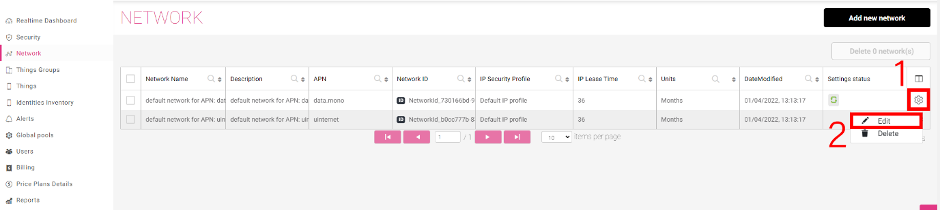
1\. Log in to the Monogoto portal and go to *Network.*

2\. Edit your **“vpneu.mono”** network (EU zone) or **"vpnus.mono"** network (US zone).

<figure><img src="https://3922449203-files.gitbook.io/~/files/v0/b/gitbook-x-prod.appspot.com/o/spaces%2F-M0mPxGpottOEfcucXOR%2Fuploads%2FHTnCOrnGRZ224NpusZzg%2Ffortinet1.png?alt=media&#x26;token=694ae430-8d17-4f1d-996f-f1c446c96e36" alt=""><figcaption></figcaption></figure>

3\. Go to Address Pools and copy IP Address/Mask.

<figure><img src="https://3922449203-files.gitbook.io/~/files/v0/b/gitbook-x-prod.appspot.com/o/spaces%2F-M0mPxGpottOEfcucXOR%2Fuploads%2Fxn8BxwBo8d2tMeA4qnnC%2Ffortinet2.png?alt=media&#x26;token=a85ff7d8-a87c-4442-adee-4da163a3e95b" alt=""><figcaption></figcaption></figure>

4\. Go to Routes and copy Gateway IP.

<figure><img src="https://3922449203-files.gitbook.io/~/files/v0/b/gitbook-x-prod.appspot.com/o/spaces%2F-M0mPxGpottOEfcucXOR%2Fuploads%2FO9ZZhVBo0UIDBzItnyaw%2Ffortinet3.png?alt=media&#x26;token=aa1c8e6d-3daa-4482-bf28-5badf76ceb3e" alt=""><figcaption></figcaption></figure>

5\. Now we need to add a Route to the VPN in Monogoto portal -> Network -> Routes section and Add new

Destination = VPN IP address and mask\
Gateway = select Monogoto gateway\
Save and Close -> Apply Settings

6\. Lets add a VPN on the Monogoto portal. Please go to Network -> VPN section and Add a new VPN.

Destination IP Address = Fortinet Networks Tunnel Outside IP Address\
Destination Network = Fortinet Networks VPC IPv4 CIDR\
Pool Name = Select your pool\
Save and Close -> Apply Settings

<figure><img src="https://3922449203-files.gitbook.io/~/files/v0/b/gitbook-x-prod.appspot.com/o/spaces%2F-M0mPxGpottOEfcucXOR%2Fuploads%2F7cXIRCUcFQ3v5RktH4RM%2Ffortinet6.png?alt=media&#x26;token=4097f7a7-f09e-492c-9c46-0fdd0d6a4740" alt=""><figcaption></figcaption></figure>

<figure><img src="https://3922449203-files.gitbook.io/~/files/v0/b/gitbook-x-prod.appspot.com/o/spaces%2F-M0mPxGpottOEfcucXOR%2Fuploads%2FENyS31R3Crd52y9RLlrZ%2Ffortinet6a.png?alt=media&#x26;token=bd8d1b07-bcc5-46e0-9a2c-cd8ac47ce2e1" alt=""><figcaption></figcaption></figure>

7\. Now that we have created the VPN on the Monogoto end, download a VPN config file that will have all of the needed information for VPN configuration on the Fortinet Networks end.

<figure><img src="https://3922449203-files.gitbook.io/~/files/v0/b/gitbook-x-prod.appspot.com/o/spaces%2F-M0mPxGpottOEfcucXOR%2Fuploads%2FlHCrodDyd5IgURRd5nCw%2Ffortinet7.png?alt=media&#x26;token=b415fb16-10b0-405c-8adf-8e1774f7c39c" alt=""><figcaption></figcaption></figure>

&#x20;To set up the VPN on the Fortinet, First we will set up a VPN using the wizard, and then we will customize it

&#x20;8\. Go to the Fortinet user interface.

9. Got to:\
   9.1 VPN->IPsec Wizard and:\
   9.2  Give the VPN name,\
   9.3  Chose Site-to-Site,\
   9.4  This site is behind NAT,\
   9.5  Remote device Cisco,\
   9.6 Press “Next”

<figure><img src="https://3922449203-files.gitbook.io/~/files/v0/b/gitbook-x-prod.appspot.com/o/spaces%2F-M0mPxGpottOEfcucXOR%2Fuploads%2Fjum5mKwwhKCUnTjLQdZx%2Ffortinet9.png?alt=media&#x26;token=f202f5e6-6c8e-40a1-b7c3-9e3e1a989d1d" alt=""><figcaption></figcaption></figure>

10. On this page:\
    10.1 Set the Remote IP address of Monogoto GateWay,\
    10.2 Chose the outgoing interface of your Fortinet WAN,\
    10.3 Copy the Pre-Shared Key\
    10.4 Press “Next”

<figure><img src="https://3922449203-files.gitbook.io/~/files/v0/b/gitbook-x-prod.appspot.com/o/spaces%2F-M0mPxGpottOEfcucXOR%2Fuploads%2FGITXJWnWFlYlB8kLt5IJ%2Ffortinet10.png?alt=media&#x26;token=67693005-266e-4d53-8791-2543bdf914c3" alt=""><figcaption></figcaption></figure>

&#x20;11\. On this page:

&#x20;       11.1 Set the Local interface\
&#x20;       11.2 Set the Local Subnet\
&#x20;       11.3 Set the remote Subnet (the subnet of the SIM cards)\
&#x20;       11.4 Press "Create"

<figure><img src="https://3922449203-files.gitbook.io/~/files/v0/b/gitbook-x-prod.appspot.com/o/spaces%2F-M0mPxGpottOEfcucXOR%2Fuploads%2FijbRX5Pq69LeEOMCaENe%2Ffortinet11.png?alt=media&#x26;token=14c4581c-97d2-4f6d-9708-84e4ec418330" alt=""><figcaption></figcaption></figure>

12\. On the main menu go to VPN -> IPsec Tunnels, find the new IPsec tunnel we created, and double-click it

<figure><img src="https://3922449203-files.gitbook.io/~/files/v0/b/gitbook-x-prod.appspot.com/o/spaces%2F-M0mPxGpottOEfcucXOR%2Fuploads%2FGcK9GjLsuYWZm1Y42Tnc%2Ffortinet12.png?alt=media&#x26;token=d3375e9c-9d05-4a61-9686-d0a139ceab2d" alt=""><figcaption></figcaption></figure>

&#x20;13\. In order to change the default values press the "Convert To Custom Tunnel" button

<figure><img src="https://3922449203-files.gitbook.io/~/files/v0/b/gitbook-x-prod.appspot.com/o/spaces%2F-M0mPxGpottOEfcucXOR%2Fuploads%2FHxWG2TRSqvkmMQq4Y1Lg%2Ffortinet13.png?alt=media&#x26;token=5188052c-b105-429e-9ae5-f9b6f79b6bd5" alt=""><figcaption></figcaption></figure>

&#x20;14\. Press edit on the Phase 1 Proposal

<figure><img src="https://3922449203-files.gitbook.io/~/files/v0/b/gitbook-x-prod.appspot.com/o/spaces%2F-M0mPxGpottOEfcucXOR%2Fuploads%2FX7F6Lmtpiet6CUDsRGvX%2Ffortinet14.png?alt=media&#x26;token=e712b3f1-85e9-4bb2-af06-154da41736da" alt=""><figcaption></figcaption></figure>

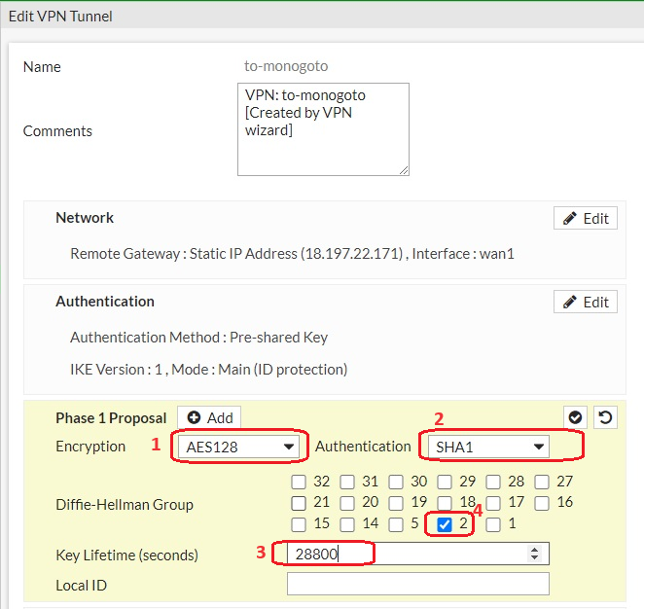
&#x20;15\. Set:

&#x20;      15.1 Encryption to AES128\
&#x20;       15.2 Authentication to SHA1\
&#x20;       15.3 Diffie-Helman Group to “2”\
&#x20;       15.4 Key Lifetime 28800 sec

<figure><img src="https://3922449203-files.gitbook.io/~/files/v0/b/gitbook-x-prod.appspot.com/o/spaces%2F-M0mPxGpottOEfcucXOR%2Fuploads%2FkPEmjTIqRXFwCbZdp3wN%2Ffortinet15.png?alt=media&#x26;token=6ea48ed0-37af-4697-a715-1de882966418" alt=""><figcaption></figcaption></figure>

&#x20;16 Press “edit” of Phase 2 Selecter:

<figure><img src="https://3922449203-files.gitbook.io/~/files/v0/b/gitbook-x-prod.appspot.com/o/spaces%2F-M0mPxGpottOEfcucXOR%2Fuploads%2FZiYx4derUEIbyFFEjs5L%2Ffortinet16.png?alt=media&#x26;token=69831dee-99a9-49b7-8858-116bb6fc0e75" alt=""><figcaption></figcaption></figure>

&#x20;17\. Set:

&#x20;     17.1 Encryption to AES128\
&#x20;      17.2 Authentication to SHA1\
&#x20;      17.3 Diffie-Helman Group to “2”\
&#x20;      17.4 Key Lifetime to 3600 sec

<figure><img src="https://3922449203-files.gitbook.io/~/files/v0/b/gitbook-x-prod.appspot.com/o/spaces%2F-M0mPxGpottOEfcucXOR%2Fuploads%2Fq9hqkNqp2syV7aG1o4ha%2Ffortinet17_A.jpeg?alt=media&#x26;token=1ba80cdb-cca5-467f-b0a2-254b655e64c0" alt=""><figcaption></figcaption></figure>

18\. Press OK at the bottom to save all changes. The IPsec Tunnel should be UP in a few seconds

<figure><img src="https://3922449203-files.gitbook.io/~/files/v0/b/gitbook-x-prod.appspot.com/o/spaces%2F-M0mPxGpottOEfcucXOR%2Fuploads%2FMwz3tRBjr5dbLNRu2K6c%2Ffortinet18.png?alt=media&#x26;token=b275d342-fe49-4d12-8360-ddd099b371a4" alt=""><figcaption></figcaption></figure>

&#x20;19\. Go back to Monogoto portal Network -> VPN. Check if our created VPN status is shown as Connected, if it is not, please press on Refresh button.

<figure><img src="https://3922449203-files.gitbook.io/~/files/v0/b/gitbook-x-prod.appspot.com/o/spaces%2F-M0mPxGpottOEfcucXOR%2Fuploads%2FuzRYfbdjo13OGZIPQR8R%2Ffortinet19.png?alt=media&#x26;token=027f14be-e2ec-418c-83bd-5654bc88bbfe" alt=""><figcaption></figcaption></figure>

20\. When the status of the VPN is Connected, you may check the connection by doing a ping. You can do this by pressing on Ping button.

<figure><img src="https://3922449203-files.gitbook.io/~/files/v0/b/gitbook-x-prod.appspot.com/o/spaces%2F-M0mPxGpottOEfcucXOR%2Fuploads%2FSmxxl0TQHteyfmPyFsHH%2Ffortinet20.png?alt=media&#x26;token=37855098-8de3-4510-a438-ee23015d2de5" alt=""><figcaption></figcaption></figure>

That's all, now the VPN tunnel is connected.
&#x20;