> For the complete documentation index, see [llms.txt](https://docs.monogoto.io/llms.txt). Markdown versions of documentation pages are available by appending `.md` to page URLs; this page is available as [Markdown](https://docs.monogoto.io/private-networks/cpe-and-ue/inhand-5g-odu2000.md).
# InHand 5G ODU2000
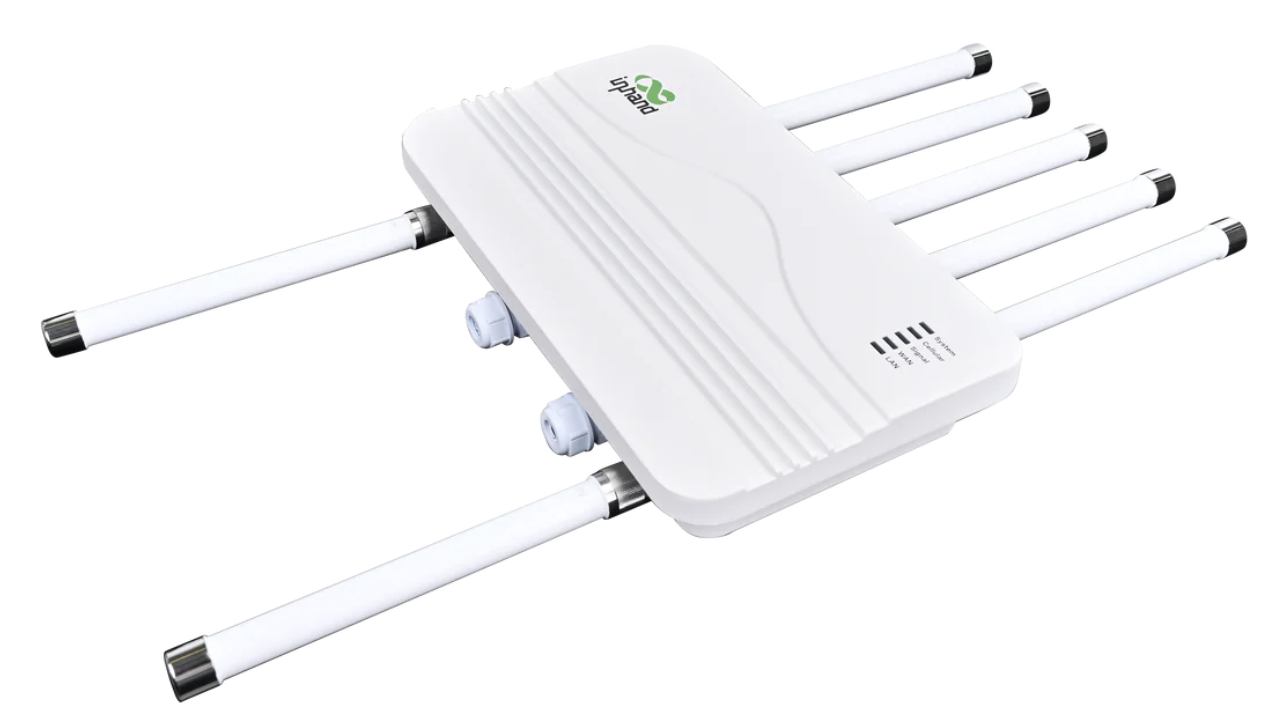
The InHand 5G Outdoor CPE is an LTE device that provides access to (private) LTE networks. It allows users to access the shared spectrum of the CBRS using LTE technology.
The InHand 5G ODU supports high performance on **5G/4G bands**.
InHand 5G ODU2000
### Prerequisites
* Monogoto SIM
* InHand 5G ODU2000
* Access to a private LTE network
## Connect the InHand 5G ODU2000
Start by inserting the Monogoto SIM into the InHand 5G ODU2000.
Connect the InHand 5G ODU2000 to your PC using the LAN1 Eth port.
Open up a browser and visit the URL: **192.168.1.1**
Enter the user name and password and click Login. The default credentials are:\
Username: **adm** \
Password: **123456**
{% hint style="warning" %}
Make sure to change the password after your first login.
{% endhint %}
## APN Configuration
Open up the **Internet** page -> **Edit Cellular**.
Configure the APN to: **`data.mono`**
## Review the connection status
Open up the **Dashboard** page -> **Interface Status** -> **Cellular** validate the connection with Monogoto's private network. If the connection was successfully established, the Network Status reports: **Connected**
## Useful Links
* [5G\_ODU2002\_specification\_V1.1](https://files.gitbook.com/v0/b/gitbook-x-prod.appspot.com/o/spaces%2F-M0mPxGpottOEfcucXOR%2Fuploads%2Fo6MhLueD0eCds3353bI7%2F5G_ODU2002_specification_V1.1.pdf?alt=media\&token=be3b099c-b5fb-4470-a807-e8605774ff0f)
* [5G\_ODU2000\_User\_Manual\_V1.1](https://files.gitbook.com/v0/b/gitbook-x-prod.appspot.com/o/spaces%2F-M0mPxGpottOEfcucXOR%2Fuploads%2FLVNFOhm0a4mabX0TZ0qT%2F5G_ODU2000_User_Manual_V1.1.pdf?alt=media\&token=3e01fc2f-f3e7-4c76-8cef-873c4762f0b7)
* [5G\_ODU2000\_Quick\_Installation\_Guide\_V1.3](https://files.gitbook.com/v0/b/gitbook-x-prod.appspot.com/o/spaces%2F-M0mPxGpottOEfcucXOR%2Fuploads%2F4v8K743sVrJBn4whrbDk%2F5G_ODU2000_Quick_Installation_Guide_V1.3.pdf?alt=media\&token=4a81e1fc-7963-44bc-ae0f-592de2648b40)